Last updated: March 2026
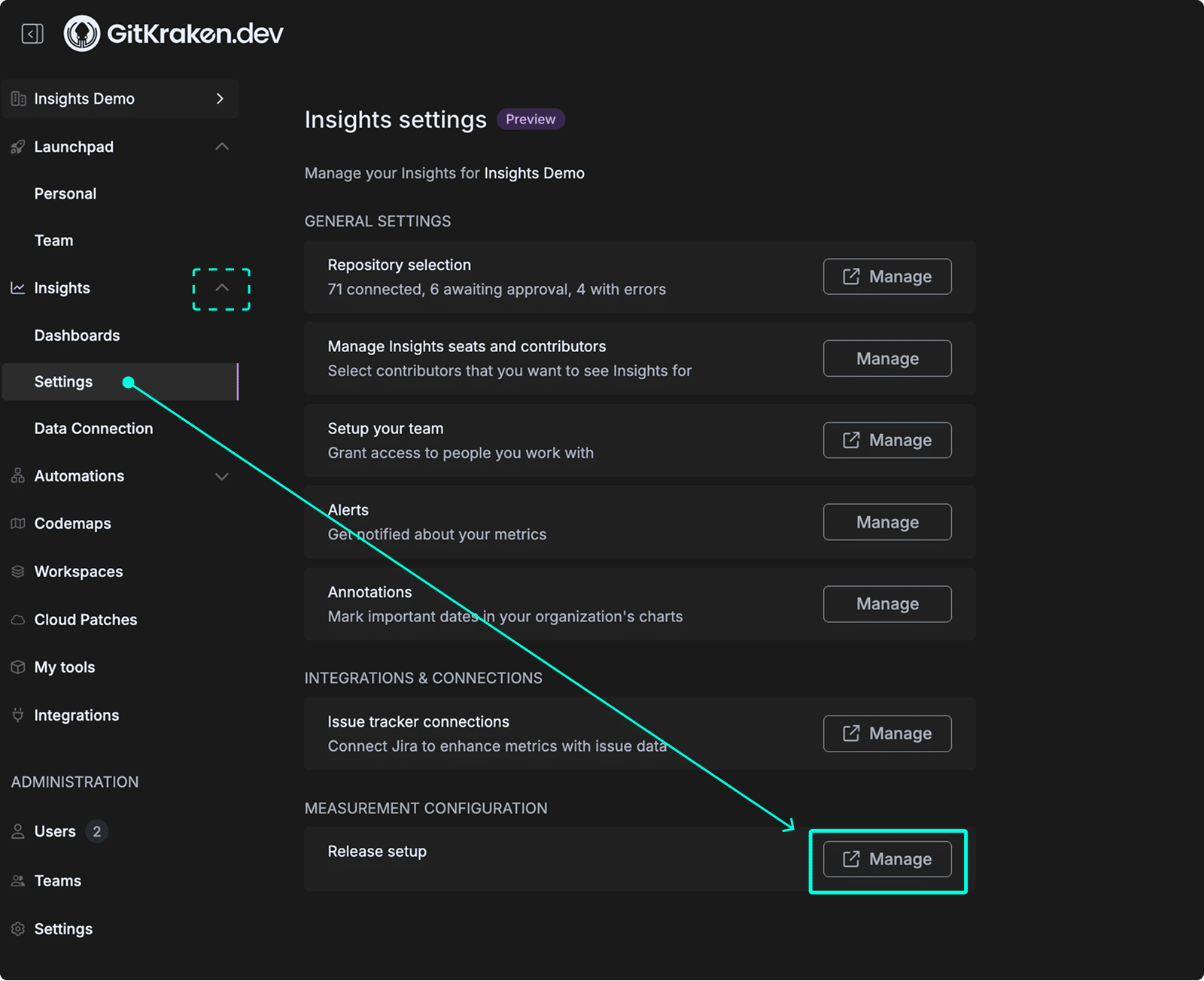
GitKraken Insights Metric Settings control how the platform detects releases, maps commits to issues, identifies critical defects, and categorizes code by domain. Access these settings from Insights > Settings > Measurement Configuration in gitkraken.dev. Changes to these settings affect metric calculations for all users in the organization.
Plan: GitKraken Insights
Platform: Browser only via gitkraken.dev
Role: Lead, Admin, or Owner
Prerequisite: Connected repositories and issue tracker (see Getting Started)
| Setting | Purpose | Affects |
|---|---|---|
| Release Tracking | Define rules to detect new releases | DORA metrics |
| Detect Issues | Map commits to issues via patterns | All issue-linked metrics |
| Issue Tracker Projects | Configure story points and defect fields | DORA, Code Quality metrics |
| Critical Defect Terms | Flag branches/PRs/issues as critical defects | Defect Rate, MTTR |
| Measurement Configuration | Define Code Domains with regex patterns | Code Change by Operation |
Configure release tracking
Configure how GitKraken Insights detects new releases for your repositories.
View active release rules
The Rules to detect releases list shows all active release rules for your organization. Each rule displays:
- The rule type
- A summary of the matching condition
- The number of releases and repositories matched
- Who created the rule
The following rule types appear in your list:
- Contains Branch Prefix: Matches commits pushed to a branch that starts with a specified string.
- Merged Pull Request To Branch Prefix: Matches commits that merge a pull request to a branch with a specified prefix.
- Any Git Tag: Matches commits with any git tag pushed.
- Matches Branch: Matches commits made to a specific branch.
- Api Call: Matches releases reported via API call.
To remove a rule, click the ✕ icon on the right side of the rule.

Create a new release rule
To add a new rule, click Create a new release rule. GitKraken Insights attempts to apply the rule to all connected repositories.
In the rule creation form, select how GitKraken Insights should identify releases. As you configure each option, the Matching commits panel on the right previews commits that match your current input.


When a pull request is merged to a branch that starts with
Identifies a release when a pull request is merged to a branch matching a specified prefix.
- Input: Enter a branch name prefix. Leave blank to match the default
mainormasterbranch.
When a git tag contains a specific substring
Identifies a release when a git tag contains a matching string or pattern.
- Input: Enter a string or regular expression pattern that appears in tags.
When a GitHub Action successfully completes
Identifies a release when a specified GitHub Action workflow completes successfully.
When a commit message contains a specific string
Identifies a release when a commit message contains a specified partial string.
- Input: Enter a partial commit message that indicates a release. Must be at least 3 characters.
When a commit message matches a specific string
Identifies a release when a commit message exactly matches a specified string.
- Input: Enter the exact commit message that indicates a release.
When a commit is pushed to a particular branch
Identifies a release when any commit is pushed to a selected branch.
- Input: Select a branch from the dropdown.
- Note: GitKraken Insights counts any commit pushed to this branch after today as a release. It does not apply historic commits retroactively.
When a commit is pushed to a branch that starts with this string
Identifies a release when a commit is pushed to a branch whose name starts with a specified prefix.
- Input: Enter a case-sensitive prefix for a deploy branch.
- Option: Check A number must occur in the branch name to be deemed a release to further restrict matches.
- Note: GitKraken Insights counts any commit pushed to a matching branch after today as a release. It does not detect historic releases.
When any git tag is pushed
Identifies a release whenever any git tag is pushed, regardless of tag name or format. No additional input is required.
Configure issue detection
GitKraken Insights uses issue mappings to connect commits to issues in your issue tracking software (e.g., Jira, GitHub Issues). Each mapping defines a pattern that GitKraken Insights matches against commit messages, branch names, and pull request titles to identify the issues they address.
If GitKraken Insights does not display a pattern you expect, click Find new issue tracker patterns at the top of the page.

View and manage issue mappings
The Detect Issue References page lists all active issue mappings for your organization. Each mapping displays:
- Available to: the repositories the mapping applies to
- Issue Reference: the string GitKraken Insights matches against commit messages, branch names, and PR titles
- Project Key: the corresponding project key in your issue tracker
- Usage: the number of repo issues and commits matched by this mapping
To delete a mapping, click Delete issue mapping within the mapping card.

Review suggested issue patterns
When GitKraken Insights detects potential issue tracking patterns in your repositories, it displays suggested mappings at the top of the Detect Issue References page. Each suggestion includes a pre-filled Create Issue Mapping form showing:
- Available to: the repository where the pattern was detected
- Issue Reference: the detected reference string
- Project Key: the corresponding project key (if detected)
- Advanced options: additional configuration options
The Matching Commits panel on the right previews commits that match the current Issue Reference input in real time.
To accept a suggestion:
- Review the Issue Reference and Project Key fields.
- Click Create a new issue mapping.
To decline a suggestion, click Dismiss suggestion.

Configure issue tracker projects
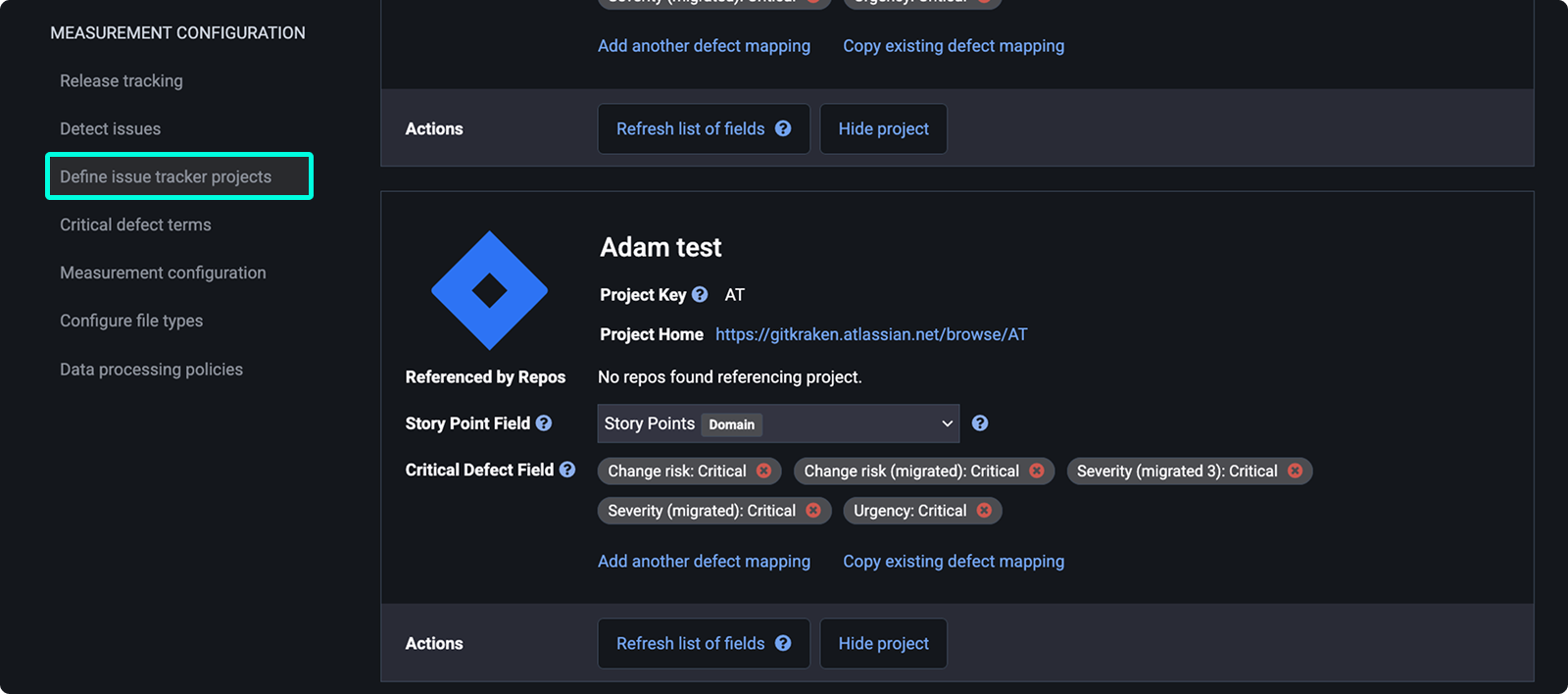
The Define issue tracker projects page lists all issue tracker projects connected to your organization. GitKraken Insights uses the configuration on this page to read story point values and identify critical defects for DORA and code quality metric calculations.
View project settings
Each connected project appears as a card with the following fields:
- Project Key: the unique key that identifies the project in your issue tracker
- Project Home: a link to the project in your issue tracker
- Referenced by Repos: the repositories that reference this project
- Story Point Field: the field GitKraken Insights reads for story point values
- Critical Defect Field: the field values that identify a critical defect. Click Add another defect mapping to add additional values, or Copy existing defect mapping to duplicate an existing one.
Each project card includes two actions:
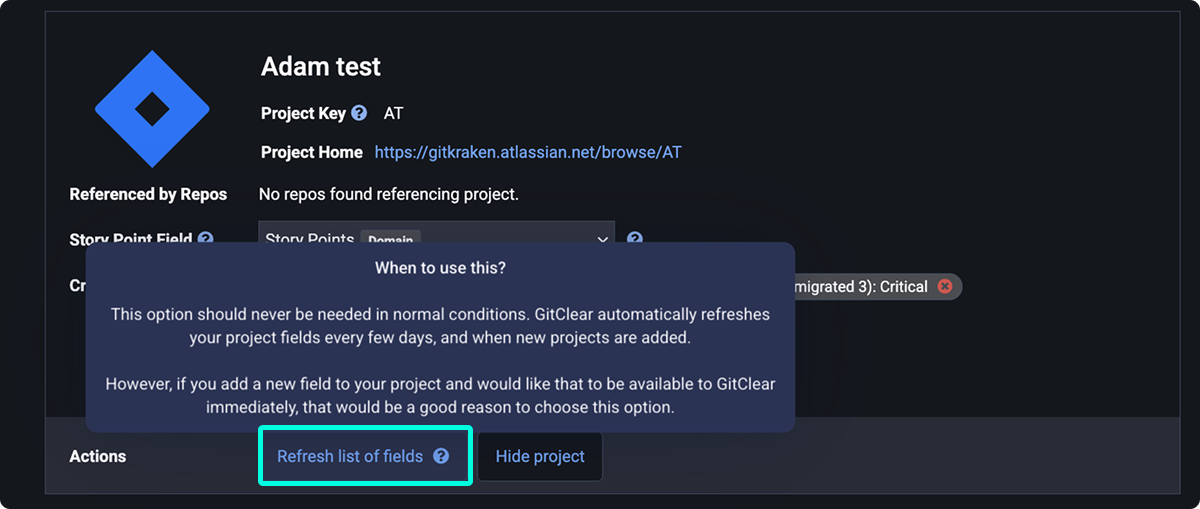
- Refresh list of fields: manually fetches the latest fields from your issue tracker. Use this only when you have added a new field to your project and need it available immediately. GitKraken Insights automatically refreshes project fields every few days and when new projects are added.
- Hide project: removes the project from this list.
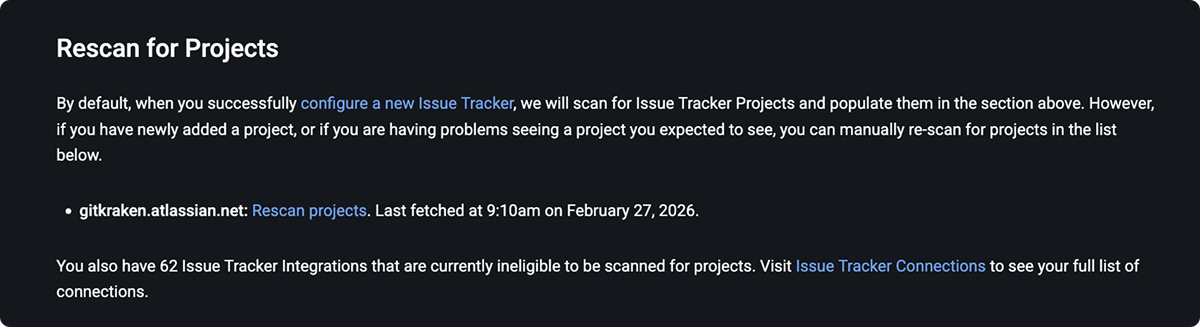
Rescan for missing projects
When you configure a new issue tracker connection, GitKraken Insights automatically scans for projects and populates the list above. If a newly added project does not appear, or if you are having problems seeing an expected project, click Rescan projects next to the relevant connection to manually fetch the latest project list.
To view all issue tracker connections, including those ineligible for project scanning, click Issue Tracker Connections.
Configure critical defect terms
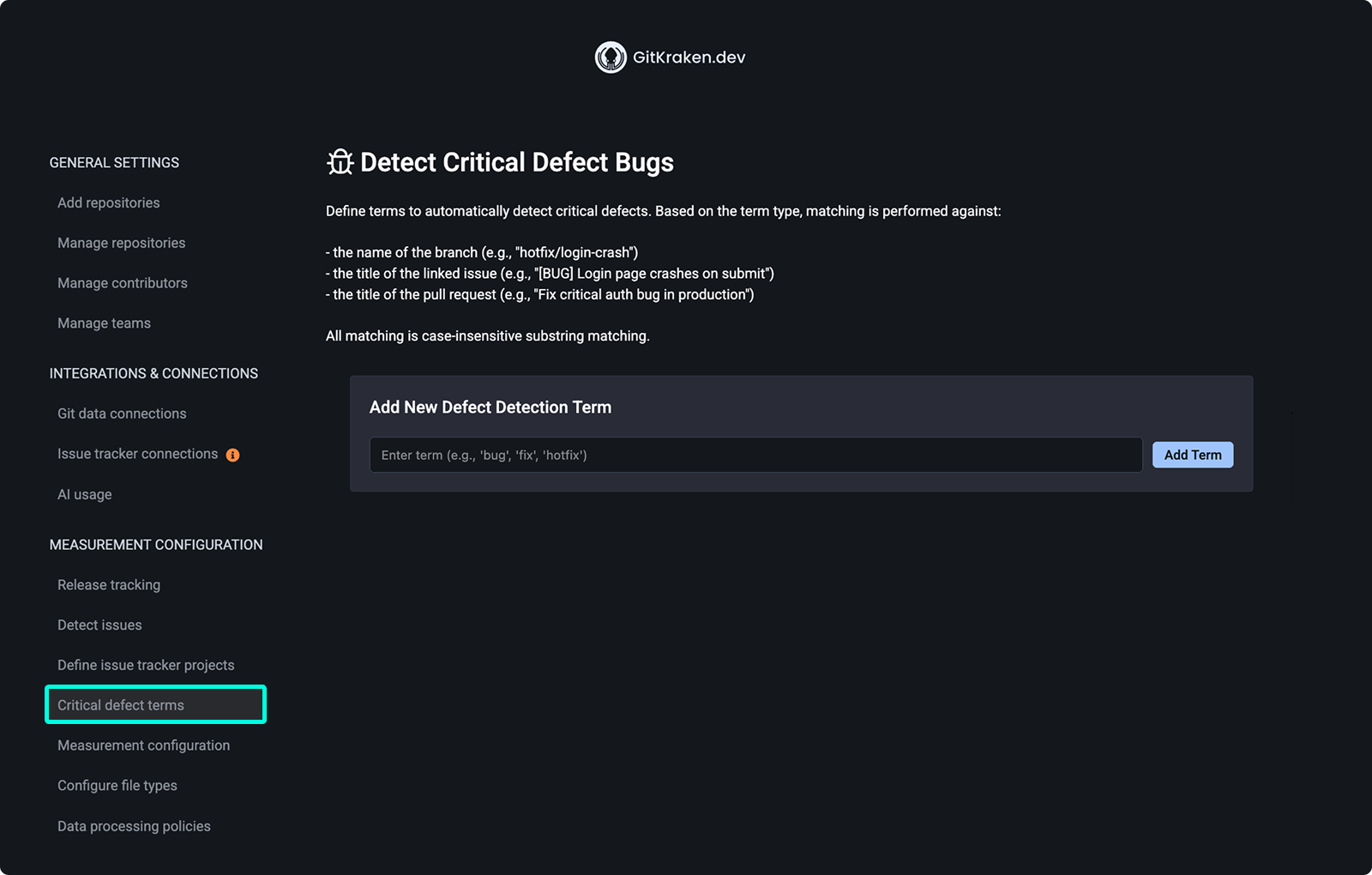
The Critical defect terms page lets you define terms that GitKraken Insights uses to automatically detect critical defect bugs. When a term matches, GitKraken Insights flags the associated work as a critical defect in DORA metric calculations.
GitKraken Insights performs case-insensitive substring matching against:
- The name of the branch (e.g.,
hotfix/login-crash) - The title of the linked issue (e.g.,
[BUG] Login page crashes on submit) - The title of the pull request (e.g.,
Fix critical auth bug in production)
View existing defect terms
Active defect detection terms appear in a list with the following columns:
- Term: the string GitKraken Insights matches against branches, issues, and pull requests
- Repos: the repositories where the term is applied
- Actions: click Delete to remove the term
Add a defect detection term
To add a new term, enter a string in the Add New Defect Detection Term field (e.g., bug, fix, hotfix) and click Add Term.
Configure Code Domains
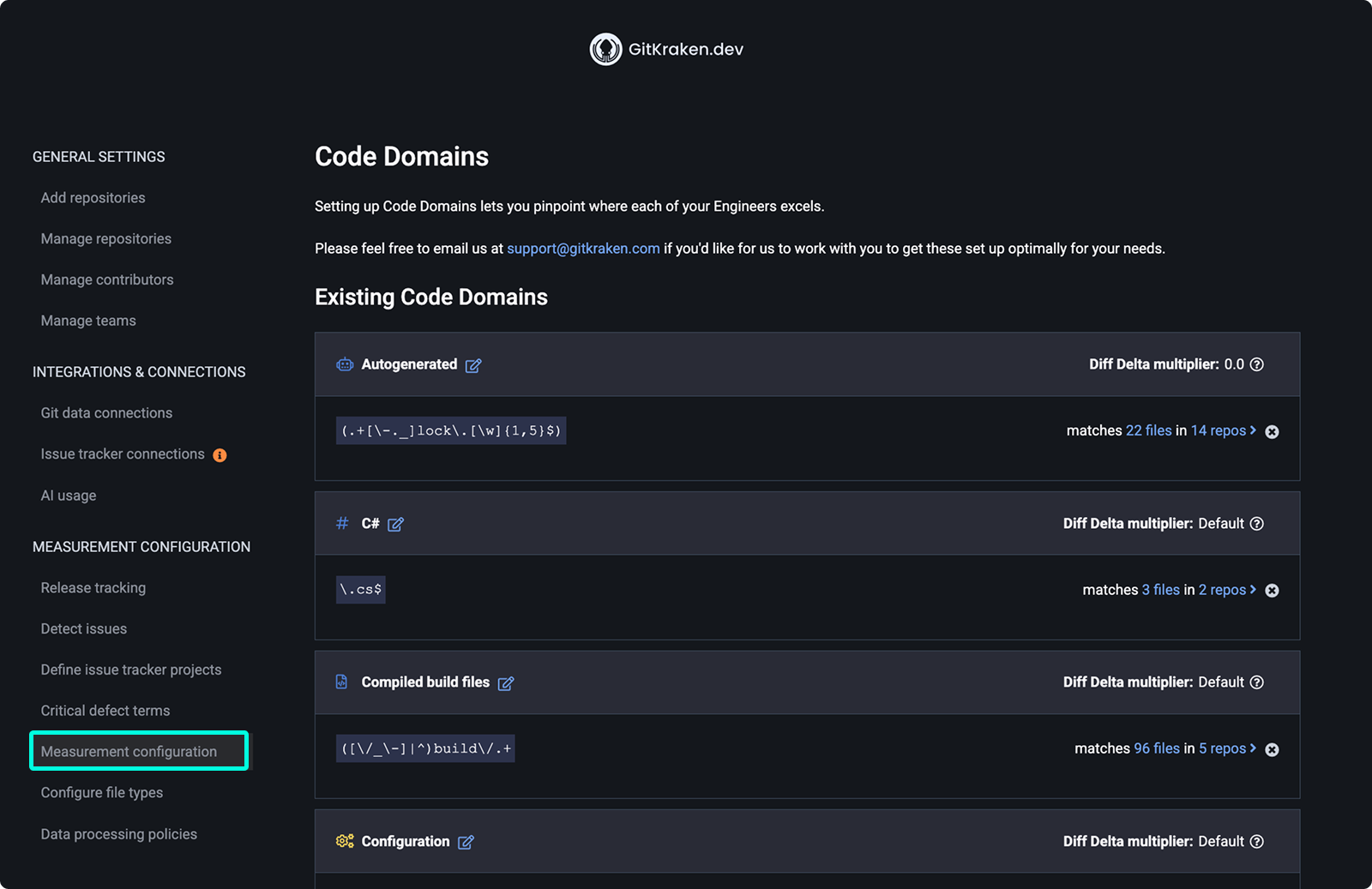
The Measurement configuration page lets you define Code Domains for your organization. Code Domains use regular expressions to group files by area of the codebase, letting you identify where each engineer contributes.
If you need help configuring Code Domains optimally for your organization, contact GitKraken support at [email protected].
View existing Code Domains
The Existing Code Domains list displays all configured domains for your organization. Each domain shows:
- Domain name: the label for the domain, with an edit icon to modify it
- Regex pattern: the regular expression GitKraken Insights uses to match files to this domain
- Diff Delta multiplier: a scalar applied when calculating the Diff Delta of code written in files that match this domain
- File matches: the number of files and repositories matched by the regex
Add a Code Domain
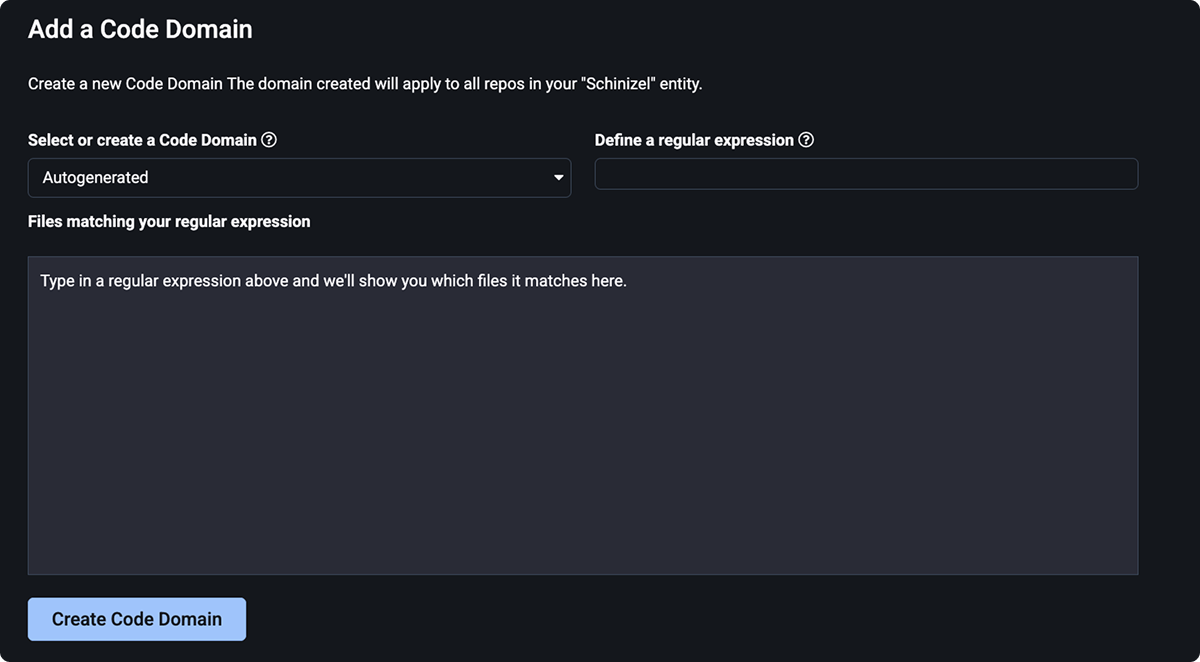
The Add a Code Domain form contains the following fields:
- Select or create a Code Domain: choose a preset domain type from the dropdown, or type a new name to create a custom domain. Available preset options include: Autogenerated, C#, CSS, Compiled build files, Configuration, Controller, Data source, Database, Database migration, Dependency config, Perl, Python, React Component, SQL, SQL (View), Test, Test (JS), Test (Python), Test fixture, and Third-party.
- Define a regular expression: enter a regex pattern describing the file paths to include in this domain (e.g.,
models/.*.rbmatches every.rbfile in amodelsdirectory)
As you type a regular expression, the Files matching your regular expression panel previews which files match the pattern in real time.
To create the domain, click Create Code Domain. The domain applies to all repositories in your organization.