

Last updated: March 2026
How to Manage Work Items with GitKraken CLI
GitKraken CLI Work Items let developers and agents start, review, commit, create pull requests for, and clean up a task across every repository in the active workspace. Use this workflow when one issue affects multiple repositories; AI-generated commits and pull requests require authentication, a configured organization, and a paid plan.
Requirements
- Workspace: an active GitKraken workspace with the target repositories
- Plan support: Work Items can be used on all plans, but AI-assisted actions require a paid plan
- Authentication:
gk auth loginis required for GitKraken cloud features - Organization:
gk organization set <ORG_NAME>is required for AI-generated commits and pull requests - Scope:
gk workcommands run across every repository in the active workspace
| Command | Use when | Requires AI or auth | Output |
|---|---|---|---|
gk work start <name> |
Start a coordinated task across multiple repositories | No | Initializes the work item across the workspace |
gk work info |
Review pending changes before committing or opening pull requests | No | Shows work item state across repositories |
gk work commit --ai |
Create commits across repositories with AI-generated messages | Yes, plus a paid plan | Commits staged changes in all affected repositories |
gk work pr create --ai |
Open pull requests for the current work item | Yes, plus a paid plan | Creates pull requests for all changes in scope |
gk work end |
Finish the work item and clean up temporary resources | No | Closes the work item and offers cleanup options |
How to Start a GitKraken CLI Work Item Quickly
Use this Quick Start when you want the shortest path through a multi-repository task. The detailed command-by-command walkthrough appears later on this page.
- Start a new work item:
gk work start <name> - Review pending changes across all repositories in the workspace:
gk work info - Stage your changes, then commit with an AI-generated message:
gk work commit --ai - Create pull requests for all repositories in the work item:
gk work pr create --ai - Finalize and clean up the work item:
gk work end
All gk work commands execute in parallel across every repository in the active workspace. An authenticated GitKraken account with a configured organization and paid plan is required to use AI-generated commit messages and pull requests.
When to Use GitKraken CLI Work Items Instead of Standard Git Commands
Use gk work when one issue, bug fix, or feature spans multiple repositories in the same workspace. Use standard Git commands instead when the work stays in a single repository and you do not need synchronized commits, pull requests, or cleanup.
How to Run a GitKraken CLI Work Item from Start to Finish
Start with gk work start when you want GitKraken CLI to initialize a shared task across every repository in the active workspace:
gk work start <name>The <name> assigns a title to your work item. This initializes all repositories in your workspace and checks for any pending commits, pull requests, or open work items.
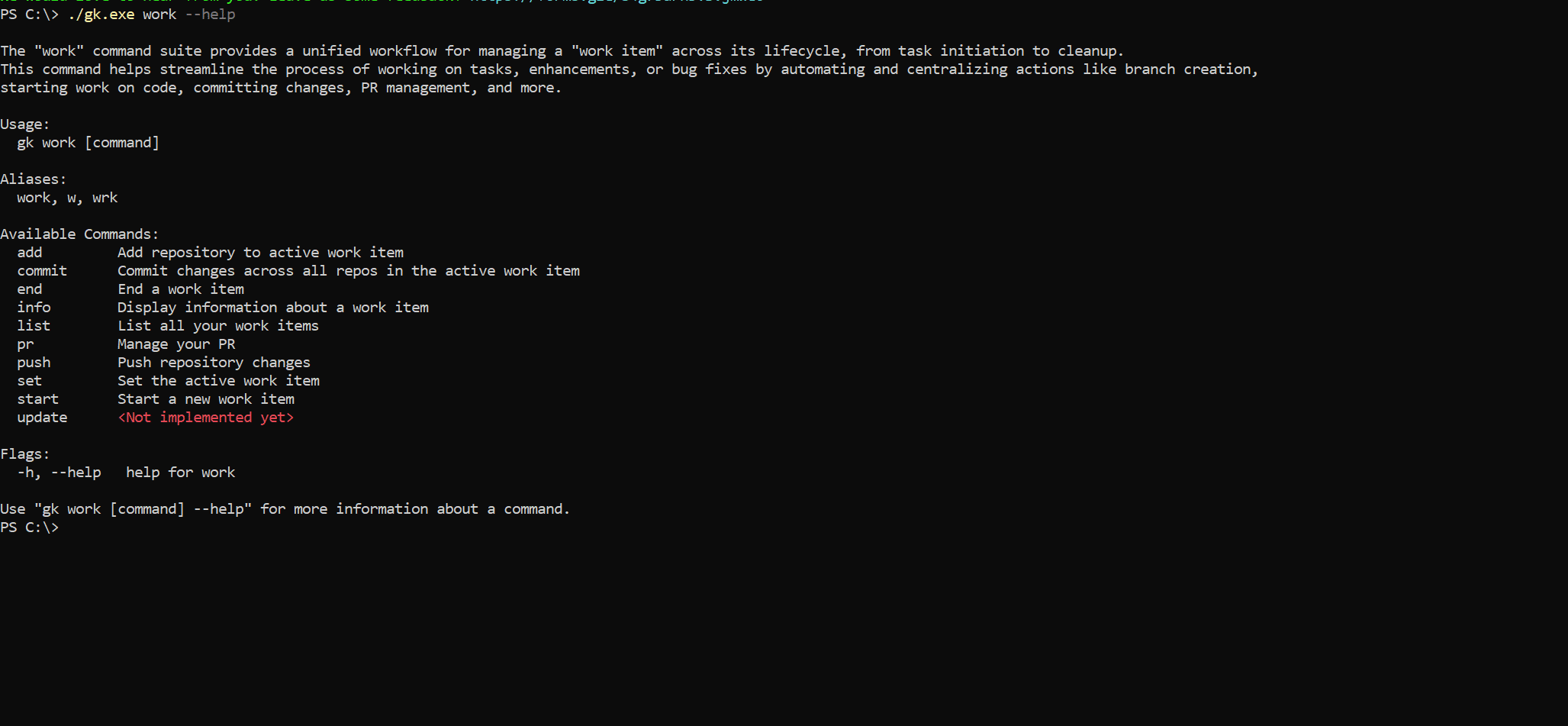
Review the workspace state with gk work info before committing or opening pull requests across the full work item:
gk work info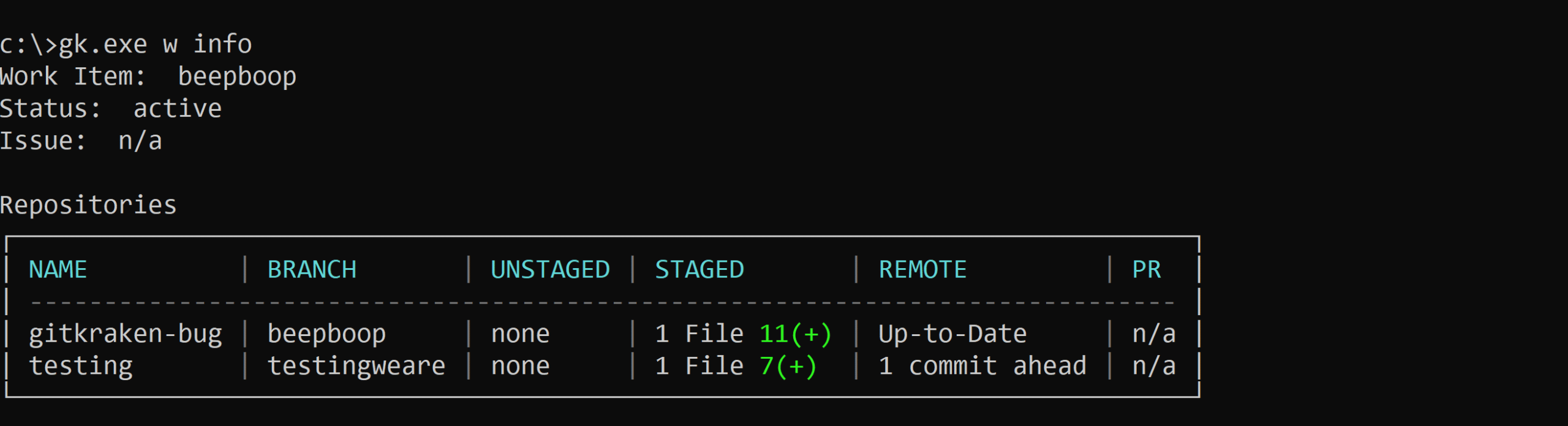
gk work info to review changes across all repositories.How to Commit Work Item Changes with AI
Use gk work commit --ai when you want GitKraken CLI to generate commit messages and commit staged changes across every repository in the work item:
gk work commit --aiThis command:
- Analyzes staged changes using AI.
- Generates context-aware commit messages.
- Commits changes across all repositories in the work item.

How to Create Pull Requests for a Work Item with AI
Use gk work pr create --ai when you want GitKraken CLI to open pull requests for every repository included in the active work item:
gk work pr create --aiThis creates pull requests for all changes in the current work item with AI-generated messages. Use this command after you have reviewed the workspace state and committed the repositories that belong in the shared task.
How to End and Clean Up a Work Item
Use gk work end when the shared task is complete and you want GitKraken CLI to close the work item and clean up temporary resources:
gk work endThis command cleans up your workspace and provides options to delete or retain local changes while removing temporary resources.
