

Last updated: April 2026
Your GitKraken account provides access to all GitKraken products and services, including GitKraken Desktop, GitLens, CLI, and GitKraken.dev. Use it to manage your identity, license, and preferences from a single dashboard. Creating a GitKraken account is free. Your license tier (Community, Pro, Advanced, Business, or Enterprise) is determined by your organization’s subscription, not by the account itself.
Note that your GitKraken account is not compatible with Git Integration for Jira.
We recommend using a single GitKraken account for yourself. Avoid creating duplicate accounts or sharing your account with others.
Quick Start
- Go to gitkraken.dev and select a login method: GitHub, GitLab, Bitbucket, Azure DevOps, Google, Microsoft, email, or SSO.
- If using email, verify your address via the confirmation link sent to your inbox.
- After signing in, click your avatar in the top right to access account settings: display name, avatar, licenses, email preferences, billing, and AI usage.
- To update your avatar, navigate to account settings and follow the link to Gravatar. GitKraken uses Gravatar for profile images.
- To review your weekly AI credit consumption, go to gitkraken.dev/account#ai-usage.
- To delete your account, go to Settings > Account Settings > Delete Account. This action is GDPR-compliant and cannot be undone.
A single GitKraken account applies across all GitKraken products. Licenses are email-based and tied to one account per person. Avoid creating duplicate accounts.
Sign in or create an account
Go to gitkraken.dev and choose one of the supported login options:
| Login Method | Type | Notes |
|---|---|---|
| GitHub | Git provider | Also used for GitHub Student Developer Pack verification |
| GitLab | Git provider | |
| Bitbucket | Git provider | |
| Azure DevOps | Git provider | |
| Identity provider | ||
| Microsoft | Identity provider | |
| Email + password | Direct | Requires email verification via confirmation link |
| SSO | Organization IdP | Available on Advanced or higher plans |
Each login method is tied to your primary email address. If you sign up with email, you’ll need to verify it via a confirmation link.
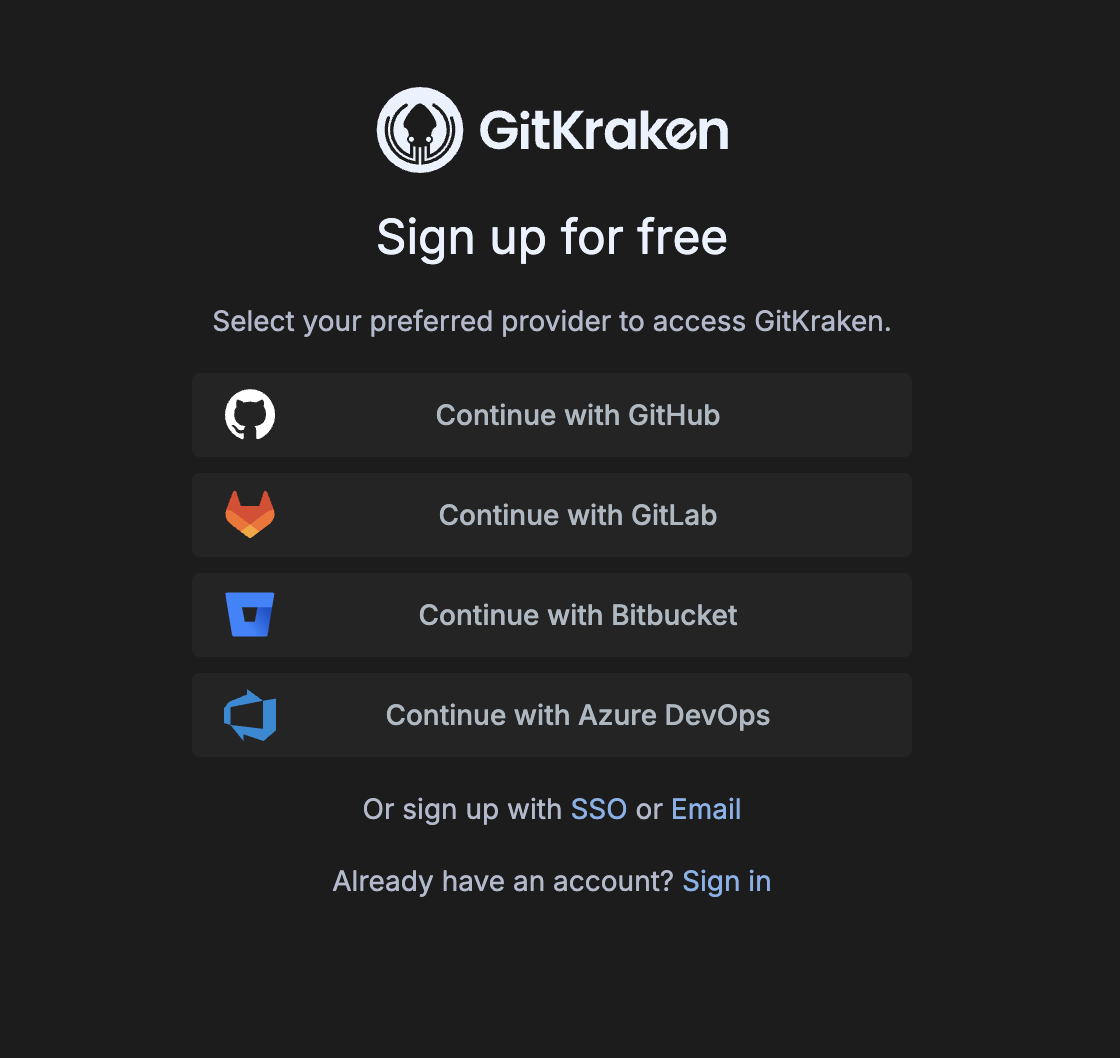
Personalize your account
Click your avatar in the top right to:
- Change your display name or avatar
- Manage your GitKraken licenses
- Configure email settings
- View your plan and billing information
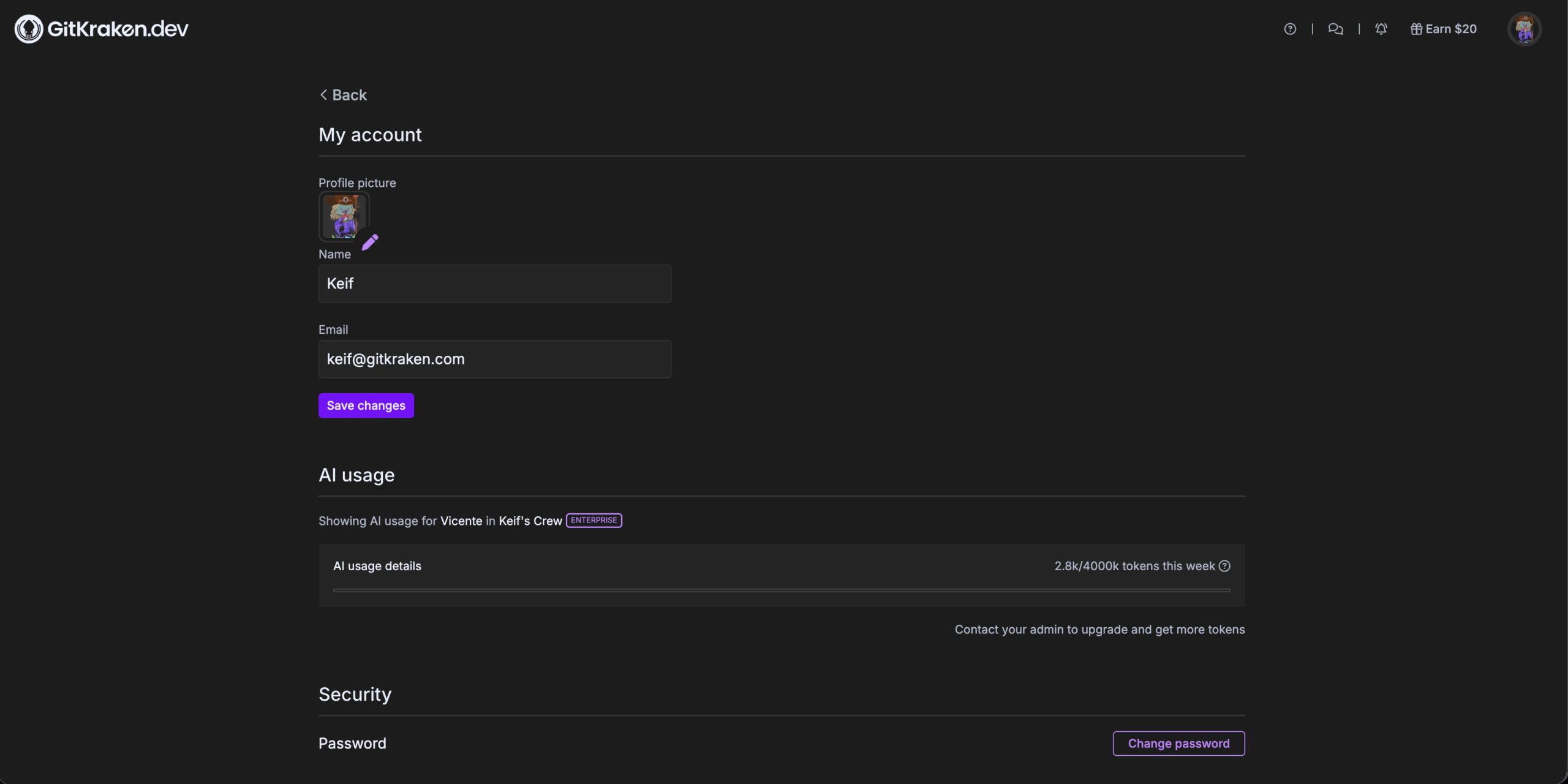
GitKraken uses Gravatar to manage profile avatars. To change your avatar, select your profile image and follow the link to Gravatar. Updates may take several hours to appear.
View your AI usage
Track how many AI credits you’ve consumed this week and which GitKraken AI features consumed them. Navigate to gitkraken.dev/account#ai-usage, or click your avatar and select AI usage.
The page shows usage for your account in the organization currently selected in GitKraken.dev. To view usage against a different organization, switch organizations using the top-left dropdown.
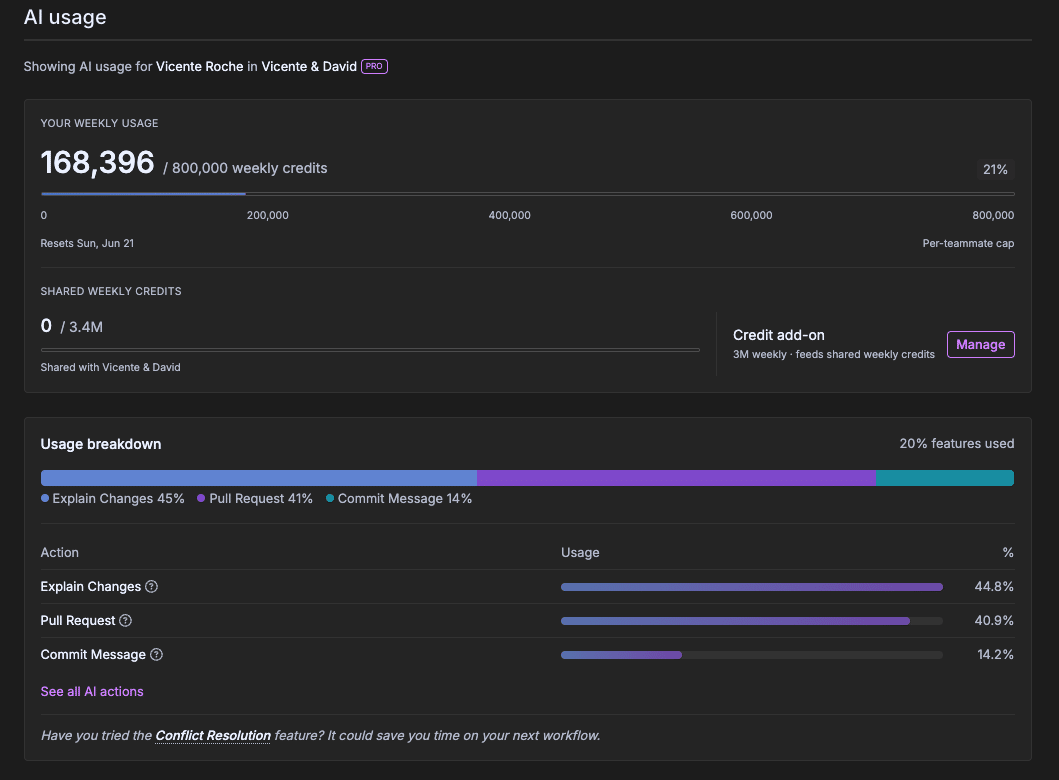
The page is divided into three sections:
- AI usage details — Your personal weekly credit consumption (for example,
35.4k/4000k credits this week). If you are approaching your limit, click Upgrade your plan to increase your allotment. If your organization needs more credits beyond its plan, additional credits can be purchased as credit add-ons. See What are credit add-ons? in the AI Credits FAQ for details. - Organization usage — Aggregate AI usage for the selected organization and the date the organization’s allotment resets (shown in UTC).
- Usage breakdown — The GitKraken AI actions that have consumed credits this period (for example, Commit Message or Explain Changes), the share of total usage each represents, and — via the ? tooltip — the exact token count consumed by that action. Click See all AI actions to view the full list.
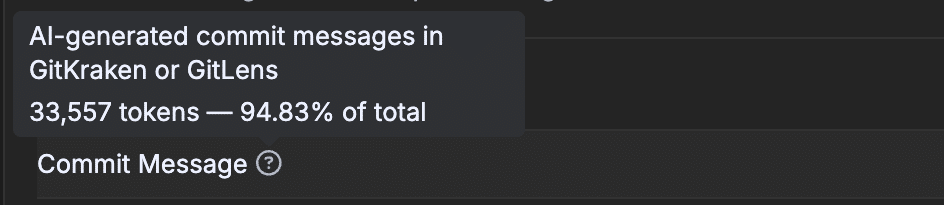
AI credits are consumed based on the amount of content sent to the AI provider. Larger diffs, longer prompts, and repeated requests on the same input all increase token consumption. See the FAQ for more detail.
Account settings vs. organization settings
Your GitKraken account and your GitKraken organization are managed separately:
- Account settings (name, avatar, email, login method) affect only your personal identity. Changes here do not affect other organization members.
- Organization settings (licenses, roles, SSO, teams, billing) affect all members of the organization. Only Owners, Admins, or Billing Contacts can change organization settings.
To manage your account, click your avatar in the top right. To manage your organization, select the organization from the top-left dropdown and navigate to Settings.
Delete your account
To permanently delete your account:
- Go to Settings > Account Settings
- Click Delete Account
-
Confirm the deletion in the prompt
Note: If you are part of a GitKraken organization and not an admin, you’ll need an admin to remove your account before proceeding.
GitKraken is GDPR-compliant and this action cannot be undone. This action will revoke access to all GitKraken products and services linked to your account.
