

Last updated: April 2026
This guide is for third-party resellers who purchase and manage GitKraken subscriptions on behalf of customer organizations. Resellers have a dedicated Reseller role that provides access to subscription management for the organizations they manage, including billing, payment methods, and plan changes. Available plans for reseller purchase include Pro, Advanced, Business, and Enterprise.
| Step | New Organization | Existing Organization |
|---|---|---|
| 1 | Create account with reseller email | Log in to existing account |
| 2 | Purchase subscription at gitkraken.dev/purchase | Select customer org from dropdown |
| 3 | Add customer as Billing Contact | Go to Subscriptions > Edit Plan |
| 4 | Transfer ownership to customer | Increase seat count |
| 5 | Customer accepts activation link (7-day expiry) | Additional licenses are active immediately |
Quick Start
To get started as a reseller:
- Visit gitkraken.dev/reseller and register or sign in using your reseller email address. Your account will automatically be associated with the customer organizations linked to your email.
- Use the organization selector in the top-left to navigate to a customer organization.
- Go to Subscription to manage billing, payment methods, and plan changes for that organization.
To purchase a new organization subscription, go to gitkraken.dev/purchase, set the seat count, enter the customer’s organization name, and provide your payment details. After purchase, add the customer as a Billing Contact under Users, then transfer ownership under Settings > Organization. The customer receives an activation link valid for 7 days.
How to register as a reseller
To access the reseller experience, visit gitkraken.dev/reseller. This takes you to a dedicated registration and sign-in flow for resellers.
- Register or sign in using your reseller email address.
- Your account will automatically be associated with the customer organizations linked to your email.
- Once signed in, use the organization selector in the top-left to navigate between customer organizations.
As a reseller, your view within each customer organization is simplified — you will only have access to the Subscription management page, where you can manage billing, payment methods, and plan changes.
If your email is not yet associated with any customer organizations, contact our Customer Success team to get set up.
How to purchase a new organization subscription
Follow this reseller guide for purchasing and user license management information.
1. Create an Account or Sign In
Go to gitkraken.dev and create a GitKraken account using your reseller email address.
- Use the email method (not social sign-in options).
- Do not input end-user details. Register using your own email.
- Verify your email address via the link sent to your inbox.
If you already use GitKraken for multiple customers, simply log in to your existing account and continue to Step 2.

2. Purchase
Go to Purchase Subscription, choose the subscription type, set the number of seats, and enter payment details.
To create a new organization for a different customer, visit gitkraken.dev/purchase.
- Seats: Number of licenses for the customer
- Organization Name: Name of the customer’s organization
- Payment Info: Enter reseller billing information
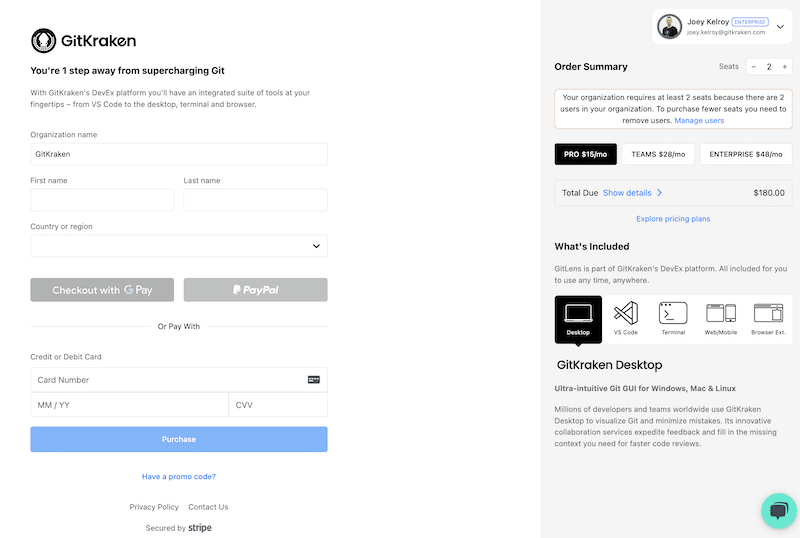
We accept card, PayPal, ACH, and Google Pay. Invoicing is available for large GitKraken Enterprise orders. Contact our Customer Success team for invoicing support.
After purchase, a receipt will be emailed to you.
3. Transfer Ownership to the Customer
Follow these steps to transfer the organization:
- Go to Users
- Add the customer as a Billing Contact
- Go to Settings > Organization and transfer ownership
If the customer hasn’t verified their email, they’ll receive an activation link. They have 7 days to accept. If they miss the window, you can reinitiate the transfer.
How to add licenses to an existing organization
Follow these steps to purchase additional licenses:
- Log into gitkraken.dev
- Select the customer’s organization from the top-left dropdown
- Go to the “Subscriptions” tab
- Update billing info if needed
- Click “Edit Plan”
- Increase the total user count
- Review the Billing Summary for cost. You can also click “View Prorated Charges Quote” to generate a formal quote document for the additional licenses.
- Click “Save.” The additional licenses will be active immediately.
License costs are prorated against the original billing cycle. If a customer org is not listed under your account, contact our Customer Success team.
Reseller subscription management
When you navigate to a customer organization as a reseller, the Subscription page provides access to manage billing information, payment methods, and subscription changes. Billing and payment method updates apply to your reseller account and are shared across the organizations you manage. Subscription changes (such as plan tier or seat count) apply to the specific customer organization and are billed to your reseller account.
Update billing information
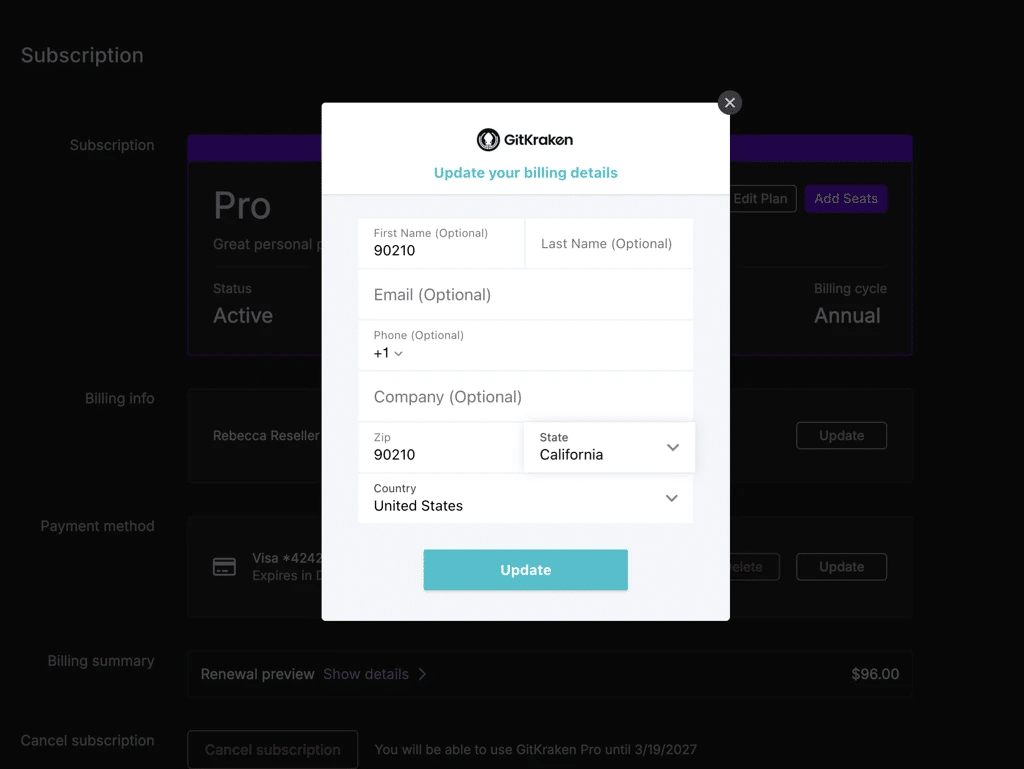
From the Subscription page, click Update next to your billing information to update your billing address. Changes to billing information apply to your reseller account.
Update payment method
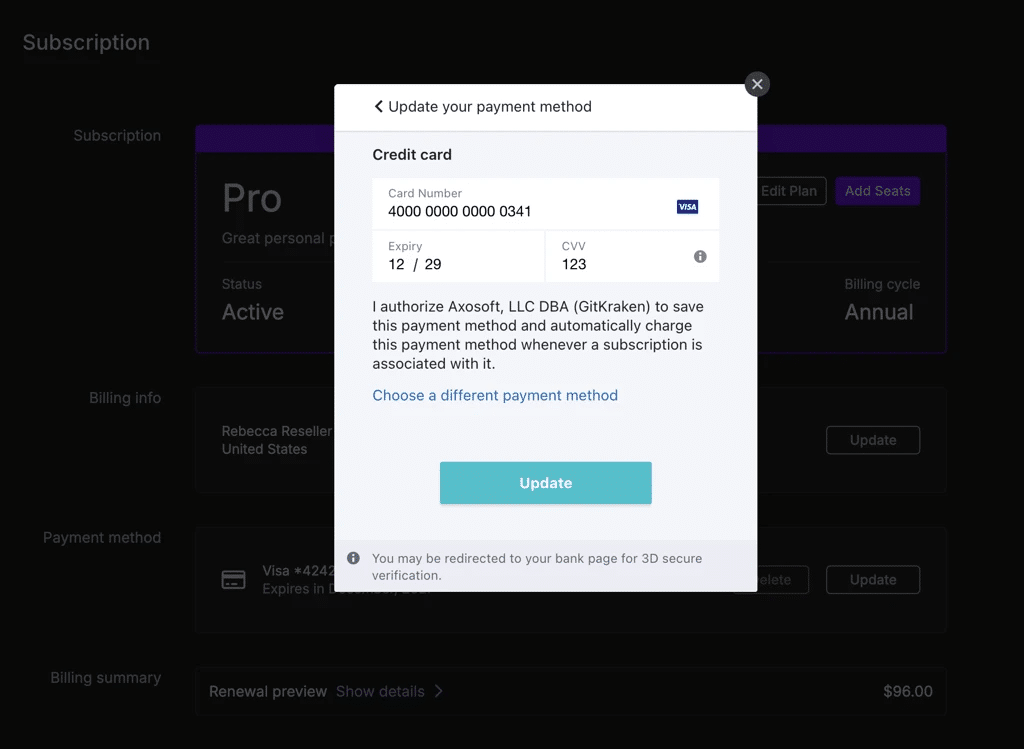
Click Update next to your payment method to change the card or payment method on file for your reseller account.
Delete payment method
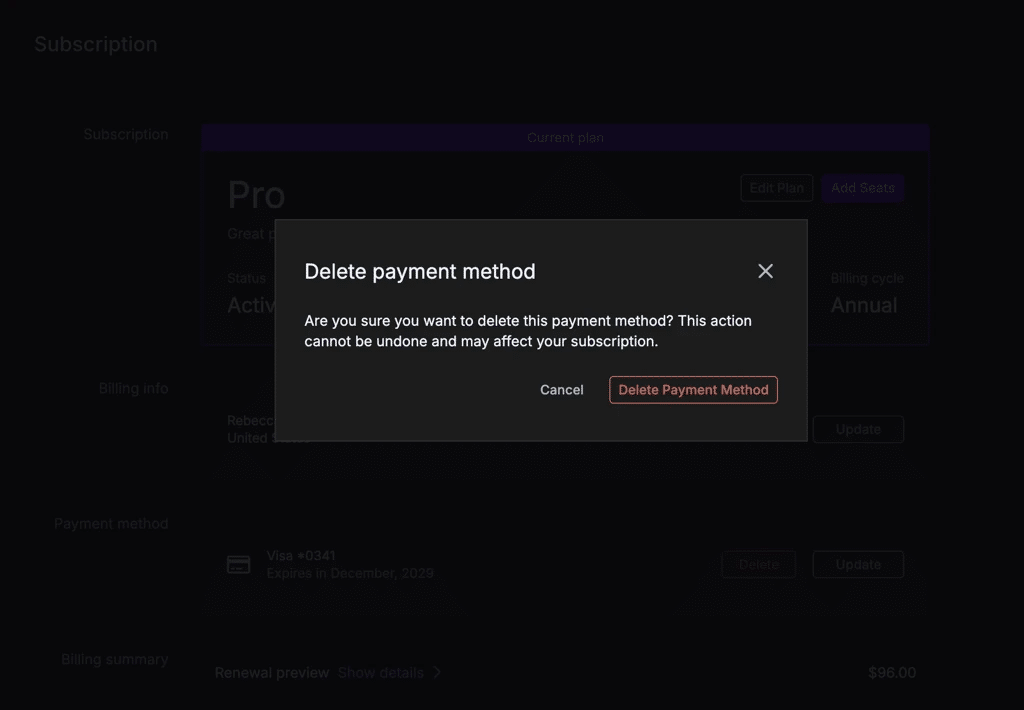
If you need to remove a payment method, click Delete next to the payment method. A confirmation dialog will appear. This action cannot be undone and may affect your subscription.
Edit subscription
Click Edit Plan to change the plan tier or adjust the number of seats for the customer organization. The Edit Plan page shows a Renewal preview with the updated cost. From this page you can also update or delete the payment method on file.
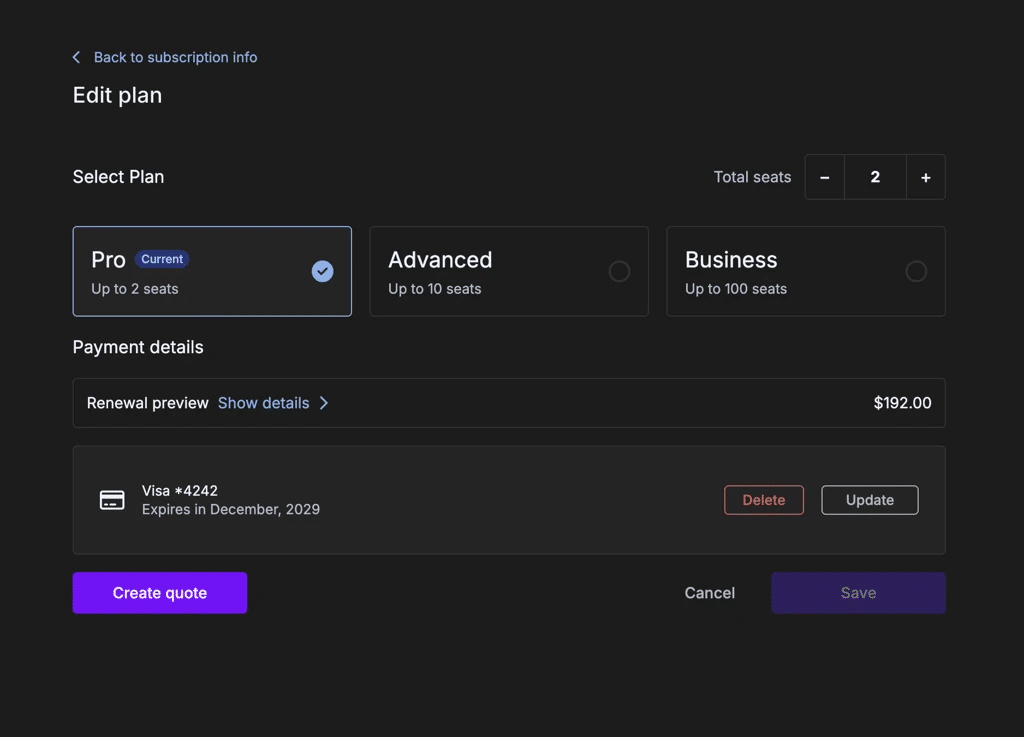
Click Save to apply the changes, or use Create quote to generate a formal quote before committing. See How to create a quote for details.
What organization members see
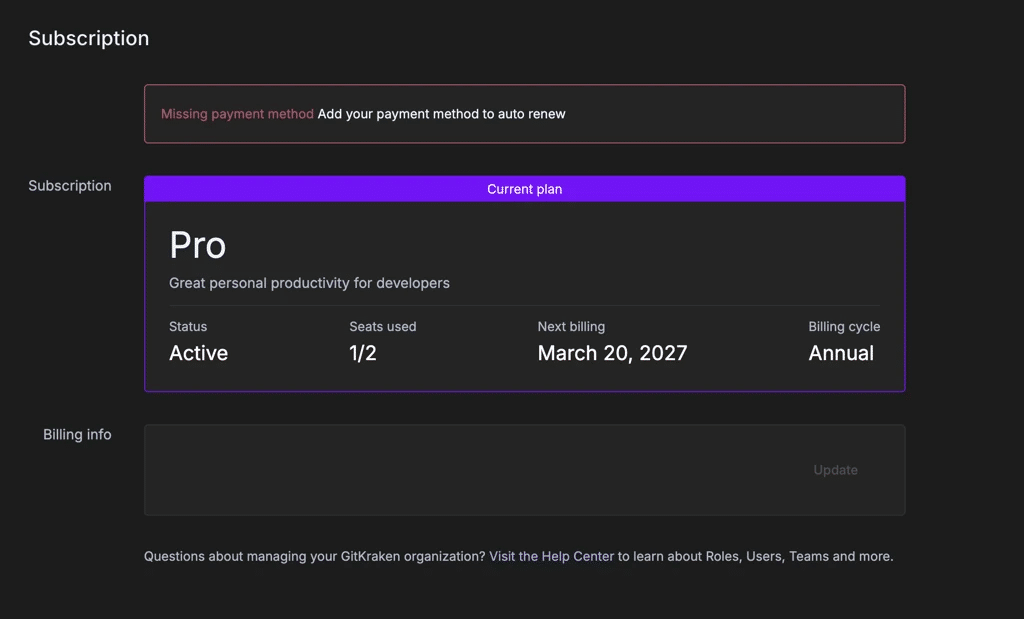
When an organization is managed by a reseller, members with the Owner, Admin, or Billing Contact role will see a simplified Subscription page. Billing information, payment methods, and subscription changes are not available to organization members — these are managed exclusively by the reseller.
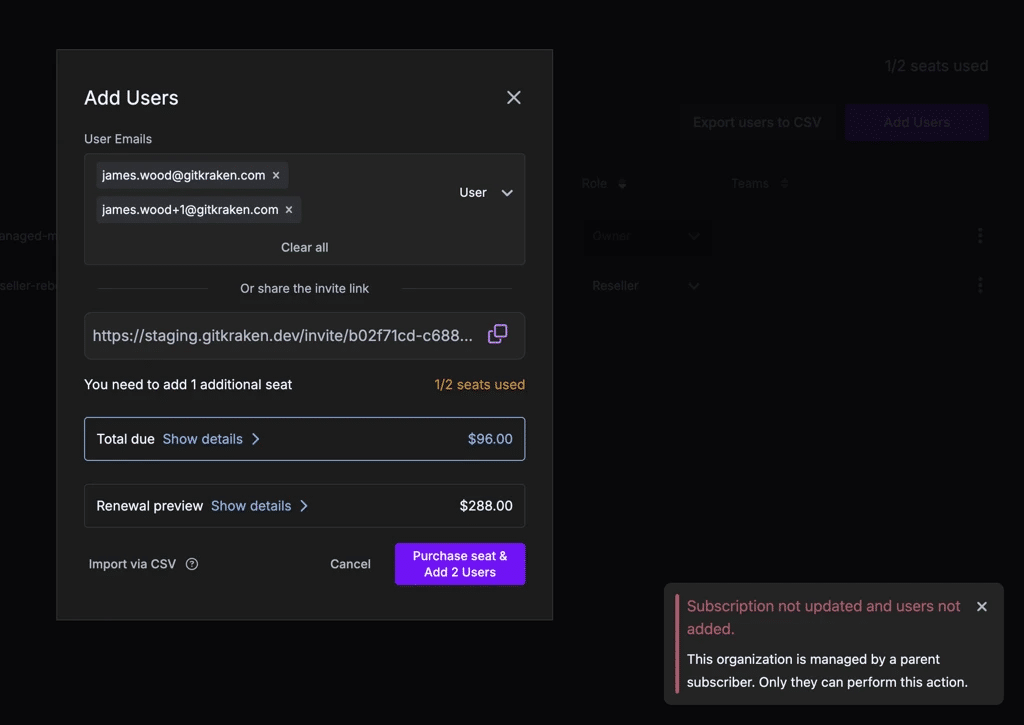
Actions that would result in a charge — such as adding members beyond the subscription seat count — are also restricted. Organization members will see a message indicating that the organization is managed by a reseller and that only the reseller can perform that action.
How to generate quotes
You can generate formal quotes for renewals and mid-cycle upgrades (such as adding seats or changing plans) directly from the Edit Plan page. See How to create a quote for step-by-step instructions.
Self-service quote limitations: Quotes for more than 10 seats and quotes for mid-cycle plan upgrades cannot be generated through GitKraken.dev. For these requests, please contact our Customer Success team for hands-on assistance.
