

Last updated: March 2026
Subscriptions in GitKraken.dev are tied directly to an organization, even if there is only one user.
All members of an organization share the same subscription, and each active member requires a license. Some roles do not consume a license.
Quick Start
To purchase a new subscription:
- Go to gitkraken.dev and sign in.
- Select your organization in the left panel and click Purchase Subscription.
- Set the number of user seats and select a plan tier: Pro, Advanced, Business, or Enterprise.
- Enter your organization name, contact details, and payment information, then click Buy now.
After purchase, navigate to gitkraken.dev/users to assign licenses to organization members.
To add seats to an existing subscription, navigate to Subscription and click Add Seats. The additional cost is prorated against your current billing cycle. Only Owners, Admins, and Billing Contacts can purchase or modify subscriptions.
How to choose a plan
Use the table below to compare plans and identify the right fit for your organization.
| Community | Pro | Advanced | Business | Enterprise | |
|---|---|---|---|---|---|
| Max seats | 1 | 2 | 10 | 100 | 100+ |
| Private repos | No | Yes | Yes | Yes | Yes |
| Team management | No | No | Yes | Yes | Yes |
| Self-hosted Git integrations | No | No | Yes | Yes | Yes |
| AI features | No | Basic | Org controls | Org-enforced providers | Full |
| Automations | No | No | Preview | Yes | Enterprise scale |
| SSO | No | No | Yes | Yes | Yes (includes LDAP) |
| Self-hosted Cloud Patches (S3) | No | No | No | Yes | Yes |
| Support response time | Community | 3 business days | 1 business day | 12 hours | 6 hours |
Use Community when you are an individual developer working with local and public repositories only.
Use Pro when you need private repository access and basic AI features for solo or very small team use (up to 2 seats).
Use Advanced when your team needs self-hosted Git integrations, team management, SSO, and org-level AI controls (up to 10 seats).
Use Business when your organization requires higher repo limits, org-enforced AI providers, automations, and customer-managed Cloud Patch storage (up to 100 seats).
Use Enterprise for 100+ seats, self-hosted deployment options, LDAP/SSO, compliance readiness (HIPAA, GDPR, SOC 2, ISO 27001), and quote-based pricing.
How to purchase
To purchase a subscription for the first time:
- Visit gitkraken.dev.
- Log in with your GitKraken account or create one.
- Select your organization in the left panel, then click Purchase Subscription. You’ll need a role with billing permissions.
- Set the number of user seats. Choose the subscription tier that best fits your organization (Pro, Advanced, Business, or Enterprise). Each tier includes a link to learn more.
- Enter your organization name, first and last name, and your country or region. If you have a promo code, click Have a promo code? to enter it. Click Payment details to continue.
- Select a payment method and complete the billing information. Then click Review your order.
- Click the Buy now button to complete your purchase.
- If you added more licenses than there are users to assign them to, you’ll be redirected to the Add Users screen.
If you encounter issues while purchasing and have verified your payment method, please contact us for support.
Purchase additional licenses
To purchase additional licenses, you must be an Admin, Owner, or Billing Contact for your organization.
Follow these steps to add licenses to your GitKraken subscription:
-
Go to your subscription page
Navigate to gitkraken.dev/subscription. -
Click “Add Seats”
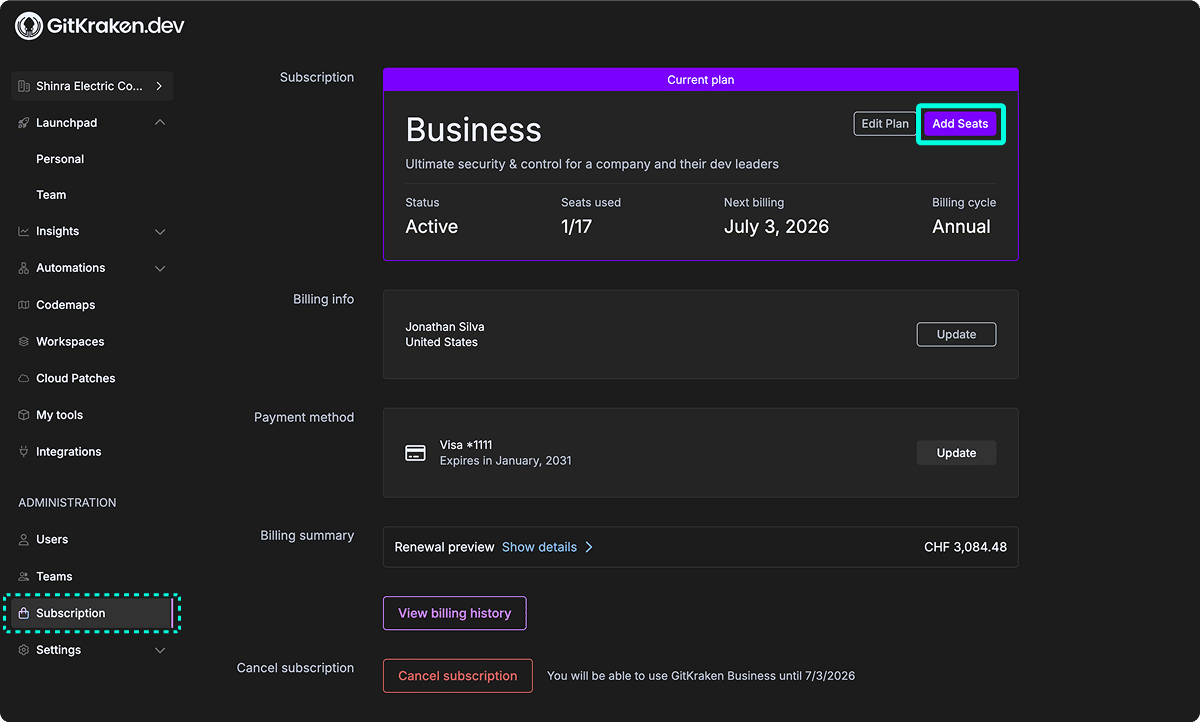
The Add Seats button is in the subscription management area. -
Enter the number of licenses
A modal appears. Enter how many licenses you want to add. A price preview updates automatically. The amount is prorated based on your renewal date.
(Prorated means you pay only for the remaining time until your next renewal.)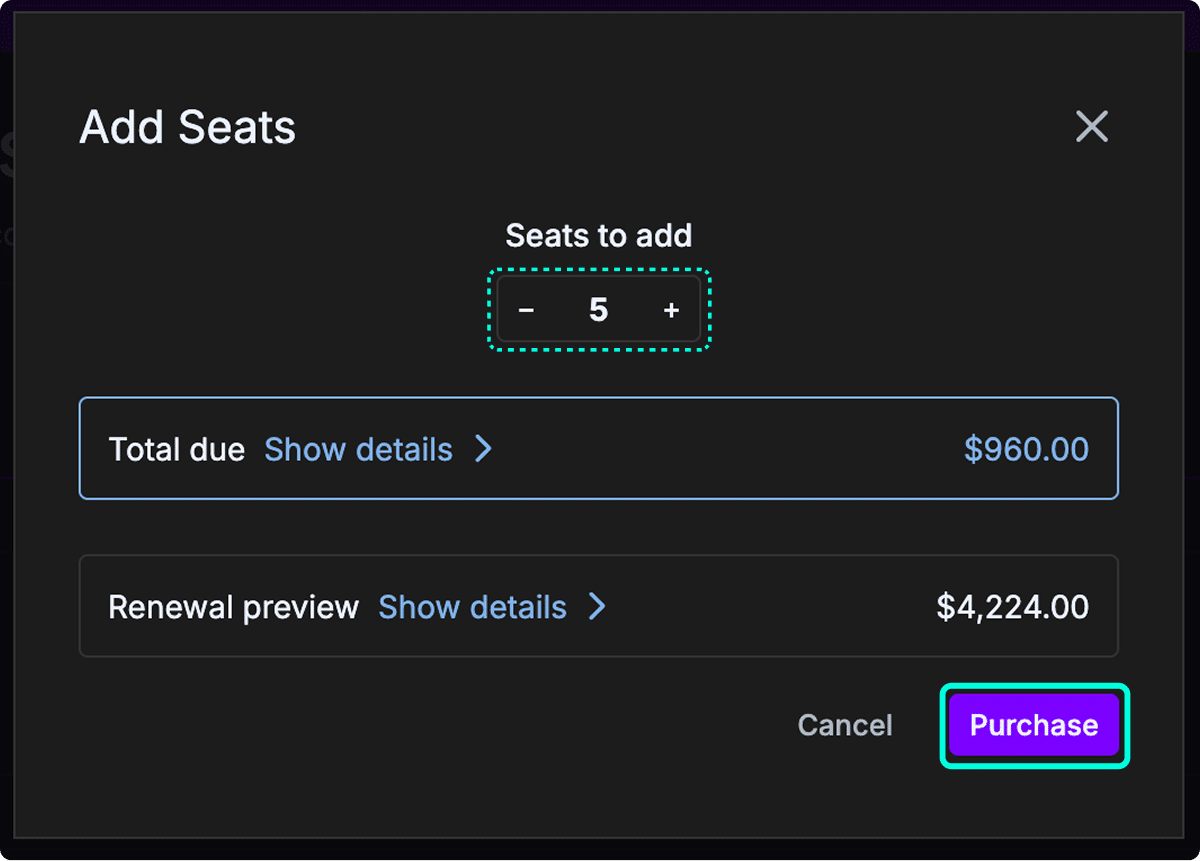
The modal lets you select the license quantity and preview the price. -
Complete your purchase
When ready, click Purchase to complete the transaction. -
Allocate new licenses
After purchase, go to gitkraken.dev/users to assign licenses to users.
For more information, see Managing Roles, Users, Teams, SSO.
Cancel
You can cancel your subscription at any time. To do so:
- Log in to gitkraken.dev
- Select your organization
- Go to Subscription in the left panel
- Click Cancel and follow the prompts to confirm cancellation
Once canceled, your subscription remains active until the end of the current billing period. After that, all members will lose access to the subscription.
Organizations with a pending cancellation will be labeled as non-renewing. Once fully expired, they will appear as canceled.
Only the Owner, Admins, and Billing Contacts can cancel subscriptions.
How to reactivate a canceled subscription
You can reactivate a canceled subscription anytime:
- Log in to gitkraken.dev
- Select your organization
- Go to Subscription in the left panel
- Click Keep GitKraken
If the subscription is labeled non-renewing and still active, reactivation won’t trigger a charge until your next renewal or if you upgrade your plan.
How to update your billing method
To update your billing method:
- Visit gitkraken.dev
- Select your organization
- Go to Subscription in the left panel
- Click Update to modify or switch payment methods

How to view and download invoices
You may view your billing history from gitkraken.dev/subscription/history or by navigating to Subscription > View Billing History.
You can select Download PDF to retrieve past invoices. The Owner and Billing Contacts will also receive an invoice email at the end of each billing cycle.

