

Last updated: April 2026
GitKraken MCP Apps are interactive UI experiences exposed through the GitKraken MCP server. In compatible hosts, they replace plain tool output with a rendered app. The current apps focus on Git repository overview workflows: Git Status and Git Graph.
Requirements:
- GitKraken CLI installed and authenticated (
gk auth login)- GitKraken MCP server configured in your MCP host
- A host that supports MCP App HTML resource rendering
Quick Start
- Install the GitKraken CLI and authenticate:
gk auth login - Install the MCP server for your host:
gk mcp install <client>Replace <client> with your host name (for example, vscode, vscode-insiders, or claude-desktop). This generates and writes the configuration automatically. If your host is not supported by the install command, see Manual configuration below.
- Restart the host application.
- In a Git repository, ask
What changes are pending in the repoto open the Git Status app, orVisualize the commit history in a graphto open the Git Graph app.
If your host supports MCP App rendering, the app opens instead of plain text output. If it does not, the base tool output appears normally.
What are MCP Apps
GitKraken MCP Apps extend the base MCP tools with an interactive HTML interface. When a compatible host calls git_status or git_graph, the server attaches a UI resource to the tool result. The host renders that resource as an app.
There are three layers to understand:
| Layer | What it does |
|---|---|
Base MCP tool (git_status, git_graph) |
Works in any host, with or without app UI |
MCP App resource (ui://gk-cli/app/git-status, ui://gk-cli/app/git-graph) |
Registered when app assets are available |
App-only helper (app_tool_box) |
Dispatches actions used by the app frontend; not intended for direct agent use |
The app_tool_box helper is required for the app UI to function. If it is missing, the base tool still works, but the app will not load.
Both apps share one frontend bundle. git_status opens the overview in status mode; git_graph opens it in graph mode.
Compatible hosts
MCP App rendering depends on host support. The following hosts are known to render the app UI:
- VS Code
- VS Code Insiders
- Claude Desktop (limited support in the non-code tab)
Rendering is not guaranteed in every host, even those listed above. Other MCP hosts can run the base git_status and git_graph tools and return plain output; they just may not render the interactive app. GitKraken is actively working to expand rendering support across additional coding agent providers.
Set Up MCP Apps
MCP Apps currently work in VS Code and VS Code Insiders, with limited support in Claude Desktop.
Install with the CLI (recommended)
The easiest way to configure MCP Apps is to run:
gk mcp install <client>Replace <client> with the name of your host (vscode, vscode-insiders, or claude-desktop). This command writes the configuration directly to the correct file for your host with no manual editing required.
Generate the configuration
If gk mcp install does not support your host, generate a config snippet and add it manually:
gk mcp config <client>Replace <client> with the name of your host, then place the generated configuration into the correct config file for your host.
Config file locations
The following tables list the default config file path for each supported setup host.
macOS and Linux
| Host | Config file |
|---|---|
| VS Code | ~/.vscode/mcp.json |
| VS Code Insiders | ~/.vscode-insiders/mcp.json |
| Claude Desktop | ~/Library/Application Support/Claude/claude_desktop_config.json |
Windows
| Host | Config file |
|---|---|
| VS Code | %APPDATA%CodeUsermcp.json |
| VS Code Insiders | %APPDATA%Code - InsidersUsermcp.json |
| Claude Desktop | %APPDATA%Claudeclaude_desktop_config.json |
Note: VS Code uses a
/servers/GitKrakenpath; Claude Desktop and most other JSON-based hosts use/mcpServers/GitKraken.
Example configuration
For most JSON-based hosts, the configuration looks like this:
{
  "mcpServers": {
    "gitkraken": {
      "command": "gk",
      "args": ["mcp"]
    }
  }
}
For VS Code specifically:
{
  "servers": {
    "GitKraken": {
      "type": "stdio",
      "command": "gk",
      "args": ["mcp"]
    }
  }
}
After updating the config file, restart the host application.
Use the Git Status App
To open the Git Status app, ask your agent:
What changes are pending in the repoThis reliably calls the git_status tool. In a compatible host, the MCP App opens inline.
Note: In VS Code Copilot, a generic prompt like “show me git status” may not call the
git_statustool at all, or may handle it without opening the app. Use the prompt above to target the tool directly.
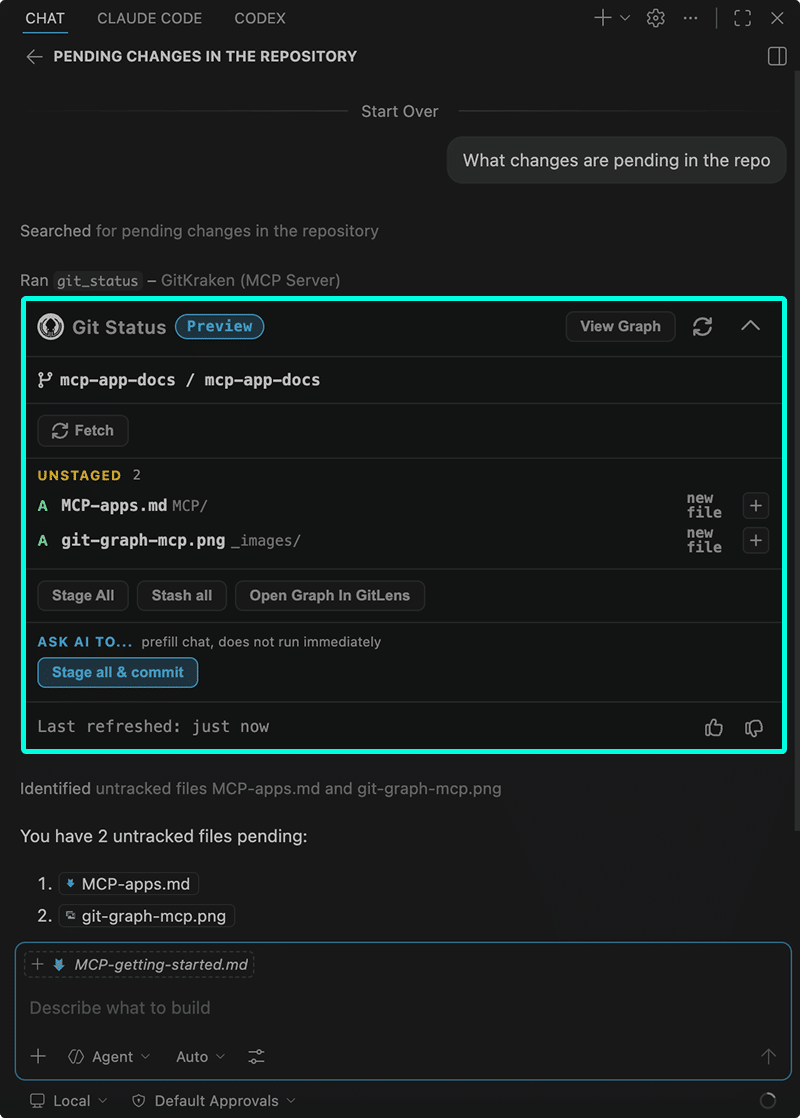
What you can do in the Git Status app:
- Review branch name and upstream status
- See counts for staged, unstaged, untracked, conflicted, and ignored files
- Browse grouped file lists with file paths and change labels
- Fetch the latest remote state
- Stage all changes at once or stage individual files
- Unstage individual files
- Stash all changes
- Use the Ask AI to… Stage all & commit action to prefill a commit prompt in chat (does not commit immediately)
- Open the repository graph in GitLens
Use the Git Graph App
To open the Git Graph app, ask your agent:
Visualize the commit history in a graphThis reliably calls the git_graph tool. In a compatible host, the MCP App opens inline.
Note: In VS Code Copilot, a generic prompt like “show me the graph” may cause the agent to call
gitlens_open_graphinstead, which opens the GitLens commit graph as a separate editor tab rather than the MCP App. Use the prompt above to target thegit_graphtool directly.
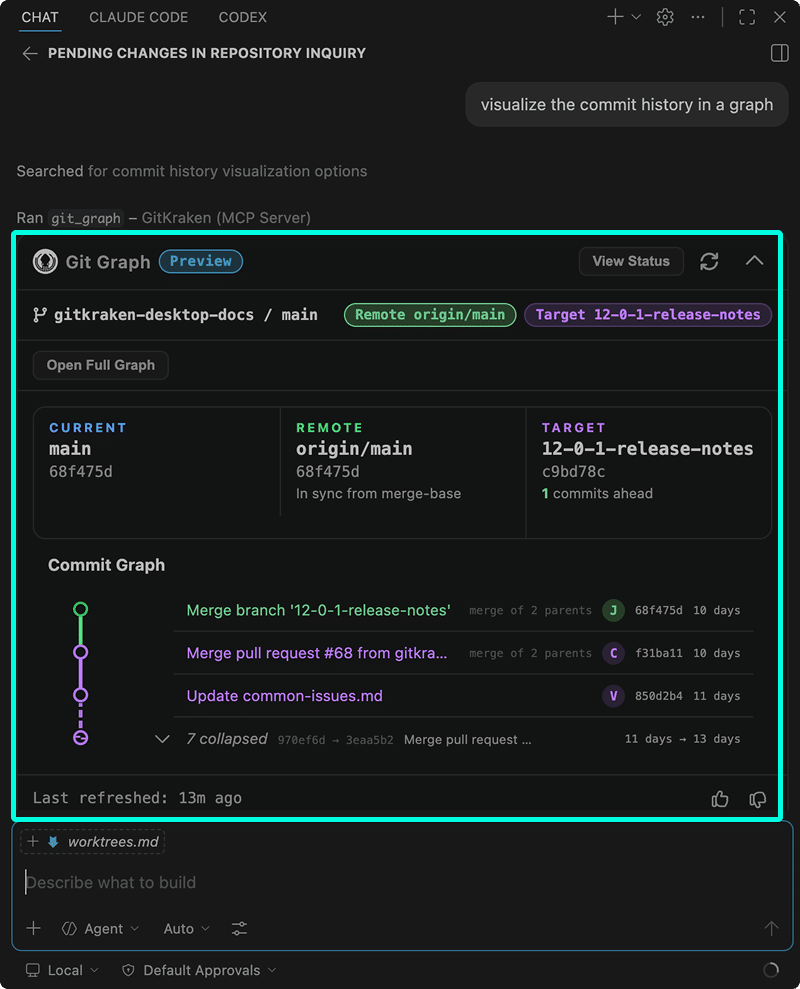
What you can do in the Git Graph app:
- Compare current, remote, and target branch status at a glance, including sync state and commits ahead or behind
- Browse commit history in a graph view with merge indicators, authors, and relative timestamps
- Select a target branch for comparison
- Refresh the graph
- Fetch, pull, or push
- Open the full repository graph in GitLens
Read-only mode
The GitKraken MCP server can run in read-only mode. When it does:
- The app UI still loads and repository data is still visible.
- Write actions (stage, unstage, stash, commit, push, pull) are unavailable.
- The app surfaces a read-only state indicator.
If the app opens but write actions are disabled, check whether --readonly is present in the server args.
Troubleshoot MCP Apps
git_status works, but no app UI appears
The base tool ran successfully, but the app did not render.
Check:
- Restart the host after updating the config.
- Confirm your host supports MCP App rendering. See Compatible hosts above.
git_status exists, but app_tool_box does not
Most likely cause: The mcp_resources directory is missing from the GitKraken CLI installation.
Check:
- Confirm the installed
gkbinary has a siblingmcp_resourcesdirectory. If assets are missing, the app layer is not registered. - Reinstall the GitKraken CLI to restore the binary and resources together.
App UI loaded before but no longer appears
Likely causes:
- The
gkbinary was moved without itsmcp_resourcesfolder. - An upgrade left the binary and resource directory out of sync.
Check:
- Verify the active
gkexecutable path. - Confirm
mcp_resourcesexists next to the active binary. - Reinstall the GitKraken CLI to restore the binary and resources together.
App opens, but write actions (commit, push, stash) are disabled
Check:
- Confirm
--readonlyis not present in the server args. - Confirm the repository state supports the action (for example, there are staged changes to commit, or there are local commits to push).
Host cannot find the GitKraken MCP server
Check:
- Confirm the config file is at the correct path for your host. See Config file locations above.
- Confirm the config syntax matches the format expected by your host (JSON vs. TOML;
/serversvs./mcpServers). - Confirm the
commandvalue points to a validgkexecutable. - Run
gk --versionin a terminal to verify the binary is accessible.
Troubleshooting checklist
Use this checklist to work through most MCP Apps issues:
- Confirm the GitKraken CLI is installed and runnable (
gk --version). - Confirm the MCP host is pointing at the correct
gkexecutable. - Confirm the server args include
mcp. - Restart the MCP host application.
- Run
git_statusin a known Git repository. - If the tool runs but no app appears, verify your host supports MCP App rendering.
- If the app still does not appear, reinstall the GitKraken CLI so the binary and
mcp_resourcesare restored together.
Next Steps
- See Getting Started with the GitKraken MCP Server to install or reconfigure the server.
- See the Tools Reference for the full list of available tools.
- See Example Workflows for common Git and issue tracking workflows.
