

Last updated: March 2026
Overview
Gitkraken Insights Voice of the Developer Surveys lets you send pre-built questionnaires to developers on your team. Survey results integrate with Insights metrics and industry benchmarks to surface actionable recommendations, combining code activity data with developer sentiment.
Prerequisites
- An active GitKraken Insights connection. See Request access to GitKraken Insights to enable Insights for your organization.
- Access to GitKraken.dev with Insights enabled.
Send a survey
Use the Survey Library to browse, preview, and distribute pre-built surveys to your team.
1. Open the Survey Library
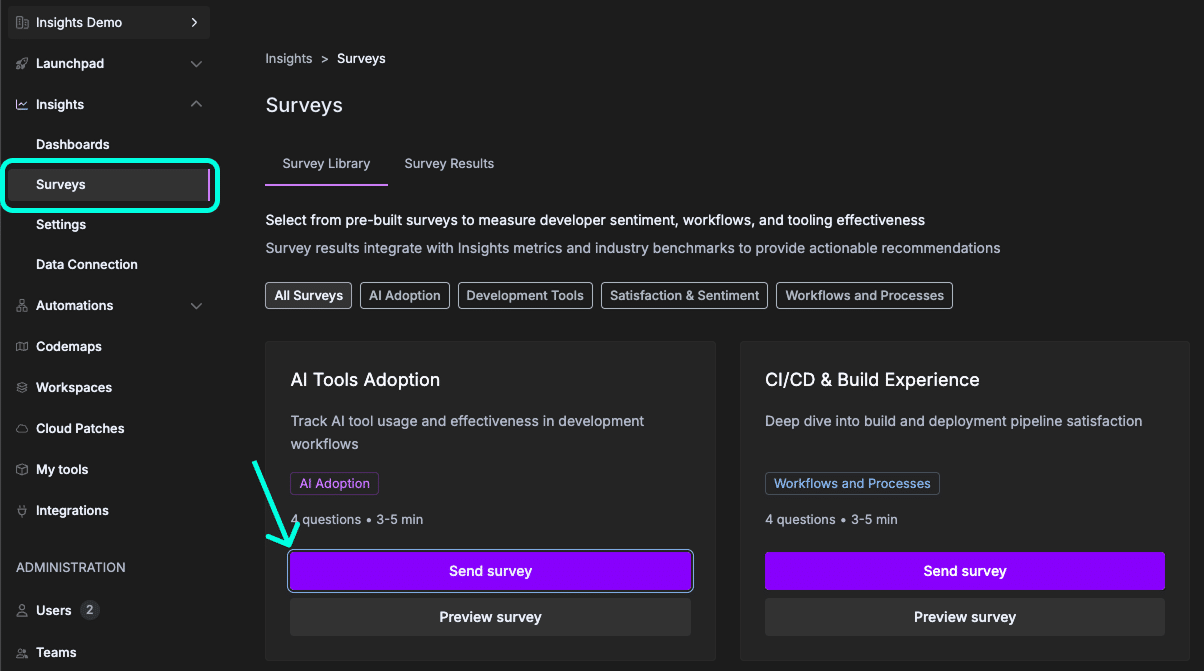
In GitKraken.dev, go to Insights > Surveys. GitKraken Insights opens the Survey Library tab, which lists all available pre-built surveys.
2. Filter surveys by category
Select a category filter button at the top of the Survey Library to narrow the survey list:
- All Surveys
- AI Adoption
- Development Tools
- Satisfaction & Sentiment
- Workflows and Processes
Each survey card displays the survey title, description, category tag, question count, and estimated completion time.
3. Preview a survey (optional)
Click Preview survey on a survey card to review the survey questions before sending.
4. Open the send dialog
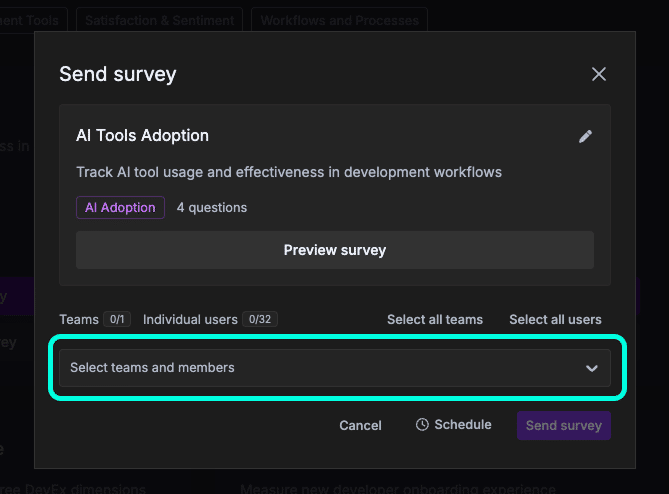
Click Send survey on the survey card you want to distribute. GitKraken Insights opens the Send survey modal.
5. Select recipients
In the Send survey modal:
- Confirm the survey title and description.
- Select recipients under Teams or Individual users.
- Use Select all teams or Select all users to target your entire organization.
6. Send or schedule the survey
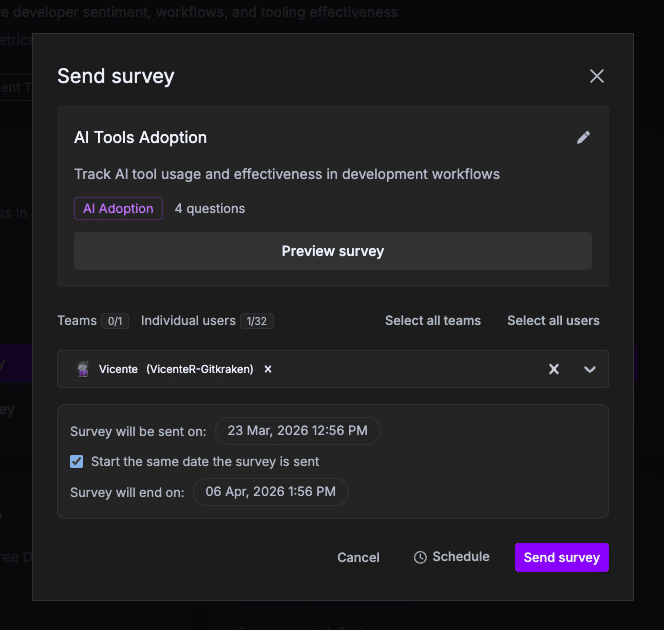
- Click Send survey to distribute the survey immediately.
- Click Schedule to set a future send date and time.
View survey results
After GitKraken Insights sends a survey, responses appear in the Survey Results tab. Use the tab to track response rates, review answers, and share survey links with recipients.
1. Open the Survey Results tab
- In GitKraken.dev, go to Insights > Surveys.
- Click the Survey Results tab.
GitKraken Insights displays all sent surveys. Each survey card shows the survey title, category tag, question count, estimated completion time, number of responses, and number of recipients.
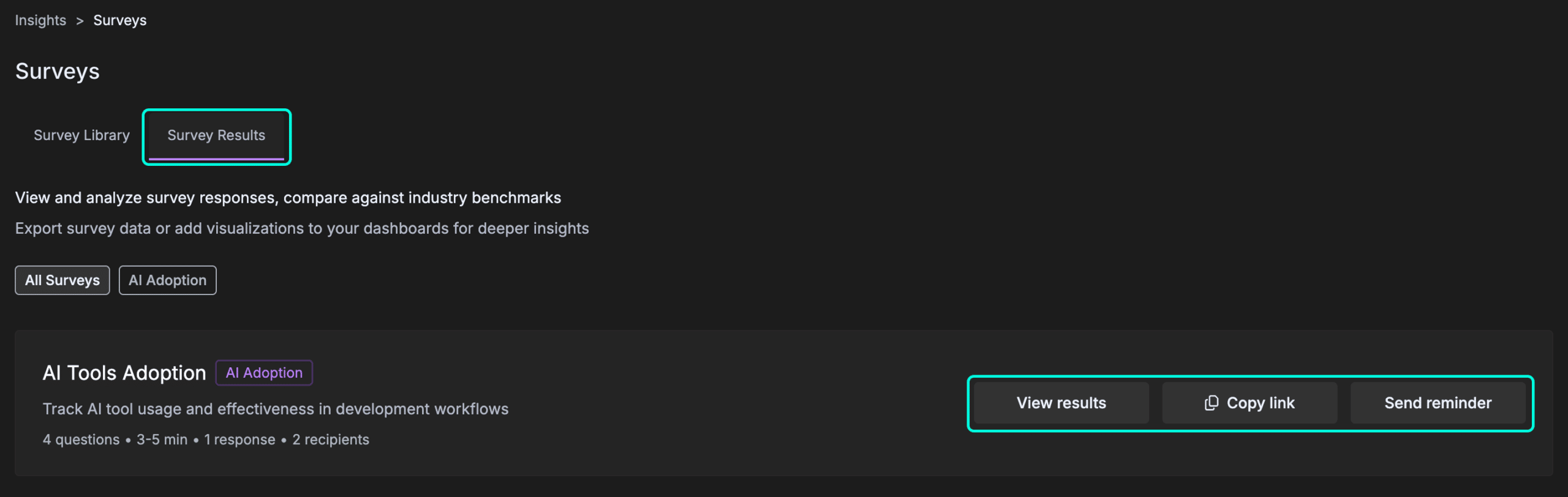
From each survey card, you can:
- Click View results to open the detailed results for that survey.
- Click Copy link to copy a direct link to the survey for manual distribution.
- Click Send reminder to send a follow-up notification to recipients who have not yet responded.
2. Review detailed results
Click View results on a survey card. GitKraken Insights opens the results view for that survey, which displays:
- Overall score — The average score across all responses.
- Response rate — The percentage of recipients who completed the survey.
- Response rate trend — The change in response rate over time.
- Average score — The mean score per question.
Each survey question appears as a bar chart showing the distribution of responses.
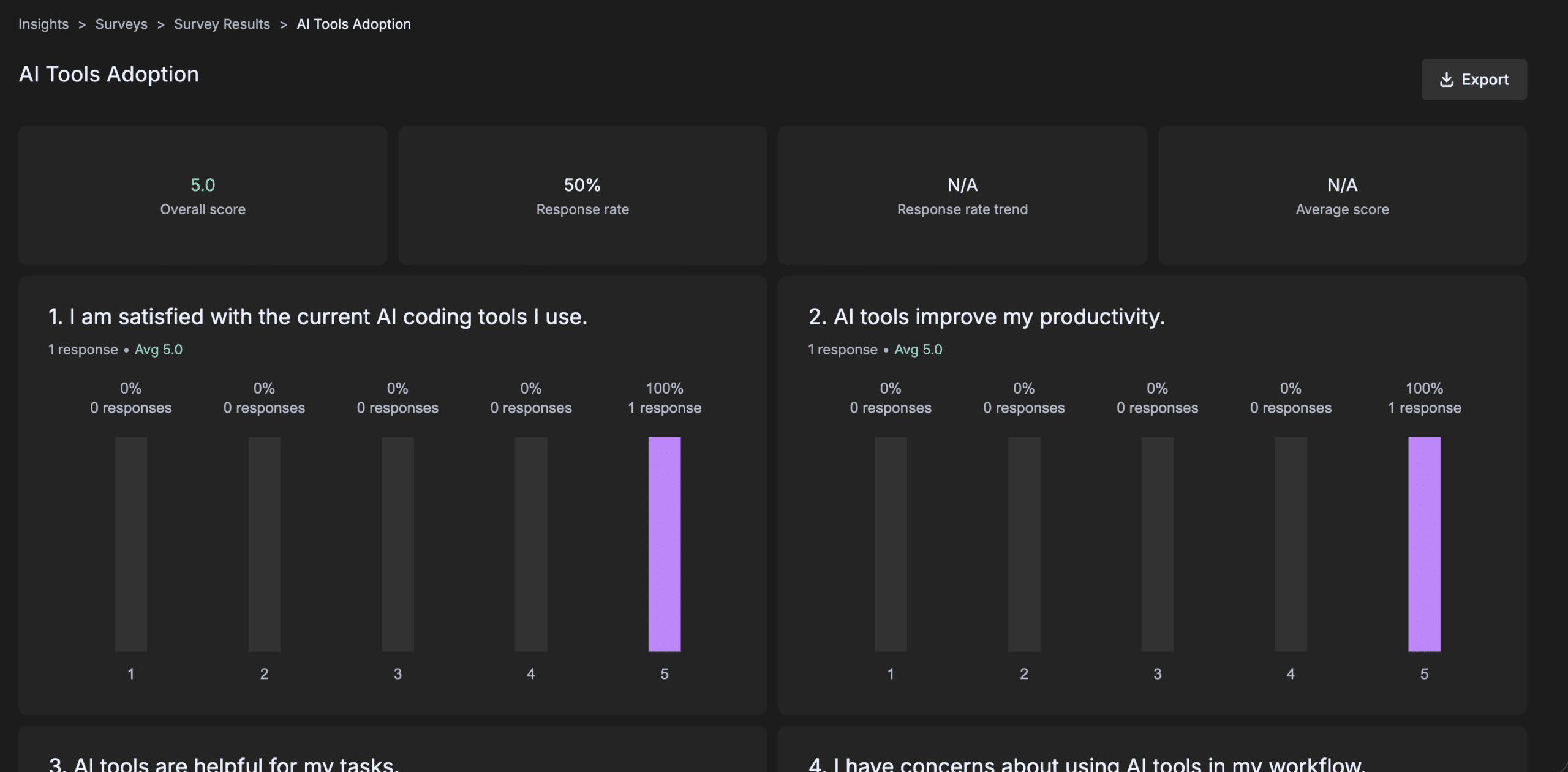
Click Export in the top-right corner to download the survey results data.
Available surveys
GitKraken Insights includes pre-built surveys for the following topics:
- AI adoption
- CI/CD experience
- Code review process
- Developer experience
- Onboarding
- Team collaboration
- Technical debt
- Tooling satisfaction
