

Last updated: August 2026
Every admin-configurable setting that affects AI Adoption scores in GitKraken Insights, organized by where it lives in the product, plus a one-line “what it changes.”
This page covers only the settings that affect AI Adoption scores. For product-wide administration — loading the developer roster, defining teams, wiring up Jira for CFR, syncing BambooHR PTO, and Demo Mode — see the For admins section of the Getting Started guide.
If you came from a metric page to look up a specific setting, jump to the anchor of the same name.
Where these settings live. All of the per-org settings on this page are editable in the Settings → General form and stored in the app_settings table. Alongside the core fields (maturity_factor, developer_hourly_rate, baseline_period_start, default_department), the form also exposes Tier Weights, Direct Commit Weight, Review Weight, and Exclude Chore from Output Score.
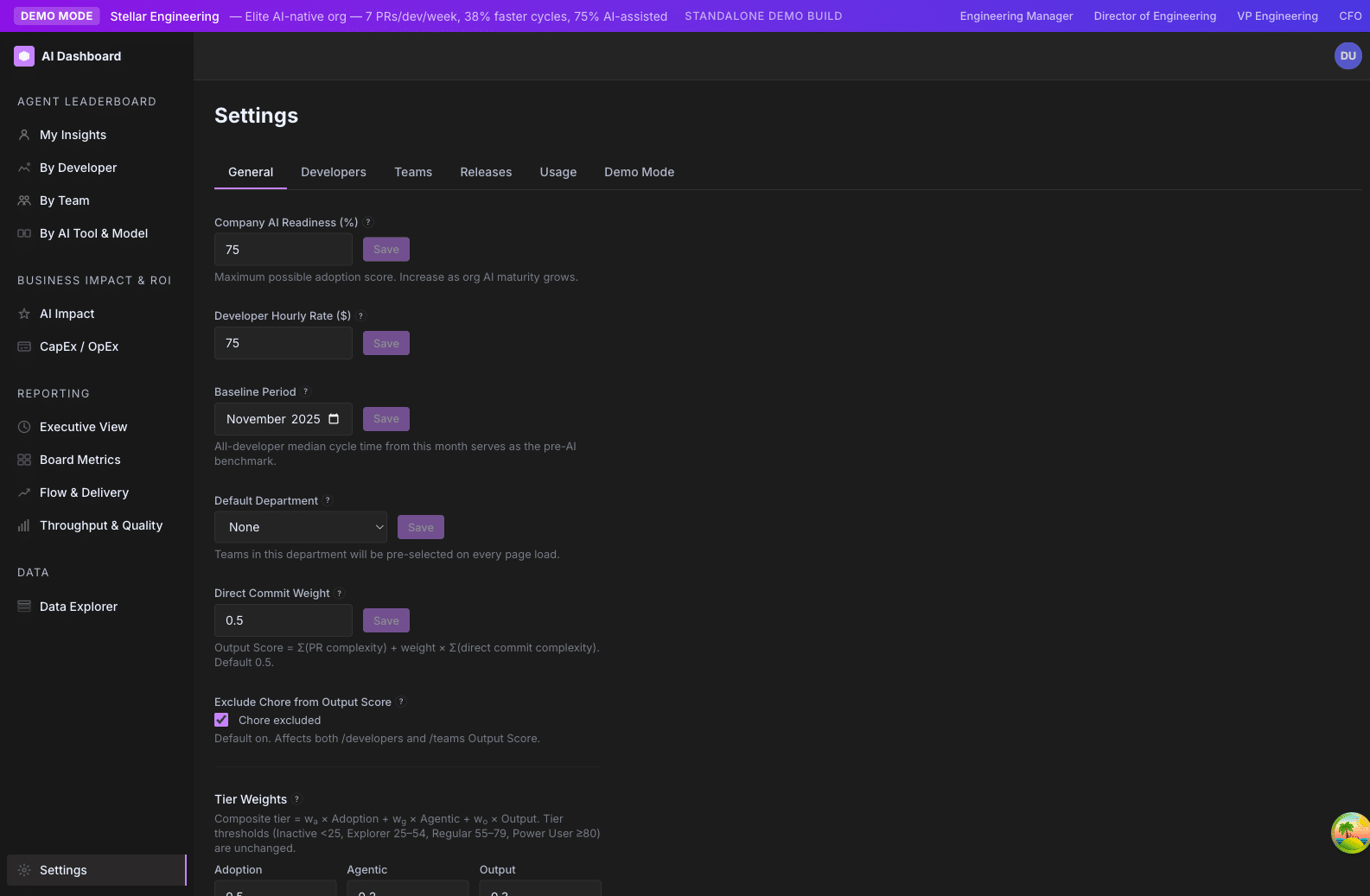
General settings
The single most impactful set of knobs. These shift how scores are calculated for every developer in your org.
Maturity Factor
Also labeled “Company AI Readiness %” in the General tab. In Settings UI: yes.
| Default | 0.75 (75%) |
| Range | 0.01 – 1.00 |
| Type | Float |
What it does. Scales every P90-based score (Adoption, Agentic, Output Norm) downward. At 1.00, a developer at the org’s 90th percentile scores 100. At 0.75, the same developer scores 75 — leaving headroom for the org to grow into the Power User band.
Why you’d raise or lower it. – Lower (0.50 – 0.70): Early in your AI rollout. You want every developer to feel like there’s runway. Few or no Power Users yet. – Default (0.75): Most orgs in active rollout. The tier ceiling pushes the top 10% to keep stretching. – Higher (0.85 – 1.00): Mature orgs with widespread, deep adoption where you want the scoring to reflect that maturity in absolute terms.
Affects: Agent Adoption Score, Agent Autonomy Score, Output Norm, AI Tier.
→ Full section: Maturity Factor
Tier Weights
Three positive numbers that say how much Adoption, Agentic, and Output each count toward the AI Tier composite. In Settings UI: yes.
| Weight | Default | App-settings key | What it emphasizes |
|---|---|---|---|
| Adoption | 0.5 | tier_weight_adoption |
Daily, consistent AI use |
| Agentic | 0.2 | tier_weight_agentic |
Autonomous multi-step AI work |
| Output | 0.3 | tier_weight_output |
Effort-weighted shipping rate |
Range: Each weight is any positive number (we store raw values, then renormalize to sum to 1.0 on read).
What it does. The three weights compete for the 100% budget. The tier-badge tooltip in the app shows the live percentages for every developer.
How to think about tuning. – Adoption-heavy (e.g. 0.7 / 0.1 / 0.2): “We care that everyone is trying AI. Output will follow.” – Output-heavy (e.g. 0.3 / 0.1 / 0.6): “We’ve moved past the rollout phase — now we care about delivery.” – Balanced (the default): A signal that AI use without output is incomplete, and output without AI is the old way.
Guardrails. If you set all three to zero we fall back to the defaults (0.5 / 0.2 / 0.3) — never a “100% output, 0% everything else” boost. Negative or NaN values are rejected and the default for that key is used.
Affects: AI Tier — and through it, the developer table sorting, the Top 10 widget, the executive ranking, and every breakdown chart that buckets by AI Tier.
→ See also: Playbook — Set tier weights for your org’s maturity
Direct Commit Weight
In Settings UI: yes. App-settings key: direct_commit_weight.
| Default | 0.5 |
| Range | 0.0 – 1.0 |
| Type | Float |
What it does. Scales direct commits (pushes straight to a default branch with no PR) relative to merged PRs in the Output Score formula:
Output Score = SUM(PR effort) + DirectCommitWeight × SUM(DC effort)- 0.0 — direct commits are ignored entirely
- 0.5 (default) — a direct commit counts half as much as a PR of equivalent effort
- 1.0 — direct commits count as much as PRs
When to change it. – Lower toward 0 if your team uses direct commits primarily for trivial maintenance and you don’t want them inflating Output Score. – Raise toward 1 if your team uses direct commits for substantive work (e.g. a Trunk-Based Development workflow).
Affects: Output Score, Output Norm, AI Tier.
Review Weight
In Settings UI: yes. App-settings key: review_weight.
| Default | 0.5 |
| Range | 0.0 – 1.0 |
| Type | Float |
What it does. Scales review-credit — effort from PRs a developer formally reviewed (state APPROVED or CHANGES_REQUESTED) — relative to authored PRs in the Output Score formula:
Output Score = SUM(PR effort) + DirectCommitWeight × SUM(DC effort) + ReviewWeight × SUM(reviewed-PR effort)- 0.0 — review work is ignored entirely (the review-credit term disappears from the score)
- 0.5 (default) — a review counts half as much as authoring a PR of equivalent effort
- 1.0 — reviewing a PR counts as much as authoring it
When to change it. – Lower toward 0 if you don’t want review activity contributing to Output Score. – Raise toward 1 if review is a first-class deliverable on your team and you want senior reviewers’ work reflected at full weight.
Affects: Output Score, Output Norm, AI Tier.
Exclude Chore from Output Score
In Settings UI: yes. App-settings key: output_score_exclude_chore.
| Default | On (chores excluded) |
| Type | Boolean toggle |
What it does. When on, Chore-category PRs and commits are subtracted from the effort side of the Output Score. The displayed PR / DC counts still include chores — only the effort sums change.
Why the asymmetric treatment. If a developer’s window happens to be all chores (e.g. they spent a sprint on dependency bumps), we don’t want them to disappear from the developer table. The Output Score will dip, but the count cell still says “5 PRs, 12 direct commits” so they remain visible. The Output Score tooltip shows you the chore subset that was subtracted.
When to turn off. Rarely. The default reflects most orgs’ definition of “real output”. Turn off if you’ve explicitly decided chores are part of how you measure delivery — e.g. for an SRE team where dependency upgrades are the job.
Affects: Output Score, and downstream AI Tier.
AI-to-Commit Correlation Window
In Settings UI: yes.
| Default | 60 minutes |
| Type | Duration |
What it does. Sets how close in time a developer’s AI activity has to be to a change for that change to count as AI-assisted. A PR or direct commit is flagged AI-assisted when the developer had AI events within this window of the change’s lifecycle. Co-author-trailer detection is separate and isn’t affected by this setting.
Why you’d raise or lower it. – Narrower (under 60 minutes): Your team finds the default over-attributes — developers who happened to have an AI session open get credited for changes they wrote without AI. – Default (60 minutes): A practical middle ground for most teams. – Wider (over 60 minutes): Your developers typically prompt AI well before they commit, and the default is missing that work.
Changing it re-runs the association on existing data, so previously-computed AI-assisted flags — and the AI-Assisted % values built on them — shift to match the new window.
Affects: AI-Assisted Percentage, and the AI-Assisted status shown in PR drill-down tables.
Developer Hourly Rate
In Settings UI: yes.
| Default | $75 / hour |
| Range | $1 – unbounded |
| Type | Currency |
What it does. Multiplies into productivity-value calculations on the AI Impact and CapEx pages. We use this to translate “additional hours per developer per week” into a dollar figure.
How to set it. Use your fully-loaded internal developer cost rate (salary × benefits × overhead, divided by working hours). Most orgs land between $50 and $200/hour. If you don’t have a precise number, the default $75 is a reasonable industry midpoint for a senior IC.
Affects: Productivity Uplift, CapEx / OpEx Split, the AI Impact ROI cards.
Baseline Period
In Settings UI: yes.
| Default | November 1 of previous year through the first day of the current month |
| Type | Date |
What it does. Sets the historical reference window for trend comparisons. AI Impact uplift math, productivity delta, and the “vs. baseline” cards on the executive view all compare your current window to this baseline.
Why November 1? Calendar-year reset point. By default the baseline window runs roughly the previous calendar year, which is a stable comparison most leaders understand instinctively.
When to change it. Pick a different anchor if: – Your AI rollout started mid-year and you want to compare against pre-rollout months. – Your fiscal year doesn’t start in January. – You want a fixed snapshot (e.g. “Q1 2026”) to compare every subsequent quarter against.
Affects: AI Impact uplift cards, ROI calculations, baseline-comparison trend overlays.
Default Department
In Settings UI: yes.
| Default | None (admin picks) |
| Type | Dropdown |
What it does. Pre-selects which teams are visible to a user the first time they hit the dashboard. Once a user has saved a different selection it sticks per-user in browser storage.
When to set it. Use this to anchor the dashboard to the largest, most-watched department in your org. Engineering leadership usually picks “Engineering” or the equivalent rolled-up group.
Affects: Initial view on /teams, /developers, /executive, and every page with a team filter.
