AI Coding Tools
Last updated: September 2026
Connect at least one AI provider — this is what lets Insights measure adoption instead of guessing at it. Connect as many as your team uses.
Before you start: make sure you have the right access. See the prerequisites table on the Connect Your Data overview.
Claude Code and Codex (OpenTelemetry)
Claude Code and Codex both report usage through OpenTelemetry (OTel), and both read their configuration from a snippet GitKraken generates for you.
In Data Connections, add a Claude Code & Codex data source, then open View setup on the new connection. That setup page gives you:
- Collector endpoint — the URL telemetry is sent to.
- Authentication token — your organization’s OTel auth token. The same token covers both tools, so if you’ve already connected one, you reuse the credential for the other.
- Claude Code config (JSON) and OpenAI Codex config (TOML) — ready-to-paste snippets with your endpoint and token already filled in.
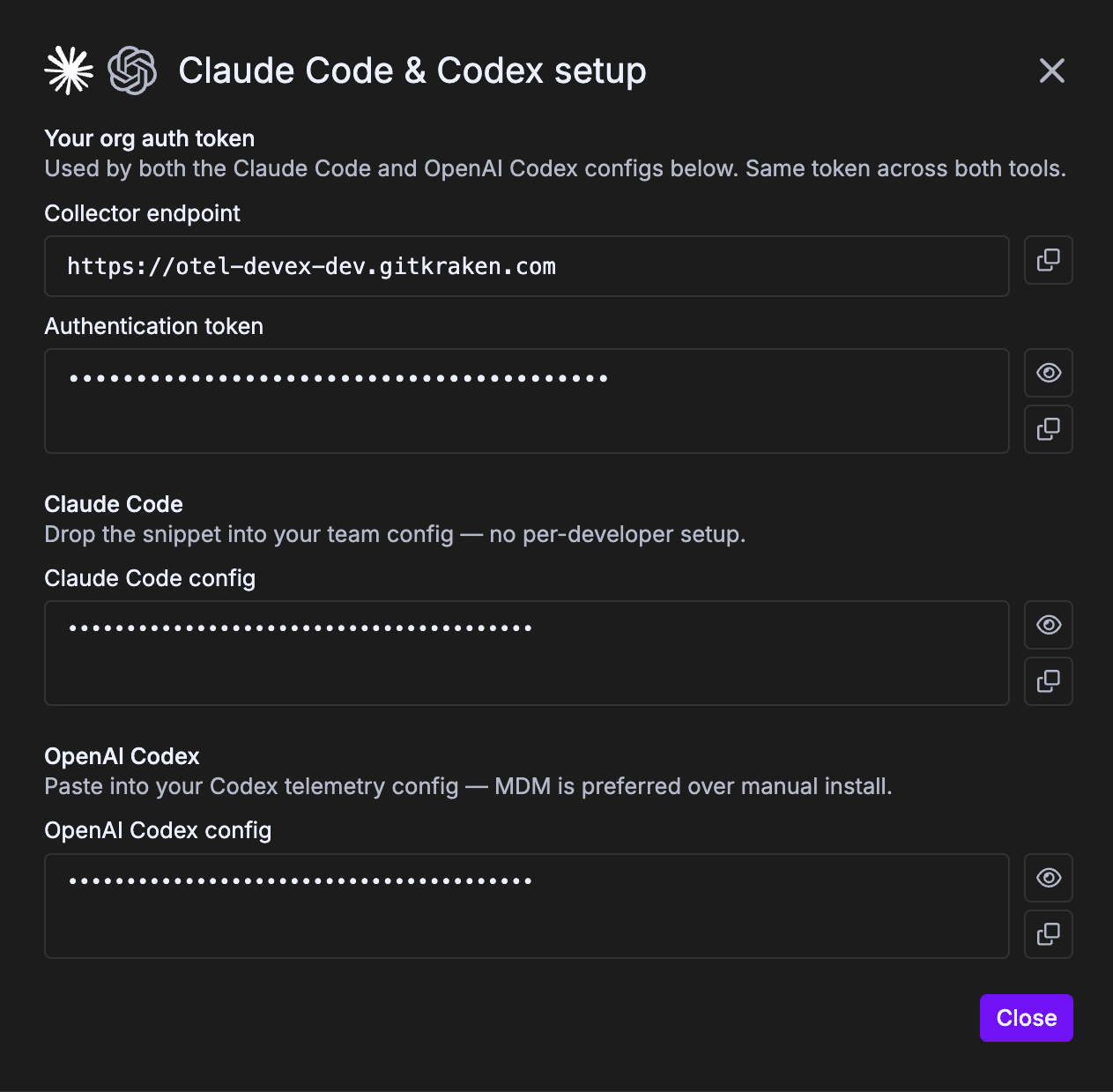
Always copy the real snippet from the connection page rather than retyping the examples below.
Keep the auth token private. It authenticates telemetry for your whole organization — treat it like any other secret credential.
Data appears on the next fresh session. There’s no backfill — usage starts flowing the next time each developer runs Claude Code or Codex after the settings are applied. (Claude Code OTel instrumentation began March 5, 2026; activity before that date isn’t available.)
Claude Code — organization-managed settings
The recommended rollout is server-managed settings in claude.ai: an Owner pastes the snippet once and every developer’s Claude Code picks it up automatically. This requires a Claude for Teams or Enterprise plan.
- Copy the Claude Code config snippet from the connection page.
- As an organization Owner, go to Admin Settings → Claude Code → Managed settings (claude.ai/admin-settings/claude-code).
- Paste the snippet into the managed settings JSON. If managed settings already exist, merge the
"env"keys into the existing"env"block rather than replacing the configuration — everything here applies org-wide. - Save.
The snippet looks like this, with your own endpoint and token filled in:
{
  "env": {
    "CLAUDE_CODE_ENABLE_TELEMETRY": "1",
    "OTEL_EXPORTER_OTLP_ENDPOINT": "https://otel-devex.gitkraken.com",
    "OTEL_EXPORTER_OTLP_HEADERS": "Authorization=Basic <YOUR_ORG_AUTH_TOKEN>",
    "OTEL_EXPORTER_OTLP_PROTOCOL": "http/protobuf",
    "OTEL_LOGS_EXPORTER": "otlp",
    "OTEL_RESOURCE_ATTRIBUTES": "service.name=claude-code"
  }
}
This requires the Claude Code organization Owner. Admins do not have permission to change org-managed settings. If the Managed settings link redirects you elsewhere, your account doesn’t have the Owner role.
Clients need a restart. Claude Code also polls hourly, but OpenTelemetry configuration specifically takes effect on the next full restart.
Heads-up for your developers — warn them first. The moment org telemetry settings change, Anthropic notifies every developer on their next Claude Code session that organization settings were modified, and the notice uses deliberately cautious wording (it warns that changed settings could run code). Custom environment variables require a one-time security approval, so accepting it is expected and required. This is Anthropic’s standard behavior, not GitKraken’s. Send your team a quick message ahead of time so no one is surprised. Suggested note:
“Heads up — we’re turning on Claude Code usage telemetry for the team so we can measure AI adoption. On your next Claude Code session you’ll see a notice that org settings changed; that’s expected — go ahead and accept it. We are not collecting your prompts.”
Privacy: the default snippet collects usage and session telemetry (tokens used, duration, tool calls) — not prompt content. Anthropic publishes documentation on this telemetry, and there is a separate opt-in flag some orgs add to capture prompts; the snippet we generate does not enable it.
Managed settings take precedence over developers’ own user and project settings, so individual configs can’t accidentally turn the telemetry off.
If your organization already sends Claude Code metrics to another vendor, contact GitKraken support for a combined example.
Alternative — file-based managed settings. Server-managed settings only reach sessions that authenticate through claude.ai (or a direct API key). If your developers run Claude Code through Amazon Bedrock, Google Vertex, Microsoft Foundry, or a custom gateway, deploy the same snippet as a file instead, via MDM or your endpoint manager:
| Platform | Path |
|---|---|
| macOS | /Library/Application Support/ClaudeCode/managed-settings.json |
| Linux / WSL | /etc/claude-code/managed-settings.json |
| Windows | C:Program FilesClaudeCodemanaged-settings.json |
The two mechanisms don’t merge. If the claude.ai managed settings deliver any keys, the on-disk file is ignored entirely for that session. Keep the telemetry config in whichever source your organization actually uses.
Codex — config.toml on each developer’s machine
The Codex CLI reads its settings from a config.toml file in a .codex directory in the user’s home folder:
| Platform | Path |
|---|---|
| macOS | ~/.codex/config.toml |
| Linux | ~/.codex/config.toml |
| Windows | %USERPROFILE%.codexconfig.toml |
Create the directory and file if they don’t exist. If the file already has other settings, append the [otel] block rather than overwriting the file. The snippet is identical on every platform — only the location differs:
[otel]
environment = "prod"

# Logs
exporter = { otlp-http = {
  endpoint = "https://otel-devex.gitkraken.com/v1/logs",
  protocol = "binary",
  headers = { Authorization = "Basic <YOUR_ORG_AUTH_TOKEN>" }
}}
Option A — managed rollout via MDM (recommended for organizations). Because the token is the same for the whole organization, a single managed configuration works for every developer on a given platform:
- Copy the OpenAI Codex config snippet from the connection page.
- Package it as a managed file deployed to the per-user Codex path —
~/.codex/config.tomlon macOS and Linux,%USERPROFILE%.codexconfig.tomlon Windows. Merge it into an existingconfig.tomlif your developers already use one. - Push the profile to your fleet with your MDM tool — Jamf, Kandji, or Intune for macOS; Intune, Group Policy, or your endpoint manager for Windows.
- Confirm the file landed on a sample machine.
Option B — individual developer setup. Any developer can connect their own machine in under a minute.
On macOS or Linux:
mkdir -p ~/.codex
nano ~/.codex/config.toml   # or: open -e ~/.codex/config.toml on macOS
On Windows, in PowerShell:
New-Item -ItemType Directory -Force -Path "$env:USERPROFILE.codex" | Out-Null
notepad "$env:USERPROFILE.codexconfig.toml"
Paste the snippet, then save. New Codex sessions start sending telemetry automatically.
Windows — watch the file extension. In Notepad’s Save dialog, set Save as type to All Files so the file is saved as config.toml and not config.toml.txt.
Cursor (API key)
- In Cursor, go to Settings → API Keys → Create New Key.
- Create a team-level key with admin scope (this grants access to team usage events and the member directory). Name it something recognizable, e.g. “GitKraken Insights.”
- Copy the key immediately — Cursor only shows it once.
- Back in Data Connections, add a Cursor data source, paste the key, and connect.
A personal key, or a key from a non-admin account, won’t have access to team usage data. It must be a team-level admin key.
Devin
Devin usage comes through the Devin API, authenticated with a service-user API key.
- Log in at devin.ai and open your organization’s settings in the top left.
- Go to the Devin API section and click Provision Service User. Provision a user with the Admin role and set an expiration — pick the longest expiry your policy allows, and set a reminder to rotate it.
- Copy the generated token and store it securely. While you’re on this page, note the Organization ID shown at the top.
- In Data Connections, click + next to Devin, give the connection a name, enter the Devin API key and your Devin Organization ID, then click Connect.
Keep the API key private. It grants API access to your Devin organization — treat it like a password.
The key belongs to the provisioned service user rather than a personal account, so it won’t break when an individual teammate leaves. To rotate it, provision a new service-user key in Devin and update the connection.
GitHub Copilot
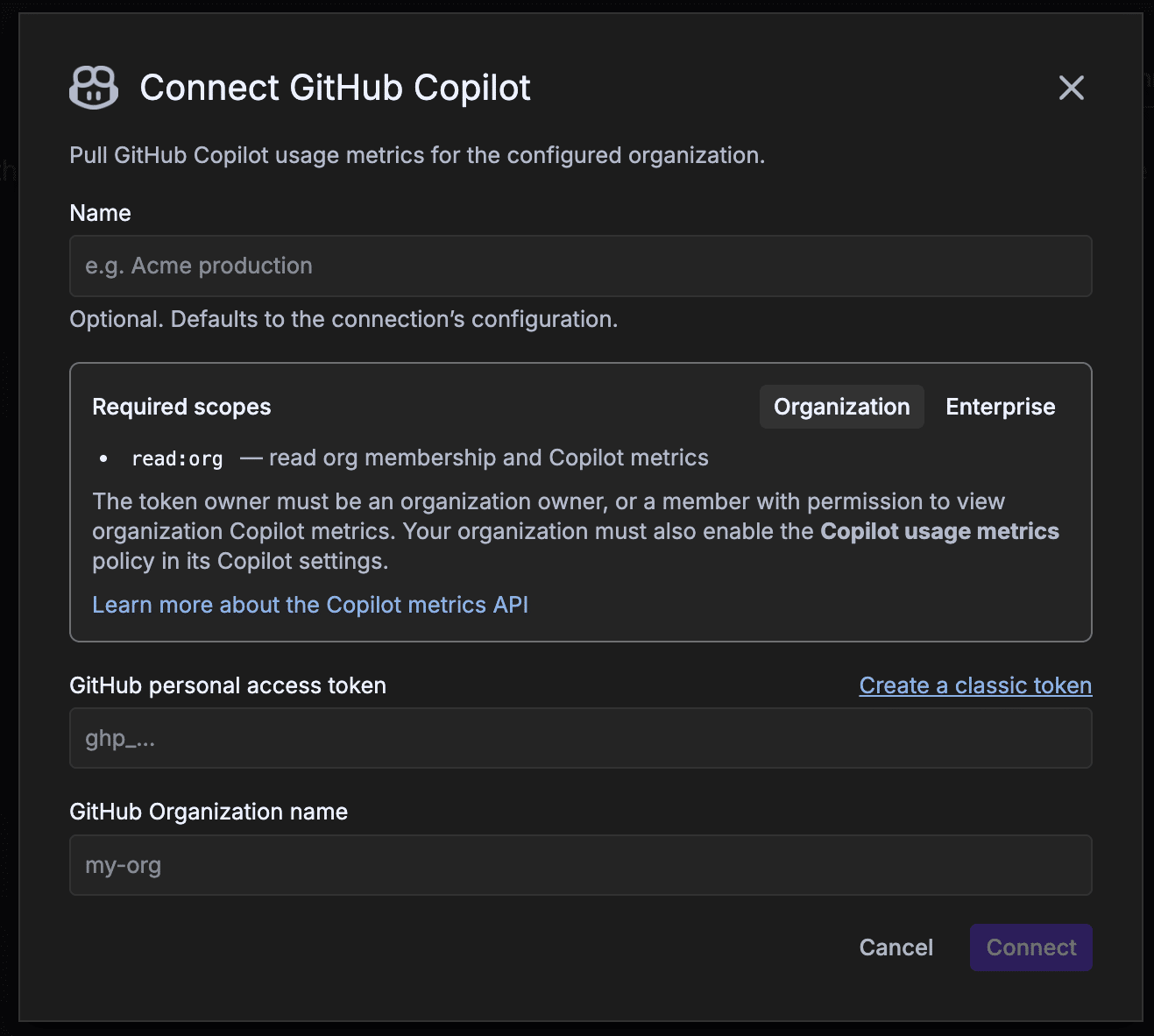
Connect GitHub Copilot to pull Copilot usage metrics for your organization or enterprise. Copilot returns a narrower set of data than Claude Code, Codex, or Cursor, so some metrics will be partial.
You can connect at organization or enterprise level. The connection modal’s Required scopes panel has a tab for each, and your choice changes both the token scope and the last field you fill in:
| Organization | Enterprise | |
|---|---|---|
| Token scope | read:org |
read:enterprise (manage_billing:copilot also works) |
| Token owner must be | An organization owner, or a member with permission to view organization Copilot metrics | An enterprise owner, or a member with permission to view enterprise Copilot metrics |
| Policy enabled on | The organization | The enterprise |
| Last field | GitHub Organization name | GitHub Enterprise slug |
Two prerequisites matter more than the token itself: the Copilot usage metrics policy must be enabled, and the token owner must have permission to view Copilot metrics. Everything else is the same for both levels.
1. Enable the Copilot usage metrics policy (organization or enterprise admin):
- On GitHub, open your organization’s or enterprise’s Settings tab.
- In the left sidebar, select Copilot → Policies.
- Under Features, set Copilot usage metrics to Enabled.
Without this policy, the metrics API returns no data even with a valid token.
2. Create a classic personal access token. The fastest route is the Create a classic token link in the connection modal — it opens GitHub’s token form with the description and the read:org scope already filled in. To do it by hand:
- On GitHub, go to Settings → Developer settings → Personal access tokens → Tokens (classic).
- Select Generate new token → Generate new token (classic), name it in the Note field, and set an Expiration.
- Select the scope for your level —
read:org(underadmin:org) for an organization, orread:enterprisefor an enterprise. Either grants read access to membership and Copilot metrics, and no other scopes are needed. - Click Generate token and copy it immediately — GitHub won’t show it again.
- If your organization uses SAML single sign-on: click Configure SSO next to the token and authorize it for your organization. Without this, the token can’t read org data.
Classic tokens start with ghp_…. Fine-grained tokens are not supported for this connection.
3. Connect in GitKraken:
- In Data Connections, click + next to GitHub Copilot.
- In Required scopes, select the Organization or Enterprise tab to match your token.
- Optionally give the connection a Name, then enter the GitHub personal access token.
- Enter the last field for your level:
- GitHub Organization name — the org slug as it appears in URLs (
my-orgforgithub.com/my-org), not the display name. - GitHub Enterprise slug — your enterprise slug, for example
my-enterprise.
- GitHub Organization name — the org slug as it appears in URLs (
- Click Connect.
GitHub suppresses data for small teams. GitHub only returns Copilot usage for a given day if the team had five or more members with active Copilot licenses on that day, evaluated at the end of the day. Teams below that threshold will see gaps regardless of how the connection is configured.
References: GitHub — REST API endpoints for Copilot metrics and GitHub — Managing your personal access tokens.
Troubleshooting
| Symptom | What’s happening | Fix |
|---|---|---|
| Can’t create the Cursor key / no usage data | Key isn’t team-level admin, or your Cursor role is too low | Have a Cursor team admin create a team-level admin key |
| Can’t change Claude Code org settings | You’re an admin, not the org Owner | Only the Anthropic org Owner can apply the telemetry snippet |
| Claude Code settings applied but no telemetry | Clients pick up OTel config on a full restart; or an on-disk managed-settings.json is being ignored |
Have developers restart Claude Code — and keep the config in one source, since claude.ai managed settings override the file entirely |
| No Codex telemetry | The snippet is in the wrong path, Notepad saved it as config.toml.txt, or the developer is running a pre-release build of the Codex desktop app |
Verify the per-OS config.toml path and the file extension, and have developers run a stable Codex build — pre-release and alpha builds can drop OTel events |
| Copilot connects but no metrics appear | The Copilot usage metrics policy is off, the token owner can’t view Copilot metrics, or the team had fewer than five active Copilot licenses | Enable the policy in org Settings → Copilot → Policies, use an org owner or a role with View Organization Copilot Metrics, and check the license count |
| Copilot token rejected | A fine-grained token was used, or SAML SSO isn’t authorized | Create a classic token with read:org, then Configure SSO on it |
For general connection troubleshooting, see Troubleshooting setup on the Connect Your Data overview.
After connecting
Once your connection is active, continue with the remaining setup steps on the Connect Your Data overview: