Azure DevOps
Last updated: September 2026
Connect Azure DevOps Cloud or Azure DevOps Server to sync repository, pull request, and contributor activity into GitKraken Insights. Your git provider powers every PR, commit, contributor, and cycle-time metric.
Before you start: make sure you have the right access. See the prerequisites table on the Connect Your Data overview.
Connect Azure DevOps if your repositories live in an Azure DevOps organization. It connects with a Personal Access Token (PAT) scoped to Code (Read).
- Sign in at
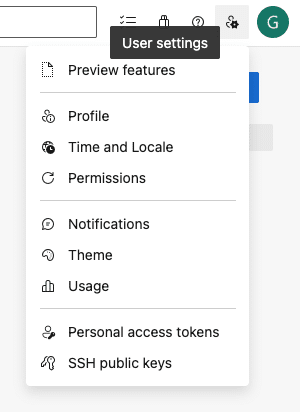
https://dev.azure.com/{yourOrgName}, open user settings (top right) → Personal access tokens, and select + New Token. Direct link:https://dev.azure.com/{yourOrgName}/_usersSettings/tokens. - Name the token, select the organization it applies to, set an expiration, and select the Code → Read scope. If you don’t see the Code section, click Show all scopes. No other scopes are needed.
- Select Create, then copy the token immediately — Azure DevOps shows it only once.
- In gitkraken.dev, open Insights → Settings → Data Connections and, under Add data source, click + next to Azure DevOps.
- Give the connection a name, enter the Host domain — your organization URL, for example
https://dev.azure.com/yourOrgName— paste the Azure API token, and click Validate. - Optionally narrow what syncs with the project filter or the Repositories to skip list, then click Connect.
Legacy https://yourOrgName.visualstudio.com URLs are also accepted as the host domain.
PATs expire, and org administrators can enforce a maximum lifetime (commonly 90 days). When the PAT expires, syncing stops — create a new one and update the connection.
Microsoft Entra ID organizations: a PAT becomes inactive if its owner doesn’t sign in to Azure DevOps within 90 days. Use an account that logs in regularly.
The connection only sees the projects and repositories the PAT’s account can access. Reference: Microsoft — Use personal access tokens.
Azure DevOps Server
Connect Azure DevOps Server to pull activity from a self-hosted collection.
Requirements:
- Azure DevOps Server 2022 or newer, reachable from GitKraken over
httpswith a publicly-trusted certificate. - A personal access token with Code (Read) — create it the same way as for Azure DevOps above.
- In Data Connections, click + next to Azure DevOps Server.
- Optionally name the connection, then enter the Server URL — for example
https://azuredevops.yourcompany.com. - Enter the Collection —
DefaultCollectionunless your server uses a different one. - Paste the Azure API token and click Validate, then Connect.
Troubleshooting
| Symptom | What’s happening | Fix |
|---|---|---|
| An Azure DevOps project is missing after Validate | The token’s account can’t access it | Check that account’s permissions in Azure DevOps |
| Azure DevOps sync stopped | The PAT expired, or (Entra ID orgs) its owner hasn’t signed in for 90 days | Create a new PAT with Code (Read) and use an account that logs in regularly |
| Azure DevOps Server won’t validate | GitKraken can’t reach it, or its certificate isn’t publicly trusted | Confirm the Server URL is reachable over https from outside your network with a publicly-trusted certificate — self-signed and internal CAs won’t work. Azure DevOps Server must be 2022 or newer |
For general connection troubleshooting, see Troubleshooting setup on the Connect Your Data overview.
After connecting
Once your connection is active, continue with the remaining setup steps on the Connect Your Data overview: