Bitbucket
Last updated: September 2026
Connect Bitbucket Cloud or Bitbucket Data Center to sync repository, pull request, and contributor activity into GitKraken Insights. Your git provider powers every PR, commit, contributor, and cycle-time metric.
Before you start: make sure you have the right access. See the prerequisites table on the Connect Your Data overview.
Connect Bitbucket if your repositories live in a Bitbucket workspace. Like GitHub, it powers every PR, commit, contributor, and cycle-time metric.
- In gitkraken.dev, open Insights → Settings → Data Connections.
- Under Add data source, click + next to Bitbucket.
- In the Connect Bitbucket modal, optionally give the connection a Name, then enter your Atlassian account email and a Bitbucket API token (see scopes below).
- Click Validate. Insights lists the workspaces the token can see — select the ones to sync, then click Connect.
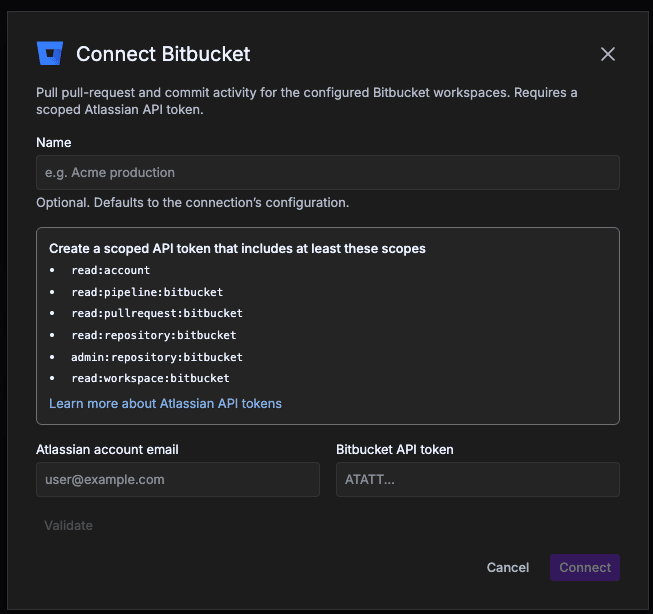
Required token scopes
Bitbucket connects with a scoped Atlassian API token. Create it at id.atlassian.com → Security → API tokens using Create API token with scopes. Name it, set an expiration (Atlassian allows 1–365 days), choose Bitbucket as the app, and include at least these scopes:
read:accountread:pipeline:bitbucketread:pullrequest:bitbucketread:repository:bitbucketadmin:repository:bitbucketread:workspace:bitbucket
Copy the token immediately — Atlassian shows it only once. Scoped Bitbucket tokens start with ATATT….
Tokens expire. When the token reaches its expiration date, syncing stops. Create a new token and update the connection before that happens.
A workspace missing after Validate means the token’s Atlassian account can’t access it. Check that account’s Bitbucket permissions.
Once connected, Bitbucket data begins syncing in the background and continues over the next several hours. Reference: Atlassian — Manage API tokens.
Bitbucket Data Center
Connect Bitbucket Data Center to sync activity from a Bitbucket instance you run yourself.
Requirements:
- The server must be reachable from GitKraken over
httpswith a publicly-trusted certificate. - An HTTP access token with read access to the projects and repositories you want to sync.
- In Data Connections, click + next to Bitbucket Data Center.
- Optionally name the connection, then enter the Server URL — for example
https://bitbucket.yourcompany.com. - Paste the Bitbucket access token and click Validate, then Connect.
As with Bitbucket cloud, the connection only sees the projects and repositories the token’s account can access.
Troubleshooting
| Symptom | What’s happening | Fix |
|---|---|---|
| A Bitbucket workspace is missing after Validate | The token’s account can’t access it | Check that account’s permissions in Bitbucket |
| Bitbucket Data Center won’t validate | GitKraken can’t reach it, or its certificate isn’t publicly trusted | Confirm the Server URL is reachable over https from outside your network with a publicly-trusted certificate — self-signed and internal CAs won’t work |
For general connection troubleshooting, see Troubleshooting setup on the Connect Your Data overview.
After connecting
Once your connection is active, continue with the remaining setup steps on the Connect Your Data overview: