

Last updated: October 2026
Connect a Git host and the pull requests you authored, plus the ones waiting on your review, show up in the Kepler interface. Kepler also matches them to the worktrees you already have, so a branch you are working on carries its pull request wherever you see it.
Manage providers in Settings → Integrations, in the Provider Integrations section.
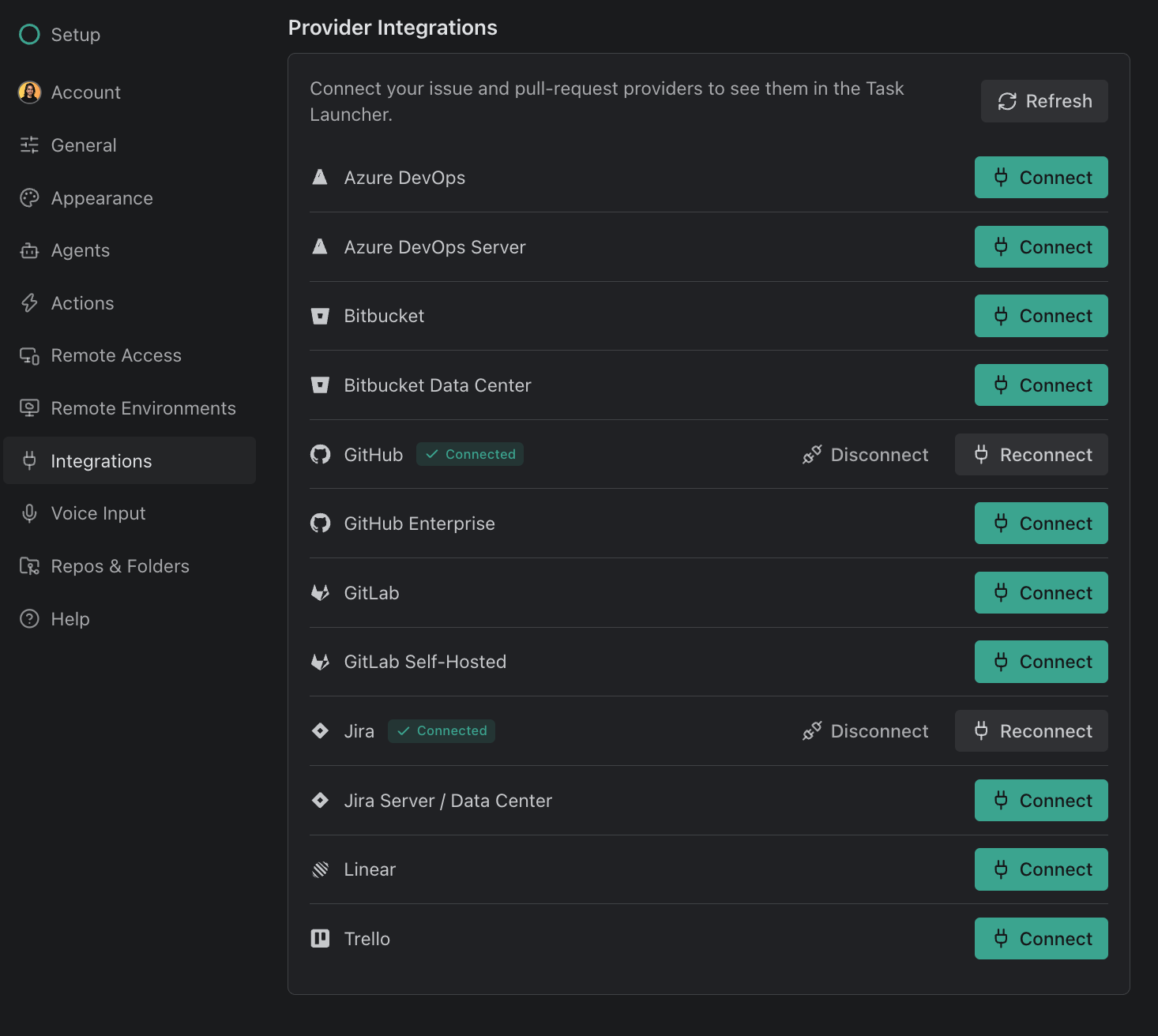
Hosts Kepler can read pull requests from
Eight of Kepler’s twelve providers return pull requests:
| Provider | Also returns issues |
|---|---|
| GitHub | Yes |
| GitHub Enterprise | Yes |
| GitLab | Yes |
| GitLab Self-Hosted | Yes |
| Azure DevOps | Yes |
| Azure DevOps Server | Yes |
| Bitbucket | No |
| Bitbucket Data Center | No |
Jira, Jira Server / Data Center, Linear, and Trello are the other four. They return issues only. See Issue Tracker Integrations.
Self-hosted instances are supported. GitHub Enterprise, GitLab Self-Hosted, Azure DevOps Server, and Bitbucket Data Center read pull requests and merge requests the same way their cloud counterparts do, and two servers of the same kind stay separate; which fields come back depends on your server’s version. Your machine needs to be able to reach the instance. Kepler trusts the certificates in your operating system’s certificate store, so a server signed by your company’s own certificate authority works without extra setup.
GitLab merge requests appear as pull requests throughout Kepler. There is one list, not two.
Connect a Git host
Connecting a Git host takes four steps:
- Open Settings → Integrations.
- Find the provider in Provider Integrations and click Connect.
- Authorize Kepler in the browser window that opens.
- Kepler returns to Provider Integrations and the provider shows a Connected badge.
Your GitKraken account holds integrations, not this copy of Kepler, so a provider you connect here also becomes available to the gk command-line interface (CLI) and GitKraken Desktop. You need to sign in to a GitKraken account to manage them.
Connect hands the whole authorization to GitKraken’s website. Kepler opens /connect there in your system browser, names the provider, and includes a redirect back into Kepler. Kepler has no in-app form for a host URL or a personal access token, so you supply a self-hosted instance’s address and whatever credential it needs directly in the browser. When you return, Kepler refetches your providers instead of reusing its cached list.
Three controls sit on a connected provider’s row:
| Control | What it does |
|---|---|
| Reconnect | Re-runs authorization. Use it when a sign-in has expired |
| Disconnect | Removes the provider (see below) |
| Refresh | At the top of the section, re-checks every provider |
A row marked Sign-in expired needs its token refreshed. Kepler tries to do that itself; Reconnect is the manual fix. A row marked Cannot connect to server is different: the integration is still connected, but Kepler couldn’t reach the server, so check that it’s up and reachable from your network or VPN rather than reconnecting. When one organization refuses Kepler’s access, such as a GitHub organization that restricts OAuth apps, Kepler names it under the row and leaves only its items out. See Issue Tracker Integrations for the warnings in full.
Cloning a repository you don’t have
Starting work on a pull request whose repository you have never cloned makes Kepler clone that repository first, into your Default Repositories Folder. That clone authenticates with the provider token your connected GitKraken account already holds, the same connection the pull request itself came through. As a result, a private repository clones without you having to set up a git credential helper. Kepler authenticates the clone differently depending on the host:
| Host | How the clone authenticates |
|---|---|
| GitHub, GitHub Enterprise | Your connected account’s token |
| GitLab, GitLab Self-Hosted | Your connected account’s token |
| Bitbucket, Bitbucket Data Center, Azure DevOps, Azure DevOps Server | Falls through to your own git credentials |
For an enterprise or self-managed host, Kepler matches the clone’s host against the domain stored on your connection, so the repository clones through the account connected to that instance rather than through a cloud account of the same family. When a provider has more than one account, the clone follows the same choice your reads follow: Read from this account where you set one, otherwise the primary.
Kepler hands the token to that one git process and nothing more. Kepler does not write it into the clone’s .git/config, does not add it to the remote’s URL, and never exposes it to the interface.
Where Kepler holds no usable token for the host, the clone falls back to your own git credential helper. Kepler never lets git open an interactive prompt, so when no credential helper is available, the clone fails with a message that names the host and tells you what to do: git has no saved credentials for this remote and Kepler cannot prompt for them. Sign in with a git credential helper (e.g. gh auth login, or the macOS keychain helper) or use an SSH url, then try again.
More than one account of the same provider
You can connect several accounts of the same provider. When a provider has two or more, an Accounts list appears under its row with one entry per account.
Each entry carries two independent controls:
| Control | What it changes | How far it reaches |
|---|---|---|
| Read from this account | Which account Kepler reads this provider’s pull requests and issues from | Kepler only, and non-destructive |
| Set as primary / Primary | The provider’s primary account | Everywhere: other Kepler windows, the gk CLI, and GitKraken Desktop |
Browsing a secondary account does not change your primary. Selecting Read from this account on a second account switches what Kepler shows you and leaves the primary alone. The primary is the default read account, so a provider with no override reads through it.
Switching either one clears that provider’s saved filters (a repository from the old account need not exist on the new one) and re-fetches the list.
Disconnect a provider
Click Disconnect on the provider’s row in Settings → Integrations and confirm.

Disconnecting reaches further than Kepler: it removes the connection from your GitKraken account, so the gk CLI and GitKraken Desktop lose it too. What happens to the provider depends on whether you have another account connected:
- With another account connected, Kepler promotes it to primary and the provider stays connected under it. Nothing else changes.
- With no other account connected, the provider is removed entirely. Kepler drops its saved filters and its rows from your lists, so nothing lingers behind pointing at a provider you no longer have.
You can reconnect at any time.
Bitbucket has no issues
Kepler keeps two separate lists of what each provider can return. Bitbucket and Bitbucket Data Center are on the pull-request list only, so Kepler never asks them for issues, and a provider filter for issues never offers them. In the list, Kepler builds facets from the rows actually loaded, so a facet with nothing to offer never appears.
The same rule runs the other way for Jira, Linear, and Trello, which have no pull requests.
How pull requests attach to worktrees
Kepler matches a pull request to a worktree by branch, and it tries the worktree’s upstream branch as well as its local one.
That second pass matters when the two names differ. If your local branch is fix-login but it tracks origin/justin/fix-login, matching on the local name alone finds nothing. The pull request’s head branch is the upstream name. Kepler runs a second pass against the short branch of the tracking ref and catches it.
Matching runs against open and closed pull requests together, so a merged pull request still shows on the branch it merged from.
Confirmed against inferred
Every link Kepler shows records how it was made, so you can tell a hard link from a guess:
| How the link was made | Reads as | What it means |
|---|---|---|
| Recorded on the task | Confirmed | The link is authoritative. Kepler records one when you launch the task from the pull request, when an agent opens a pull request, when you attach one yourself, or through the branch auto-attach below |
| The pull request’s head branch matched the worktree’s local branch | Confirmed | A direct branch match |
| The head branch matched the worktree branch’s upstream branch | Confirmed, and marked | Git-native rather than a guess, but the local name differs, so Kepler labels it Matched from upstream branch |
| An identifier parsed out of the branch name | Inferred | A heuristic. Issues only: pull requests are never linked this way |
A confirmed link carries no extra marking. Kepler underlines with a dotted line any link it wants you to look twice at, and its tooltip says why: Matched from upstream branch, or Matched from branch name for an inferred issue link.
When Kepler finds one pull request more than one way, the most authoritative wins: the task’s own recorded link, then a local branch match, then an upstream branch match.
Kepler scopes branch matching to each item’s own repository, so two repositories with a branch of the same name do not borrow each other’s pull requests.
Auto-attaching a matched pull request
A pull request you open outside Kepler (from a terminal gh, from GitKraken, from the web) doesn’t stay a read-time match. Kepler records it on the task for you.
Whenever fresh pull-request data arrives, Kepler looks over your active tasks that hold no pull request yet and attaches one whose head branch matches a worktree’s branch. It then behaves like a pull request you attached yourself: it sits in the task’s resources, and it reaches the agent as context. See Tasks and Resources.
Auto-attaching is deliberately stricter than the matching above, because Kepler saves an attached resource and sends it to an agent, where a read-time match only draws a card. Auto-attach follows five rules:
| Rule | Why |
|---|---|
| Exact matches only | The pull request’s head branch has to be the worktree’s own branch name, and its repository has to match a remote exactly. The upstream-branch pass and the rename-tolerant fallback still draw the card; neither attaches |
| Open pull requests only | A merged pull request cannot claim a branch name that gets reused later |
| The head branch has to live in the same repository | Branch matching keys on the head branch name, and the author of a fork picks that name freely. An attached resource reaches your agent, so a stranger’s pull request must not claim your branch |
| One pull request per task per pass | A task drops out of the next pass as soon as it holds one |
| A pull request another active task already holds is left alone | One active task per pull request, without taking it off the task that has it |
Auto-attach never archives anything and never replaces anything. A branch match is a guess, so it never supersedes work you started deliberately, and it never removes a link because a pull request briefly dropped out of a read.
What Kepler reads from a pull request
Kepler pulls these fields from a pull request:
| Field | Notes |
|---|---|
| Number and title | |
| Description | The pull request body |
| State | Kepler derives one of Open, Draft, Merged, or Closed |
| Repository | Name, owner, and host |
| Author | When the provider reports one. Kepler also tracks whether you authored it, which is what splits Yours from Review on a row |
| Head and base branch | When the provider reports them. These drive branch matching and the branch a task starts from |
| Fork | Whether the head branch lives on a fork, and where, so Kepler can fetch it from the fork remote instead of origin |
| Created at | |
| URL | Used by the open control, which names the provider: Open on GitHub, Open on Bitbucket, and so on |
A merged pull request keeps its description and author for as long as a task, archived or not, still links it.
Azure DevOps reports pull requests without a usable number, so Kepler identifies them by URL instead. You should not see a difference; identifying by URL is why a pull request you look up by link resolves correctly there.
Where your pull requests turn up
Your pull requests turn up in four places:
| Surface | What it gives you |
|---|---|
| The Kepler interface | The Todo segment lists every pull request you authored and every one you are a reviewer on, with your role on each |
| Actions | The Action button hands the pull request to an agent. Review and Address Feedback are the two built-in Actions aimed at pull requests, and Kepler picks between them by who authored it |
| Review Changes | Reading the diff and the commits behind a pull request |
| Tasks and Resources | A pull request is a resource on a task, so you can attach one to work that already exists |
Review requests come from every host. Pull requests waiting on your review show up from Azure DevOps, Azure DevOps Server, and Bitbucket Data Center as well as GitHub and GitLab. Bitbucket Cloud has no account-wide way to ask for them, so Kepler reads review requests repository by repository, starting with the repositories you have in Kepler and then the rest of your workspaces at a pace that stays inside Bitbucket’s hourly request limits. On a large workspace they can take a while to appear.
Kepler loads what you’re looking at. Pull request and issue lists refresh while they’re on screen, and again when you come back to the window, rather than downloading your whole account’s lists in the background. A task’s own pull requests refresh when an agent ends a turn, a branch is pushed, or a pull request is published.
You can also start work on a pull request from GitLens or GitKraken Desktop. See Create a Task.
