

Last updated: October 2026
Kepler is GitKraken’s Agentic Development Environment (ADE): a place to direct coding agents across your real work, in as many repositories as you need, at the same time.
You bring the agent. Kepler pulls in the issues and pull requests already assigned to you, hands any of them to an agent with the context attached, and takes the result through to a reviewed, mergeable change.
Kepler is in public preview. A free GitKraken account is all you need.
Install Kepler
| Platform | Installer | Minimum OS |
|---|---|---|
| Windows | 64-bit, ARM64 | Windows 10+ |
| macOS | Apple Silicon, Intel | macOS 12+ |
| Linux (x64) | .deb, .rpm, .AppImage, Flatpak, AUR | Ubuntu LTS 18.04+ / Debian 10+ / RHEL 8+ / Fedora 39+ |
| Linux (ARM) | .deb, .rpm, .AppImage | Ubuntu LTS 20.04+ / RHEL 8+ / Fedora 39+ |
- Go to gitkraken.com/kepler/download and pick the installer for your platform.
- Run it.
- Launch Kepler.
If you open an older copy of Kepler than the one that last used your data, Kepler stops at Kepler is out of date before it opens, because the older copy can’t read everything the newer one saved; sessions in particular may look like they have disappeared. The dialog names the version your data needs, and offers Open Newer Version when a newer copy is installed, or Update and Restart when this copy can update itself, plus Quit and Open Anyway. A Snap install doesn’t offer Update and Restart.
Sign in
Kepler opens on a welcome screen. Click Sign in with GitKraken. If you do not have an account, you’ll create one in the next step.
The screen’s top corner shows Kepler’s version. When an update has downloaded, it reads Update ready to install with Update and restart, so you can update before you sign in.
In a window connected to another machine, the screen says Finish signing in in your browser, or paste the code in the Kepler window on this machine. If that window can’t be signed in, it says Couldn’t sign this window in with your Kepler account. Reconnect it and try again.
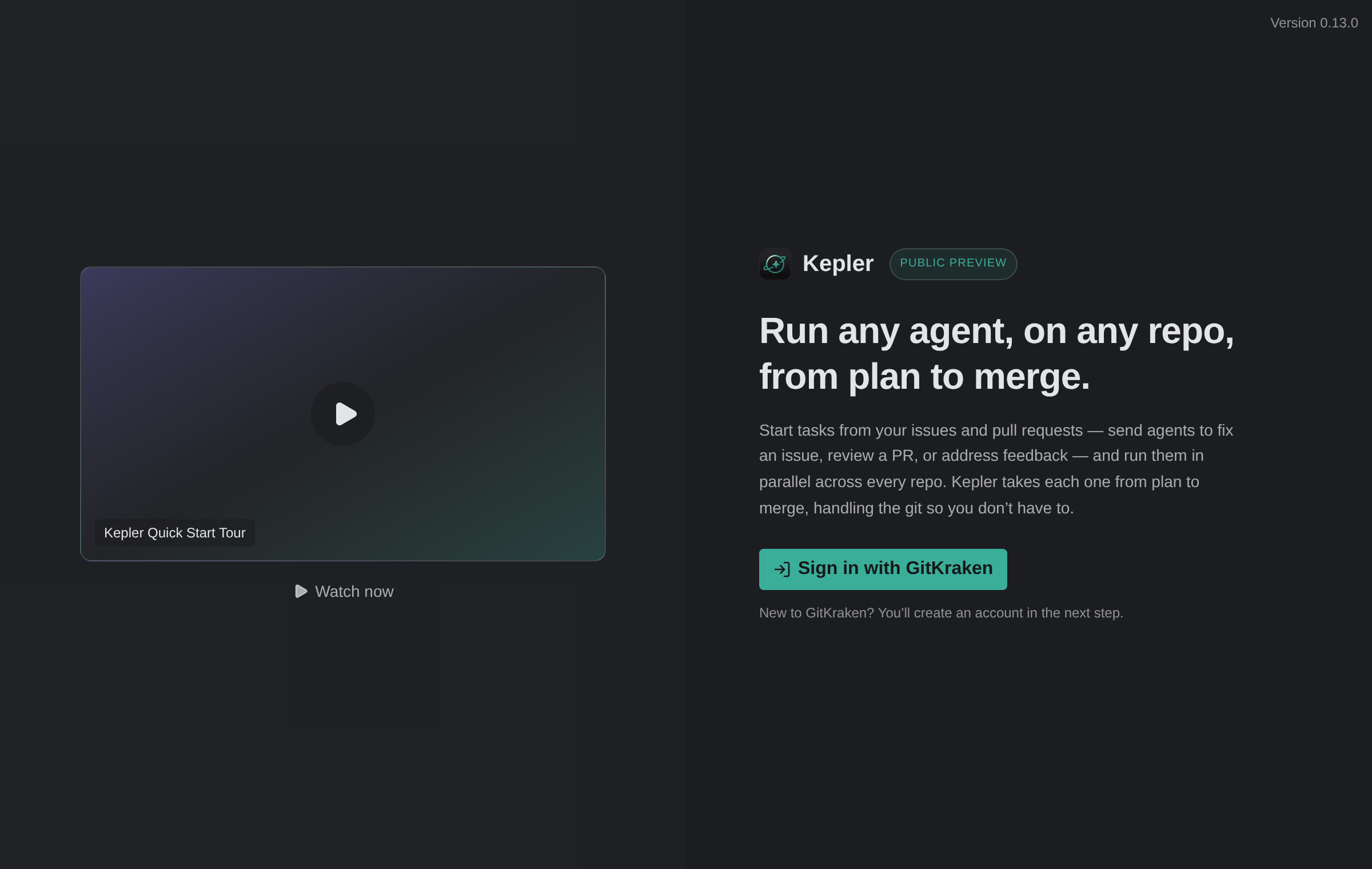
A Kepler Quick Start Tour video appears on that screen if you’d rather watch first, or watch the Kepler Quick Start Tour playlist on YouTube.
Finish the setup checklist
The Setup entry in the toolbar tracks 5 things, and shows Setup · N/5 until they’re done. Open it for Finish setting up Kepler and a progress readout.
| # | Item | What it does |
|---|---|---|
| 1 | Sign in to GitKraken | Done when you signed in above |
| 2 | Connect an AI agent | At least one coding agent. See Agent Integrations |
| 3 | Connect issue & PR trackers | Any provider. This is what fills your Todo list. See Issue Tracker Integrations and Pull Request Integrations |
| 4 | Set a default repositories folder | Where Kepler clones repositories it does not find locally |
| 5 | Set a default worktree folder | Where Kepler creates one worktree per repository, per Task |
Expand More setup options for 3 optional items:
- Connect a remote environment, covered in Remote Environments
- Control Kepler remotely, also in Remote Environments
- Add repo commands
Add repo commands is worth doing early if your project needs a setup step. Save a repository’s install or build command once and Kepler can run it automatically every time it creates a worktree, so an agent never starts in a checkout it cannot build. See Tasks and Resources.
Folder paths and everything else live in Settings. You can hide the checklist from the toolbar and still reach it there.
Put an agent on real work
After you connect a tracker, the Todo segment of the Kepler interface fills with the issues and pull requests assigned to you.
- Pick an item in Todo.
- Click its Action button.
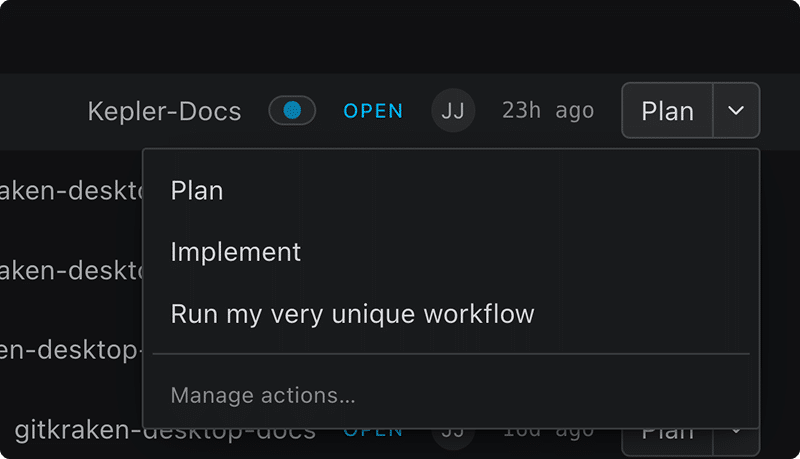
Nicely done! Kepler automatically does the following:
- Creates a Task.
- Attaches the repository and the item.
- Sets up an isolated worktree.
- Starts an agent with the context already in place.
The left half of the button runs the sensible default:
- Plan for an issue
- Review for someone else’s pull request
- Address Feedback for one of yours
The chevron next to the button offers the rest of the Actions.
Every one of those prompts is yours to change, and you can add your own. That’s the part worth reading next: Actions.
Start something that is not tracked yet
Click New task or press Cmd/Ctrl+N. From outside Kepler, Shift+Alt+N opens the quick launcher. Write a prompt, attach a repository if the task needs one, and go. You can attach nothing at all and turn it into real work later. See Create a Task.

Where to go next
| If you want to | Read |
|---|---|
| Change the prompts, or write your own | Actions |
| Understand what a Task holds | Tasks and Resources |
| Work inside a Task | The Task View |
| Direct an agent mid-session | Agent Sessions |
| See what every agent is doing at once | The Agent Graph |
| Reshape the list to fit how you work | Arranging Your Work |
| Review and ship what an agent wrote | Review Changes |
| Run agents on another machine or in WSL | Remote Environments |
