

Last updated: October 2026
Settings is eleven sub-pages, each with its own sections. This page documents every one of them: what each setting controls, what it defaults to, and what changes when you change it.
Open Settings from the gear icon in the top bar, or with ⌘ , (Ctrl , on Windows and Linux). The same shortcut closes Settings again, the way the gear button does.
The eleven sub-pages
Above the sub-pages sits Setup, a progress ring that reopens the first-run checklist. The left rail lists the sub-pages in this order:
| Sub-page | What it covers |
|---|---|
| Account | Who you’re signed in as, your organization, what your plan unlocks, and GK AI Credits |
| General | App updates, folder locations, the branch prefix, windows and notifications, language, keyboard shortcuts |
| Appearance | Theme, terminal font, diff layout, chat transcript scrolling |
| Agents | Your default agent, per-agent configuration, cross-agent options, MCP server defaults, and Features |
| Actions | Preferred Actions per item kind, and the Action list |
| Remote Access | Opening this Kepler from another device |
| Remote Environments | The saved hosts your agents can run on, over SSH or WSL |
| Integrations | Issue tracker and Git host connections |
| Voice Input | On-device speech-to-text and its model |
| Repos & Folders | Tracked repositories and folders, their commands and branch prefixes, worktree cleanup, and Projects |
| Help | The onboarding guides, the docs, and Kepler’s logs |
Account is first because it’s the only page about the person rather than the app, and it’s where the account menu hands off to.
Moving between sub-pages replaces a single history entry. As a result, Back returns you to whatever you were doing before you opened Settings, rather than walking back through every sub-page you visited.
In a window connected to a remote environment, Settings shows that host’s settings, and its header names the host. Sections that save to this computer instead, such as Appearance or Keyboard Shortcuts, carry a Saved on this machine badge: Applies to every Kepler window on this machine, whichever host it’s connected to.
Deep links and section anchors
Every section has a stable anchor id. A link of the form /settings/<sub-page>#<section-id> opens that sub-page and scrolls to the section.
Legacy links of the form /settings#<section-id> still work: Kepler resolves the id to whichever sub-page owns that section and keeps the hash. A naked /settings opens General. Here is each sub-page’s path with its section anchors, in page order:
| Sub-page path | Section anchors, in page order |
|---|---|
/settings/account |
account, plan-features, ai-credits |
/settings/general |
updates, general, windows-and-notifications, language, keyboard-shortcuts |
/settings/appearance |
appearance, terminal, diff-view, transcript |
/settings/agents |
default-agent, agents, agent-options, mcp-servers, features |
/settings/actions |
preferred-actions, action-list |
/settings/remote-access |
remote-access |
/settings/remote-environments |
remote-environments |
/settings/integrations |
provider-integrations |
/settings/voice |
voice |
/settings/repositories |
repositories, worktrees, projects |
/settings/help |
onboarding-help, logs |
Each agent also gets its own anchor, agent-<agent-id>, for example agent-claude-code.
Account
Three sections: Account, Unlock more with Kepler, and GK AI Credits.
| Control | What it does |
|---|---|
| Account | Who you’re signed in as, with Sign out |
| Active organization | Switches between the organizations your GitKraken account belongs to. What a feature costs, and whether it’s unlocked at all, follows the organization you’re acting as |
| Manage subscription / Purchase subscription | Opens your GitKraken subscription on the web |
| Refresh account status | Re-reads your plan. Kepler also picks up a purchase or plan change made outside the app on its own, with no restart |
| Unlock more with Kepler | What this plan does and doesn’t include. Shown only while something is left to unlock |
| GK AI Credits | Your credit balance |
When a feature is locked on the organization you’re acting as but included on another one you belong to, Kepler says so and offers the switch rather than sending you to a paywall: {organization} ({plan}) already includes this.
General
Five sections: Update (shown without a heading), General, Windows and notifications, Language, Keyboard Shortcuts.
Update
The first rows on the page are about the app itself:
| Row | What it does |
|---|---|
| Current version | The installed version. Click the version number to open What’s New for that release |
| Check for updates | Checks for a newer release and downloads it in the background. Reads Kepler is up to date when there’s nothing newer, and becomes Check again |
| Download progress | While a release downloads: Downloading with a percentage, how much has arrived out of the total and the speed ({done} of {total} · {rate}/s), and the time left (About {count} min left). A Verifying step follows before it can install |
| New version | Appears once a release is ready, with Restart to update beside it, and how many running agents a restart would stop |
A ready update also shows as one chip in the top bar, on every screen, whose popover reads Update ready to install and says what a restart does to running work. If agents are mid-tool-call when you restart, Kepler shows Preparing to restart — finishing {count} active tool calls… and waits up to 2 minutes; Restart now skips the wait.
The update controls only appear in the desktop app. In a browser window connected to Kepler, this section shows nothing to update.
General
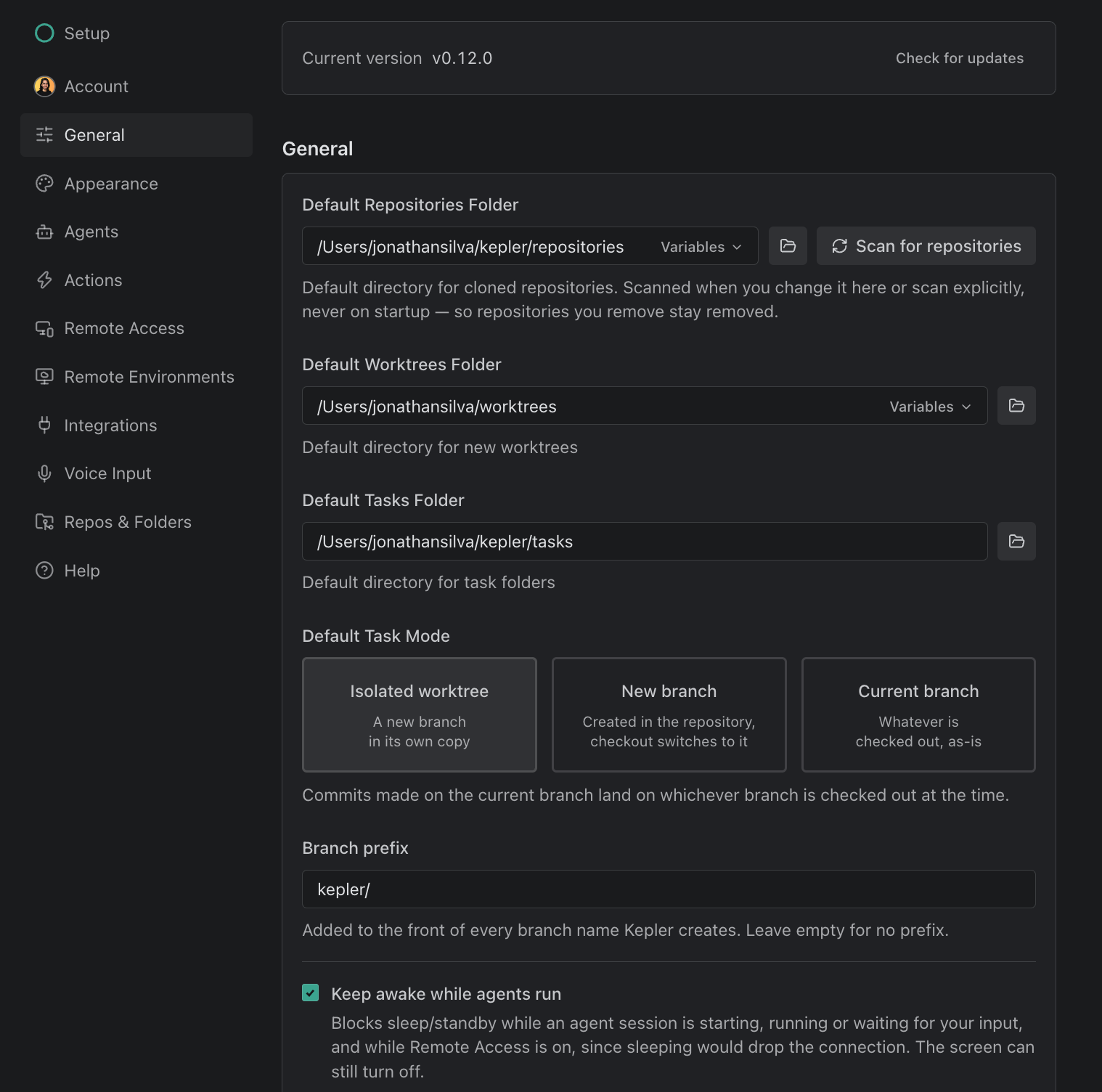
This section covers where Kepler stores things on disk, how new tasks branch, and keeping the machine awake. Its values belong to the environment you’re working on, so in a remote window they’re the host’s.
Folder locations
Three paths tell Kepler where to put things. All three are unset out of the box; Kepler computes a fallback under your home folder without writing it, so an untouched setting still reads as untouched. These are the three folder settings:
| Setting | What it controls | Default |
|---|---|---|
| Default Repositories Folder | Where Kepler clones repositories | ~/kepler/repositories |
| Default Worktrees Folder | Where Kepler creates new worktrees | ~/kepler/worktrees |
| Default Tasks Folder | Where Kepler creates task folders | ~/kepler/tasks |
Type a path directly, or use the folder button beside the field to browse. Edits save when you leave the field, so no separate Save button exists.
Scan for repositories, beside the repositories folder, registers every repository it finds there and reports Added {count} repositories. or No new repositories found. It runs only when you change the setting or press it, never on startup, so a repository you deliberately removed stays removed.
The Variables menu
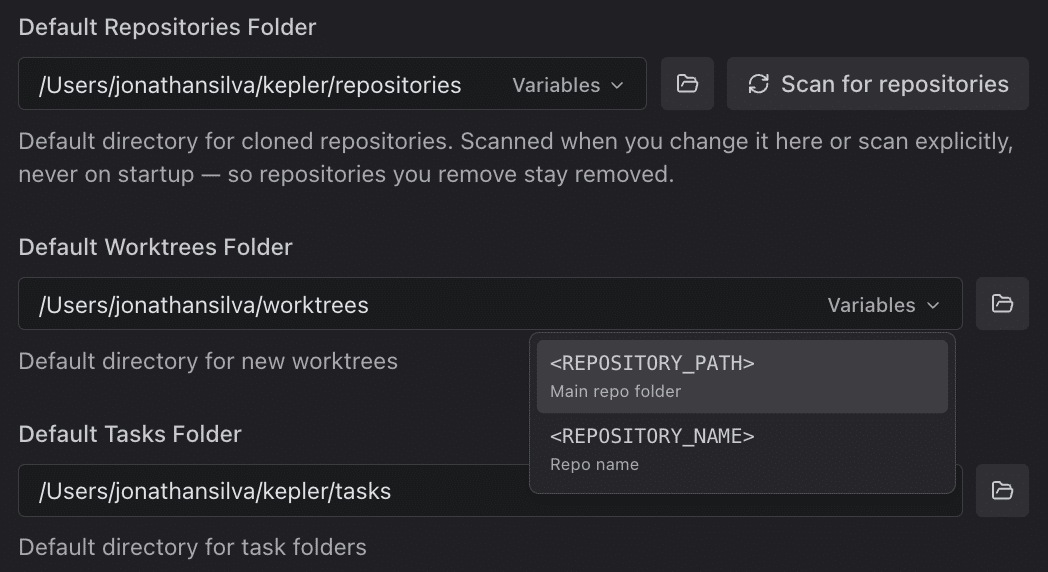
A folder field that can contain a dynamic variable has a Variables menu beside it. Pick one and Kepler inserts it at the cursor; Kepler fills it in when it creates the folder, so one pattern covers every repository. Each field offers only the variables it can actually resolve:
| Field | Variables offered |
|---|---|
| Default Worktrees Folder | <REPOSITORY_PATH> (Main repo folder), <REPOSITORY_NAME> (Repo name) |
| Default Repositories Folder | <REPOSITORY_NAME> |
| Default Tasks Folder | None |
For example, <REPOSITORY_PATH>/.worktrees/<REPOSITORY_NAME> nests each worktree inside the repository it belongs to. Kepler collapses any .. segments you write.
Default Tasks Folder takes no variables. A task folder has no repository behind it, so nothing would ever fill one in, and Kepler refuses the value rather than storing a path that can’t resolve: Dynamic variables cannot be used here.
Per-repository commands have a Variables menu of their own, with two more variables. See Per-repository commands.
Default Task Mode
| Setting | What it controls | Default |
|---|---|---|
| Default Task Mode | What a newly attached repository starts on, in the Task Composer | Isolated worktree |
| Option | What it does |
|---|---|
| Isolated worktree | A new branch in its own copy. Forks a new branch into its own worktree |
| New branch | Created in the repository, checkout switches to it. Forks a new branch directly in the repository’s own checkout, with no worktree |
| Current branch | Whatever is checked out, as-is. Runs on the repository’s own checkout, on whichever branch it currently has, with no new branch created |
This sets the default only. The repository chip’s own Base branch and Isolated worktree controls still override it for any single Task. See Create a Task.
Commits made on the current branch land on whichever branch is checked out at the time. That caveat applies to New branch and Current branch alike, since both run in the repository’s own checkout rather than an isolated one: if another Task is already working in that checkout, Kepler says so and offers to switch that one repository to an isolated worktree instead.
Branch prefix
| Setting | What it controls | Default |
|---|---|---|
| Branch prefix | Added to the front of every branch name Kepler creates. Leave empty for no prefix. | kepler/ |
The prefix applies to automatic names only. A branch name you type is used verbatim, which is how a repository with an enforced feat/ or fix/ push rule still works. A prefix you type without a trailing separator gains a /, so typing team stores team/, while a personal ea- style prefix is kept as the literal lead-in it is.
Each repository can override it under Repos & Folders. If a repository already has a branch literally named after the prefix, Kepler says which one and points you there: Can’t be used in {repo}: it has a branch named {branch}. Set a different prefix for that repository under Repositories.
Keep awake while agents run
| Setting | What it controls | Default |
|---|---|---|
| Keep awake while agents run | Blocks sleep and standby while an agent session is starting, running, or waiting for your input, and while Remote Access is on, because sleeping drops the connection and makes this machine unreachable. The screen can still turn off | On |
Kepler holds the machine awake through the platform’s own mechanism: caffeinate on macOS, an execution-state assertion on Windows, systemd-inhibit on Linux. Where that isn’t possible, the setting says so under the switch. For example, it reads Can’t stay awake: there is no sleep-blocking mechanism available on this platform, or on Linux it says that the system’s polkit policy is refusing the request, with a rule an administrator can install. This setting applies to the computer the agents run on, which on a remote connection is the remote host, and it counts Claude Code sessions detected outside Kepler alongside Kepler’s own. Kepler releases the machine as soon as the last such session settles.
Windows and notifications
This computer’s own window, task-tab, and notification preferences:
| Setting | What it controls | Default |
|---|---|---|
| Always use the custom folder picker | Local windows use the native OS folder dialog and remote windows use Kepler’s own picker, which can browse a remote filesystem. Turn this on to use Kepler’s picker everywhere | Off |
| Restore windows on launch | Reopens every window from your last session at its previous size, route, and connection. Turn it off to start in a single window | On |
| Show tabs on the task page | Keeps sessions, worktrees, and resources open as tabs you can pin, drag between groups, and arrange side by side. With it off, each column of a task shows one thing at a time and you switch from the list on the left. See The task view | Off |
| Preview tabs | With tabs on, a single click opens a preview tab that the next click replaces. Double-click, or edit, to keep it open. Sessions always open as permanent tabs | On |
| Enable system notifications | Shows desktop notifications when an agent finishes, needs your attention, or errors while Kepler is in the background. Turning it on sends a sample notification so your OS asks for permission | Off |
| Notify for external terminal tasks | Notifications for Claude tasks running in your own terminal. Turn it off to silence those while keeping notifications for Kepler-managed tasks. Disabled while system notifications are off | On |
Kepler reads Restore windows on launch during cold start, so a change takes effect on the next launch.
To silence notifications from one remote host only, use Mute notifications from {host} on that host in Remote Environments.
Language
Language has one setting:
| Setting | What it controls | Default | Options |
|---|---|---|---|
| Language | The display language for Kepler’s interface | English | English, Español |
The choice also applies to native dialogs, not only the in-app interface.
Keyboard Shortcuts
This section lists Kepler’s shortcuts, grouped the way Settings groups them. They are a reference, not editable. Kepler also shows each shortcut in the menu items and button tooltips it belongs to. A few tab shortcuts that Settings doesn’t list, such as reopening a closed tab and jumping to a tab by position, are in Task View. Mac symbols are shown first; on Windows and Linux, ⌘ is Ctrl and ⌥ is Alt, and ⌃ is Ctrl on every platform.
General
| Action | Mac | Windows / Linux |
|---|---|---|
| Open settings | ⌘ , | Ctrl + , |
| New task | ⌘ N | Ctrl + N |
| Open quick launcher (global) | ⇧ ⌥ N | Shift + Alt + N |
| New window | ⌘ ⇧ N | Ctrl + Shift + N |
| Quit | None | Ctrl + Q |
| Zoom in | ⌘ = | Ctrl + = |
| Zoom out | ⌘ – | Ctrl + – |
| Reset zoom | ⌘ 0 | Ctrl + 0 |
| New session | ⌘ T | Ctrl + T |
| Rename task | F2 | F2 |
| Manage remote environments | ⌘ ⇧ R | Ctrl + Shift + R |
| Open file | ⌘ O | Ctrl + O |
| Go to file | ⌘ P | Ctrl + P |
| Dismiss / Cancel | Escape | Escape |
| Back | ⌘ [ | Alt + ← |
| Forward | ⌘ ] | Alt + → |
Moving around
| Action | Mac | Windows / Linux |
|---|---|---|
| Previous tab | ⌘ ⇧ [ | Ctrl + Shift + [ or Ctrl + PageUp |
| Next tab | ⌘ ⇧ ] | Ctrl + Shift + ] or Ctrl + PageDown |
| Move tab left | ⌘ ⌥ [ | Ctrl + Alt + [ or Ctrl + Shift + PageUp |
| Move tab right | ⌘ ⌥ ] | Ctrl + Alt + ] or Ctrl + Shift + PageDown |
| Close tab | ⌘ W | Ctrl + W |
| Toggle terminal | ⌘ J | Ctrl + J |
| Next region | F6 | F6 |
| Previous region | ⇧ F6 | Shift + F6 |
Dashboard
| Action | Mac | Windows / Linux |
|---|---|---|
| Move panel left | ⌘ ⌥ ← | Ctrl + Alt + ← |
| Move panel right | ⌘ ⌥ → | Ctrl + Alt + → |
| Move task to the previous Progress stage | ⌘ ⇧ ← | Ctrl + Shift + ← |
| Move task to the next Progress stage | ⌘ ⇧ → | Ctrl + Shift + → |
| Focus preview panel 1–8 | ⌘ 1–8 | Ctrl + 1–8 |
| Focus last preview panel | ⌘ 9 | Ctrl + 9 |
| Switch preview panels | ⌃ Tab | Ctrl + Tab |
| Switch preview panels, oldest first | ⌃ ⇧ Tab | Ctrl + Shift + Tab |
| Maximize preview panel | ⌘ ⇧ M | Ctrl + Shift + M |
| Maximize panel terminals | ⌘ ⇧ J | Ctrl + Shift + J |
Task page
| Action | Mac | Windows / Linux |
|---|---|---|
| Focus chat | ⌘ 1 | Ctrl + 1 |
| Focus changes | ⌘ 2 | Ctrl + 2 |
| Focus resources | ⌘ 3 | Ctrl + 3 |
| Switch sessions | ⌃ Tab | Ctrl + Tab |
| Switch sessions, oldest first | ⌃ ⇧ Tab | Ctrl + Shift + Tab |
| Maximize terminal drawer | ⌘ ⇧ J | Ctrl + Shift + J |
Chat
| Action | Mac | Windows / Linux |
|---|---|---|
| Find in conversation | ⌘ F | Ctrl + F |
| Previous message | ⌘ ⌥ ↑ | Ctrl + Alt + ↑ |
| Next message | ⌘ ⌥ ↓ | Ctrl + Alt + ↓ |
| Interrupt & send | ⌘ ⇧ ⏎ | Ctrl + Shift + ⏎ |
Changes
| Action | Mac | Windows / Linux |
|---|---|---|
| Filter changed files | ⌘ P | Ctrl + P |
| Previous file | ⌥ ↑ | Alt + ↑ |
| Next file | ⌥ ↓ | Alt + ↓ |
| Comment on selection | ⌘ ⇧ C | Ctrl + Shift + C |
Some keys do different things depending on where you are. ⌘ 1, ⌘ 2, and ⌘ 3 focus a preview panel on the Dashboard but a column on the task page; ⌃ Tab switches preview panels on the Dashboard and sessions on the task page; ⌘ ⇧ J maximizes the panel’s terminals on the Dashboard and the terminal drawer on the task page; ⌘ P filters changed files in the Changes view and opens Go to file elsewhere.
Kepler registers Open quick launcher with the OS, so it works while Kepler is in the background; its row carries a Global badge. Quit and the PageUp / PageDown tab keys are Windows and Linux shortcuts only, and Kepler hides those rows on macOS, which quits through the native ⌘ Q menu role.
Back and Forward are split by platform on purpose: Alt + ← is the Windows and Linux convention but moves by word on macOS, and ⌘ [ is the macOS convention (Safari, Finder) but not the Windows one. Holding either walks the history.
Send feedback, Show release notes, Show About, and Check for updates have no key bound, so they don’t appear in this list; reach them from the app menu.
Appearance
Four sections: Theme, Terminal, Diff View, Chat transcript.
Theme
Theme has one setting, with four values:
| Option | What it is |
|---|---|
| Dark | The middle-dark theme, and the default a fresh install runs |
| Midnight | The near-black theme |
| Light | The light palette |
| System | Follows your OS color scheme and switches when the OS does. Its dark is Dark, not Midnight |
System resolves to Dark because your OS says “light or dark” and nothing finer. Someone following the room is asking to follow the room, not to opt into the highest contrast Kepler can draw.
Color mode is the only appearance choice in this section. No second, design-language picker exists.
Terminal
Controls the font Kepler’s embedded terminals use:
| Setting | What it controls | Default |
|---|---|---|
| Font Family | Comma-separated list of font families. The first available font is used | Empty, which falls back to your platform’s monospace stack |
| Font Size | Terminal font size in pixels. Values outside 8–32 are clamped | 13 |
| Line Height | Vertical spacing between lines, to one decimal place. Values outside 1–2 are clamped | 1.2 |
The greyed text in the Font Family field (Fira Code, JetBrains Mono, Menlo) is an example of the format, not the value in effect. If you name a font Kepler cannot find on this machine, the field says so and keeps your text; the terminal falls through to the next name in your list.
Embedded terminals
Kepler scopes its terminals to a worktree. Opening one starts a shell in that worktree’s folder, so you do not need to cd into it, and the shell sources your profile the same way an interactive login shell would. Use ⌘ J to show and hide the terminal panel, New terminal to open another, and Close terminal to end one.
Terminals are for the work that sits alongside an agent session: running tests while the agent writes code, checking git state, or reproducing something the session did not surface. A terminal starts in one worktree and stays there, so work that spans several repositories is usually easier in a standalone terminal.
Diff View
Diff View has one setting:
| Setting | What it controls | Default | Options |
|---|---|---|---|
| Diff View | The layout diffs open in | Stacked | Stacked, Split |
This setting is what the layout starts on. A per-diff Stacked / Split toggle also sits on the Changes overlay’s viewer header, so you can switch a single diff without changing the default. See Review changes.
Chat transcript
How a session’s transcript scrolls:
| Setting | What it controls | Default |
|---|---|---|
| Auto-scroll | Auto-scroll to the end keeps the newest output in view. Scroll up to stop. Stay on my message keeps your message in view. The transcript doesn’t scroll on its own. | Auto-scroll to the end |
| Remember scroll position | Return to where you left off when you come back to a session. | Off |
Neither mode fights you: once you scroll up, the transcript stays where you put it.
Agents
Five parts: Default agent, one card per agent, Agent options, MCP servers, and Features.
Default agent
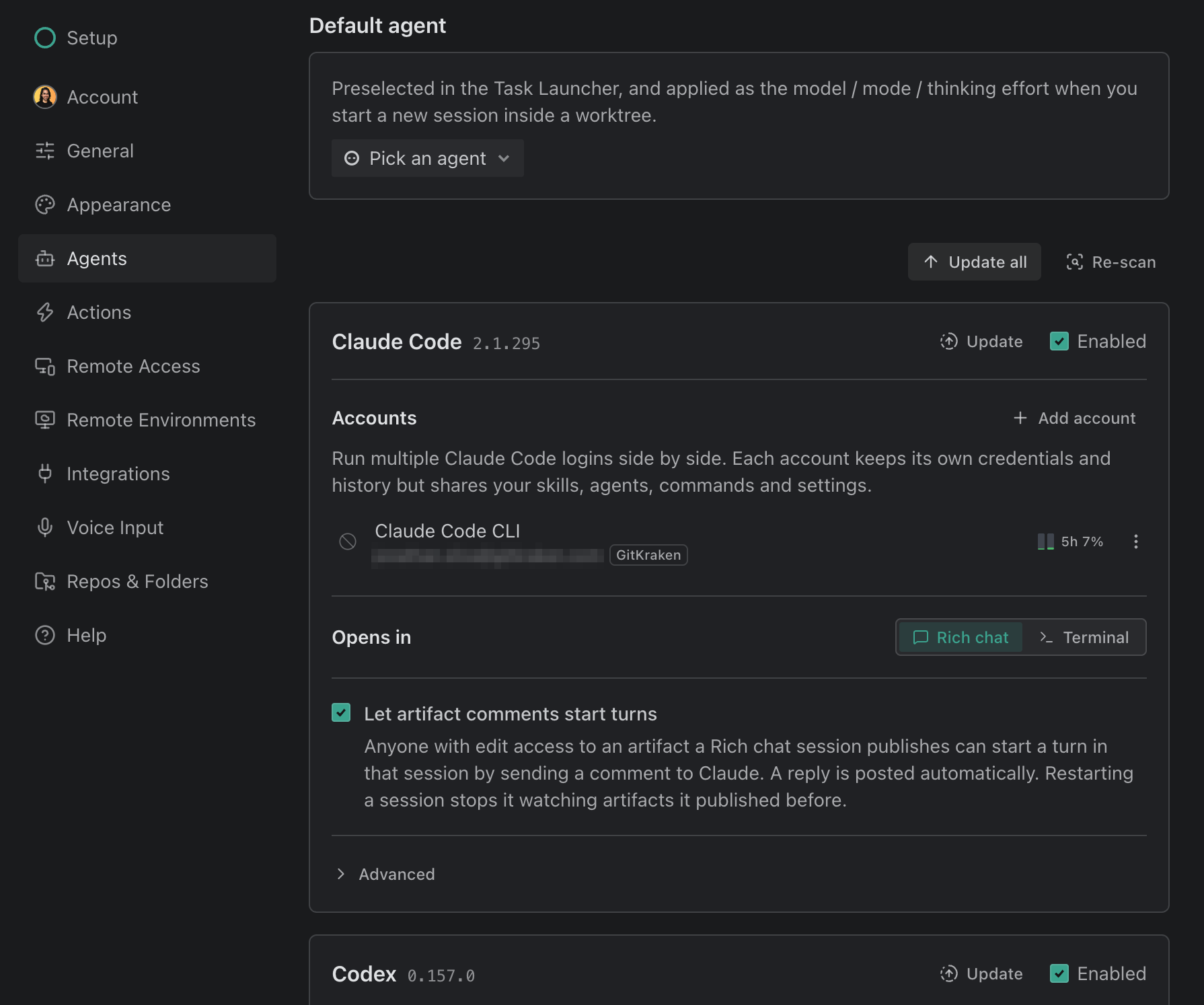
Picks the agent, account, model, mode, and thinking effort that Kepler preselects in the Task Launcher and applies when you start a new session inside a worktree:
| Control | What it does |
|---|---|
| Agent picker | Chooses the agent, and the account when that agent supports more than one |
| Options | Model, mode, and the agent’s own configuration options. Available once an agent is picked |
| Clear default | Removes the saved default. Appears only once one is set |
Nothing is set out of the box, and the section is hidden entirely when no agent is installed. If the agent you saved is later uninstalled, the row warns you and asks you to pick another.
An Action inherits this configuration unless it names an agent of its own.
One card per agent
Kepler ships adapters for Claude Code, Codex, GitHub Copilot, Cursor, Antigravity, OpenCode, Pi, Auggie, and Grok Build. Settings lists the agents installed on this machine first, then the rest, each group in that order.
Two buttons sit above the cards: Update all runs each installed agent’s own updater, and Re-scan re-detects the agent CLIs installed on this system. Run it after installing or removing one outside Kepler.
Each card’s title line carries the agent’s name and these controls:
| Control | What it does |
|---|---|
| Version | The installed version. Not installed when Kepler can’t find the CLI. A warning-toned Version unknown means Kepler couldn’t read it, which turns off features that depend on the version, such as sending a new session’s first message automatically; reinstalling or updating the agent usually fixes it |
| Update | Runs the agent’s updater and streams its output. Shown when Kepler has an updater for that agent |
| Install | Runs an install method on your behalf and streams the output. Shown on a not-installed agent that has an installer for your OS |
| Enabled | Whether Kepler offers the agent anywhere |
The card body holds the rest:
| Control | What it does |
|---|---|
| Accounts | Runs multiple logins side by side, each with its own credentials and history but sharing your skills, agents, commands, and settings. Add account asks whether its conversations Keep separate or Share with the CLI. Each account row has a color picker that tints the agent icon wherever that account runs (the default account stays uncolored), plus Sign in and an account menu with Rename, Share history with the CLI, Sign in another way, Sign out, and Remove account. Available for Claude Code, Codex, GitHub Copilot, Auggie, and Grok Build |
| Account | On an agent with a single login: who is signed in, with Sign in or Sign out. Signing out deletes the stored credentials |
| Opens in | The default mode for new sessions. See below |
| Let artifact comments start turns | Claude Code only. See below |
| Advanced | A disclosure holding Binary, Components, and Data directory |
Under Advanced:
| Setting | What it controls | Default |
|---|---|---|
| Binary | The binary Kepler spawns. Auto resolves it the way your shell does (the first match on your PATH), so it matches which. Pick a specific install, or Custom path…, to override. Re-scan searches again |
Auto |
| Components | Extra pieces an agent can need, such as its CLI for Terminal mode (Needed for Terminal mode.), each with Install or Update to {version} | None |
| Data directory | Overrides the agent’s default data and config directory | Empty, meaning the agent’s own default |
Codex runs your own CLI. Kepler resolves and spawns the codex you have installed, like every other agent. Usage figures read the OAuth token from ~/.codex/auth.json, or CODEX_HOME/auth.json when you have set a custom data directory.
OpenCode v1 and v2 work side by side. Its installers come in a v1 and a v2 flavor; point Binary at whichever one you want Kepler to run. Antigravity runs in rich chat through its ACP server, a separate component from its agy terminal CLI. See Agent Integrations.
Default mode for new sessions
Every agent that can run both ways carries this setting:
| Setting | What it controls | Default |
|---|---|---|
| Opens in | Rich chat is Kepler’s own transcript, with plans, model, and effort controls, and richer input. Terminal runs the agent’s own command-line interface in an embedded terminal | Rich chat. Google Antigravity starts on Terminal, because its Rich chat server signs in separately |
The choice is saved per agent, so one agent can default to Terminal while another stays on Rich chat. The New session menu starts one session in the other mode without changing the setting. A terminal-only agent shows Terminal with no switch. See Agent Sessions.
Let artifact comments start turns
| Setting | What it controls | Default |
|---|---|---|
| Let artifact comments start turns | Anyone with edit access to an artifact a Rich chat session publishes can start a turn in that session by sending a comment to Claude. A reply is posted automatically | On |
Running sessions keep the value they started with. When you change it, the card lists the sessions still using the previous value, marking those that Published an artifact or have a Turn in progress, with Restart all and Restart selected ({count}). Restarting keeps each conversation; a turn in progress is interrupted, and a restarted session stops watching artifacts it published before.
Custom agent servers
Below the agent cards, Custom agent servers lets you add your own agent by Name and Command, with Args (one per line) and Environment variables (KEY=value, one per line). Runs as chooses Chat (ACP), for an agent that speaks the Agent Client Protocol, or Terminal, to run its own interface in a terminal. Added servers appear with the built-in agents everywhere an agent can be picked.
Kepler encrypts environment values at rest and hides existing ones when you edit a server: leave a value empty (KEY=) to keep the stored secret, or type a new value to replace it.
Agent options
Settings that apply across every agent:
| Setting | What it controls | Default |
|---|---|---|
| Detect sessions started outside Kepler | Installs GitKraken hooks so Kepler can show agent sessions you start in your own terminal. Covers every agent that reports through hooks in one switch; the help text names them. See Agent Sessions | On |
| GitKraken MCP server → Install GitKraken MCP for detected clients | Adds the GitKraken Model Context Protocol (MCP) server to every detected MCP client on this machine so agents can call provider APIs directly. Reinstalls on app startup; uninstalling is not supported | On |
| Show token usage → Enable | Reads your Claude Code, Codex, and Augment access tokens from disk and calls the providers’ private usage APIs. Those endpoints are undocumented and may change without notice. Kepler never sends tokens anywhere except to their respective provider. The readout says when it was last updated | Off |
| Resume after usage limit → Enable | When a turn is cut off by your account usage limit and nothing is queued, Kepler queues a “continue” message that is sent shortly after the limit resets | Off |
If Kepler stops receiving hook events from a running Claude session, every window shows Claude sessions aren’t reporting to Kepler with a Repair button. Repair reinstalls the hooks; restart any Claude session that still isn’t responding, since a running CLI doesn’t reload its hooks.
Install GitKraken MCP for detected clients is about the other MCP clients on your machine. It differs from the workspace MCP server that Kepler attaches to every session it starts itself, which is always on and has no setting. That server gives the agent tools to:
- Read the task’s shared context and resources, and read another session’s transcript.
- Write, edit, and remove the task’s notes.
- Attach and detach issue, pull request, and URL links, including a dev server the agent starts, and refresh the task’s pull requests and issues.
- Set the task’s Progress stage, or put it on hold.
- List the repositories and folders in your workspace.
- Create, attach, detach, or discard one of the task’s worktrees.
- Find the workspace’s tasks and sessions, archive and restore a task, and create a task with files attached.
- Start a session on a task with the agent it chooses, and send follow-ups to existing sessions.
See Tasks and Resources for the full list and which of them ask permission first.
AI Sync and Compose below add their tools to that same server.
MCP servers
Each agent’s own MCP server defaults, which every project inherits. Pick an agent, and an account when that agent has more than one, to see the servers that agent loads. Turn a server or a single tool off here and it’s off in every repository unless a repository turns it back on for itself. You can also add and remove servers and sign in to the ones that need it.
Only agents that expose their MCP servers to Kepler are listed. The composer’s Agent settings pill opens the same manager for one repository. See MCP Servers.
Features
Capabilities you switch on or off for every agent:
| Setting | What it does | Default |
|---|---|---|
| AI Sync | Gives agents tools to rebase or merge with automatic conflict resolution. Operations are safe and can be easily rolled back | Off |
| Compose | Gives agents tools to reorganize messy changes into clean, atomic commits. Operations are safe and can be easily undone | Off |
| Automatically name new tasks | Names a new task with AI from its prompt and attached resources. A task created from a single issue or PR keeps that item’s name | On |
| Keep agents running across restarts and updates | Agent sessions and terminals stay alive while Kepler restarts or updates, and reconnect afterwards. Experimental | Off |
| Use this app’s interface in remote windows | Remote windows load their interface from this app instead of the remote, so only your data crosses the connection. If the remote runs a different version, its own interface is used. Experimental. Desktop app only | Off |
AI Sync, Compose, and Automatically name new tasks require a paid GitKraken subscription; on the Community plan they show a lock. Turning AI Sync or Compose on confirms that New agent sessions will pick up this change: sessions already running keep the tools they started with. Task naming takes effect on the next task you create.
Keep agents running across restarts and updates applies from the next session you start. With it on, a ready update’s popover says Running agents keep going through the restart. On a build that doesn’t include the runtime it needs, the switch is disabled and says so.
Use this app’s interface in remote windows applies to a remote the next time you connect to it with no other window open on it.
Actions
An Action is an editable named prompt you fire at a task, issue, or pull request. This sub-page is where you edit them. It has two sections:
| Section | What it holds |
|---|---|
| Preferred Actions | One picker per kind of item (Tasks, Issues, Pull requests I authored, Pull requests from others) setting which Action the one-click half of the Action button runs. Any slot can be None |
| Actions | The shipped Actions under Built in and yours under Custom, each with Edit, Restore default where you have edited it, and Delete on a custom row. New action creates one; Restore all defaults discards every edit |
Kepler ships four default Actions:
- Tasks default to Implement.
- Issues default to Plan.
- Pull requests you authored default to Address Feedback.
- Pull requests from others default to Review.
For what the built-in Actions ask an agent to do, how the editor’s Title, Prompt, Applies to, and Agent fields behave, and how an Action picks the agent it runs on, see Actions.
Remote Access
Opens this Kepler window from another device over a secure tunnel relayed through your GitKraken account, with no open port and no tunnel to set up yourself. Requires a paid GitKraken plan; not available on the free Community edition. A status badge beside the heading shows whether it’s on. Click Enable, name the machine, then scan the QR code or open the link on the other device to pair it.
This section describes the feature and routes you to it. See Remote environments for prerequisites, pairing, and managing sessions from gitkraken.dev.
Remote Environments
The hosts your agents can run on while you work from here: a dev server, a cloud VM, or WSL on Windows. Kepler installs itself over SSH, or inside the WSL distro, so the host needs nothing pre-installed. ⌘ ⇧ R opens this sub-page from anywhere, and so does Manage remote environments… in the remote chip’s popover. The saved host list lives on this computer, whichever host a window is connected to.
| Part | What it holds |
|---|---|
| Hosts | Your saved hosts, with Search hosts, each row showing whether it’s connected and how many windows have it open. Connect opens it here; the second button opens it in a new window |
| Found on this machine | Hosts Kepler detected but you haven’t saved, each with Add, or Hide to tuck it under Show hidden |
| Add a host | Adds one by hand. On Windows, Host type chooses SSH or WSL; a WSL host takes a Distro and an optional Name |
Click a saved host to open its detail:
| Control | What it does |
|---|---|
| Name | Rename the host. Renaming is only possible from a local window |
| Latency, Live sessions, Server build | The connection’s current state |
| Color | Tints the host’s chip, its popover, and a connected window’s top strip, so you can tell hosts apart. None leaves it plain |
| Mute notifications from {host} | Kepler won’t show desktop notifications for sessions on {host}. Alerts still appear inside its windows. |
| Connection | Edit the SSH or WSL address. A new SSH address asks you to trust its host key, with Trust and save. Disconnect first to edit a host you’re connected to |
| Remove {name}… | Deletes the saved host |
In a window connected to an SSH host, a Ports list shows the ports forwarded from that host to this computer: forward another by number, Stop one, or Stop all when more than one is forwarded.
If Kepler can’t reconnect a window at startup, this sub-page opens with the reason and offers to connect or Stay local. For example: Couldn’t auto-reconnect. Connect to resume where you left off. A window connected to a host lists the others read-only; to add, edit, or remove hosts, use Open in a local window.
See Remote environments for connecting, port forwarding, and how sessions behave on a host.
Integrations
One section, Provider Integrations. Connect your issue and pull-request providers to see them in the Task Composer and in the Kepler interface.
Kepler lists every supported provider whether or not it is connected, in this order:
| Provider |
|---|
| Azure DevOps |
| Azure DevOps Server |
| Bitbucket |
| Bitbucket Data Center |
| GitHub |
| GitHub Enterprise |
| GitLab |
| GitLab Self-Hosted |
| Jira |
| Jira Server / Data Center |
| Linear |
| Trello |
Each provider row carries these controls and states:
| Control | What it does |
|---|---|
| Connect | Starts the connection flow for a provider you have not connected |
| Connected | Shown on a working connection |
| Reconnect | Refreshes an expired token. A Sign-in expired badge and the hint “Sign-in has expired. Click Reconnect to refresh this provider’s token.” mark the rows that need it |
| Cannot connect to server | The provider’s server didn’t answer. The integration is still connected, and this clears on its own once the server responds. Check that it’s reachable from your network or VPN. No reconnect needed |
| Disconnect | Disconnects the provider from GitKraken everywhere: the gk CLI and GitKraken Desktop lose access too, along with any additional accounts for that provider. You can reconnect at any time |
| Refresh | Re-checks every provider’s connection status |
Providers connect through your GitKraken account, so the section asks you to sign in before it shows anything to manage.
When a provider has more than one account, an Accounts block lists them. Set as primary chooses which account Kepler acts as, and Read from this account chooses which one Kepler reads issues and pull requests from. They can be different accounts.
When an organization refuses a working connection (it blocks third-party OAuth apps, or hasn’t approved GitKraken), the row names the organization and says its items aren’t shown, with a link to fix it, such as Request access on GitHub.
For per-provider setup, see Issue Tracker Integrations and Pull Request Integrations.
Voice Input
One section. Dictate into the agent chat instead of typing. Kepler transcribes audio locally on your device.
The panel is a sequence rather than a flat list: it shows one step at a time, and each step appears only once it can do something:
| Step | What it is |
|---|---|
| Enable voice input | Adds a microphone to the agent chat prompt. Off by default; everything below stays hidden until you turn it on |
| Check what this computer can run | A one-time measurement of how fast this machine transcribes. It downloads a small test model and takes about a minute. Run the check starts it |
| Set up voice input | Picks transcription quality, with the check’s recommendation marked Suggested. Download and set up installs it |
| Voice input is ready | The installed model, its size on disk, and when it was added |
| Dictation | How the microphone behaves. Appears once a model is installed |
The check requires you to start it explicitly, because it pulls roughly 80 MB to time your GPU. It runs once. Later quality changes skip it.
Transcription quality
Kepler offers four quality levels:
| Option | What it is best at |
|---|---|
| Fast | Short prompts in a quiet room, transcribed almost instantly on any machine. The place to start, and the preselected option |
| Balanced | Longer sentences and technical words, still quick on most machines |
| Accurate | Accents, names, and background noise. Expect a short pause after speaking without a modern graphics card |
| Most accurate | The best quality on offer, including for languages other than English. Worth it on Apple Silicon or a recent graphics card; slow on anything older |
Each option shows its approximate download size, calculated for the runtime your hardware check measured, so the number you read before installing is the one you download. Downloads continue if you leave the page, and Kepler notifies you when the model is ready.
From the ready state, Change quality reopens the picker, Remove deletes the model and turns the chat microphone off, and Technical details shows the model id, its revision, and the backend and data type it runs on.
Dictation
Dictation has two settings:
| Setting | What it controls | Default |
|---|---|---|
| Submit after speaking | Sends the prompt automatically when you stop recording, instead of inserting the text for you to review | Off |
| Continuous dictation | Keeps the microphone open and transcribes each phrase as you pause, instead of press-and-hold | Off |
The two are mutually exclusive, and Kepler disables whichever one you did not choose with a hint saying why: continuous dictation keeps the microphone open, so no single stop exists to submit on.
Kepler downloads the model from the internet once. Transcription then runs entirely on your device, and your audio is never uploaded. See Voice Input.
Repos & Folders
Three sections: Repos & Folders, Worktrees, and Projects.
Repos & Folders
Every repository Kepler tracks and every folder you’ve attached to a task, each row showing its name (the display name where you have set one, otherwise the folder name), its path on disk, and how many commands it has: No commands, 1 command, or a count:
| Control | What it does |
|---|---|
| Row | Click it to open the repository’s card, which holds its name, description, branch prefix, and commands |
| Add repo | Opens the repo dialog. See below |
| Add folder… | Adds a plain folder |
| Trash icon | Untracks the repository or folder. The folder on disk is left untouched |
With nothing tracked, the section reads “Add a repository or folder to manage it here.”
One dialog for adding and editing
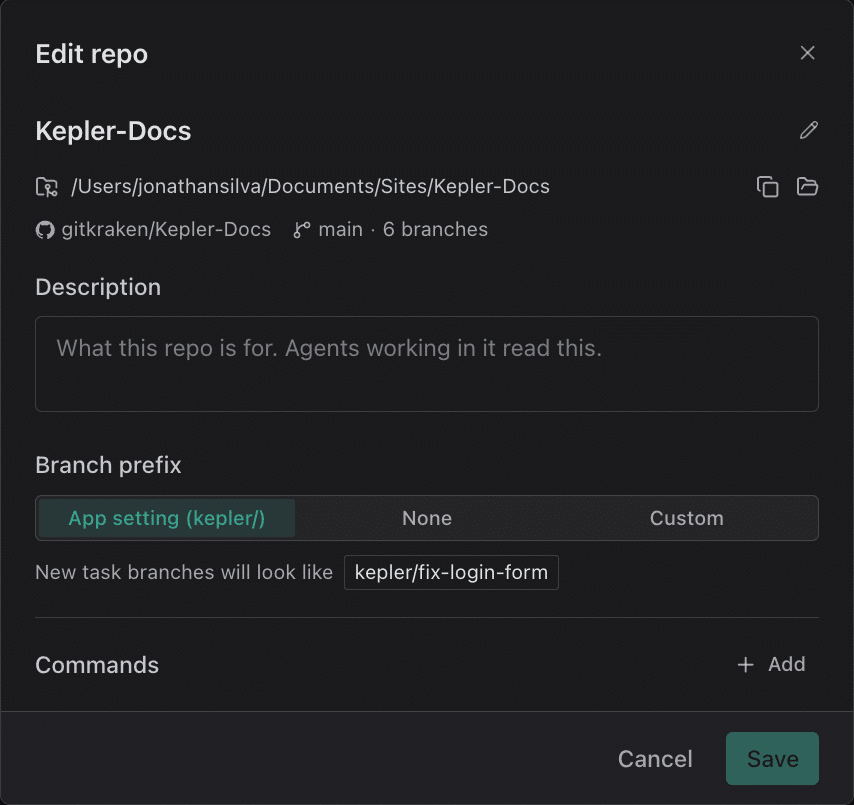
Add repo and Edit repo are the same shape: you give a source, Kepler inspects it, and what it found becomes a card you edit.
| Field | What it takes |
|---|---|
| Folder or URL | Paste a URL to clone it, or pick a folder that already holds a repo. You can also drop a folder onto the dialog, or Create a new repo instead |
| The card | The resolved repository ({name} on {provider}, its path, its branch count), plus the name, description, branch prefix and commands you can edit |
Kepler says what a source resolves to before you commit to it: A new folder named {name} will be created here., This folder already holds a clone of that repo. It will be added as is., That clone is already in Kepler., or a refusal when the folder is occupied by something else. A path that isn’t a Git repository reads That folder isn’t a Git repo.
Branch prefix, per repository
The card’s Branch prefix control overrides the app-wide setting for this repository alone:
| Option | What it does |
|---|---|
| App setting ({value}) | Uses the prefix from Settings → General |
| None | Creates task branches with no prefix |
| Custom | A prefix for this repository only |
New task branches will look like shows an example, so you can see what you’re choosing before a branch exists.
Removing a repository deletes its sessions, terminals, and configured commands, and terminates any live agent and terminal sessions tied to it. Kepler confirms before it does.
Display name and description
The card opens on two fields above the command list:
| Field | What it does |
|---|---|
| Display name | An alias Kepler shows wherever it names this repository: Shown across Kepler. Leave empty to use the folder name. The field’s placeholder is the folder name, and the full path on disk sits under the field, which is what tells two checkouts of one repository apart. A repository you have named this way keeps that name verbatim and stops competing with same-named folders for a disambiguating suffix |
| Description | Free text. Its placeholder reads What this repo is for. Agents working in it read this. Kepler appends it to the repository’s line in the resource list it hands a session, so a full sentence is more useful here than a single label |
Both are optional. Kepler stores whitespace-only text as empty, and Save stays disabled until something has actually changed.
Per-repository commands
Commands are shell commands scoped to one repository. Use them to install dependencies, run a build, or start a watcher, so a new worktree is ready for an agent session with no manual setup.
The card’s Commands list is edited in place. Add appends a row, and each row opens to three fields:
| Field | What it does |
|---|---|
| Name | A label, for example Install deps. It is what you pick from the Run menu later |
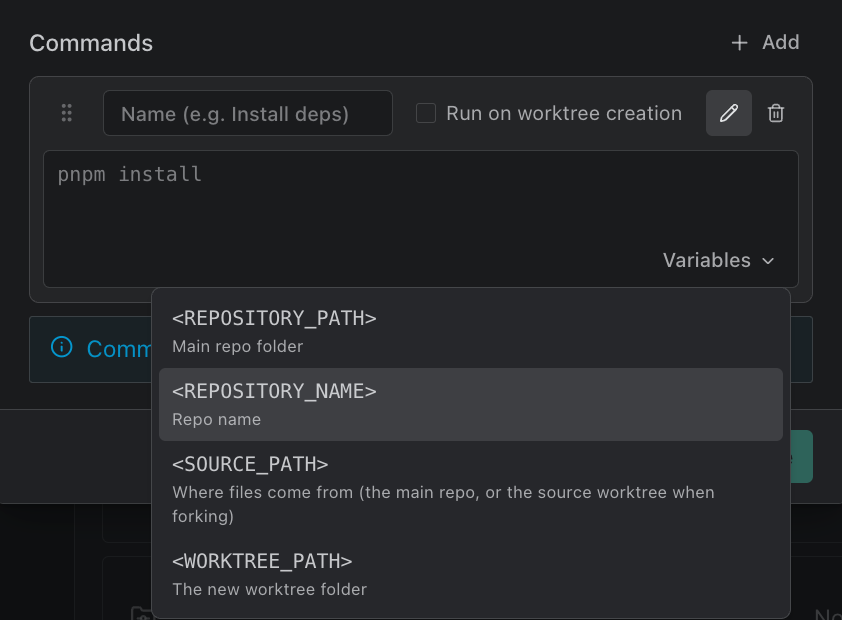
| Command | The shell command, for example pnpm install. Its Variables menu inserts any of the variables below |
| Run on worktree creation | Runs this command automatically when Kepler creates a worktree for this repository. Off by default, which leaves it a command you run on demand. A row with it on shows a Runs on creation chip |
Commands accept four variables, which Kepler fills in when the command runs:
| Variable | Resolves to |
|---|---|
<REPOSITORY_PATH> |
Main repo folder |
<REPOSITORY_NAME> |
Repo name |
<SOURCE_PATH> |
Where files come from (the main repo, or the source worktree when forking) |
<WORKTREE_PATH> |
The new worktree folder |
Drag a row by its handle to reorder it, or move it from the keyboard with Alt + ↑ and Alt + ↓. Order sets the Run menu order and the order that commands set to run on worktree creation run in.
A row with a name but no command, or a command but no name, holds back Save with Some commands are incomplete. and takes you to the missing field. A row left completely empty is dropped on save, so an accidental Add leaves no trace.
Commands flagged to run on worktree creation execute sequentially, in list order, and stop on the first failing command; Kepler skips the rest and reports them as skipped. Each one runs in the new worktree’s folder through your login shell, so you don’t need to cd into it, and tools configured in your shell profile (nvm, for instance) are available. Each has a ten-minute timeout.
A failed command does not undo the worktree. The worktree exists but may not be usable. To fix it:
- Read the command output in the task.
- Correct the command here.
- Run it again from the Run menu.
From the task view, right-click a worktree row in the rail and use Run command here for a second way in. It lists that repository’s commands and runs the one you pick in that worktree, opening its terminal in place. A repository with none yet reads No commands yet and offers Create command…. A command that’s running shows on the run button and its menus, where you can stop it.
Worktrees
Quickly find and delete unused worktrees to free up disk space. The section lists every worktree Kepler knows about, with a count of how many are reclaimable:
| Control | What it does |
|---|---|
| Flag as idle after | How many days without activity before a worktree counts as idle. Defaults to 14 |
| Re-check | Inspects the worktrees again for uncommitted or unpushed work |
| Select reclaimable / Select all | Selects worktrees to delete |
| Delete worktrees | Deletes the selected worktrees after a confirmation listing anything that would be lost, with Also delete the branches |
Each worktree carries a status: Active, Idle (untouched for longer than the idle threshold, so it may still hold work), or Reclaimable (its branch is merged, its upstream is gone, or its PR is merged, with nothing uncommitted, unpushed, or still in use, so it’s safe to delete).
A lock Kepler itself left on a worktree, for a task this install knows or a task since deleted, is cleared and the worktree deleted. Kepler never deletes a repository’s main checkout, and keeps any worktree that still has uncommitted or unpushed work, other tasks, running agent sessions, or a lock from another tool, saying why for each. Where forcing can help, the result offers Force delete, which discards the listed work and ends the agent sessions running there.
The full Worktrees view
Open full view, the expand icon beside the Worktrees heading, opens the same list as a full-width page, grouped by repository, with Back to repository settings to return. Each row has these columns:
| Column | What it shows |
|---|---|
| Branch | The worktree’s branch, or the commit for a detached HEAD |
| Status | Active, Idle, or Reclaimable |
| Last activity | How long since the worktree was touched |
| Evidence | Why it may be finished: Merged into {base}, Upstream branch deleted, PR merged, or PR closed |
| Path | Where it is on disk |
| Tasks | The tasks using it, each with the status dots of its agent sessions and a card with its stage, links, and a jump to each session |
| Pull request | The branch’s pull request, with the same card as on the Dashboard |
| Behind base | Commits behind and ahead of its base, and whether it can be updated cleanly or has a conflict |
Selection and Delete worktrees work the same way as in Settings.
Projects
A Project groups repositories so they act as a unit (a frontend and a backend you change together, for instance). Projects has two controls:
| Control | What it does |
|---|---|
| Row | Shows the project’s name and its repository count. The pencil icon opens it for editing |
| New project | Names a project and picks its repositories. You can add a repository from a folder without leaving the dialog |
With no projects, the section reads “No projects yet. Create one to group your repos.”
Help
Two sections: Help and Logs.
Help
A link out to the docs, and a way to replay any explainer you dismissed.
| Control | What it does |
|---|---|
| Kepler documentation | Guides, keyboard shortcuts, and agent setup. Open docs opens the Kepler docs site in your browser |
| Guides and callouts | A disclosure, closed by default: Kepler explains each view the first time you open it. Show any of those again here. |
Inside the disclosure, one row per explainer, each reading Seen and dismissed or Not shown yet with its own Show again button:
- Todo view explainer
- Tasks view explainer
- Agent Graph explainer
- Actions callout
- Task page callout
Reset all onboarding and show everything again, at the foot of the disclosure, clears every element’s dismissed state in one action rather than one row at a time.
Logs
To report a problem, save the logs and attach the file.
| Control | What it does |
|---|---|
| Copy path | Copies the current log’s path to your clipboard |
| Show in Finder | Opens the log’s folder in your file manager (Show in Explorer on Windows, Show in File Manager on Linux). Hidden where the host cannot open one |
| Save logs… | Saves Kepler’s logs as a single zip file |
| Clear log… | Deletes the current and rotated log files, after a confirmation |
In a window connected to a remote environment, these are the host’s logs: These are the logs on {machine}. Saving them from there includes this computer’s logs too, and Show this computer’s logs opens your local ones.
Without opening Settings, Help → Show Logs in Finder (Show Logs in Explorer, Show Logs in File Manager) in the app menu reveals this computer’s log.
