

Last updated: October 2026
A remote environment runs your agents, worktrees, and terminals on another machine: a dev server, a cloud VM, or a WSL (Windows Subsystem for Linux) instance on Windows, while you work from this window. Kepler installs itself on the host over SSH (Secure Shell), so you do not need to pre-install anything there.
Two remote features
Kepler has two remote capabilities, and they work in opposite directions:
| Feature | Direction | Where it lives |
|---|---|---|
| Remote Environments | Kepler on your desktop reaches out to a host, and your work runs there | The title-bar chip, and Settings → Remote Environments |
| Remote Access | Another device reaches in to this Kepler, and your work stays here | Settings → Remote Access |
Everything up to Remote Access describes connecting to a host.
Remote Environments needs a paid plan. Every paid plan includes it, with no limit on how many environments you can add. Unpaid plans see a banner offering a free trial where one is available, and Switch to {organization} when another organization you belong to already includes it.
Switching environments from the title bar
Kepler binds each window to one environment at a time, and the title-bar chip shows which one. The chip leads with the environment’s type icon, and a green dot on that icon means connected.
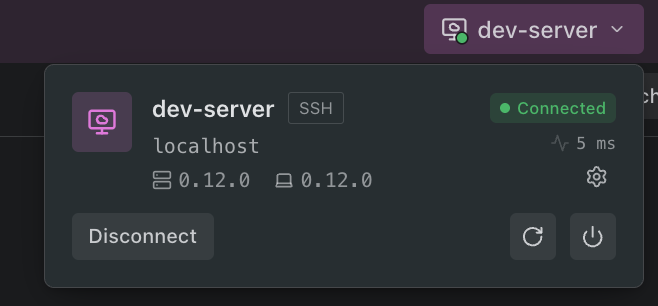
| Chip | What it means |
|---|---|
| Local | This window works on this machine |
| Connecting to host…, or the current stage | A connect this window started, or a restart or update of its own server, is in flight |
| Reconnecting… | The connection degraded and Kepler is rebuilding it |
| Host name | Connected. The chip takes the host’s color when you have set one |
| Brand fill with an up-arrow | Connected, and a newer server build is ready for the host |
| Warning triangle | The app and the server disagree on version. The popover says which side to update |
| Radio-tower glyph | This window is forwarding ports from the host |
| Monitor-and-phone glyph | Remote Access is on for this machine, tinted by its status |
| An error headline | The last attempt failed. The chip calms back down after a few seconds; the popover and the host’s Settings page keep the full error |
Hover the chip to peek. After a short pause, the popover’s header appears with its buttons live. Move the pointer into it and the rest of the popover grows in below. Click the chip, or focus it and press Enter or Down Arrow, to open the whole popover pinned.
Kepler hides the chip in a browser client, which cannot manage connections at all.
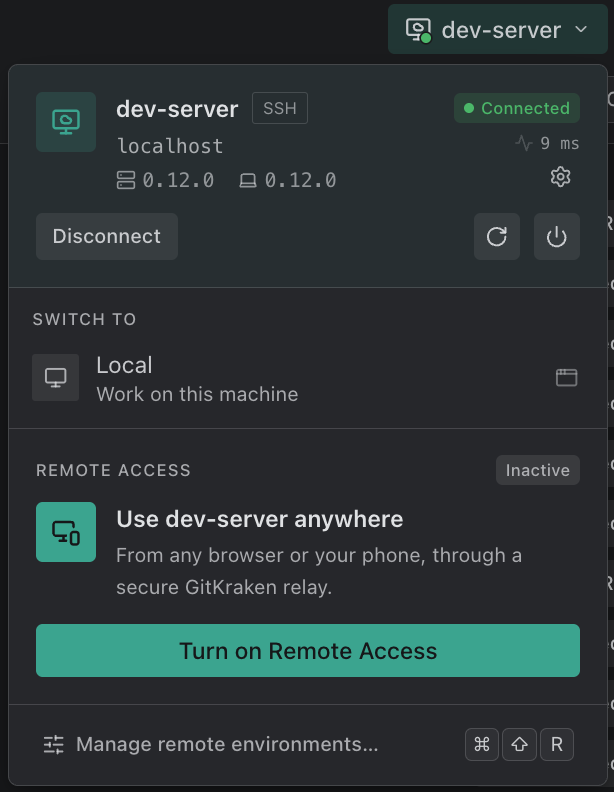
The popover
The popover answers where you are and where else you can go, and hands anything heavier to Settings.
| Part | What it does |
|---|---|
| Header | The current host, with its address, latency, and the server and app versions, or Working locally when the window is local. The gear (Host settings) opens the host’s Settings page |
| Restart server to update | Appears when a newer server build is ready. The line beneath says what the update will stop, for example Updating restarts the server and stops 2 running agents. Agent sessions can be resumed afterward. |
| Disconnect | Releases this window only. The server keeps its sessions running |
| Restart server (circular arrow) | Restarts a connected server when no update is pending. See Server controls |
| Stop server | Stops the server on the host. Every window connected to it disconnects |
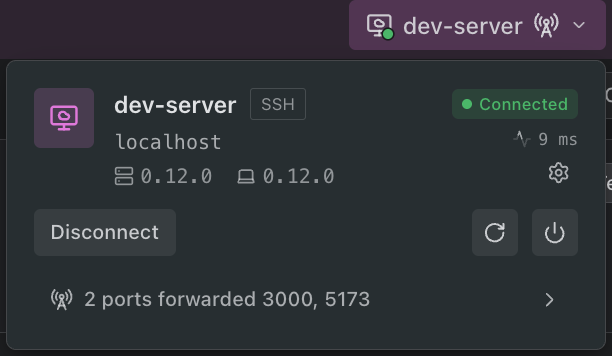
| Forwarded ports | Port 3000 forwarded, or a count followed by the ports, such as 2 ports forwarded 3000, 5173. Opens the host’s Ports list |
| Switch to | Every other saved host, plus Local (Work on this machine) when this window is on a remote |
| Found on this machine | WSL distributions found on this PC, offered for one-click connect while you have no saved hosts |
| Remote Access | Turns Remote Access on or off for the machine this window works on, and shows how many devices are connected. On a remote window, it reads Use host anywhere |
| Manage remote environments… | Opens Settings → Remote Environments. ⌘ ⇧ R on macOS, Ctrl + Shift + R elsewhere |
When this app, rather than the server, is the side that is behind, the header offers this app’s own update instead, and says that sessions on the host keep running.
Clicking a Switch to row moves this window. Hold Cmd (macOS) or Ctrl to open that host in a new window instead, leaving this window where it is. The trailing window icon on each row does the same thing with a single click. A host already open in another window is marked Connected, and clicking its row brings that window forward rather than opening a second connection.
A connect that a different window starts never takes over this window’s chip.
Windows on a remote host
- New Window opens on the same host. File → New Window (⌘ ⇧ N on macOS, Ctrl + Shift + N elsewhere) from a remote window opens a second window on that host. A remote window also offers File → New Local Window when you want a local one. If the new window cannot reach the host, it opens on the recovery screen with the reason.
- Windows on one SSH host share a connection. They ride one SSH connection and one tunnel, so a second window opens without a fresh handshake, and every window on a host shares the same storage.
- A host open in another window is reached through that window. The popover and Settings show it as connected, offer Show window, and read its latency, versions, and sessions through that window’s connection.
- The last closed remote window reopens on its host. With no window open, the dock, the tray, or launching Kepler again reconnects to the host the last window was on. Closing a window that was still waiting on an unreachable host leaves the next reopen local, and with Restore windows on launch off, a launch stays local.
Managing hosts in Settings
Settings → Remote Environments is the full management surface. In a local window it lists your saved hosts; each row shows the host’s type, Connected or Not connected, and Open in N windows when other windows already use it. Connect connects this window, the window icon connects in a new window, and Show window replaces Connect for a host open elsewhere. Click a row to drill into the host’s page.
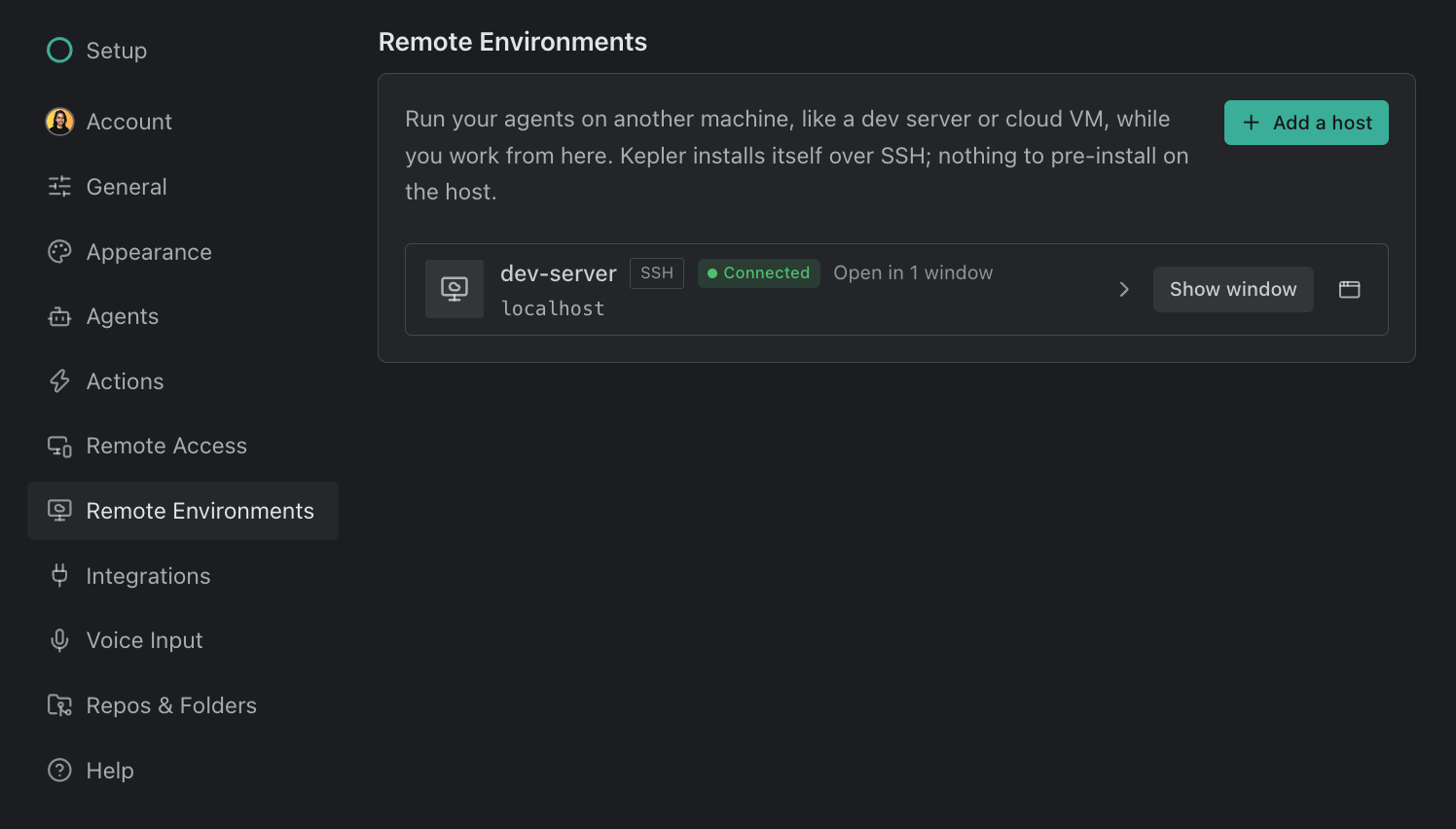
Found on this machine lists hosts from your ~/.ssh/config and WSL distributions you have not saved yet. Add saves one. Kepler shows three at first, with Show N more for the rest; the eye icon hides a host you never want offered, and Show hidden brings them back.
Host details
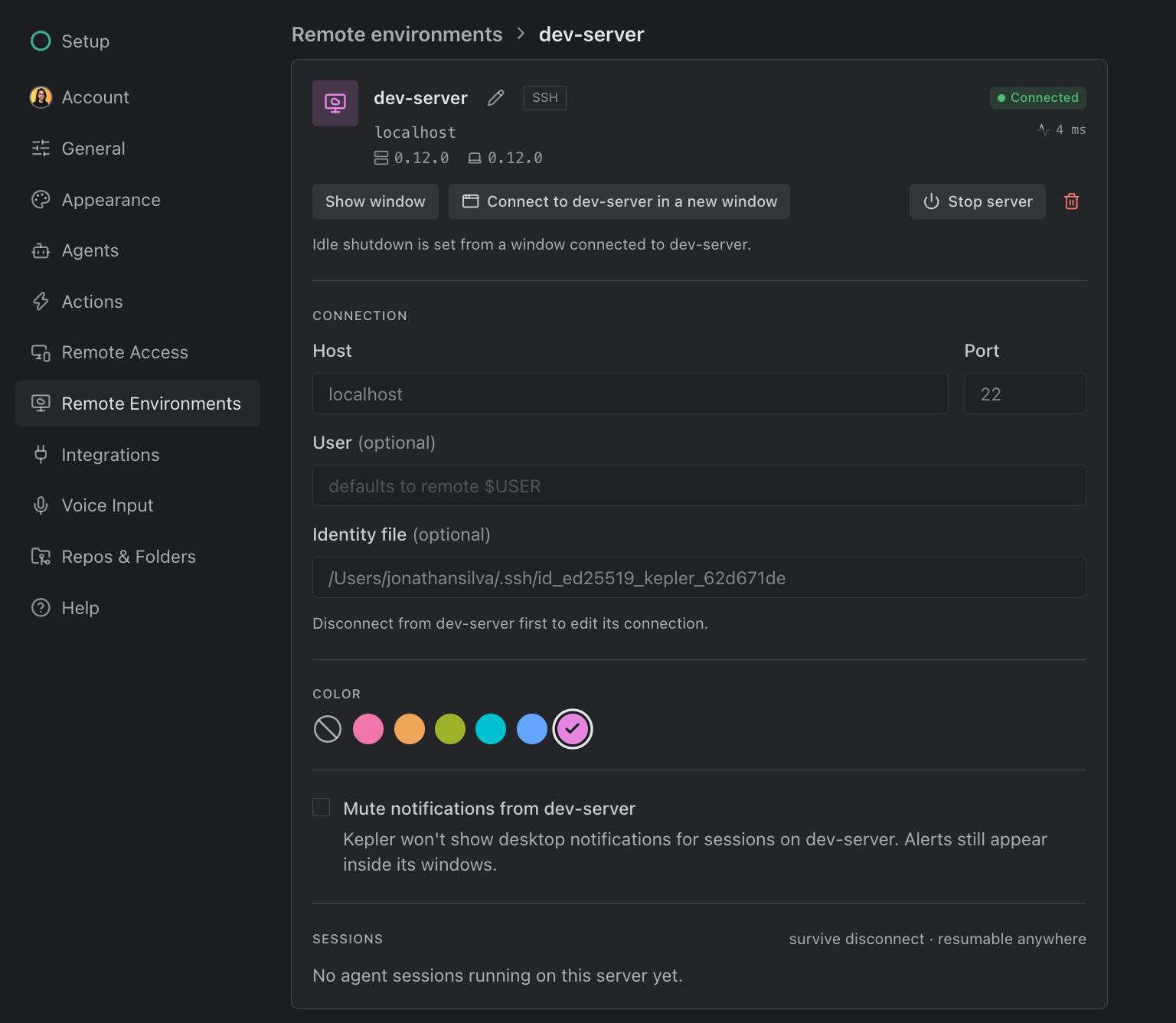
A host’s page puts its actions in a card at the top: Connect (Cmd/Ctrl-click for a new window; while a connect runs, the same button cancels it), or Show window and Connect to host in a new window when another window already has it, plus Stop server and a red trash icon (Remove host…). The pencil beside the name renames the saved connection; nothing on the host changes.
| Group | What it does |
|---|---|
| Connection | Edit the address in place: Host, Port, User, and Identity file for SSH, or Distro for WSL. Save keeps the same saved host. Disconnect first; a connected host’s fields are locked |
| Color | None, Rose, Amber, Lime, Cyan, Blue, or Violet. Tints the host’s chip, its rows, and the top bar of its windows |
| Mute notifications from host | Kepler won’t show desktop notifications for sessions on host. Alerts still appear inside its windows. |
| Sessions | Labelled survive disconnect · resumable anywhere. Each row is a live agent session on that host, and clicking one opens it. For a host nobody is connected to, Check opens a short-lived connection to ask its server what is running |
Changing the address of a host the SSH wizard created first fetches the new address’s host key, under New host key. Trust and save pins that key and saves the host in one step, and every new host or port gets its own scan. Any address change notes that an install at the old address stays there.
Kepler reads your own ~/.ssh/config before it offers to write to it. A host you have already configured (its user, port, identity file, jump host, whatever you set) is used as you configured it, and Kepler offers to edit the file only when there is genuinely nothing there to reuse. Open in → VS Code on an SSH environment opens through that same host alias, so VS Code’s own Remote-SSH resolves it exactly the way your terminal does.
Server controls
The restart and update controls act on the server a window is connected to, so they appear in the popover and in a remote window’s Settings. Stop server is also on every host’s page in a local window.
| Control | What it does |
|---|---|
| Restart server to update | Installs the newer server build and reconnects. Its line says what it stops |
| Restart server | Offered when no update is pending, for a stuck server. The confirmation says what restarting stops, such as Stops 1 running agent. Agent sessions can be resumed afterward., and that This window reconnects. Other windows connected to host disconnect. |
| Stop server | Stops the Kepler server on the host. The confirmation names how many agent sessions it terminates; Every connected client loses the server, not just this window. |
| Auto-shutdown when idle | Stops the server after N minutes of no connections and no active agents. Off by default; the timeout defaults to 30 minutes |
Kepler stores Auto-shutdown when idle on the host, not locally, so the setting applies to every client of that server. You set it from a window connected to the host; a local window says so.
With Keep agents running across restarts and updates on in Settings → Agents → Features (experimental), running agents keep going through a restart or update, and the confirmation says so. Stop server ends them either way.
From a remote window
Settings in a window that is on a remote shows that host only: its connected card with the server controls, Auto-shutdown when idle, Color and mute, its Ports (SSH), and your other saved hosts to switch to. A remote window never sees the other hosts’ addresses. Renaming, editing a connection, adding, and removing happen in a local window: Open in a local window takes you there.
Connection failures
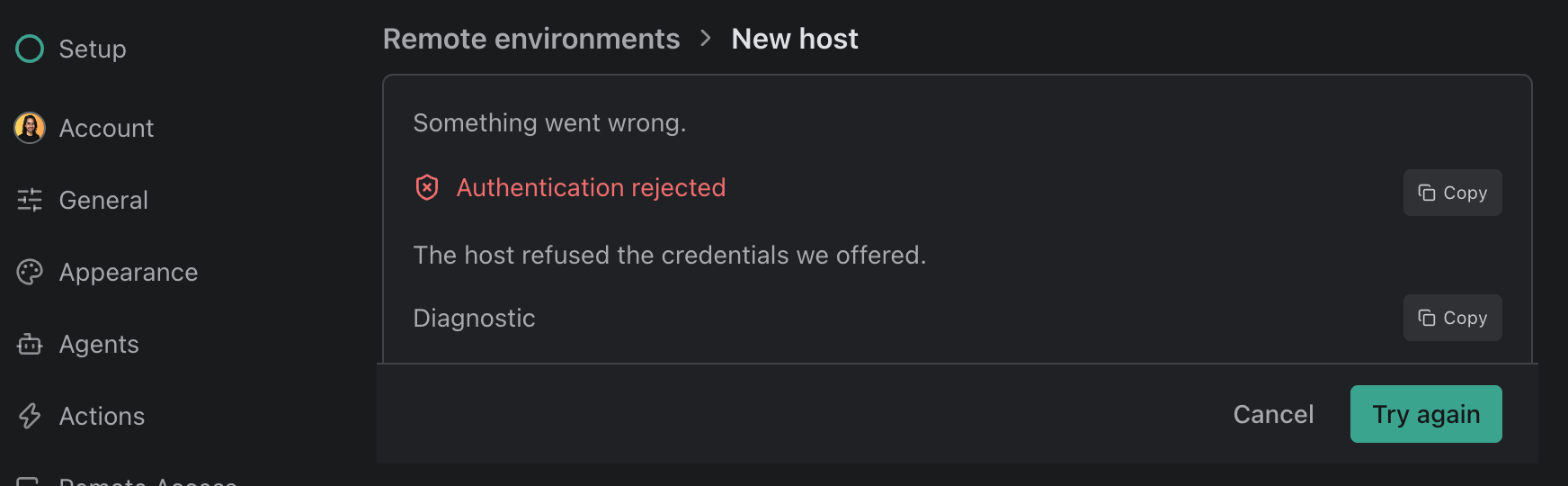
A failed connect renders a Couldn’t connect to host alert with the raw SSH diagnostic as selectable text and a Copy error button, so it can go into a bug report unedited. When the failure is on a host other than the one this window is connected to, Kepler adds You’re still connected to host; this didn’t drop it.
Common SSH failures get a plain-language headline and a hint. Kepler recognizes:
- Authentication rejected (publickey)
- Connection refused
- Host unreachable
- Hostname could not be resolved
- Connection timed out
- Host key verification failed
The unedited diagnostic appears underneath either way.
When the failure happens while you’re adding a host, the wizard shows it in place: Something went wrong., the headline and hint, the Diagnostic, a Copy button for each, and Try again.
For Kepler’s own log file, use Settings → Help → Logs.
Removing a connection
Remove host… deletes the saved entry on this desktop. When the SSH wizard created the entry, Kepler also offers to clean up after itself:
| Cleanup option | What it does | Default |
|---|---|---|
| Remove scoped known_hosts file | Deletes the host-key trust file Kepler created for this connection | On |
| Remove generated local SSH key | Deletes the key the wizard generated, and its .pub sibling |
On when such a key exists |
| Uninstall Kepler server on the host | Stops the server and removes its install directory on the host | On, unless the server is in use |
| Remove deployed key from remote authorized_keys | Removes the key the wizard installed on the host | Off |
Removing a WSL host offers Uninstall Kepler server on the host for the distro. A distro that no longer exists reads as nothing to uninstall.
If the server reports live sessions or connected clients, Kepler disables the uninstall until you tick Uninstall anyway, I understand sessions on this host may be lost. If the host is unreachable, or needs a password Kepler does not have, Kepler suppresses the host-side options, and the dialog states which of the two reasons applies.
Add an SSH host
Click Add a host in Settings → Remote Environments. On Windows, Host type chooses SSH or WSL first. To save a host already in your ~/.ssh/config, use Add under Found on this machine instead.
A host taken from ~/.ssh/config inherits your system SSH configuration, including its host-key trust. A host built in the wizard gets its own trust file, pinned at the fingerprint you accepted.
The wizard
The SSH wizard walks five steps.
| Step | What you do |
|---|---|
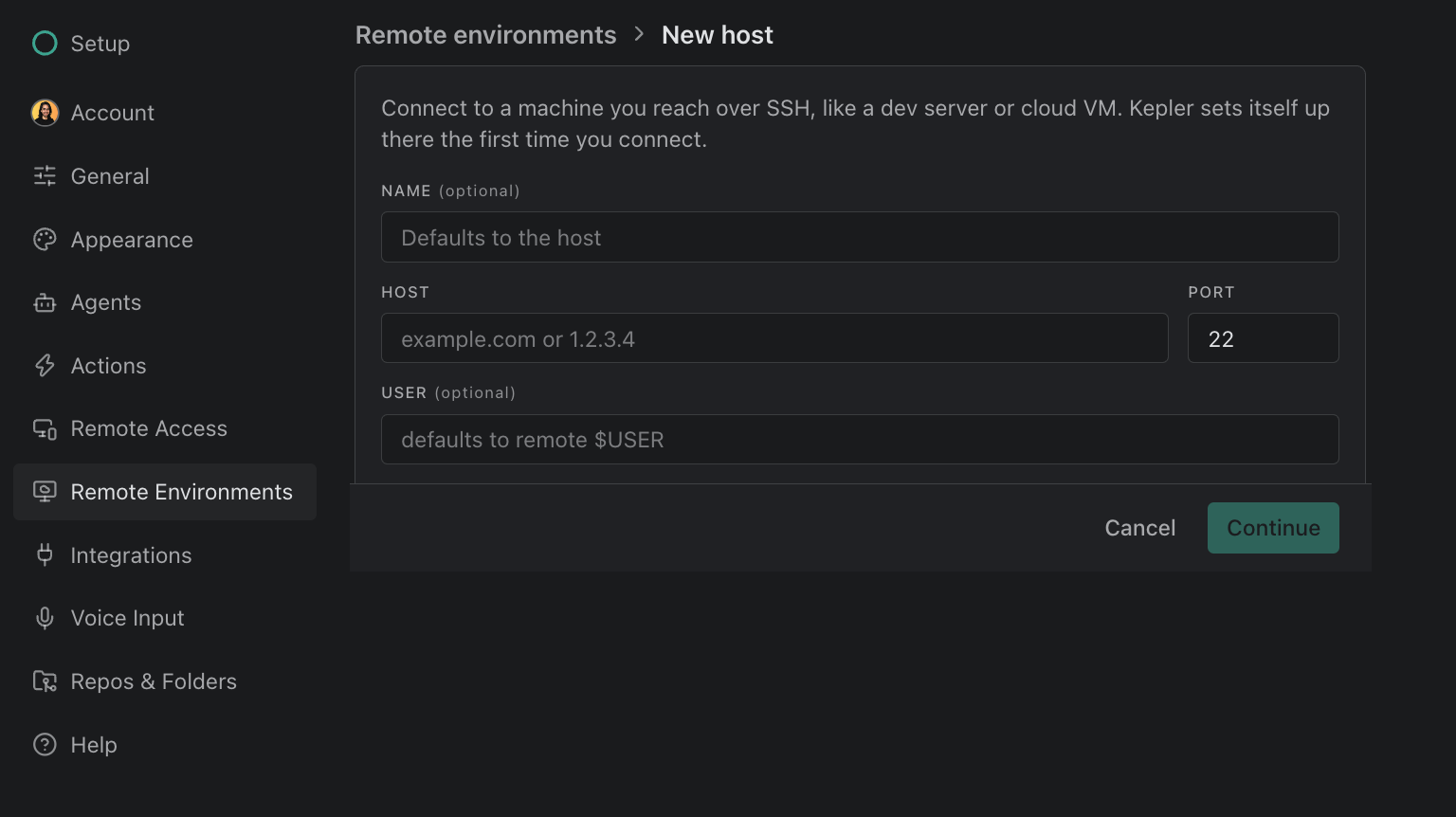
| Connect to a machine you reach over SSH… | Name (optional, derived from the host), Host, User (optional, defaults to the remote $USER), Port |
| Choose authentication. | Pick a mode (see below) |
| Verify the host fingerprint. | Kepler fetches the host key and shows its algorithm and fingerprint. Trust and continue pins it |
| Verifying the connection. | Kepler makes a real connection before anything is saved |
| Ready to save. | Add saves the host and opens its page. Nothing connects until you press Connect; a password the wizard verified is reused for that first connect |
| Authentication mode | What it means |
|---|---|
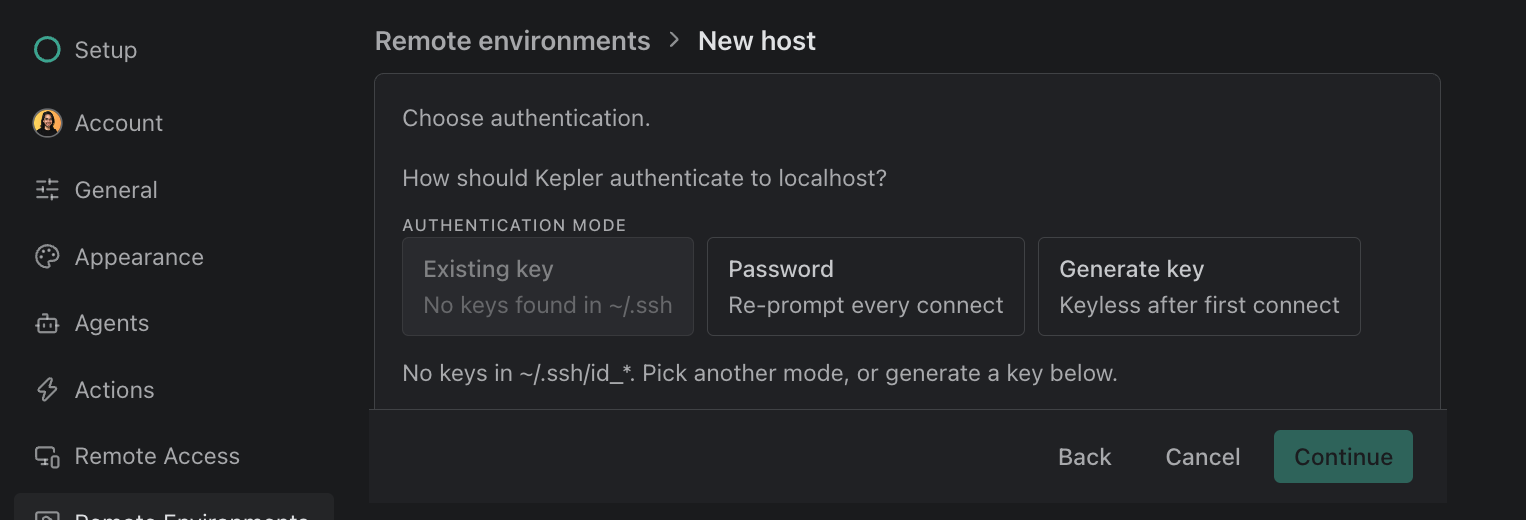
| Existing key | Use one of the keys already in ~/.ssh. Kepler counts what it finds; with exactly one candidate it preselects it. With none, it reads No keys found in ~/.ssh and can’t be picked |
| Password | Re-prompt every connect. The password is never stored |
| Generate key | Keyless after first connect. Kepler uses the password once to install a fresh ed25519 key at ~/.ssh/id_ed25519_kepler_<hash>. Your existing keys are never overwritten |
Generate key needs ssh-keygen on your machine; the chip reads ssh-keygen missing when ssh-keygen is absent.
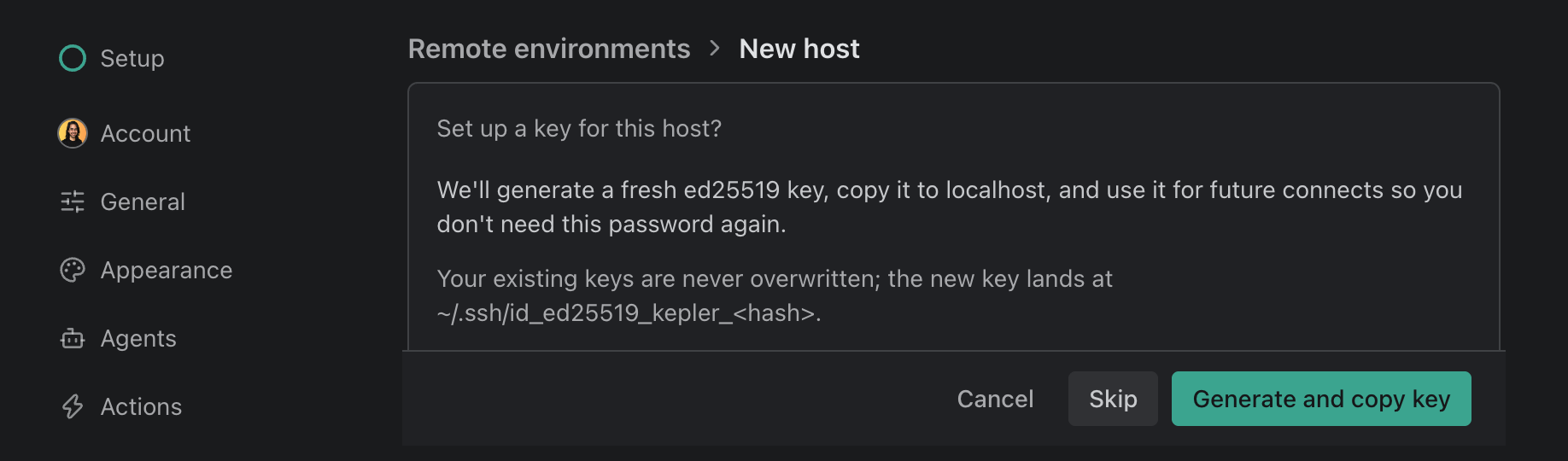
If you pick Password, the wizard then offers Set up a key for this host? Generate and copy key generates a fresh ed25519 key, copies it to the host, and uses it for future connects, so you don’t need the password again. Skip keeps the host on password sign-in.
If the host rejects a key-based connect, Kepler does not leave you stuck: the host’s page opens a password row so you can retry with a password, and, when no key is saved for that host yet, offers to install one at the same time. A connect from the popover that needs a password opens a password dialog instead.
SSH to a Windows machine
Kepler connects to Windows hosts over SSH as well as POSIX (Portable Operating System Interface) ones. It detects the target’s operating system (OS) during the probe and switches to a PowerShell install path instead of the POSIX one, mapping the architecture to win32-x64 or win32-arm64.
Nothing changes in the wizard. If the host authenticates but its shell rejects Kepler’s commands, the diagnostic reads Remote shell could not run the command, and the hint points at the OpenSSH default shell. Windows 10 and 11 ship PowerShell, so a changed default shell is the usual cause.
The host-side cleanup offered by Remove host… does not run on a Windows host; see Known limitations below.
WSL environments
On Windows, a WSL 2 distro is a remote environment like any other, and the cheapest one to start with: no credentials, no fingerprint to verify.
- Kepler detects WSL by asking
wsl.exefor its status, then lists your version 2 distros. Kepler does not offer WSL 1 distros, or Docker Desktop’s owndocker-desktopanddocker-desktop-datadistros. - Detected distros appear under Found on this machine in Settings, and in the popover while you have no saved hosts, one click from connected. Picking one in the popover saves the distro as a host and connects to it, so the connection survives a disconnect.
- To add one by hand, choose Add a host → WSL and enter its Distro (and an optional Name). A WSL host is edited, checked, and removed exactly like an SSH one.
- WSL needs no tunnel. Kepler reaches the server inside the distro through Windows’ localhost passthrough, and waits for the passthrough to catch up before the window loads.
Port forwarding
When an agent or a terminal starts a dev server on an SSH host, its http://localhost:3000 link points at the host, not at this computer. Kepler forwards that port over your SSH connection so the link opens here.
- Click the link. In an SSH window, Cmd/Ctrl-click a
localhost,127.0.0.1, or0.0.0.0link in a terminal, or click one in the agent transcript. Kepler forwards the port to the host’slocalhost, then opens the local URL. If that port is already taken on this computer, Kepler picks a free one. - Open it from the task. A
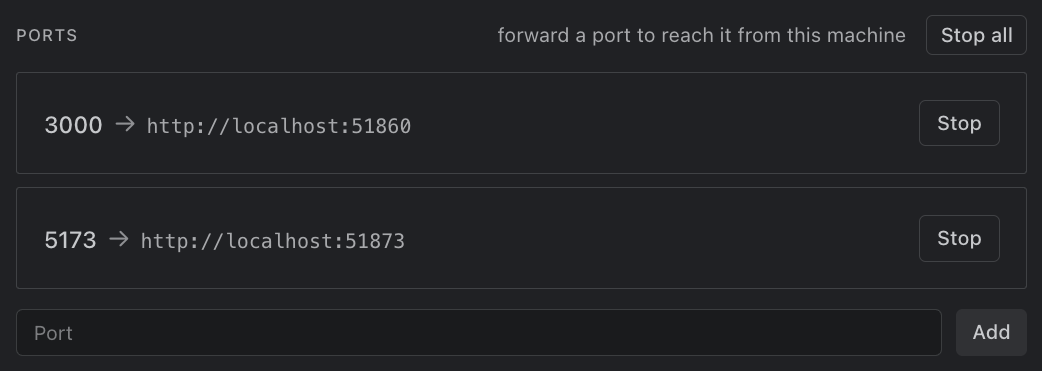
localhostlink attached to a task opens through forwarding too, from the task sidebar, the link’s detail, or the Dashboard’s resources list. Agents attach the URL of a dev server they start for you to open. - Add one by hand. Settings → Remote Environments → Ports, in the SSH window, lists this window’s forwards as remote port → local URL. Enter a Port and click Add; Stop ends one, and Stop all appears when more than one is forwarded.
While anything is forwarded, the chip shows a radio-tower glyph and the popover adds a summary row that opens the Ports list.
Forwards belong to the window that made them. Disconnecting, closing, reconnecting, or switching hosts tears them down, and they are not restored. A forward that fails opens nothing rather than reaching a service on this computer. Local and WSL windows open localhost links unchanged, since WSL already passes localhost through.
What runs where
| Piece | Runs on |
|---|---|
| Kepler’s window and its native capabilities | Your local machine |
| Git operations, worktrees, and repositories | The host |
| Agent and terminal sessions | The host |
| Provider and issue-tracker data | The host |
| The interface itself | Served by the host’s Kepler server, unless you opt in to serving it from this computer (below) |
Agent sessions belong to the server, not to your window. Close the window, lose the network, or put the laptop to sleep, and the sessions keep running. Reconnect (from this machine or a different one) and they are listed and resumable. If the server itself goes away, Kepler re-spawns the agent and re-attaches to the same conversation from the session Kepler saved.
Kepler runs agent sign-in on the host. Claude Code, Codex, and Auggie all sign in to a remote target: Kepler starts the flow on the host, the sign-in page opens in your local browser, and the resulting credential lands on the host. Claude Code and Auggie take back a code or a JSON blob you paste. Codex signs in with ChatGPT (device code), which works on any remote, with an API key, or with Import local Codex login. See Agent Integrations.
Experimental: serve the interface from this computer. Settings → Agents → Features → Use this app’s interface in remote windows loads remote windows’ interface from this app instead of from the host, so only your data crosses the connection. If the host runs a different version, its own interface is used. It is off by default, and takes effect the next time you connect to a host with no other window open on it.
What you see while connecting
A first connect to an untouched host uploads the server bundle, so it takes minutes rather than seconds. The chip, the popover, and the host’s Settings page all name the current stage, with a progress bar whenever the total is known.
| Stage | What it means |
|---|---|
| Checking the host | Working out the host’s OS and architecture |
| Authenticating | Negotiating SSH auth |
| Checking the remote install | Looking for an existing install and a live server |
| Downloading remote server | Fetching the matching server bundle to your machine |
| Uploading remote server | Sending it to the host |
| Finishing the install on the remote | Unpacking finished; the host is completing the install |
| Starting the remote server | Launching the server |
| Updating the remote server | Replacing an out-of-date server with the build this Kepler needs |
| Waiting for another install to finish | Another window or machine is installing or updating the same server. This is usually the fast path |
| Opening the tunnel | Forwarding a local port to the host |
Cancel stops the attempt, from the popover or from the host’s own Connect button.
A warm reconnect skips most of this: the server is already installed and already running, so Kepler reads its details and opens a tunnel.
When Kepler launches straight onto a remote window, that window opens in place. It appears only if the connect takes more than a moment, as a Connecting to host splash with the live stage and Cancel.
Recovery after restart or sleep
Kepler expects connections to break and rebuilds them.
| Event | What Kepler does |
|---|---|
| The connection degrades | Health checks run every 10 seconds. Three consecutive failures flip the chip to Reconnecting… and start a rebuild: up to five attempts with backoff from 1 second to a 30-second ceiling |
| The machine wakes from sleep | Rather than waiting for health checks to accumulate, Kepler probes every bound window at once and rebuilds only the ones that are genuinely unreachable |
| The connection is rebuilt to the same server | The page stays as it was, with your drafts, scroll position, and terminal scrollback. Kepler reloads it only if the server itself changed |
| The server restarts or updates | The window reloads onto the view it was on, not a bare Dashboard |
| Kepler restarts | Kepler restores every window (geometry, route, and connection) so a remote window comes back on its remote |
| A reconnect cannot finish | Usually a host that needs interactive auth. Kepler opens Settings → Remote Environments with Reconnect to host and Couldn’t auto-reconnect. Connect to resume where you left off., followed by the reason it failed. Show details opens the host’s page; Stay local dismisses it. The window keeps the host’s route until it reconnects or goes local |
A rebuild is not cosmetic: Kepler tears down the dead tunnel, opens a new one, and re-propagates your GitKraken sign-in to the host, so the window comes back signed in rather than at a sign-in screen. SSH connections keep a stable local port per host, so a reconnect returns to the same origin and your interface preferences, drafts, and notification permission survive it.
Local conveniences that still work
Some things have to happen on the machine in front of you. Kepler routes those through the desktop app rather than executing them on the host.
| Feature | Behavior over a remote connection |
|---|---|
| Open in… and Reveal | Run on your desktop machine, not on the host. Kepler reports which of them can reach the current binding and hides the rest, so no buttons fail |
| Desktop notifications | Shown by your local desktop when an agent finishes, needs you, or errors. Clicking one focuses the window that asked for it. Two windows on one host alert once, and a muted host shows none |
| Voice input | Captured by the local app. See Voice Input |
| Copying from Codex | A copy Codex makes in a remote window lands on your local clipboard, not the host’s |
| Folder pickers | Browse the host’s filesystem, since that is where the work lives |
Four editors open a remote folder through their own remote extension, which is the only way a locally-installed editor can reach an SSH host’s worktree:
| Editor | Authority Kepler passes |
|---|---|
| VS Code | --remote wsl+<distro> or --remote ssh-remote+[user@]host[:port] |
| VS Code Insiders | Same |
| Cursor | Same |
| Windsurf | Same |
The editor resolves the host and authenticates through its own machinery. For SSH that means your own SSH configuration, so a host Kepler reaches with a custom identity file may still prompt in the editor.
Other editors, and the file manager, rely on the path being reachable from Windows, which WSL provides, as \wsl$, but an SSH host does not. When no route exists, the affordance does not appear.
Remote server components
The desktop installer does not carry a server bundle for every architecture. Kepler fetches what it needs when you connect, and caches it per user.
The payload is not one tarball. Kepler splits it into four layers instead, each a separate archive with its own cache key:
| Layer | What it holds |
|---|---|
node |
The vendored Node runtime |
codex |
The bundled Codex engine. Optional: a build without it ships three layers |
deps |
The server’s dependencies |
app |
The server and the interface |
| Piece | Location |
|---|---|
| Published manifest and layers | <channel>/<version>/remote-servers/<arch>/ |
| Per-user cache | <userData>/remote-server-cache/<channel>/<version>/<arch>/ |
| On the host | ~/.kepler-server |
The architecture token is one of linux-x64, linux-arm64, darwin-x64, darwin-arm64, win32-x64, win32-arm64.
A connect downloads only the layers the host is actually missing. Kepler reads the small manifest first (no payload bytes) and compares each layer’s key against what the host has already installed. A version bump that changes only the app leaves your Node and Codex layers alone on both sides, so an upgrade pulls a fraction of what a first connect pulls. This holds on every transport: SSH to a POSIX host, SSH to a Windows host, and WSL.
Two cases still fetch everything. A host with no layer stamps at all (a first connect) has nothing to diff against. And when the missing layers come to three quarters or more of the payload, Kepler ships the whole thing rather than assembling a subset that saves little.
Kepler downloads each layer cache-first, retries with backoff, and writes it atomically, so an interrupted download is never mistaken for a cached layer. When a layer cannot be fetched at all, the connect fails with Could not download the remote-server version for arch. Check your internet connection.
The payload carries its own Node runtime, so the host needs nothing pre-installed beyond an SSH or WSL transport. Kepler couples desktop and server versions: your Kepler always knows which server build it needs. Kepler never installs over a running server. On connect, it replaces an out-of-date server on its own only when nobody would lose anything: no running agents, open terminals, or other connected windows. Otherwise the server keeps running and the chip offers Restart server to update. Only one client replaces a server at a time; the rest wait.
Remote access: reach Kepler from another device
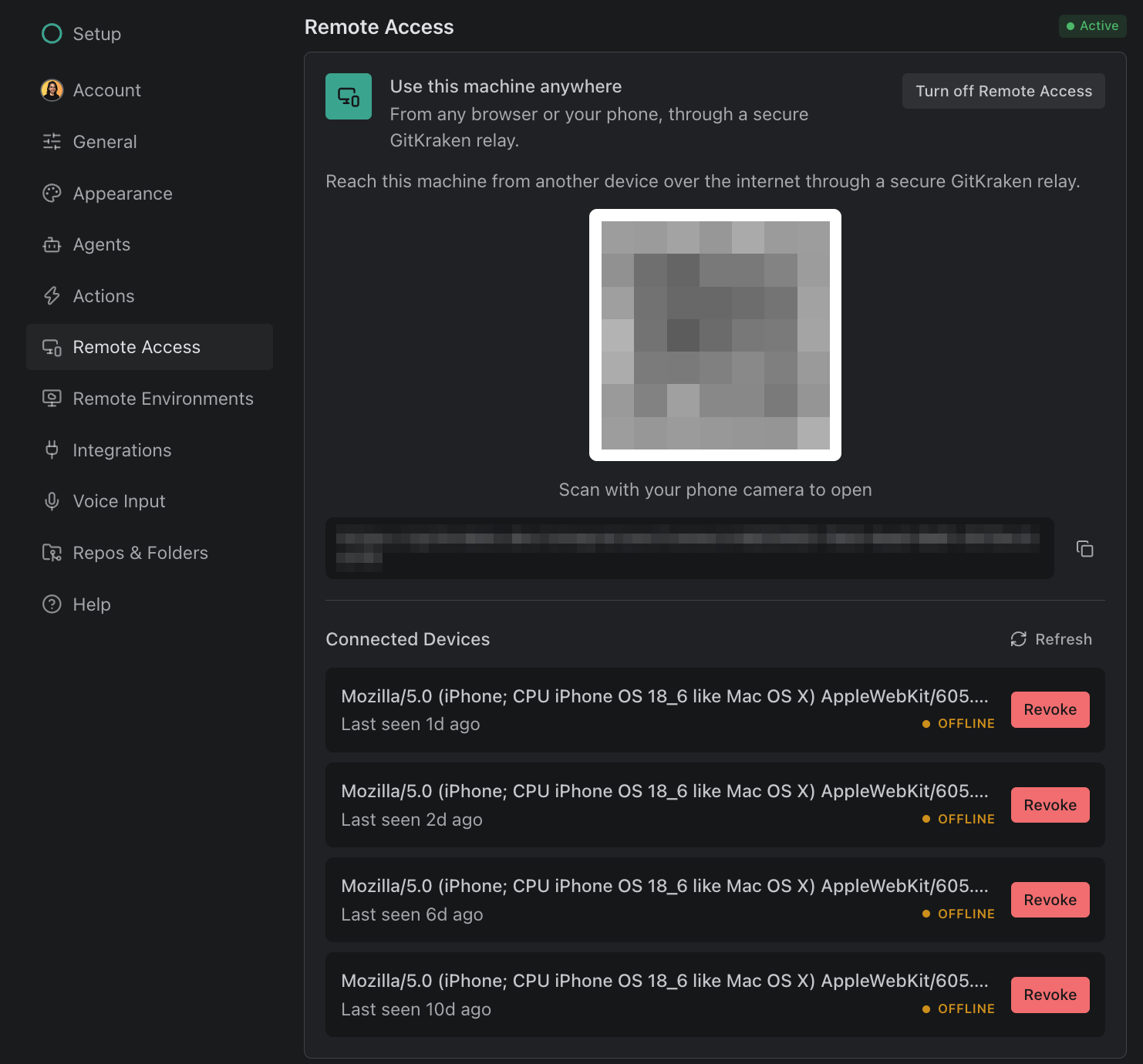
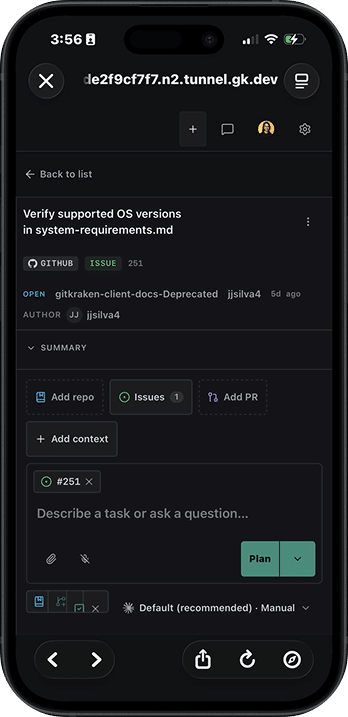
Remote Access is the other direction. It opens this Kepler window from another device, such as a second computer or a phone, over a secure tunnel relayed through your GitKraken account. Your work still runs here; the other device only sees the interface.
Configure it in Settings → Remote Access, or turn it on from the title-bar popover.
Before you start
You need a GitKraken account signed in to Kepler, on a paid GitKraken plan. Remote Access is not available on the free Community edition.
Turning on Remote Access
- Open Settings → Remote Access.
- Click Enable.
- Name the machine. Kepler pre-fills the device name; change it if you want a name your team recognizes. This is the name gitkraken.dev shows for this machine.
Kepler generates a private key for this machine the first time you enable Remote Access. The key never leaves the machine; Kepler uses it to prove the machine’s identity to GitKraken each time it reconnects.
Pairing another device
Once Remote Access is active, a QR code and a link appear in Settings.
- Scan with your phone camera to open is the fast path. Otherwise, copy the link.
- The link opens gitkraken.dev/integrations, where you approve the connection with your GitKraken account.
Managing sessions from gitkraken.dev
Go to gitkraken.dev → Integrations → Remote Access to manage every machine with Remote Access turned on, across all your devices.
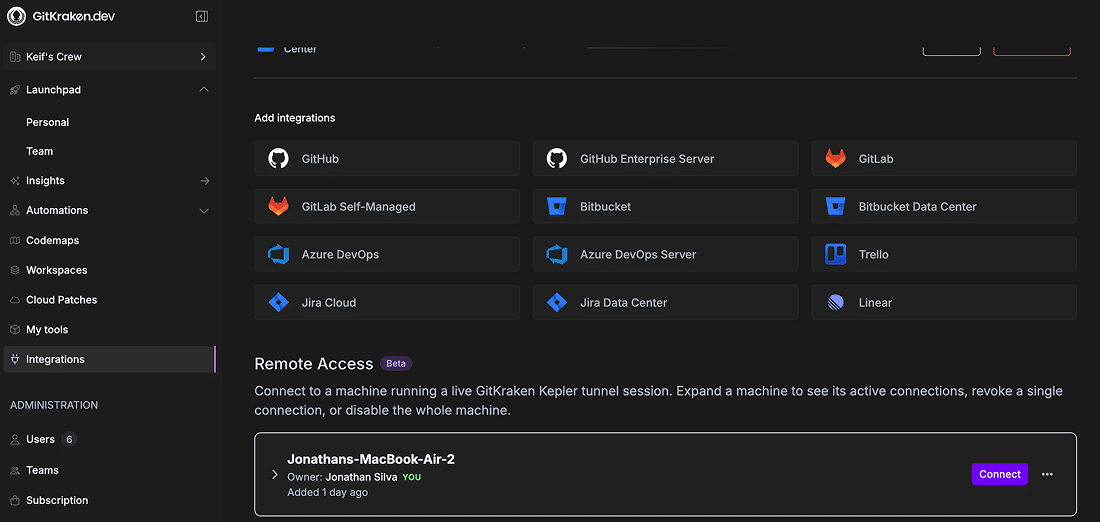
- Expand a machine to see its active connections.
- Revoke a single connection to sign out one paired device without affecting the others.
- Disable a machine to turn off its tunnel entirely, from anywhere.
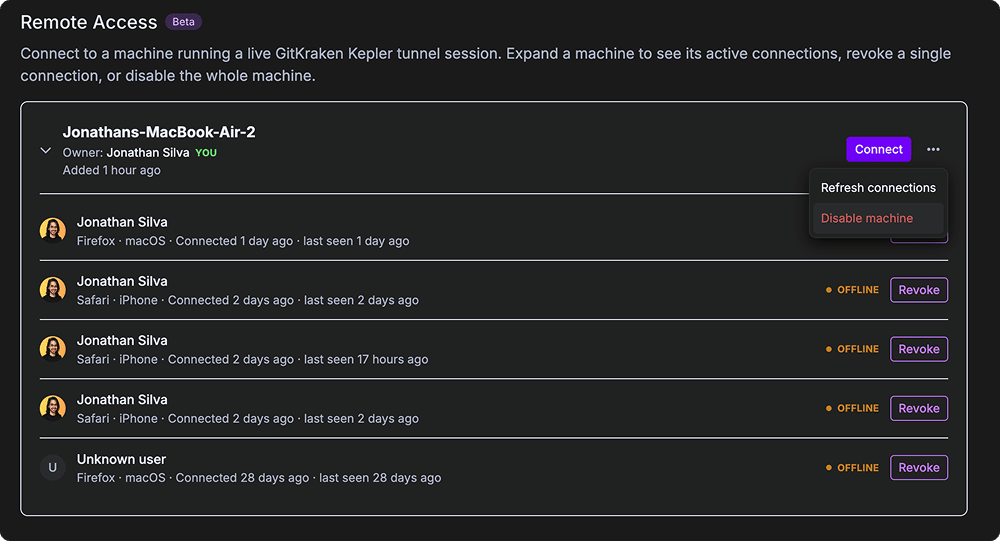
You can also manage the current machine’s connections locally, in Settings → Remote Access → Connected Devices.
Known limitations
| Limitation | Detail |
|---|---|
| Commit and tag signing | Signing does not work over a remote connection. Kepler says so rather than failing quietly: Commit signing isn’t available over a remote connection yet. Disable commit.gpgsign for this repo on the remote, or run the commit from a terminal there. |
| Remote-connection management in a browser client | Inherently local. A browser client shows Remote environments need the desktop app and hides the title-bar chip, because adding hosts, connecting, and stopping servers all run through the desktop app |
| Auto-update in a browser client | A no-op. A browser cannot update itself; update the desktop app, or the host’s server from a desktop window |
| Port forwarding from a Windows client | Each forward opens its own SSH connection, so a password host asks for the password again per forward. Only localhost, 127.0.0.1, and 0.0.0.0 links forward |
| Host-side cleanup on a Windows host | Of the four options Remove host… offers, two act on the host (Uninstall Kepler server on the host and Remove deployed key from remote authorized_keys) and both run through a POSIX shell, so neither works on a Windows host. The two local options are unaffected. Delete ~/.kepler-server and the authorized_keys entry on the host yourself |
Related
- Settings: the Remote Environments and Remote Access pages, and the shortcut list
- Agent Integrations: signing agents in, including on a remote target
- Review Changes: reviewing and shipping the work a remote agent produced
