

Last updated: October 2026
An agent session is one running conversation with a coding agent, anchored to one working directory.
A Task can hold several. Two agents on the same worktree, one agent per worktree, a session for the task folder itself: all of it is normal, and all of it lives under the Task’s Sessions group. See The Task View to learn more.
This page covers the session itself: starting it, directing it, and its lifecycle.
Every session is an agent session, but two things about one vary, and both are properties of the session rather than different kinds of thing:
| Values | Covered in | |
|---|---|---|
| How it runs | Rich chat or Terminal | How a session runs |
| Where it came from | Started in Kepler, or found running outside it | Sessions started outside Kepler |
Everything else on this page (prompts, steering, permissions, status, lifecycle) is the same whichever of those a session happens to be.
For reading what an agent produced, see Review Changes.
Starting a session
| From | How |
|---|---|
| A row in Todo | Fire an Action. See Actions |
| The side panel | The Start a session box: Describe what to work on… |
| The task view rail | New session on the Sessions group, or New session here on a worktree or folder row |
| An open session strip | + (Start a new session), or Cmd/Ctrl+T |
| An existing session | New session from this one on its row menu |
| A message in a conversation | New session from here on the message’s right-click menu |
The New session menu lists one row per worktree and folder attached to the Task, led by All worktrees and folders: Runs in the task folder and has access to all worktrees and folders. A long list gets a Search worktrees and folders box. With nothing attached yet, the menu reads Attach a worktree or folder to start a session in.
Every session sees the Task’s attached resources regardless of where it runs, so what sets All worktrees and folders apart is only its working directory.
Two options in the menu change what the session starts with:
| Option | What it does |
|---|---|
| Start on another branch | On a worktree row. Opens the branch picker and an optional Branch name in place, so the session starts in a fresh worktree, or in the repository’s main checkout switched to that branch, without a trip through Add resources |
| Start with task context | Checked by default. Clear it and the session forms its own view instead of receiving the Task’s shared context |
New session from this one starts a sibling session in the same task, worktree, agent, and account, and the new agent can read the source conversation. New session from here does the same, but the new agent reads the source only up to and including the message you picked. It’s available once that message has finished streaming, and not on a terminal or external session (This conversation can’t be branched at a message.). Open source session on the new session’s menu takes you back to where it came from.
Rename session, on a session’s row menu, gives a session a name of your own.
Agent, model, mode, and effort
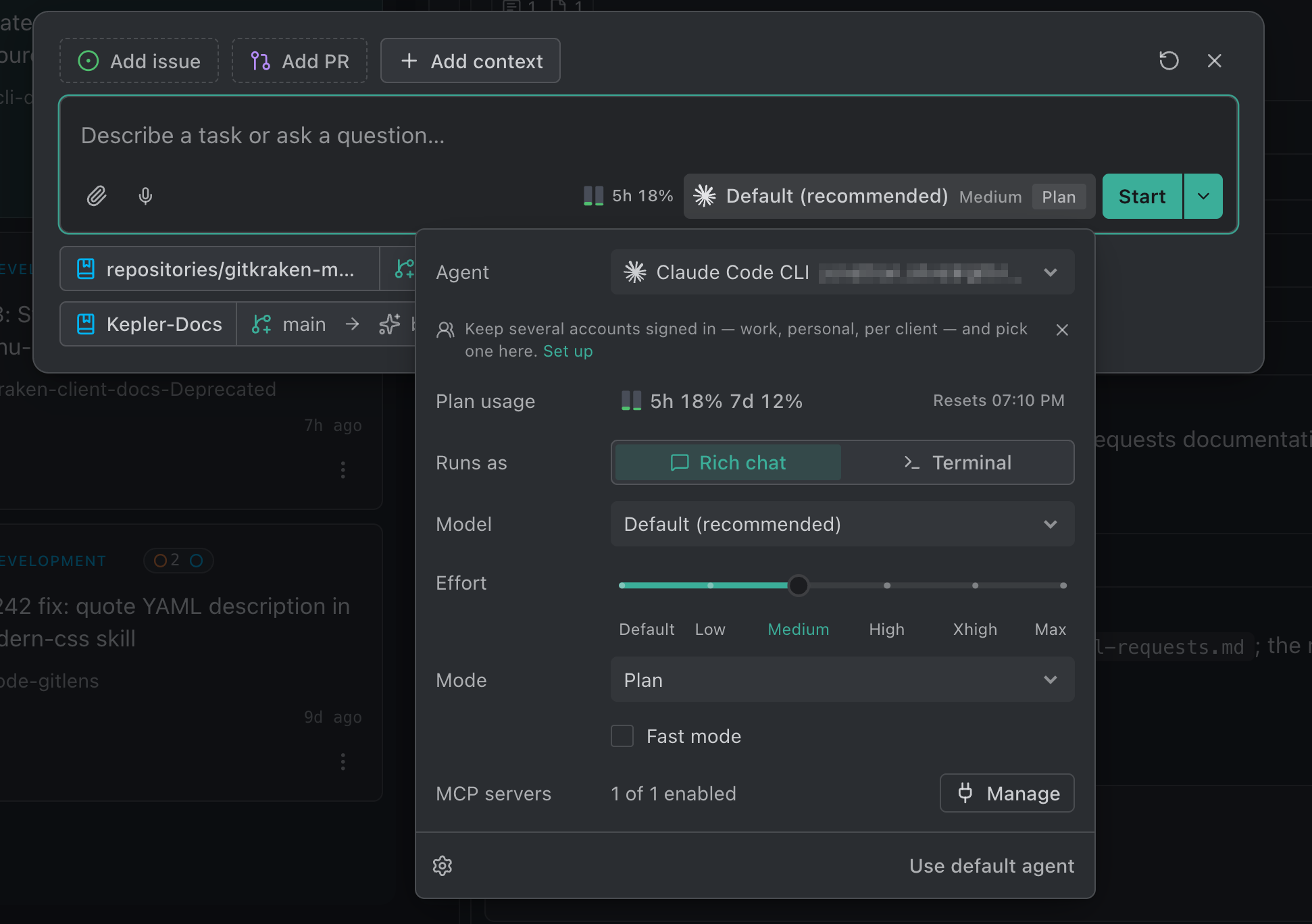
The composer carries an Agent settings pill. It holds the same set of questions at launch and mid-session, and its trigger summarizes the current model and mode.
| Choice | Changeable mid-session | Notes |
|---|---|---|
| Agent | No | Fixed once the session exists. Changing agent means a new session |
| Runs as | No | Rich chat or Terminal, for an agent that offers both. Fixed once the session starts; use New session to start the other way. See How a session runs |
| Model | Yes | The agent’s own catalog. Models are per provider, so a model never moves to another agent |
| Mode | Yes | The agent’s own permission modes |
| Effort | Yes | Reasoning or thinking depth, for agents that offer it |
| Other Options | Some | Options an agent can only read at spawn are editable at launch and nowhere else |
A change applies from your next message; it never interrupts the turn in flight. Rows read Default until you pick something, Reset appears once anything is overridden, and the pill reads Checking agent options… while Kepler probes an agent it has not seen recently.
Model and mode lists refresh in the background, and again after you upgrade or sign in to an agent, so a newly released model appears without restarting Kepler.
The same menu lists the MCP servers the agent loads for this repository, with Manage to change them. See MCP Servers.
To set what every new session starts with, use Settings → Agents → Default agent, which is preselected in the launcher and applied when you start a session inside a worktree. See Settings.
Which agents are available
Claude Code, Codex, Copilot CLI, Cursor, Auggie, OpenCode, Grok Build, Pi, and Google Antigravity, plus any custom agent server you add. Kepler offers only the agents you actually have installed. See Agent Integrations.
Several accounts for one agent
Claude Code, Codex, GitHub Copilot, Auggie, and Grok Build can each hold more than one signed-in account. Open Settings → Agents, expand the agent, and find Accounts:
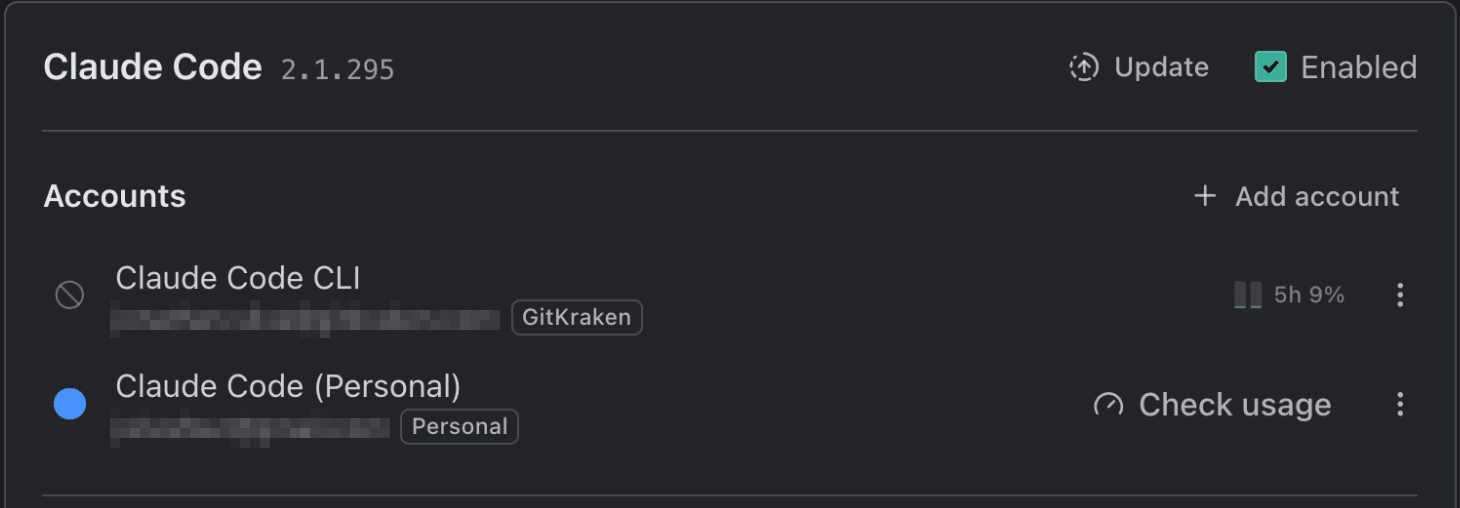
Run multiple Claude Code logins side by side. Each account keeps its own credentials and history but shares your skills, agents, commands and settings.
| Control | What it does |
|---|---|
| First row, badged Default | The agent’s own login, in its normal config directory |
| Add account | Adds an isolated account with its own credentials and history |
| Account name | Rename a row in place. The name is what you pick from later |
| Sign in / Sign out | Authenticates or clears that account alone |
| Remove account | Signs the account out and deletes its local data. Your shared skills, agents, and settings are untouched |
| Colour swatch | At the left of each added account’s row: Pick a color to tell agents on different accounts apart. Rose, Amber, Lime, Cyan, Blue, Violet, or No color. The default account stays uncolored |
An account’s colour tints the agent icon on session tabs, the task rail, and the terminal status bar, so sessions on different accounts are told apart at a glance.
How many accounts you can add depends on your GitKraken plan, and Pro and above are unlimited. A session already running on an account your plan stops covering says so rather than failing silently: This session runs on a {name} account your plan doesn’t cover. Switch it to another account, or upgrade to use this one again.
Choosing an account for a session
With two or more accounts signed in, the Agent list expands to one row per account, labelled with the account name, so you pick the agent and the account in one click. This is true in the task composer and in the task view’s New session menu.
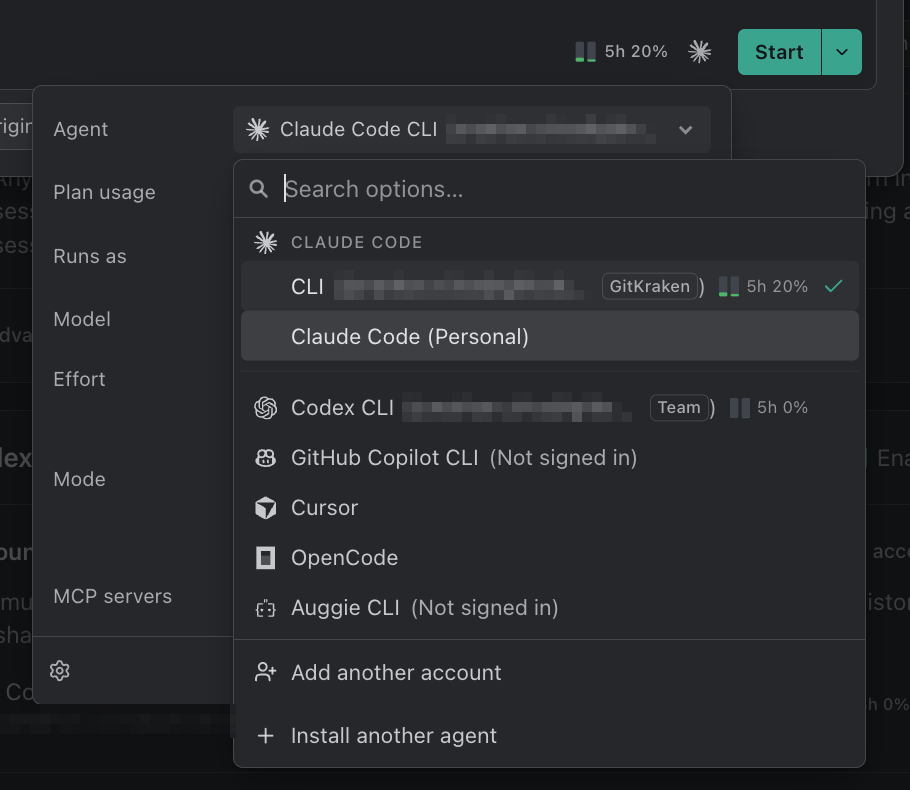
With one account, the agent keeps a single row, with that account shown beside its name.
A running session stays on the account it started with. Session tabs name the account when more than one exists, and a tab whose account has since been removed reads (account missing).
Kepler reads usage figures from the account the session is running on, not from whichever account happens to be first.
Signing in through your browser
Claude Code and Codex both sign in through a browser without dropping you into a terminal. In Settings → Agents, click Sign in and pick a method: the modal reads Choose how you want to authenticate.
| Connection | Claude Code | Codex |
|---|---|---|
| Local | Kepler runs the sign-in, your browser opens, and Kepler shows a status line instead of a terminal | Browser sign-in with your ChatGPT account |
| Remote or SSH | Sign in with browser: Open Claude sign-in in your local browser, then paste the code it returns. Signs in the remote target directly. | ChatGPT (device code): Sign in with a one-time code in your browser. Works on any remote. |
Locally, Open sign-in in browser is there if the browser did not open on its own; if the callback cannot complete, Kepler reveals Paste the code from your browser with Paste from clipboard and Submit code. A rejected code says so: That code was rejected. Copy the full code and try again. On a remote, Codex shows the link and a One-time code to enter there; if your ChatGPT workspace turns device sign-in off, use Import local Codex login or an API key instead.
Auggie signs in the same way locally, and on a remote target asks you to paste the JSON it returns. Copilot uses a device code: Sign in with GitHub, then enter a one-time code at github.com/login/device.
On a remote Codex target you can also Import local Codex login to copy your local auth cache to that target. See Remote Environments.
Kepler warns you before a login lapses: {N} days left before your {agent} login expires. Sign in again to renew it.
How a session runs
A session runs one of two ways, and the choice is no longer Claude Code’s alone.
| Mode | What it is |
|---|---|
| Rich chat | Kepler drives the agent over the Agent Client Protocol (ACP) and renders the conversation itself: plans, model and effort controls, richer input. The default |
| Terminal | The agent’s own command-line interface, running in an embedded terminal inside the task |
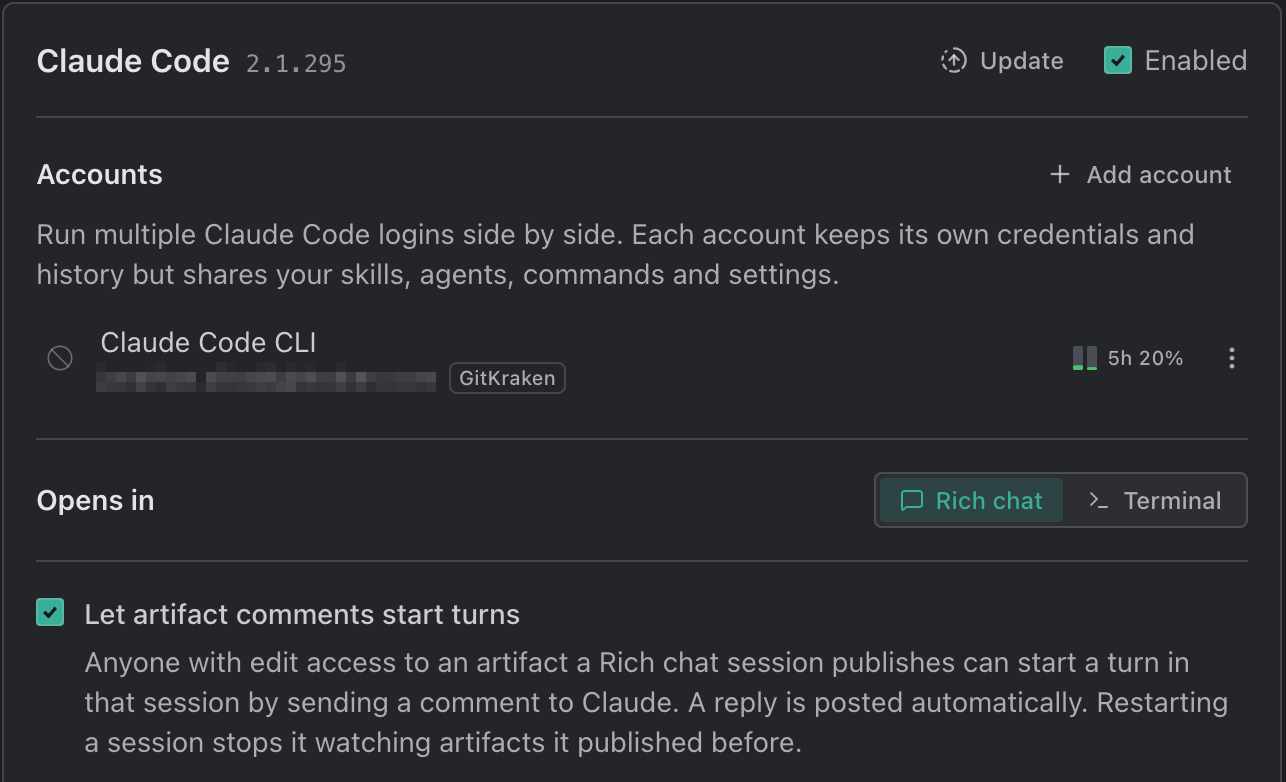
Settings → Agents → your agent → Opens in sets the default per agent, so Claude Code can default to Rich chat while Codex defaults to Terminal. The New session menu starts one session the other way without changing it: Start in Terminal, or Start in Rich chat. An agent that offers only one mode shows no switch at all.
| Agent | Modes |
|---|---|
| Claude Code, Codex, GitHub Copilot, Cursor, OpenCode, Auggie, Grok Build | Rich chat or Terminal |
| Google Antigravity | Terminal by default. Rich chat runs Google’s separate Antigravity ACP server, once it’s installed and you pick Rich chat for the agent |
| Pi | Terminal only. Its CLI doesn’t speak ACP |
| Your own agent server | Whichever its command supports |
Kepler works out what terminal mode can offer for an agent from the CLI’s own flags rather than from a list of agent names, so a custom agent server degrades the same way a built-in one does: a control an agent has no flag for is hidden rather than shown doing nothing.
What’s different in Terminal
Terminal mode is not a fallback. Kepler wraps the running CLI with the things a bare terminal has no way to give it: the task’s shared context, Kepler’s workspace tools, permission prompts you answer from here, and a transcript that survives a restart. What changes is the middle of the pane.
| Part | What it does |
|---|---|
| The terminal | The agent’s real interface, keys and all |
| The status bar | The session at a glance, then your plan usage. See below |
| The composer | Kepler’s own message box, with attachments, voice input, and the agent-settings pill |

The status bar leads with the session and ends with its usage, left to right:
| Part | What it shows |
|---|---|
| Status dot | The session’s state and, once it’s idle, how long since the model last replied |
| Agent and account | Tinted with the account’s colour when it has one |
| Model, effort, and mode | What the running CLI reports rather than the picks you launched with, so a change made inside the CLI shows here |
| Context ring | The share of the context window in use. Hover for tokens used, available, and total, the estimated cost at API rates, and the prompt cache |
| Plan usage | Two bars for the 5h and 7d windows, coloured as they fill. Hover for the full readout. See Usage indicators |
| Rich input | Shows or hides Kepler’s message composer. Hide it to type straight into the CLI |
| Idle detection | Shown for an agent Kepler cannot read hook events from: Activity is inferred from the terminal going idle, because this CLI reports no hook events. |
Hover any part for its card; a click pins the card open. A narrow bar sheds the least important parts first and brings them back as soon as they fit. Hovering an idle session’s status shows its Last reply, its Last prompt, and, when the prompt cache is about to lapse or has, its Prompt cache: an idle session’s next prompt can quietly re-read its whole context once the cache expires.
Idle detection is a statement about precision. Where an agent reports hook events, Kepler knows when a turn starts and ends. Where it doesn’t, Kepler infers the same thing from the terminal going quiet, which is coarser: a long pause mid-turn can read as idle.
The composer’s Agent settings pill reports the model, effort, and mode the terminal session is using, but doesn’t change them: its tooltip ends Change these in the terminal. Change them in the CLI itself; an effort or mode you change there survives the session relaunching.
More differences worth knowing:
- Paste an image into a Claude Code or Codex terminal and Kepler hands it to the CLI the way a paste into its own terminal would, so the agent reads it as an image rather than as a path it has to go and open.
- A terminal session’s conversation is recorded, so quitting Kepler, an idle shutdown, a restart, or a reboot doesn’t lose it. Reopening reattaches to the same conversation with its scrollback intact, and the session keeps running through a context compaction.
- A first message Kepler can’t confirm isn’t silently resent. Kepler holds it, says why, and asks you to Check the terminal before resending. The reason reads, for example, Kepler could not read the version of {name}, so it could not confirm {name} was ready. or The message was too long to pass to {name} at startup.
- Typing pauses rather than guessing. If Kepler can’t tell whether your last keystrokes reached the terminal, it pauses input and says so (Typing is paused. Check the terminal, then continue typing.) until you press Continue typing.
A terminal session is not the same as a terminal. A terminal session runs an agent, lives in the Sessions column, and carries the task’s context. A plain terminal runs your shell, lives in the drawer beneath the columns, and carries none. See The Task View.
Sessions started outside Kepler
Not every conversation starts here. You run claude in a terminal, or you come back to something a week later from a transcript still sitting on disk. Kepler finds both and treats them as what they are: agent sessions it didn’t start.
Nothing is taken over without you asking. Kepler binds a conversation to a task; it doesn’t seize the terminal that’s running it.
Turning detection on
Settings → Agents → Agent options → Detect sessions started outside Kepler is the one switch, and it is on out of the box.
It installs GitKraken hooks so the agent’s own command-line interface reports what it’s doing back to Kepler. One switch covers every agent Kepler can track this way: Claude Code, Codex, Cursor, GitHub Copilot, and OpenCode. Turning it off silences all of them.
The same hooks are how Kepler follows a Claude Code Terminal session. If a live Claude terminal session keeps reporting its status but its hook events stop arriving, Kepler warns you rather than letting status and notifications drift: Claude sessions aren’t reporting to Kepler, with Repair to reconnect Claude to Kepler. Restart any Claude session that still isn’t responding afterwards.
Detection is what makes a live outside session visible. Past sessions are read from the transcripts the agent already writes to disk, so a conversation from before you turned detection on can still be found. Kepler just had no way to watch it while it ran.
For where these sessions surface, and for turning one into a task, see The Kepler Interface and Create a Task.
Reading one
An outside session opens read-only, marked (external) and External, with its transcript labelled Session transcript (read-only). Its context card carries a badge for its state and one sentence saying where the conversation lives and what you can do about it from here.
| Badge | What it means |
|---|---|
| Running | Working on a turn, outside Kepler |
| Waiting on you | Blocked on a question or a permission request in its own interface |
| Idle | Connected and doing nothing |
| Ended | The process finished |
| Not running | Found on disk, with nothing running it anywhere |
The sentence follows the badge. A running session reads Follow along here. You can fork it or continue it here once it goes idle. A waiting one reads It’s asking you something in the terminal where it’s running. Answer it there. Kepler will not answer a prompt it doesn’t own, but it does notify you that the session is waiting, whichever agent it is.
Kepler reads Claude Code and Codex transcripts today. For other agents the row still appears and can still be adopted, with Preview isn’t available for {adapter} sessions yet. in place of the conversation. A transcript Kepler can’t read says which problem it hit rather than showing an empty conversation:
| What you see | What it means |
|---|---|
| No transcript to show | Kepler couldn’t find the file. It may predate detection, or the agent stores it somewhere Kepler doesn’t know to look |
| Kepler can’t read this session’s transcript | The file exists but couldn’t be opened. Check its permissions; Kepler keeps retrying |
| Waiting for activity… | Nothing has been written yet |
A live session that goes quiet is flagged rather than left looking busy: No activity for {minutes} minutes. The session may have ended without reporting it.
Taking one over
Two verbs, and they differ in what happens to the terminal you started it in.
| Verb | What it does |
|---|---|
| Fork | Copies this conversation into a new Kepler session. Your terminal keeps the original. Both carry on independently |
| Continue here | Picks up this conversation in Kepler where your terminal left off. One conversation, now Kepler’s |
On a session a terminal still owns, Continue here first asks Continue this conversation in Kepler?, because two clients writing the same conversation corrupts it: Close it in your terminal first, or two clients will write the same conversation. Both verbs unlock once the session goes idle; neither is offered mid-turn.
A conversation picked up from disk starts the agent on your first message rather than the moment you take it, so adopting one costs nothing.
Sending a prompt
The composer sits at the bottom of the session.

| Control | What it does |
|---|---|
| Attach a file | Attaches a file for the agent to read. Drag onto the composer works too: Drop files to attach. On a remote connection, Add a file from the remote picks from the remote machine |
| Microphone | Voice input. See Voice Input |
| Agent settings | Agent, model, permission mode, effort, and options |
| Context usage | The share of the session’s context window in use, drawn as a ring. Hover for tokens used, available, and total, the estimated cost at API rates, and the prompt cache |
| Plan usage | Your provider plan’s usage windows and when each lifts. See Usage indicators |
| Send | Sends the prompt, and shows a sending state from the moment you click. The chevron holds Send and every applicable Action |
Attaching a file sends a path, not a copy, wherever it can. A file the session’s host can already read (one you drop, paste, or pick on the same machine, or pick from the remote in a remote window) goes as a pointer, and its chip reads File on this machine or File on the host. Anything else is uploaded once into the task and its chip reads Copied to the task when you send. A send is all or nothing: if an upload fails, the message isn’t sent (Couldn’t upload {name}. Your message wasn’t sent.). An attached file’s card on the task page offers Open in default app and Reveal in file manager, where the window can reach the host.
Tab moves from the prompt to Send, and a draft you haven’t sent survives a reload.
The agent pill sits beside Send on every surface that has a composer, so the launcher and a live session read the same way. The agent picker is a list of labelled rows, and the agent-settings menus have a Search options… box for agents with long option lists. Every control carries a real tooltip.
Enter sends; Shift+Enter inserts a newline. Cmd/Ctrl+F opens Find in conversation. Start typing anywhere in a session and the composer takes the keystroke, so you don’t have to click into it first.
While a turn is running the send button grows a stop segment: Interrupt current work. Queued messages will be sent next. Send stays live throughout, because a busy session steers.
Slash commands and skills, per repository
Type / to open the command menu. It lists the agent’s built-in commands together with your commands and skills. A slash command sent as a session’s first prompt runs as a real command, not as text.
In a Claude Code Rich chat session, /design and /slides work as they do in the CLI, and Claude can publish artifacts. See Reading the conversation. Codex reports its skills with a $ sigil and invokes them that way, so $ opens a skills-only menu, but / still finds them, matched on the bare name, so you do not have to know the convention.
Skills and slash commands are discovered per repository, not per agent. The catalog is the union of your home-directory skills and the repository or worktree’s own: for Claude Code, ~/.claude/skills plus .claude/skills. Two consequences:
- One project’s skills never show up in another project’s menu.
- A skill added in a worktree and not yet committed can appear in that session before it appears elsewhere.
Kepler probes the catalog when you pick a repository and refreshes it whenever a live session reports a change, so a skill you add mid-session shows up without a restart.
Mentioning files
Type @ to search the working directory and insert a path. Kepler automatically approves files you paste into a chat for the agent to read.
Steering a running turn
You do not have to wait for a turn to end. Send while the agent is working and your message steers it rather than sitting until the turn is over.
Send during a turn and the message parks in a visible queue: the placeholder changes to Type a message to queue… and a banner above the composer counts what is waiting. The queue then leaves as one merged follow-up prompt at the earliest moment that is actually safe:
| When it goes | Why |
|---|---|
| Immediately | The agent supports steering and no tool call of its own is in flight |
| At the next tool-call boundary | A tool call is running and can’t be interrupted mid-flight |
| At the end of the turn | The agent supports no steering at all |
A background subagent’s tool call never holds your message back; only the main turn’s own calls do.
Everything you send during one turn is merged and handed over together, so two quick corrections arrive as one instruction rather than two competing ones.
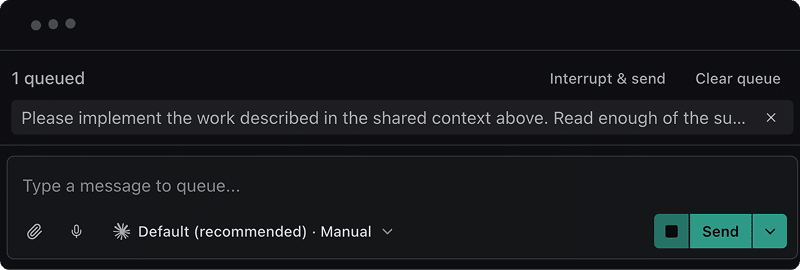
| In the banner | What it does |
|---|---|
| {count} queued | How many prompts are waiting |
| A queued row | The prompt’s text and its attachments, or a paperclip and filename when it is attachments only |
| Sending at {time}, when the quota resets. | The account hit a usage limit. The queue waits for the reset instead of sending into the limit. See Usage indicators |
| Send now | Releases a queue held for a usage limit straight away |
| × on a row | Removes that one prompt |
| Clear queue | Removes all of them |
| Interrupt & send | Stops the current turn and delivers the queue immediately, in one act. Cmd/Ctrl+Shift+Enter is the same thing from the keyboard: the send combo, escalated. With subagents running it names them: Interrupt & send ({count} running) |
Queued prompts survive interruption, and a restart of Kepler. A disconnect, an expired token that forces re-authentication, and the reconnect afterwards all keep the queue: the rows stay on screen, nothing is dropped, and the prompts are handed to the reconnected session in the same order, under the same identities. Cancelling a turn promotes the next queued prompt rather than discarding it.
Each queued prompt picks up the Task’s shared context as it stands when the prompt actually runs, not as it stood when you typed it.
If a send genuinely fails, Kepler puts the text back: Something went wrong. Your message is back in the composer — try again. If you have since typed a newer draft, it keeps that one and offers Restore message.
Stopping a turn
| What you do | What happens |
|---|---|
| Escape | Stops the running turn |
| The stop segment on the send button | The same thing, with a pointer at what it does to the queue |
| Cmd/Ctrl+Shift+Enter | Interrupt & send: stops the turn and delivers what you typed |
| Force quit the agent | Offered once a cancel has been pending too long. It does not wait for the agent to settle |
A cancel that is taking too long escalates rather than leaving you with a button that appears to have done nothing.
In Terminal mode an interrupt is recognised whether it arrives as Escape or as Ctrl+C, and the turn counts as cancelled only once both the CLI’s hooks and its output have gone quiet, so a stopped session stops reading as though it were still working.
Reading the conversation
- Your messages appear as chat bubbles. Right-click one to Copy message, Quote, Ask, or New session from here.
- Agent replies render as markdown, and stream as one continuous message even when a tool runs mid-reply.
- Each prompt, and the reply that closes each turn, has a copy button beneath it.
- Each message shows when it was sent, and a long gap between messages gets a divider.
- An agent’s thinking shows as a collapsed Thinking block, for agents that send it.
- A file path an agent writes (a link, an inline-code path, or the file in a read or edit tool call) becomes a link once Kepler confirms the file exists. Click it to open the file in Kepler at the named line; Cmd/Ctrl+click opens your default editor.
- Images in replies and tool output open in a lightbox, and both the thumbnail and the lightbox can save the image with Save as….
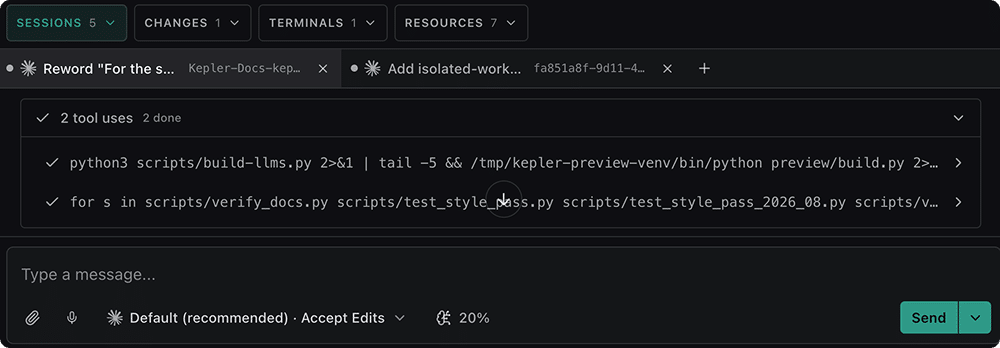
- Tool calls collapse into groups: {count} tool uses, with {count} done, {count} running, and {count} failed tallies. Expand a group to read any call’s output.
- A plan renders as Plan {completed}/{total}, and a plan cut short by a stop is marked Interrupted.
- Subagents get their own card, collapsed by default, holding Prompt, Operations, and Result sections that fold independently. Its trigger row carries the subagent type, the description it was given, how many operations it has run, and a status of Running, Stopped, Completed, or Failed, so a card that is still shut shows progress.
- A turn that ended for a reason worth knowing carries a pill: Reached token limit, Reached request limit, Refused to continue, or Cancelled. A healthy turn shows nothing.
Subagent work is attributed rather than mixed into the main thread. A subagent’s own tool calls nest inside its card under Operations instead of appearing flat alongside the main agent’s, and its narration renders in an indented lane of its own, marked Subagent, so you can see where it starts and stops even when it interleaves with the main agent’s text. While a turn is running, that turn’s subagent cards pin to the top of the session and drop back into the conversation when the turn ends; a card you expanded stays expanded for the rest of the turn.
Open subagent transcript on a subagent card, or on its running chip above the composer, opens that subagent’s own read-only transcript: its prompt, then its narration and tool calls in the order they happened, then its result. It updates live while the subagent runs. In a wide pane it docks beside the chat; in a narrow one it covers the chat, with Back to {title} to return. A permission request raised inside the subagent is answered in that pane while it’s open.
A Claude Code session can keep background tasks running after its turn ends, such as a monitor or a backgrounded shell. While one runs, the session reads Working in background rather than Idle, the task’s card reads Running in background, and Stop background task on the card or its chip stops that one task without touching the session.
Code blocks carry a line-wrap toggle, so a long line can be read without scrolling sideways. Numbered lists stay continuous rather than restarting at 1 after an interruption.
Claude artifacts
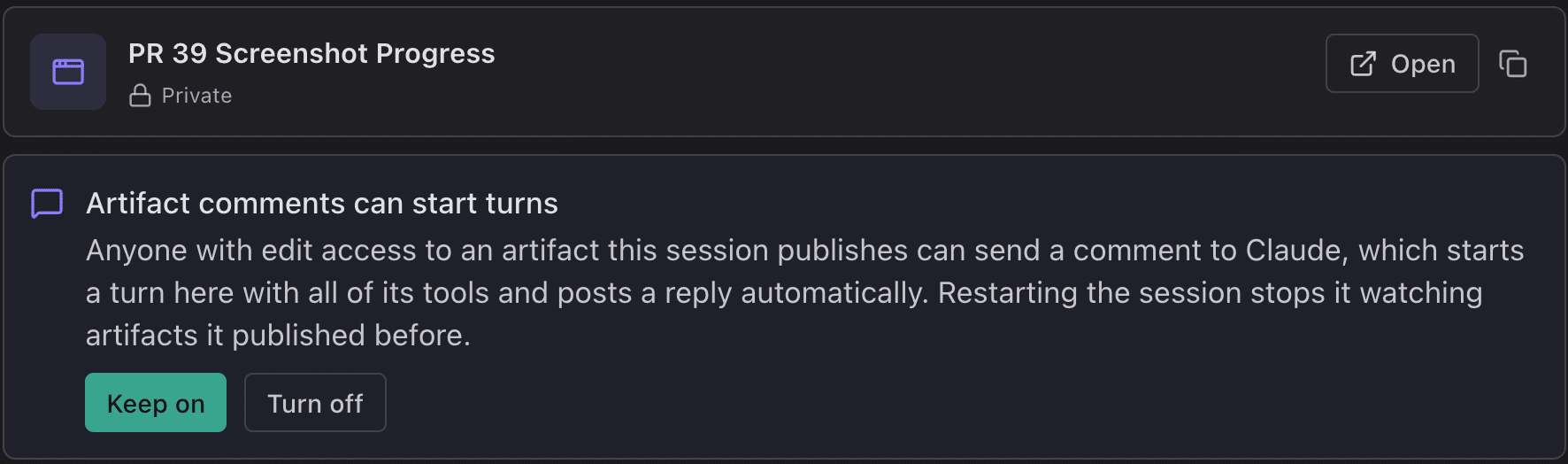
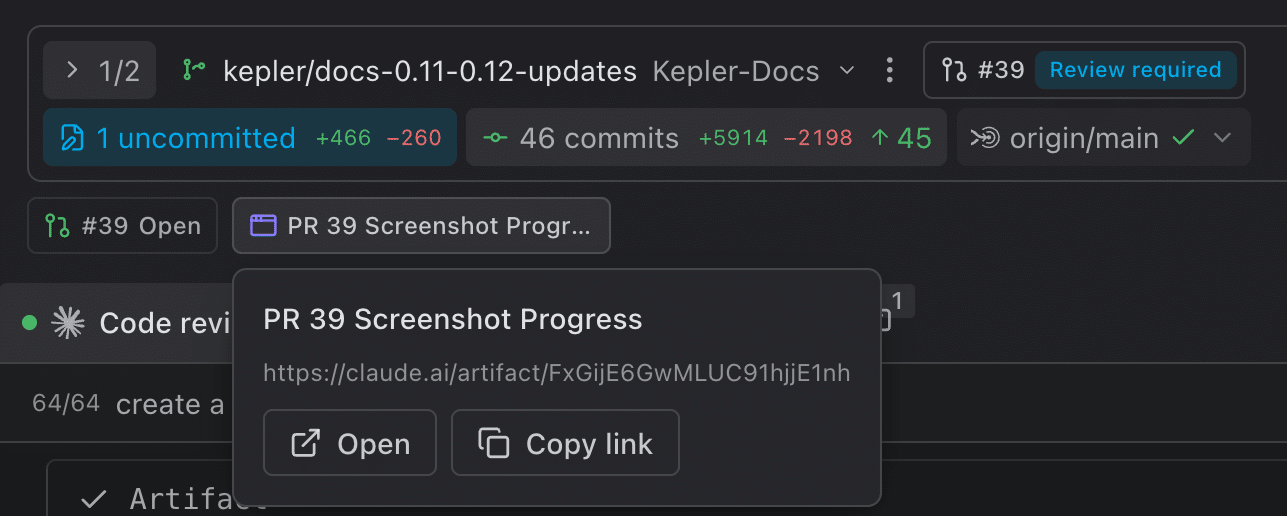
When a Claude Code Rich chat session publishes an artifact, including /design and /slides output, it shows as a card rather than a tool call: title, version, Private, Open, Copy link, and Preview. A republish reads Updated to v{seq}. The artifact is also attached to the task as a link, so it stays reachable after the conversation scrolls on.
Preview opens the published page in a pane beside the chat, loaded from the local file the session published, with Reload and Close preview.
Approvals name what Claude is about to do rather than showing raw tool input, for example Publish a new private page?, Update to a new version?, or Permanently delete?
Anyone with edit access to a published artifact can comment on it, and by default a comment starts a turn in the session that published it, with a reply posted automatically. The first time a session publishes, the Artifact comments can start turns notice offers Keep on or Turn off. The standing setting is Settings → Agents → Claude Code → Let artifact comments start turns; running sessions keep the value they started with, and the setting lists them with Restart all and Restart selected ({count}).
Scrolling and where you left off
Settings → Appearance → Chat transcript controls how the transcript scrolls:
| Setting | What it does |
|---|---|
| Auto-scroll to the end | Keeps the newest output in view. Scroll up to stop. The default |
| Stay on my message | Keeps your message in view. The transcript doesn’t scroll on its own. |
| Remember scroll position | Return to where you left off when you come back to a session. Off by default |
Sessions you started in your own terminal appear too, marked (external), read-only. See Sessions started outside Kepler above.
When the agent asks you something
Kepler pauses and asks you directly when an agent needs a decision it can’t make on its own. It does this in two ways: a permission request before a risky tool call, and a structured question when the agent wants your input mid-task.

Permission requests
A request pins to the top of the session: an amber shield, the tool being asked about as the heading, and the call’s input beneath it. When the agent says why it’s asking (for example, a Claude Code session in auto mode that still hits a safety check), that reason sits just above the buttons. The buttons are Kepler’s own wording rather than the agent’s, so a request reads the same whichever agent raised it.
| Button | What it does |
|---|---|
| Allow | Approves this one call |
| Allow for this session | Approves this call, and auto-approves matching follow-ups for the rest of the session. The agent is told only that you allowed it once, so it writes no rule of its own |
| Allow always | Hands the agent a permanent approval, which the agent stores in its own settings |
| Reject | Refuses this call |
| Reject always | Refuses it permanently |
You get the tiers the agent actually offers. Allow for this session is Kepler’s own middle tier and appears only next to an Allow. A request that offers nothing but a permanent approval, as Claude Code’s plan-exit prompt does, has no one-shot decision to widen. Where an agent draws its own distinction between several permanent choices, its labels are kept instead of a single Allow always, and any Tool(...) pattern a rule would cover is spelled out on a RULE line beneath the buttons.
Kepler coalesces repeats. A command that fires many identical requests (an install reaching the network over and over) asks once, and your answer settles the whole group.
Answered requests stay in the transcript, showing the tier you picked: Allowed for this session for the middle one, otherwise the button’s own label, falling back to Approved or Denied.
Requests that arrive through hooks
A session running in Terminal mode, and one Kepler detected outside itself, both ask through the agent’s own hooks rather than over ACP. You still answer in Kepler either way, without switching to the CLI’s own prompt to reply. The card is the agent’s, though, so it carries scopes instead of Kepler’s tiers: Deny, Allow once, and one Always allow per scope the hook suggests, narrowest first.
| Scope | Meaning |
|---|---|
| this session | Until this session ends |
| this project (local) | This project, your machine only |
| this project (shared) | This project, committed for your team |
| all projects | Everywhere |
Kepler prints the rule each button would write above them. A rule with no command pattern is annotated (this tool), meaning it covers every call to that tool rather than one command.
Kepler never approves a hook request on your behalf. If it stops holding one without your answer (the turn ends, the conversation moves elsewhere, or Kepler quits), it hands the request back to the CLI, which asks in its own dialog.
Multiple-choice and multi-select questions
Agents can ask you structured questions instead of guessing. The form renders in the conversation at the point the agent asked.
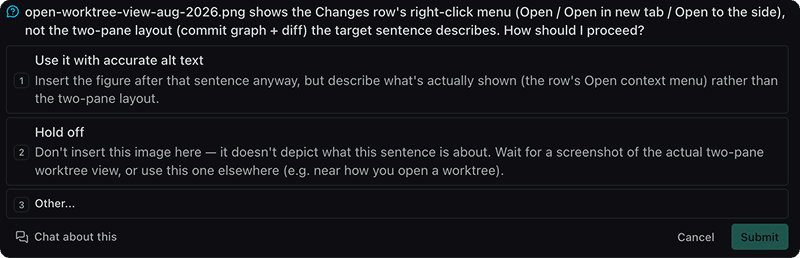
| Kind | How it behaves |
|---|---|
| Multiple choice | Radio-style. One option is the answer |
| Multi-select | Checkbox-style, hinted Select all that apply. Every ticked option is sent |
Both kinds work the same way otherwise:
- Options show a label and, when the agent supplied one, a description.
- Press 1–9 to pick an option by the number shown on it.
- Other… opens a free-text field (Type your answer…), which becomes the answer on its own for a single-choice question, and joins the ticked options on a multi-select.
- Several questions arrive as steps with a {current}/{total} counter and a tab strip; submit is enabled only once nothing is outstanding, and until then you see {count} questions still unanswered.
- Chat about this declines the form so you can answer in your own words in the chat. It does not cancel the session.
- If the agent set a deadline, the form counts down ({count} seconds remaining), and a form that was never answered is recorded as Left unanswered rather than left on screen as if it had been submitted.
A restored session shows the question and the answers you gave as a read-only record.
Usage indicators
Two different readouts, and they measure different things.
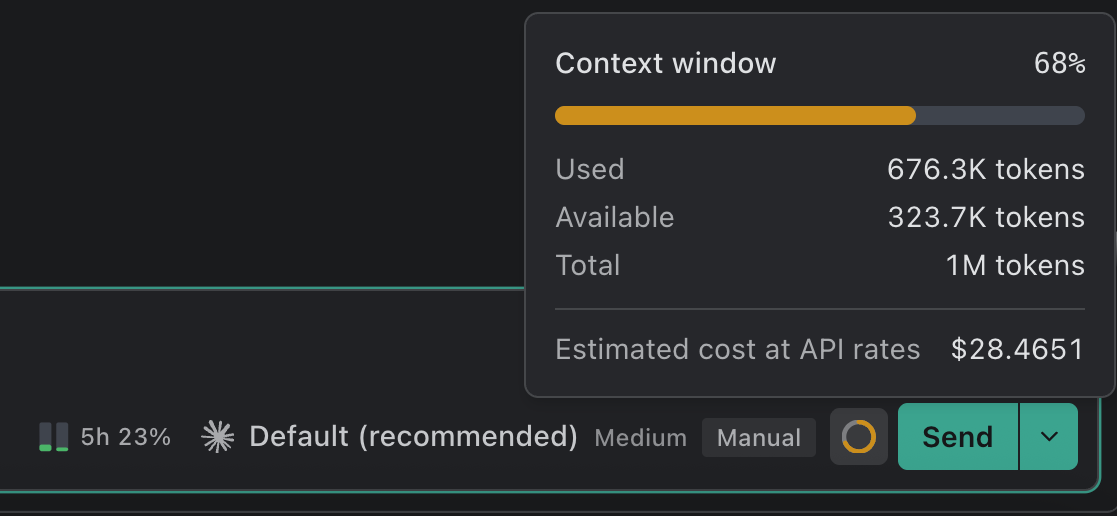
| Readout | What it shows | Availability |
|---|---|---|
| Context window | How much of this session’s context window is used, as a ring. Hover for tokens used, available, and total, the Estimated cost at API rates, and the Prompt cache: when it expires, and how much of the session’s input came from it ({percent}% cached) | Whenever the agent reports it |
| Plan usage | Your provider plan’s windows (5h, 7d, and Cycle) as Used, Left, and Resets columns, plus whatever else the provider reports about the plan | Claude Code and Codex sessions report their own 5-hour and 7-day limits. The full readout, and Auggie, need Show token usage |
A Claude Code or Codex session reports its own 5h and 7d readings as it runs, so those two windows show without any setting. A card drawn from those readings alone says so: From this session’s status line. Turn on Show token usage in Agent options for live updates. When the prompt cache is about to lapse, the context card warns The next message re-reads most of the context.
Show token usage fetches the full readout from the provider. Turn it on in Settings → Agents → Agent options → Show token usage → Enable, or from the Show plan usage button that stands in for the meter while it’s off (Turn on). It is off by default, and the setting says why:

Kepler will read your Claude Code, Codex and Augment access tokens from disk and call the providers’ private usage APIs. These endpoints are undocumented and may change without notice. Tokens are never sent anywhere except to their respective provider.
The meter previews the shortest window, or the remaining plan balance where the provider reports a balance but no expressible percentage; hovering opens the detail. A spent window reads Limit reached until {time}, and every reading says how old it is (Updated {when}), with Refresh to ask again.
| Provider | What its popover carries |
|---|---|
| Claude Code | The 5h and 7d windows, and an Extra usage pool with credits used against any monthly limit |
| Codex | The same two windows, plus Usage limit resets: earned resets that clear an active limit early, each with its expiry |
| Auggie | A Cycle window for the current billing period, and a plan line naming the plan with what is left of it: {remaining} / {included} credits left, or {remaining} credits left on an unmetered plan |
If the figures cannot be fetched, the meter says which problem it hit rather than showing a stale number, for example Sign in to {agent} to see usage data. or This agent doesn’t expose usage data. It adds Your sessions aren’t affected. where that applies.
When you hit a usage limit
A session doesn’t keep sending into a spent limit. Prompts you queue while the account’s limit is spent wait for it to lift, and the queue banner reads Sending at {time}, when the quota resets. They go out on their own shortly after the reset, even with no Kepler window open and across a restart. Send now releases one session’s queue early.
If a turn is cut off by the limit with nothing queued, the session stays put unless you turn on Settings → Agents → Agent options → Resume after usage limit → Enable: When a turn is cut off by your account usage limit and nothing is queued, Kepler queues a “continue” message that is sent shortly after the limit resets. It’s off by default, and the queued message can be sent early or removed like any other.
This applies to agents Kepler can read usage for: Claude Code, Codex, and Auggie.
Voice input
Every session’s composer has a microphone. Click to record, speak, and the transcript lands in the prompt; transcription runs on your device. Voice input is off until you enable it and download a model.
See Voice Input.
Session status
Each session carries a state, shown as a coloured dot on its tab and rows.
| Status | Meaning |
|---|---|
| Spawning | Starting up |
| Ready | Connected, nothing sent yet |
| Running | Working on a turn |
| Waiting | Blocked on you: a permission request or a question |
| Unread | Finished a turn you have not looked at |
| Idle | Connected, nothing running |
| Working in background | The turn ended, but a Claude Code background task is still running. Shown like Running, and it keeps the machine awake |
| Reconnecting | Kepler is reattaching to a session that kept running while Kepler restarted |
| Error | The turn or the process failed |
| Ended | The agent process isn’t running. The conversation is kept, and a dormant session reads {state} (ended), its last state, until your next message starts it again |
When Kepler has to show one status for several sessions, the most urgent wins: Waiting and Error outrank live work, and Unread sits above Idle so a finished turn is not buried.
Away from the session itself those states collapse into a coarser ramp of five (attention, active, idle, errored, inactive), which is what the main list‘s row and preview indicators read, and what decides where an Action fires. Attention covers both a waiting session and one holding an unanswered permission request or question.
Tabs, archiving, and restoring
Open sessions form a tab strip. Each tab shows the agent, the account when more than one exists, and a status dot.
| Action | Result |
|---|---|
| Cmd/Ctrl+T or + | Starts a new session in this working copy |
| Alt+1–Alt+9 | Jumps to a tab by position |
| Cmd/Ctrl+Shift+[ / ] | Previous or next tab |
| × on a tab in the Sessions column (Archive session) | Archives the session |
| Archive on a rail row | The same thing |
| Restore | Brings an archived session back into the strip |
| Shut down agent | Ends the process without archiving the session |
| Restart agent | Shuts it down, then reconnects |
In the Sessions column, closing a tab and archiving are one operation. Kepler stops the agent process, saves the conversation and its resume handle, and takes the tab out of the strip. Nothing is deleted. With Show tabs on the task page turned on, a tab’s × is Close tab instead: it only hides the tab, and the session keeps running. See Task View.
Shutting down and restarting an agent
Ending a session and filing it away are separate acts, on a live session’s row menu:
- Shut down agent cancels the turn, waits a bounded grace for it to settle, saves the conversation at a turn boundary, and then ends the process. The session stays listed and stays resumable.
- Restart agent does that and reconnects, so the session comes back on whichever agent build is installed now. That’s how you pick up an agent you just updated without losing the conversation.
Restart shows its progress rather than going blank. A session you shut down before its first prompt stays listed as dormant rather than disappearing.
Dormant and archived sessions
A dormant session (one restored from disk, or stopped before it ever ran) shows its transcript, with the session’s title leading its context card. It doesn’t spawn an agent until you send the first message, so restoring a pile of old sessions costs nothing.
An archived session can be read without being restored: it opens read-only, labelled Read-only. Restore it to keep working., with Restore this session and open it live and Permanently delete this saved session beside it.
Pointing an agent at another session
Copy session reference, on a session’s row or tab menu, copies a kepler-session: identifier. Hand it to an agent and it can read that conversation through the workspace tools. That’s useful for “read what the other agent concluded and carry on”. See Tasks and Resources.
Archived sessions collect under a {count} archived fold beneath the live ones in the task rail. On the Dashboard, the session strip’s Archived sessions button searches them (Find an archived session…). Restoring puts the session back in the list; it reconnects when you open it.
Deleting a task or removing its repository ends that task’s live sessions.
Keeping agents running through a restart
Settings → Agents → Features → Keep agents running across restarts and updates is an experimental switch, off by default: Agent sessions and terminals stay alive while Kepler restarts or updates, and reconnect afterwards. New sessions pick up a change to it.
| Switch off | Switch on | |
|---|---|---|
| Quit | Asks first when sessions are running, and warns that each one will stop. Busy terminals are counted too | Sessions and terminals keep running, and Kepler reattaches to them when it comes back |
| Updating Kepler | Warns how many agent sessions the restart will stop | Warns only about agents the update would actually interrupt |
| Quit & End Sessions | Not applicable | In the app and tray menus. Ends the sessions on the way out; asks first only if one is mid-turn (End Sessions and Quit). Each can be continued again from its task |
While Kepler reattaches, an overlay covers the session, and the session offers no actions until it’s back. The overlay reads Reconnecting to the agent…, then Restoring conversation history…. If the reattach fails, the session falls back to its saved conversation: Couldn’t reconnect to the agent. Resume to pick up from the saved conversation. A session whose background process dies keeps its conversation the same way, rather than starting a new one.
A session left running after a quit, with Kepler never coming back to it, is ended on its own after an hour without any output from the agent. An agent still mid-task keeps producing output, so it finishes first.
A terminal session kept running this way also keeps its keyboard and paste modes across the restart, and a reboot that ends it still leaves it resumable.
Your computer will not go to sleep out from under a running agent. While any session is spawning, running, or waiting on you, Kepler holds the machine awake, and lets go as soon as the last one settles. It is on out of the box and turned off in Settings → General → Keep awake while agents run. See Settings.
When a session drops
A session that can’t carry on says so on its context card, with a badge, one sentence, and only the recovery that applies.
| Badge | What happened | What to do |
|---|---|---|
| Ended | The process is gone; the conversation is not | Resume |
| Exited | {name} exited on its own. Restart it to continue from the saved conversation. | Restart the agent |
| Can’t resume | {name} no longer has this conversation, so it can’t continue. You can still read it below. | Archive session, or Start new conversation |
| Sign-in failed | {name} couldn’t sign in. Sign in again to continue this conversation. | Sign in again |
| Can’t start | {name} isn’t installed or can’t run, or The installed {name} can’t run this session. | Fix the install or path in agent settings, then restart |
| Folder missing | The folder this conversation ran in was removed or moved. | Recreate worktree and resume or Recreate folder and resume |
An Agent error banner names the cause: {name} binary is missing or not executable., Agent authentication failed., Agent process exited on its own. It offers Reconnect, Authenticate, Compact, or Dismiss as the cause warrants. A usage limit reads {adapter} reached its session limit with Available again at {time}.
In Terminal mode a dead process reads Terminal exited. Resume to reattach to this conversation.
Sessions recover on their own where they can: Kepler renews an authentication token that expires mid-session so the session continues, and remote connections re-establish after a restart or sleep.
Notifications
Kepler tells you when a session finishes or needs you.
| Notification | When |
|---|---|
| Task completed | A turn ended. Sent only as a desktop notification, since it is useful only when you are away from Kepler |
| Needs attention | The agent is blocked on a permission request or a question. This includes a Terminal or external session blocked on a prompt in its own CLI, for every agent. Also shown in-app |
| Error | The session errored. Also shown in-app |
Titles read {status}: {task}, with the agent and the repository or branch beneath ({adapter} on {repo}/{branch}), and clicking one takes you to the session.
Kepler stays quiet about the work you are already watching: it sends no notification for the session on screen in a focused window. A cancelled turn is not a completion, and a session reconnecting is not a completion either, so neither notifies.
Two settings in Settings → General control the rest:
| Setting | What it does | Default |
|---|---|---|
| Enable system notifications | Desktop notifications when an agent finishes, needs your attention, or errors while Kepler is in the background. Turning it on sends a sample so you can allow notifications for Kepler | Off |
| Notify for external terminal tasks | Notifications for Claude tasks running in your own terminal. Turn it off to silence those while keeping Kepler’s own. Disabled while system notifications are off | On |
In-app toasts carry a close button on hover, and Clear all ({count}) dismisses the lot.
Reviewing what the agent changed
Reading the diff and syncing the branch are covered on their own page. See Review Changes.
