

Last updated: October 2026
Connect an issue tracker and the issues you’re working on show up in the Kepler interface, alongside your pull requests and the tasks you already have running. Starting work on one becomes picking a row rather than describing the work from scratch.
Manage providers in Settings → Integrations, in the Provider Integrations section.
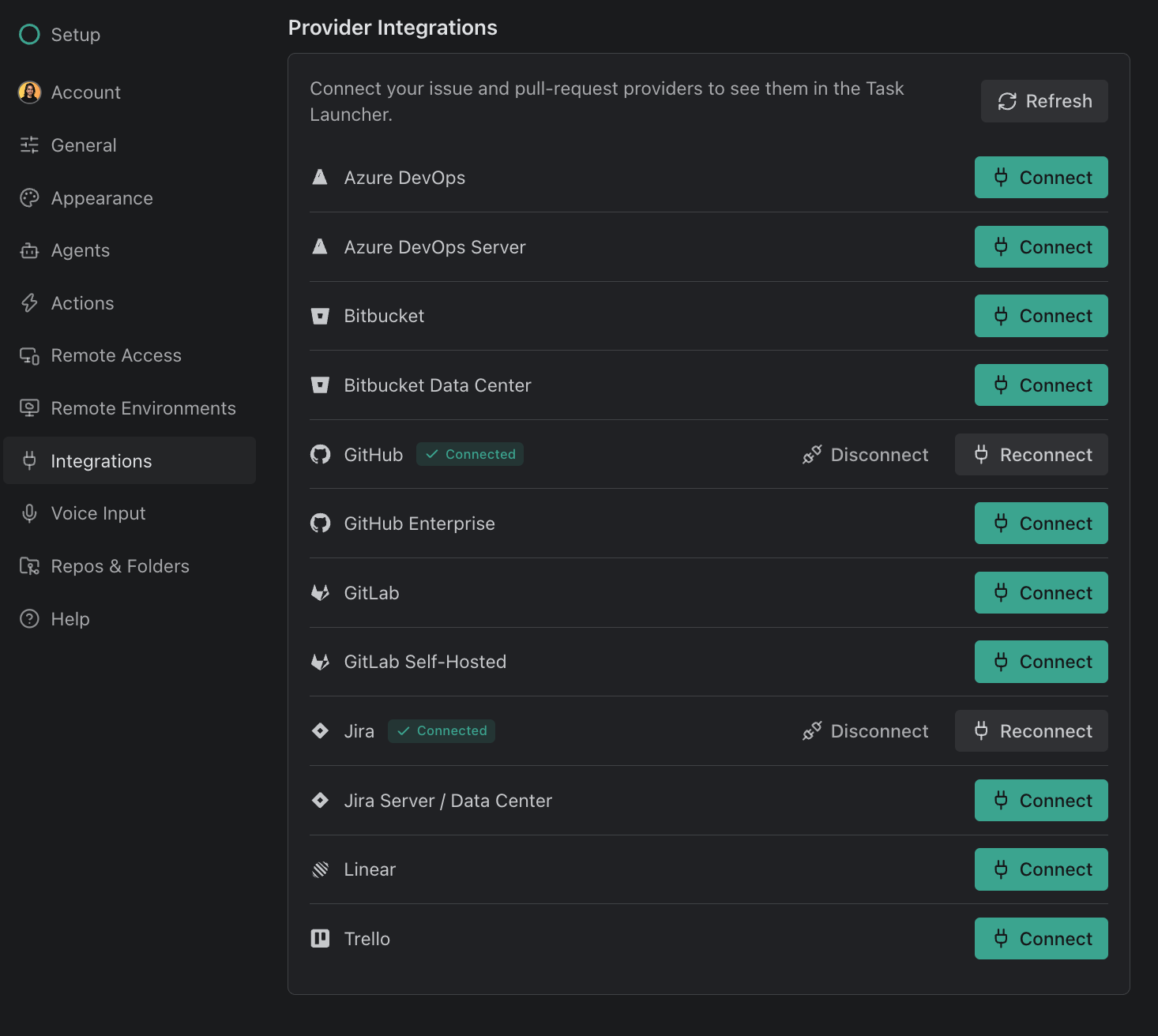
Trackers Kepler can read issues from
Ten of Kepler’s twelve providers return issues:
| Provider | Also returns pull requests |
|---|---|
| GitHub | Yes |
| GitHub Enterprise | Yes |
| GitLab | Yes |
| GitLab Self-Hosted | Yes |
| Azure DevOps | Yes |
| Azure DevOps Server | Yes |
| Jira | No |
| Jira Server / Data Center | No |
| Linear | No |
| Trello | No |
Bitbucket and Bitbucket Data Center are the other two. They return pull requests only. See Pull Request Integrations.
Self-hosted instances are first-class: GitHub Enterprise, GitLab Self-Hosted, Azure DevOps Server, and Jira Server / Data Center read issues the same way their cloud counterparts do, and two servers of the same kind stay separate even when their issue keys overlap. Which fields come back depends on your server’s version, and your machine needs to be able to reach the server.
Kepler trusts the certificates installed in your operating system’s certificate store, so a server signed by your company’s own certificate authority, or a network that re-signs HTTPS traffic, works without extra setup.
Connect a tracker
Connecting a tracker takes four steps:
- Open Settings → Integrations.
- Find the provider in Provider Integrations and click Connect.
- Authorize Kepler in the browser window that opens.
- Kepler returns to Provider Integrations and the provider shows a Connected badge.
Your GitKraken account holds integrations, not this copy of Kepler, so a provider you connect here also becomes available to the gk command-line interface (CLI) and GitKraken Desktop. You need to sign in to a GitKraken account to manage them; Kepler prompts you if you are not signed in.
Connect hands the whole authorization to GitKraken’s website. Kepler opens /connect there in your system browser, names the provider, and includes a redirect back into Kepler. Kepler has no in-app form for a host URL or a personal access token, so you supply whatever the provider needs directly in the browser. When you return, Kepler refetches your providers instead of reusing its cached list.
Three controls sit on a connected provider’s row:
| Control | What it does |
|---|---|
| Reconnect | Re-runs authorization. Use it when a sign-in has expired |
| Disconnect | Removes the provider’s primary connection (see below) |
| Refresh | At the top of the section, re-checks every provider |
A provider’s row can also carry a warning:
| Warning | What it means | What to do |
|---|---|---|
| Sign-in expired | The provider’s sign-in has expired | Kepler tries to refresh the token on its own; Reconnect is the manual fix |
| Cannot connect to server | Kepler couldn’t reach the provider’s server. The integration is still connected | Nothing to reconnect. Check that the server is up and reachable from your network or VPN; the warning clears once it answers |
| An organization named under the row | One organization refuses Kepler’s access, so its items are left out while everything else still loads. GitHub organizations that restrict OAuth app access, for example, are named with a Request access on GitHub link | Follow the row’s own advice, which names who can lift the block |
More than one account of the same provider
You can connect several accounts of the same provider: two GitHub accounts, a work Jira site and a personal one. When a provider has two or more, an Accounts list appears under its row with one entry per account.
Each entry carries two independent controls:
| Control | What it changes | How far it reaches |
|---|---|---|
| Read from this account | Which account Kepler reads this provider’s issues and pull requests from | Kepler only, and non-destructive |
| Set as primary / Primary | The provider’s primary account | Everywhere: other Kepler windows, the gk CLI, and GitKraken Desktop |
Browsing a secondary account does not change your primary. Selecting Read from this account on a second account switches what Kepler shows you and leaves the primary alone. That’s why Read from this account is a radio control rather than a button. The primary is the default read account, so a provider with no override reads through it.
Switching either one clears that provider’s saved filters (an organization or project from the old account need not exist on the new one) and re-fetches the list.
The read account also authenticates git. Starting work on an issue in a repository you have never cloned makes Kepler clone that repository, using the same connection it reads through. See Pull Request Integrations for which hosts this covers and what happens on the hosts it does not.
Disconnect a provider
Click Disconnect on the provider’s row in Settings → Integrations and confirm.
Disconnecting reaches further than Kepler: it removes the connection from your GitKraken account, so the gk CLI and GitKraken Desktop lose it too. What happens to the provider depends on whether you have another account connected:
- With another account connected, Kepler promotes it to primary and the provider stays connected under it. Nothing else changes.
- With no other account connected, the provider is removed entirely. Kepler drops its saved filters and its rows from your lists, so nothing lingers behind pointing at a provider you no longer have.
You can reconnect at any time.
Jira, Linear, and Trello have no pull requests
Kepler keeps two separate lists of what each provider can return: which providers can list issues, and which can list pull requests. Jira (Cloud, Server, and Data Center), Linear, and Trello are on the first list only.
Two consequences you will notice:
- Kepler never asks them for pull requests. Kepler excludes them from the pull-request read instead of querying and ignoring them.
- The interface hides the dead filters. A provider filter only offers providers that can return results for what you are looking at, so Jira never appears as a pull-request filter. In the list, Kepler builds facets from the rows actually loaded, so a facet with nothing to offer never appears.
The same rule runs the other way for Bitbucket and Bitbucket Data Center, which have no issues.
What Kepler reads from an issue
When an issue becomes a task, Kepler attaches what it read, so the agent starts with that context instead of asking for it. Kepler pulls these fields from the issue:
| Field | Notes |
|---|---|
| Identifier | The issue key or number: GK-1234 for Jira, DRE-2 for Linear, a number for GitHub, GitLab, and Azure DevOps |
| Title | |
| Description | The issue body |
| Issue type | The provider’s own vocabulary: a Jira issue type, an Azure DevOps work item type |
| Author | When the provider reports one |
| Assignees | |
| Status | The issue’s current state, in the provider’s own words (a Jira To Verify rather than a generic open), when the provider reports one |
| Last updated | When the issue was last updated |
| Labels | The provider’s own labels. Kepler distinguishes “this issue has no labels” from “this provider cannot report labels” |
| Project or board | Jira projects, Linear teams, Azure DevOps areas. Git hosts hang issues off a repository instead |
| Iteration or sprint | Azure DevOps iterations and Jira sprints. A Jira issue carried across sprints keeps them all |
| Repository | Name, owner, and host, for the git hosts |
| URL | Used by the open control, which names the provider: Open on GitHub, Open on Jira, and so on |
Kepler does not read an issue’s priority, due date, milestone, Trello checklist, or Linear cycle. An agent can still find these by opening the issue’s URL itself, but Kepler does not deliver them as attached context.
Jira descriptions written in Jira’s wiki markup are converted to Markdown, so headings, code blocks, and tables read the same in Kepler’s previews and in the agent’s context. Images embedded in an issue’s description, including Jira attachments, display in Kepler’s issue previews. The agent receives the description as text: Kepler does not pass the attachments or images themselves.
Which issues Kepler lists
Kepler lists open work. An issue that’s finished or cancelled in its tracker (a Linear issue in Done or Canceled, for example) drops out of Todo and the issue pickers. An issue already attached to a task keeps showing on that task with its real state, finished or not.
Todo shows issues you authored, are assigned to, or were mentioned in. An issue that’s there only because you were mentioned is marked Mentioned, so you can tell it apart from work that’s yours.
To browse beyond that, use All visible in the issue list of Add resources: every issue across your organizations, including repositories you can read outside them, such as ones you’re an outside collaborator on.
Where your issues turn up
Your issues turn up in three places:
| Surface | What it gives you |
|---|---|
| The Kepler interface | The Todo segment lists your issues across every connected tracker, grouped and filtered how you like |
| Actions | The Action button on a row hands the issue to an agent with its context attached. Firing an Action on an untracked issue is also how it becomes a task |
| Tasks and Resources | An issue is a resource on a task, so you can attach one to work that already exists |
The Issue type, Label, Project, and Status filters carry your provider’s own vocabulary rather than a Kepler translation of it. Azure DevOps and Jira issues also filter by Iteration and Sprint, each named the way its tracker names it.
Linear lists by team. Linear’s own feed is only your issues, even under All visible. When the issue list in Add resources is showing Linear alone, a team picker appears: pick a team to see every open issue in it, whoever it’s assigned to.
