

Last updated: October 2026
You can start a task in several ways. Starting from work that is already assigned to you is usually the best choice:
| Start from | How |
|---|---|
| Work assigned to you | Run an Action on an issue or pull request in the Todo segment of the Kepler interface. One click starts the task with its context attached |
| Something you’re describing yourself | New task opens the New task composer, where you write the prompt and attach what it needs |
| A conversation you already started | Open an external session, under the New task composer, wraps a task around an agent session you began in your own terminal |
| Another GitKraken app | A link from GitLens or GitKraken Desktop opens Kepler on the work you were looking at |
From an issue or pull request

Starting from an issue or pull request is the shortest path. Find the item in Todo and click its Action button. Kepler then does the following:
- Creates the task.
- Attaches the repository and the item.
- Sets up a worktree.
- Starts an agent with the context in place.
The default Action depends on the item:
- Plan for an issue.
- Address Feedback for a pull request you authored.
- Review for someone else’s pull request.
You can edit all of these Actions. To read an Action’s prompt, open the list under the button’s chevron and hover the Action. See Actions.
The button shows as an outline until you hover or select its row, and then fills in. On a narrow card, it shrinks to a play icon. On a phone, it becomes a single ⋮ menu, Actions for {title}, that lists every Action.
Kepler names tasks automatically from what you started them with. To rename a task, use Rename task in the ⋮ menu, whose field also has an Auto-name button that suggests a name from the task’s prompt and resources. See Tasks and Resources.
Nothing in Todo? Set up your issue tracker and pull request integrations in Settings first. Todo shows work only from connected accounts.
From the New task composer
Click New task or press Cmd/Ctrl+N. To start one without switching to Kepler first, press Shift+Alt+N to open the quick launcher from anywhere, including when Kepler is not the focused window.

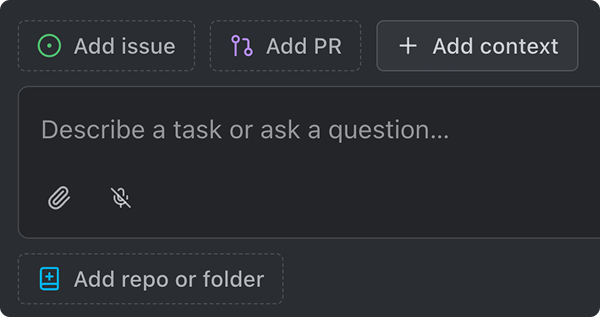
The New task composer is a prompt box above a row of 4 buttons:
| Control | What it attaches |
|---|---|
| Add repo or folder | A repository to work in, or a plain folder |
| Add issue → Issues | Issues from your connected trackers. With only Linear in the list, a team picker and a Project picker show every open issue in the team or Linear project you pick, not just yours |
| Add PR → PRs | Pull requests from your connected hosts |
| Add context | Everything without a button of its own: folders, files, and links |
Paste a link to attach it. Paste a pull request or issue URL into the prompt, from a connected host or from Jira or Linear, and it becomes a chip naming the item. The chip attaches the item the same way Add issue or Add PR would, along with its repository, so a pull request from another repository launches in that repository, on its branch. If the repository is not in Kepler yet, Kepler clones it when the task starts.
While Kepler works out where a link belongs, the repository chip reads Finding {name}…. To stop the search, remove the chip. A repository you pick yourself takes precedence over the link’s. If Kepler cannot read the link yet, the composer says Unable to read {link}. Start will try again. When you press Start, a link that still cannot be read does not stop the task. The task starts with whatever was staged, and a notice says the agent has the link to continue from. If the link staged nothing, the task does not start: Unable to read {link}, so the task wasn’t started.
In a window connected to another machine, picking a file through Add context also offers Upload from this machine. Uploads are kept with your draft and saved into the task’s own folder when it starts; if one expired before you pressed Start, Kepler names it rather than dropping it silently.
Repositories and folders share 1 ranked list (Find a repository or folder…). Kepler records how often you use each place and ranks the list by it, so the repositories you work in daily appear at the top. The same list is behind the chip’s own Change repository or folder. Picking a folder that is one of a repository’s existing worktrees attaches that worktree itself, and the chip reads Worktree {branch}. If the worktree disappears before the task starts, the chip reads Worktree not found; pick the repository again to choose another working copy.
You can attach as much or as little context as you want. To create a task from the composer, follow these steps:
- Write the prompt: Describe a task or ask a question…
- Attach what the prompt needs. You can also attach nothing.
- If you attached a repository, configure it. See Configuring a repository.
- Click the primary button, such as Start.
The composer remembers the repositories you last started a task with and stages them again the next time you open it, so you do not have to pick a repository you work in every day again. Kepler remembers only the repositories. The branch and worktree settings reset to their defaults. Starting from an issue or a pull request never overwrites the remembered set. Kepler drops a repository that no longer exists rather than staging it.
The composer also remembers an unsent draft. If you close the dialog with a prompt half written, the prompt is still there when you reopen it. Once you have started writing a task, Kepler asks before it discards the draft, so pressing Escape by accident does not lose your work.
Kepler also remembers which repositories you pick for a tracker project. When you attach a Jira, Linear, or Azure issue, Kepler preselects the repositories you chose for that project last time. Each one is marked Suggested from this tracker project when the tracker named it, or From history when Kepler inferred it from where that project’s issues were worked on before.
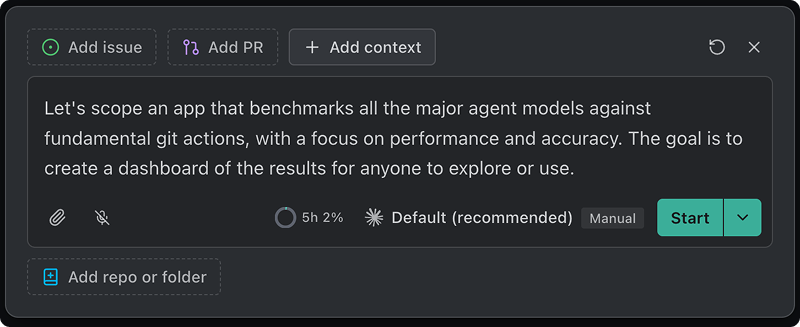
The primary button shows a sending state from the moment you click it, so you can tell a slow start from a button that did nothing. It runs the Action that matches what you’ve attached, exactly as it would from a Todo row. A linked pull request resolves to Address Feedback or Review, depending on who wrote it; a linked issue resolves to Plan. With nothing attached, the button reads Start and starts the task with your prompt as written.
The chevron beside the primary button lists the other choices: Prepare, which creates the session without starting work yet, and every Action that applies to what you’ve attached. Picking one there does not run it. Instead, it relabels the primary button, and an Action that names its own agent puts that agent in the agent pill. You can then check or change what will run before you press the button. To pick an Action and run it at once, hold Cmd/Ctrl as you click it. The Action sends its prompt, with anything you typed added as a refinement.
Shift+Tab in the prompt cycles the primary button through the same list. Until you first use it, a hint beside the prompt reads Shift Tab · Cycle action.
A task that has its prompt but no session yet, such as one an agent created for you, says so in a draft session tab: Start with the task prompt, or describe something else…. To send the task’s prompt as written, press Start on the empty box.
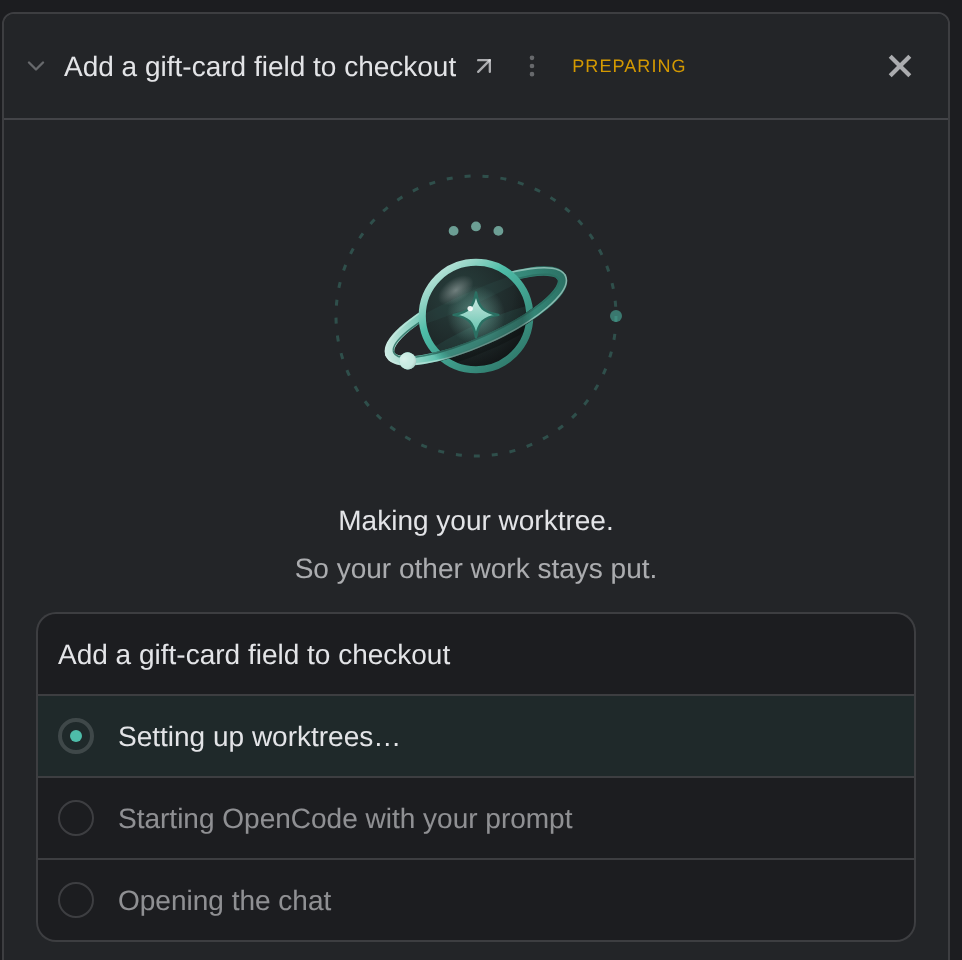
The task appears in the list as soon as you press Start, before its worktrees exist. Until setup finishes, the row shows a Preparing pill, and the task’s panel shows its progress:
- Kep, the Kepler mascot, names each stage, such as Reading {link}., Fetching {repo}., Making your worktree., Starting {agent}., and Opening the chat., above a list of the launch steps.
- Reading {link} comes first when Kepler was still reading a pasted link at Start, to find the repository and branch the link belongs to. If Kepler cannot read the link, the step shows Unable to read {link} as skipped and the launch continues.
- Where Kep is not shown, the panel lists the steps under Getting your task ready instead, such as Reading {link}…, Cloning {repo}…, or Setting up worktrees….
- Cancel stops a launch while Kepler is reading a link or cloning a repository.
When the new branch is being updated from its base, the session area reads Preparing branch: Updating from the base branch before the session starts. Then, until the first session is ready, it reads Starting your session: It opens here as soon as it’s ready.

If setup fails, the row’s pill reads Failed and the panel reads Unable to start this task. To change the task and try again, click Edit and retry, or Dismiss to clear it. A launch you canceled reads Task not started. If the request itself cannot be sent, you see Failed to start the task. A task that starts without some of its repositories warns Some repositories weren’t added: The task started without {repos}.
If the task starts but its agent session does not, the task page and the Dashboard panel show {agent} was unable to start, with Retry. See Agent Sessions.
Configuring a repository
Each attached repository gets a chip with 3 segments:

- Base branch: the branch segment of the chip. By default, the task gets a new branch forked from the repository’s remote default branch, which is what the chip reads until you pick something: New branch off origin’s default branch, or the current branch if unavailable. Open it to fork off a different branch instead, to work directly on an existing one, or to take the repository’s current branch in place.
- Branch name: the new branch’s own name, suggested from your prompt as you type and editable in place. See below.
- Isolated worktree: the worktree segment, a direct on/off toggle rather than a menu. On by default, giving the task its own working copy: Runs in its own working copy of the repository. Turning it off means the task shares your repository folder: Uses the repository’s own folder, so a branch switch here moves your checkout. See Tasks and Resources.
What a newly attached repository starts on is a setting. The 3 segments start from Settings → Tasks → New tasks → Where new tasks make changes: Isolated worktree (the default), New branch, or Current branch. The setting changes only the starting point. You can still change every segment for each repository in each task. See Settings.
Picking New branch or Current branch means the task runs in the repository’s own checkout rather than an isolated one, so only 1 task can use that checkout at a time. If another task already has it, the chip shows an Another task is working here card naming that task and why, such as Both would edit the same files., with Create a worktree for this task to put just this repository in an isolated worktree instead.
Naming the branch
Kepler names a task’s branch from what the task is about, rather than from the task’s name alone:
- The name is suggested from your prompt and appears on the chip as you type: Suggested from your prompt. Click to edit. Clicking it opens the field (Enter keeps, Esc restores the suggestion), and an edited name reads Named by you.
- An issue identifier leads the name when the task came from one, so
KEP-421-fix-the-import-pathrather than a slug with the ticket buried in it. - Automatic names are namespaced under
kepler/. That way agit branchlisting in any other tool says where the branch came from, and a hand-madefeat/xcan never collide with one. - A name you type is yours verbatim. The prefix applies to automatic names only, which is how a repository with an enforced
feat/orfix/push rule still works. - Your repository’s own branch-naming policy is applied where the host publishes one.
You can set the prefix in 2 places: Settings → Tasks → New tasks → Branch prefix for the app, and per repository in Settings → Repositories, on the repository’s own page. The repository’s page offers Default ({value}), None, or Custom, and shows an example of what a branch will actually look like. Leave the app setting empty for no prefix at all. If a repository already has a branch literally named kepler, Kepler says so rather than creating a branch that Git cannot create: This repository has a branch named {branch}, so the {prefix} prefix can’t be used here.
By default, Kepler forks the new branch from the remote. If no remote default branch resolves (no remote, a shallow clone, or no network connection), Kepler falls back to the current HEAD rather than failing the launch.
A repository linked to a pull request always opens in its own isolated working copy, and the toggle is locked: This repository is linked to a pull request and always opens in its own isolated working copy. If the pull request’s branch already exists on this machine with commits that are not on the pull request, Kepler leaves that branch alone and starts the task on a new branch tracking the pull request: Kept your local branch {branch}. A pull request from a fork never takes over your own branch of the same name, even one with no extra commits, unless that branch already tracks the fork. Kepler puts the pull request on another name instead: the head branch’s name with each / turned into -, with -2, -3, and so on added when that name is taken.
When the task starts, Kepler clones a repository you have not cloned yet into your Repositories folder: This repository is cloned when you start the task. Until then, the branch segment is locked (its branches become available after cloning), because Kepler does not yet know what branches the repository has. Meanwhile, the chip reads default branch.
Attaching the same repository twice gives the task 2 independent worktrees on it. This is useful for comparing 2 approaches, but make sure you meant to attach it twice. Two chips that would resolve to the same worktree get a Duplicate worktree marker instead, and Kepler creates only 1 of them. If a chip works in place on a branch that another chip has already claimed for an isolated worktree, Kepler marks it Superseded by a worktree and skips it, because Git cannot check out 1 branch in 2 places.
From a session you already started
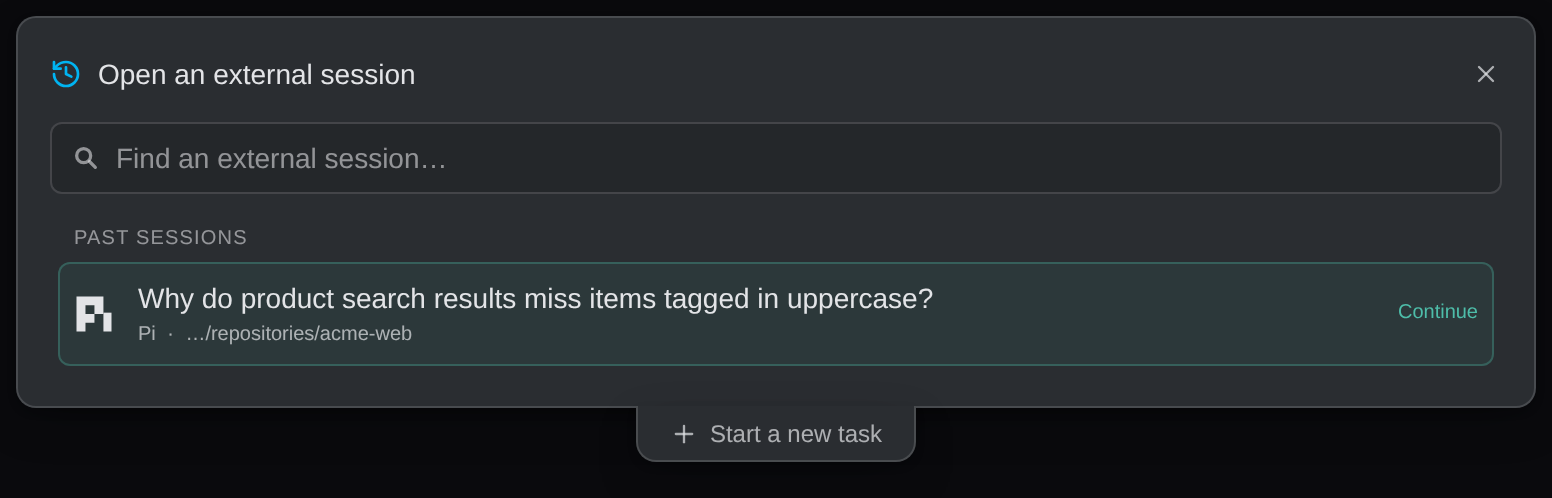
If you started work with an agent in your own terminal, you can track that conversation in a task. Under the New task composer, and on an empty tasks list, Open an external session switches the composer to a list of every agent conversation Kepler can see. Start a new task switches back. Open an external session appears only while external session detection is on.
| Part | What it does |
|---|---|
| Live now | Sessions live in a terminal right now |
| Past sessions | Conversations found on disk, from any time |
| Find an external session… | Searches across both groups |
The list tells you when it is incomplete:
- Showing {shown} of {scanned} sessions, the newest from each agent when Kepler capped the list.
- Unable to list sessions from {adapters} when Kepler could not scan 1 agent’s sessions but scanned the others.
Pick a conversation to continue it in a new task. The list reads Opening in a new task… while Kepler sets it up:
- A past conversation resumes.
- A live conversation opens read-only in its task, so you can follow it while it keeps running in your terminal. Picking it never takes control of the conversation. Once the conversation is idle, Continue here in the session continues it in Kepler. Kepler first asks you to close the conversation in your terminal, so that 2 clients do not write to the same conversation. Until then, Continue here and Fork are shown but unavailable.
When a task already covers that folder
Kepler checks whether the conversation’s working directory already belongs to a task, so you do not end up with 2 tasks for 1 folder. It asks under the list rather than in a separate dialog: {folder} already has a task: {task}. Add it to that task adds the conversation to that task, and Make a new task creates a new one anyway.
Starting a task from an external session anywhere else, such as from a Kepler link, asks the same question in a dialog:
Add to existing task? This conversation runs in {path}, which {task} already includes.
Add to task adds the conversation to that task, and Create a new task creates a new one anyway. When several tasks include the folder, the dialog lists each as a card (includes {path}) and marks the closest. Add to task stays unavailable until you pick a task. Recording the conversation on a task can take a minute, and Kepler tells you so while it works.
Because you can create a task in any plain folder, you can add a conversation from a scratch directory the same way as one from a checkout.
For what happens to the conversation once it’s on a task, including forking, continuing, and what Kepler will and will not answer on its behalf, see Agent Sessions.
From a folder, or from nothing at all
A task does not need a repository. Attach a plain folder from the same ranked picker, and the agent works on it in place, with no branch, no worktree, and no Git at all. A folder of notes, a scratch directory, or a folder that is not a repository each works as a normal task.
When you browse for a folder in a window connected to another machine, Kepler opens its own folder picker. To use this picker everywhere, turn on Always use the custom folder picker in Settings → General. When you type a path into its path bar, Kepler checks the path before you select it. Kepler refuses a folder that does not exist, cannot be read, or is actually a file, and gives the reason. For a path close to an existing folder, it offers Did you mean with the closest folder.
You can also attach nothing at all: no repository, no folder, and no issue. Use a task like this to ask a question or explore an idea, and attach the real work later, once it’s worth tracking. See The Task View.
From another GitKraken app
You can open Kepler from other GitKraken products, such as GitLens and GitKraken Desktop. A link from one of them can do the following:
- Open the New task composer already filled in with the issue, pull request, or repository you were looking at.
- Open a task or session you already have.
- Put a prompt and an Action in the composer.
- Start a new session on a task you already have.
- Start right away rather than waiting for you to press Start.
A link for an item that a task already holds says You already have a task for this item, with Open task. If the repository is not on this machine, Kepler stages it to be cloned when the task starts. A link that Kepler cannot fully resolve still opens, with a single warning about what Kepler could not use.
Which window a link opens in
Kepler sends each link to the window that can use it:
- A link for a task opens in the window already showing that task.
- A link that names a saved remote machine opens in a window on that machine. If none is open, Kepler opens one, and a notice reads Connecting to {host} to open a link while it connects.
- Any other link goes to the window you used last.
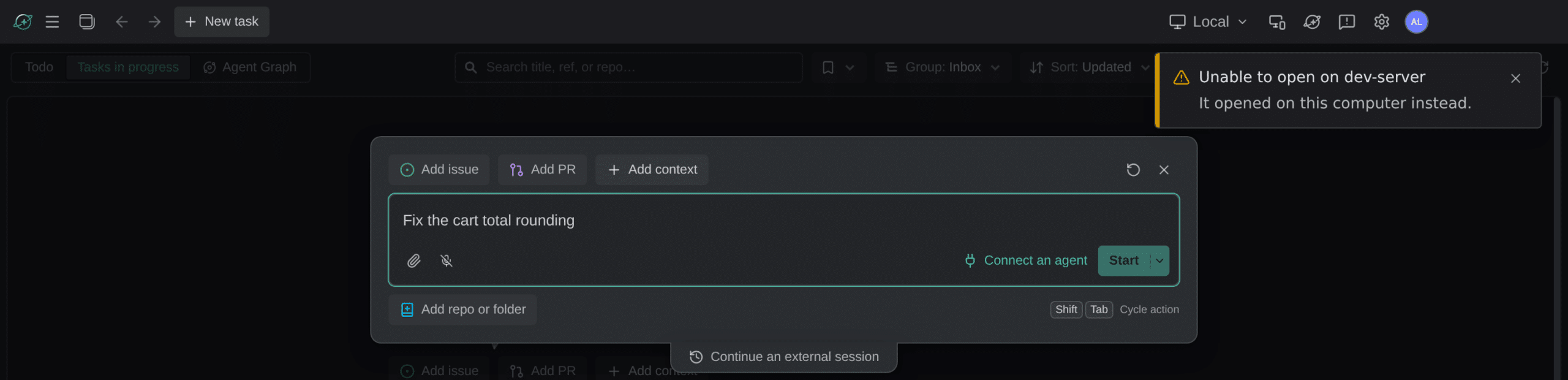
If a link cannot open on the machine it names, it opens on this computer instead, and nothing it asked to start runs on its own. The notice reads Unable to open on {host}: It opened on this computer instead. When the link asked Kepler to start something, it adds It was not run automatically. In a window on a remote machine, a link for something that is not there reads Not found on {host}: The link may be meant for this computer., with Open on this computer.
Opening an agent’s own conversation
A session link can name a conversation by the agent’s own ID rather than Kepler’s: kepler://session?agent=<agent>&id=<conversation id>&cwd=<folder>. The agent must be one of Kepler’s built-in agents, and cwd is only a hint about where to look. If a Kepler session already holds that conversation, the link opens it. Otherwise Kepler adds the conversation to a task the way Open an external session does. That needs external session detection: with detection off, the link reads External sessions are not detected: Turn on detection to find that session in its agent. A link with a required part missing reads Part of this link is missing.
After the task starts
The task appears in Tasks in progress right away, with the Preparing pill until its setup finishes. Click it to open its side panel, or double-click it to open the task page.
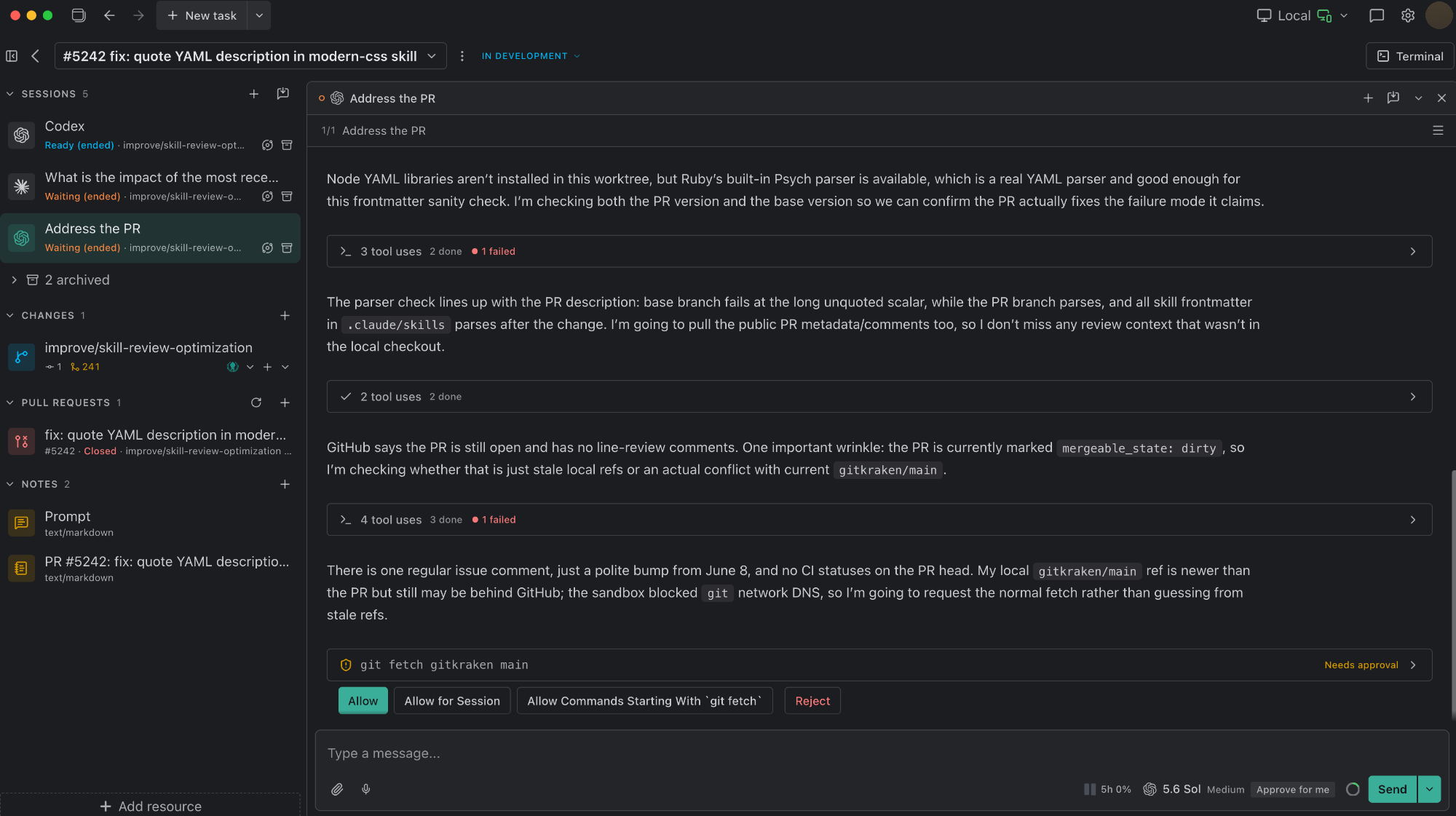
From there you can add more sessions, attach more resources, and review what the agent changed. See Agent Sessions and Review Changes.
Context: what gets handed to the agent
Starting from Todo and starting from the New task composer send the same Action prompt, but they attach different amounts of detail:
| Started from | What the agent receives |
|---|---|
| A row in Todo | The full issue or pull request body, attached as shared context |
| The New task composer | A reference (identifier, title, and URL) which the agent fetches the detail from itself |
Either way, Kepler reads each linked issue fresh when the task launches and saves its description as a note titled Issue {identifier}: {title}, headed by the issue’s URL. Each note holds up to 8 KB, and all of them together up to 16 KB. A longer description is cut off with a pointer to the URL. Kepler hands these notes to the agent as third-party background, to treat as information rather than as instructions. It frames the task’s prompt as background too, so the agent acts on the messages you send in its session. Kepler does not save pull request descriptions this way.
