

Last updated: October 2026
Kepler gives you several ways to start work, and the first is usually better: pick something that’s already waiting for you.
| Start from | How |
|---|---|
| Work assigned to you | Fire an Action on an issue or pull request in the Todo segment of the Kepler interface. One click, context attached |
| Something you’re describing yourself | New task opens the Task Composer, where you write the prompt and attach what it needs |
| A conversation you already started | New task → From an external session wraps a task around an agent session you began in your own terminal |
| Another GitKraken app | A link from GitLens or GitKraken Desktop opens Kepler on the work you were looking at |
From an issue or pull request
This is the shortest path, and the reason Kepler opens on your work. Find the item in Todo and click its Action button. Kepler then:
- Creates the Task.
- Attaches the repository and the item.
- Sets up a worktree.
- Starts an agent with the context in place.
Defaults depend on what you’re acting on:
- Plan for an issue.
- Address Feedback for a pull request you authored.
- Review for someone else’s pull request.
All of these are editable. See Actions.
Kepler names Tasks automatically from what you started them with. Rename one whenever the name stops fitting: Rename task in the ⋮ menu, whose field also has an Auto-name button that suggests a name from the Task’s prompt and resources. See Tasks and Resources.
Nothing in Todo? Set up your issue tracker and pull request integrations in Settings first. Kepler can only populate Todo with work from connected accounts.
From the Task Composer
Click New task or press Cmd/Ctrl+N. To start one without switching to Kepler first, press Shift+Alt+N to open the quick launcher from anywhere, including when Kepler isn’t the focused window.
The Composer is one prompt box above a row of four buttons:
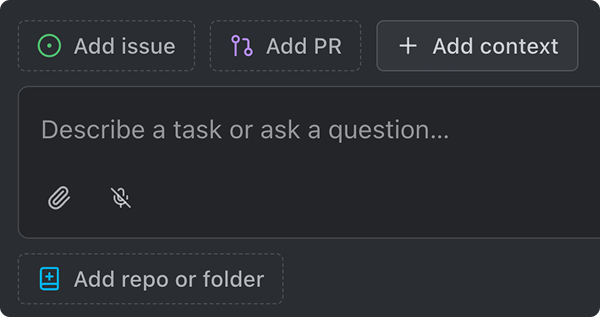
| Control | What it attaches |
|---|---|
| Add repo or folder | A repository to work in, or a plain folder |
| Add issue → Issues | Issues from your connected trackers. With only Linear in the list, a team picker shows every open issue in the team you pick, not just yours |
| Add PR → PRs | Pull requests from your connected hosts |
| Add context | Everything without a button of its own: folders, files, and links |
In a window connected to another machine, picking a file through Add context also offers Upload from this computer. Uploads are kept with your draft and saved into the Task’s own folder when it starts; if one expired before you pressed Start, Kepler names it rather than dropping it silently.
Repositories and folders come from one ranked list, not two pickers (Find a repository or folder…), and the list learns. Kepler records how often you actually use each place and ranks the picker by it, so the repositories you work in daily are at the top on the day you start using them. The same list is behind the chip’s own Change repository or folder.
Add as much or as little context as you wish.
- Write the prompt: Describe a task or ask a question…
- Attach what it needs, or nothing (which is fine!)
- Configure each repository (below), if you attached one.
- Start it.
The Composer remembers the repositories you last started a Task with and stages them again the next time you open it. That way, you don’t have to re-pick a repository you work in every day. Kepler remembers only the repositories (the branch and worktree settings reset to their defaults), and starting from an issue or a pull request never overwrites the remembered set. Kepler drops a repository that no longer exists rather than staging it.
It also remembers an unsent draft. Closing the dialog with a prompt half written keeps it, so reopening picks up where you left off. A Task you have genuinely started writing confirms before it’s discarded rather than vanishing on a stray Escape.
Kepler remembers which repositories you pick for a tracker project too. Attach a Jira, Linear, or Azure issue and the repositories you chose for that project last time are preselected, marked Suggested from this tracker project or From history depending on whether the tracker said so or Kepler inferred it from where that project’s issues were worked before.
The primary button shows a sending state from the moment you click it, so a slow start doesn’t read as a dead button. It fires the Action that matches what you’ve attached, exactly as it would from a Todo row. A linked pull request resolves to Address Feedback or Review, depending on who wrote it; a linked issue resolves to Plan. With nothing attached, the button reads Start and starts the Task with your prompt as written.
The chevron beside the primary button opens the rest: Prepare, which creates the session without starting work yet, and every Action that applies to what you’ve attached. Firing an Action sends that Action’s prompt, with anything you typed appended as a refinement.
A Task that has its prompt but no session yet, such as one an agent created for you, says so in its Dashboard preview: Start with the task prompt, or describe something else…. Press Start on the empty box to send the Task’s prompt as written.
If the Task can’t start, you’ll see Failed to start the task.
Configuring a repository
Each attached repository gets a chip with three segments:

- Base branch: the branch segment of the chip. By default, the Task gets a new branch forked from the repository’s remote default branch, which is what the chip reads until you pick something: New branch off origin’s default branch, or the current branch if unavailable. Open it to fork off a different branch instead, to work directly on an existing one, or to take the repository’s current branch in place.
- Branch name: the new branch’s own name, suggested from your prompt as you type and editable in place. See below.
- Isolated worktree: the worktree segment, a direct on/off toggle rather than a menu. On by default, giving the Task its own working copy: Runs in its own working copy of the repository. Turning it off means the Task shares your repository folder: Uses the repository’s own folder, so a branch switch here moves your checkout. See Tasks and Resources.
What a newly attached repository starts on is a setting. These three segments open on Settings → General → Default Task Mode: Isolated worktree (the default), New branch, or Current branch. Changing it changes the starting point only; every segment above still overrides it per repository, per Task. See Settings.
Picking New branch or Current branch means the Task runs in the repository’s own checkout rather than an isolated one, so only one Task can use that checkout at a time. If another Task already has it, the branch menu says so, {task} is working in this checkout., with a button to switch that one repository to an isolated worktree instead.
Naming the branch
Kepler names a Task’s branch from what the Task is actually about, rather than from the Task’s name alone.
- The name is suggested from your prompt and appears on the chip as you type: Suggested from your prompt. Click to edit. Clicking it opens the field (Enter keeps, Esc restores the suggestion), and an edited name reads Named by you.
- An issue identifier leads the name when the Task came from one, so
KEP-421-fix-the-import-pathrather than a slug with the ticket buried in it. - Automatic names are namespaced under
kepler/. That way agit branchlisting in any other tool says where the branch came from, and a hand-madefeat/xcan never collide with one. - A name you type is yours verbatim. The prefix applies to automatic names only, which is how a repository with an enforced
feat/orfix/push rule still works. - Your repository’s own branch-naming policy is applied where the host publishes one.
The prefix is configurable in two places: Settings → General → Branch prefix for the app, and per repository under Settings → Repos & Folders, where the card offers App setting, None, or Custom and shows an example of what a branch will actually look like. Leave the app setting empty for no prefix at all. If a repository already has a branch literally named kepler, Kepler says so rather than creating an impossible ref: This repository has a branch named {branch}, so the {prefix} prefix can’t be used here.
Kepler intentionally forks from the remote by default. If no remote default resolves (no remote, a shallow clone, or no network connection), Kepler falls back to the current HEAD rather than failing the launch.
A repository linked to a pull request always opens in its own isolated working copy, and the toggle is locked: This repository is linked to a pull request and always opens in its own isolated working copy.
Kepler clones a repository you haven’t cloned yet when the Task starts, into your Default Repositories Folder: This repository is cloned when you start the task. Its branch is locked until then (its branches become available after cloning) because Kepler doesn’t yet know what branches it has, and the chip reads default branch in the meantime.
Attaching the same repository twice gives the Task two independent worktrees on it: useful for comparing two approaches, or a mistake if you didn’t mean it. Two chips that would resolve to the same worktree get a Duplicate worktree marker instead, and Kepler creates only one of them. If a chip works in place on a branch another chip has already claimed for an isolated worktree, Kepler marks it Superseded by a worktree and skips it; git can’t check one branch out in two places.
From a session you already started
You may have begun the work in a terminal before deciding it deserved tracking. The chevron on New task holds From an external session (Create a task from a session you started outside Kepler), which opens a picker over every agent conversation Kepler can see.
| Part | What it does |
|---|---|
| Running now | Sessions live in a terminal right now |
| Past sessions | Conversations found on disk, from whenever |
| Find an external session… | Searches across both groups |
The picker reports what it actually swept, rather than implying it found everything: Showing the newest {shown} of {scanned} sessions when it capped the list, Couldn’t list sessions from {adapters} when one agent’s scan failed but the others didn’t, and Turn on session detection when the setting is off.
When a task already covers that folder
Kepler checks whether the conversation’s working directory already belongs to a task, so you don’t end up with two tasks over one folder:
A task already covers this folder: “{task}” already owns {path}, the folder this conversation runs in.
Add to that task binds the conversation there; Create a new task overrides. With several candidates, the dialog asks which one and marks the closest. Recording the conversation on a task can take a minute, and Kepler says so rather than appearing to hang.
Because a task can be created in any plain folder, a conversation you had in a scratch directory can be adopted just like one in a checkout.
For what happens to the conversation once it’s on a task (forking, continuing, and what Kepler will and won’t answer on its behalf), see Agent Sessions.
From a folder, or from nothing at all
A Task doesn’t need a repository. Attach a plain folder from the same ranked picker and the agent works on it in place, with no branch, no worktree, and no Git at all. A folder of notes, a scratch directory, a checkout of something that isn’t a repository: all of it is a normal Task.
When you browse for a folder in a window connected to another machine, Kepler opens its own folder picker (turn on Always use the custom folder picker in Settings → General to use it everywhere). Type a path into its path bar and Kepler checks it before you select it: a folder that doesn’t exist, can’t be read, or is actually a file is refused with the reason, and a near miss offers Did you mean the closest folder.
Or attach nothing. No repository, no folder, no issue. You get somewhere to think (ask a question, explore an idea) and you can attach the real work later, once it’s worth tracking. See The Task View.
From another GitKraken app
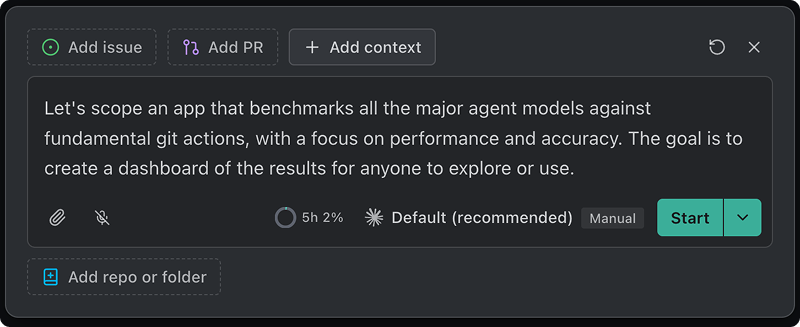
You can jump into Kepler from other GitKraken products, such as GitLens and GitKraken Desktop. A link from one of them can open the Task Composer already filled in with the issue, pull request, or repository you were looking at, or open a task or session you already have. If the repository isn’t on this machine, Kepler stages it to be cloned when the task starts. A link Kepler can’t fully resolve still opens, with one clear warning about what it couldn’t use.
After the Task starts
The Task appears in Tasks in progress. Click it for the side panel, or double-click to open the task view.
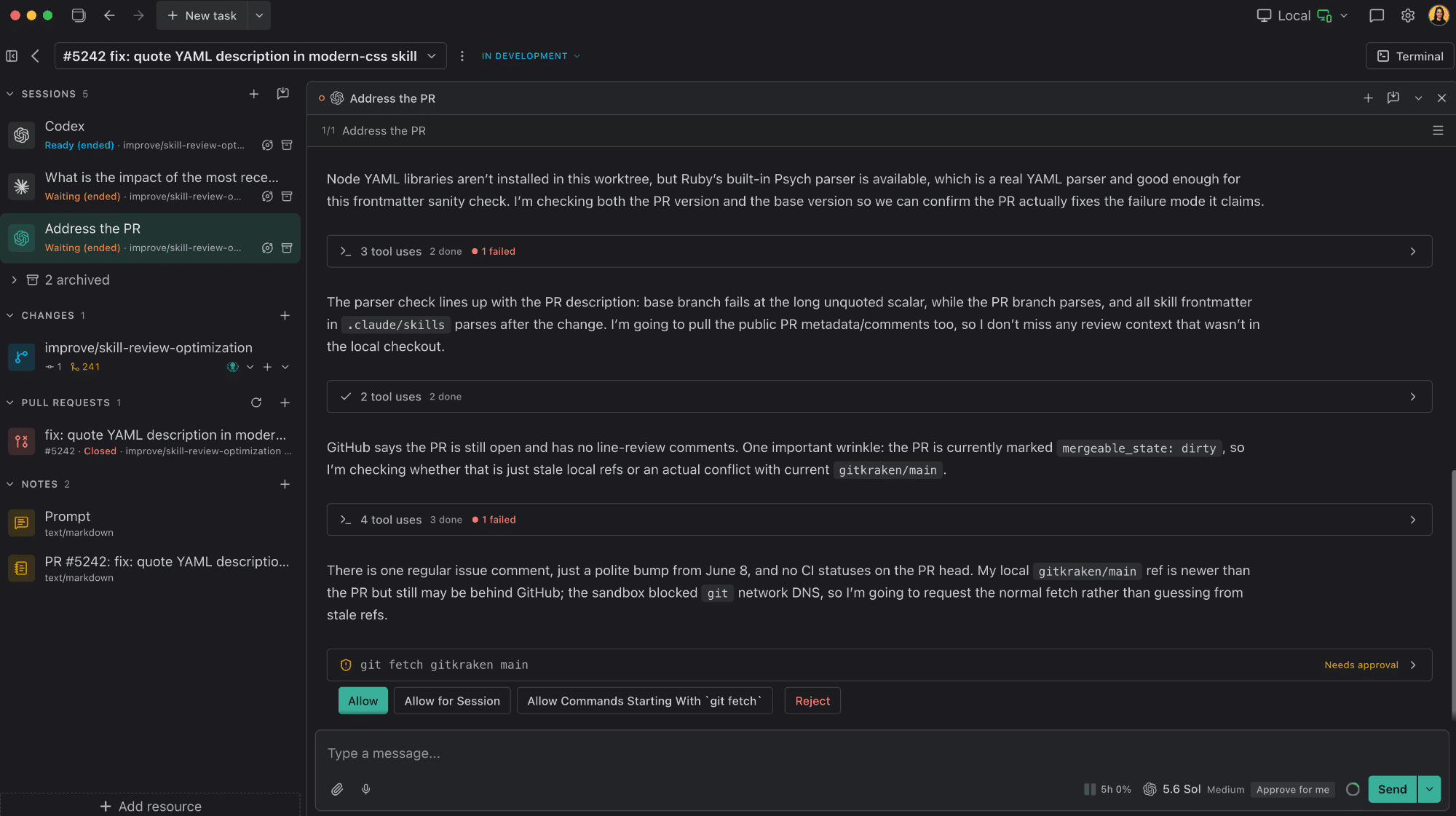
From there you can add more sessions, attach more resources, and review what the agent changed. See Agent Sessions and Review Changes.
Context: what gets handed to the agent
Both paths send the same Action prompt, but they attach different amounts of detail:
| Started from | What the agent receives |
|---|---|
| A row in Todo | The full issue or pull request body, attached as shared context |
| The Task Composer | A reference (identifier, title, and URL) which the agent fetches the detail from itself |
