

Last updated: September 2026
A remote environment runs your agents, worktrees, and terminals on another machine: a dev server, a cloud VM, or a WSL (Windows Subsystem for Linux) instance on Windows, while you work from this window. Kepler installs itself on the host over SSH (Secure Shell), so you do not need to pre-install anything there.
Two features, one word
Settings groups both under Remote, and they point in opposite directions. Get this straight first and the rest of the page follows.
| Feature | Direction | Where it lives |
|---|---|---|
| Remote Environments | Kepler on your desktop reaches out to a host, and your work runs there | The title-bar chip, and the connections panel behind it |
| Remote Access | Another device reaches in to this Kepler, and your work stays here | Settings → Remote → Remote Access |
Everything up to Remote Access describes connecting to a host.
Switching environments from the title bar
Kepler binds each window to one environment at a time, and the title-bar chip shows which one. Click the chip to open the connections popover.
| Chip | What it means |
|---|---|
| Local | This window works on this machine |
| Connecting…, or the current stage | A connect this window started is in flight |
| Reconnecting… | The connection degraded and Kepler is rebuilding it |
| Host name + latency in ms | Connected, with the round-trip time to the host |
| Host name + Update | Connected, and the host’s server build is older than the one this Kepler installs |
| An error headline | The last attempt failed. The chip calms back down after a few seconds; the panel keeps the full error |
Kepler hides the chip in a browser client, which cannot manage connections at all.
The popover
The popover answers where you are and where else you can go, and hands anything heavier to the panel.
| Part | What it does |
|---|---|
| Header | The current host, its latency, and how many sessions are live on it, or Working locally when the window is local |
| Disconnect | Releases this window only. Only disconnects this window; the server keeps its sessions running |
| Update server | Appears when a newer server build is available for the connected host |
| Switch to | Every other saved host, plus Local — Work on this machine — when this window is on a remote |
| Detected on this PC | WSL distros found on this machine, offered for one-click connect while you have no saved hosts |
| Manage remote environments… | Opens the connections panel. ⌘ ⇧ R on macOS, Ctrl + Shift + R elsewhere |
Clicking a Switch to row moves this window. Hold Cmd (macOS) or Ctrl to open that host in a new window instead, leaving this window where it is. The trailing ↗ icon on each row does the same thing with a single click.
A connect that a different window starts never takes over this window’s chip.
The connections panel
The panel is the full management surface: Hosts on the left, the selected host’s detail on the right.
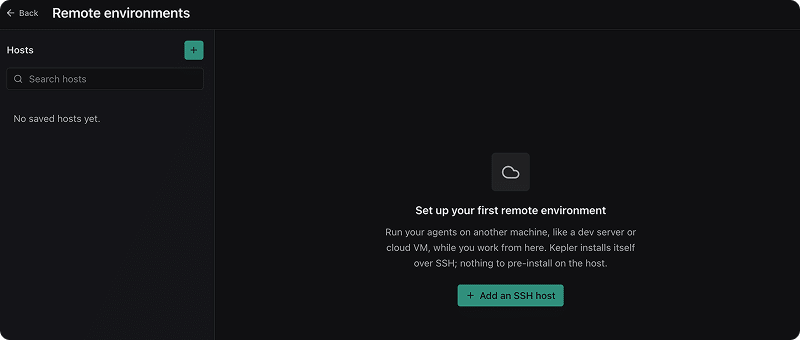
The rail lights up exactly one host: the host this window is currently connected to. Kepler scopes connection state to the calling window. As a result, the panel reports on this window’s connection and lists the rest as saved, rather than showing a status board for hosts the window cannot see.
| Control | What it does |
|---|---|
| + (Add a host) | Opens the host chooser, or the SSH wizard directly when your ~/.ssh/config has nothing new to offer |
| Search hosts | Filters the rail by name or connection string |
| Connect | Connects this window. Cmd/Ctrl-click connects in a new window. While a connect runs, the same button cancels it |
| ↗ | Connects to this host in a new window. Offered even for the host you are already on. One server accepts several clients |
| Disconnect | Releases this window’s binding |
| Update server | Installs the newer server build on the connected host |
| Rename (pencil, or More actions) | Renames the saved connection. Nothing on the host changes |
| Remove connection (More actions) | Deletes the saved connection, with optional cleanup — see below |
Connection details and diagnostics
For the host this window is connected to, the detail pane shows three figures (Latency, Live sessions, and Server build) followed by Sessions on this server, labelled survive disconnect · resumable anywhere. Each row is a live agent session on that host, and clicking one opens it.
A failed connect renders a Couldn’t connect to host alert with the raw SSH diagnostic as selectable text and a Copy error button, so it can go into a bug report unedited. When the failure is on a host other than the one this window is connected to, Kepler adds You’re still connected to host; this didn’t drop it.
Common SSH failures get a plain-language headline and a hint. Kepler recognizes:
- Authentication rejected (publickey)
- Connection refused
- Host unreachable
- Hostname could not be resolved
- Connection timed out
- Host key verification failed
The unedited diagnostic appears underneath either way.
For Kepler’s own log file, use Settings → General → Diagnostics.
Server management
The Server management box acts on the live daemon, so it appears for the connected host only. Disconnecting frees this window; the server keeps its sessions alive for other machines. Stopping the server affects every connected client.
| Control | What it does |
|---|---|
| Reconnect | Rebuilds this window’s connection to the same host |
| Stop server | Stops the Kepler server on the host. Confirmation names how many agent sessions will be terminated |
| Auto-shutdown when idle | Stops the server after N minutes of no connections and no active agents. Off by default; the timeout defaults to 30 minutes |
Kepler stores Auto-shutdown when idle on the host, not locally, so the setting applies to every client of that server.
Removing a connection
Remove connection deletes the saved entry on this desktop. When the SSH wizard created the entry, Kepler also offers to clean up after itself:
| Cleanup option | What it does | Default |
|---|---|---|
| Remove scoped known_hosts file | Deletes the host-key trust file Kepler created for this connection | On |
| Remove generated local SSH key | Deletes the key the wizard generated, and its .pub sibling |
On when such a key exists |
| Uninstall Kepler server on the host | Stops the server and removes ~/.kepler-server |
On, unless the server is in use |
| Remove deployed key from remote authorized_keys | Removes the key the wizard installed on the host | Off |
If the server reports live sessions or connected clients, Kepler disables the uninstall until you tick Uninstall anyway, I understand sessions on this host may be lost. If the host is unreachable, or needs a password Kepler does not have, Kepler suppresses the host-side options, and the panel states which of the two reasons applies.
Add an SSH host
Click + in the panel. If your ~/.ssh/config holds hosts you have not saved yet, Add a remote environment lists them under Hosts found in your ~/.ssh/config. Choose Set up a new host manually… to go directly to the wizard instead.
Each discovered row reads Save & connect from a local window and Save from a window already on a remote, because Kepler does not pull you off a live connection to add a host.
A host taken from ~/.ssh/config inherits your system SSH configuration, including its host-key trust. A host built in the wizard gets its own trust file, pinned at the fingerprint you accepted.
The wizard
Add an SSH host walks five steps.
| Step | What you do |
|---|---|
| Tell Kepler where to connect. | Name (optional, derived from the host), Host, User (optional, defaults to the remote $USER), Port |
| Choose authentication. | Pick a mode — see below |
| Verify the host fingerprint. | Kepler fetches the host key and shows its algorithm and fingerprint. Trust and continue pins it |
| Verifying the connection. | Kepler makes a real connection before anything is saved |
| Ready to save. | The connection joins your saved hosts |
| Authentication mode | What it means |
|---|---|
| Existing key | Use one of the keys already in ~/.ssh. Kepler counts what it finds; with exactly one candidate it preselects it |
| Password | Re-prompt every connect. The password is never stored |
| Generate key | Keyless after first connect. Kepler uses the password once to install a fresh ed25519 key at ~/.ssh/id_ed25519_kepler_<hash>. Your existing keys are never overwritten |
Generate key needs ssh-keygen on your machine; the chip reads ssh-keygen missing when ssh-keygen is absent.
If the host rejects a key-based connect, Kepler does not leave you stuck: the panel opens a password row so you can retry with a password, and, when no key is saved for that host yet, offers to install one at the same time.
SSH to a Windows machine
Kepler connects to Windows hosts over SSH as well as POSIX (Portable Operating System Interface) ones. It detects the target’s operating system (OS) during the probe and switches to a PowerShell install path instead of the POSIX one, mapping the architecture to win32-x64 or win32-arm64.
Nothing changes in the wizard. If the host authenticates but its shell rejects Kepler’s commands, the diagnostic reads Remote shell could not run the command, and the hint points at the OpenSSH default shell. Windows 10 and 11 ship PowerShell, so a changed default shell is the usual cause.
Two things behave differently on a Windows host, both covered in Known limitations below: installing a server build stops any session already running on that host, and the host-side cleanup offered by Remove connection does not run.
WSL environments
On Windows, a WSL 2 distro is a remote environment like any other, and the cheapest one to start with: no credentials, no fingerprint to verify.
- Kepler detects WSL by asking
wsl.exefor its status, then lists your version 2 distros. Kepler does not offer WSL 1 distros. - With no saved hosts, the distros appear in the popover under Detected on this PC, one click from connected. Picking one saves the distro as a host and connects to it, so the connection survives a disconnect.
- WSL needs no tunnel. Kepler reaches the server inside the distro through Windows’ localhost passthrough, and waits for the passthrough to catch up before the window loads.
What runs where
| Piece | Runs on |
|---|---|
| Kepler’s window and its native capabilities | Your local machine |
| Git operations, worktrees, and repositories | The host |
| Agent and terminal sessions | The host |
| Provider and issue-tracker data | The host |
| The interface itself | Served by the host’s Kepler server |
Agent sessions belong to the server, not to your window. Close the window, lose the network, or put the laptop to sleep, and the sessions keep running. Reconnect (from this machine or a different one) and they are listed and resumable. If the server itself goes away, Kepler re-spawns the agent and re-attaches to the same conversation from the session Kepler saved.
Kepler runs agent sign-in on the host. Claude Code, Codex, and Auggie all sign in to a remote target: Kepler starts the flow on the host, the sign-in page opens in your local browser, and the resulting credential lands on the host. Claude Code and Auggie take back a code or a JSON blob you paste. Codex bridges its callback over your SSH connection instead, which is the one flow that needs an SSH host. On a WSL environment, use Import local Codex login. See Agent Integrations.
What you see while connecting
A first connect to an untouched host uploads the server bundle, so it takes minutes rather than seconds. The chip, the popover, and the panel all name the current stage, with a progress bar whenever the total is known.
| Stage | What it means |
|---|---|
| Checking the host | Working out the host’s OS and architecture |
| Authenticating | Negotiating SSH auth |
| Checking the remote install | Looking for an existing install and a live server |
| Downloading remote server | Fetching the matching server bundle to your machine |
| Uploading remote server | Sending it to the host |
| Finishing the install on the remote | Unpacking finished; the host is completing the install |
| Starting the remote server | Launching the server |
| Waiting for another install to finish | Another window or machine is installing the same version. This is usually the fast path |
| Opening the tunnel | Forwarding a local port to the host |
Cancel stops the attempt, from the popover or from the host’s own Connect button.
A warm reconnect skips most of this: the server is already installed and already running, so Kepler reads its details and opens a tunnel.
Recovery after restart or sleep
Kepler expects connections to break and rebuilds them.
| Event | What Kepler does |
|---|---|
| The connection degrades | Health checks run every 10 seconds. Three consecutive failures flip the chip to Reconnecting… and start a rebuild: up to five attempts with backoff from 1 second to a 30-second ceiling |
| The machine wakes from sleep | Rather than waiting for health checks to accumulate, Kepler probes every bound window at once and rebuilds only the ones that are genuinely unreachable |
| Kepler restarts | Kepler restores every window (geometry, route, and connection) so a remote window comes back on its remote |
| A restore cannot finish | Usually a host that needs interactive auth. Kepler opens the connections panel with that host selected and Couldn’t auto-reconnect. Connect to resume where you left off. Stay local dismisses it |
A rebuild is not cosmetic: Kepler tears down the dead tunnel, opens a new one, and re-propagates your GitKraken sign-in to the host, so the window comes back signed in rather than at a sign-in screen. SSH connections reserve a stable local port per host, so a reconnect returns to the same origin and your interface preferences, drafts, and notification permission survive it.
Local conveniences that still work
Some things have to happen on the machine in front of you. Kepler routes those through the desktop app rather than executing them on the host.
| Feature | Behavior over a remote connection |
|---|---|
| Open in… and Reveal | Run on your desktop machine, not on the host. Kepler reports which of them can reach the current binding and hides the rest, so no buttons fail |
| Desktop notifications | Shown by your local desktop when an agent finishes, needs you, or errors. Clicking one focuses the window that asked for it |
| Voice input | Captured by the local app. See Voice Input |
| Folder pickers | Browse the host’s filesystem, since that is where the work lives |
Four editors open a remote folder through their own remote extension, which is the only way a locally-installed editor can reach an SSH host’s worktree:
| Editor | Authority Kepler passes |
|---|---|
| VS Code | --remote wsl+<distro> or --remote ssh-remote+[user@]host[:port] |
| VS Code Insiders | Same |
| Cursor | Same |
| Windsurf | Same |
The editor resolves the host and authenticates through its own machinery. For SSH that means your own SSH configuration, so a host Kepler reaches with a custom identity file may still prompt in the editor.
Other editors, and the file manager, rely on the path being reachable from Windows, which WSL provides, as \wsl$, but an SSH host does not. When no route exists, the affordance does not appear.
Remote server components
The desktop installer no longer carries a server bundle for every architecture. Kepler fetches what it needs when you connect, and caches it per user.
The payload is not one tarball. Kepler splits it into four layers instead, each a separate archive with its own cache key:
| Layer | What it holds |
|---|---|
node |
The vendored Node runtime |
codex |
The bundled Codex engine. Optional: a build without it ships three layers |
deps |
The server’s dependencies |
app |
The server and the interface |
| Piece | Location |
|---|---|
| Published manifest and layers | <channel>/<version>/remote-servers/<arch>/ |
| Per-user cache | <userData>/remote-server-cache/<channel>/<version>/<arch>/ |
| On the host | ~/.kepler-server |
The architecture token is one of linux-x64, linux-arm64, darwin-x64, darwin-arm64, win32-x64, win32-arm64.
A connect downloads only the layers the host is actually missing. Kepler reads the small manifest first (no payload bytes) and compares each layer’s key against what the host has already installed. A version bump that changes only the app leaves your Node and Codex layers alone on both sides, so an upgrade pulls a fraction of what a first connect pulls. This holds on every transport: SSH to a POSIX host, SSH to a Windows host, and WSL.
Two cases still fetch everything. A host with no layer stamps at all (a first connect) has nothing to diff against. And when the missing layers come to three quarters or more of the payload, Kepler ships the whole thing rather than assembling a subset that saves little.
Kepler downloads each layer cache-first, retries with backoff, and writes it atomically, so an interrupted download is never mistaken for a cached layer. When a layer cannot be fetched at all, the connect fails with Could not download the remote-server version for arch. Check your internet connection.
The payload carries its own Node runtime, so the host needs nothing pre-installed beyond an SSH or WSL transport. Kepler couples desktop and server versions: your Kepler always knows which server build it needs, which is also why an out-of-date host offers Update server.
Remote access: reach this Kepler from another device
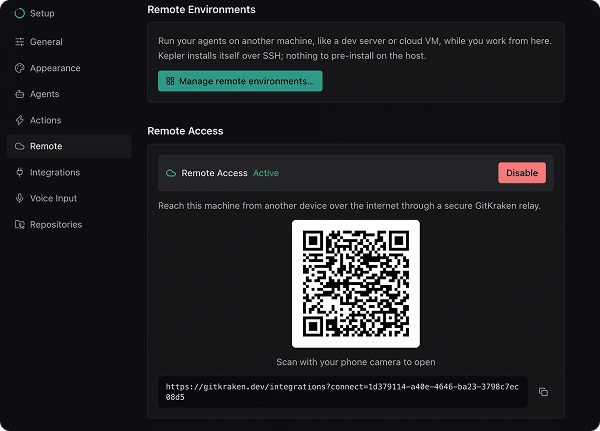
Remote Access is the other direction. It opens this Kepler window from another device, such as a second computer or a phone, over a secure tunnel relayed through your GitKraken account. Your work still runs here; the other device only sees the interface.
Configure it in Settings → Remote → Remote Access.
Before you start
You need a GitKraken account signed in to Kepler, on a paid GitKraken plan. Remote Access is not available on the free Community edition.
Turning on Remote Access
- Open Settings → Remote → Remote Access.
- Click Enable.
- Name the machine. Kepler pre-fills the device name; change it if you want a name your team recognizes. This is the name gitkraken.dev shows for this machine.
Kepler generates a private key for this machine the first time you enable Remote Access. The key never leaves the machine; Kepler uses it to prove the machine’s identity to GitKraken each time it reconnects.
Pairing another device
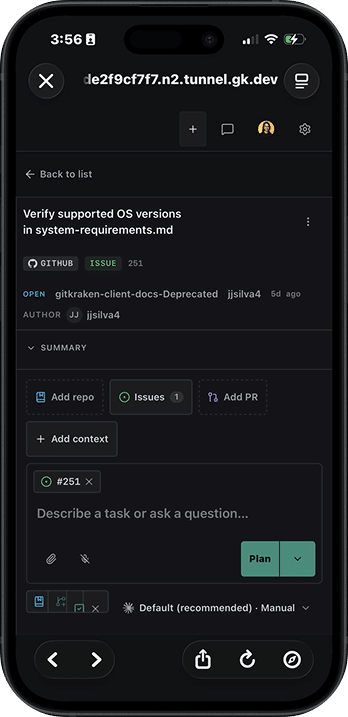
Once Remote Access is active, a QR code and a link appear in Settings.
- Scan with your phone camera to open is the fast path. Otherwise, copy the link.
- The link opens gitkraken.dev/integrations, where you approve the connection with your GitKraken account.
Managing sessions from gitkraken.dev
Go to gitkraken.dev → Integrations → Remote Access to manage every machine with Remote Access turned on, across all your devices.
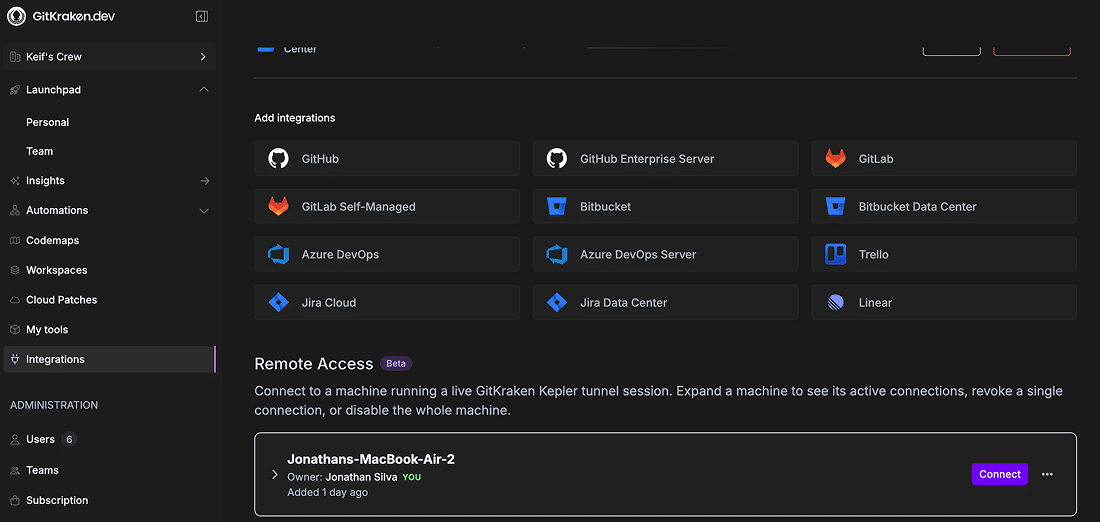
- Expand a machine to see its active connections.
- Revoke a single connection to sign out one paired device without affecting the others.
- Disable a machine to turn off its tunnel entirely, from anywhere.
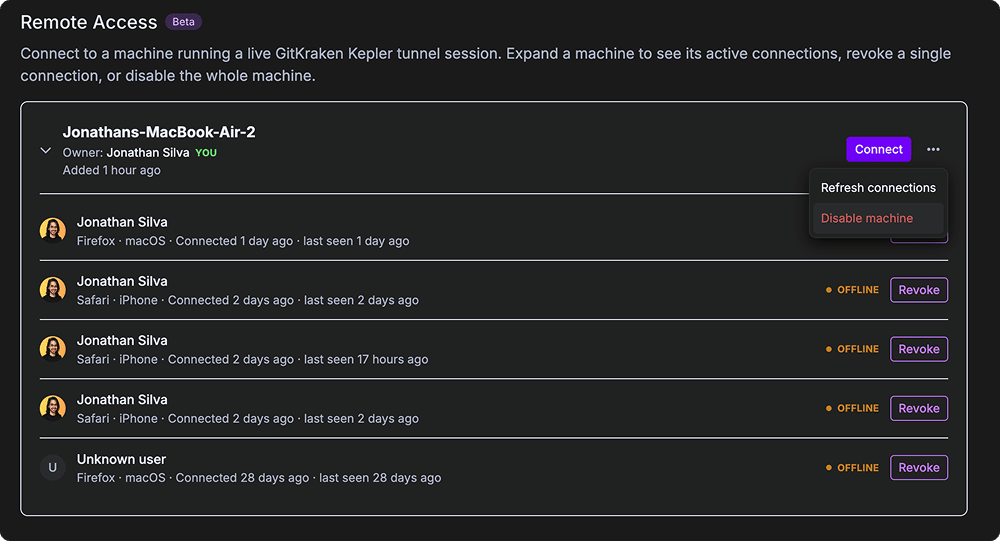
You can also manage the current machine’s connections locally, in Settings → Remote → Remote Access → Connected Devices.
Known limitations
| Limitation | Detail |
|---|---|
| Commit and tag signing | Signing does not work over a remote connection. Kepler says so rather than failing quietly: Commit signing isn’t available over a remote connection yet. Disable commit.gpgsign for this repo on the remote, or run the commit from a terminal there. |
| Remote-connection management in a browser client | Inherently local. A browser client shows Remote environments need the desktop app and hides the title-bar chip, because adding hosts, connecting, and stopping servers all run through the desktop app |
| Auto-update in a browser client | A no-op. A browser cannot update itself; update the desktop app, or the host’s server from a desktop window |
| Installing a server build on a Windows host stops its sessions | Windows will not let anything overwrite a running executable, so the install has to stop the server before it can unpack, and that path carries no active-session check. The install therefore interrupts an agent mid-turn on a Windows host, whether triggered by Update server or by connecting to a host whose server is out of date. A POSIX host gets the check: Kepler probes the host for active sessions and restarts the server on its own only when the host is idle |
| Host-side cleanup on a Windows host | Of the four options Remove connection offers, two act on the host (Uninstall Kepler server on the host and Remove deployed key from remote authorized_keys) and both run through a POSIX shell, so neither works on a Windows host. The two local options are unaffected. Delete ~/.kepler-server and the authorized_keys entry on the host yourself |
Related
- Settings — the Remote sub-page, and the shortcut list
- Agent Integrations — signing agents in, including on a remote target
- Review Changes — reviewing and shipping the work a remote agent produced
