

Last updated: November 2026
Overview
You can customize most GitLens features in the GitLens Settings editor or by editing settings.json directly.
To open the editor, run GitLens: Open Settings (gitlens.showSettingsPage) from the Command Palette.
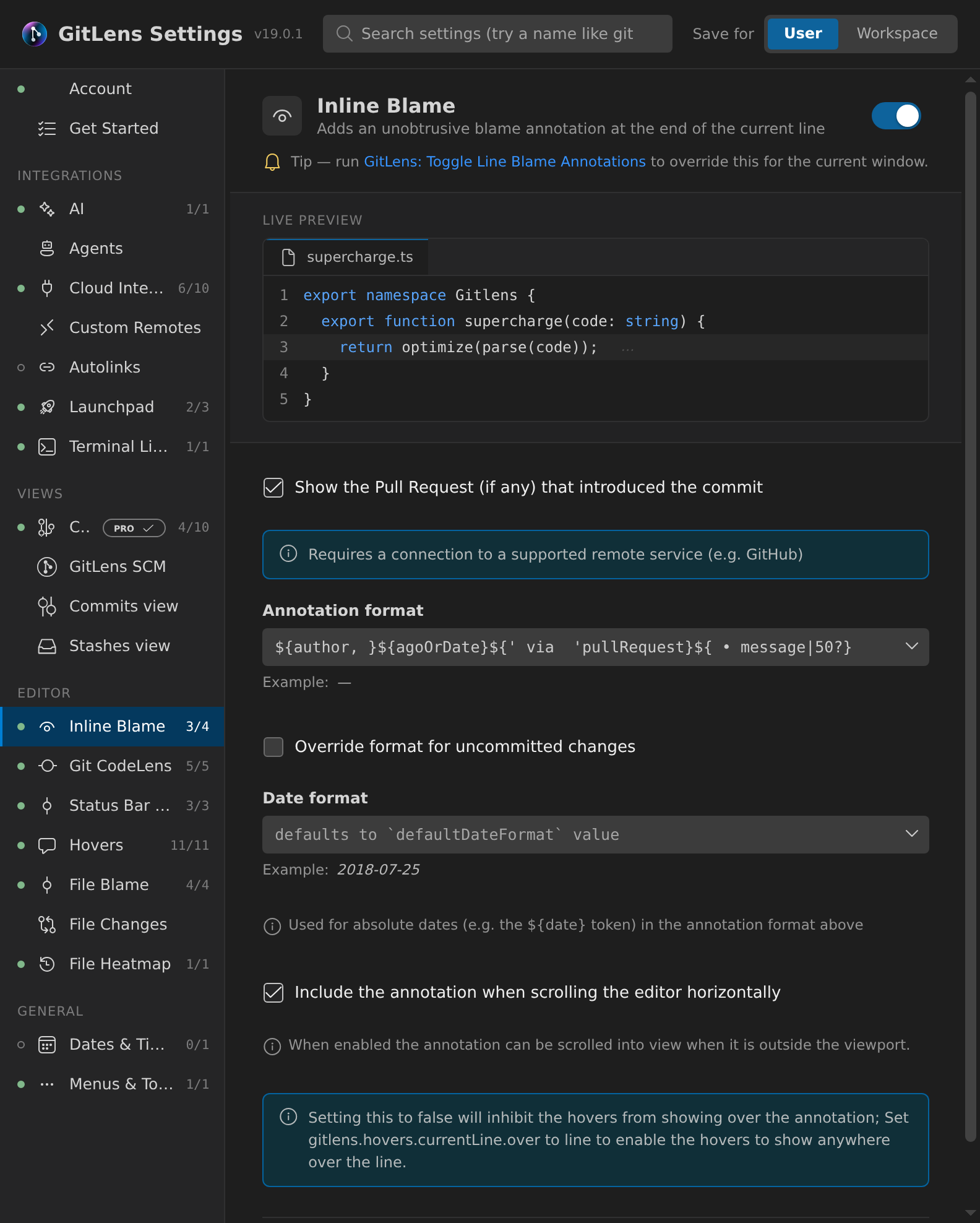
The editor’s navigation rail on the left lists Account, Notifications, and Get Started at the top, followed by 4 groups: Integrations, Views, Editor, and General. Each category shows its controls with live previews, and changes apply immediately. Use the search bar at the top to filter across all categories, and the User / Workspace scope toggle to apply changes globally or to the current workspace only.
Setup
Use the Account, Notifications, and Get Started entries at the top of the navigation rail to manage your account, read messages from GitKraken, and get started with GitLens.
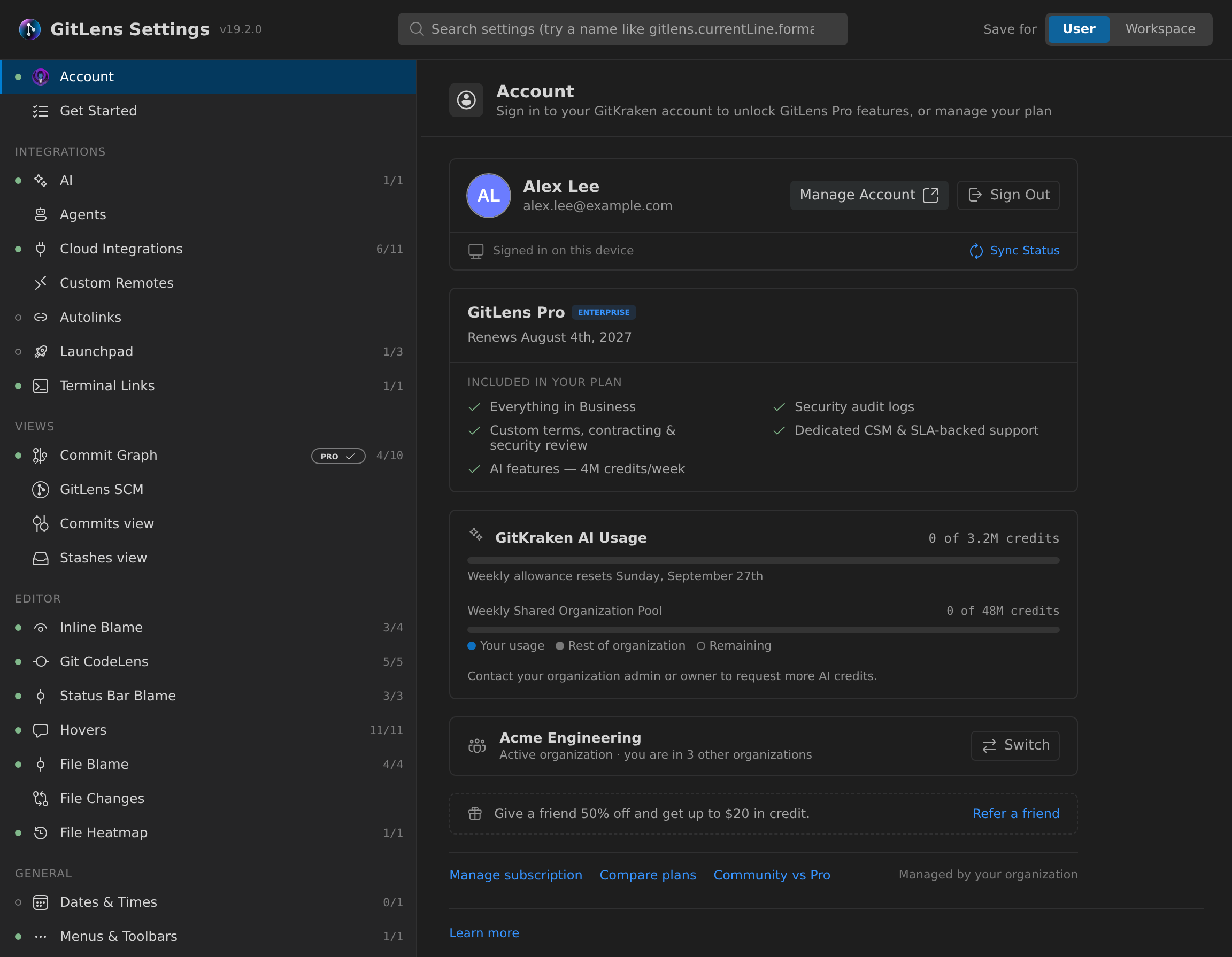
Account: view your plan and subscription status, manage your GitKraken account, sign in or out, and switch your active organization. The GitKraken AI Usage card shows how many of your weekly AI credits you have used and when the allowance resets. On a paid plan, select Get more AI credits to buy more. If you belong to an organization, only its owners, admins, and billing contacts can buy credits, and other members see a note to ask an admin or owner.
Get Started: onboarding steps for new users and feature discovery.
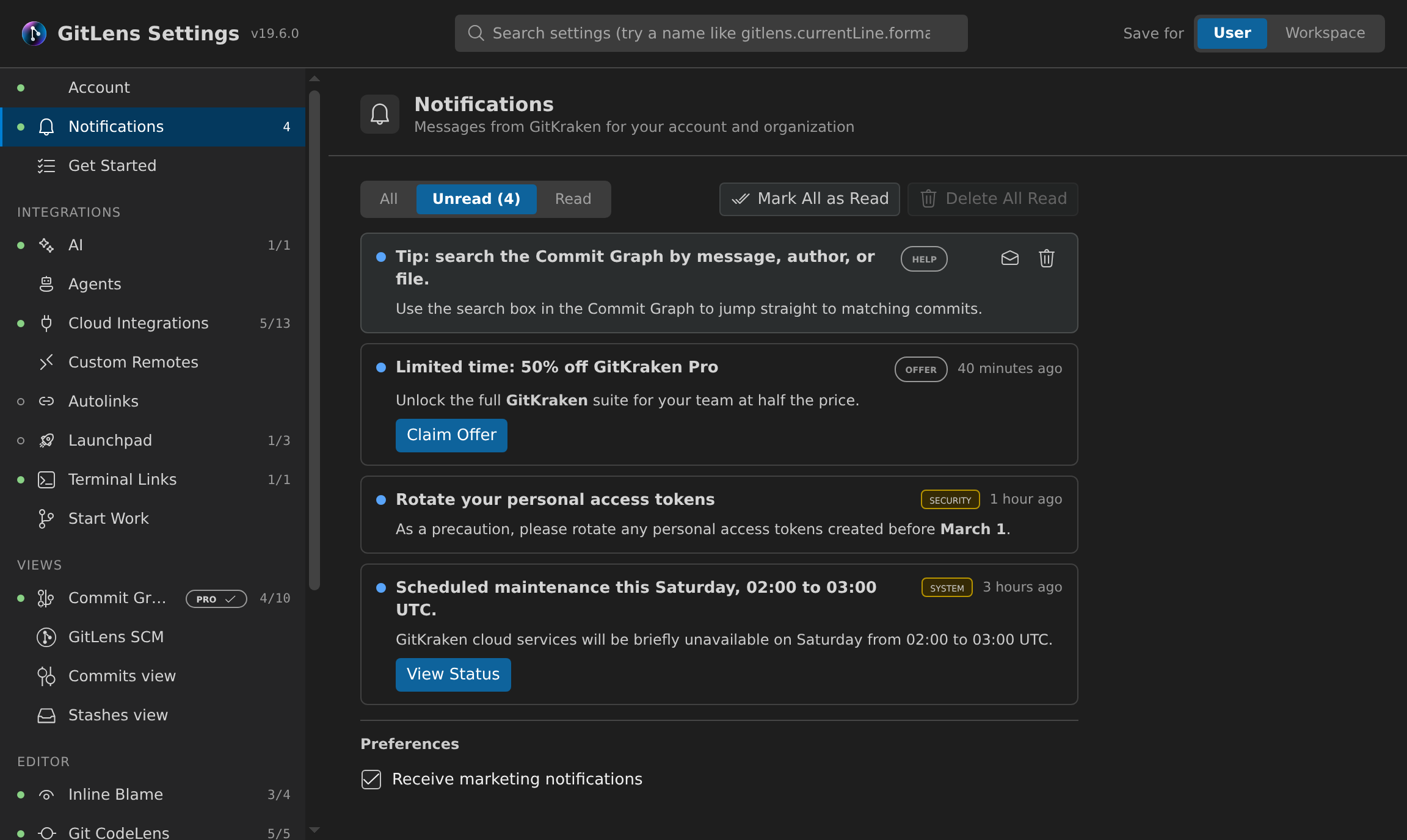
Notifications: read messages from GitKraken for your account and organization, such as tips, offers, security notices, and service updates. Sign in to your GitKraken account to see them. The number of unread notifications appears beside the entry in the navigation rail.
- Filter the list with All, Unread, or Read.
- Select Mark All as Read, or Delete All Read and then Confirm to clear notifications you have read.
- Hover over a notification to Mark as Read, Mark as Unread, or Delete it.
- Under Preferences, clear Receive marketing notifications to stop marketing messages. This option is available on paid plans only.
When a new security or system notice arrives, GitLens also shows it as a VS Code notification with View, which opens the inbox, and Dismiss. You can also open the inbox from the notifications button in the Commit Graph header.
Integrations
Use the Integrations group to set up AI, agents, cloud integrations, and other external service connections.
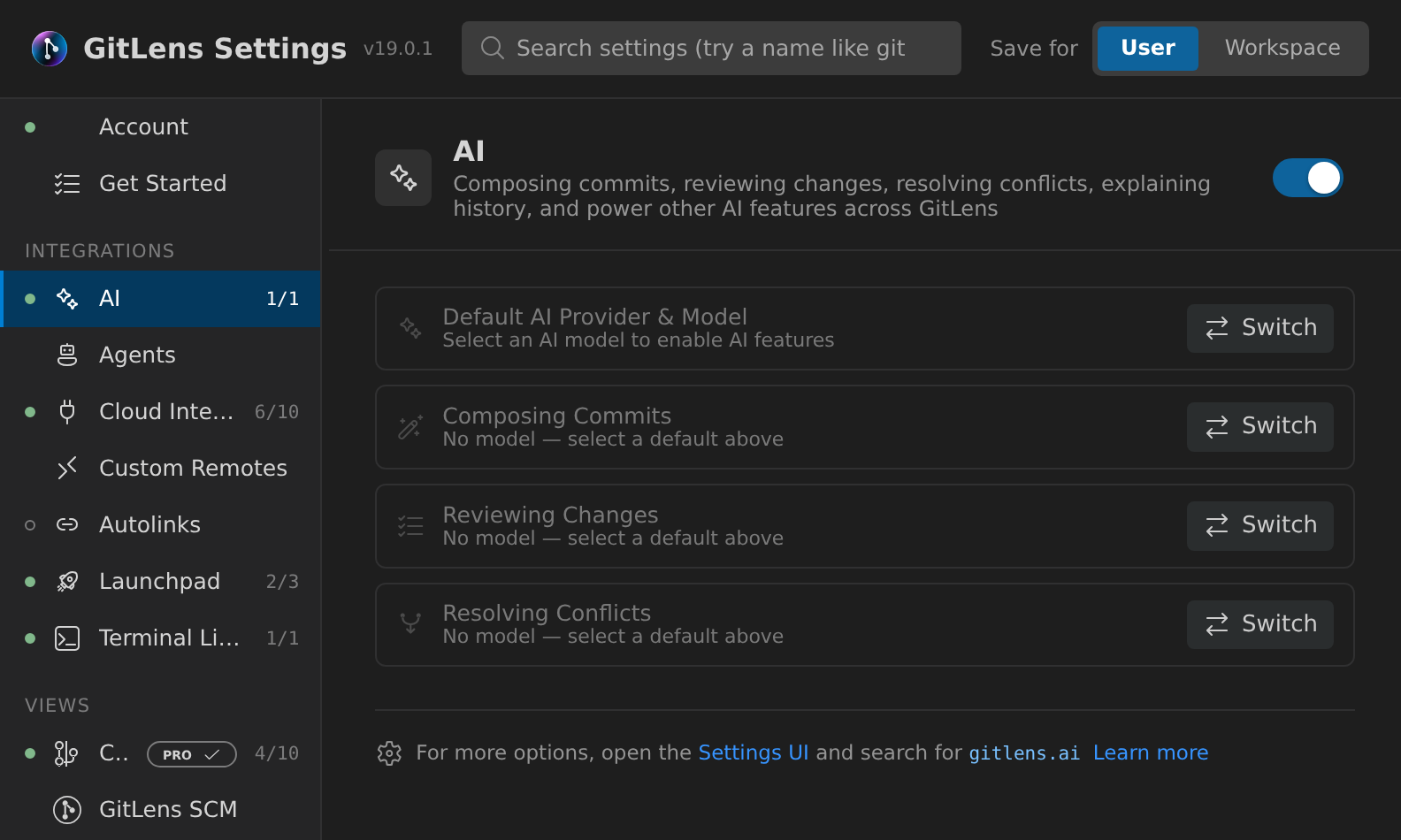
AI: choose your AI provider, configure models, and control AI-powered features such as commit message generation and code explanations.
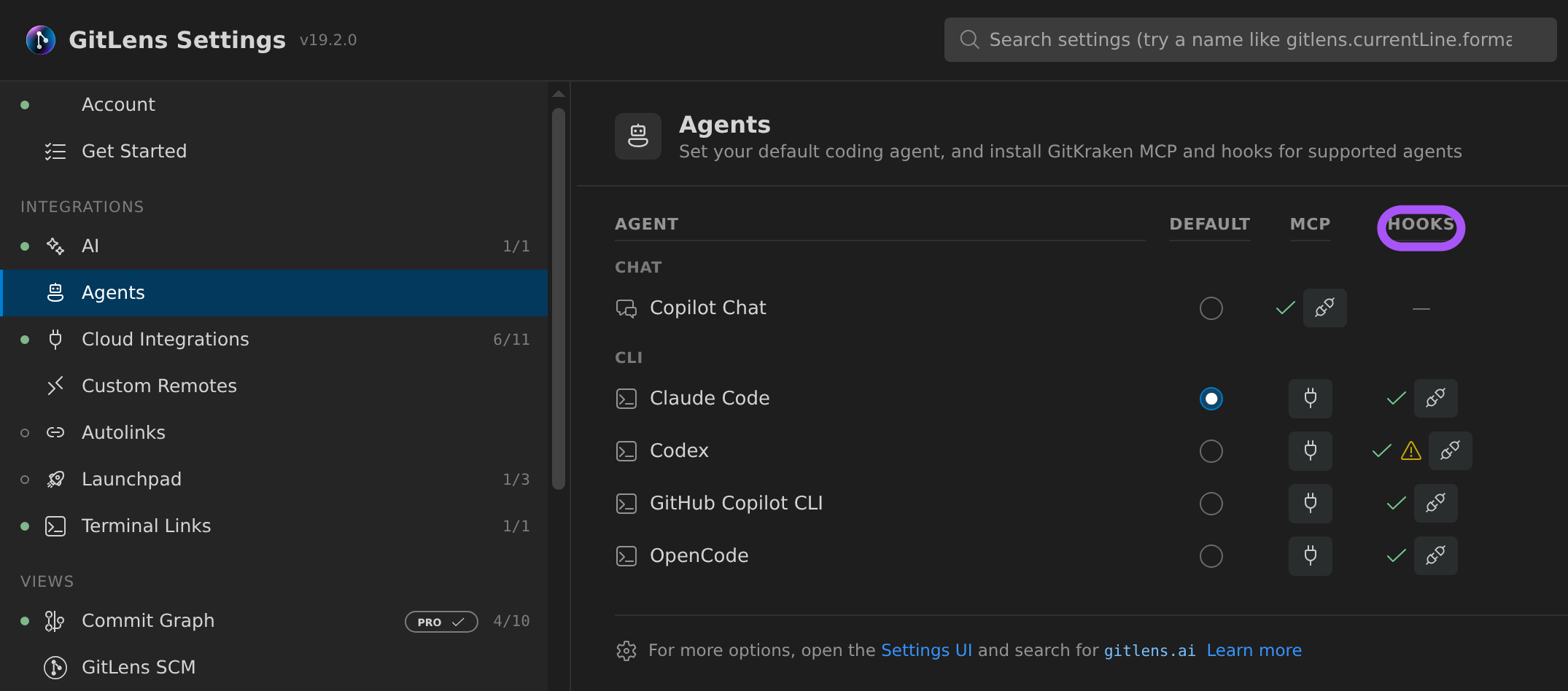
Agents: lists the chat, extension, CLI, and editor agents GitLens detects. For each agent, you can:
- Choose whether it is the Default agent GitLens uses for AI features.
- Install or uninstall the GitKraken MCP server (MCP).
- Install or uninstall GitKraken Hooks (Hooks), which let GitLens track the agent’s sessions and coordinate permissions.
Hooks are available for Claude Code, Codex, GitHub Copilot CLI, and OpenCode. Codex does not run the hooks until you trust them by running /hooks in Codex. Until then, a warning icon next to an installed Codex row shows this reminder and a button to start a Codex session.
Cloud Integrations: connect GitHub, GitLab, Bitbucket, Azure DevOps, and other hosting providers for pull request information, avatars, and deep links, as well as the Jira, Jira Data Center, Linear, Trello, and Asana issue trackers.
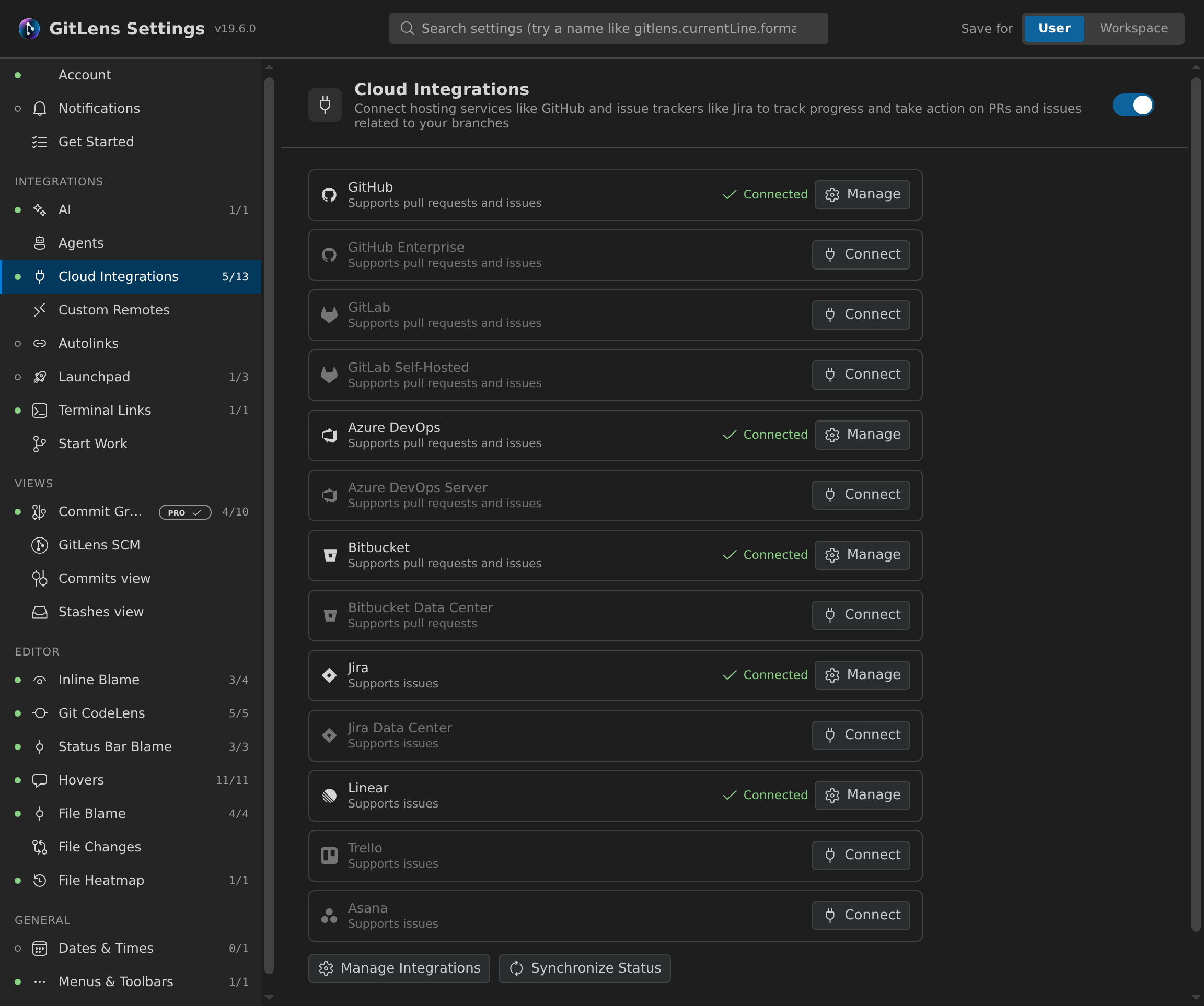
The group also includes:
- Custom Remotes: define URL patterns for self-hosted or non-standard remote providers.
- Autolinks: create patterns that automatically turn issue references (such as
JIRA-123) into clickable links. - Launchpad: configure the Launchpad status bar indicator and notification behavior.
- Terminal Links: control how Git references in the integrated terminal become clickable links.
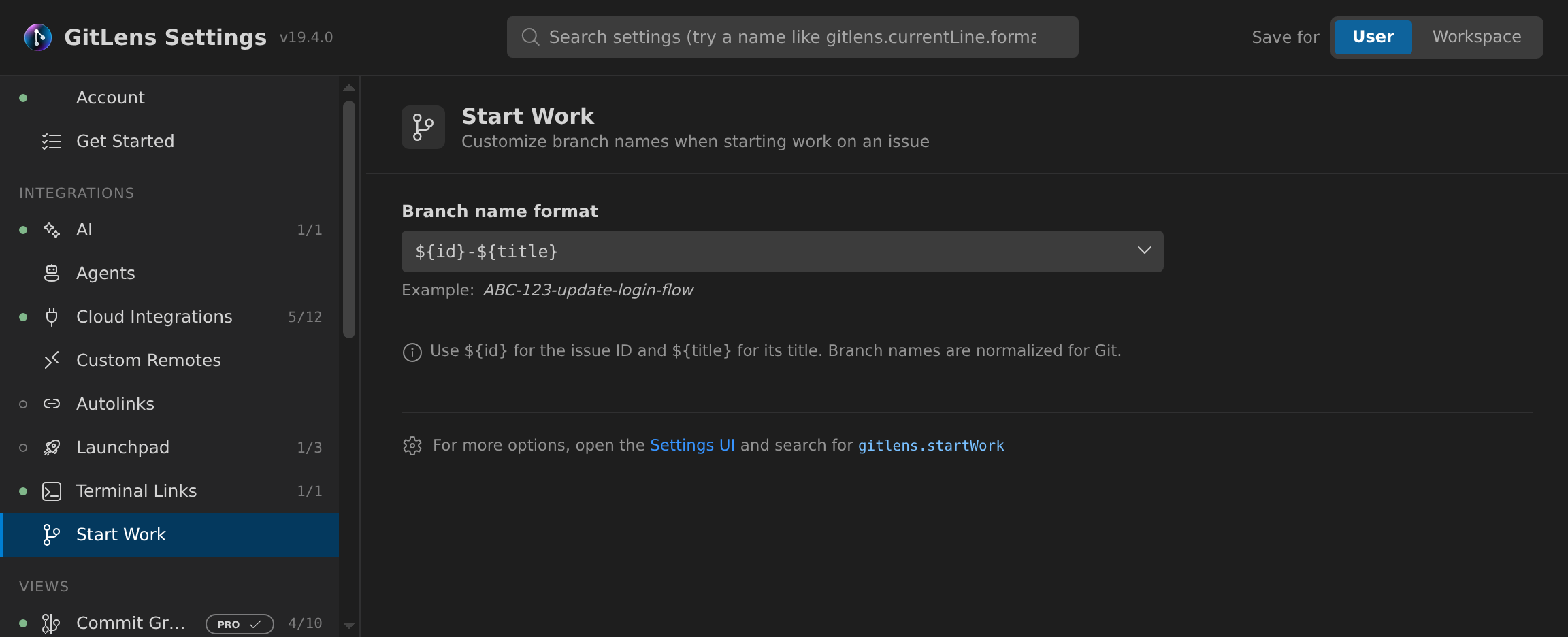
Start Work: set the Branch name format that Start Work uses to suggest a branch name when you start work on an issue (gitlens.startWork.branchNameFormat, default ${id}-${title}).
- Use
${id}for the issue ID and${title}for its lowercase, slugged title. Pick them from the field’s token list or type them, with the same prefix, suffix, and width modifiers as other GitLens format tokens. - GitLens replaces characters that are not valid in a Git branch name and keeps any
/as branch folders. The Example line previews the name for a sample issue. - Leave the field blank to use the default. Start Work still lets you edit the suggested name before it creates the branch.
Editor
Use the Editor group to configure the annotations and decorations GitLens adds to the code editor.
- Inline Blame: configure the blame annotation shown at the end of the current line, including format, date style, and pull request information.
- Git CodeLens: turn on or off and format the authorship and change indicators above code blocks.
- Status Bar Blame: control the blame summary in the VS Code status bar.
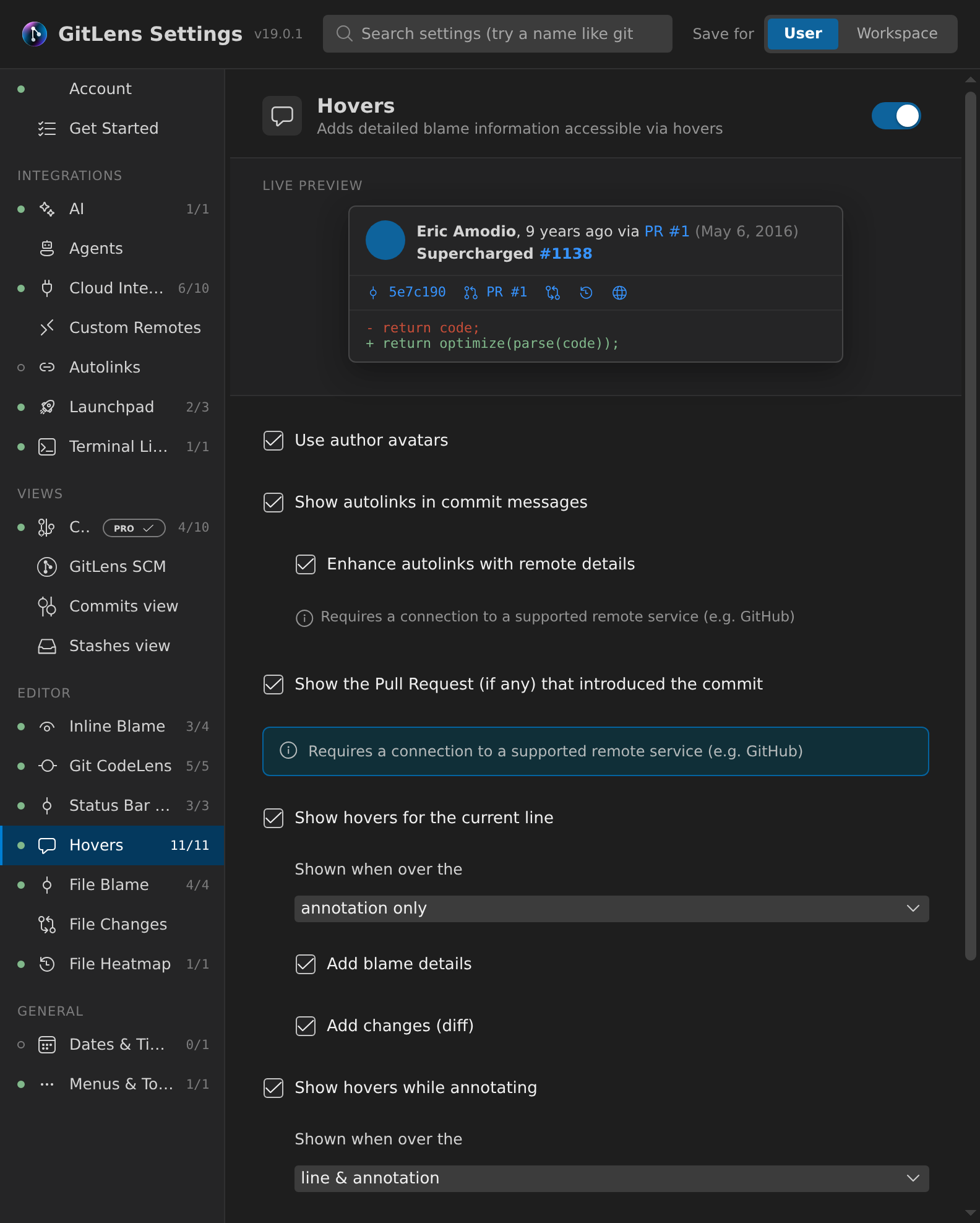
- Hovers: configure hover tooltips that appear over blame annotations and code, including details, changes, and pull request information.
The group also includes the file annotations:
- File Blame: gutter annotations showing per-line authorship across the entire file.
- File Changes: gutter indicators highlighting additions, deletions, and modifications relative to the previous commit.
- File Heatmap: color-coded gutter annotations showing the relative age of each line of code.
Views
Use the Views group to configure the Commit Graph and the GitLens views in the Side Bar.
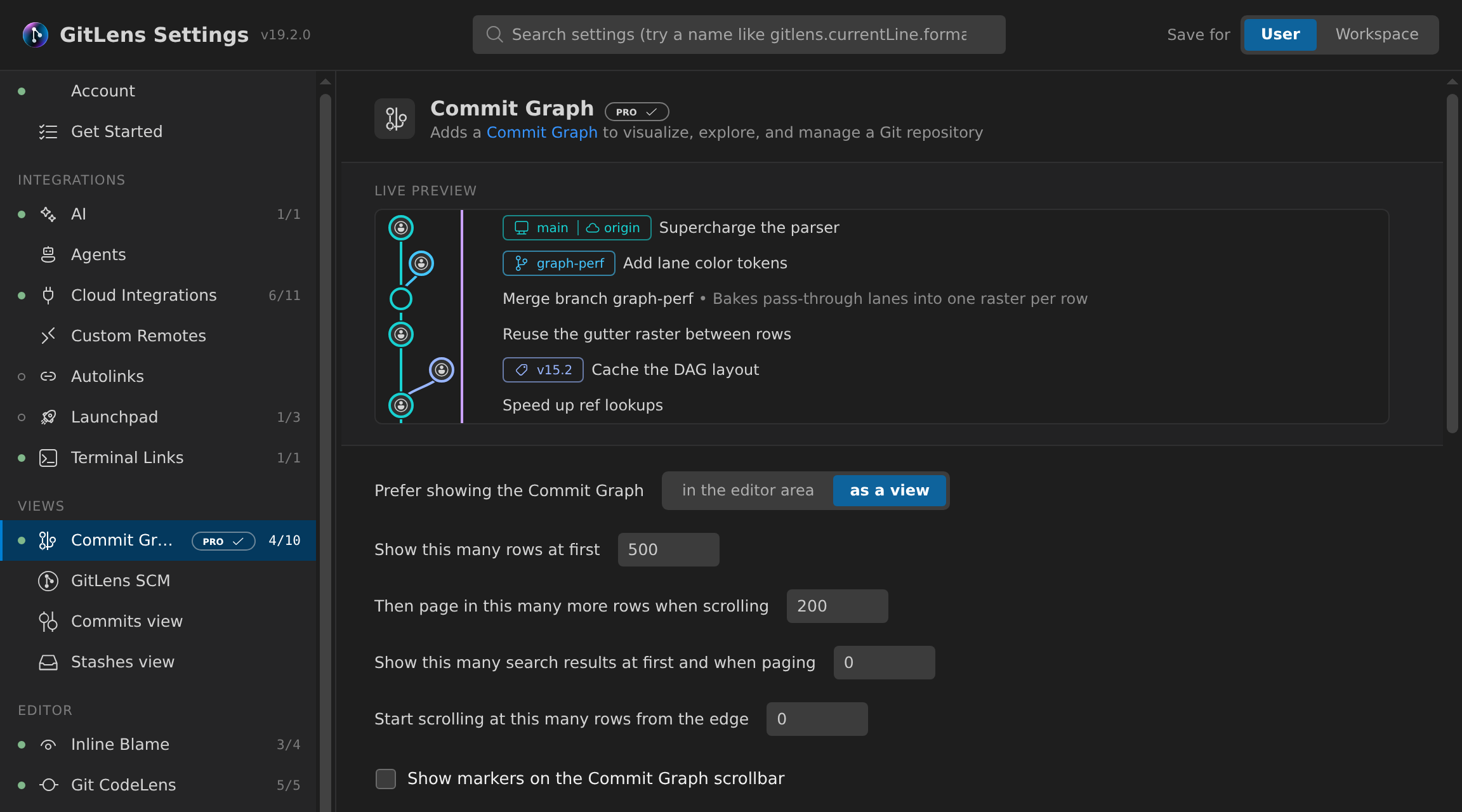
- Commit Graph: layout, columns, minimap, scroll markers, branch and tag pill layout, details panel position, and graph style (table, list, or auto). The Commit Graph is a Pro feature.
- GitLens SCM: configure the Source Control Manager view integration.
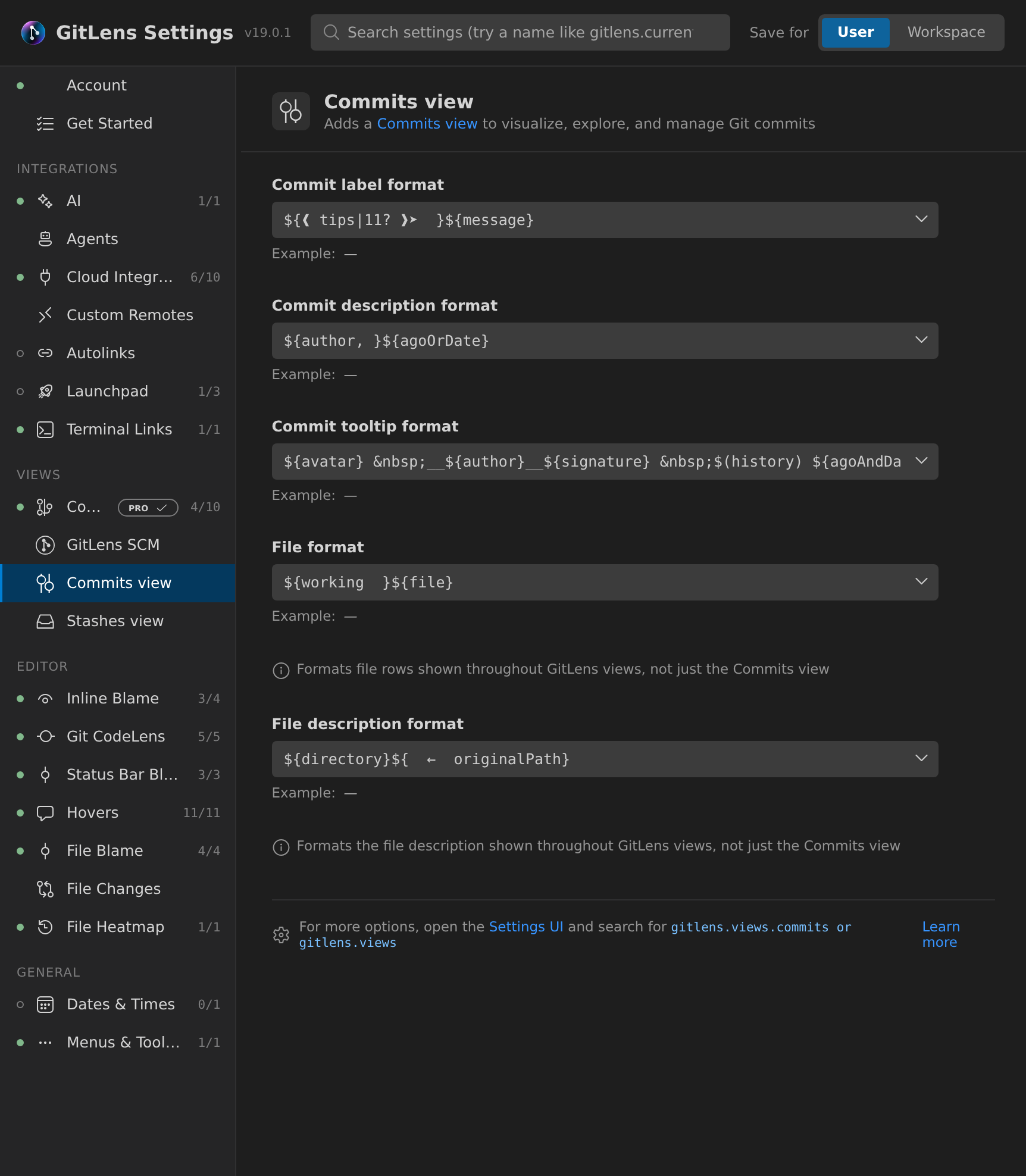
- Commits: format templates for the Commits view (commit label, description, and tooltip formats, and file and file description formats), with a link to the VS Code Settings UI for the view’s remaining
gitlens.views.commitssettings. - Stashes: configure the Stashes view layout and display options.
Note: GitLens Settings has no category for the Repositories, Branches, Remotes, Tags, Worktrees, Contributors, File History, Line History, and Search & Compare views, or for File Annotations. Configure them in
settings.json, or in Preferences: Open Settings (UI) by searching forgitlens.views, orgitlens.fileAnnotationsfor File Annotations.
General
Use the General group to configure date formatting and the GitLens items in menus and toolbars.
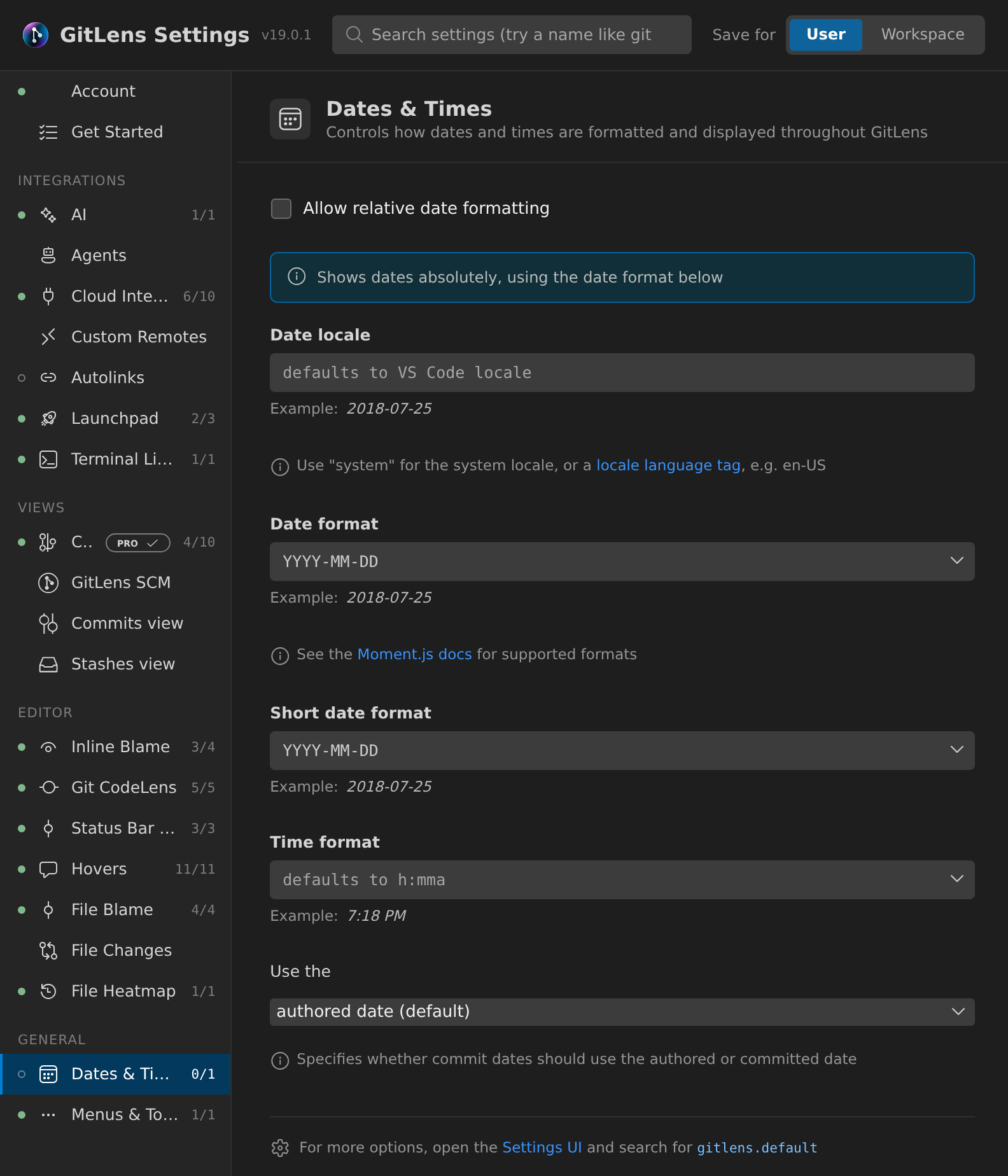
- Dates & Times: control absolute and relative date formatting across GitLens.
- Menus & Toolbars: show or hide GitLens items in editor context menus, title bars, and toolbars.
Settings Reference
Look up a GitLens setting by feature area. Edit any of these settings directly in settings.json, or change the ones GitLens Settings shows in that editor.
Current Line Blame Settings
Use these settings to customize how GitLens displays blame annotations for the current line of code. These annotations help identify the last commit that modified a line, along with contextual details like date, author, and related pull requests.
| Name | Description |
|---|---|
gitlens.currentLine.dateFormat |
Defines how absolute dates appear in current line blame annotations using the ${date} token. Refer to the Moment.js format guide. |
gitlens.currentLine.enabled |
Enables or disables current line blame annotations by default. Toggle annotations in any window with the Toggle Line Blame Annotations command (gitlens.toggleLineBlame). |
gitlens.currentLine.format |
Sets the display format for the annotation. See Commit Tokens for supported placeholders. Date format is managed by gitlens.currentLine.dateFormat. |
gitlens.currentLine.pullRequests.enabled |
Shows pull request info (if available) for the commit in the current line annotation. Requires a connected remote provider like GitHub. |
gitlens.currentLine.scrollable |
Determines if annotations can scroll into view when off-screen. Note: Setting this to false disables hover tooltips unless gitlens.hovers.currentLine.over is set to line. |
gitlens.currentLine.uncommittedChangesFormat |
Customizes annotation format for uncommitted changes. An empty string disables annotations for these changes. |
gitlens.currentLine.fontFamily |
Sets the font family for inline blame annotations. |
gitlens.currentLine.fontSize |
Sets the font size for inline blame annotations. |
gitlens.currentLine.fontStyle |
Sets the font style for inline blame annotations. |
gitlens.currentLine.fontWeight |
Sets the font weight for inline blame annotations. |
Git CodeLens Settings
These settings control GitLens CodeLens overlays, which provide inline contextual information such as author and commit history directly in your code.
| Name | Description |
|---|---|
gitlens.codeLens.authors.command |
Sets the command triggered when an authors CodeLens is clicked. Default is gitlens.toggleFileBlame. To disable click actions, set this to false.
Available commands include: |
gitlens.codeLens.authors.enabled |
Enables or disables the authors CodeLens. Displays the number of contributors and highlights the most active author for a file or block. |
gitlens.codeLens.enabled |
Globally enables or disables all GitLens CodeLens features. Use the Toggle Git CodeLens command (gitlens.toggleCodeLens) to turn this feature on or off for the current window. |
gitlens.codeLens.includeSingleLineSymbols |
Determines whether GitLens shows CodeLens for single-line symbols (e.g., one-line functions). |
gitlens.codeLens.recentChange.command |
Sets the command triggered when a recent change CodeLens is clicked. Default is gitlens.showQuickCommitFileDetails. To disable, set to false.
Available commands mirror those listed under |
gitlens.codeLens.recentChange.enabled |
Enables or disables the recent change CodeLens. Displays the author and timestamp of the most recent commit for the line or block. |
gitlens.codeLens.scopes |
Controls where Git CodeLens is displayed:document: top of the filecontainers: start of container symbols (e.g., classes, interfaces)blocks: start of block symbols (e.g., functions, methods) |
gitlens.codeLens.symbolScopes |
Defines specific symbol types to include or exclude from CodeLens. Prefix a symbol with ! to exclude it. Uses SymbolKind values. |
Status Bar Settings
These settings control how GitLens displays blame information in the status bar, including format, alignment, and click behavior.
| Name | Description |
|---|---|
gitlens.statusBar.alignment |
Controls where the blame annotation appears in the status bar.
|
gitlens.statusBar.command |
Specifies the command executed when clicking the blame status bar item. Default is gitlens.showQuickCommitDetails. Available commands:
|
gitlens.statusBar.dateFormat |
Sets the date format using the ${date} token. For valid formats, see the Moment.js documentation. |
gitlens.statusBar.enabled |
Enables or disables blame information in the status bar. |
gitlens.statusBar.format |
Defines the display format of blame data in the status bar. Refer to Commit Tokens. Controlled alongside gitlens.statusBar.dateFormat. |
gitlens.statusBar.pullRequests.enabled |
Shows pull request details for the commit in the status bar, if available. Requires a connected remote (e.g., GitHub). |
gitlens.statusBar.reduceFlicker |
Reduces visual flicker by preventing blame info from clearing when switching lines. |
gitlens.statusBar.tooltipFormat |
Specifies the markdown format used in the hover tooltip over blame info. See Commit Tokens. |
Hover Settings
Use these settings to control when and how GitLens displays hover popups that show commit details, line changes, avatars, and pull request information.
| Name | Description |
|---|---|
gitlens.hovers.annotations.changes |
Enables a changes (diff) hover for all lines when blame annotations are shown. |
gitlens.hovers.annotations.details |
Enables a commit details hover for all lines when blame annotations are shown. |
gitlens.hovers.annotations.enabled |
Enables all hovers related to blame annotations. |
gitlens.hovers.annotations.over |
Controls when annotation hovers trigger:
|
gitlens.hovers.avatars |
Displays avatar images in hovers when enabled. |
gitlens.hovers.avatarSize |
Sets the avatar image size in hover popups. |
gitlens.hovers.changesDiff |
Controls the diff content shown in hovers:
|
gitlens.hovers.currentLine.changes |
Enables a changes (diff) hover for the current line. |
gitlens.hovers.currentLine.details |
Enables a commit details hover for the current line. |
gitlens.hovers.currentLine.enabled |
Enables all hover popups for the current line. |
gitlens.hovers.currentLine.over |
Controls when hovers appear on the current line:
|
gitlens.hovers.detailsMarkdownFormat |
Defines the markdown format used for commit details hovers. See Commit Tokens. |
gitlens.hovers.enabled |
Enables or disables all GitLens hovers. |
gitlens.hovers.autolinks.enabled |
Automatically links external resources mentioned in commit messages. |
gitlens.hovers.autolinks.enhanced |
Fetches enhanced details for autolinks using supported remote services (e.g., GitHub). |
gitlens.hovers.pullRequests.enabled |
Displays pull request information (if available) in hovers. Requires connection to a supported remote service. |
View Settings
| Name | Description |
|---|---|
gitlens.views.defaultItemLimit |
Specifies the default number of items to show in a view list. Use 0 for no limit. |
gitlens.views.formats.commits.label |
Specifies the format of commits in the views. See Commit Tokens in the GitLens docs. |
gitlens.views.formats.commits.description |
Specifies the description format of commits in the views. See Commit Tokens in the GitLens docs. |
gitlens.views.formats.files.label |
Specifies the format of a file in the views. See File Tokens in the GitLens docs. |
gitlens.views.formats.files.description |
Specifies the description format of a file in the views. See File Tokens in the GitLens docs. |
gitlens.views.formats.stashes.label |
Specifies the format of stashes in the views. See Commit Tokens in the GitLens docs. |
gitlens.views.formats.stashes.description |
Specifies the description format of stashes in the views. See Commit Tokens in the GitLens docs. |
gitlens.views.formats.stashes.tooltip |
Specifies the tooltip format of stashes in GitLens views. |
gitlens.views.pageItemLimit |
Specifies the number of items to show per page when paginating a view list. Use 0 for no limit. |
gitlens.views.showRelativeDateMarkers |
Specifies whether to show relative date markers (Less than a week ago, Over a week ago, Over a month ago, etc.) on revision histories in the views. |
gitlens.views.commits.files.icon |
Specifies how the Commits view displays file icons. |
gitlens.views.repositories.files.icon |
Specifies how the Repositories view displays file icons. |
gitlens.views.branches.files.icon |
Specifies how the Branches view displays file icons. |
gitlens.views.remotes.files.icon |
Specifies how the Remotes view displays file icons. |
gitlens.views.stashes.files.icon |
Specifies how the Stashes view displays file icons. |
gitlens.views.tags.files.icon |
Specifies how the Tags view displays file icons. |
gitlens.views.worktrees.files.icon |
Specifies how the Worktrees view displays file icons. |
gitlens.views.contributors.files.icon |
Specifies how the Contributors view displays file icons. |
gitlens.views.searchAndCompare.files.icon |
Specifies how the Search & Compare view displays file icons. |
gitlens.views.collapseWorktreesWhenPossible |
Specifies whether to collapse opened worktrees into a single repository in views when possible. |
gitlens.views.showCurrentBranchOnTop |
Specifies whether to always show the current branch at the top of views. |
gitlens.views.scm.grouped.default |
Specifies the default view shown in the grouped GitLens view for new workspaces/folders (otherwise last selected view is remembered). |
gitlens.views.scm.grouped.views |
Specifies which views to show in the grouped GitLens view. |
Commits View Settings
See also View Settings.
These settings control how the GitLens Commits view displays commit data, associated files, and pull request information.
| Name | Description |
|---|---|
gitlens.views.commits.avatars |
Shows avatar images in place of commit or status icons in the Commits view. |
gitlens.views.commits.files.compact |
Flattens unnecessary file nesting when file layout is set to tree or auto. |
gitlens.views.commits.files.layout |
Controls how files are displayed:
|
gitlens.views.commits.files.threshold |
Defines the threshold for switching between tree and list layouts when layout is set to auto. |
gitlens.views.commits.pullRequests.enabled |
Enables querying for pull requests associated with the current branch or commits. Requires a connected remote (e.g., GitHub). |
gitlens.views.commits.pullRequests.showForBranches |
Shows pull requests linked to the current branch in the Commits view. Requires a connected remote service. |
gitlens.views.commits.pullRequests.showForCommits |
Displays pull requests tied to individual commits in the Commits view. Requires a connected remote service. |
gitlens.views.commits.reveal |
Determines whether commits are revealed in the Commits view or the Repositories view. |
gitlens.views.commits.showBranchComparison |
Controls whether to display branch or working tree comparisons:
|
gitlens.signing.showSignatureBadges |
Shows signature verification badges on commits in the Commit Graph and other views. |
Repositories View Settings
See also View Settings.
These settings customize how repositories are displayed and interacted with in the GitLens Repositories view.
| Name | Description |
|---|---|
gitlens.views.repositories.avatars |
Displays avatar images instead of icons in the Repositories view. |
gitlens.views.repositories.autoRefresh |
Automatically refreshes the view when the repository or filesystem changes. |
gitlens.views.repositories.autoReveal |
Auto-reveals repositories when opening files. |
gitlens.views.repositories.branches.layout |
Controls branch layout:
|
gitlens.views.repositories.branches.showBranchComparison |
Displays comparison with a user-selected reference (branch, tag, etc.) under each branch. |
gitlens.views.repositories.compact |
Enables a compact display mode in the Repositories view. |
gitlens.views.repositories.files.compact |
Flattens unnecessary file nesting when file layout is set to tree or auto. |
gitlens.views.repositories.files.layout |
Controls file display layout:
|
gitlens.views.repositories.files.threshold |
Sets the threshold for switching between tree and list layouts when layout is set to auto. |
gitlens.views.repositories.includeWorkingTree |
Includes working tree file status for each repository. |
gitlens.views.repositories.showBranchComparison |
Displays comparison between a selected reference and the current branch or working tree. |
gitlens.views.repositories.showBranches |
Shows branches for each repository. |
gitlens.views.repositories.showCommits |
Displays commits from the current branch for each repository. |
gitlens.views.repositories.showContributors |
Shows contributors for each repository. |
gitlens.views.repositories.showIncomingActivity |
Displays experimental incoming activity for each repository. |
gitlens.views.repositories.showRemotes |
Shows configured remotes for each repository. |
gitlens.views.repositories.showStashes |
Displays stashes for each repository. |
gitlens.views.repositories.showTags |
Shows tags for each repository. |
gitlens.views.repositories.showUpstreamStatus |
Displays upstream tracking status of the current branch for each repository. |
gitlens.views.repositories.branches.compact |
Flattens branch folders when using tree layout, combining single-child folders into a single entry. |
File History View Settings
See also View Settings.
These settings configure the behavior and display options for the GitLens File History view.
| Name | Description |
|---|---|
gitlens.views.fileHistory.avatars |
Displays avatar images instead of status icons in the File History view. |
gitlens.advanced.fileHistoryShowMergeCommits |
Shows merge commits in file histories. Default: false. |
gitlens.views.fileHistory.mode |
Controls the default display mode:
|
Line History View Settings
See also View Settings.
These settings configure the display behavior of the GitLens Line History view.
| Name | Description |
|---|---|
gitlens.views.lineHistory.avatars |
Displays avatar images instead of status icons in the Line History view. |
Branch View Settings
See also View Settings.
These settings configure the display and behavior of the GitLens Branches view.
| Name | Description |
|---|---|
gitlens.views.branches.avatars |
Displays avatar images instead of commit or status icons in the Branches view. |
gitlens.views.branches.branches.layout |
Controls how branches are displayed:
|
gitlens.views.branches.files.compact |
Flattens unnecessary file nesting when file layout is set to tree or auto. |
gitlens.views.branches.files.layout |
Controls file display layout:
|
gitlens.views.branches.files.threshold |
Defines the threshold for switching between tree and list layouts when layout is set to auto. |
gitlens.views.branches.pullRequests.enabled |
Enables querying for pull requests associated with the current branch and commits. Requires a connected remote service. |
gitlens.views.branches.pullRequests.showForBranches |
Displays pull requests linked to the current branch in the Branches view. Requires a connected remote service. |
gitlens.views.branches.pullRequests.showForCommits |
Displays pull requests tied to individual commits. Requires a connected remote service. |
gitlens.views.branches.reveal |
Specifies whether branches are revealed in the Branches view or in the Repositories view. |
gitlens.views.branches.showBranchComparison |
Controls display of branch comparisons:
|
gitlens.views.branches.branches.compact |
Flattens branch folders when using tree layout, combining single-child folders into a single entry. |
Remotes View Settings
See also View Settings.
These settings define how branches, files, and pull requests appear in the GitLens Remotes view.
| Name | Description |
|---|---|
gitlens.views.remotes.avatars |
Displays avatar images instead of commit or status icons in the Remotes view. |
gitlens.views.remotes.branches.layout |
Controls how branches are displayed:
|
gitlens.views.remotes.files.compact |
Flattens unnecessary file nesting when file layout is set to tree or auto. |
gitlens.views.remotes.files.layout |
Controls file display layout:
|
gitlens.views.remotes.files.threshold |
Defines the threshold for switching between tree and list layouts when layout is set to auto. |
gitlens.views.remotes.pullRequests.enabled |
Enables pull request queries for the current branch and commits. Requires a connected remote service. |
gitlens.views.remotes.pullRequests.showForBranches |
Displays pull requests associated with branches in the Remotes view. Requires a connected remote service. |
gitlens.views.remotes.pullRequests.showForCommits |
Displays pull requests tied to commits in the Remotes view. Requires a connected remote service. |
gitlens.views.remotes.reveal |
Determines whether remotes appear in the Remotes view or are shown in the Repositories view. |
gitlens.views.remotes.branches.compact |
Flattens branch folders when using tree layout, combining single-child folders into a single entry. |
Stashes View Settings
See also View Settings.
These settings control how files and stash entries are displayed in the GitLens Stashes view.
| Name | Description |
|---|---|
gitlens.views.stashes.files.compact |
Flattens unnecessary file nesting in the Stashes view. Applies when file layout is set to tree or auto. |
gitlens.views.stashes.files.layout |
Controls file display layout:
|
gitlens.views.stashes.files.threshold |
Defines the threshold for switching between tree and list layouts when layout is set to auto. |
gitlens.views.stashes.reveal |
Determines whether stashes appear in the Stashes view or the Repositories view. |
Tags View Settings
See also View Settings.
These settings control how Git tags and related files appear in the GitLens Tags view.
| Name | Description |
|---|---|
gitlens.views.tags.avatars |
Displays avatar images instead of commit or status icons in the Tags view. |
gitlens.views.tags.branches.layout |
Controls tag layout:
|
gitlens.views.tags.files.compact |
Flattens unnecessary file nesting when layout is set to tree or auto. |
gitlens.views.tags.files.layout |
Controls file display layout:
|
gitlens.views.tags.files.threshold |
Defines the threshold for switching between tree and list layouts when layout is set to auto. |
gitlens.views.tags.reveal |
Determines whether tags are shown in the Tags view or revealed in the Repositories view. |
gitlens.views.tags.branches.compact |
Flattens tag folders when using tree layout, combining single-child folders into a single entry. |
Worktrees View Settings
See also View Settings.
These settings control how worktrees and related information appear in the GitLens Worktrees view.
| Name | Description |
|---|---|
gitlens.views.worktrees.avatars |
Displays avatar images instead of commit or status icons in the Worktrees view. |
gitlens.views.worktrees.files.compact |
Flattens unnecessary file nesting. Applies only when layout is set to tree or auto. |
gitlens.views.worktrees.files.layout |
Controls how files are displayed:
|
gitlens.views.worktrees.files.threshold |
Defines when to switch between tree and list layouts based on file count. Applies only when layout is auto. |
gitlens.views.worktrees.pullRequests.enabled |
Enables pull request queries for the current worktree branch and its commits. Requires a supported remote service. |
gitlens.views.worktrees.pullRequests.showForBranches |
Shows pull requests related to the current worktree branch. Requires a supported remote service. |
gitlens.views.worktrees.pullRequests.showForCommits |
Displays pull requests (if any) associated with commits in the Worktrees view. Requires a supported remote service. |
gitlens.views.worktrees.reveal |
Controls whether worktrees appear in the Worktrees view or default to the Repositories view. |
gitlens.views.worktrees.showBranchComparison |
Shows a comparison of the current branch with a user-selected reference:
|
Contributors View Settings
See also View Settings.
| Name | Description |
|---|---|
gitlens.views.contributors.avatars |
Shows avatar images instead of commit or status icons in the Contributors view. |
gitlens.views.contributors.files.compact |
Flattens unnecessary file nesting in the Contributors view. Applies only when gitlens.views.contributors.files.layout is set to tree or auto. |
gitlens.views.contributors.files.layout |
Controls how the Contributors view displays files:
|
gitlens.views.contributors.files.threshold |
Defines when to switch between tree and list layouts based on the number of files in a nesting level in the Contributors view. Applies only when gitlens.views.contributors.files.layout is set to auto. |
gitlens.views.contributors.pullRequests.enabled |
Enables querying for pull requests associated with branches and commits in the Contributors view. Requires a connection to a supported remote service, such as GitHub. |
gitlens.views.contributors.pullRequests.showForCommits |
Shows pull requests associated with commits in the Contributors view. Requires a connection to a supported remote service, such as GitHub. |
gitlens.views.contributors.showAllBranches |
Shows commits from all branches in the Contributors view. |
gitlens.views.contributors.showStatistics |
Shows contributor statistics in the Contributors view. Computing the statistics can take a while in large repositories. |
Search & Compare View Settings
See also View Settings.
These settings control how files and avatars are displayed, and what clicking a file opens, in the GitLens Search & Compare view.
| Name | Description |
|---|---|
gitlens.views.searchAndCompare.files.openDiffOnClick |
Specifies whether clicking a file in the Search & Compare view opens its changes (diff). When disabled, clicking a file opens the working file at the first changed line instead. Default: true. |
gitlens.views.searchAndCompare.files.layout |
Controls file display in the Search & Compare view:
|
gitlens.views.searchAndCompare.files.threshold |
Determines when to switch between tree and list layouts based on the number of files in a nesting level. Applies only when layout is auto. |
gitlens.views.searchAndCompare.files.compact |
Flattens unnecessary file nesting in the Search & Compare view. Applies when layout is set to tree or auto. |
gitlens.views.searchAndCompare.avatars |
Shows avatar images instead of commit or status icons in the Search & Compare view. |
File Blame Settings
| Name | Description |
|---|---|
gitlens.blame.avatars |
Shows avatar images in file blame annotations. |
gitlens.blame.compact |
Compacts (deduplicates) adjacent matching blame annotations. |
gitlens.blame.dateFormat |
Formats absolute dates (e.g., using ${date}) in blame annotations. See the Moment.js documentation for valid formats. |
gitlens.blame.format |
Specifies the display format of blame annotations. See Commit Tokens. Date format is controlled by gitlens.blame.dateFormat. |
gitlens.blame.heatmap.enabled |
Enables a heatmap indicator in blame annotations. |
gitlens.blame.heatmap.location |
Determines heatmap indicator placement:
|
gitlens.blame.highlight.enabled |
Highlights lines related to the current line. |
gitlens.blame.highlight.locations |
Specifies where highlights appear:
|
gitlens.blame.ignoreWhitespace |
Ignores whitespace differences when comparing revisions during blame operations. |
gitlens.blame.separateLines |
Shows line separators in blame annotations. |
gitlens.blame.toggleMode |
Determines toggle scope:
|
gitlens.blame.fontFamily |
Sets font family for file blame annotations. |
gitlens.blame.fontSize |
Sets font size for file blame annotations. |
gitlens.blame.fontWeight |
Sets font weight for file blame annotations. |
gitlens.blame.fontStyle |
Sets font style for file blame annotations. |
File Changes Settings
| Name | Description |
|---|---|
gitlens.changes.locations |
Controls where file changes indicators appear:
|
gitlens.changes.toggleMode |
Determines toggle scope for file changes annotations:
|
File Heatmap Settings
| Name | Description |
|---|---|
gitlens.heatmap.ageThreshold |
Defines the age threshold in days for heatmap coloring. Changes older than this use gitlens.heatmap.coldColor, newer changes use gitlens.heatmap.hotColor. |
gitlens.heatmap.coldColor |
Base color for file heatmap annotations when changes are older than the age threshold (cold). |
gitlens.heatmap.hotColor |
Base color for file heatmap annotations when changes are newer than the age threshold (hot). |
gitlens.heatmap.locations |
Specifies where heatmap indicators appear:
|
gitlens.heatmap.toggleMode |
Determines toggle scope for file heatmap annotations:
|
Git Command Palette Settings
| Name | Description |
|---|---|
gitlens.gitCommands.closeOnFocusOut |
Determines whether the Git Commands Palette dismisses automatically when focus is lost. If disabled, press ESC to dismiss manually. |
gitlens.gitCommands.search.matchAll |
Controls whether commit message searches match all patterns or any pattern. |
gitlens.gitCommands.search.matchCase |
Enables case-sensitive matching for commit message searches. |
gitlens.gitCommands.search.matchRegex |
Enables regular expression matching for commit message searches. |
gitlens.gitCommands.search.showResultsInSideBar |
Controls where commit search results display: in the quick pick menu, the Side Bar, or context-dependent. |
gitlens.gitCommands.skipConfirmations |
Specifies which (and when) Git commands skip the confirmation step, using the format git-command-name:(menu|command). Supported commands are branch-create, co-authors, fetch, pull, push, stash-apply, stash-pop, stash-push, switch, tag-create, and tag-push.
You can also select the Don’t Ask Again toggle under Options in a supported confirmation step to add or remove that command here; its gear button opens this setting. |
gitlens.gitCommands.sortBy |
Specifies sorting order of commands in the Git Command Palette:
|
Terminal Links Settings
| Name | Description |
|---|---|
gitlens.terminalLinks.enabled |
Enables terminal links—autolinks in the integrated terminal that provide quick access to details for commits, branches, tags, and more. |
gitlens.terminalLinks.showIn |
Controls where terminal link references open.
|
Rebase Editor Settings
| Name | Description |
|---|---|
gitlens.rebaseEditor.openOnPausedRebase |
Controls whether the Interactive Rebase Editor opens automatically when GitLens detects a paused rebase. For a rebase paused on conflicts, GitLens opens the Commit Graph instead, when it can.
|
gitlens.rebaseEditor.revealLocation |
Controls where the Interactive Rebase Editor reveals commits and references:
|
gitlens.rebaseEditor.revealBehavior |
Controls when the Interactive Rebase Editor reveals commits in the location set by gitlens.rebaseEditor.revealLocation:
|
gitlens.rebaseEditor.density |
Controls the visual density of commits in the rebase editor.
|
gitlens.rebaseEditor.openBehavior |
Controls which editor group the Interactive Rebase Editor opens in when it reopens automatically on a paused rebase:
|
Remote Provider Integration Settings
| Name | Description |
|---|---|
gitlens.integrations.enabled |
Enables rich integrations with supported remote services. |
gitlens.remotes |
Defines custom remote services to match Git remotes for detecting custom domains or supporting additional remote services.
Supported types include:
Examples: Custom example: Another custom example: |
Date & Time Settings
| Name | Description |
|---|---|
gitlens.defaultDateFormat |
Specifies the default format for absolute dates. See the Moment.js documentation for valid format strings. |
gitlens.defaultDateLocale |
Specifies the locale for date formatting, using a BCP 47 language tag. Defaults to the VS Code locale. Use system to follow the current system locale or specify a locale like en-US (US English), en-GB (British English), de-DE (German), ja-JP (Japanese), etc.
This setting affects only date formatting. GitLens has no separate interface-language setting: it follows VS Code’s display language, with translations for Spanish, Simplified Chinese, and Traditional Chinese and English as the fallback. To change it, run Configure Display Language from the Command Palette. |
gitlens.defaultDateShortFormat |
Specifies the default format for short absolute dates. See the Moment.js documentation for valid format strings. |
gitlens.defaultDateSource |
Determines whether commit dates use the authored date or the committed date. |
gitlens.defaultDateStyle |
Specifies the default display style for dates. |
gitlens.defaultTimeFormat |
Specifies the default format for times. See the Moment.js documentation for valid format strings. |
Menu & Toolbar Settings
| Name | Description |
|---|---|
gitlens.menus |
Defines which commands are added to specific menus. |
gitlens.fileAnnotations.command |
Controls the behavior of the file annotations button in the editor title:
|
Keyboard Shortcut Settings
| Name | Description |
|---|---|
gitlens.keymap |
Specifies the keymap used for GitLens shortcuts:
|
gitlens.fileAnnotations.dismissOnEscape |
Determines whether pressing ESC dismisses active file annotations. |
Modes Settings
| Name | Description |
|---|---|
gitlens.mode.active |
Specifies the currently active GitLens mode, if any. |
gitlens.mode.statusBar.enabled |
Enables display of the active GitLens mode in the status bar. |
gitlens.mode.statusBar.alignment |
Controls alignment of the active mode display in the status bar:
|
gitlens.modes |
Defines user-configured GitLens modes.
Example: Add heatmap annotations to a Reviewing mode: Example: Define a new Annotating mode with blame annotations: |
Autolink Settings
| Name | Description |
|---|---|
gitlens.autolinks |
Defines autolinks to external resources in commit messages. Use <num> as a placeholder for the reference number.
Example for Jira issues: |
AI Settings – Preview
| Name | Description |
|---|---|
gitlens.ai.enabled |
Specifies whether to enable GitLens’ AI-powered features. |
gitlens.gitkraken.mcp.autoEnabled |
Specifies whether to automatically install and enable the GitKraken MCP server. Applies to VS Code 1.101 and later. Default: true. Turning this setting off, or turning off gitlens.ai.enabled, removes the GitKraken MCP server from VS Code’s Configure Tools list without reloading the window. |
gitlens.ai.model |
Specifies the AI provider and model to use for GitLens’ AI features, formatted as provider:model (for example, openai:gpt-5.5 or anthropic:claude-sonnet-5). Use gitkraken for models provided by GitKraken AI, or vscode for models provided through the VS Code extension API, such as Copilot. |
gitlens.ai.gitkraken.model |
Specifies the GitKraken AI provided model to use for GitLens’ AI features, formatted as provider:model. |
gitlens.ai.vscode.model |
Specifies the VS Code provided model to use for GitLens’ AI features, formatted as provider:model. |
gitlens.ai.ollama.url |
Specifies the Ollama URL to use for access. |
gitlens.ai.openai.url |
Specifies a custom URL to use for access to an OpenAI model. |
gitlens.ai.azure.url |
Specifies a custom URL to use for access to an Azure OpenAI model, in this format: https://{your-resource-name}.openai.azure.com/openai/deployments/{deployment-id}/chat/completions?api-version={api-version} |
gitlens.ai.openaicompatible.url |
Specifies a custom URL to use for access to an OpenAI-compatible model. |
gitlens.ai.largePromptWarningThreshold |
Specifies the prompt size (in tokens) above which GitLens warns that the prompt is too large. |
gitlens.ai.modelOptions.temperature |
Specifies the temperature, a measure of output randomness, to use for the AI model. Higher values give more random (creative) output, and lower values give more deterministic output. |
gitlens.ai.explainChanges.customInstructions |
Specifies custom instructions to give the AI provider when generating a summary of changes. |
gitlens.ai.generateChangelog.customInstructions |
Specifies custom instructions to give the AI provider when generating a changelog from a set of changes. |
gitlens.ai.generateCommits.customInstructions |
Specifies custom instructions to give the AI provider when generating commits. |
gitlens.ai.generateStashMessage.customInstructions |
Specifies custom instructions to give the AI provider when generating a stash message. |
gitlens.ai.generateCreateCloudPatch.customInstructions |
Specifies custom instructions to give the AI provider when generating a cloud patch title and description. |
gitlens.ai.generateCreatePullRequest.customInstructions |
Specifies custom instructions to give the AI provider when generating a pull request title and description. |
gitlens.ai.resolveConflicts.customInstructions |
Specifies custom instructions to give the AI provider when resolving merge or rebase conflicts. Applies to every conflict AI resolves, in the Commit Graph’s resolve panel and during Auto-Rebase. Guidance you give for a single run in the resolve panel takes priority over these instructions. |
gitlens.ai.autoRebase.confidenceThreshold |
Specifies the minimum AI confidence, from 0 to 1, required to apply a conflict resolution automatically during Auto-Rebase. Below this value, the rebase pauses and hands off to the Commit Graph’s resolve panel for your review. Default: 0.8. |
gitlens.ai.openInAgent |
Specifies the default route for Start Work and Start PR Review when opening in an agent is offered:
|
gitlens.ai.defaultAgent |
Specifies the default agent for Start Work, Start PR Review, and starting an agent session. When the saved agent is no longer available, GitLens asks you to choose one. Set it by selecting Always use this agent in the agent picker. |
gitlens.ai.exclude.files |
Glob patterns for files to exclude from AI context. Also respects .aiignore, .cursorignore, and .aiexclude files. |
Misc Settings
| Name | Description |
|---|---|
gitlens.defaultGravatarsStyle |
Specifies the style of default (fallback) gravatar images:
|
gitlens.liveshare.allowGuestAccess |
Allows guest access to GitLens features during Visual Studio Live Share sessions. |
gitlens.showWhatsNewAfterUpgrades |
Shows the What’s New notification after upgrading to new feature releases. |
gitlens.sortBranchesBy |
Determines how branches are sorted in quick pick menus and views. |
gitlens.sortContributorsBy |
Determines how contributors are sorted in quick pick menus and views. |
gitlens.sortTagsBy |
Determines how tags are sorted in quick pick menus and views. |
gitlens.sortRepositoriesBy |
Determines how repositories are sorted in quick pick menus and views. |
gitlens.advanced.abbreviatedShaLength |
Length of abbreviated commit SHAs. |
gitlens.advanced.abbreviateShaOnCopy |
Determines whether copied commit SHAs are abbreviated to the length of gitlens.advanced.abbreviatedShaLength. |
gitlens.advanced.blame.customArguments |
Additional arguments to pass to the git blame command. |
gitlens.fileAnnotations.preserveWhileEditing |
Keeps file annotations while you edit a file. The gitlens.advanced.blame.delayAfterEdit setting controls how long GitLens waits before updating the annotations of an unsaved file, which applies only if the file is under gitlens.advanced.blame.sizeThresholdAfterEdit (default 5000 lines). |
gitlens.advanced.blame.delayAfterEdit |
Time (milliseconds) to wait before re-blaming an unsaved document after an edit. Use 0 to wait indefinitely. |
gitlens.advanced.blame.sizeThresholdAfterEdit |
Maximum document size (lines) to re-blame after an edit while still unsaved. Use 0 for no maximum. |
gitlens.advanced.commitOrdering |
Ordering method for commits (default is reverse chronological by commit date):
|
gitlens.advanced.commits.delayLoadingFileDetails |
Specifies whether to delay loading commit file details until they are shown. Delaying makes large histories open faster but adds a Git call each time a commit’s files are shown.
|
gitlens.advanced.externalDiffTool |
Optional external diff tool for file comparisons (must be a configured Git difftool). |
gitlens.advanced.externalDirectoryDiffTool |
Optional external diff tool for directory comparisons (must be a configured Git difftool). |
gitlens.advanced.fileHistoryFollowsRenames |
Enables following file history through renames, affecting how merge commits display. |
gitlens.advanced.fileHistoryShowAllBranches |
Shows commits from all branches in file history views. |
gitlens.advanced.maxListItems |
Maximum number of items shown in lists. Use 0 for no limit. |
gitlens.advanced.maxSearchItems |
Maximum number of items shown in search results. Use 0 for no limit. |
gitlens.advanced.messages |
Specifies which messages to suppress. |
gitlens.advanced.quickPick.closeOnFocusOut |
Dismisses quick pick menus when focus is lost. If disabled, press ESC to dismiss manually. |
gitlens.advanced.repositorySearch.enabled |
Specifies whether GitLens automatically scans workspace folders to discover Git repositories. When disabled, GitLens uses only the repositories that VS Code’s built-in source control reports. Enabled by default. |
gitlens.advanced.repositorySearchDepth |
Depth (number of folders) to search for repositories. |
gitlens.advanced.similarityThreshold |
Percent similarity required for a deleted and added file pair to be considered a rename. |
gitlens.strings.codeLens.unsavedChanges.recentChangeAndAuthors |
String shown in place of both recent change and authors CodeLens when there are unsaved changes. |
gitlens.strings.codeLens.unsavedChanges.recentChangeOnly |
String shown in place of the recent change CodeLens when there are unsaved changes. |
gitlens.strings.codeLens.unsavedChanges.authorsOnly |
String shown in place of the authors CodeLens when there are unsaved changes. |
gitlens.worktrees.defaultLocation |
Path variables:
|
gitlens.worktrees.openAfterCreate |
Specifies how and when to open a worktree after it is created. Choosing an After Creating option (Open in New Window, Open in Current Window, Add to Workspace, or Don’t Open) in the Create Worktree dialog updates this setting.
|
gitlens.visualHistory.allowMultiple |
Allows opening multiple Visual History instances in the editor area. |
gitlens.liveshare.enabled |
Enables integration with Visual Studio Live Share. |
gitlens.views.openChangesInMultiDiffEditor |
Controls whether to open multiple changes in VS Code’s multi-diff editor (single tab) or individual diff editors (multiple tabs). |
gitlens.advanced.git.maxConcurrentProcesses |
Maximum number of concurrent git processes, with priority-based queuing. |
gitlens.defaultCurrentUserNameStyle |
Controls how the current user’s name is displayed across blame, hovers, views, and graph. |
gitlens.advanced.git.timeout |
Specifies the timeout (in seconds) for Git commands. Use 0 to disable the timeout. Some long-running operations like merge, rebase, and revert always have the timeout disabled. Default: 60. With 0, background reads that set a time limit of their own still stop at it. |
gitlens.advanced.resolveSymlinks |
Resolves symbolic links before performing git operations. |
gitlens.advanced.skipOnboarding |
Skips onboarding experiences, such as the Welcome view. Useful for ephemeral environments like containers or sandboxes. |
gitlens.sortWorkingChangesBy |
Controls how working changes are sorted.
|
gitlens.visualHistory.editorOpeningBehavior |
Controls how files open from the Visual History view. |
gitlens.gitOptimizations.enabled |
Specifies whether GitLens automatically applies safe, repo-local Git performance optimizations in the background (loose-object packing, incremental repack, and commit-graph) while VS Code is open. Enabled by default.
This is the same routine work Git performs during |
gitlens.openInTerminalLocation |
Specifies where GitLens opens the terminals it creates, such as agent session terminals and Open in Integrated Terminal. The first time GitLens creates a terminal, it offers Use Editor Tabs to switch this setting to editor.
|
gitlens.agents.resumeTarget |
Preview — Specifies where a past agent session is resumed when both a terminal and the agent’s VS Code extension could open it. Actions that name a destination, such as Resume in Terminal, are unaffected.
|
Themable Colors
GitLens defines themable colors. VS Code themes can set them, and you can customize them with workbench.colorCustomizations.
| Name | Description |
|---|---|
gitlens.gutterBackgroundColor |
Background color of file blame annotations in the gutter. |
gitlens.gutterForegroundColor |
Foreground color of file blame annotations in the gutter. |
gitlens.gutterUncommittedForegroundColor |
Foreground color for uncommitted lines in file blame annotations. |
gitlens.trailingLineBackgroundColor |
Background color of trailing blame annotations. |
gitlens.trailingLineForegroundColor |
Foreground color of trailing blame annotations. |
gitlens.lineHighlightBackgroundColor |
Background color for associated line highlights in blame annotations. |
gitlens.lineHighlightOverviewRulerColor |
Overview ruler color for associated line highlights in blame annotations. |
Commit Graph Settings
| Name | Description |
|---|---|
gitlens.graph.showUpstreamStatus |
Enables or disables upstream (ahead/behind) indicators on branches. |
gitlens.graph.pullRequests.enabled |
Shows associated pull requests on remote branches in the Commit Graph. Requires a connection to a supported remote service, such as GitHub. |
gitlens.graph.issues.enabled |
Shows associated issues on branches in the Commit Graph. Requires a connection to a supported issue service, such as GitHub. Enabled by default. |
gitlens.graph.dimMergeCommits |
Dims (deemphasizes) merge commit rows in the graph. |
gitlens.graph.scrollRowPadding |
Number of rows from the edge at which the graph scrolls when changing the selected row via keyboard or search. |
gitlens.graph.branchesVisibility |
Specifies which branches the Commit Graph shows.
|
gitlens.graph.initialRowSelection |
Specifies which row the Commit Graph selects by default.
|
gitlens.graph.multiselect |
Specifies whether you can select multiple commits in the Commit Graph, and whether the selection follows the graph’s topology.
|
gitlens.graph.commitOrdering |
Specifies the order in which the Commit Graph shows commits.
|
gitlens.graph.onlyFollowFirstParent |
Specifies whether the Commit Graph follows only the first parent when showing commits. Disabled by default. |
gitlens.graph.dateStyle |
Specifies how the Commit Graph shows dates.
|
gitlens.graph.dateFormat |
Specifies how the Commit Graph formats absolute dates. Use full, long, medium, short, or a custom format, such as MMMM Do, YYYY h:mma. See the Moment.js documentation for valid format strings. When not set (the default), gitlens.defaultDateFormat is used. Applies only when gitlens.graph.dateStyle is absolute. |
gitlens.graph.defaultItemLimit |
Specifies the number of items the Commit Graph shows by default. Use 0 for no limit. Default: 500. |
gitlens.graph.pageItemLimit |
Specifies the number of additional items the Commit Graph loads each time it loads more. Use 0 for no limit. Default: 200. |
gitlens.graph.searchItemLimit |
Specifies the number of results to gather when you search in the Commit Graph. Use 0 for no limit. Default: 0. |
gitlens.graph.searchAutocompleteOnFocus |
Shows search autocomplete suggestions as soon as the Commit Graph search box is focused. When disabled, suggestions appear only once you start typing. Enabled by default. |
gitlens.graph.avatars |
Shows avatar images instead of author initials and remote icons in the Commit Graph. Enabled by default. |
gitlens.graph.showRemoteNames |
Shows remote names on remote branches in the Commit Graph. Disabled by default. |
gitlens.graph.showGhostRefsOnRowHover |
When you hover over or select a commit row that has no branch or tag of its own, shows a faded pill with a dashed outline that names the branch or tag at the tip of that row’s lane. Enabled by default. |
gitlens.graph.showWorkingTreeBadge |
Shows a badge with the number of working tree changes on the Commit Graph view. Enabled by default. |
gitlens.graph.statusBar.enabled |
Shows a Commit Graph icon in the status bar. Select it to open the Commit Graph. Enabled by default. |
gitlens.graph.layout |
Default layout for the Commit Graph. Options:
|
gitlens.graph.allowMultiple |
Allows opening multiple Commit Graph instances in the editor area. |
gitlens.graph.sidebar.enabled |
Shows or hides the sidebar in the Commit Graph. |
gitlens.graph.stickyTimeline |
Shows a sticky timeline header that stays visible at the top while you scroll the Commit Graph. |
gitlens.graph.timelineSeparators |
Shows separator lines between date groups in the Commit Graph. Enabled by default. |
gitlens.graph.autoFetch.enabled |
Auto-fetches the repository while the Commit Graph is in view, at the interval set by VS Code’s git.autofetchPeriod setting. If git.autofetch is enabled, VS Code handles auto-fetching and this setting has no effect. |
gitlens.graph.followTerminal.enabled |
Specifies whether a visible Commit Graph follows the active terminal or Claude Code conversation tab, selecting the working changes row of the repository or worktree it is in. Enabled by default. |
gitlens.graph.followTerminal.allowRepositorySwitching |
Specifies whether following the active terminal or Claude Code conversation tab can switch the Commit Graph to a different repository. When disabled (the default), terminals in other repositories are ignored. |
gitlens.graph.details.location |
Controls where the details panel appears relative to the graph.
|
gitlens.graph.details.maximizeOnMode |
Automatically maximizes the details panel when you enter a mode, such as Compose, Review, Resolve, or Compare, and restores it when you leave. Applies only when the details panel is docked to the bottom. |
gitlens.graph.editorOpeningBehavior |
Controls how files open from the graph (e.g., in the current editor group or beside it). |
gitlens.graph.sidebar.pinned |
Pins the graph sidebar to stay visible. |
gitlens.graph.showWorktreeWipStats |
Shows working tree change statistics on WIP rows. |
gitlens.graph.minimap.enabled |
Specifies whether the minimap of commit activity is available in the Commit Graph. When disabled, the minimap is never shown and its toggle is removed from the header. Use gitlens.graph.minimap.defaultVisibility to control when an available minimap is shown. Enabled by default. |
gitlens.graph.minimap.reversed |
Reverses the minimap direction. |
gitlens.graph.minimap.defaultVisibility |
Controls when the minimap is visible by default.
|
gitlens.graph.minimap.dataType |
Specifies the data the minimap shows.
|
gitlens.graph.minimap.additionalTypes |
Specifies additional markers to show on the minimap. Default: localBranches, stashes, and worktree.
|
gitlens.graph.scrollMarkers.enabled |
Shows markers on the Commit Graph scrollbar. Enabled by default. |
gitlens.graph.scrollMarkers.additionalTypes |
Specifies additional markers to show on the Commit Graph scrollbar. By default, none are added.
|
gitlens.graph.overviewBar.visibility |
Specifies when to show the overview bar above the Commit Graph: the per-worktree WIP pills and the HEAD, upstream, and merge target jumps. When shown, the primary worktree is always included.
|
gitlens.graph.scopeBehavior |
Specifies what Scope to Worktree does in the Commit Graph.
|
gitlens.graph.doubleClickWorktreeAction |
Specifies what double-clicking a secondary worktree’s working changes row, its overview bar pill, or its sidebar row does in the Commit Graph.
|
gitlens.graph.refFindAutoHide |
Closes the Commit Graph’s Branch / Tag finder when it loses focus. |
gitlens.graph.style |
Controls the graph display style (row layout):
|
gitlens.graph.changesColumn.enabled |
Computes file and line change statistics for the Changes column. Computing changes can be slow in large repositories. When this setting is off, the Changes column offers a one-time opt-in. |
gitlens.graph.changesColumn.mode |
Controls how changes are visualized in the Changes column.
|
gitlens.graph.refs.layout |
Specifies how branch and tag pills are laid out on each row of the Commit Graph.
|
gitlens.graph.refs.maxInline |
Specifies the maximum number of branch and tag pills to show on each row, as space allows: 1 (default) to 10, or auto to fit as many pills as the row area allows. Additional refs are collapsed behind a +N counter on the last pill. |
gitlens.graph.refs.maxStacked |
Specifies the maximum number of branch and tag pills to show on the stacked pill line when gitlens.graph.refs.layout is stacked: 1 to 10, or auto (default) to fit as many pills as the line allows. Additional refs are collapsed behind a +N counter on the last pill. |
gitlens.graph.lanes.density |
Specifies the horizontal spacing of lanes in the graph column of the Commit Graph.
|
gitlens.graph.lanes.folding.enabled |
Specifies whether you can fold lanes in the Commit Graph. When enabled, lane segments that can be collapsed show expand and collapse chevrons in a fold strip beside the graph. Enabled by default. |
gitlens.graph.lanes.folding.default |
Specifies which lanes the Commit Graph folds when it loads. Lanes you fold or expand yourself keep that state until the Commit Graph is reloaded. Requires gitlens.graph.lanes.folding.enabled.
|
gitlens.graph.lanes.grouped.min |
Specifies the minimum number of lanes the Commit Graph shows inline when the Graph column is grouped with another column (right-click a column header and select Group Graph Column), if the graph has that many lanes. On a row with more lanes than fit, the extra lanes collapse to the edge of the column. Default: 10 (minimum 1). |
gitlens.graph.lanes.grouped.max |
Specifies the maximum share of the row’s width, as a percentage, that inline lanes can take in the Commit Graph when the Graph column is grouped with another column (Group Graph Column). Wider views show more lanes automatically. When gitlens.graph.lanes.grouped.min needs more room than this allows, it takes priority. Default: 40 (from 5 to 100). |
gitlens.graph.shortcuts.enabled |
Specifies whether the customizable keyboard shortcuts of the Commit Graph (those using Ctrl, Alt, or ⌘, such as Alt+M or Ctrl+↑) are enabled. Navigation keys such as the arrows, Enter, and Esc always work. |
gitlens.graph.shortcuts.overrides |
Changes or disables individual Commit Graph keyboard shortcuts, keyed by shortcut id. To see an id, press ? in the Commit Graph and hover a shortcut; only shortcuts that show an id can be changed.
Set an id to a key combination, a list of them, or |
Cloud Patches (Preview) Settings
| Name | Description |
|---|---|
gitlens.cloudPatches.enabled |
Enables or disables Cloud Patches. Defaults to true. |
Start Work Settings
| Name | Description |
|---|---|
gitlens.startWork.branchNameFormat |
Specifies the branch name format when starting work on an issue. Use ${id} for the issue ID and ${title} for its lowercase, slugged title; the GitLens token prefix, suffix, and width modifiers are supported. GitLens replaces characters that are not valid in a Git branch name, and / keeps branch folders. Leave blank to use the default, ${id}-${title}. You can edit the suggested name before the branch is created. |
Launchpad Settings
| Name | Description |
|---|---|
gitlens.launchpad.ignoredRepositories |
List of repositories (in owner/name format) to ignore in Launchpad. |
gitlens.launchpad.ignoredOrganizations |
List of organizations or users to ignore in Launchpad. |
gitlens.launchpad.staleThreshold |
Number of days after which Launchpad considers a pull request stale and moves it to the Other group. |
gitlens.launchpad.indicator.enabled |
Enables the Launchpad indicator in the status bar. |
gitlens.launchpad.indicator.icon |
Style of the Launchpad indicator icon. |
gitlens.launchpad.indicator.label |
Style of the Launchpad indicator label. |
gitlens.launchpad.indicator.groups |
Critical pull request categories to summarize in the indicator tooltip. |
gitlens.launchpad.indicator.useColors |
Enables color usage in the Launchpad indicator. |
gitlens.launchpad.indicator.polling.enabled |
Enables regular polling for pull request changes. |
gitlens.launchpad.indicator.polling.interval |
Polling interval in minutes for checking pull request changes. Use 0 to turn off automatic polling. |
gitlens.launchpad.includedOrganizations |
Organizations to include in Launchpad. If the list is empty, Launchpad includes all organizations. |
gitlens.launchpad.allowMultiple |
Allows opening multiple instances of Launchpad as editor tabs. |
