

Last updated: November 2026
Use Settings to change how Kepler, your agents, and your tasks work. Settings has 15 pages. For what each setting on a page does, its default, and what changes when you change it, open that page’s reference from The Settings pages.
To open Settings, click the gear icon in the top bar, or press ⌘ , (Ctrl , on Windows and Linux). To close it, click the gear icon or press the same shortcut again.
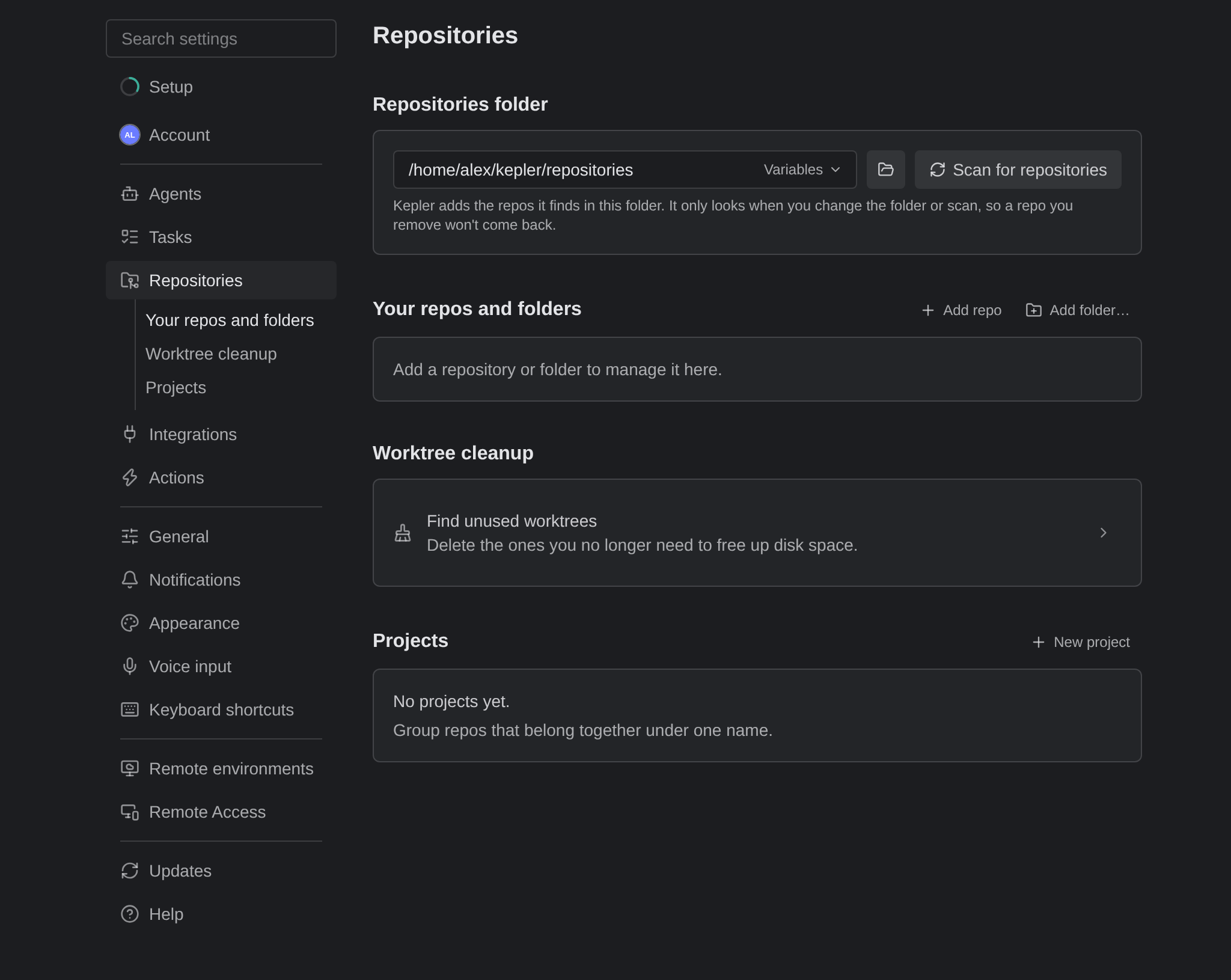
The Settings pages
The Settings sidebar, down the left of Settings, starts with a Search settings field and Setup, a progress ring that reopens the first-run checklist. Below them, the sidebar lists the following pages, in this order:
| Page | What it covers |
|---|---|
| Account | Who you’re signed in as, your organization, what your plan unlocks, and GitKraken AI credits |
| Agents | Your agents, custom agents, MCP servers, agent tools, approvals, and usage limits |
| Tasks | How new tasks start, including the default agent and the agent new sessions start with, and how a task’s page looks |
| Repositories | The repositories folder, your repos and folders, worktrees and branches, and Projects |
| Integrations | Issue tracker and Git host connections, and sessions started in your own terminal |
| Actions | Preferred Actions per item kind, and the Action list |
| General | Language, windows, the default editor, and keeping agents running |
| Notifications | Which agent events notify you, on the desktop and in Kepler |
| Appearance | Light or dark appearance and themes, the Dashboard’s views, the chat, the terminal font, the code font, and diff layout |
| Voice input | On-device speech-to-text, its transcription engine, and learned words |
| Keyboard shortcuts | Kepler’s keyboard shortcuts |
| Remote environments | The machines your agents can run on, over SSH or WSL |
| Remote Access | Opening this Kepler from another device |
| Updates | The installed version and app updates |
| Help | The docs, release notes, onboarding guides, and Kepler’s logs |
Account is the only page about you rather than the app. The account menu opens it.
Find a setting
To find a setting by name, type in Search settings. When you open Settings, the field already has focus, so you can start typing at once. Search matches section titles, control labels, help text, and common synonyms, so a word like theme or notifications finds the right section. With no match, the results read No settings match “{query}”.
When a search result or an Ask Kepler link takes you to a setting, Kepler highlights its control and moves focus to it. If the setting is not shown, Kepler says why, such as This agent shows that setting only when it is turned on and supports it. or This setting appears once what it depends on is set up.
Ask Kepler can also search Kepler’s settings, and change one when you ask. It names the setting as a link you can click. Some changes need your approval first. Settings that hold secrets, such as your account or integrations, can only be linked. See Finding and changing settings.
To jump to a section, use the section links the Settings sidebar shows under the page you have open. Under Agents, the sidebar also lists each supported agent below Your agents.
Sub-pages and unsaved changes
When you open an item to edit it, such as a repository, a project, a custom agent, an MCP server, or an Action, it opens as a sub-page inside its Settings page, with a breadcrumb back to the page.
If you leave a sub-page with unsaved changes, Kepler asks before it discards anything. It asks however you leave: Escape, Back, the form’s own Cancel, a page in the Settings sidebar, or a link elsewhere in the app:
- A form that can save asks Save your changes?, with Cancel, Don’t save, and Save.
- A form that has nothing to save yet, such as a step-by-step add flow, asks Discard your changes?, with Keep editing and Discard.
A form with a Save button keeps it in a footer with Cancel. While you have unsaved edits, the footer reads Unsaved changes. If a save fails, the footer shows why and keeps your edits on the form. When a save succeeds, Kepler confirms with Saved {name}.
Most fields outside those forms save themselves. Each one shows its own status beside it: Saving, Saved, or Unable to save with the reason. A switch shows only Saving and a failure. If a save fails after you’ve left the page, Kepler tells you which setting it was: Unable to save {label}.
Back, or your mouse’s back button, steps back through each page, sub-page, and search result you opened in Settings. To leave Settings in one click from any page or sub-page, use the back arrow in the Settings header, the gear icon, or ⌘ , (Ctrl ,). Each one returns you to what you were doing before you opened Settings.
Settings in a remote window
In a window connected to a remote environment, Settings shows that machine’s settings, and its header names the machine. Under its title, each page says where its settings are saved:
- Saved on {machine}: on the remote machine.
- Saved on this machine: on your own computer. Its tooltip reads Applies to every Kepler window on this machine, whichever machine it’s connected to.
A section that saves somewhere other than its page has its own badge. To change this machine’s own settings from a remote window, click Open this machine’s settings in the header. The same page opens in a local window.
Some settings are kept on your own computer, such as the language, the default editor, the themes, the terminal and code fonts, and the diff layout. When Ask Kepler in a remote window changes one of these, the window applies the change on your computer, the same as its Settings page would. A notification names the change, with Undo. See Finding and changing settings.
