
Last updated: September 2026
Commit Graph
The Commit Graph is the starting point for working in GitLens. It brings repository history, branches, worktrees, Working Changes, pull requests, and supported agent activity into one connected workbench, so you can understand what’s happening and move changes toward merge without rebuilding context across tools.
Built on a high-performance rendering engine, the graph stays responsive on large repositories, showing commits, branches, and collaborators in one place.
The Commit Graph is included in GitLens Community and available to everyone on public and local repositories — no account required. A GitLens Pro subscription or trial is required only for private repositories.
Open the Commit Graph
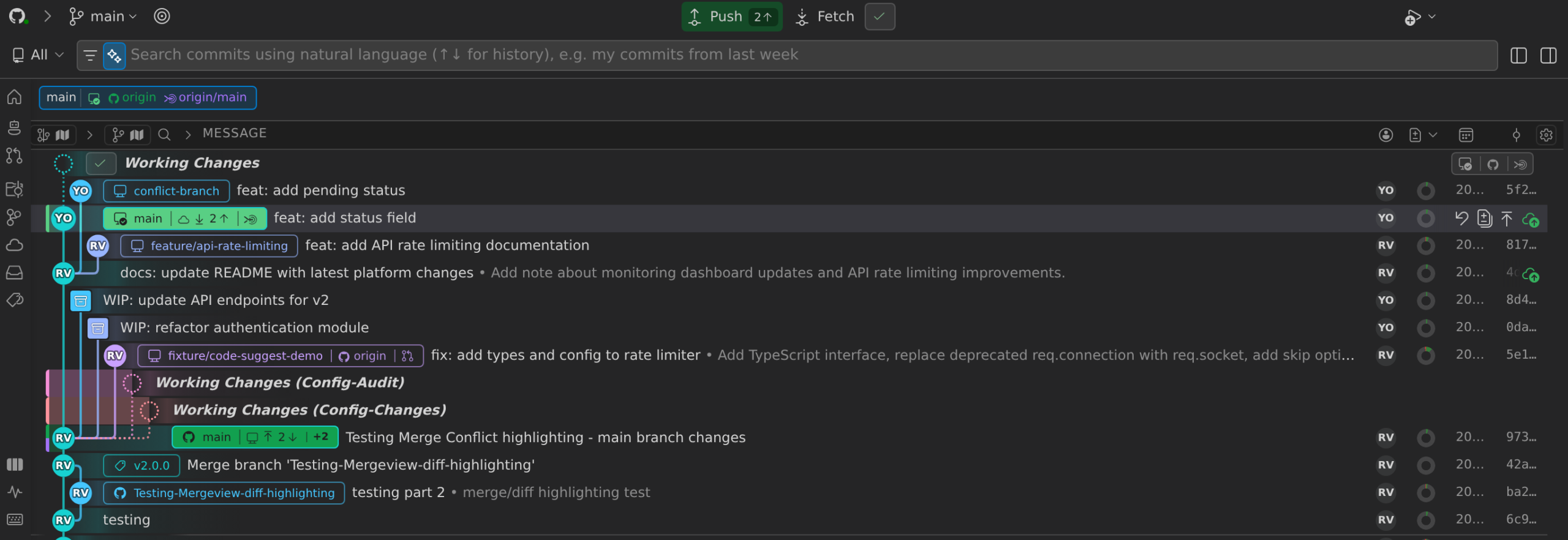
The Commit Graph is the leading view in the GitLens sidebar. Click the GitLens icon in the Activity Bar to open it directly.
You can also open it from the Command Palette:
- Open the Command Palette:
- macOS: Cmd + Shift + P
- Windows/Linux: Ctrl + Shift + P
- Type Show Commit Graph and select it.
The Commit Graph opens in a new tab, where you can scroll through history and resize column widths.
Repository Information
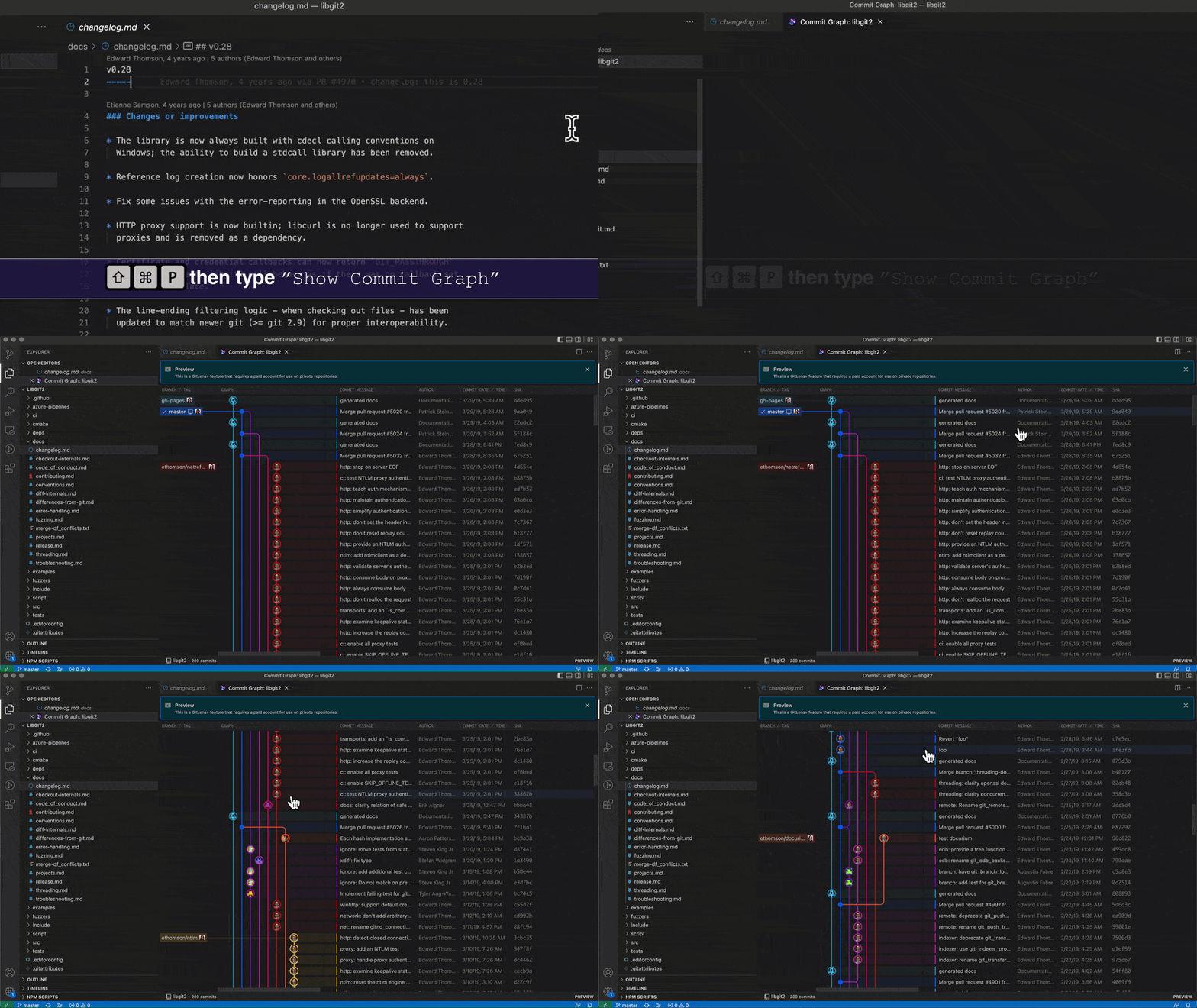
At the top of the Commit Graph, you’ll see:
- Repository — the hosting provider’s icon (hover it for the repository name; the editor tab is titled Commit Graph: <repository>)
- Checked-out branch (click to switch branches)
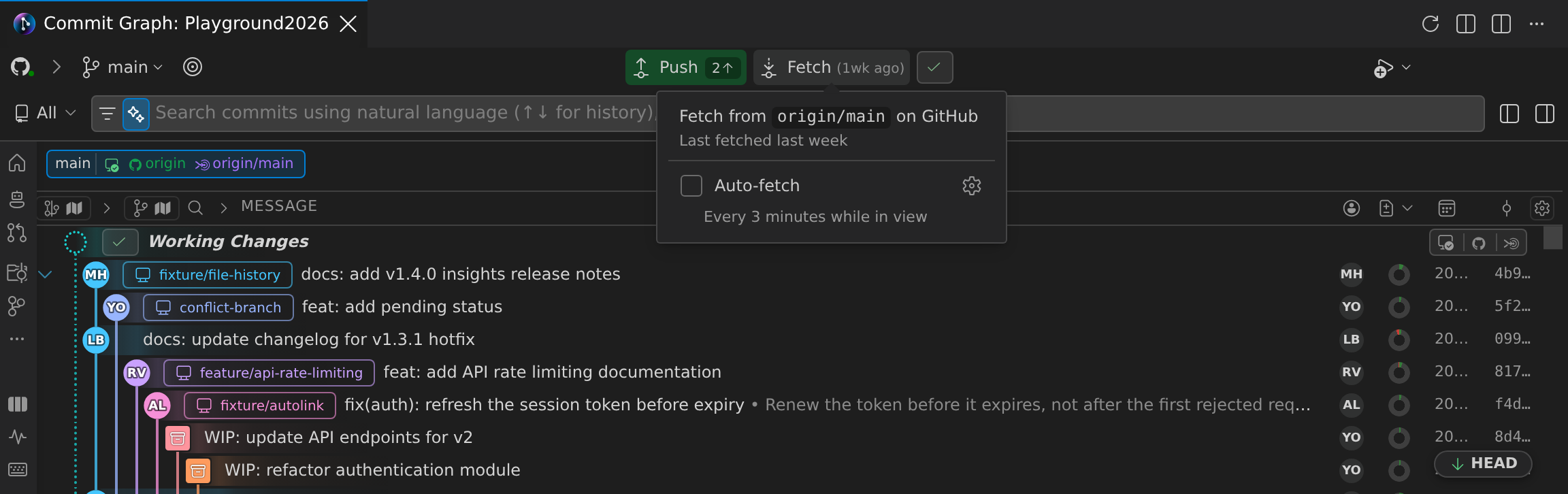
- Last fetched time — shown beside Fetch and in its hover (click Fetch to update)
You can enable automatic fetching with the gitlens.graph.autoFetch.enabled setting. When enabled, GitLens periodically runs git fetch for repositories visible in the Commit Graph, keeping your view up to date without manual refreshes.
Availability
- The Commit Graph is included in GitLens Community and available to all users on public and local repositories, with no account required.
- A GitLens Pro subscription or trial is required only for use with private repositories.
Feedback
We’d love your input! Share ideas and feedback in the GitLens Commit Graph discussion on GitHub.
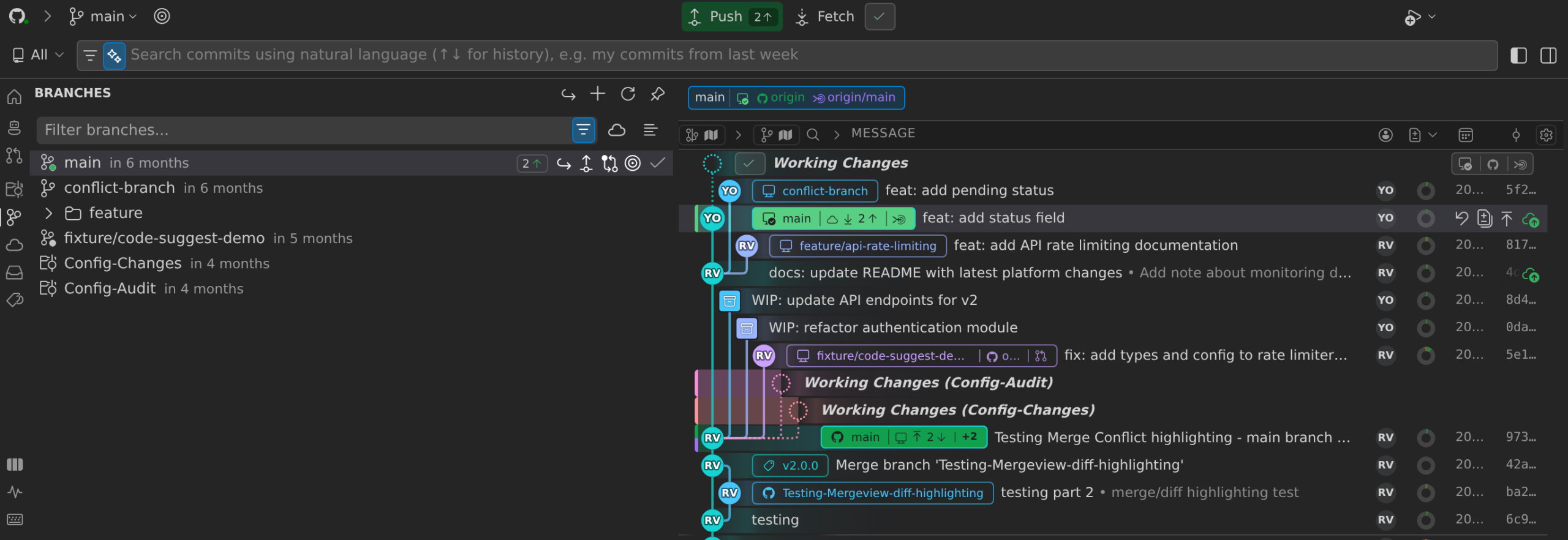
Graph Sidebar
The Commit Graph includes an expandable sidebar panel that provides quick access to your repository refs. The sidebar lists branches, remotes, stashes, tags, and worktrees in both list and tree views. Click the sidebar toggle to expand or collapse it, or use the gitlens.graph.sidebar.pinned setting to keep it pinned open.
The sidebar contains several panels:
- Overview: Displays branch cards with Working Changes stats and upstream tracking information at a glance.
- Focus Branch: Scopes the graph to a single branch, filtering out unrelated history.
- Agent Branches: Filters branches to show only those associated with AI agent sessions.
- Agent Sessions: A Kanban-style panel for monitoring and managing active agent sessions. Branches with running agent sessions display status pills directly in the graph, so you can track agent activity at a glance.
Detail Sheets
Clicking on a branch, pull request, or comparison in the sidebar opens a slide-out detail sheet with rich information:
- Branch sheet: Shows branch details, tracking status, and recent commits.
- Pull request sheet: Displays PR description, reviewers, status checks, and stacked PR information when applicable.
- Compare sheet: Shows file-level comparison between branches or commits, with a pinned mode to keep the comparison visible while navigating.
- Rebase summary sheet: Appears after a rebase operation, summarizing what changed.
- WIP conflict sheet: Surfaces during conflict resolution to help resolve working changes.
Worktree Overview
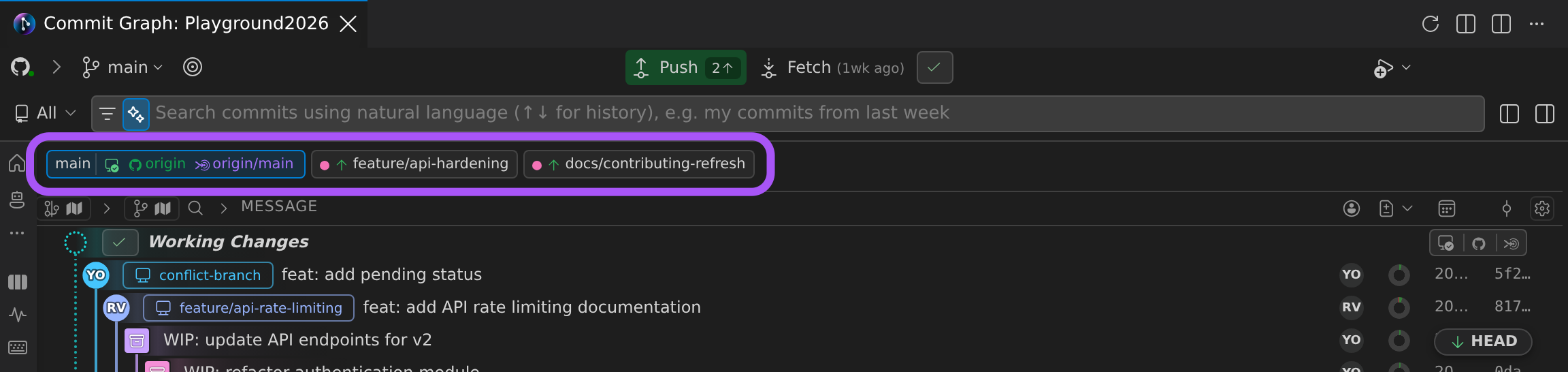
See branch state, uncommitted changes, and unpushed commits across your worktrees. Each worktree has a pill above the graph; select it to jump to that worktree’s Working Changes row.
Each pill shows the branch name, a dirty indicator when there are uncommitted changes, an unpushed arrow with an ahead count when commits have not been pushed, and changed file counts on hover. The gitlens.graph.overviewBar.visibility setting controls when the overview bar is shown.
Ref Find
The ref-finder widget provides a typeahead search for quickly jumping to any branch, tag, or Working Changes row in the graph. The gitlens.graph.refFindAutoHide setting controls whether the widget auto-hides after selecting a result.
Details Panel
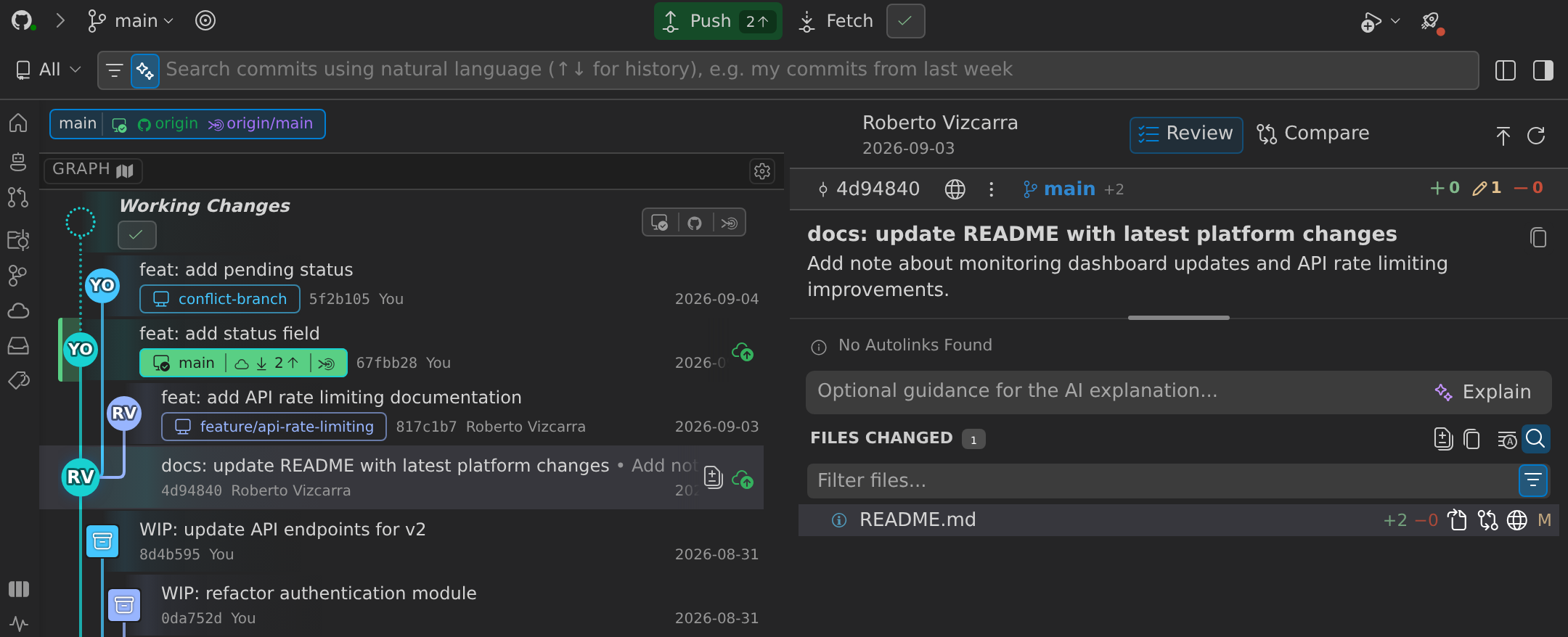
The Commit Graph includes an embedded details panel that shows information about the selected commit or your current working changes. The details panel replaces the former standalone Graph Details view and is integrated directly within the graph.
When you select a commit, the details panel displays the commit message, author, changed files, and diff. When viewing working changes, it shows your uncommitted modifications. The panel can be positioned to the right or bottom of the graph using the gitlens.graph.details.location setting. An auto option is also available, which switches between right and bottom placement based on the graph width. The gitlens.graph.details.maximizeOnMode setting automatically maximizes the details panel when entering compose, review, or resolve modes.
The details panel supports multiple modes:
- Compare mode: Opens comparisons directly within the graph, showing Ahead, Behind, and All views between branches or commits. This replaces navigating to the standalone Search and Compare view for graph comparisons.
- Compose mode: Provides an integrated commit composition experience, letting you craft commit messages and select files to commit without leaving the graph. You can also access Compose from the graph context menu.
- Recompose: Helps clean up existing branch history by reorganizing selected commits into a clearer, more intentional sequence. GitKraken AI can propose the new structure and commit messages for you to review and refine before applying the result. Available from the graph context menu, Recompose can operate on an entire branch, from a specific commit, or on selected commits.
- Review mode: Helps you inspect commits or Working Changes before they move forward. GitKraken AI can surface potential bugs, security issues, and other areas that deserve attention — tagged by severity — while you decide what needs to change. You can configure separate AI models for compose and review using per-feature model scoping, and customize review behavior with the
gitlens.ai.reviewChanges.customInstructionssetting.
Multi-file Selection
File lists in the details panel (Working Changes, commit details, compare, compose, and review panels) support multi-file selection using Shift-click and Ctrl/Cmd-click. With multiple files selected, you can perform batch operations including stage, unstage, discard changes, and stash. Individual files also show inline action buttons for quick single-file operations.
Co-authors
When composing a commit in the graph, use the Add Co-authors button to append Co-authored-by trailers to your commit message.
Navigation and Keyboard Shortcuts
The details panel includes back and forward navigation buttons for browsing through previously viewed commits. A keyboard shortcuts reference dialog is available listing all graph shortcuts organized by category.
Configuration and Layout
You can configure the Commit Graph to control what information is shown and how it is displayed.
Graph Style
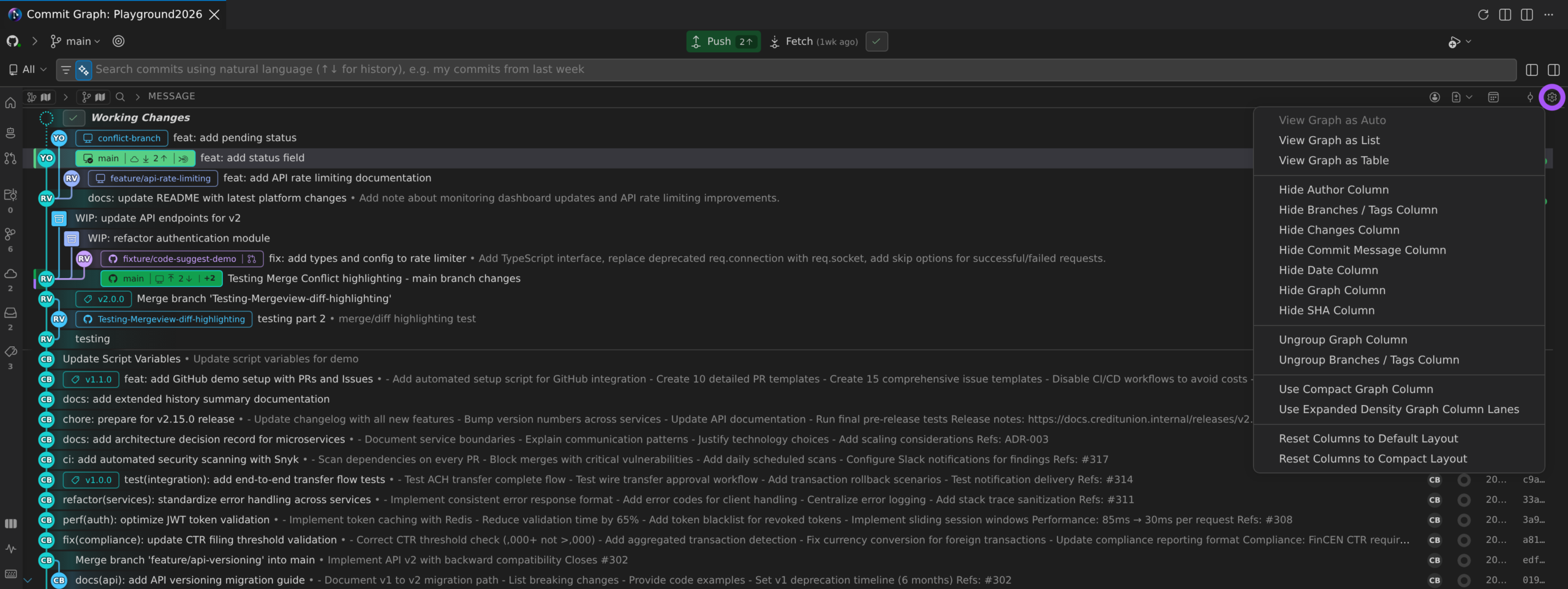
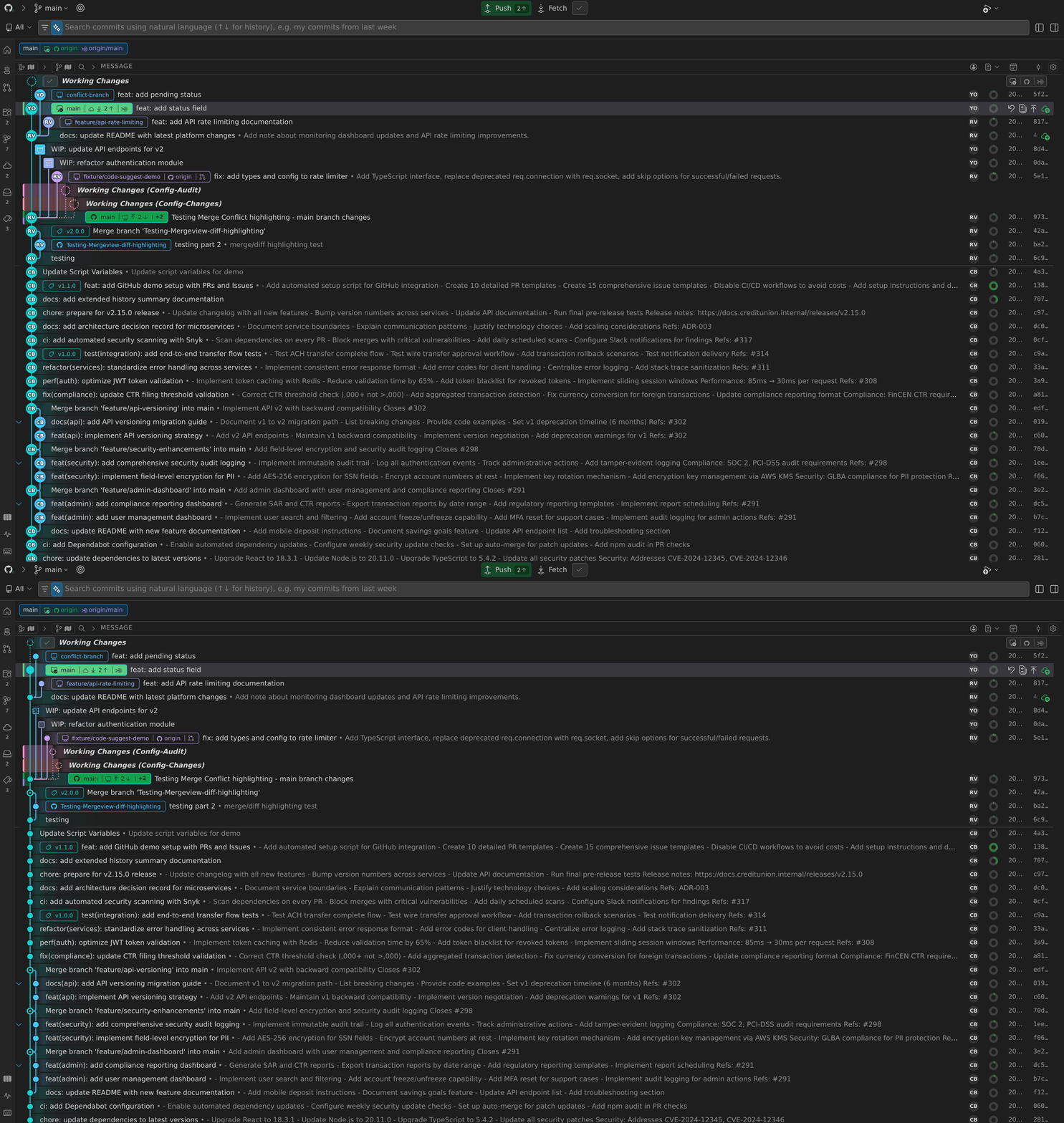
The gitlens.graph.style setting controls the overall row layout of the graph. Options include table (columnar layout with visible borders), list (compact list layout), and auto (switches based on available width).
Columns
- Drag and drop column headers to rearrange columns.
- Right-click a column header to toggle columns on or off.
- The Changes column visualizes added and deleted lines per commit. The
gitlens.graph.changesColumn.modesetting controls the display style:numbers(numeric counts),squares(colored blocks),bar(horizontal bar), orbipolar(split additions/deletions bar). - Column grouping is enabled by default, combining the Graph and Branches/Tags columns into a compact layout. Lanes can be folded to collapse inactive branches and reduce visual clutter.
Lane Colors and Row Markers
The graph uses perceptually-uniform lane colors that are tuned for both dark and high-contrast themes. Row markers indicate important commits at a glance:
- Green marker: HEAD commit
- Blue marker: upstream tracking commit
- Colored reference pills: merge target and other branch roles
Layout Options
- Panel Layout: Displays the Commit Graph in the bottom panel (near the Terminal) with a details view alongside it.
- Editor Layout: Opens the Commit Graph in an editor tab.
- You can open the Commit Graph in both layouts simultaneously.
To switch layouts:
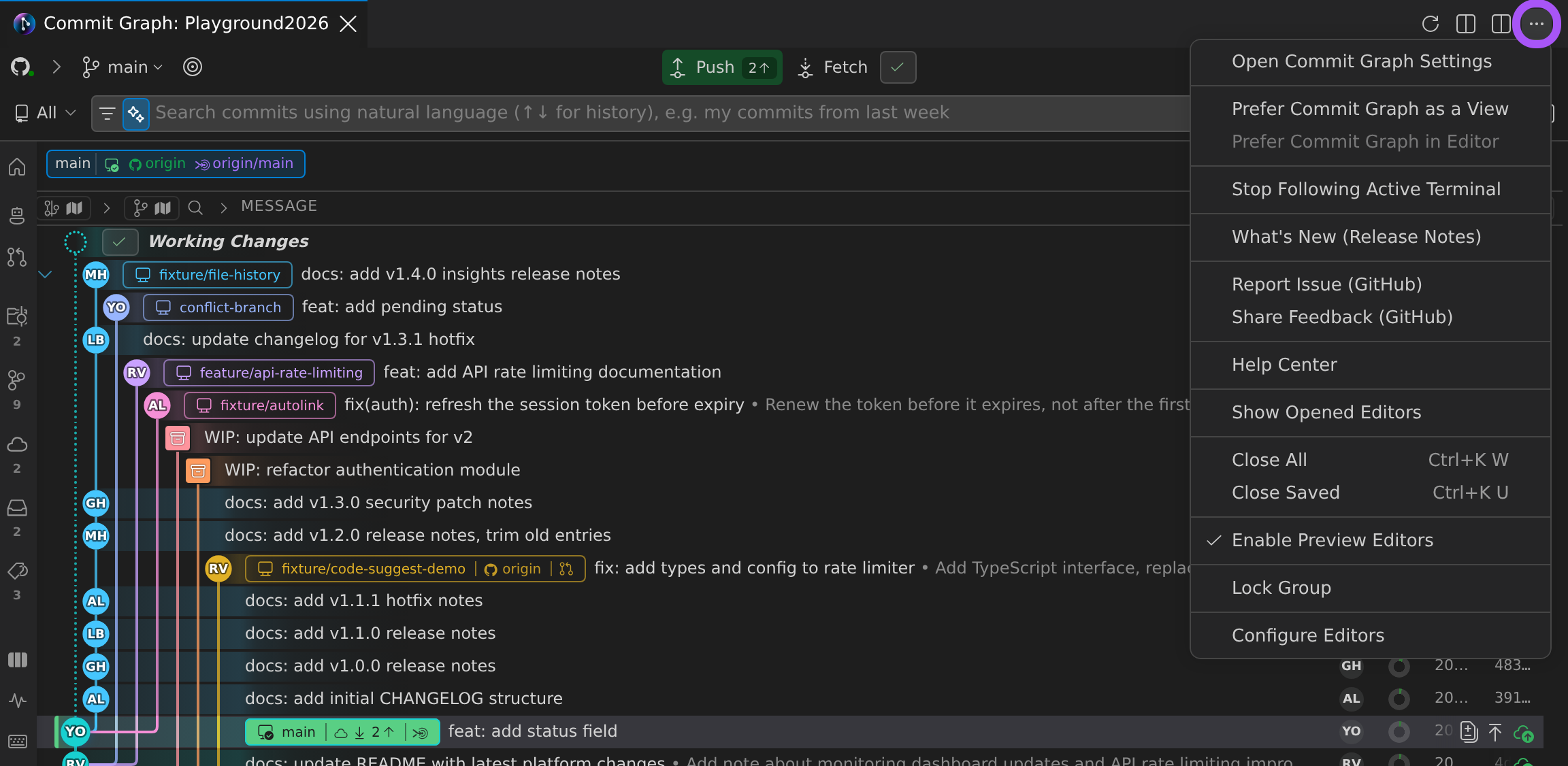
- Open the More Actions… (⋯) menu in the top-right corner of the Commit Graph editor tab (or of the Commit Graph view in the side bar).
- Choose Prefer Commit Graph in Editor or Prefer Commit Graph as a View.
The gitlens.graph.editorOpeningBehavior setting controls how files open from the graph — either in the active editor group or automatically based on context. You can also open the Commit Graph in a separate VS Code window using the GitLens: Open Commit Graph in New Window command.
Compact Graph Layout
- Select the gear in the Graph column header and choose Use Compact Graph Column to reduce visual complexity.
- When the Author column is resized to minimum width, it shows avatars instead of text.
- Columns that become too narrow automatically switch to icons to preserve information.
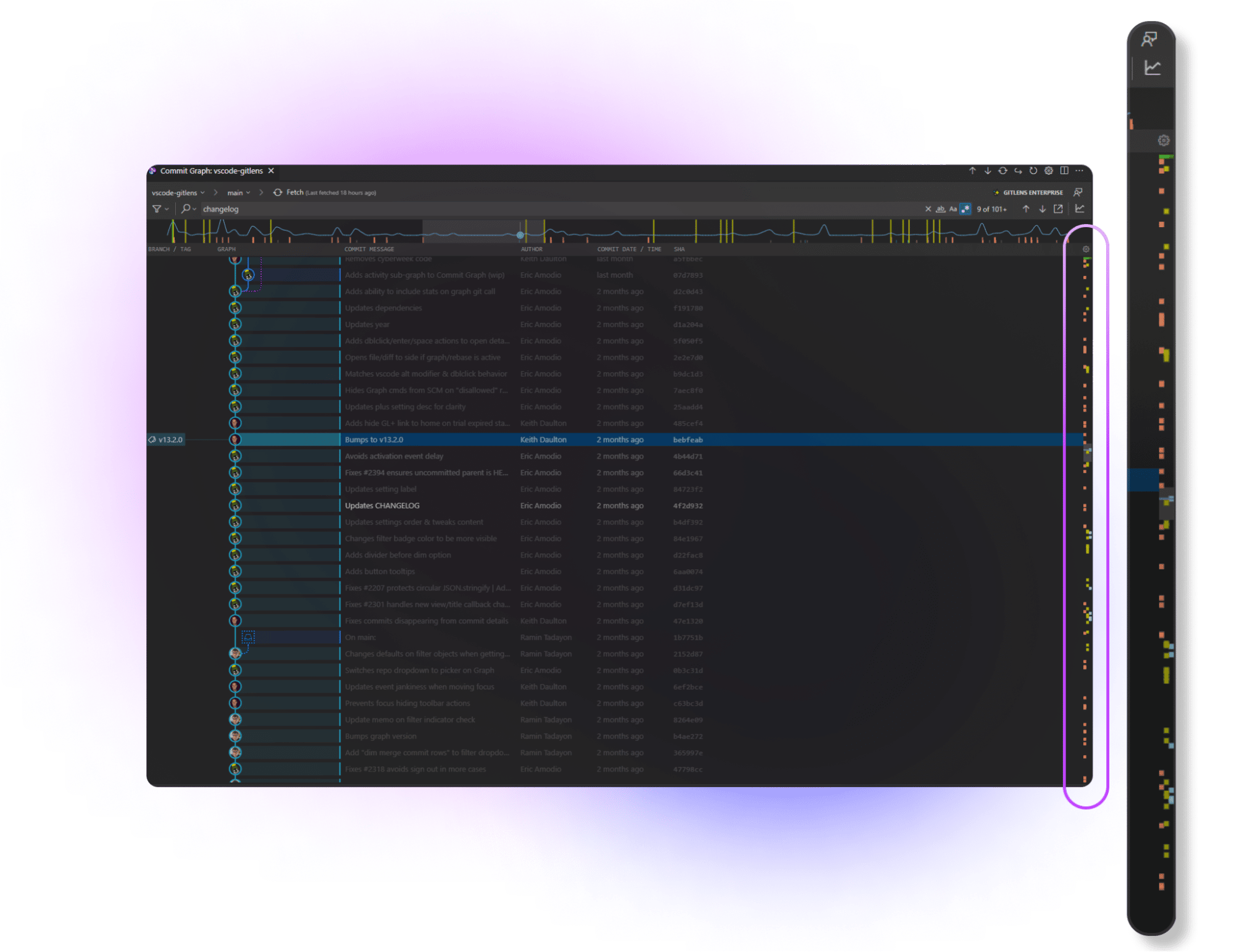
Scroll Markers
Scroll markers highlight key points in the Commit Graph, including:
- Checked-out branches
- Selected rows
- Search results
- Working Changes rows
Use scroll markers to quickly jump to important points such as HEAD or refs. You can toggle this feature in the Commit Graph settings.
The gitlens.graph.showWorktreeWipStats setting displays file add/change/delete statistics on worktree Working Changes rows. The gitlens.graph.minimap.reversed setting reverses the minimap direction.
Settings
Adjust Commit Graph settings from the Command Palette:
- macOS: Cmd + Shift + P
- Windows/Linux: Ctrl + Shift + P
Search for GitLens: Open Settings.

Note: The gitlens.graph.showDetailsView setting and the standalone Graph Details view have been removed. The details panel is now always embedded in the Commit Graph. The gitlens.proxy setting has also been removed.
Rich Commit Search
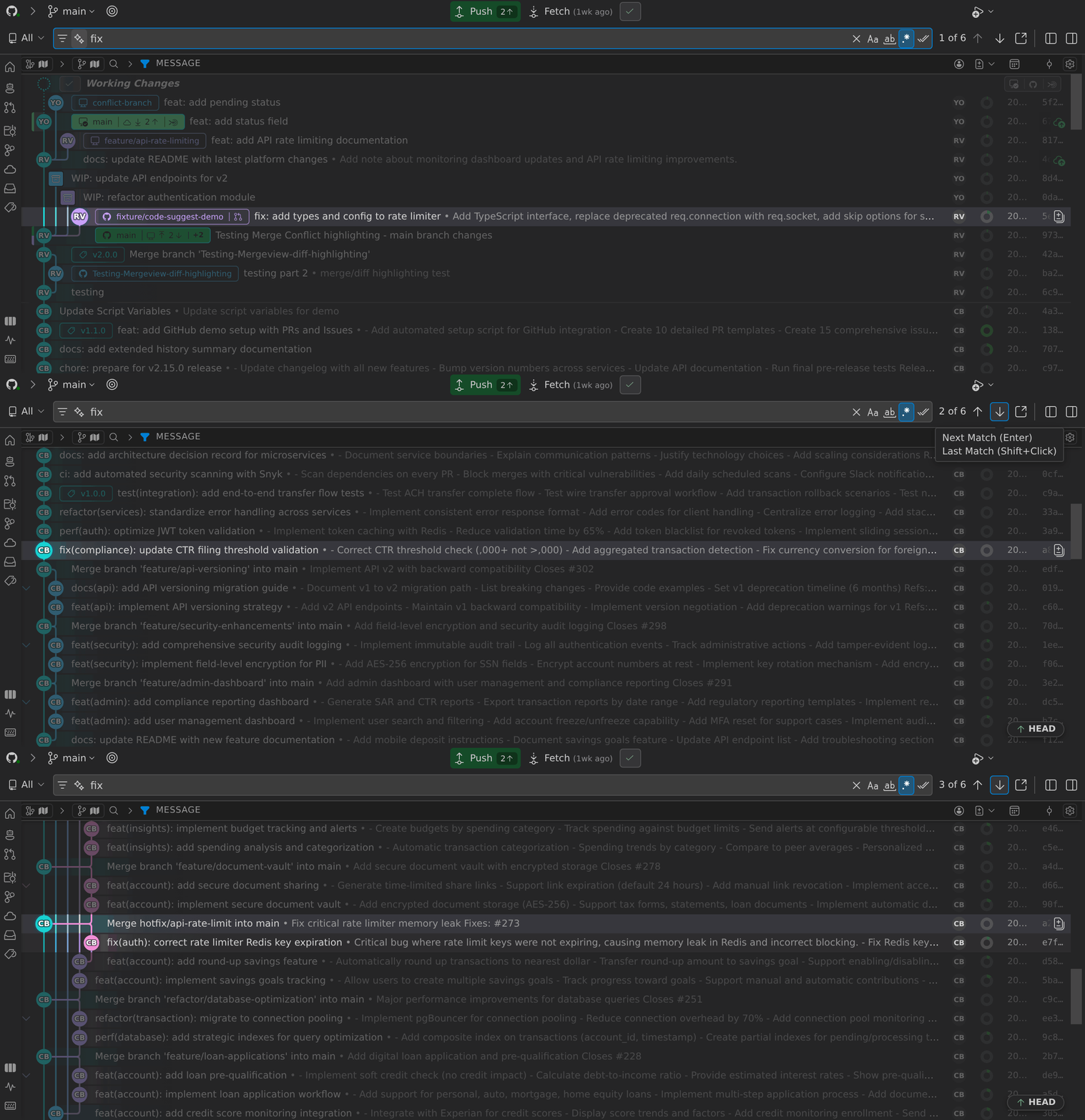
The Commit Graph supports rich search across your entire repository. You can search by commit, message, author, file, or even specific code changes.
How to Search
- Type search criteria in the search bar.
- Use the arrow icons or keyboard shortcuts to navigate results:
- Next result: F3 (Windows/Linux) or Cmd + G (macOS)
- Previous result: Shift + F3 (Windows/Linux) or Shift + Cmd + G (macOS)
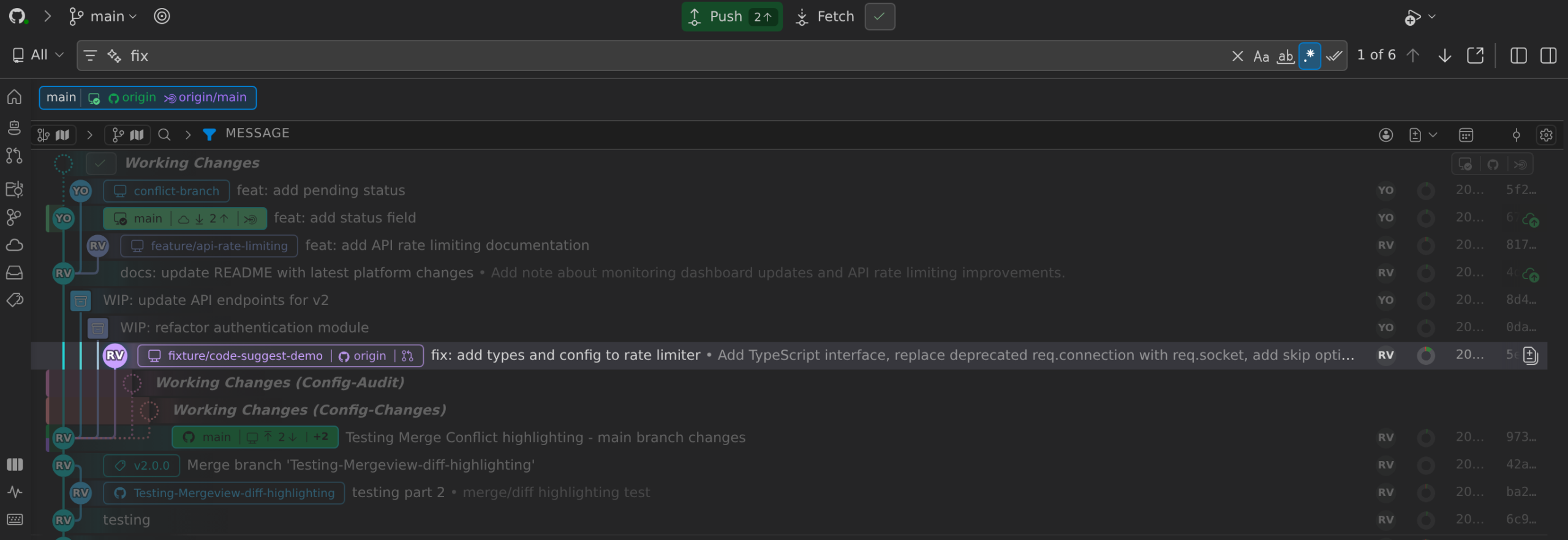
You can also:
- Jump to the first or last result by holding Shift while clicking the arrow icons.
Search Filters
Use these filters in the search bar:
Commit:Message:Author:File:Change:@me
You can also use natural language search to describe what you are looking for in plain English. GitLens uses AI to convert your query into the appropriate structured search operators. Time-based operators such as after: and before: are available for filtering commits by date.
Additional options:
- Match all
- Match case
- Use regular expressions

Full Context Menu Support
You can right-click a branch, commit, tag, author, or column header (Author, Commit Date/Time, or SHA) to access context menu actions.
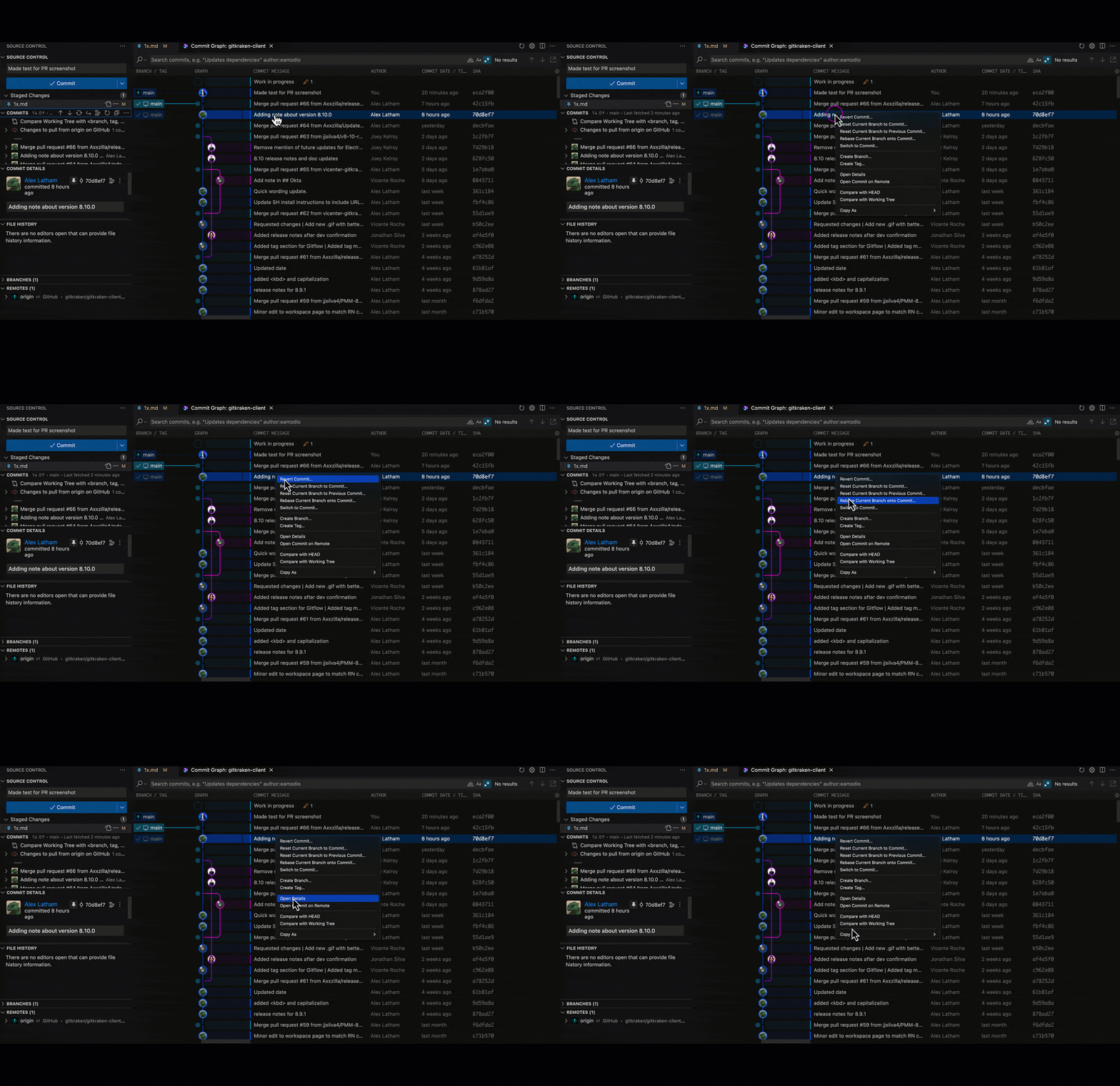
Helpful context menu actions include:
- Compare with Common Base: Review changes that would occur if the selected branch were merged by comparing its common ancestor (merge base) with the current branch.
- Open All Changes with Common Base: Review all merge changes in the multi-diff editor.
- Squash Commits: Squash selected commits into one without opening the rebase editor.
- Drop Commits: Remove selected commits from history.
- Reword Commit: Change a commit message in place.
- Modify Commit: Amend a commit’s contents.
- Undo Commit: Appears as an inline action on HEAD commit rows, soft-resetting the commit to return changes to the working tree.
- Push to Commit: Appears as an inline cloud-upload icon on unpushed commit rows, pushing all commits up to and including the selected one.
AI Auto Rebase PRO
AI Auto Rebase carries a rebase forward through the conflicts GitKraken AI can resolve confidently. When conflicts arise, GitLens analyzes each one and resolves it only when its confidence meets the threshold you configure; anything below that threshold pauses the rebase so you can resolve it yourself.
- Run GitLens: AI Auto Rebase from the Command Palette or the graph context menu.
- The
gitlens.ai.autoRebase.confidenceThresholdsetting (0 to 1) controls how confident the AI must be before automatically applying a resolution. - Use
gitlens.ai.resolveConflicts.customInstructionsto provide custom instructions that guide how the AI resolves conflicts. - If the result is unsatisfactory, use GitLens: Undo AI Auto Rebase to revert to the pre-rebase state.
During the rebase, a progress animation appears in the graph to indicate the operation is in progress. A rebase summary sheet opens in the sidebar when the operation completes.
Pull Request Information
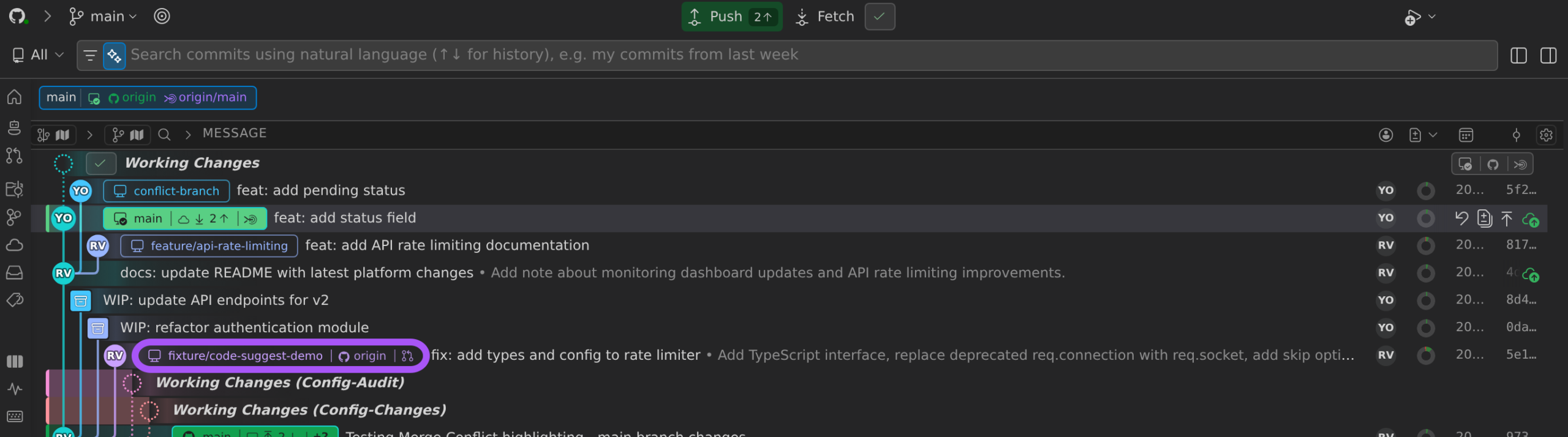
For GitHub and GitLab, the Commit Graph displays a Pull Request icon for any branch with an open pull request. To enable this, connect a rich integration.
For GitHub repositories, the graph also recognizes stacked pull requests. When a branch is part of a PR stack, the PR sheet in the sidebar shows the stack ID, the total number of PRs in the stack, and the current PR’s position. Merge operations are stack-aware, distinguishing between merging a single layer and merging the entire stack.
Hiding Remotes, Branches, or Tags
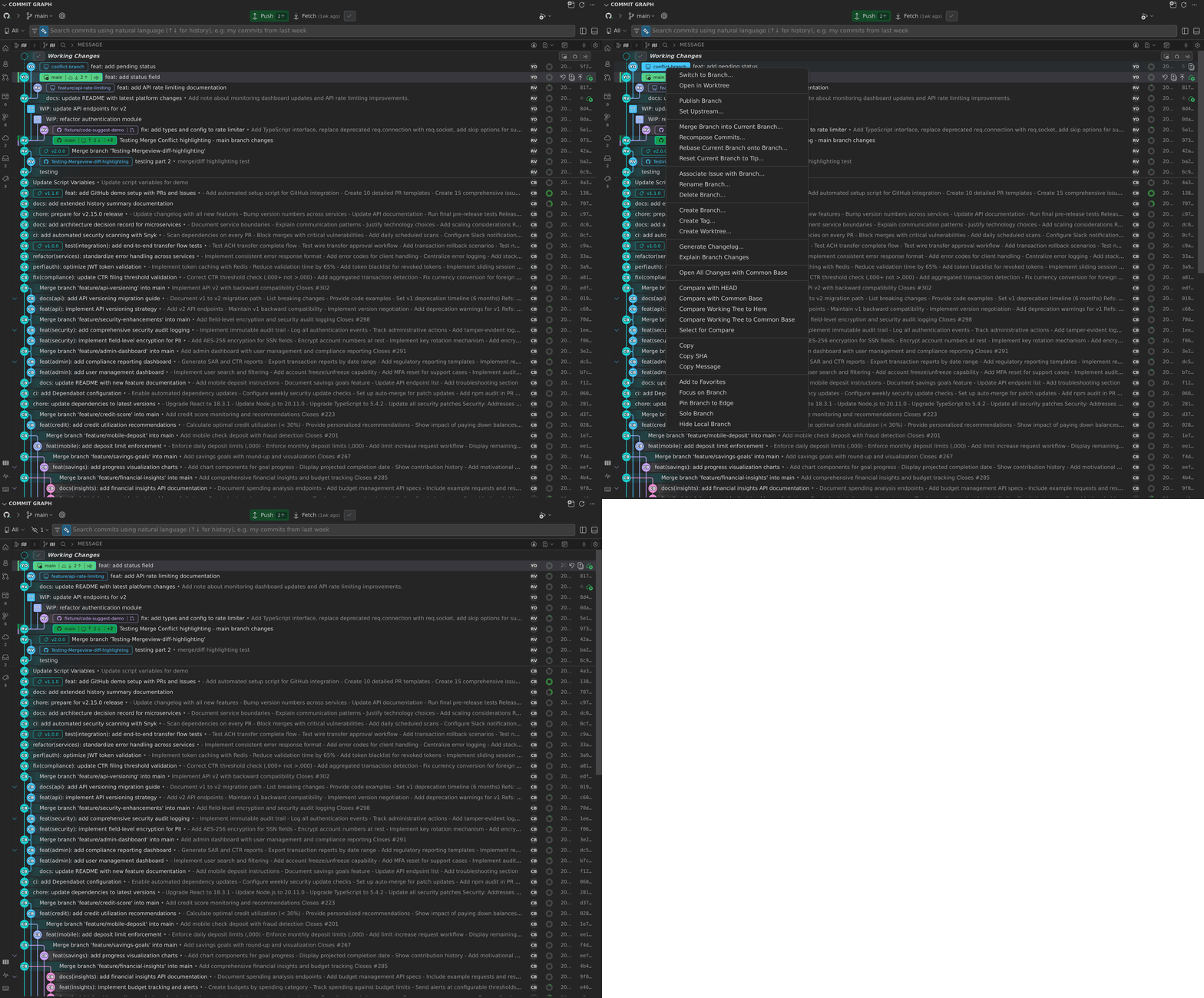
The Commit Graph shows refs to your remotes, branches, and tags.
- Right-click a branch or tag pill and select Hide Local Branch, Hide Remote Branch, or Hide Tag. To hide whole classes of refs, use the scope/filter popover next to the search box.
- To show them again, hover over the Hide option at the top of the Commit Graph and select the desired refs.
Filter Options
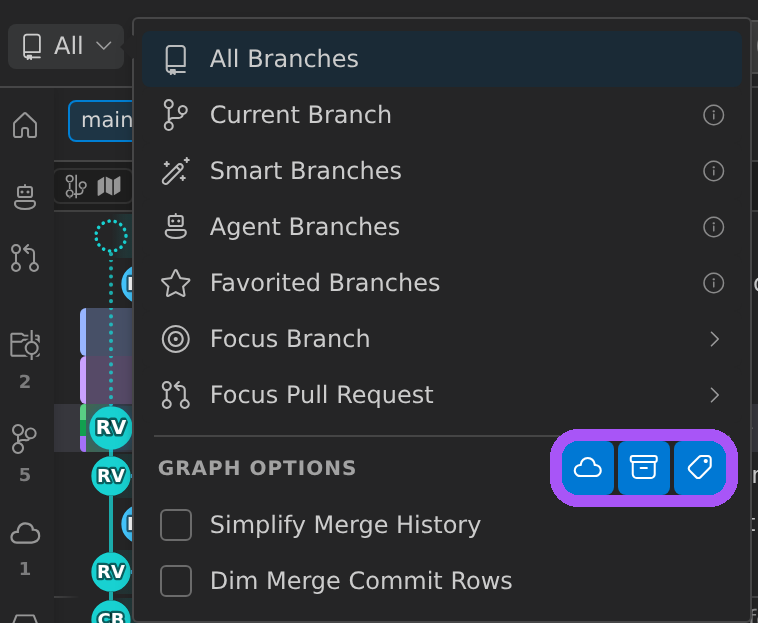
Access filters from the dropdown menu to choose:
- All Branches: Displays all branches.
- Current Branch: Displays the current branch and its upstream remote.
- Smart Branches: Displays only the relevant branches — the current branch, its upstream, and its base or target branch.
Additional options let you hide or show:
- Remote-only branches
- Stashes
- Tags
You can also dim merge commit rows for clarity.
Minimap
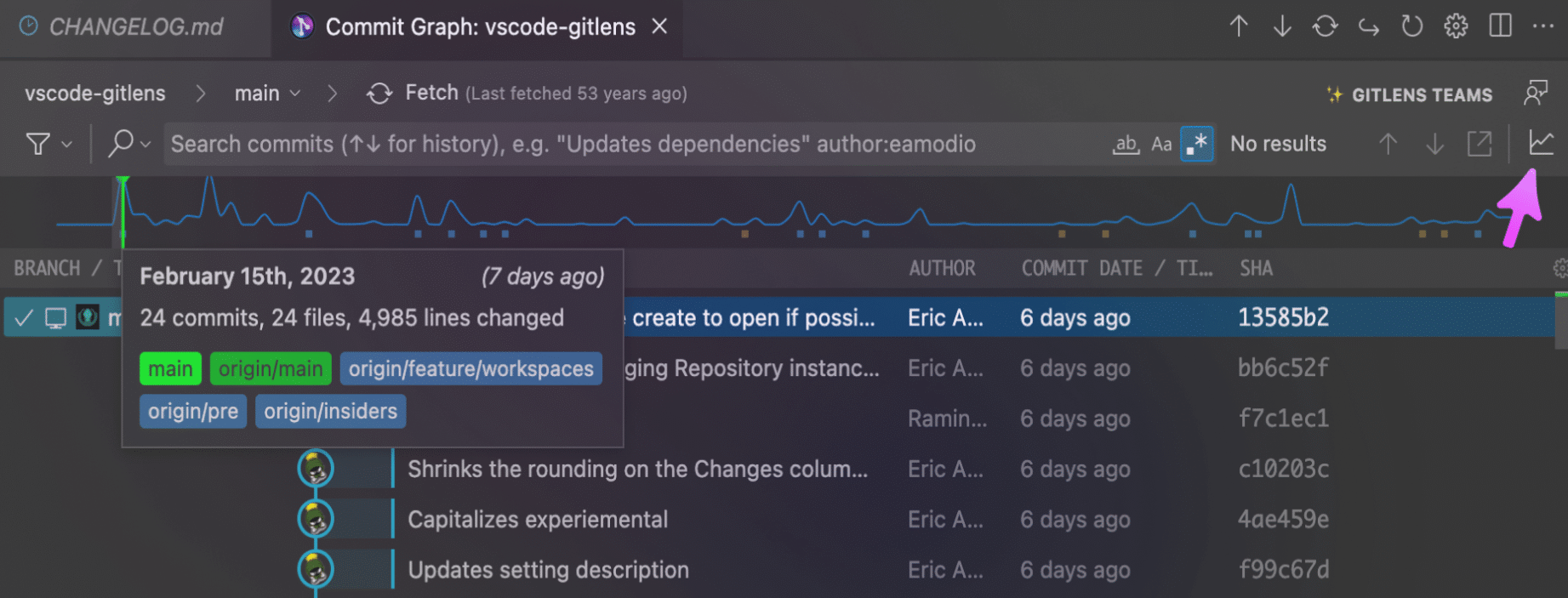
The Minimap provides a high-level overview of repository activity. It shows commits, branches, HEAD/upstream, and more, letting you quickly jump to points of interest.
- Select the Toggle Minimap icon in the Commit Graph toolbar to enable or disable it.
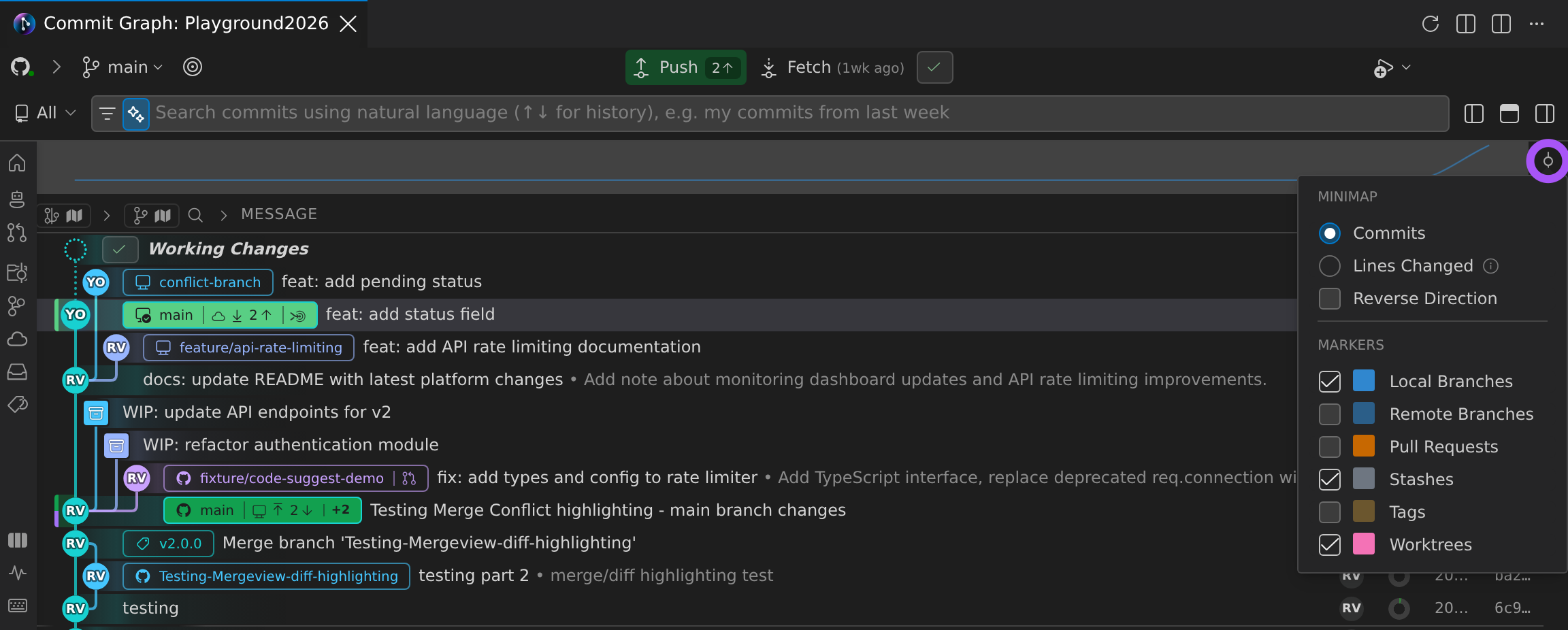
- Use the gear at the right end of the minimap to switch between Commits or Lines Changed views.
- Toggle markers on or off from the same menu.
- The
gitlens.graph.minimap.defaultVisibilitysetting controls when the minimap appears:hidden,onSearch(default, shows during search), oralways.
Minimap Overview
- Reads left to right: Left = most recent, right = older.
- Highlighted region: Area currently in view.
- Green lines: HEAD.
- Yellow lines: Search results.
- Upper row markers:
- Blue blocks = remote branches
- Brown blocks = tags
- Lower row markers:
- Pink blocks = stashes
- Blue blocks = local branches
Note: We’d love your feedback on the Minimap. Please share it on the GitHub Discussion board.
