

Last updated: September 2026
Visual History
The GitLens Visual History (formerly Visual File History) shows how your code has evolved, including when changes were made, the size of those changes, and who made them. Visual History supports multiple scopes: view the history of a single file, a folder, an entire repository, or a specific branch.
Open Visual History
You can open the Visual History view in two ways:
- From the GitLens Inspect sidebar.
- Open the sidebar, then select the Visual History view.
- From the Command Palette:
- macOS: Cmd + Shift + P
- Windows/Linux: Ctrl + Shift + P
- Search for GitLens: Show Visual History View.
Scope Options
- File or Folder: Visualize the history of a specific file or folder
- Repository: See the full history of your entire repository
- Branch: Slice history by branch to focus on a specific line of work
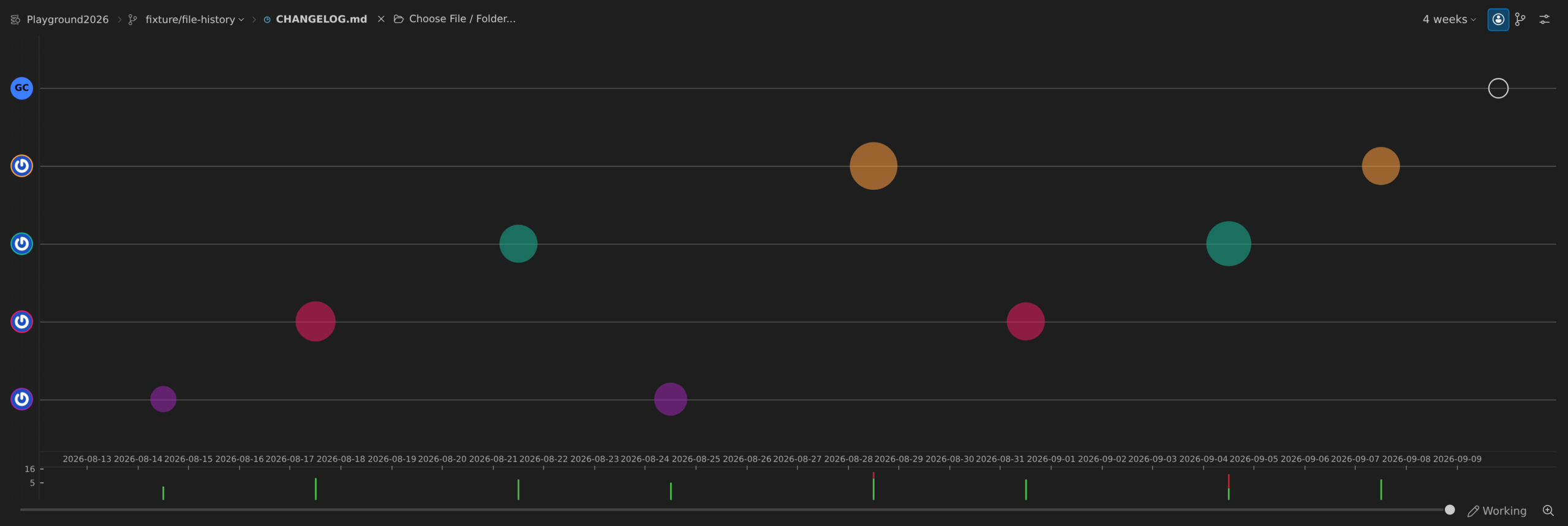
Understand the Graph
- Authors (y-axis, left): Each author is shown in a swimlane, mapping their commits over time.
- Commits: Plotted as color-coded bubbles by author. Bubble size represents the relative magnitude of changes.
- Changes (y-axis, right): Each commit’s additions and deletions are shown as stacked vertical bars.
- Green = added lines
- Red = deleted lines
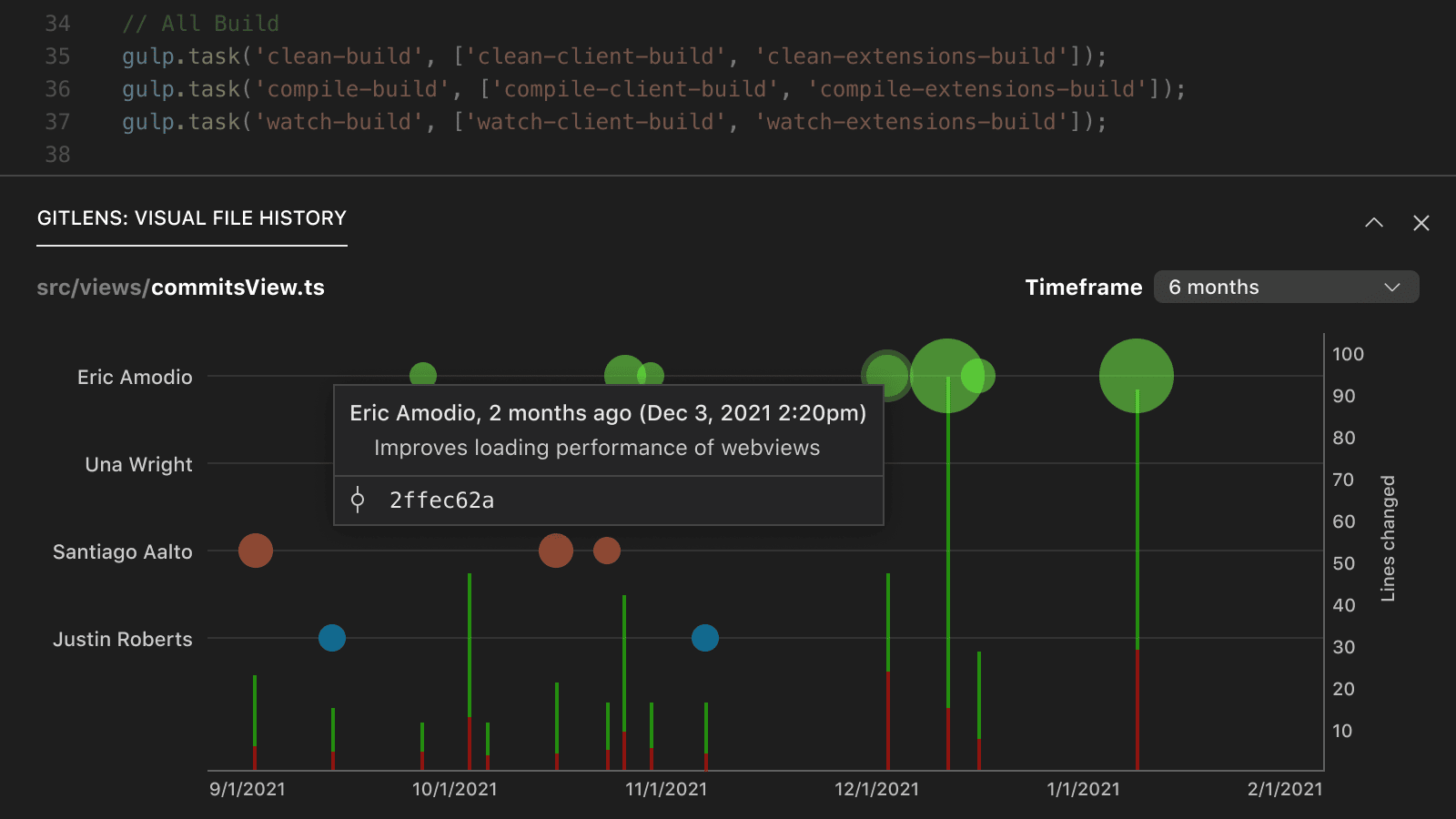
Gain Insights on Hover
Hover over any commit bubble or bar to see details about:
- Author
- Commit message
- Number of additions and deletions
Availability
The Community plan supports Public and Local repositories only. A paid GitLens subscription is required for private repositories.
