
Last updated: September 2026
GitLens supports a wide range of remote providers to enhance your Git workflow inside Visual Studio Code. Supported platforms include:
- GitHub (including GitHub Enterprise)
- GitLab
- Gitea
- Gerrit
- Bitbucket (Cloud and Server)
- Azure DevOps (Cloud and Server)
- Jira Cloud and Jira Data Center (issue tracking)
- Linear (issue tracking)
- Trello (issue tracking)
You can also define custom remote providers or providers with custom domains.
Integration Capabilities
Basic integrations include:
- Auto-linking for issues and pull requests
Enhanced integrations (e.g., GitHub, GitLab) offer:
- Launchpad support to manage pull requests and workflows
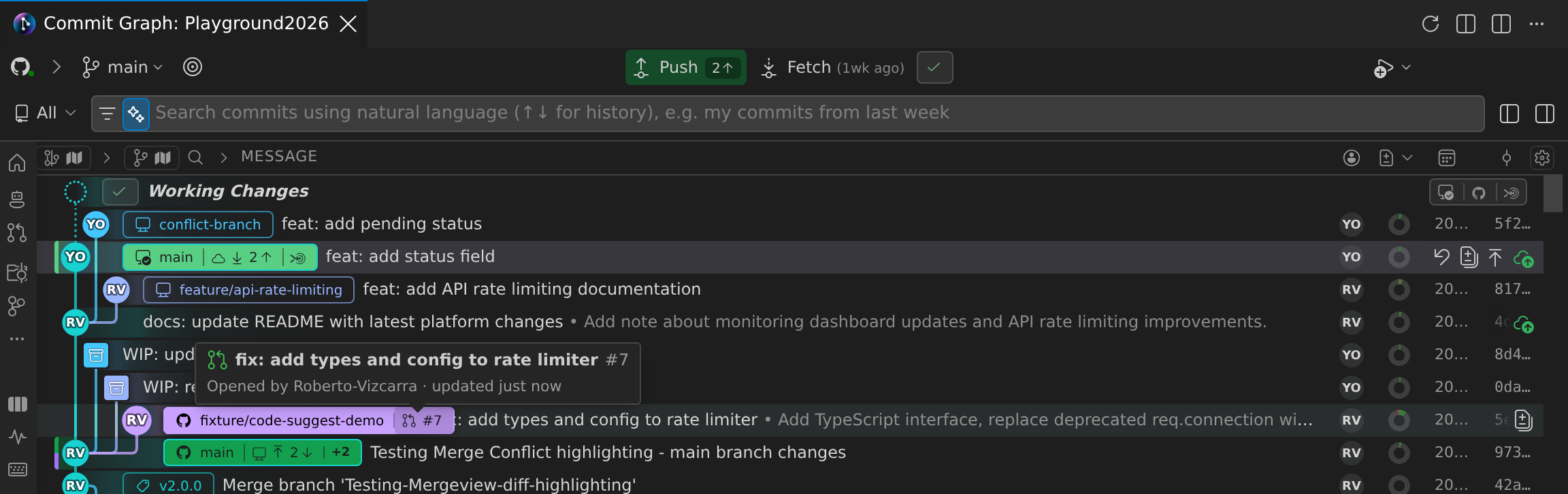
- Rich hovers showing issue and PR details
- Pull request associations with branches and commits
- Avatars for contributors and reviewers
These integrations also add contextual commands to open or copy URLs to files, commits, branches, and comparisons directly from your remote provider.
Remote Command Reference
You can use the following GitLens commands to interact with files, commits, and repositories on your remote platform.
Files
- Open File from Remote (
gitlens.openFileFromRemote) — Open a local file by specifying a remote file URL - Open Revision from Remote (
gitlens.openRevisionFromRemote) — Open a specific file revision from a remote URL, resolving the exact revision rather than the working copy - Open File on Remote (
gitlens.openFileOnRemote) — Open the current file or revision on the remote - Copy Remote File URL (
gitlens.copyRemoteFileUrlToClipboard) — Copy the URL of the current file or revision - Open File on Remote From… (
gitlens.openFileOnRemoteFrom) — Open a file/revision from a specific branch or tag - Copy Remote File URL From… (
gitlens.copyRemoteFileUrlFrom) — Copy the file/revision URL from a specific branch or tag
Commits
- Open Commit on Remote (
gitlens.openCommitOnRemote) — Open a commit on the remote - Copy Remote Commit URL (
gitlens.copyRemoteCommitUrl) — Copy the URL of a commit
Branches
- Open Branch on Remote (
gitlens.openBranchOnRemote) — Open the current branch on the remote - Copy Remote Branch URL (
gitlens.copyRemoteBranchUrl) — Copy the URL of the current branch - Open Branches on Remote (
gitlens.openBranchesOnRemote) — Open the list of branches on the remote - Copy Remote Branches URL (
gitlens.copyRemoteBranchesUrl) — Copy the URL for all branches
Comparisons
- Open Comparison on Remote (
gitlens.openComparisonOnRemote) — Open a diff comparison on the remote - Copy Remote Comparison URL (
gitlens.copyRemoteComparisonUrl) — Copy the URL for the comparison
Pull Requests
- Open Pull Request on Remote (
gitlens.openPullRequestOnRemote) — Open the associated pull request - Copy Pull Request URL (
gitlens.copyRemotePullRequestUrl) — Copy the pull request URL
Repositories
- Open Repository on Remote (
gitlens.openRepoOnRemote) — Open the entire repository in your browser - Copy Remote Repository URL (
gitlens.copyRemoteRepositoryUrl) — Copy the repository URL for sharing or navigation
Connect GitHub or GitLab Integration
To connect GitHub or GitLab to GitLens, you’ll use your GitKraken account via the GitLens integrations dashboard.
Steps to Connect:
- Open the Command Palette (
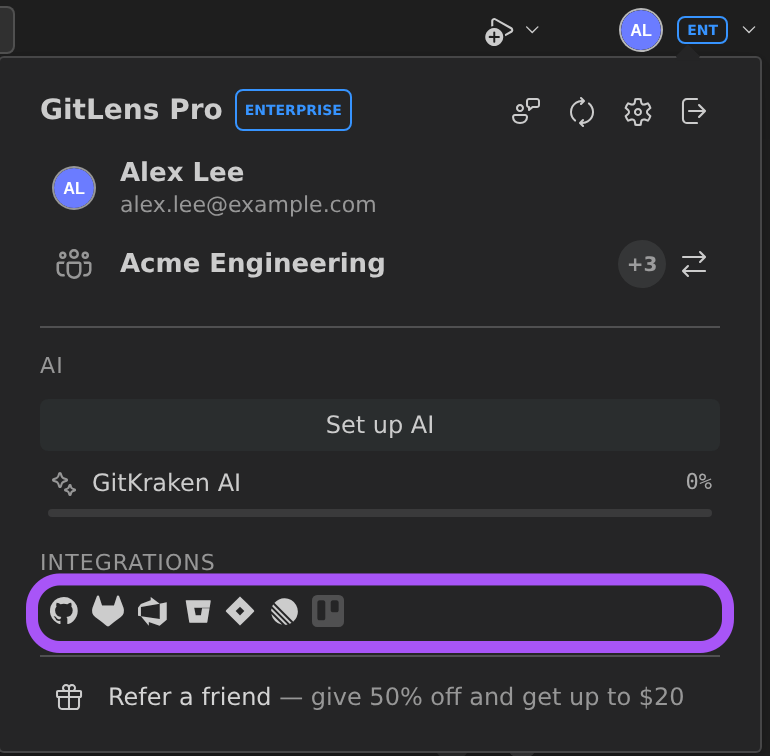
Ctrl+Shift+PorCmd+Shift+P) and runGitLens: Manage Integrations, or - Open the Commit Graph and select the Account button (your avatar and plan badge) in its header. In the popover, select the Integrations row, or Set up integrations if nothing is connected yet, to open Cloud Integrations in GitLens Settings.
- If you’re not already signed in, log into your GitKraken account.
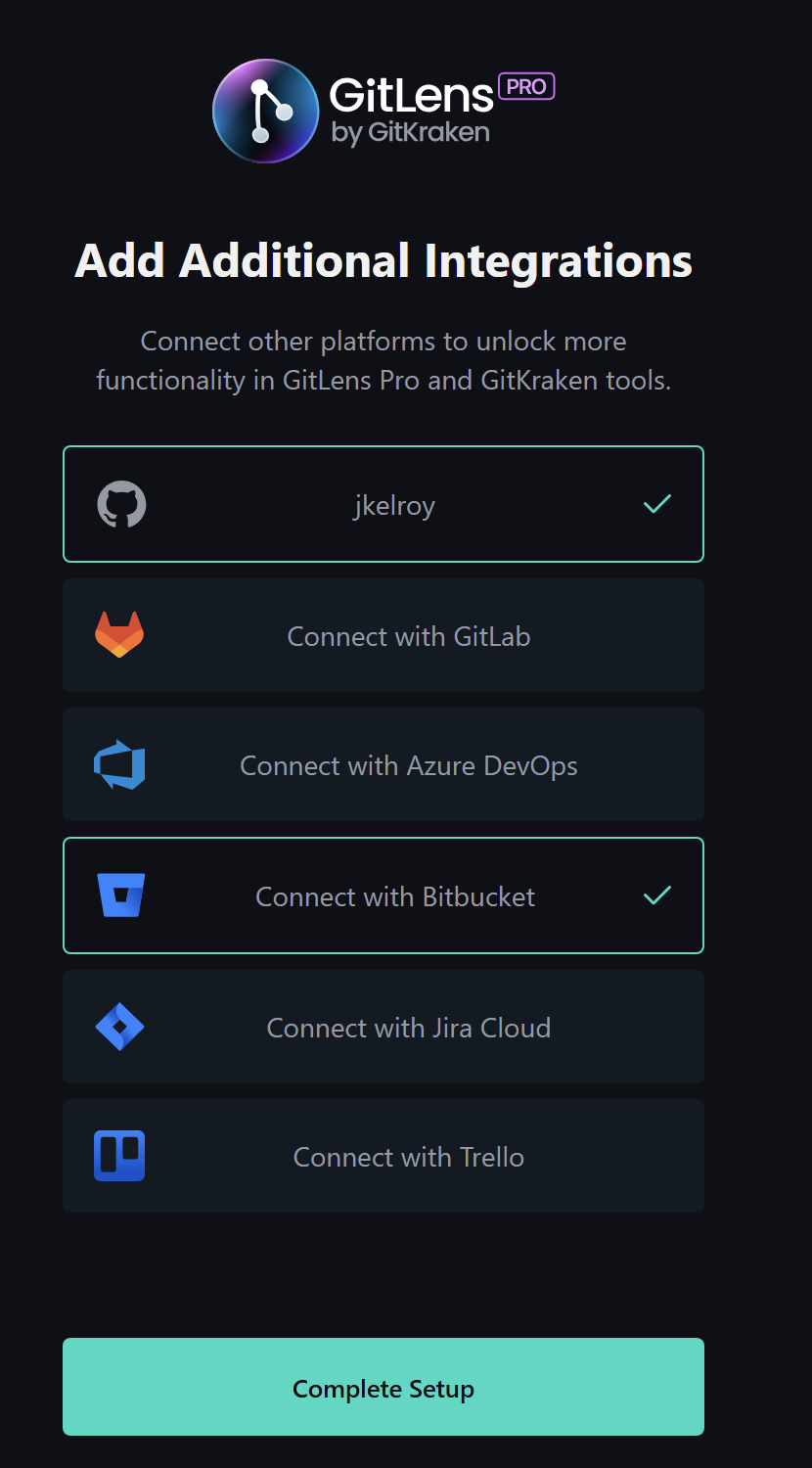
- Click Connect with GitHub or Connect with GitLab and complete the sign-in process.
- Select Complete Setup to return to Visual Studio Code and activate the integration.
You can connect multiple integrations if needed, including multiple accounts for the same provider. For example, you can connect both a personal and a work GitHub account simultaneously. Use the integration settings to set a primary account, manage connections, and scope searches to a specific account.
Community users are limited to basic functionality only.
GitHub PR Stacks PRO
GitLens supports stacked pull request workflows on GitHub.com. When working with stacked PRs, GitLens shows stack information including the stack size, your PR’s position within the stack, and the base ref. Merge operations are stack-aware, letting you choose to merge a single layer or the entire stack.
PR stack details appear in the Commit Graph pull request sheet when viewing a PR that belongs to a stack.
To bring a whole stack up to date with its base branch, select Rebase Stack… in the pull request sheet or in Launchpad. GitLens rebases each branch onto the one below it, from the bottom of the stack up, and then offers to force push the rebased branches. Auto-Rebase Stack… does the same and resolves conflicts with AI. For details, see Pull Request Information in the Commit Graph documentation.
GitHub Enterprise Server and GitLab Self-Managed Integration PRO
GitLens Pro supports advanced integration with GitHub Enterprise Server and GitLab Self-Managed.
Once authenticated, GitLens enhances autolinks for these services in hover cards. You’ll see:
- User avatars
- Links to related pull requests and issues
- Pull request and issue details directly in the Sidebar views
Connect GitHub Enterprise Server or GitLab Self-Managed
To connect a self-hosted GitHub or GitLab instance:
- Open the Command Palette (
Ctrl+Shift+PorCmd+Shift+P) and select Preferences: Open User Settings (JSON) - In
settings.json, add agitlens.remotesentry with your domain and provider type:
"gitlens.remotes": [{ "domain": "git.corporate-url.com", "type": "GitHub" }]Or for GitLab:
"gitlens.remotes": [{ "domain": "git.corporate-url.com", "type": "GitLab" }]- Open the self-hosted repository in Visual Studio Code
- Open the Remotes View
- Click Connect to Remote
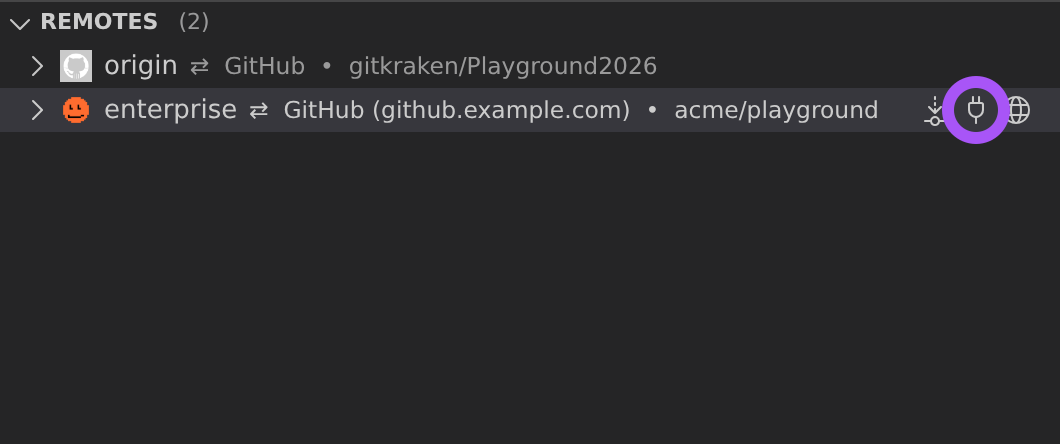
If the Connect to Remote option doesn’t appear, double-check that your JSON entry matches the example format.
- When prompted, provide a Personal Access Token (PAT) with the required scopes and press Enter to complete setup
Jira Integration PRO
GitLens Pro supports integration with Jira Cloud via your GitKraken Account. This allows GitLens to automatically link Jira issue keys (e.g., ABC-123) in commit messages and views wherever autolinks are supported.
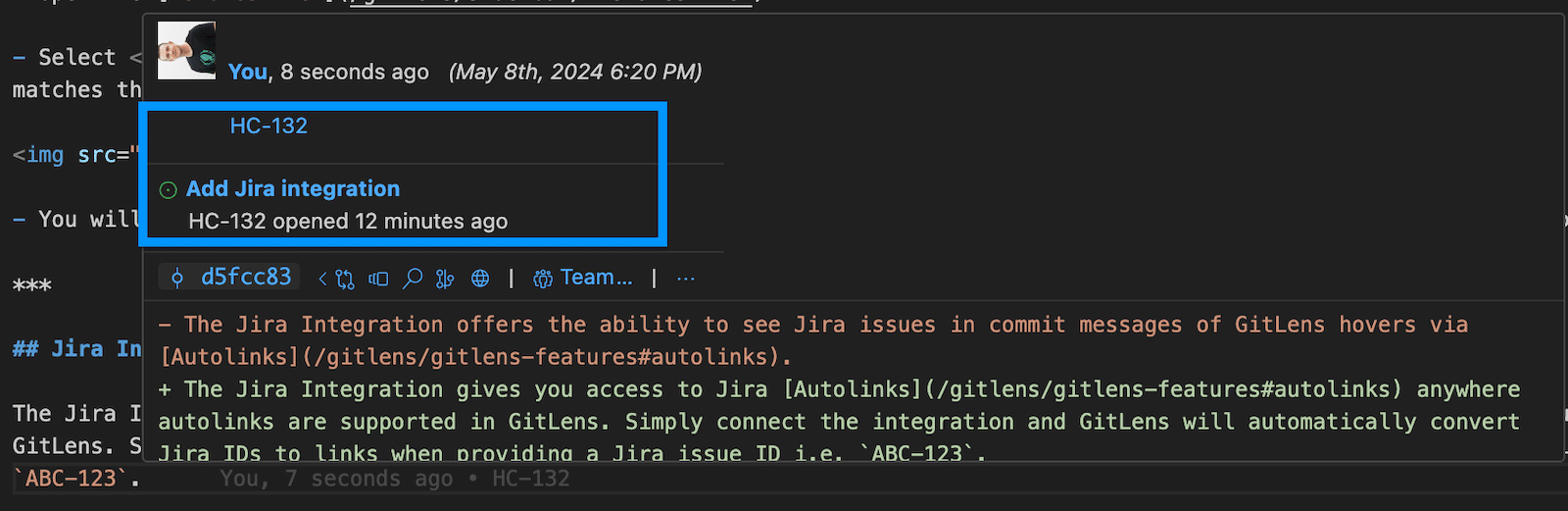
This feature is only available for Pro subscription tiers or higher.
Connect the Jira Integration
- Open the GitLens Settings editor (run GitLens: Open Settings from the Command Palette).
- Select Cloud Integrations under Integrations in the navigation rail. Each provider has a card: a provider you have not connected shows Connect, and a connected one shows Connected and Manage.
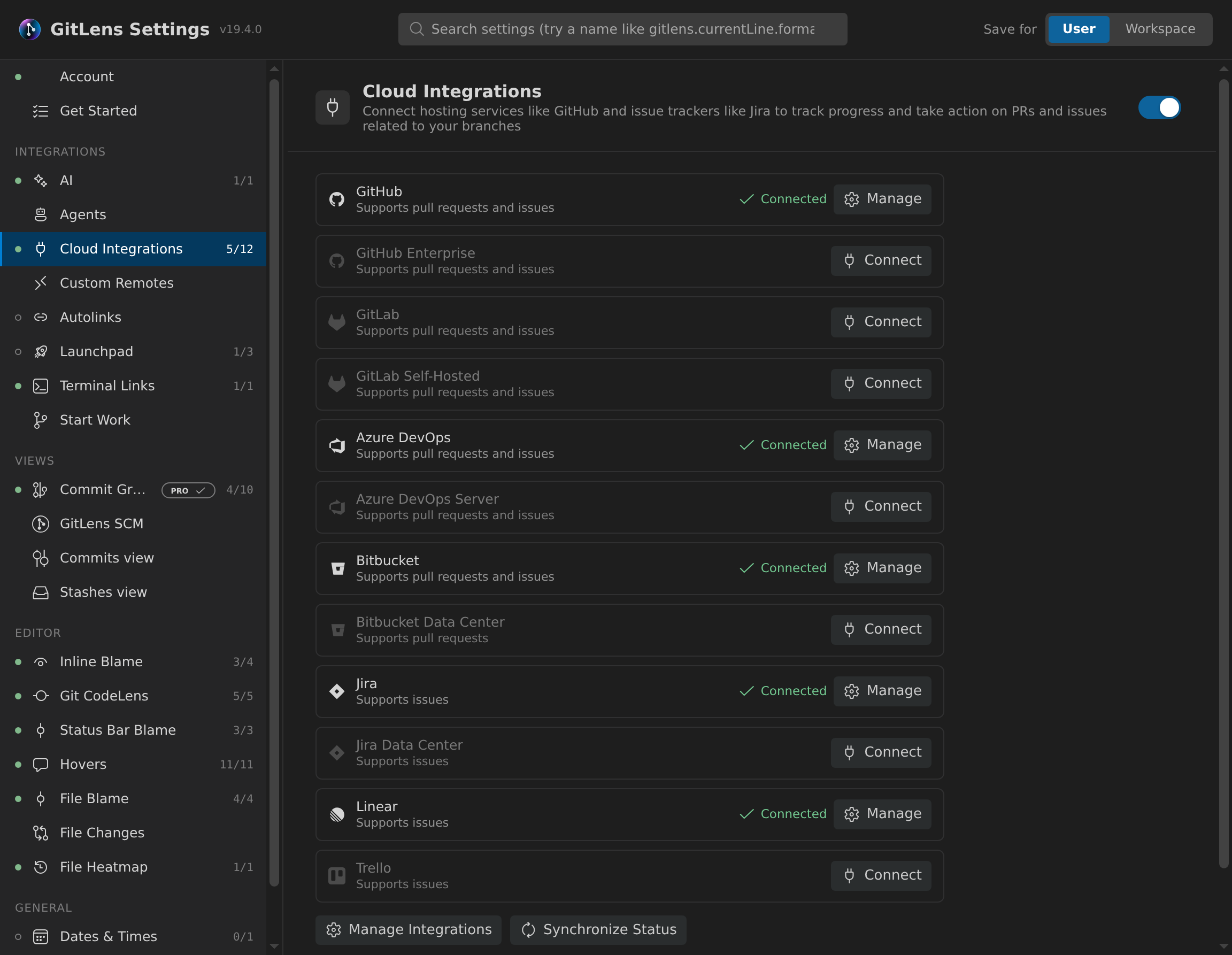
- Select Connect on the Jira card and follow the prompts to connect.
- Allow GitKraken access to your Atlassian Account.
Linear and Trello connect the same way from the Cloud Integrations category, and both require a Pro plan or higher. After you connect Trello, branches associated with a Trello card show a Trello badge in the Commit Graph. GitLens does not autolink Trello cards or list them in Start Work or Launchpad.
You can also configure this via the Integration Settings in a browser.
Connect Jira Data Center
GitLens Pro can also connect a self-hosted Jira (Jira Data Center or Jira Server) through your GitKraken Account. Select Connect on the Jira Data Center card in Cloud Integrations and follow the prompts. Each Jira host is its own connection, and instances served under a context path, such as https://jira.example.com/jira, are supported.
For now, a connected Jira Data Center instance is used only to show the issues associated with a branch. It doesn’t create autolinks, and Start Work and the Commit Graph’s issue tracker picker don’t list it yet.
