

Last updated: September 2026
Merge cutting-edge AI capabilities with your Git workflow to save time, increase clarity, and enhance collaboration. GitLens’ AI features transform how you create, understand, and document code changes.
Available AI Features
GitLens integrates powerful AI capabilities across different subscription tiers, each designed to address specific pain points in your development workflow.
AI Generate Commit Pro
Available in: Pro, Advanced, and Business plans
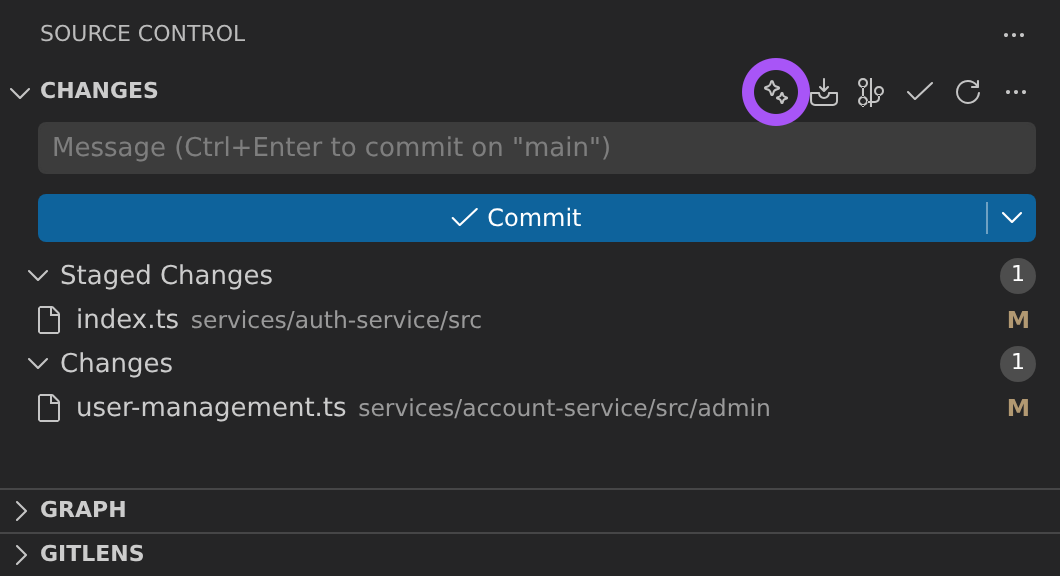
Generate clear, descriptive commit messages based on your code changes, saving time and ensuring consistency across your repository. The AI analyzes your staged changes and creates meaningful messages that accurately describe what you’ve modified.
In addition to single commit messages, the Commit Composer can create multiple logical commits from your working tree changes. To have AI resolve conflicts while you rebase a branch, use Auto-Rebase instead.
How to access:
- From the Command Palette:
GitLens: Generate Commit Message - From the Command Palette:
GitLens: Compose Commits...(the Commit Composer creates multiple logical commits from your working changes) - From the SCM panel: Open the GitLens sparkle menu in the Changes header and choose Generate Commit Message
- During the commit process: Look for the AI option in the commit interface
AI Stash MessagesPro
Available in: Pro, Advanced, and Business plans
Create intelligent descriptions for stashed changes, making it easier to find and understand your work later. This feature generates context-rich stash descriptions that help you quickly identify the purpose of each stash.
How to access:
- From the Command Palette:
GitLens: Generate Stash Message with AI - When creating a stash: Look for the AI option in the stash creation interface
- From the stash view: Generate descriptions for existing stashes

AI Commit Explain Pro
Available in: Pro, Advanced, and Business plans
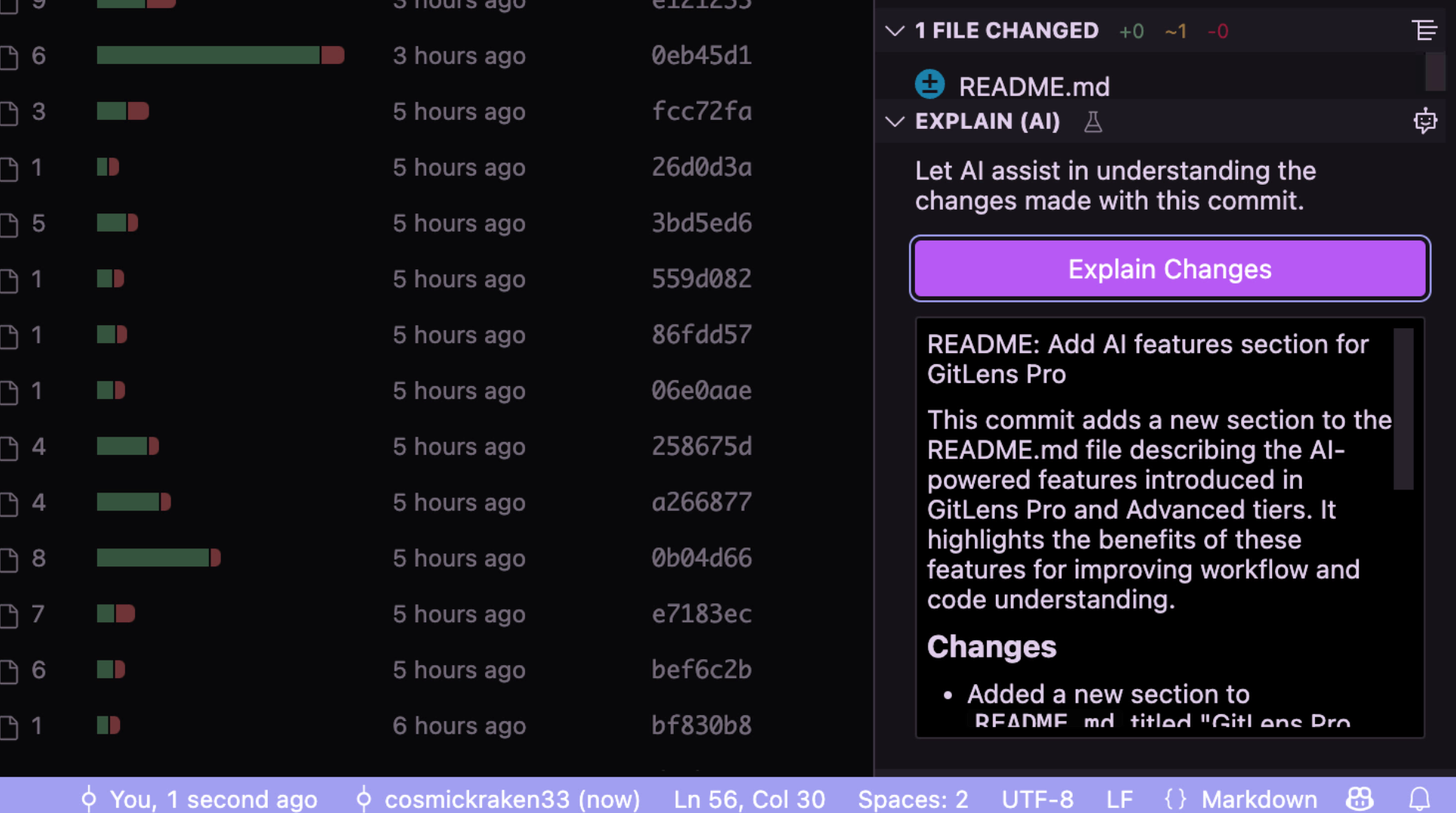
Understand the reasoning behind changes with AI-generated explanations of commit content and purpose. Quickly grasp the intent and impact of complex commits without having to manually review all changed files.
How to access:
- In the “Commit Details” view: Find the AI explanation panel
- In the “Cloud Patch Details” view: Look for explanations alongside commit information
- When reviewing commits: Option to generate explanations for any selected commit
AI Changes Explain Preview
Gitkraken AI can also be used to generate summaries for Commits, Branches, Working Changes, and Stashes.
What a specific commit introduced – ✨Explain Commit
What changed across all commits in a branch – ✨Explain Branch
What you’ve modified in your working directory – ✨Explain Working Changes
What you’ve previously stashed – ✨Explain Stash
You’ll find ✨Explain options for commits, branches, stashes, and working changes in several places:
- In the Commit Graph
- Available as commands in the command palette
- In many GitLens views: Commits, Branches, Stashes, Search & Compare, etc.
- In editor blame hovers via the ✨Explain button
AI Changelog Creation Pro
Available in: Advanced and Business plans only
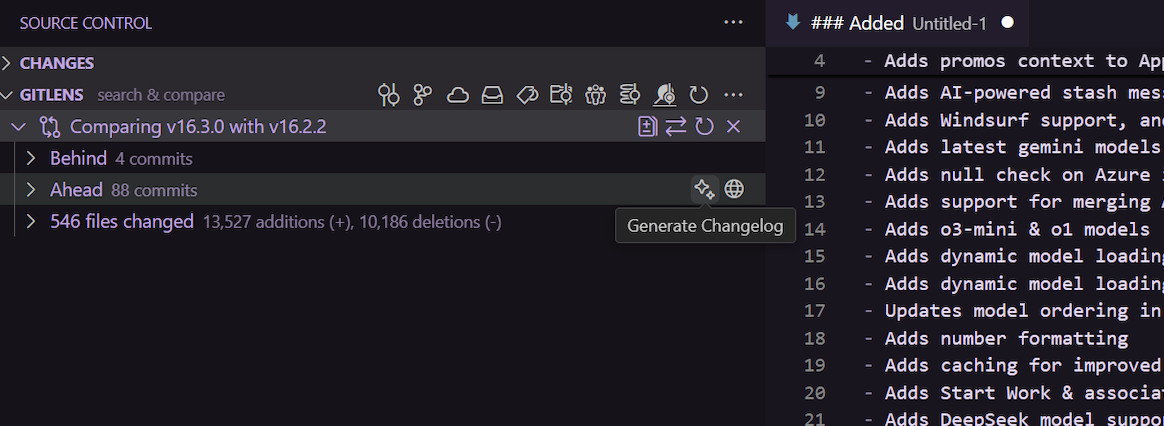
Automatically generate comprehensive changelogs from selected commits in the Graph, perfect for release documentation. Maintain consistent and detailed changelogs without manual effort.
How to access:
- In the Search/Compare view: Click the inline button on the “commits” line
- When selecting multiple commits in the Graph: Right-click and choose “Generate Changelog”
- From the Command Palette:
GitLens: Generate Changelog from Commits
AI Open Pull Request Advanced
Available in: Advanced and Business plans only
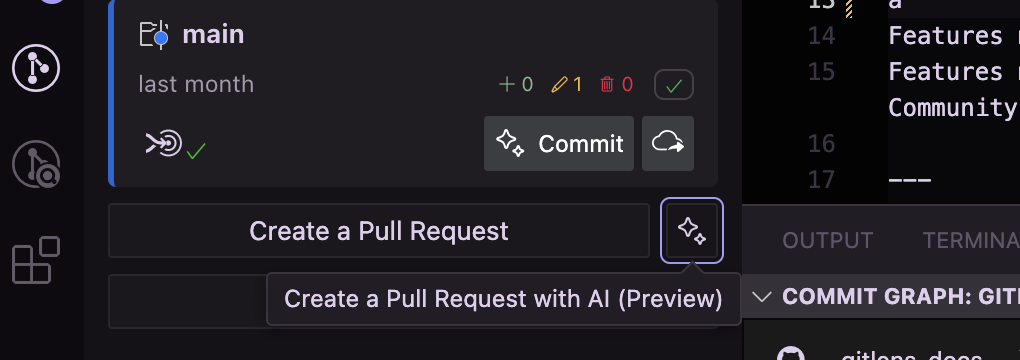
Open Pull Requests: Automatically generate clear PR titles and descriptions directly from your branch changes, speeding up review cycles.
How to access:
- From the GitLens Commit Graph: Click the ✨button next to “Create a Pull Request”
AI Review Pro
Available in: Pro, Advanced, and Business plans
Inspect commits or Working Changes before they move forward. GitKraken AI surfaces potential bugs, security issues, and other areas that deserve attention — tagged by severity — directly in the Commit Graph details panel, while you decide what needs to change.
How to access:
- In the Commit Graph: Select a commit or the Working Changes row, then open Review mode in the details panel
- Customize review behavior with the
gitlens.ai.reviewChanges.customInstructionssetting
You can configure separate AI models for different features (such as compose and review) to optimize for your preferred balance of speed and quality.
Auto-Rebase Pro
Available in: Pro, Advanced, and Business plans
Move a rebase forward with AI-assisted conflict resolution. Auto-Rebase resolves a conflict only when its confidence meets the threshold you configure; anything below that threshold pauses the rebase so you can resolve it yourself. A rebase summary sheet shows what was resolved and how, and full undo support returns you to the pre-rebase state if the result is not what you wanted.
Auto-Rebase respects the steps you plan in the Interactive Rebase Editor. When a reword or squash step needs a new commit message, Auto-Rebase opens the message in VS Code and waits until you finish editing it. At a commit you marked edit, it resolves and stages any conflicts, then pauses so you can make your changes before you continue the rebase.
When Auto-Rebase pauses, its notification offers Review & Resolve and Abort Rebase, plus Resume with AI when AI features are allowed.
How to access:
- From the Command Palette:
GitLens: Auto-Rebase... - From the Commit Graph: Right-click a branch, select Rebase Current Branch onto Branch…, and choose Auto-Rebase in the rebase confirmation step
- From the Interactive Rebase Editor: Select Start Auto-Rebase next to Start Rebase, or Continue with Auto-Rebase once the rebase has started
- For a rebase that is already paused: Run
GitLens: Continue with Auto-Rebasefrom the Command Palette
Key settings:
gitlens.ai.autoRebase.confidenceThreshold— Set the minimum confidence level (0-1) for automatic conflict resolutiongitlens.ai.resolveConflicts.customInstructions— Provide custom instructions for how conflicts should be resolved
Compose and Recompose Pro
Available in: Pro, Advanced, and Business plans
Shape your commit history with AI-assisted commit crafting and branch restructuring.
- Compose: Craft clean, logical commits from your Working Changes using the Commit Composer in the Commit Graph
- Recompose: Clean up existing branch history by reorganizing selected commits into a clearer, more intentional sequence. GitKraken AI can propose the new structure and commit messages for you to review and refine before applying the result
How to access:
- From the Commit Graph: Enter Compose mode to create commits from working changes
- From the Commit Graph context menu: Right-click commits to access Recompose Branch, Recompose from Commit, or Recompose Selected Commits
- From the Command Palette:
GitLens: Recompose Branch
AI Credit Allocation by Plan
GitKraken AI features operate on a credit-based system, with different allocations based on your subscription. For more information about Gitkraken AI allocations, please see our Gitkraken AI FAQ page.
Credits refresh weekly and are shared across all AI features. More complex operations like changelog generation typically use more credits than simpler ones like commit messages.
Check Your AI Credit Usage
GitLens shows your GitKraken AI usage in two places:
- GitLens Settings: Run
GitLens: Open Settingsfrom the Command Palette and select Account under Setup. The GitKraken AI Usage card shows how many of your weekly credits you have used and when your weekly allowance resets. If your organization has a shared credit pool, a Weekly Shared Organization Pool row splits it into your usage, the rest of the organization’s usage, and what remains. - Commit Graph header: Select the Account button (your avatar and plan badge) in the Commit Graph header. The GitKraken AI row in the popover shows your usage as a percentage; select it to open the Account settings.
Both places show Nearly out when you have used more than 90% of your credits, and Allowance used in red once you have used all of them. On paid plans, the GitKraken AI Usage card includes a Get more AI credits button if you have no active organization or you are an owner, admin, or billing contact of your active organization. Other organization members see a note to contact their organization admin or owner for more credits.
Configuring Your AI Provider
Provider Options
GitLens offers flexibility in choosing your AI provider:
- GitKraken AI (default): Pre-configured and ready to use with your credit allocation
- GitHub Copilot: If installed, can be used as your AI provider
- Custom Provider (BYOK): Connect your own key from supported AI services
- New OpenAI and Google models
- Mistral
- Self-hosted Azure AI models
- OpenAI-compatible API providers
- Local Ollama models
- OpenRouter support
Setup Instructions
To configure your AI provider:
- Open GitLens settings
- Navigate to the “AI” section
- Select your preferred provider from the dropdown
- For custom providers, enter your API key in the designated field
Advanced AI Settings
User-Level Customization
- Customize AI prompts: Tailor the prompts used for various AI features to match your team’s style
- Credit usage monitoring: Track your credit consumption on the GitKraken AI Usage card in the Account category of GitLens Settings (see Check Your AI Credit Usage)
- Default AI mode: Choose between concise or detailed outputs for each feature
AI File Exclusions
Control which files are included in AI context to protect sensitive data:
- Ignore files: GitLens respects
.aiignore,.cursorignore, and.aiexcludefiles in your repository to exclude matching paths from AI prompts - Exclude setting: Use the
gitlens.ai.exclude.filessetting to define additional file patterns to exclude - Common files like lock files, minified assets, and build output directories are excluded by default
Organization-Level Controls Business
- Enforceable AI rules: Set organization-wide policies for AI usage
- Private AI model providers: Connect to your organization’s approved AI services
- Credit allocation management: Distribute credits across teams and projects
More questions about Gitkraken AI? Please see our GitKraken AI FAQ page for more details. For additional questions or support regarding GitKraken AI features, please contact our support team or visit the GitKraken Community forum.
