

Last updated: October 2026
A Task is the unit of work in Kepler. It’s one thing you’re trying to get done, plus everything the agents working on it need: the repositories, the issue or pull request it came from, the branches, the notes, and every agent session you’ve run against it.
A Task doesn’t have to start with much. You can start one from an issue in the Kepler interface and it arrives with the repository and issue body already attached, or you can start one with nothing at all (no repository, no branch), chase an idea, and attach the real work to it later.
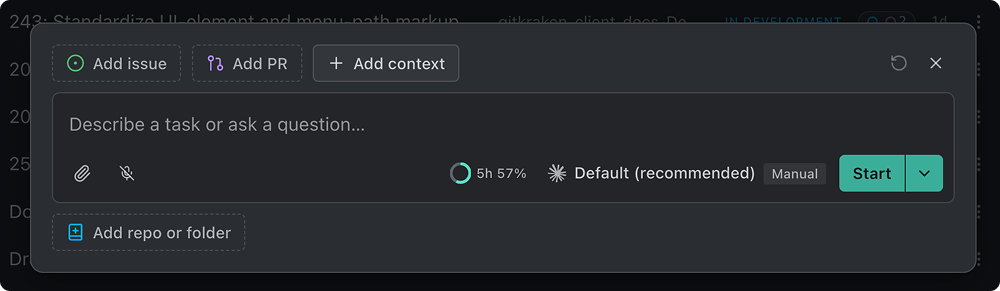
What a Task holds
Everything attached to a Task is a resource.
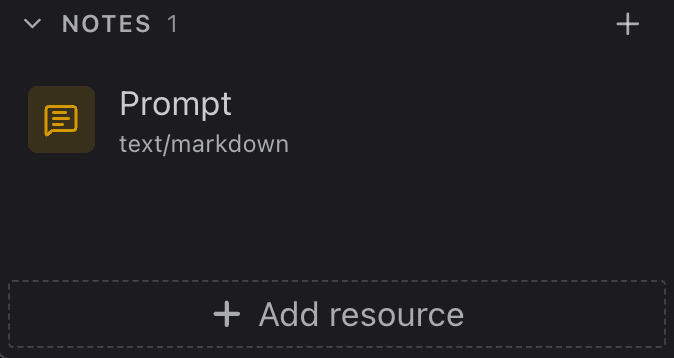
Attach them from Add resource at the bottom of the task view’s rail, or from the + on any group header, which opens the same Add resources dialog on that category.
| Resource | What it is |
|---|---|
| Sessions | Agent conversations running against this Task |
| Terminals | Shells opened inside one of the Task’s working directories |
| Worktrees | Git working copies the agents make changes in. Grouped as Changes in the rail, because that’s what you go there to read |
| Folders | A directory that isn’t a Git repository. The agent works on it in place |
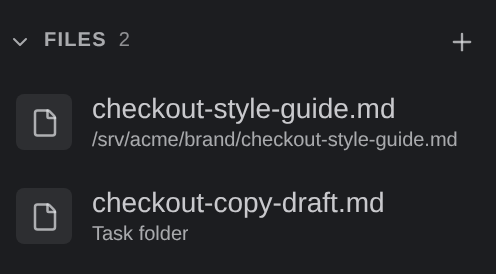
| Files | A single file, when the whole folder isn’t the point: either linked from disk by its path, or a copy uploaded to the Task |
| Pull requests | Pull requests from your connected Git hosts |
| Issues | Issues from your connected trackers |
| Links | Any URL worth keeping with the work |
| Notes | Text you write: standing instructions, decisions, reference material. The Task’s own Prompt leads this group |
A Task can hold more than one of any of these. Several repositories, several issues, several pull requests: a Task spanning three repos with two linked issues is a normal Task, not a special case.
For the screen itself (the rail, the columns, split panes, tabs), see The Task View.
Files: linked or uploaded
The Files group holds two kinds of file, and Kepler treats them differently because only one of them is Kepler’s to destroy:
| Kind | Where it lives | Its row reads | Removing it |
|---|---|---|---|
| Linked file | Wherever it already was on disk. Kepler links to it by its path and never changes it | Its path | Detach file… leaves the file where it is |
| Uploaded copy | Inside the Task’s own folder, and belongs to this Task alone | Task folder | Delete file… deletes the copy |
A file attached to a prompt that Kepler copies into the Task when you send it is an uploaded copy too. In a window connected to another machine, the file picker on the Files tab of Add resources also offers Upload from this machine, which copies files from the machine you’re sitting at into the Task’s folder. Either kind can be written somewhere else with Save as… from its menu.
Issues and pull requests attach themselves
You don’t have to remember to attach the pull request. When a Task holds no pull request yet and one of its worktrees is sitting on a branch that exactly matches an open pull request’s head branch, Kepler records that pull request as a resource on its own, however the pull request was opened, including from a terminal, from GitKraken, or on the web.

This auto-attach behavior is deliberately narrow, because a wrong guess would put a stranger’s work into your agent’s context:
- The branch names must match exactly. A near-miss doesn’t count.
- Kepler attaches only open pull requests whose head branch lives in the same repository. A pull request from a fork never auto-attaches.
- If another active Task already owns the pull request, Kepler leaves it there.
Issues attach the same way. An issue whose branch matches one of the Task’s checkouts is correlated and attached on its own, so a Task started from a branch name finds the ticket behind it.
Auto-attach only adds a link; it never removes one. Detach it yourself if you don’t want it on the Task.
Work item URLs attach as issues. When you or an agent attaches one of the following URLs, Kepler records it as an issue rather than a plain link:
- A GitLab work item, such as
https://gitlab.com/{group}/{project}/-/work_items/{number} - An Azure DevOps work item, such as
https://dev.azure.com/{organization}/{project}/_workitems/edit/{id}, or the organization-levelhttps://dev.azure.com/{organization}/_workitems/edit/{id}
A GitLab work item that belongs to a group rather than a project stays a plain link.
Keeping them current
A Task’s pull requests and issues refresh themselves when something that could change them happens: an agent ends a turn, one of the Task’s branches is pushed, or a pull request is published. Kepler re-reads only that Task, so a busy Task doesn’t cost a refresh of your whole account. Each link is looked up in the repository it names, so two repositories with the same issue number don’t get confused.
To refresh by hand, use the refresh on the Pull requests or Issues group header. It re-reads the provider rather than redrawing what Kepler already had.
Worktrees, and when you don’t need one
Most work benefits from a worktree: a private Git working copy for this Task. Agents make their changes there, so nothing they do touches the checkout you’re working in, and several agents can run at once without stepping on each other.
When you add a repository to a Task through Add resource, the Isolated worktree toggle decides how it’s set up. The Task Composer’s own repository chip, used when you create a Task, reaches the same in-place-or-isolated choice through a different control with an added branch-name field. See Create a Task.
| Setting | What it says |
|---|---|
| On | On — a private worktree for this task. The branch is pinned here; nothing else can move it. |
| Off | Off — shares your repo folder. Whoever switches its branch — an agent, another task, a terminal — switches it for this task too. |
With isolation off, the picker reads directly in repo.

Turning isolation off means the Task has no branch of its own. The Task uses your repository folder exactly as it stands: nothing is copied and nothing is guaranteed. Use it when you deliberately want an agent working in the checkout you’re sitting in; leave it on otherwise.
Kepler always isolates a repository linked to a pull request, and locks the toggle: This repository is linked to a pull request and always opens in its own isolated working copy.
You can also pick the branch when you attach the repository: Use this branch to work directly on an existing branch, or New branch to branch off the repository’s default branch. Kepler names a new branch for you unless you set one.
A new branch forks from the repository’s remote default branch, not from whatever branch you happen to have checked out. Naming a base yourself overrides that default. If no remote default can be resolved (no remote, a shallow clone, offline with nothing cached), Kepler falls back to the current HEAD rather than refusing to start.
Automatic branch names are suggested from the Task’s own context, led by the issue identifier where there is one, and namespaced under kepler/ unless you configure another prefix. See Create a Task.
Prefer not to use a worktree? A Task does not require a worktree, or even a repository. Attach a plain folder and the agent works on it in place. Attach nothing and you have a space to think with the option to turn it into real work whenever the idea earns it.
When a worktree goes missing
A worktree deleted outside Kepler stays bound to its Task rather than quietly disappearing from it. The row is flagged Gone from disk, and the pane shows the metadata Kepler recorded: Current branch, Base branch, and Recorded path. Recreate worktree brings the branch back at the recorded path. If the branch itself was deleted, Kepler creates it again from the recorded base and says so. That way a git worktree prune doesn’t cost you the Task’s record of where the work lived.
The same goes for an attached folder that’s been removed. Start a new session in a worktree or folder that’s gone and Kepler asks first (Recreate the worktree and start the session?), then rebuilds it before the session starts, rather than launching an agent into a directory that isn’t there. A Task with no repository or folder at all starts its sessions in the Task’s own folder.
Make a new worktree ready to build
A fresh worktree is a clean checkout: no node_modules, no build output, nothing your setup script would normally leave behind. An agent that starts there has to install dependencies before it can do anything, or it fails on the first build.
Commands solve that problem. Save a repository’s setup steps once (pnpm install, a codegen step, whatever your project needs) and tick Run on worktree creation. Kepler runs them in the new worktree’s folder every time it makes one for that repository, in order, before the agent starts. Commands you don’t flag stay on demand: right-click a worktree in the task view rail and pick Run command here.
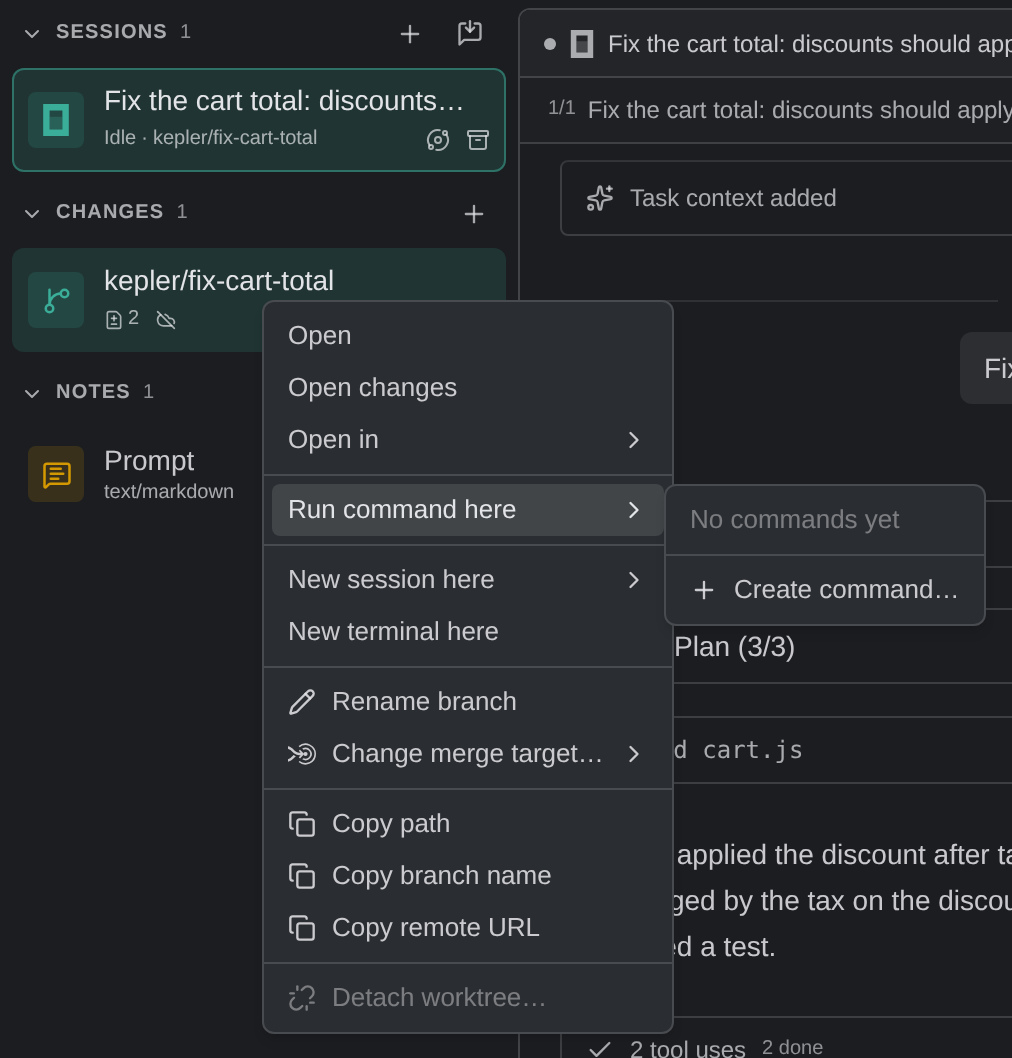
Set them up in Settings → Repositories, on the repository’s own page. See Settings for the fields, the Variables a command can use, and what happens when one fails.
Shared context: how resources reach your agents
Kepler sends everything attached to a Task to every agent session in it as shared context. That’s what a prompt means when it says “described in the shared context above”: the Task’s prompt, the issue body, the pull request, your notes, the links.
The prompt goes in full. Each note goes as a reference, its title and size, and the agent reads the note’s text when it needs it, through Kepler’s MCP server. A session with no route to that server gets every note’s text in full instead.

You’ll see it in the conversation as a collapsible row reading Task context added the first time, and Task context updated whenever it changes, with a count of the items included. Expand it to see exactly what the agent was given.
You don’t edit shared context directly. You change it by attaching, detaching, and editing resources. A change reaches each session with its next prompt rather than interrupting an agent mid-turn.
The Task’s prompt is context too
What you wrote when you started the Task is a context item of its own: the Prompt, at the top of the Notes group. It’s what every session on the Task is working toward, so it rides along with the rest of the shared context, and you can edit it like a note when the goal shifts. Unlike a note, it can’t be deleted.
Starting a session without the Task’s context
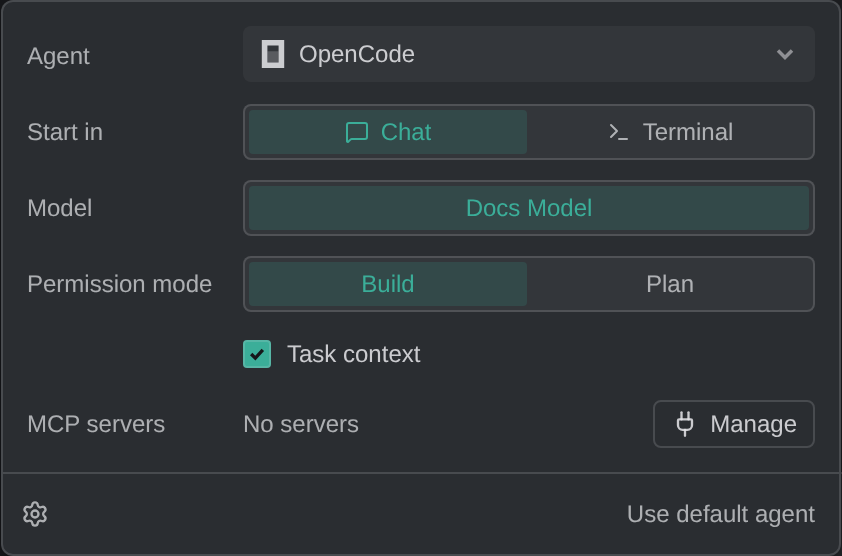
Sometimes you want an agent that forms its own view, such as a reviewer that shouldn’t be steered by the implementer’s brief. To start a session without the Task’s prompt and notes, follow these steps:
- Click + on the rail’s Sessions group, or press Cmd/Ctrl+T. A draft session tab opens.
- Open Agent settings in the draft’s composer.
- Untick Task context. It’s on by default.
- Type your prompt and press Start.
The new session doesn’t receive the Task’s prompt or notes. It still gets the Task’s worktrees, folders, files, and links, because it still needs to know where to work. The switch belongs to that draft, so turning it off doesn’t change your other sessions. See The Task View.
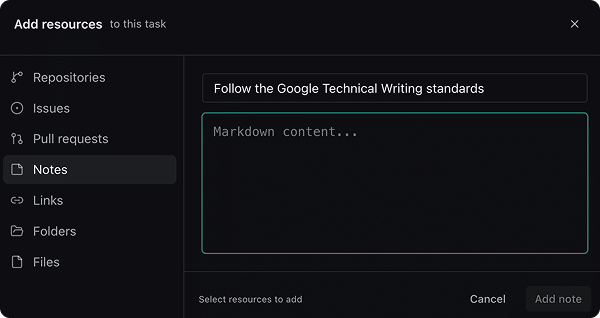
Notes are how you give standing instructions
Attach a Note for anything every agent on the Task should follow: a style rule, a constraint, a decision you don’t want re-litigated. Write it once and every session gets it, including sessions you start later. Because a session sees a note’s title first and opens the note when it’s relevant, give each note a title that says what it governs. A note can be up to 1 MB; a longer one is refused with This note is too long. Notes can be up to 1 MB.
Detaching and deleting
Most of what you remove from a Task isn’t destroyed. The menu says which you’re doing: Detach for something that lives elsewhere, Delete for something only the Task holds.
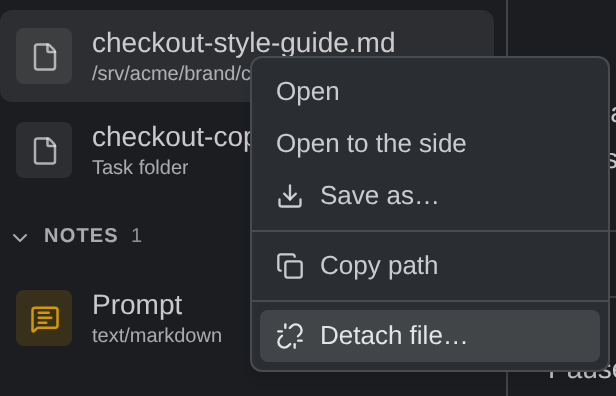
Kepler asks separately in each case, because the answer differs:
| Resource | Dialog | What removing it does |
|---|---|---|
| Folder | Detach folder? | The folder stays on disk — it’s only removed from this task. |
| Linked file | Detach file? | The file stays on disk — it’s only removed from this task. |
| Uploaded copy | Delete file? | Deletes the copy in the task folder. |
| Pull request or issue | Detach pull request? / Detach issue? | It’s removed from this task. |
| Link | Delete link? | It’s removed from this task. |
| Note | Delete note? | Deletes the note. |
The Task’s Prompt has no remove action.
Worktrees get more care, because deleting one can lose work.
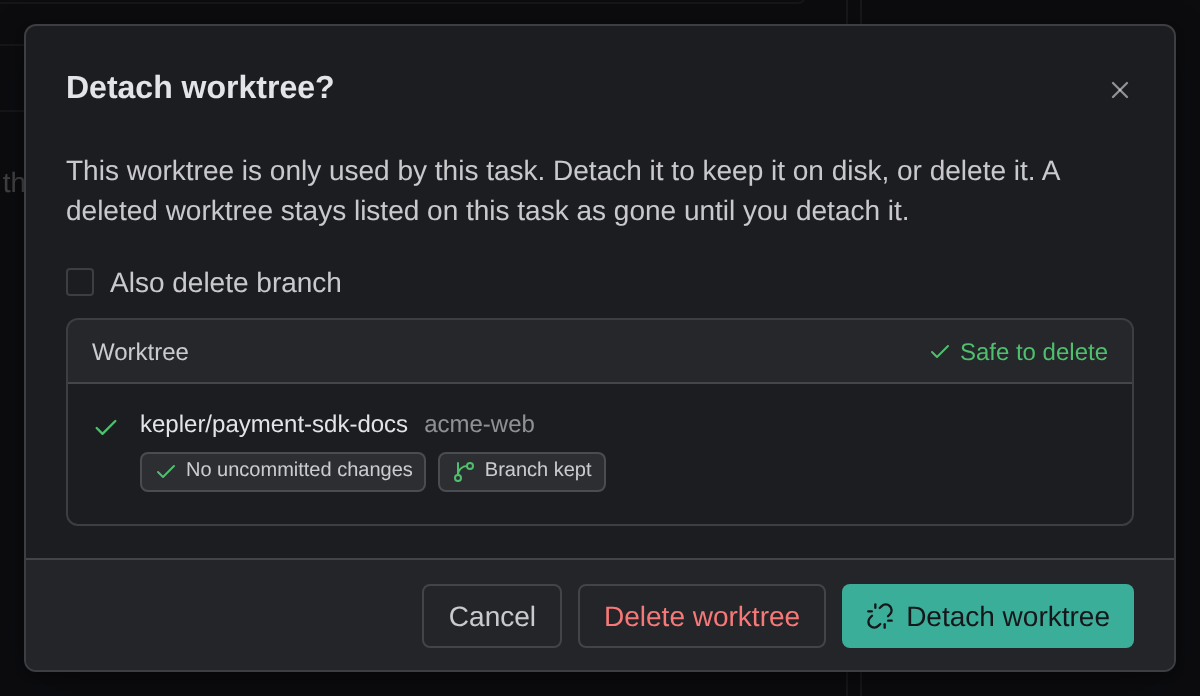
Detach worktree…, on the worktree’s row in the rail, removes it from the Task and leaves it on disk: The worktree stays on disk — it’s only removed from this task. Delete worktree…, on the worktree pill’s menu (and as Delete worktree inside the detach dialog when deleting is allowed), removes it entirely. Kepler checks first:
- If the worktree is used by other Tasks: This worktree is used by other tasks, so it can’t be deleted — detaching only removes it from this task. The dialog names them under Also used by.
- If it’s the repository’s main worktree: This is the repository’s main worktree — it can’t be deleted, only detached from the task.
- Otherwise: This worktree is only used by this task. Detach it to keep it on disk, or delete it. A deleted worktree stays listed on this task as gone until you detach it.
Delete worktree… from the pill opens its own Delete worktree? dialog, with only Delete and the warning Deletes the worktree folder from disk. This can’t be undone.
The dialog lists the worktree with what deleting it would cost, such as No uncommitted changes and Branch kept, under a verdict like Safe to delete. Tick Also delete branch to remove the branch along with the worktree.
Neither is possible while a session is still running in the worktree; the menu tells you how many to archive first.
Below that, a live check shows what deleting would cost, read fresh from the worktree rather than written in advance. Tick Also delete branch to take the branch with it, and the check re-reads, because the branch is a separate risk. Each worktree carries short tags for what’s at stake:
| Tag | What it means |
|---|---|
| {count} uncommitted files | Changes that exist only in this working copy |
| {count} commits not on any remote | Commits the branch holds that were never pushed. Kepler counts them before it deletes anything |
| Detached HEAD | Commits that aren’t on any branch |
| In open PR #{prNumber}, Merged in PR #{prNumber}, Merged into {base}, Pushed | The branch’s commits are safe somewhere else, so deleting it loses nothing |
| No uncommitted changes | Nothing to lose |
Kepler recognizes a branch that landed through a rebase merge or a squash merge as merged, so cleaning one up doesn’t warn about commits that are already in its target.
A worktree that would lose work is kept, not deleted, unless you tick the extra box that names it and what it would lose: Also delete {branch}, losing {what}. Kepler refuses the delete outright unless you confirmed it there. Nothing can destroy uncommitted or unpushed work behind your back, no matter what requested the delete.
Renaming, archiving, and deleting a Task
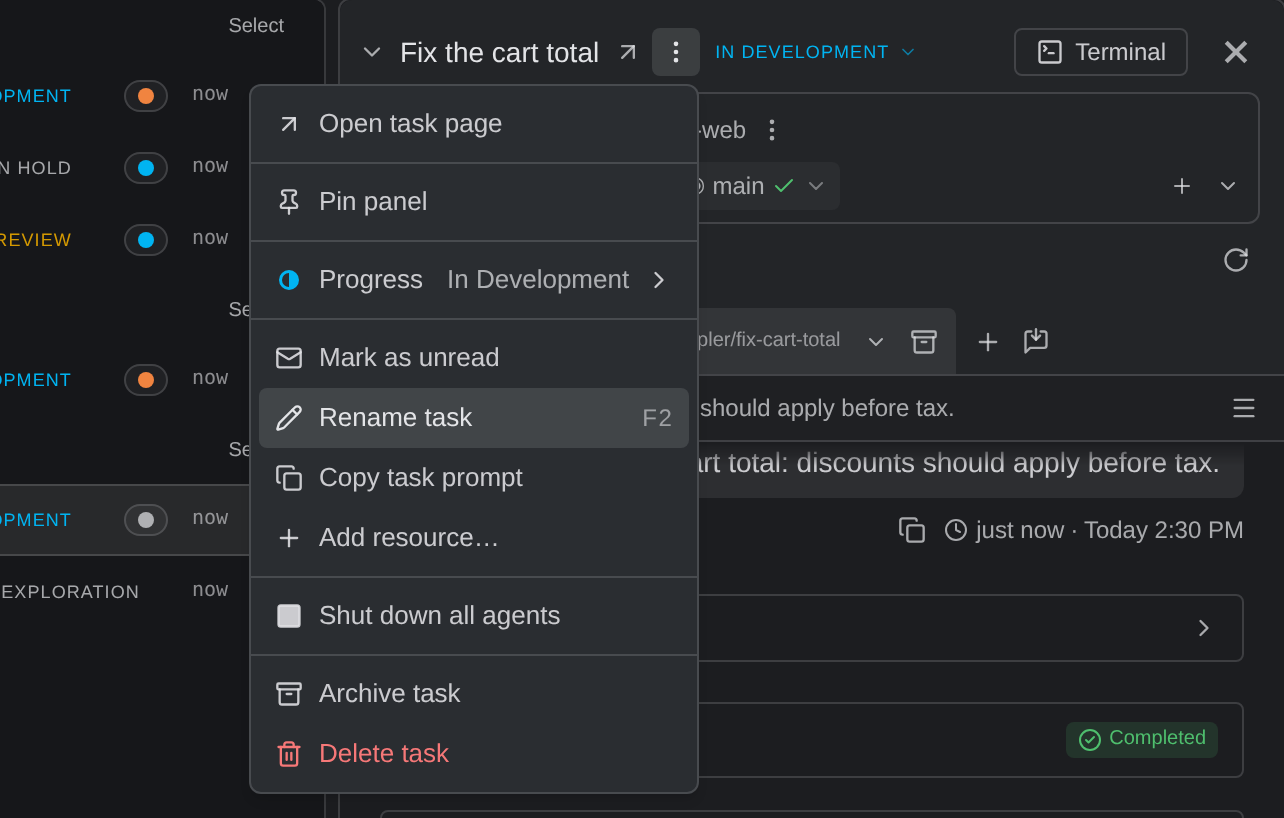
From the Task actions (⋮) menu, on the task’s row or in the task view’s header:
| Action | What it does |
|---|---|
| Rename task | Tasks name themselves when they’re created; rename when the name stops fitting. The name becomes an editable field in place; its Auto-name button suggests one from the Task’s prompt and resources, into the field, for you to accept or edit |
| Archive task | Takes it out of the active list and keeps it as history. Its sessions and resources are kept, and nothing is destroyed unless you ask for it |
| Restore task | On an archived Task, in place of Archive task. It goes straight back, unless another active Task now holds the same pull request; then Kepler asks first, because restoring archives that one |
| Delete task | Removes the Task along with its sessions and resources |
Kepler suggests archiving a finished Task. Once a Task reaches Done, with no unpushed work in its worktrees and no session still working or waiting on you, its header asks Ready to archive? with an Archive button. Dismiss it and that Task stops asking.
Archive and Delete ask the same two questions, in the same dialog, because they’re the same act: Also delete worktrees, and (only once that’s ticked) Also delete branches. Until you tick them, Worktrees and branches stay on disk unless you tick the boxes below. Tick the first, and Kepler lists every worktree with the same tags a single worktree delete shows, and says what will happen to each:
- A worktree that’s safe goes.
- A worktree that would lose work is kept, because deleting it would lose work, unless you tick the box that names it and confirms the loss.
- A worktree Kepler can’t touch is listed with why it’s staying: another Task still uses it, it’s the repository’s main worktree, a session still runs in it, or it’s already gone from disk.
Ticking Also delete branches re-reads the list, so a worktree that was safe a moment ago can turn into a warning. If the check is slow you can confirm anyway; any worktree that would lose work is kept.
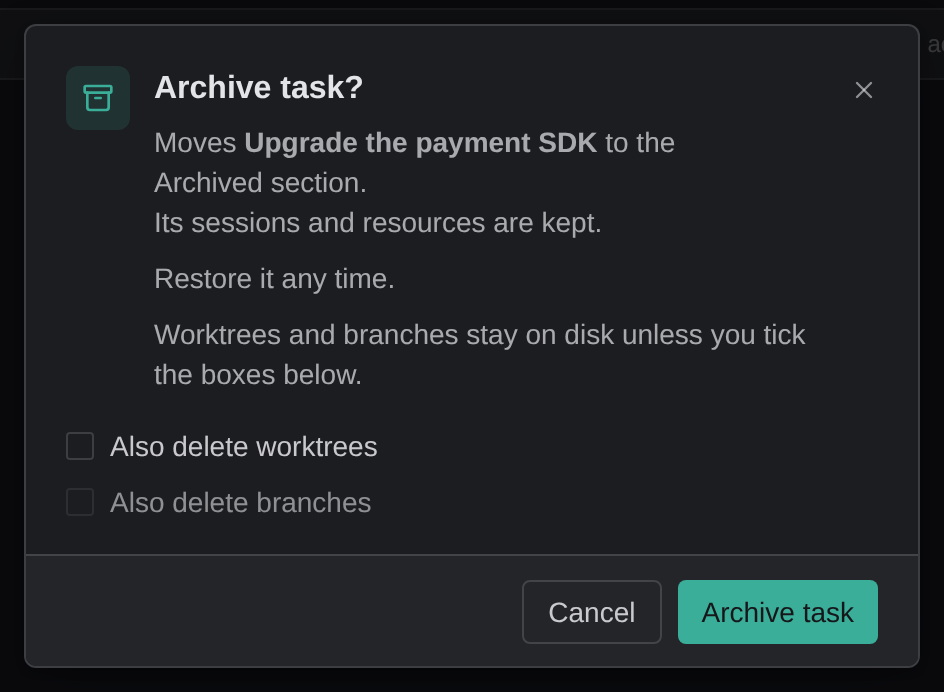
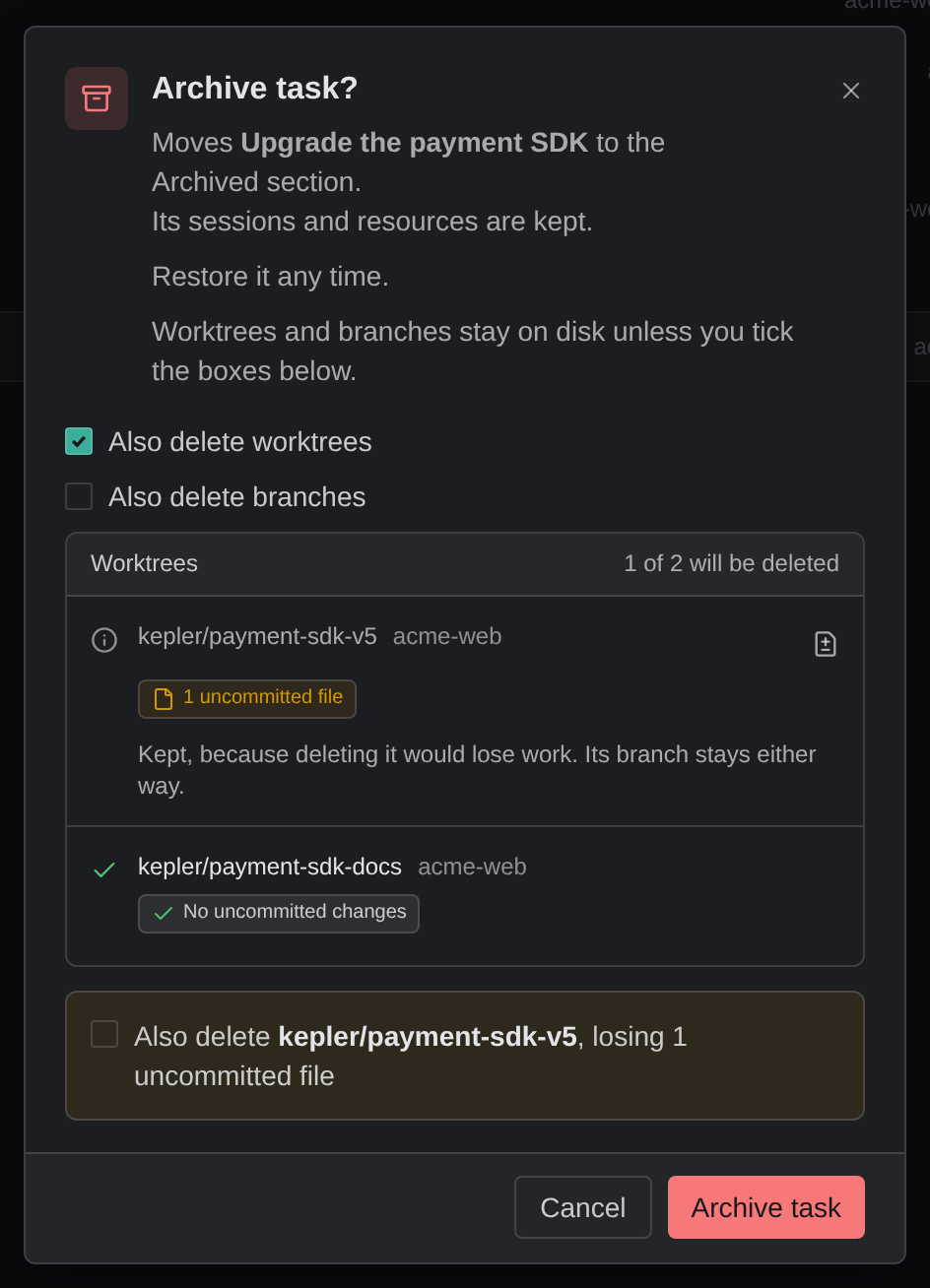
Restore task appears in the task view’s header as soon as the Task is archived. From a row in the main list, it appears only once you’ve filtered Activity to Archived. See Arranging Your Work.
You can archive and restore individual sessions the same way, from the session’s own menu in the rail.
What an agent can do with a Task’s resources
Agents reach the Task through Kepler’s own MCP (Model Context Protocol) server, so an agent can keep the Task’s resource list honest instead of leaving it to you, and can find and coordinate with the rest of your work.
Reading its own Task
| Tool | What it does |
|---|---|
get_task_context |
Read the Task’s current shared context. Notes arrive as references (title and size) rather than their full text |
read_task_note |
Read one note’s full text, by id |
list_task_resources |
List what’s attached: worktrees, folders, files (uploaded copies are marked as the Task’s own), pull request and issue links, and notes, plus the other Tasks this one is linked to and how |
list_repos |
List the repositories and folders work can happen in, flagging the ones this Task already uses |
Finding other work
| Tool | What it does |
|---|---|
list_tasks |
Find Tasks in the workspace by name, prompt, note text or file name, with each one’s stage and places to work. Archived Tasks only on request |
list_sessions |
Find agent sessions by label, agent, Task name or worktree path, including which ones this session started and in what role, and which are blocked waiting on a person for a permission or an answer |
list_agents |
List the agents, models, modes and options a new session can be started with |
session_read |
Read another session’s conversation, at the level of detail the agent asks for, by a kepler-session: identifier from list_sessions or from Copy session reference on a session row. For a running session it also reports the permission request or question the session is waiting on |
Links and notes
| Tool | What it does |
|---|---|
attach_link |
Attach an issue, pull request, or URL. Kepler classifies it and fetches its title and status when it can. An agent that starts a server you’re meant to open (a dev server, Storybook, a preview) attaches its local URL so it shows on the Task, and detaches it when it stops the server for good |
detach_link |
Remove a link, by URL or by id |
refresh_task_links |
Re-read the Task’s pull requests and issues now, for instance right after the agent opened or updated one. Rate-limited |
add_task_note |
Write a note into the Task’s shared context, visible to you and to every other session |
update_task_note |
Edit a note by id. It carries the version the agent last read, so a note changed underneath it is refused rather than overwritten |
remove_task_note |
Delete a note by id |
Worktrees
| Tool | What it does |
|---|---|
create_worktree |
Create a worktree on a fresh branch, forked from the repository’s remote default branch or from a base you name |
attach_worktree |
Bind a worktree that already exists on disk to this Task, changing no files |
detach_worktree |
Remove a worktree binding without touching the worktree, the branch, or the directory |
discard_worktree |
Delete a worktree, and by default its branch |
Where AI Sync is available, the sync_* tools also let an agent update a branch from its base with a rebase or merge it can hand you to review before it’s applied, passing its own guidance to the conflict resolver.
Progress and lifecycle
| Tool | What it does |
|---|---|
set_task_stage |
Set the stage your board shows (Exploration, In Development, In Review, Done), put the Task On hold, or hand the stage back to Kepler’s own reading of git and pull requests. If it replaces a stage or a hold you set, it tells you |
archive_task |
Archive a Task. Stops nothing and deletes nothing |
unarchive_task |
Restore an archived Task |
Starting and coordinating work
| Tool | What it does |
|---|---|
create_task |
Create a separate Task beside this one, with its own prompt, locations, notes, links and files, for work that deserves tracking in its own right. The new Task is linked back to this one (as a sub-task, parent, follow-up, or just related). It creates the Task and starts nothing |
create_session |
Start an agent session on a Task and send it a first message, in a place you name. It clones the calling session’s agent and settings unless the agent names a different agent, model, mode or options from list_agents, and it can start without the Task’s context, as a reviewer would. It records what the new session is for: a delegate, a reviewer, or a handoff |
session_send |
Send a follow-up to another session |
rename_session |
Rename a session. create_session can name the session it starts, too. Neither names a session that runs in the terminal |
Most tools act only on the agent’s own Task, which Kepler works out from who’s calling rather than taking as an argument. The ones that can reach further are deliberate, and they check with you before touching someone else’s work:
set_task_stage,archive_taskandunarchive_taskact on the agent’s own Task without asking. Name another Task and the first call changes nothing: it reports what it would do, and the agent has to ask you before calling again with your confirmation.session_sendsends straight away to another session on the same Task, or to a session the agent itself started. A message to any other Task’s session, or from a started session back to the one that started it, goes through the same ask-first step.rename_sessionrenames a session on the agent’s own Task straight away. For another Task’s session it reports what it would rename and asks first.create_sessionrefuses to start in a worktree or folder that’s gone from disk until you agree to recreate it.create_taskmakes something new and independent; the link back to this Task is metadata only.
Which ones ask first. Everything not listed below runs without the permission prompt, because none of it destroys anything. These go through the normal permission prompt, so you allow them once, for the session, or always:
detach_link · update_task_note · remove_task_note · attach_worktree · detach_worktree · discard_worktree
The reason is the same for each: they change or remove something you may have curated. The AI Sync and Compose tools that reset a working tree or rewrite branch history ask for the same reason; their read-only members (sync_status, compose_plan, compose_undo_validate) do not.
A session running in Terminal mode has no permission gate for Kepler to sit behind, so a short list of reads (get_task_context, read_task_note, list_task_resources, list_repos and session_read) is pre-approved for the CLI instead, and everything else asks. See Agent Sessions.
Discarding a worktree through discard_worktree carries the same protection your own delete does. It refuses while a live session is running in the worktree, including the agent’s own. And when deleting would lose work, the first call refuses and hands the agent the inventory of what’s at stake, so the agent has to relay that back to you and ask before it can retry.
