

Last updated: October 2026
Kepler opens on your work, not on an empty editor or a blank prompt. It has one interface instead of a set of views to switch between, and you shape it to fit how you work. See Arranging Your Work.
Kepler pulls every issue and pull request assigned to you across your connected trackers and Git hosts into one list, alongside the tasks you already have in motion. To start work, pick something that’s already there instead of describing it from scratch.
Beyond this list, you’ll find a task’s own page, Settings, and remote connections. The top bar displays the following at all times, leading edge first:
- The window switcher
- Back and Forward, in the desktop app only
- New task
- Your setup progress
- The remote indicator
- Feedback
- Settings
- Your account
While an update downloads, a chip in the trailing cluster shows its progress as a ring and a percentage. Hover it for Downloading update (then Verifying update), the version, how much has arrived and about how long is left, and Keep working. Kepler will let you know when the update is ready to install.
When an update is ready, an Update available chip takes its place. It opens a popover that says what a restart would do to running work (how many agents it stops, whether terminals close) and offers Restart to update. When agents and terminals can survive the restart, the popover says Running agents and open terminals keep going through the restart. The same chip shows on every screen, so an update never waits on a banner you scrolled past.
On Windows and Linux the native title bar is gone and Kepler draws its own. The menu button at the leading edge holds the full application menu (File, Edit, View, Window, Help), including Settings, Check for Updates…, and About. macOS keeps its native menu bar, and both menus open the same About Kepler dialog.



The top bar sheds controls as the window narrows based on the room actually available, rather than at fixed widths, so a control disappears only when it will not fit.
Menu items and button tooltips show a command’s keyboard shortcut beside it, wherever the item does exactly what the key does. The full list is in Settings.
The window switcher
Windows in the top bar lists every open Kepler window and what its agents are doing, so you don’t have to go and look. Its trigger carries the reason to: Windows · {count} waiting elsewhere, or {count} running elsewhere. This window marks the one you’re in, and New window (Cmd/Ctrl+Shift+N) opens another on the same connection as the window you’re in. From a remote window, New local window opens one on this computer instead. The same list is on the tray icon.
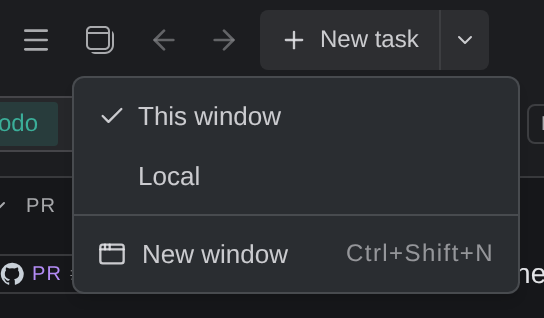
Each window’s own title leads with the remote it’s connected to and how many of its sessions are waiting on you. Each window keeps its own layout, and if you close the last window while Kepler keeps running, the next one opens where that window was.
New task
New task (Cmd/Ctrl+N) is a split button. The left half opens the Task Composer; the chevron holds New task from an external session, which starts a task from a conversation you began outside Kepler. See Create a Task.
Todo, Tasks in progress, and the Agent Graph
The control at the top left switches between 3 views of your work.

| Segment | What it shows |
|---|---|
| Todo | Issues and pull requests across every connected provider that you authored, are assigned, or were mentioned in, and not yet picked up |
| Tasks in progress | The tasks you already have running in Kepler |
| Agent Graph | A live visualization of every task, session, turn, tool call, and file. See The Agent Graph |
The Related to me chip in Todo’s header states that rule; hover it to read it. To browse issues beyond it, use New task → Issues → All visible.
Todo is where a working session starts; Tasks in progress is where it lives while underway. The Agent Graph is a segment of its own rather than a way of arranging the list, because it replaces the list instead of laying it out. It scopes over every task, narrowed by your search and filters, and the Group and View controls step aside while it’s on.
When launching the app, Kepler opens on Tasks in progress. When you start Kepler for the first time (like on a new machine), you get a Welcome to Kepler screen, with a summary of what’s already set up and 3 options:
- Start from scratch
- Start from issues
- Start from pull requests
To populate the Todo tab, first connect at least one provider. See Issue Tracker Integrations and Pull Request Integrations.
External sessions
Above the list sits an External sessions section: the agent conversations running outside Kepler right now. It’s pinned rather than mixed into the groups, because it answers a different question from the rest of the list: what’s running that Kepler didn’t start?
| Part | What it does |
|---|---|
| The header | {count} live and {count} waiting |
| Show past sessions | Extends the section to conversations found on disk, not just ones running now |
| A row | Opens the conversation read-only, where you can fork it, continue it here, or adopt it into a task |
With detection off, the section says so rather than sitting empty: External sessions are not detected, with Turn on in Integrations, which opens the detection setting. With detection on and nothing to show, it reads No sessions running outside Kepler right now.
External sessions stay listed under a filter that has no way to answer for them, rather than vanishing because a facet couldn’t classify them.
For what those sessions are and what you can do with one, see Agent Sessions.
Reading a row
A row reads differently depending on whether it holds a tracked issue or pull request, or a task you already started. The next 2 sections cover each case.
Todo rows: issues and pull requests
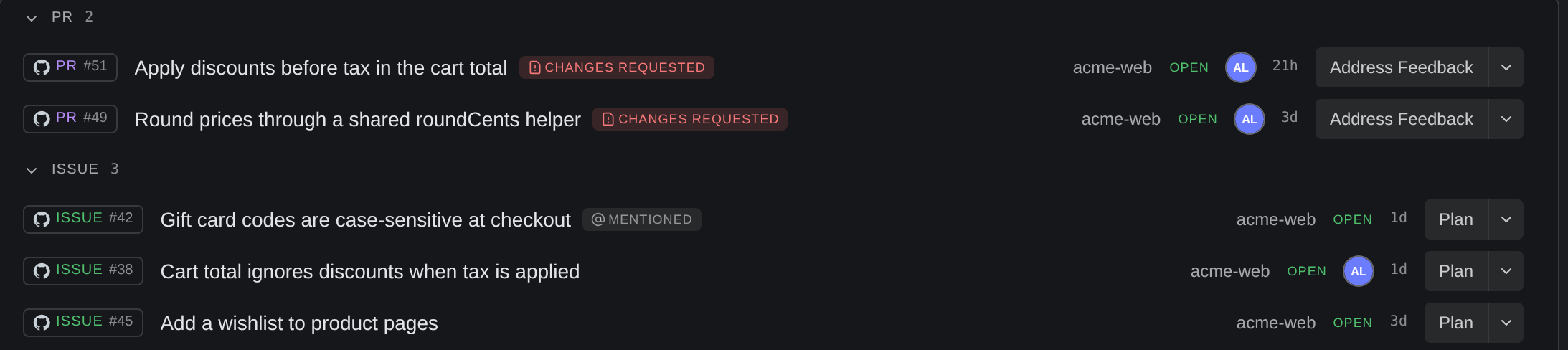

Each row shows, left to right:
- The provider
- A type badge (Issue or PR) with the reference (issue key or PR number)
- The title
- Your role on a pull request
- The repository
- Any session activity
- A status pill
- The assignee
- When it last changed
- An Action button
An issue that’s on your list only because it mentions you carries a muted Mentioned badge, so you can tell it apart from work assigned to you.
Your role on a pull request is one of:
| Role | Meaning |
|---|---|
| Yours | You authored the pull request |
| Review | You’re a reviewer on it |
| Unattributed | The provider did not say |
Task rows

Task rows show:
- The title
- The repository, or every repository when the task spans several (app, api +2 beyond two)
- Session activity
- A progress control
- The assignee
- Time
Task rows carry no type badge. Everything in Tasks in progress is a task, so a chip saying so earned nothing and cost the width the timestamp needed; a narrowing row drops other cells before it drops the time.
A task that spans several repositories is listed under each of them when the list is grouped by repository, rather than under only the first one.
The task’s own operations sit behind the ⋮ menu, and on a right-click:
- Open task page and Open in new window
- Reopen, while the task is Done, and a Progress submenu. See Arranging Your Work.
- Mark as unread
- Rename task (F2 on a focused panel)
- Copy task prompt
- Add resource
- Archive task, or Restore task when the task is already archived
- Delete task
Task rows deliberately have no reference column and no Action button. A task’s reference is the head of its identifier and names nothing you’d recognize, so the title takes that cell instead. Firing an Action from a Todo row is how an untracked issue or pull request becomes a task in the first place; you manage a task that already exists from its ⋮ menu.
Status
Both segments carry a status, but they answer different questions.
| Where | Values | What it means |
|---|---|---|
| Task rows | Exploration, In Development, In Review, On hold, Done, Archived | Where the work has got to. Kepler derives it from the task’s checkouts and pull requests unless you or an agent set it by hand. In Development reads uncommitted changes or commits ahead of the branch’s recorded base; In Review needs an open or draft pull request of the task’s own; Done needs at least one of the task’s branches to have landed, with no open pull request and no commits left unlanded. On hold and Archived are filing decisions, not evidence |
| Todo rows | Open, Draft, Merged, Closed for a pull request; the tracker’s own state for an issue | The provider’s own state on the pull request, and the workflow state your tracker uses for the issue (such as a Linear In Progress or a Jira To Verify) rather than a flat Open |
Each pull request and issue state has its own icon and colour, so a column of pills reads at a glance.
Done waits for the work to land, however it got there: a pull request merged normally, by rebase, or by squash; a branch that diverged locally after its pull request merged; or a branch merged into its base with no pull request at all. A task that’s done but still has uncommitted changes or unpushed commits in a checkout reads Done · local changes, so you can decide whether to keep them before you archive.
The progress control on a task row is also a menu: click it to set the stage yourself, or put the task on hold. A stage you set holds until the evidence catches up or moves on. See Arranging Your Work.
Beside the pill sits one dot per distinct session state, with a count of each.
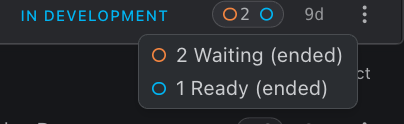
This shows what the agents are doing, a separate question from where the work stands. The vocabulary is the agent’s own:
- Spawning
- Ready
- Running
- Idle
- Unread
- Waiting
- Error
- Working in background
- Reconnecting
- Ended
A dormant session draws as an outline rather than a filled dot. Hover the dots for a count of each state; a dormant session is marked (ended), as in 2 Waiting (ended).
Kepler places a task at the furthest stage any of its checkouts reached, except Done. Done needs at least one of the task’s branches to have landed, no open pull request of its own, and no checkout still carrying commits that haven’t landed. A sibling checkout you never touched doesn’t hold a task back.
Starting work from a row
Click the Action button on a Todo row to hand the item to an agent with its context already attached: the repository, the issue body, the branch, and the diff. One click, no copy-paste.
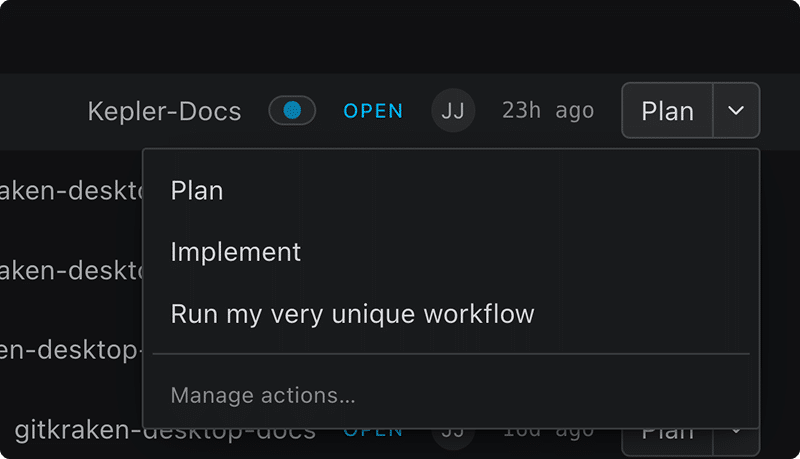
The left half of the button runs your preferred Action for that kind of item; the chevron opens the full list. The defaults are:
- Plan for issues
- Address Feedback for pull requests you authored
- Review for everyone else’s
All of these defaults are editable. See Actions.
Open a panel
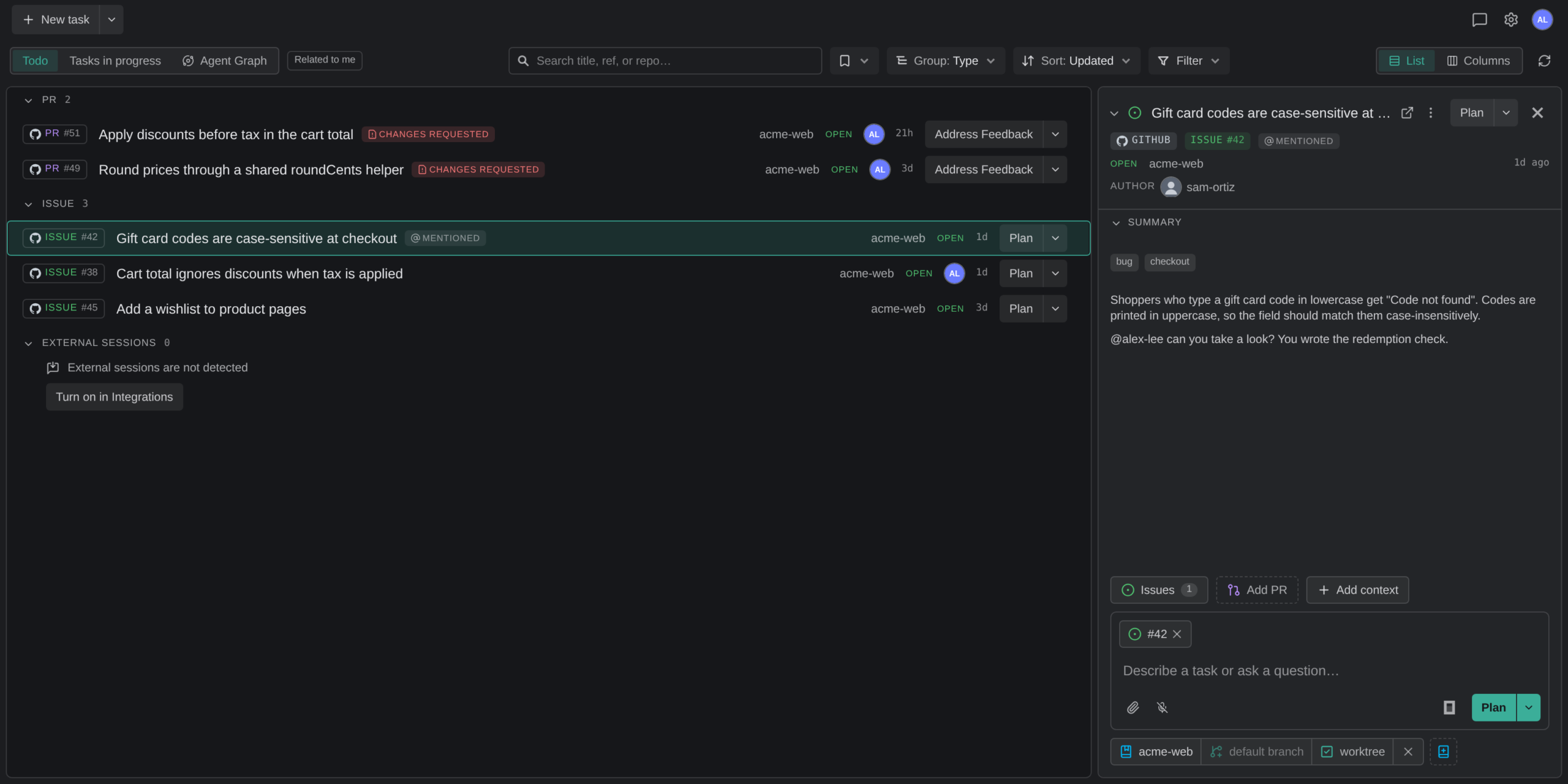
- Click a row to select it and open the side panel. A plain click replaces whatever was open, except for panels you’ve pinned.
- Shift-click a second row to open both side by side. The panel holds one column per open item, each with its own chat, so you can work several tasks at once without leaving the list.
- Cmd-click (Ctrl-click on Windows and Linux) to add one row to the open set, or to close it again.
- Double-click a row to open the item’s full task page. From a Todo row that’s the page of the task behind it. A row with no task yet has no page, so a double-click opens its panel with the cursor in the prompt box instead.
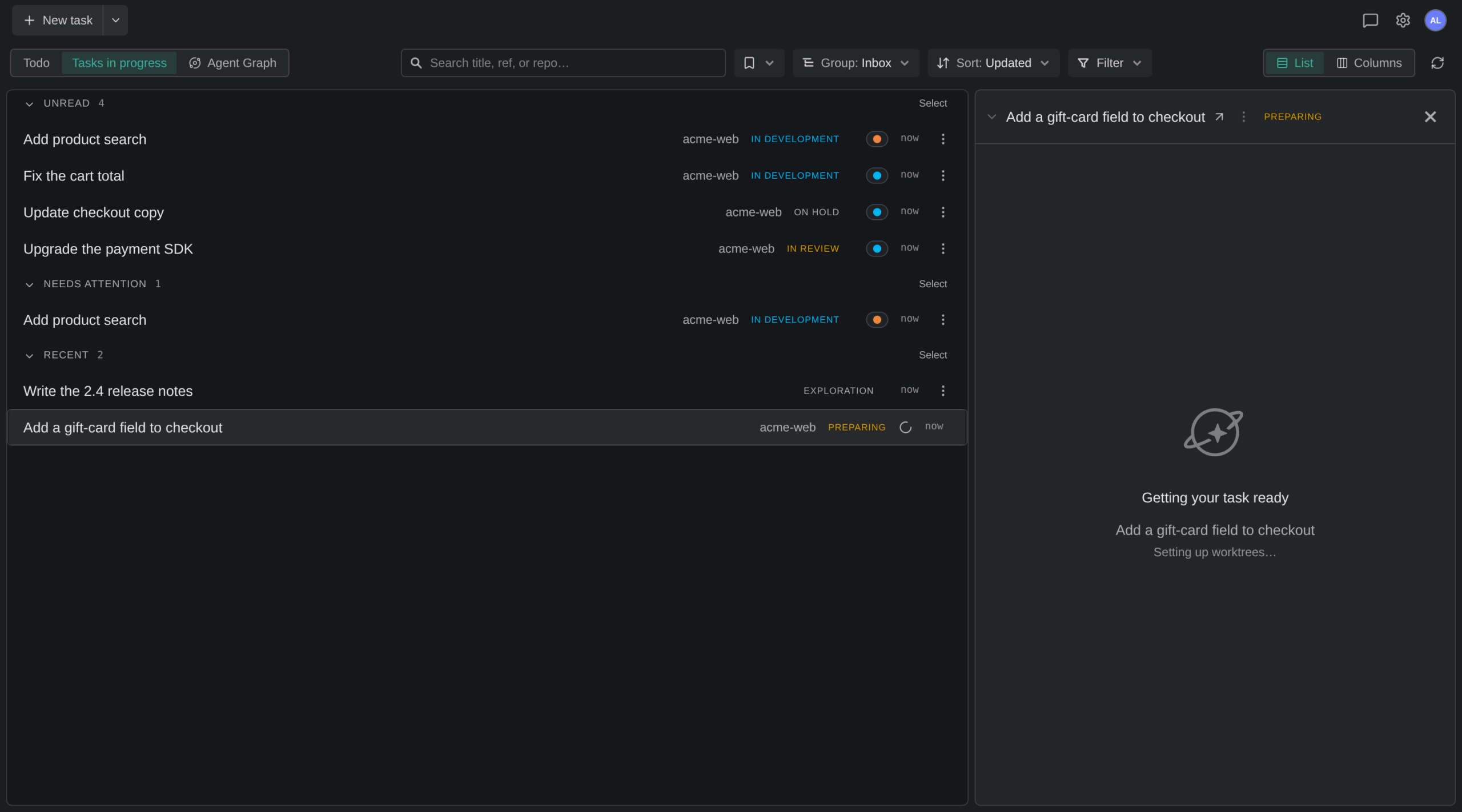
A new task appears in the list as soon as you press Start in the Task Composer, before its worktrees are ready. Its row shows a Preparing pill while Kepler sets it up, or a Failed pill if setup fails. You can’t drag or select a task that’s still being prepared. Its panel shows Getting your task ready, with Cloning {repo}… or Setting up worktrees…, and Cancel while a repository clones. If setup fails, the panel shows Couldn’t start this task (or Task not started after you cancel) with Edit and retry, so you can change the task and start it again, and Dismiss. When a task starts without some of its repositories, Kepler warns Some repositories weren’t added and names them.
Shift-clicking ranges from your last plain click, the way it does in Finder or VS Code. You can open up to 16 panels at once. Opening another closes the leftmost unpinned one.
Every open panel gets its own column straight away. Until its item loads, the column shows a placeholder that says it’s loading, that the item is gone, or that it couldn’t load, with Try again when retrying can help. A pull request or issue opened while you’re signed out reads Sign in to see this pull request (or issue) with Sign in, and a session panel that needs external-session detection says it’s off. Every placeholder can be closed.
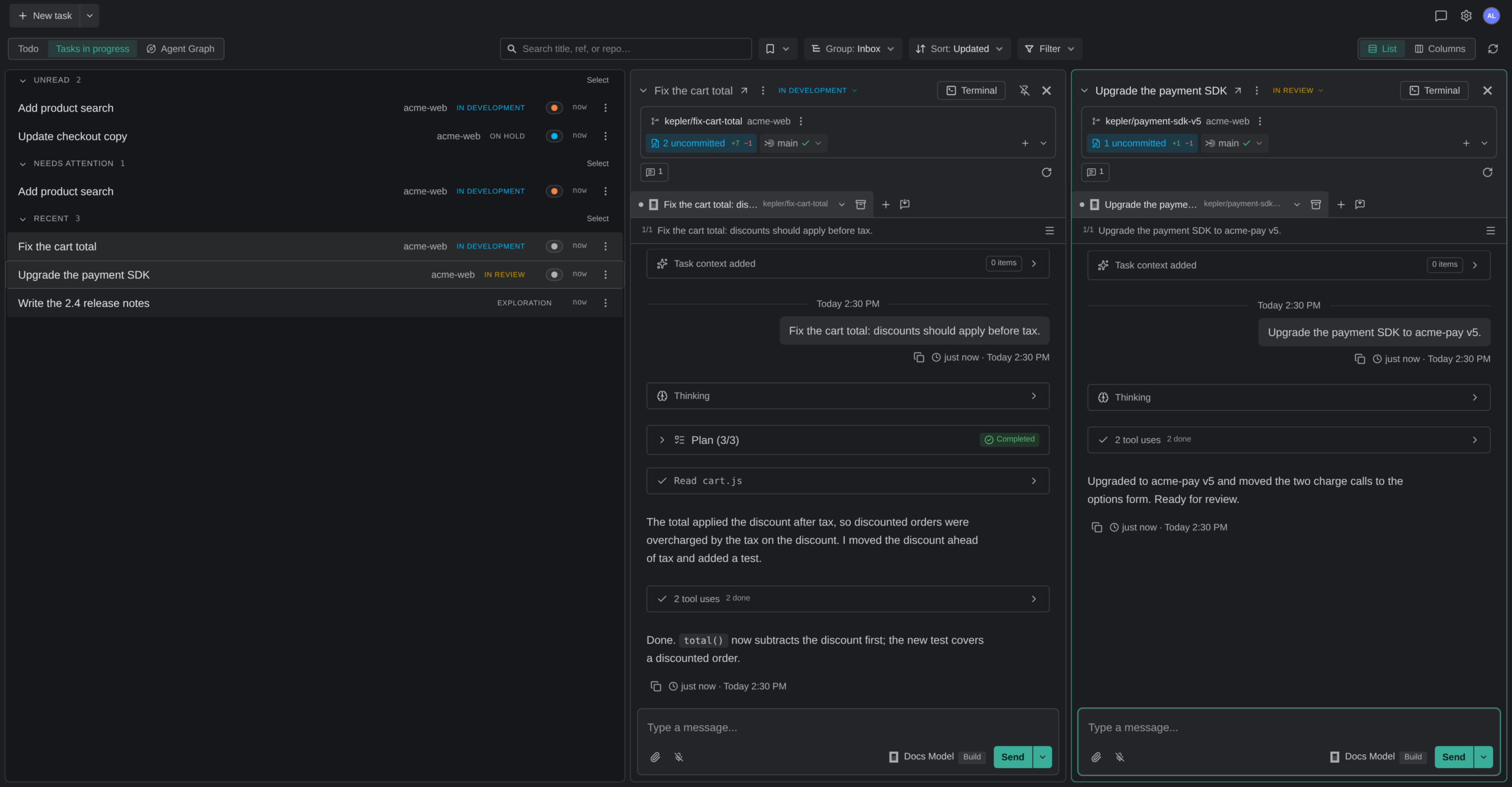
Resize. Drag the divider between two columns to resize the one on its left. Hold Shift as you drag to give every panel the same width at once. Double-click the divider, or press Home on it, to split the space evenly again. The list keeps a minimum width of its own, so a wide panel cannot shrink it too far. Kepler remembers the widths per window, across reloads, restarts, and segment switches.
Scroll. Once the panel strip grows wider than the window, it scrolls instead of squeezing the columns below a readable width. Scroll it sideways with Shift and the mouse wheel, or a sideways trackpad swipe, even over a terminal.
Reorder. Drag a panel by its header to a new place in the strip. A panel’s Panel actions menu (⋮) offers Move panel left and Move panel right, and so do Cmd/Ctrl+Alt+← and Cmd/Ctrl+Alt+→.
Maximize. Once two or more panels are open, Maximize panel in the ⋮ menu (or Cmd/Ctrl+Shift+M, or a double-click on empty header space) spreads one panel across the strip, leaving a sliver of each neighbour. Click anywhere outside it, or use the Restore panel button in its header, to put the layout back exactly as it was. Switching to another panel from the keyboard moves the maximize with you, so you can read panels one after another at full size.
Move between panels. Ctrl+Tab opens a switcher of your recent panels, where Delete or Backspace closes the highlighted one. Cmd/Ctrl+1 through Cmd/Ctrl+8 jump to a panel by its position from the left, and Cmd/Ctrl+9 to the last.
Starting a task from New task while you’re on the list opens the new task as a panel and leaves the list where it was, rather than throwing you onto its page.
When the list reorders under you (a session finishes, or a task moves bucket), the row you have selected glides to its new position rather than jumping, so you can see where it went.
Pin a panel
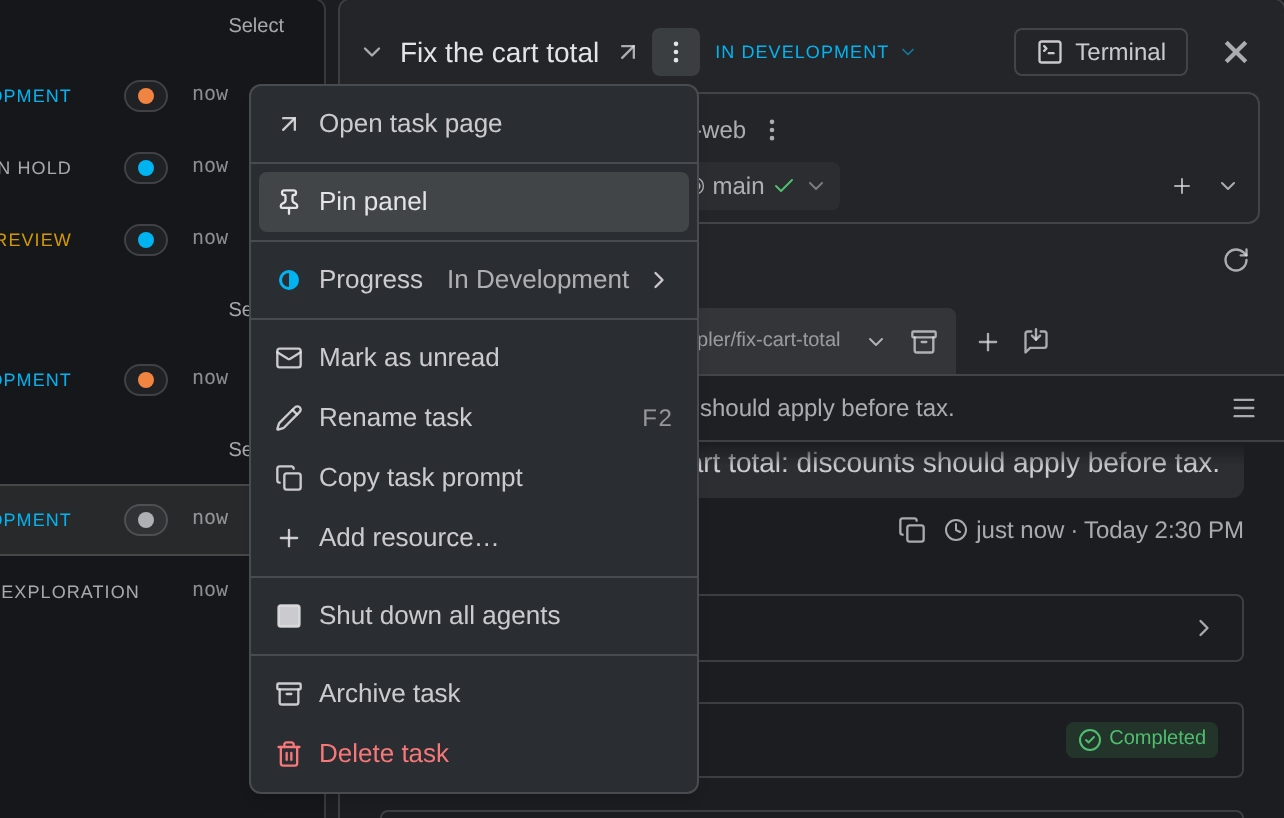
A panel is a place you’re browsing until you pin it. Pin panel, in the panel’s ⋮ menu, holds it in place. After that:
- A plain click on a row opens beside your pins instead of replacing them.
- Following a link in Related swaps the panel out in place if it is not pinned, and opens the linked item beside it if it is.
- Switching segments keeps the pinned panels and drops the rest.
- Nothing evicts a pin when the open set is full.
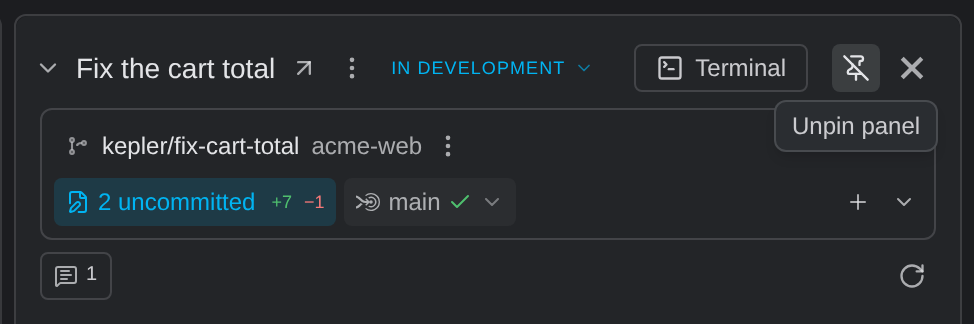
One slot always stays unpinned so browsing never has to evict a pin; once every other panel is pinned, the menu row reads Keep one panel unpinned for browsing and will not take another. A pinned panel shows Unpin panel in its header to release it.
The side panel
Selecting a row opens a panel beside the list with everything about that item, as a stack of collapsible, resizable sections.
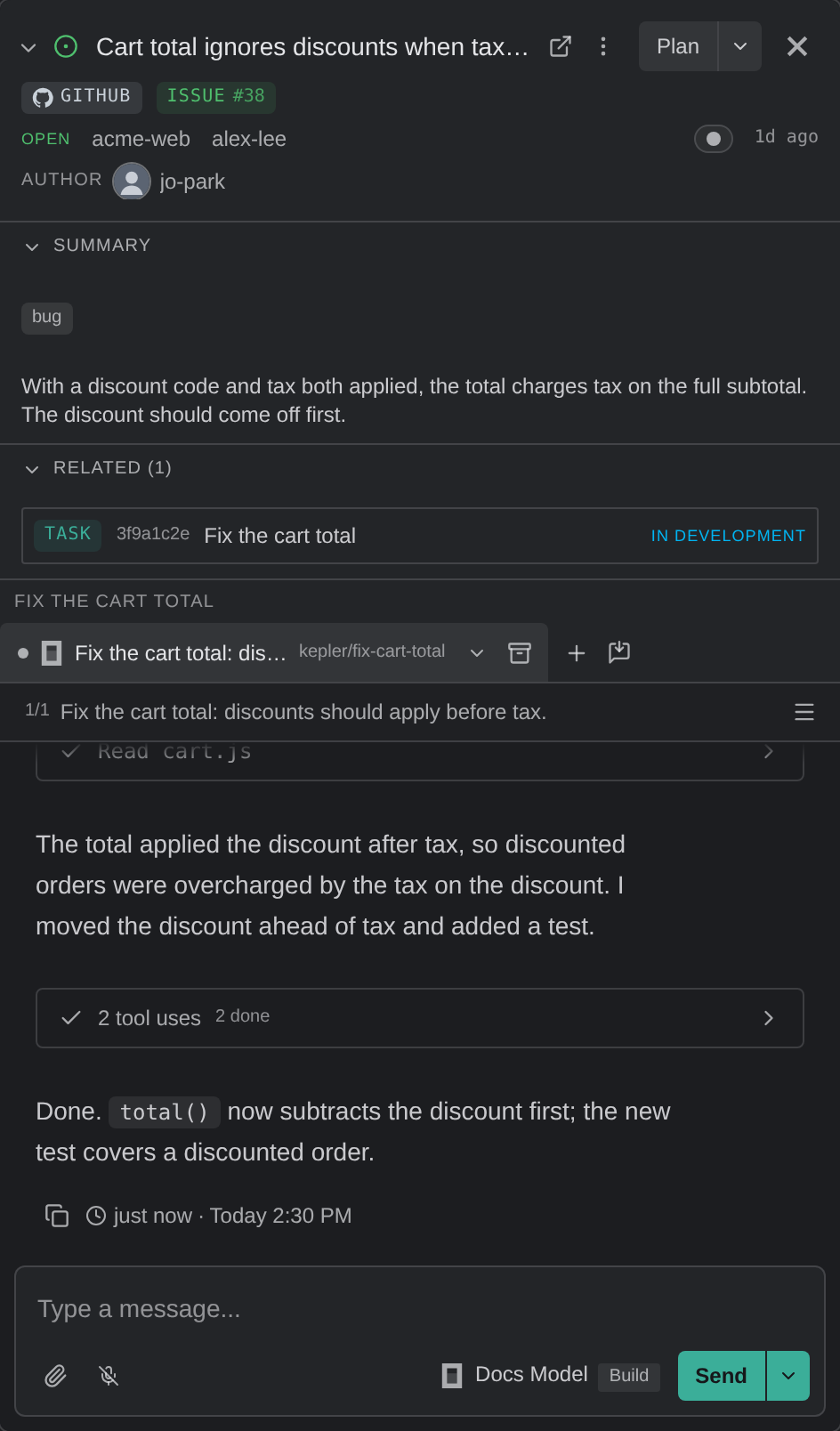
Kepler does not draw a section that has nothing behind it.
| Section | What’s in it | When it’s there |
|---|---|---|
| Summary | The issue or pull request description, with its labels shown as badges. You can select and copy the description text | An issue or pull request that has a description. Tasks carry none of their own |
| Related ({count}) | Linked issues and pull requests, counted in the heading so a folded pane still says how many | There’s at least one |
| What’s running | Session tabs and draft session tabs. A session tab holds the live agent conversation; a draft tab holds a prompt box plus the same Actions. This is the chat | Always, on an item you can start work on. Resizable, but not foldable: it’s what the panel is for |
| Plan | The plan the conversation on screen has proposed | The agent produced one |
| Changes | The checkout’s commits, working changes, and file diffs | You opened a worktree’s changes from its pill |
| Terminals | Terminal tabs across the task’s checkouts. A shell tab shows its program’s status, such as Working, Needs you, Done or Failed, when the program reports one | A terminal is open. Its ✕ takes the section away without stopping the shells; the header’s terminal control and Cmd/Ctrl+J are the way back |
Kepler sizes Summary and Related to their contents and then the chat takes whatever height is left over.
To reorder the tabs in What’s running or Terminals, drag a tab to a new place.
If an agent fails after you start a session, What’s running shows {agent} couldn’t start with the agent’s message. Press Retry to launch it again, or Open agent settings to fix the problem.
For unstarted issues or PRs, the side panel’s primary button follows that item’s preferred Action (Plan, Implement vs Review, Address Feedback).
In the side panel for a Task, the primary button reads Start, and once a session exists the composer becomes that session’s chat, where it reads Send. If the preferred Action is None, no longer exists, or cannot aim at this kind of item, the button falls back to Start.
A task you created with a prompt but haven’t started reads Start with the task prompt, or describe something else…. Press Start on the empty box and the task’s prompt goes out as the first message; type something to send that instead.
The header carries:
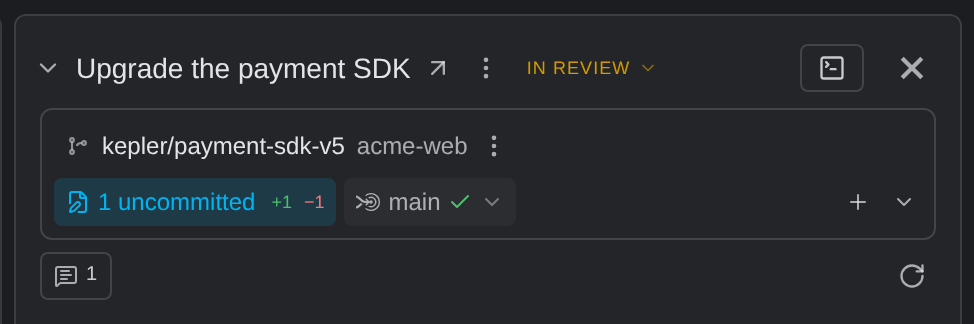
- The item’s badges and reference
- The title, with a dot when a session needs you: blue for an unread turn, orange for one waiting on you
- The progress control, on a task
- The terminal control, on a task
- Restore panel, when the panel is maximized
- Unpin panel, when the panel is pinned
- Close
- Panel actions (⋮): Close, Open task page, Open on {provider} for an issue or pull request, Pin panel, Maximize panel, Move panel left, and Move panel right. On a task, these rows join its Task actions menu. Maximize panel and the moves appear only once more than one panel is open
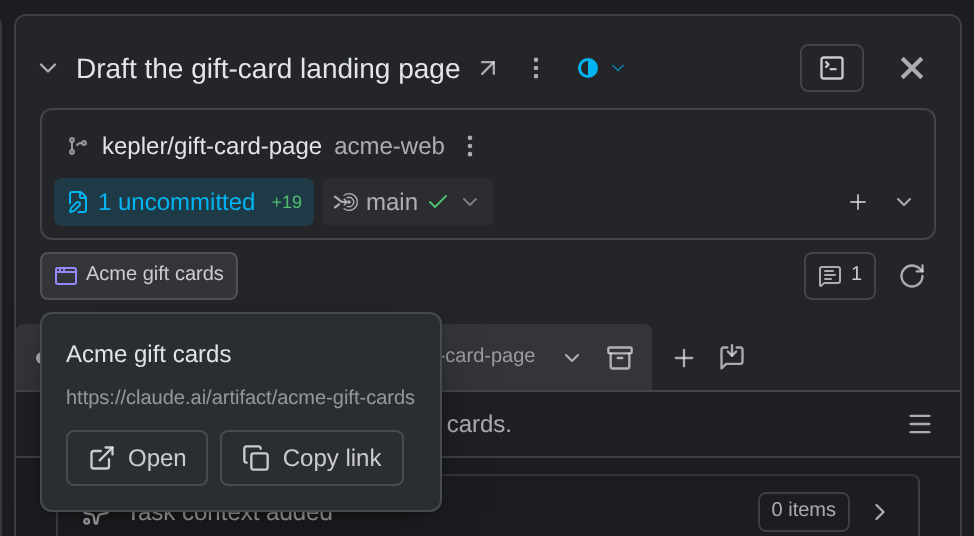
Each pull request, issue, or artifact linked to a task has a chip under the header; hover one for its card, or click it to read it in the panel. A pull request whose branch name was used before reads Opened from an earlier branch with the same name. The Resources chip lists the task’s notes, files, folders, and links, and a note opens in the panel with Copy note.
Hover a task’s title to read its prompt, with a button to copy it. The prompt is a context item of its own, labelled Prompt, shown first among the task’s notes in the card, the preview, and the task page’s rail, and it can’t be deleted.
To rename a task, choose Rename task from its ⋮ menu or press F2 on its focused panel, and edit the name in place. Enter commits the change; Escape or clicking away discards it.
The header folds down to its title row with the chevron beside it, for a task, a pull request, or an issue. A folded pull request still shows its number and review decision. Each segment remembers its own fold.
A Done task with no unpushed work and no agent working or waiting on you shows Ready to archive? in its header. See Arranging Your Work.
An archived task reads Archived where its progress control would be, in both its preview and its detail header, so you can’t mistake a filed task for a live one.
The worktree pill
Below the header, each of the task’s checkouts is a pill with two rows: who it is on top, and what’s in it below.
| Row | What it shows | What it does |
|---|---|---|
| Top | The branch and repository, the worktree’s own pull request, and the upstream control | The branch opens the worktree’s menu: copy branch or path, open its changes, detach, delete. The upstream control runs the verb its counts call for: Pull when behind, Push when ahead, Publish when the branch isn’t on a remote yet, and Force push behind a confirmation when the branch has diverged or after you apply a rebase. Fetch is in its chevron |
| Bottom | Chips for uncommitted files, commits, and the merge target, plus Open in and Run | Each chip opens what it counts: the working changes, the commits, or how the branch compares with its merge target. The merge target chip’s menu also offers Rebase onto {target} and Merge {target} into this branch, which open the update view. See Review Changes. Open in opens the checkout in your default editor, with the rest in its chevron. Run runs one of the repository’s commands |
The pill says what needs doing rather than just counting: unpushed commits, a paused rebase or merge you can continue or abort from the pill, a merge target it couldn’t read with a retry, a detached HEAD explained, and No changes only when there really are none. Hover any chip for a card that leads with what a click does; right-click it for its own menu. As the panel narrows, the chips shrink to their icons and counts rather than disappearing, and the branch name is cut last.
More than one worktree. A task’s worktrees collapse into one pill, led by a count such as 1/3. Step through them with the switcher on the branch name, or with the up and down arrow keys on the pill. Until you pick one, the pill follows the worktree with the latest changes. The toggle on the pill’s leading edge (Show all {count} worktrees) lays them all out at once. Worktrees whose branches have merged share a single row, with a way to delete them through the same cleanup list archiving uses.
From the keyboard, a pill is two tab stops (its changes and its actions), with the left and right arrows moving inside each.
The terminal strip’s + becomes a chooser listing the task’s checkouts by branch when the task has more than one.
An issue or pull request keeps a status line as well, with its provider state, session dots, repository, assignee, and last activity. A task does not, because the row you clicked already showed that information.
Back and forward
Back follows one rule: it leaves the place or mode you’re in. It never retraces a search you typed, a filter you set, or a change of view mode, so pressing it after narrowing the list takes you out of the list rather than walking back through every keystroke.
| Mac | Windows / Linux | |
|---|---|---|
| Back | ⌘ [ | Alt + ← |
| Forward | ⌘ ] | Alt + → |
The Back and Forward buttons in the top bar do the same, as do a mouse’s side buttons. On macOS, a two- or three-finger sideways swipe on a trackpad or Magic Mouse goes back and forward too, wherever nothing under the pointer scrolls sideways. A sideways scroll or a mouse’s tilt wheel never goes Back on Windows and Linux, so a stray scroll can’t throw you out of what you were reading.
Each set of open panels gets its own history entry, so Back closes the set you just opened rather than the whole visit. Moving between Settings sub-pages replaces a single entry, so Back from Settings returns you to what you were doing before you opened it.
Empty states
| What you see | What it means |
|---|---|
| Welcome to Kepler / You’re all caught up | Nothing in motion. The welcome panel stands in for the Tasks list, with 3 ways to start one |
| No tasks yet | Nothing in motion, before the welcome panel resolves |
| No assigned PRs or issues | Providers are connected, but nothing is assigned to you |
| Nothing matches these filters | Your search or filters exclude everything. Use the button beneath it: Clear search, Clear filters, or Clear search and filters |
| Nothing here | One column of the Columns arrangement is empty while its neighbours are not |
| No provider integrations | Connect a provider to see assigned PRs and issues here. |
| Sign in to see your assigned work | Connect a GitKraken account to load the PRs and issues assigned to you. |
