

Last updated: October 2026
Kepler has one interface rather than a set of views, so you shape it instead of switching away from it. Four controls do most of the work: the grouping, the sort, the filters, and the layout. Each segment remembers its own, and a combination you come back to can be saved under a name.

This page assumes you know what’s on screen; see The Kepler Interface for that.
When the window is too narrow for the whole strip, Group, Sort, Filter, and the layout switch fold into a single Options button, followed by the saved views and finally the search box. A count on Options says how many searches and filters are still narrowing the list, so a narrowed list never hides behind a closed popover.
Two layouts

The View control decides how Kepler draws the list.
| View | What you get | Best for |
|---|---|---|
| List | A dense list you read top to bottom | Scanning everything at once |
| Columns | The same list turned on its side, one column per group | Seeing how far along things are, and moving tasks between stages |
List is the default, and each segment remembers its own choice across restarts, so Todo can stay a list while Tasks in progress stays a board. Both layouts respect the grouping and filters below.
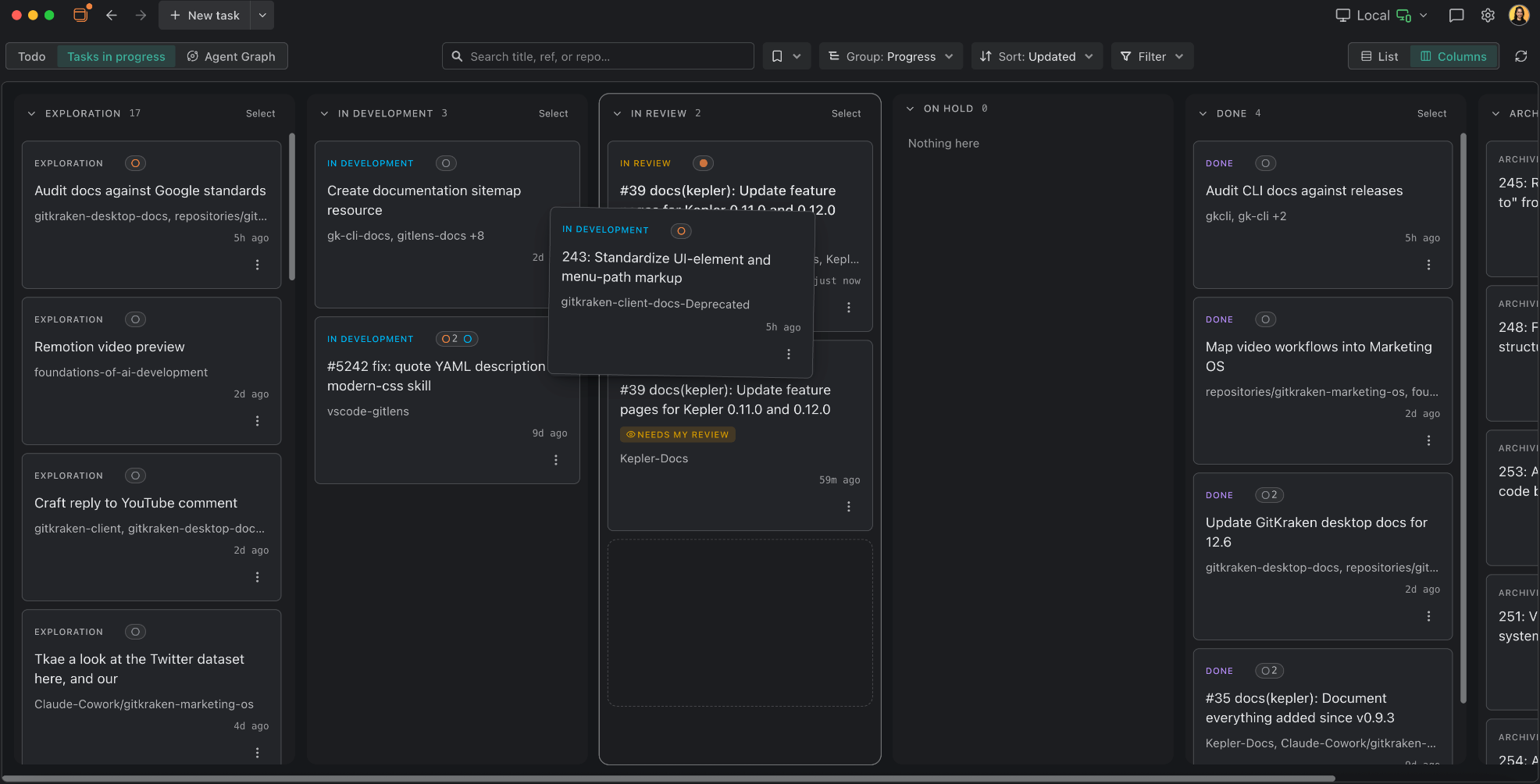
Columns draws the sections of the current grouping as a horizontal board, so what the columns are is up to the Group control. Grouped by Progress, the columns are the lifecycle stages: Exploration, In Development, In Review, and Done. They stay put as work moves between them rather than appearing and vanishing under the pointer, and an empty one reads Nothing here. On hold and Archived are the exceptions: each appears when something is filed there, and both appear while you drag a card so you can drop onto them. On every other grouping, Kepler doesn’t draw a section with nothing in it.
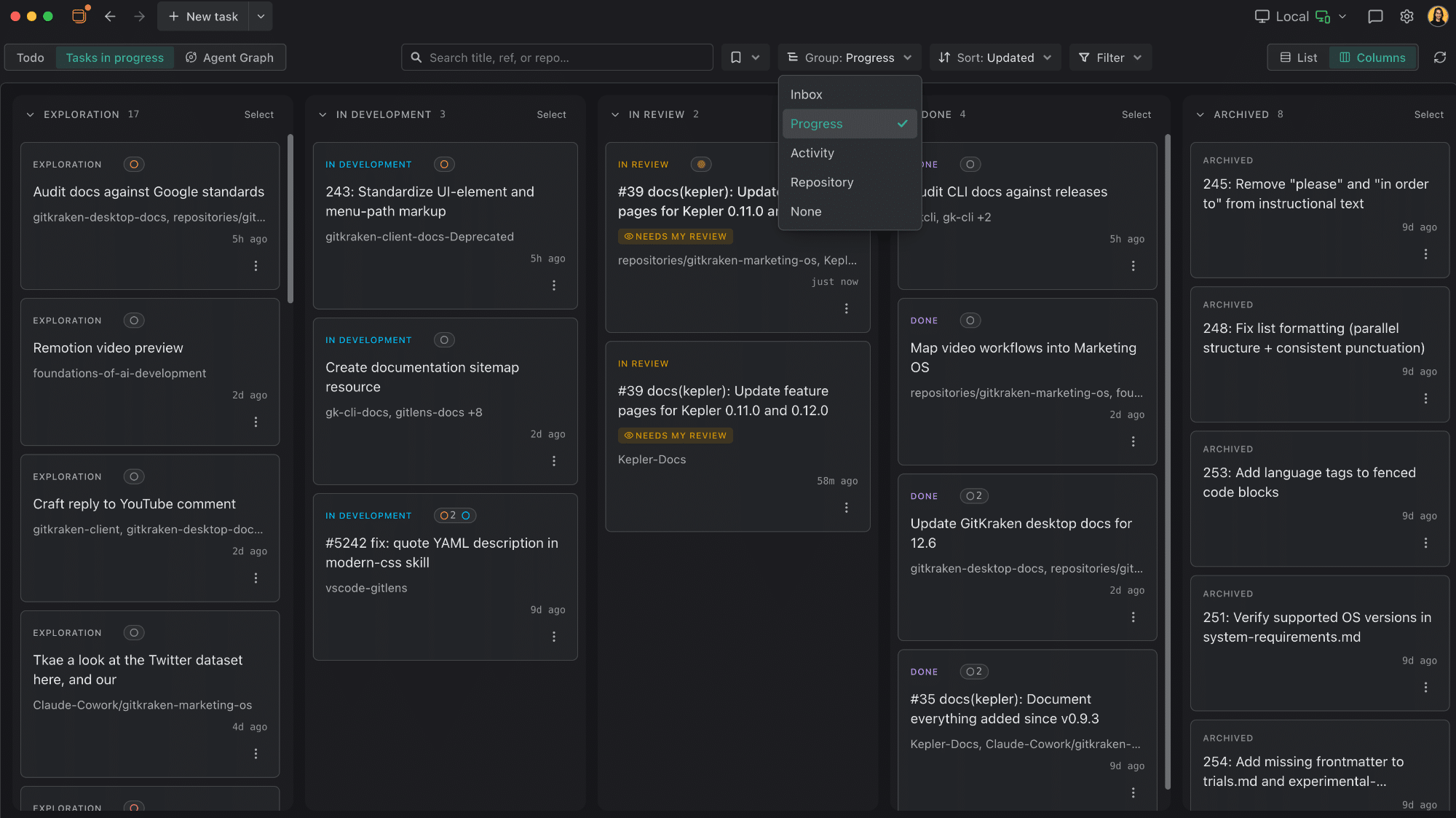
The Progress board is also where you can move a task by hand. See Set a task’s progress.
The Agent Graph is a segment, not a layout. It sits beside Todo and Tasks in progress and replaces the list rather than arranging it. Selecting it hides Group and View and gives the graph’s own controls the strip. See The Agent Graph.
Group
The Group dropdown reorganizes the list.
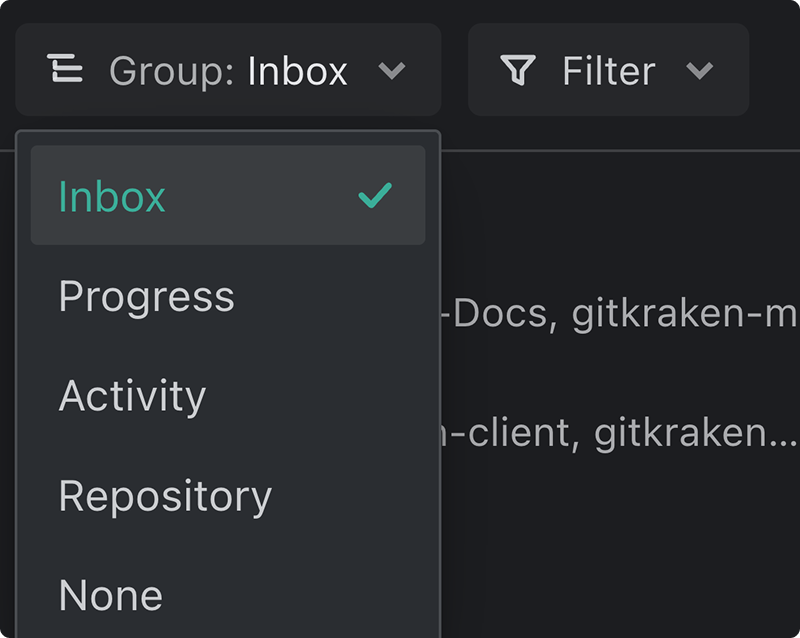
The available groupings differ by segment.
| Segment | Group by | Default |
|---|---|---|
| Todo | Type, Needs my attention, Your role, Provider, Repository, Status, None | Type |
| Tasks in progress | Inbox, Progress, Activity, Repository, None | Inbox |
Inbox
Inbox is the default on Tasks in progress, and it is viewer-relative: it sorts by what each task is asking of you, not by where the work has got to. It reads top-down from what needs you toward what’s filed away.
| Bucket | What lands there |
|---|---|
| Unread | A session finished a turn you haven’t looked at |
| Needs attention | A session is blocked on a permission request or a question |
| Running | An agent is working on it |
| Recent | Moved in the last 24 hours |
| Earlier | Moved before that |
| On hold | You or an agent put it on hold. Starts folded |
| Done | Finished, waiting only on the decision to archive it |
| Archived | Your own filing decision, which outranks everything else |
A session stays marked unseen until you actually look at it, so a turn that finished while you were elsewhere doesn’t quietly clear itself.
Inbox is one of two axes where a task can appear twice: a task that is both unread and blocked on you is listed under Unread and Needs attention, because each bucket is a complete answer to its own question and leaving it out of either would make that list lie. Running is exclusive: a task already at the top doesn’t need a second row saying it’s busy too. So is Done, which stands in for the time bucket a task would otherwise get.
A task stays in Running for 10 seconds after its work stops, so it doesn’t drop out between one prompt and the next, and running tasks keep the order they started in rather than trading places as they work. Moves into Unread and Needs attention are immediate, since those are news.
On hold is your “not now”, so a held task stays there even while an agent works on it. News still brings it back up: an unread turn or a blocked prompt lists it under Unread or Needs attention.
The 24-hour window is fixed rather than a setting: the axis is meant to be a quick daily sweep, not a tunable report.
The other axes
Progress and Activity are two different questions about the same tasks. Progress is how far the work has got: Exploration, In Development, In Review, On hold, Done, Archived. Activity is what the task’s agent sessions are doing right now, in the sessions’ own words: Waiting, Running, Ready, Spawning, Unread, Idle, Error, and Ended. Grouping by Activity also adds No sessions for a task nobody has started, then Done, and Archived last. Group by Progress to see the shape of the pipeline; group by Activity to see what needs a person.
Repository is the other axis that can list a task twice: a task bound to worktrees in several repositories appears under each of them, because the axis answers “what’s happening in this repository” one repository at a time.
Tasks in progress has no Status grouping, because a task’s status is its progress stage, a second axis under another name.
On Todo, Needs my attention is the viewer-relative axis: what each item is asking of you right now (Changes requested, Needs my review, Re-review, Comments), with No action needed last, where it can’t push a real obligation below the fold. It’s an axis rather than a pinned section so it obeys the same rules as every other grouping: one bucket per state, collapsible headers, and no row shown twice.
On Todo, Status groups issues by their tracker’s own workflow state, such as a Linear In Progress or a Jira To Verify, rather than collapsing every open issue into one bucket.
Items with no repository or provider collect under No repository and No provider. A pull request whose provider didn’t say who authored it groups under Unattributed; an issue, which has no author-or-reviewer axis at all, groups under Not applicable.
Fold a section
Every group header is a fold toggle, with the section’s count beside its name.
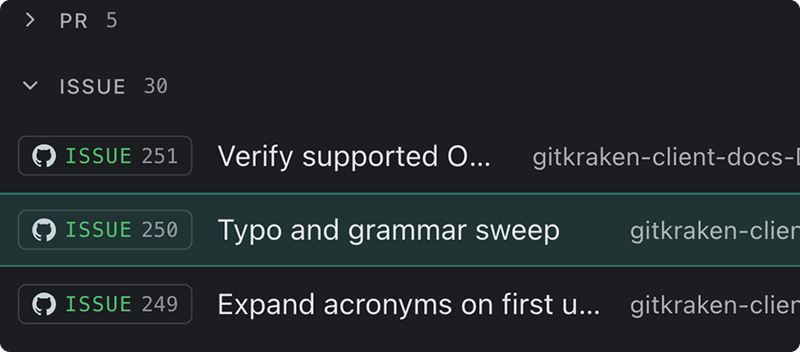
Folding one unmounts its rows, so a long Done list stops costing anything to keep around. Archived starts folded when you group by Activity or Inbox, since it’s the section that work is filed into, and so does On hold in the Inbox. Folds last only for the current run; Kepler doesn’t write them to disk.
Sort
The Sort control orders the items inside each group without changing the order of the groups themselves.
| Segment | Sort by | Default |
|---|---|---|
| Todo | Updated, Created, Name, ID, Type | Updated |
| Tasks in progress | Updated, Created, Name | Updated |
Dates sort newest first; Name and ID sort ascending. ID compares references naturally, so #9 comes before #10. Type puts pull requests before issues and keeps the recency order within each. Each segment remembers its own sort.
Set a task’s progress
A task’s progress normally follows its git and pull-request evidence (see Status). Sometimes that evidence can’t see what you know: a review was sent back, or the work landed somewhere Kepler can’t tell. When that happens, set the stage yourself.
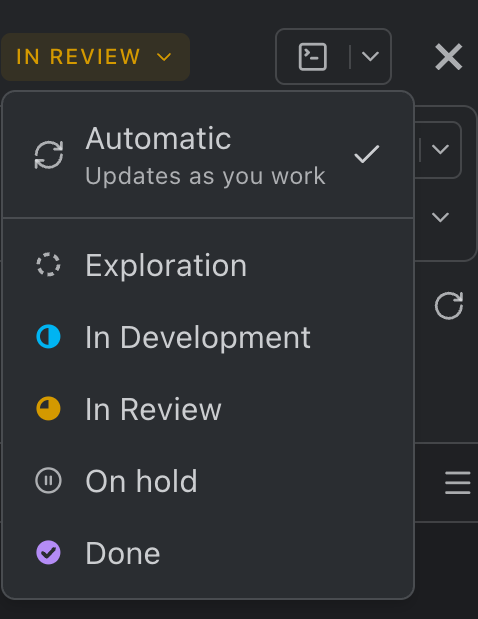
- The progress control. The stage word on a task row, in the preview header, and in the task page header opens a Progress menu: Automatic (Updates as you work), then Exploration, In Development, In Review, On hold, and Done. Where there’s no room for the word, the control shrinks to the stage’s icon rather than disappearing.
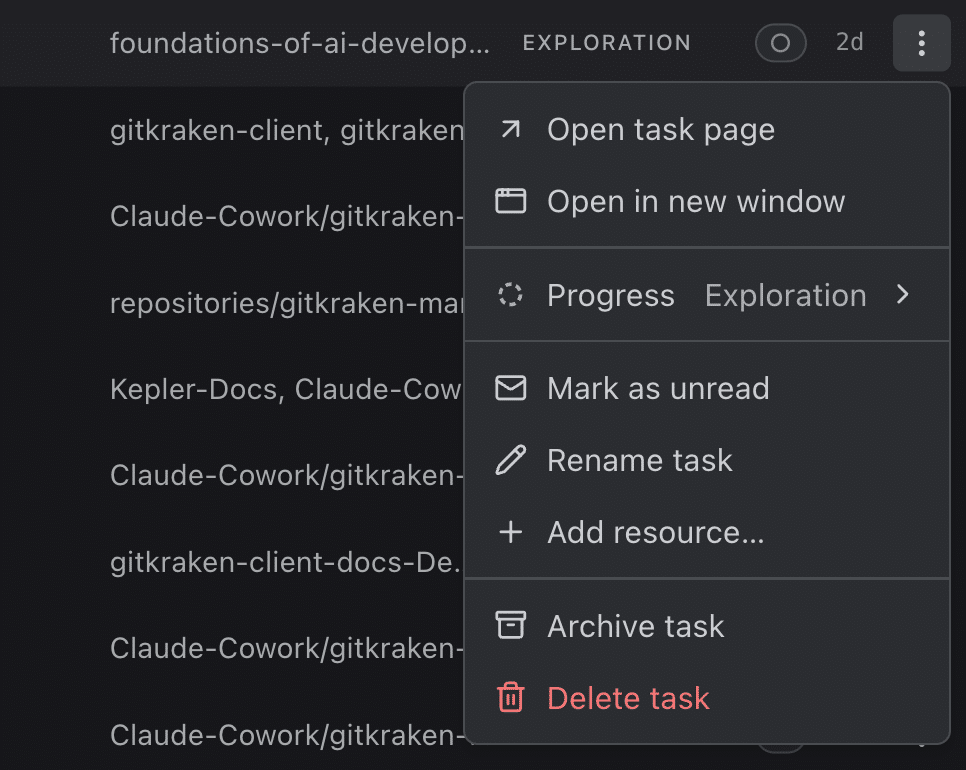
- The task menus. A task’s ⋮ and right-click menus carry the same choices under a Progress submenu, plus Reopen while the task is Done. Its hint says where the task will land (Moves it to In Review).
- Drag a card. On the Columns layout grouped by Progress, drag a task’s card to another column. On touch, press and hold to pick it up. Escape, or letting go over the card’s own column, changes nothing. You can’t drag a task that Kepler is still preparing.
- From the keyboard. With a card focused on that board, Cmd/Ctrl+Shift+← and Cmd/Ctrl+Shift+→ step it one column, stopping at Exploration and Done.
The control’s tooltip says whether the stage Updates as you work or was Set manually.
How a manual stage meets the evidence. A stage you set doesn’t fight git; it waits for it.
- Set a stage ahead of the evidence (Done before the merge, In Review before the pull request), and it holds until the evidence reaches it.
- Set a stage behind the evidence (Reopen, or a review sent back to In Development), and it holds until the evidence changes at all, so a reopened task still follows its next pull request.
- Once the evidence has caught up or moved on, the task goes back to following it. Pick Automatic to hand it back sooner. Dropping a card on the column the evidence already shows does the same thing.
Reopen on a task you marked Done falls back to what git and the pull requests show. On a task the evidence finished, it sets In Development, and the task’s next pull request carries it forward again.
On hold parks a task without saying anything about how far it got. It reads On hold where the stage would be, with a tooltip saying who held it and where it stood before. Picking any stage or Automatic lifts the hold, and so does the task reaching Done, so a merged pull request ends it on its own. A task already at Done can’t be put on hold.
Dropping a card on Archived opens the archive confirmation, and dragging an archived card out restores it first. An archived task’s control reads Archived as a plain label, with no menu.
Agents can set the stage too, and put a task on hold, through Kepler’s workspace tools. An agent that lifts a hold you placed tells you so.
Filter
The Filter menu holds one flyout per facet.
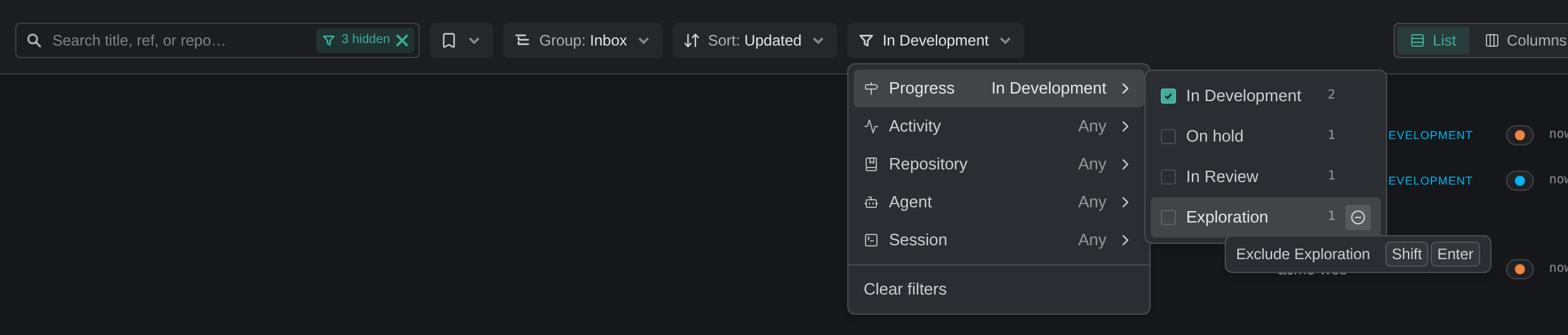
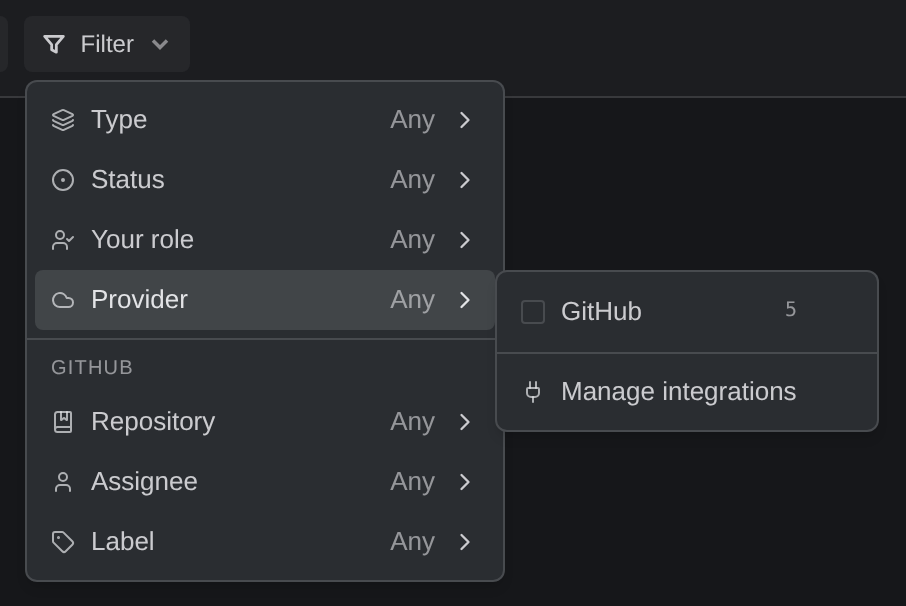
Kepler hides facets with nothing to offer, so a single-repo setup won’t show a Repository facet at all.
| Segment | Facets |
|---|---|
| Todo | Type · Linked work · Status · Your role · Provider, then one section per connected provider with its own Repository · Assignee · Issue type · Label · Project · Iteration or Sprint |
| Tasks in progress | Progress · Activity · Repository · Agent · Session · Linked work |
Issue type, Label, Project, and Iteration carry your provider’s own vocabulary (a Jira issue type, your team’s tags, a board name), not a Kepler-side translation of them. Azure DevOps calls the last one Iteration and Jira calls it Sprint, so the facet uses each tracker’s word.
Linked work filters by whether an item is connected to work on the other side: Has a task in Todo, and Has a PR or issue in Tasks in progress. Session offers Has a session and Has a live session. To find the items without one, exclude the value.
Include or exclude any value. Click a value to include it. Hover a value and press its minus button (or Shift+Enter from the keyboard) to exclude it instead; an excluded value reads not {value}. On Todo, excluding a provider’s value only subtracts from that provider’s items, so excluding a GitHub label never hides a Jira issue.
Included values within one facet combine as a union. Ticking GitHub and GitLab under Provider shows items from either, not items that are somehow both. Excluded values subtract: an item that matches any of them is dropped. A facet with nothing chosen reads Any and narrows nothing. The Search filters… box finds a facet value without scrolling, and the menu reports {count} of {total} as you narrow. The Filter button names one chosen value and counts the rest, included in blue and excluded in red.
External sessions stay listed under a filter that has no way to answer for them, rather than vanishing because a facet couldn’t classify them.
Refresh re-fetches the current segment from your providers.
Search
The search box matches on title, reference, or repository: Search title, ref, or repo….

Once a search or a filter is narrowing the list, pills at the right end of the search box say by how much, and each one clears only itself:
| Pill | What it counts | Clicking it |
|---|---|---|
| The search pill | The rows on screen out of every row: {count} of {total} | Clears the search |
| The filter pill | The rows your filters hide: {count} hidden | Clears the filters |
While a search is on, the filter pill counts only hidden rows that match the search, so a search that seems to miss something shows the filters hiding it. On Todo, which loads in pages, the counts read 40+ or 7+ hidden until everything has arrived.
When nothing matches, the empty list offers a button named for what it resets: Clear search, Clear filters, or Clear search and filters.
Search covers the work already loaded: on Todo, that’s what you authored, are assigned, or were mentioned in.
Saved views
The Saved views chip, just after the search box, keeps a combination you use often under a name and takes you back to it.
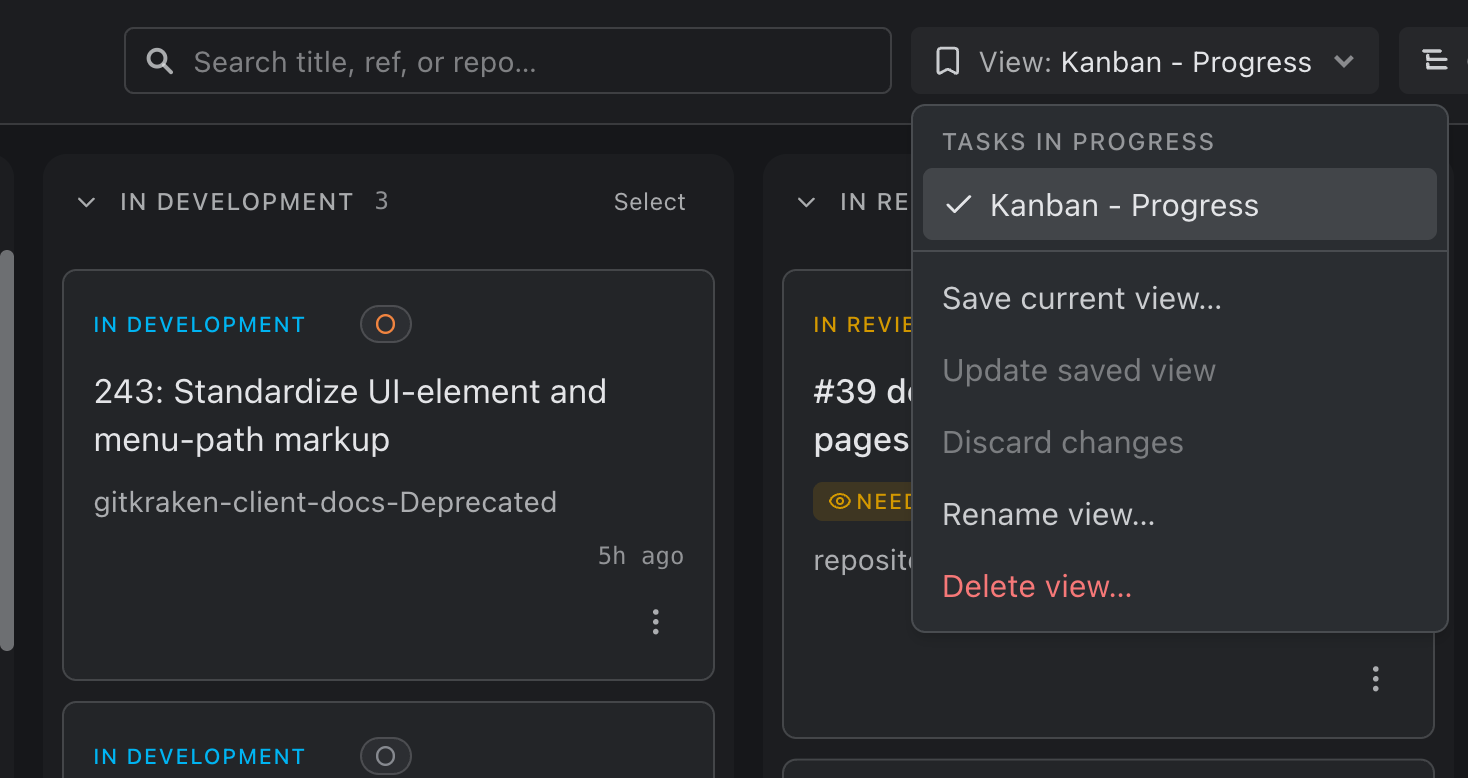
A view captures:
- The segment
- The search text
- The grouping
- The filters
- The layout (List or Columns)
Picking a view restores all of it, including switching to its segment. The chip then reads View: and the view’s name, and a checkmark marks it in the menu. Open preview panels aren’t part of a view, so applying one never reopens a task or pull request that has since gone.
| Menu item | What it does |
|---|---|
| Save current view… | Names the current combination and saves it as a new view |
| Update saved view | Overwrites the applied view with your edits. Available only once you’ve changed something |
| Discard changes | Puts the applied view back the way it was saved |
| Rename view… | Renames the applied view |
| Delete view… | Removes the applied view, after a confirmation |
A dot on the chip means you’ve edited the applied view since you picked it. Views are shared by every window, and two views can’t share a name: Kepler adds a number to a duplicate.
What Kepler remembers
Each segment remembers its own search, grouping, sort, filters, and layout, since they differ enough that sharing them would be meaningless. Kepler restores the segment you left along with its view. Kepler also remembers which panels were open, but only for the length of a run, so a round trip to the other segment doesn’t cost you the panel you were reading. Panel widths are remembered per window across reloads and restarts; the set of open panels is not, so a relaunch never opens a panel for a task since deleted.
Saved views are the exception to per-segment memory: they’re stored, named, and shared across windows until you delete them.
Archive, restore, and clean up in bulk
Archive task files a task away. It leaves the live buckets for Archived, its rows and sessions survive, and Kepler stops only the agents whose checkout is about to disappear.
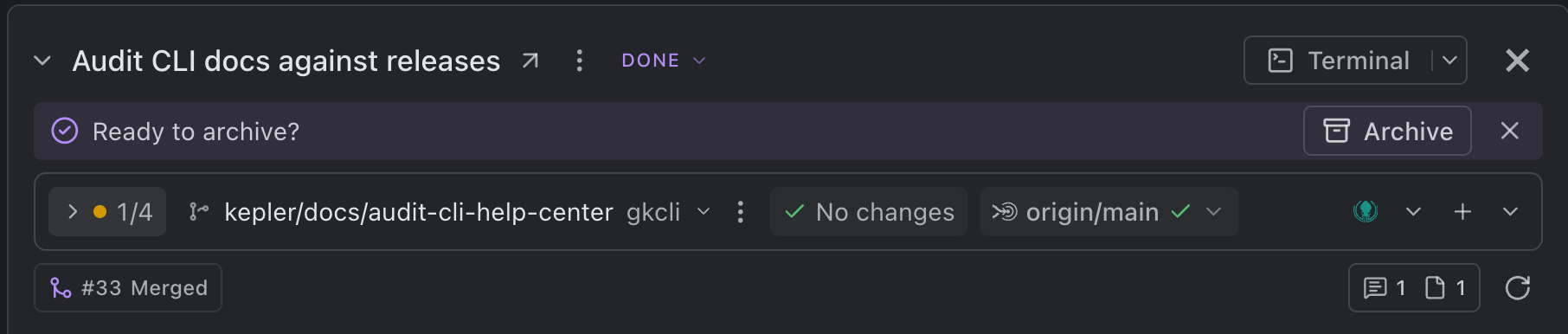
When a task is settled at Done, none of its worktrees holds unpushed work, and no agent is working or waiting on you, the preview and task page headers suggest it: Ready to archive? with Archive beside it. Archive opens the usual confirmation; the X dismisses the suggestion for that task in every window.
The confirmation offers the same two cascades the delete does: Also delete worktrees and Also delete branches. This way, finishing with a task doesn’t have to mean deleting it to clean it off the disk. With Also delete worktrees ticked, the dialog lists each worktree, riskiest first, with what will happen to it (Merged into main, 2 uncommitted files, In open PR #42). It also names the ones it keeps: the repository’s main worktree, and worktrees another task still uses. A worktree that would lose work is kept unless you tick the extra box that names exactly what would be lost, and a row at risk can open its changes so you can judge first.
Archiving outranks everything else, so a task you filed away can’t climb back into a live section because a shell is still open on it.
Restore task takes the place of Archive task in an archived task’s ⋮ menu, and is on the task page’s own header too. It puts the task straight back. Only one active task can hold a given pull request, so if restoring would archive another task that holds the same one, Kepler names that task and asks first.
For more than one at a time, every section header on Tasks in progress carries a quiet Select. Press it, and that corner of the header becomes a bar: a select-all box, {count} selected, and the batch verbs as icon buttons, each named by its tooltip. The section’s rows also grow checkboxes. One section selects at a time, and while you’re selecting, a click ticks a row rather than opening its panel. A task that Kepler is still preparing has no checkbox, and select-all skips it.
| Button | What it does |
|---|---|
| Archive | Archives every selected task that isn’t already archived |
| Restore | Takes Archive’s place when everything selected is already archived |
| Delete | Removes the selected tasks for good |
| Cancel | Leaves selection mode and drops the set |
Both Archive and Delete confirm, with Archive tasks or Delete tasks as the confirm button, and both offer Also delete worktrees and Also delete branches. Deleting can’t be undone, and the confirmation says so. The single-task dialog remembers what you ticked last time; the batch confirmation always starts with both unticked. The batch confirmation doesn’t list each worktree’s fate. Instead, any worktree that would lose work is kept, and a toast afterwards says which ones and why. Open a task’s own ⋮ to see the list before you confirm.
To clean up worktrees rather than tasks, including stale locks Kepler left behind, open Worktree cleanup in Settings → Repositories. The same page can also Update many worktrees at once, bringing each branch up to date with its base. See Settings.
