

Last updated: October 2026
Voice input puts a microphone in the agent prompt so you can talk instead of typing. Transcription runs on your device, using a Whisper model Kepler downloads once. Kepler never uploads your audio.
Voice input is off until you set it up. To set it up, open Settings → Voice input and click Get started. Kepler checks what your computer can run, then downloads a model. The microphone in the prompt goes live when the model is ready.
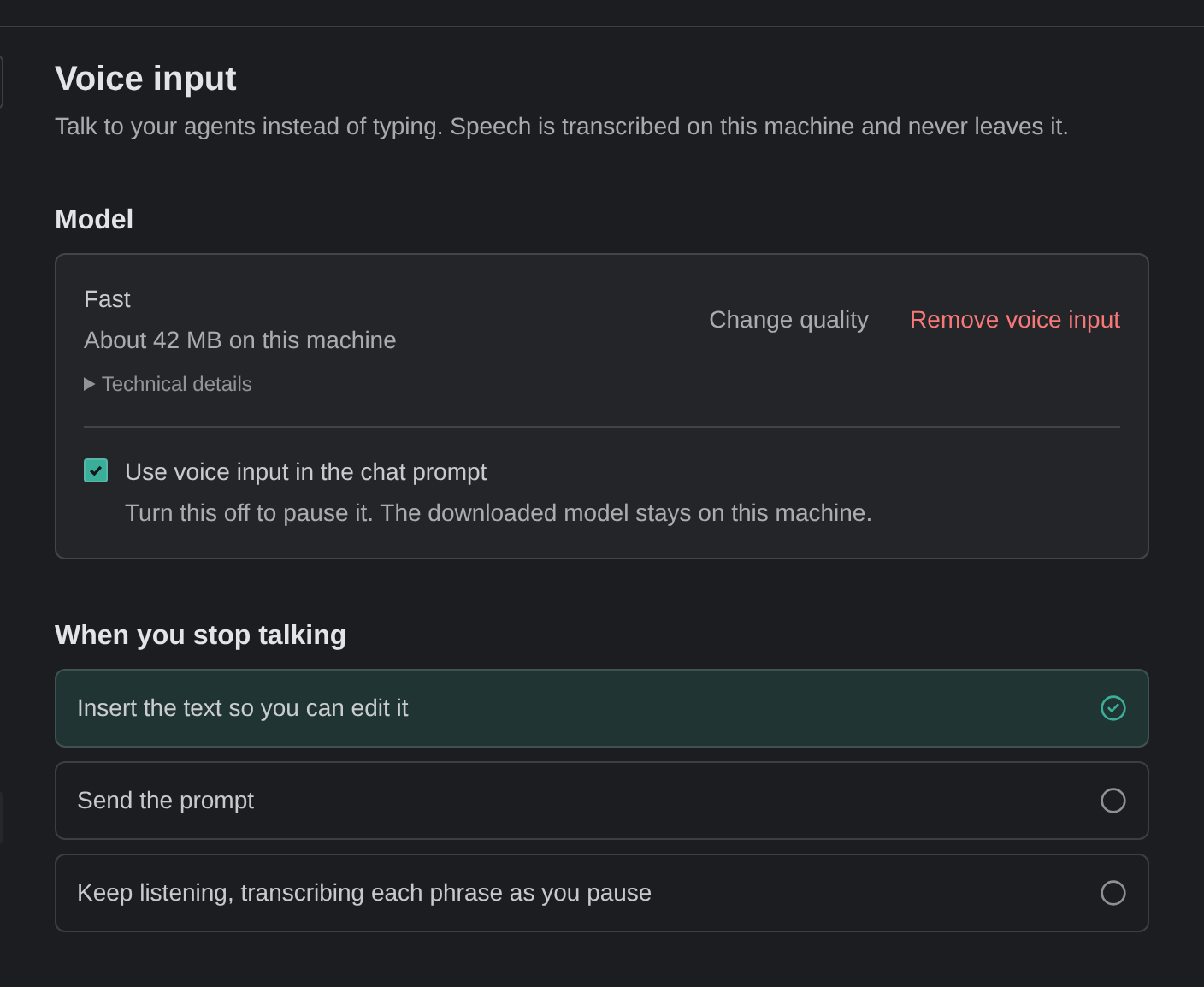
Choose what happens when you stop talking
To record, click Start voice input in the prompt, speak, then click Stop and transcribe.
To choose what Kepler does with what you say, go to Settings → Voice input → When you stop talking and pick one of these options:
| Option | What it does |
|---|---|
| Insert the text so you can edit it | Puts the text in the prompt for you to review. This is the default |
| Send the prompt | Sends the prompt as soon as you stop recording |
| Keep listening, transcribing each phrase as you pause | Keeps the microphone open and transcribes each phrase as you pause |
Kepler treats short, whole utterances as commands rather than dictation: saying “send”, “cancel”, or “clear” acts on the prompt instead of adding text to it. Kepler dictates anything longer verbatim.
While a transcription is in flight, the microphone shows Transcribing…. If a streaming session falls behind, it pauses the microphone rather than dropping audio: Transcribing too slowly — pausing the mic. Wait, or pick a smaller model.
Set up voice input in Settings
Settings → Voice input shows one step at a time. Each step appears only once it can do something.
To set up voice input, follow these steps:
- Open Settings → Voice input.
- Under Set up voice input, click Get started. Kepler checks what this machine can run. This check runs once.
- Under Choose transcription quality, pick Fast, Balanced, Accurate, or Most accurate. Kepler marks the best fit for this machine as Suggested.
- Click Download and set up.
Setting up turns voice input on. Downloads keep going if you leave the page, and Kepler notifies you when the model is ready.
Once a model is installed, the page shows the model and its size on this machine. The following table lists the settings you can change from there:
| Setting | What it does |
|---|---|
| Change quality | Reopens the quality picker, so you can switch to another model |
| Remove voice input | Deletes the model, frees its storage, and turns off the chat microphone. You can set it up again at any time |
| Technical details | Shows the model ID, its revision, and the backend and data type it runs on |
| Use voice input in the chat prompt | Turns the microphone on or off. Turn it off to pause voice input. The downloaded model stays on this machine |
| When you stop talking | Chooses what happens to what you say. See Choose what happens when you stop talking |
For the full walkthrough of the setup sequence, see Settings.
Why the microphone is unavailable
Hover the microphone, and its tooltip explains why:
| Tooltip | What it means |
|---|---|
| Voice input is off. Turn it on in Settings. | Not set up yet, or turned off. Clicking opens Settings |
| Voice input needs a one-time setup. Open Settings to finish it. | Enabled, but no model is downloaded. Clicking opens Settings |
| Voice input requires a secure (https) connection | Kepler is being used over plain HTTP, where the browser will not grant microphone access |
| Voice input is not supported in this environment | This build or browser cannot run it |
| Loading voice model… / Transcribing… | Busy. The button is disabled for the moment |
A microphone that is available but idle reads Start voice input; while recording, it reads Stop and transcribe. You can always stop. If the surrounding prompt goes read-only mid-recording, the transcript still lands in the draft.
Microphone permission on macOS
macOS asks for microphone access the first time you record, and Kepler prompts for it rather than failing silently.
If access is denied or restricted, Kepler explains what to do:
Kepler can’t use the microphone because access is denied or restricted. Turn it on in System Settings → Privacy & Security → Microphone if your device policy allows it. You may need to restart Kepler for the change to take effect.
Open System Settings takes you straight to the Microphone pane. The guidance stays on screen if the deep link cannot open, so you keep the instructions.
Remote windows
Voice input works in a window attached to a remote environment. The agent runs on the remote machine; the microphone and the transcription stay local, on the computer in front of you.
Over a plain HTTP connection the microphone is unavailable, and its tooltip reads Voice input requires a secure (https) connection.
The downloaded Whisper model is cached per browser storage context, not synced through Kepler’s settings: your voice input preferences sync, but the model itself does not.
- A remote Electron window reuses its model across reconnects and restarts, as long as you’re returning to the same saved remote connection from the same desktop app. A different machine, a different profile, or a connection that falls back to a different port needs its own download.
- Browser-based Remote Access caches the model per browser, device, and profile. A different browser, device, or a private window needs its own download. The same browser returning to the same address can reuse what it already has, unless that browser has since cleared its storage.
See Remote Environments.
