

Last updated: September 2026
Your GitKraken account is your key to unlocking the most personal experience across GitKraken products.
Note: GitKraken accounts are not compatible with Git Integration for Jira.
We recommend creating and using a single GitKraken account per person. Avoid creating duplicate accounts or sharing your account with others.
Sign In or Create an Account
You can create a GitKraken account at gitkraken.dev or directly within GitLens.
When prompted with the login screen, select Create an account to begin. Choose one of the following seven identity providers:
- GitHub
- GitLab
- Bitbucket
- Azure DevOps
- Single Sign-On (SSO)
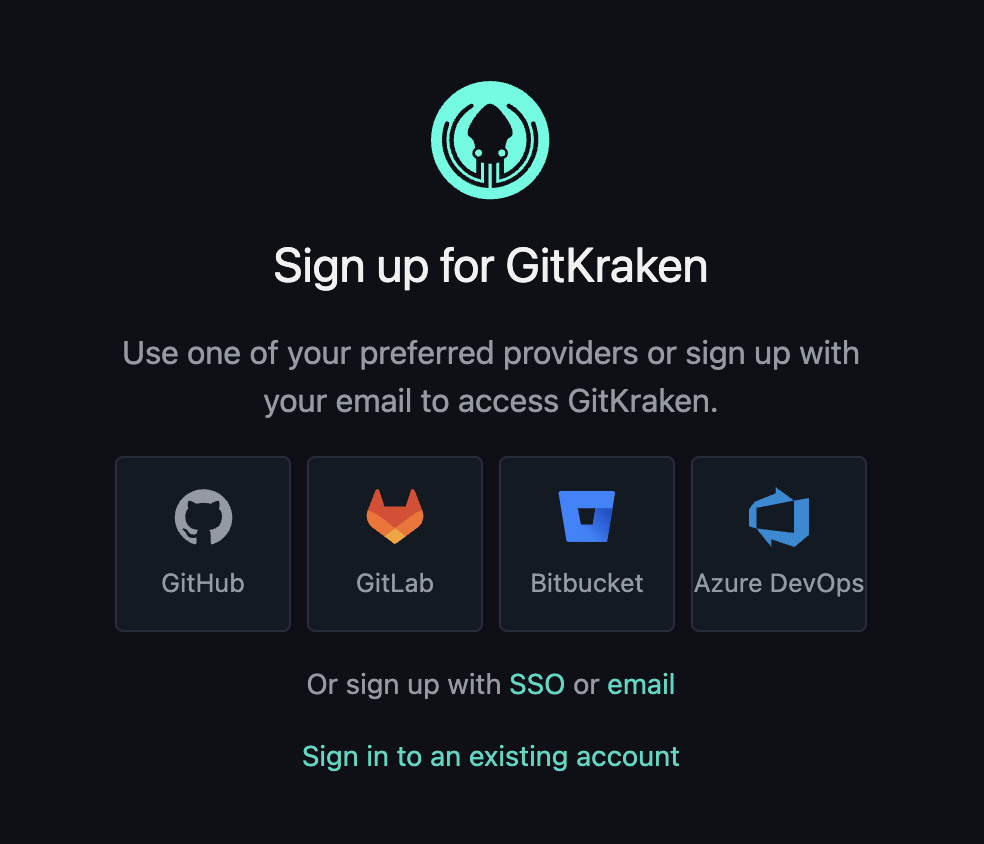
Once your account is created, it is linked to the primary email associated with your selected login method. If you choose Sign up with Email, check your inbox for a verification link to complete the process.
After you sign in, you can manage your account from two places in GitLens:
- GitLens Settings: Run
GitLens: Open Settingsfrom the Command Palette and select Account under Setup. The Account category shows your plan, Manage Account and Sign Out buttons, your active organization with an option to switch it, and a GitKraken AI Usage card with your weekly AI credit usage. On paid plans, owners, admins, and billing contacts of the active organization (and users with no active organization) can select Get more AI credits there. - Commit Graph header: Select the Account button (your avatar and plan badge) in the Commit Graph header. The popover offers Synchronize Status, Account Settings, Manage Account, Sign Out, and Switch Active Organization, along with a GitKraken AI row that shows your credit usage.
For more about AI credits, see GitKraken AI Features in GitLens.
Personalize Your Account
You can personalize your GitKraken account to control how your profile appears to other users within any associated organization. Visit gitkraken.dev/account after logging in to:
- Update your avatar
- Edit your name, username, and email
- Change your password
To change your avatar, click your profile picture. This will redirect you to Gravatar, where you can manage the avatar linked to your email address. GitKraken retrieves your avatar from Gravatar based on the shared email between accounts.

Delete Your Account
To delete your GitKraken account:
- Go to gitkraken.dev/account.
- Select Delete my Account (highlighted in red).
- Follow the on-screen confirmation steps.
- Select Delete your Account to confirm deletion.
Important: If you’re a non-admin member of a GitKraken organization, you must ask an admin to remove your account before you can delete it. Organization admins have control over employee accounts.
GitKraken complies with GDPR. Once deleted, your account cannot be restored. This action permanently removes your subscriptions, Cloud Workspaces, Insights data, and organizations.
