

Last updated: September 2026
Modern development rarely happens in a single branch. Developers and coding agents can work across multiple branches, worktrees, and tasks at the same time, creating more parallel streams of work to understand and coordinate.
The Commit Graph brings those streams together in one development workbench. See what’s changing, understand where work is happening, identify what needs your attention, and move work forward without jumping between branches, terminal sessions, and disconnected views.
1. See All Active Work
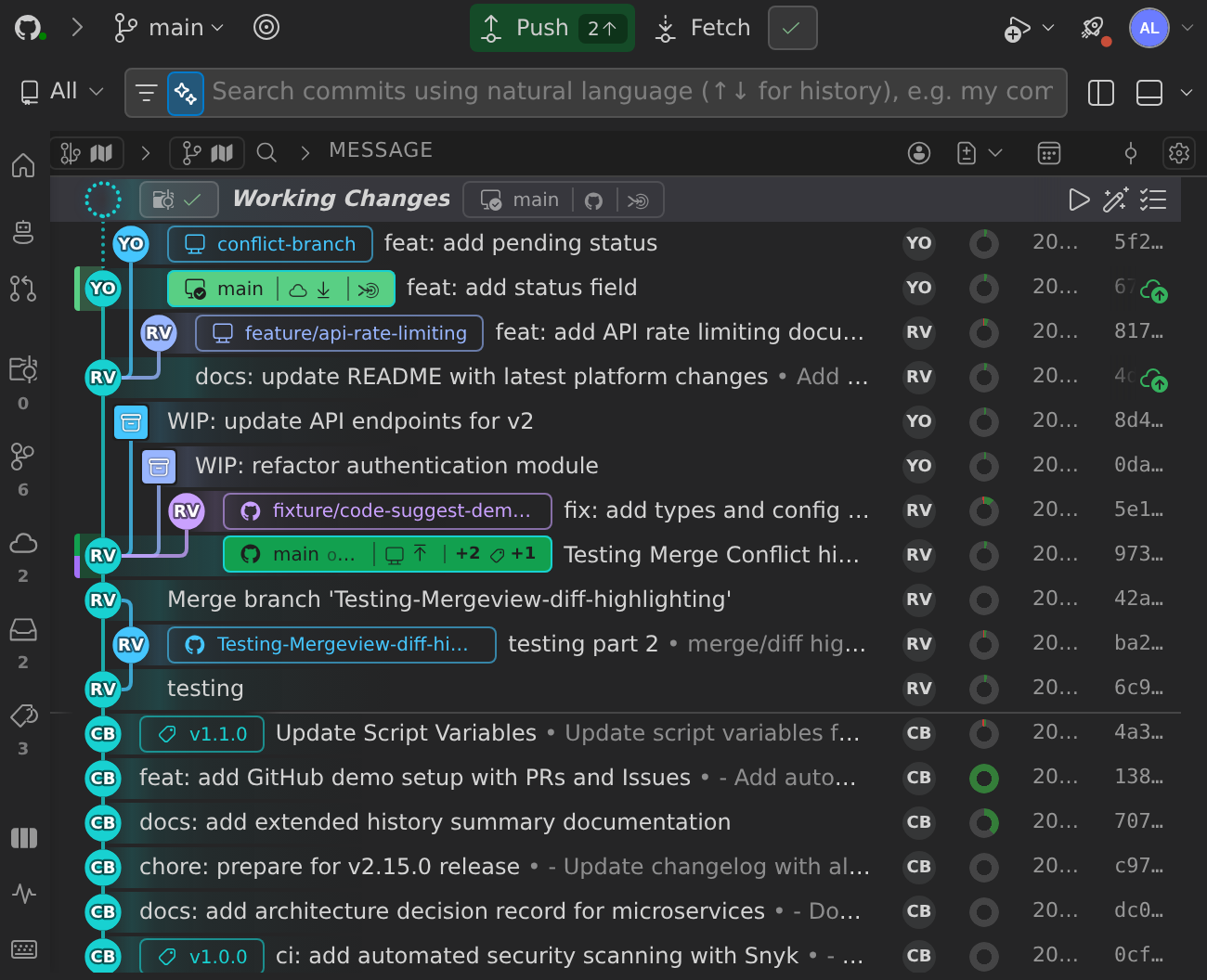
Start in the Commit Graph to get a connected view of your repository and the work happening across it.
See branches, worktrees, working changes, commits, HEAD, upstream, merge targets, and ahead and behind status together, giving you the context to understand how each stream of work relates to the rest of your repository.
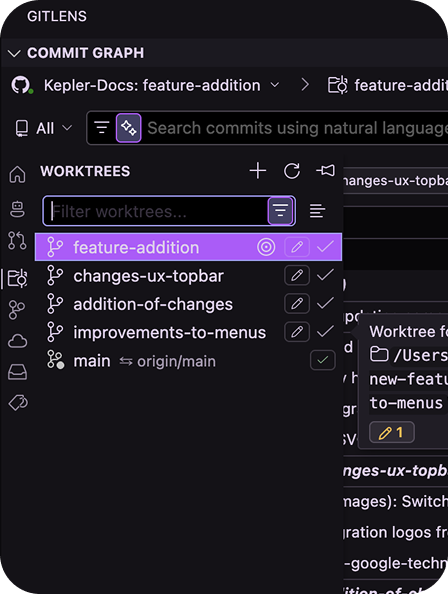
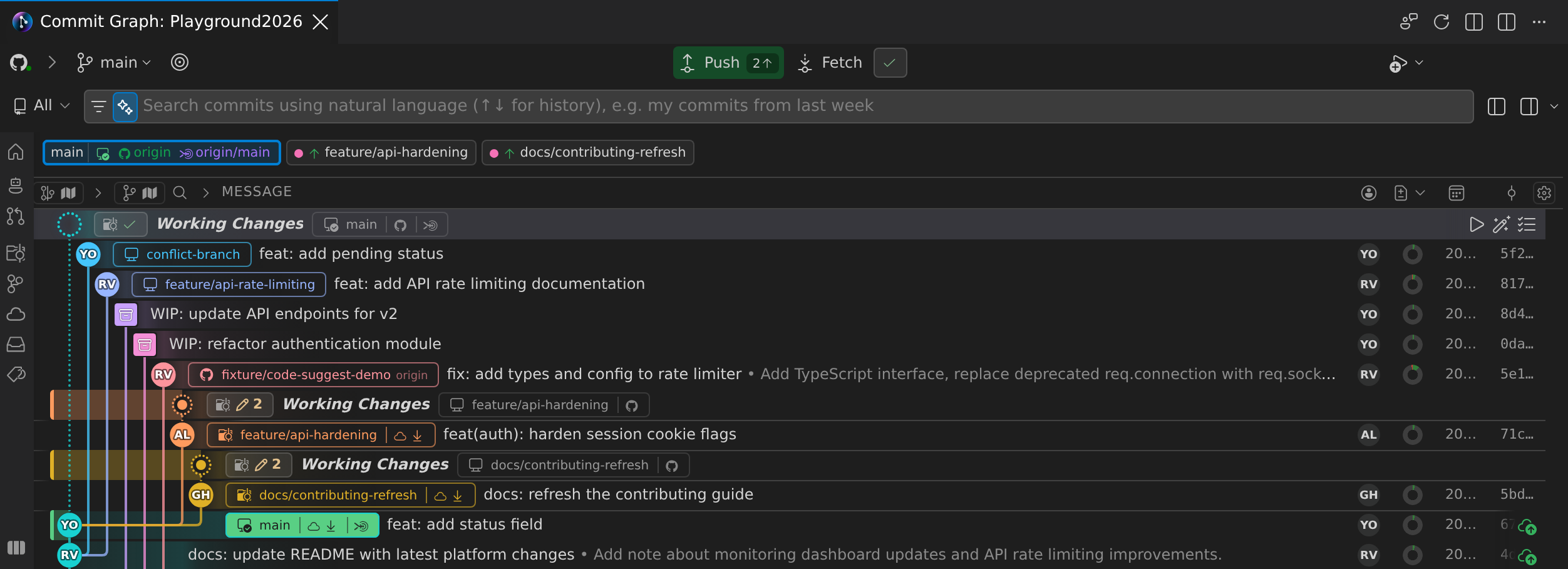
Multi-worktree WIP also surfaces working changes across your worktrees, so active work stays visible even when you aren’t currently working in that worktree. Each worktree’s Working Changes row shows the worktree’s branch as a pill inside the row; select the pill to jump to that branch. A Worktree marker beside the row names the worktree it belongs to. When a rebase, merge, or similar operation is paused in a worktree, its row shows that state, such as the number of conflicts left to resolve.
2. Monitor Agent Work
When coding agents are working in parallel, GitLens keeps supported agent activity connected to the branches and worktrees where that work is happening.
From the Commit Graph, you can:
- Monitor supported coding agent sessions
- See which sessions are working, idle, or need attention
- Understand which branch and worktree an agent is working in
- Jump into the work associated with an agent session
- Open live sessions, and resume past sessions with the surrounding Git context intact
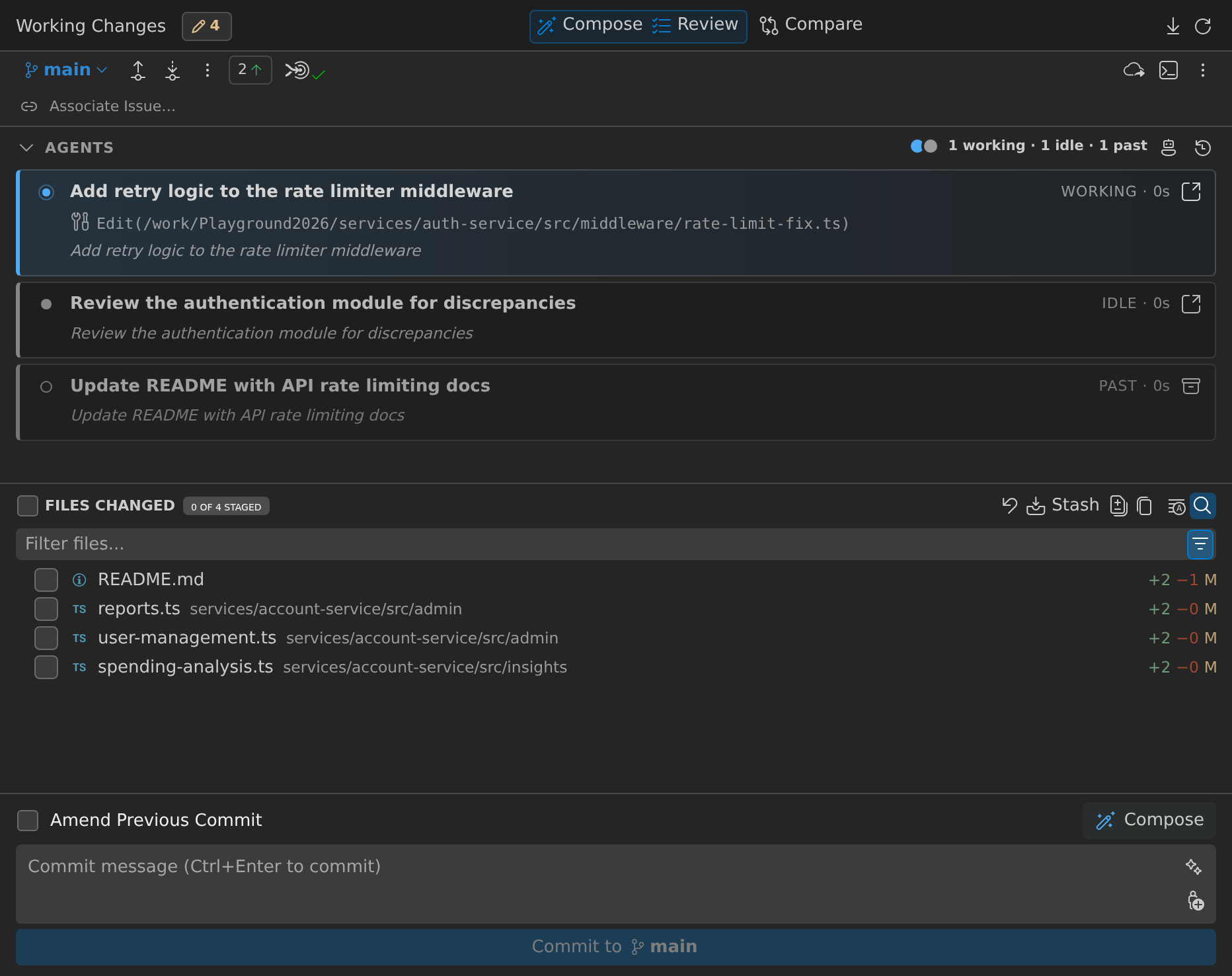
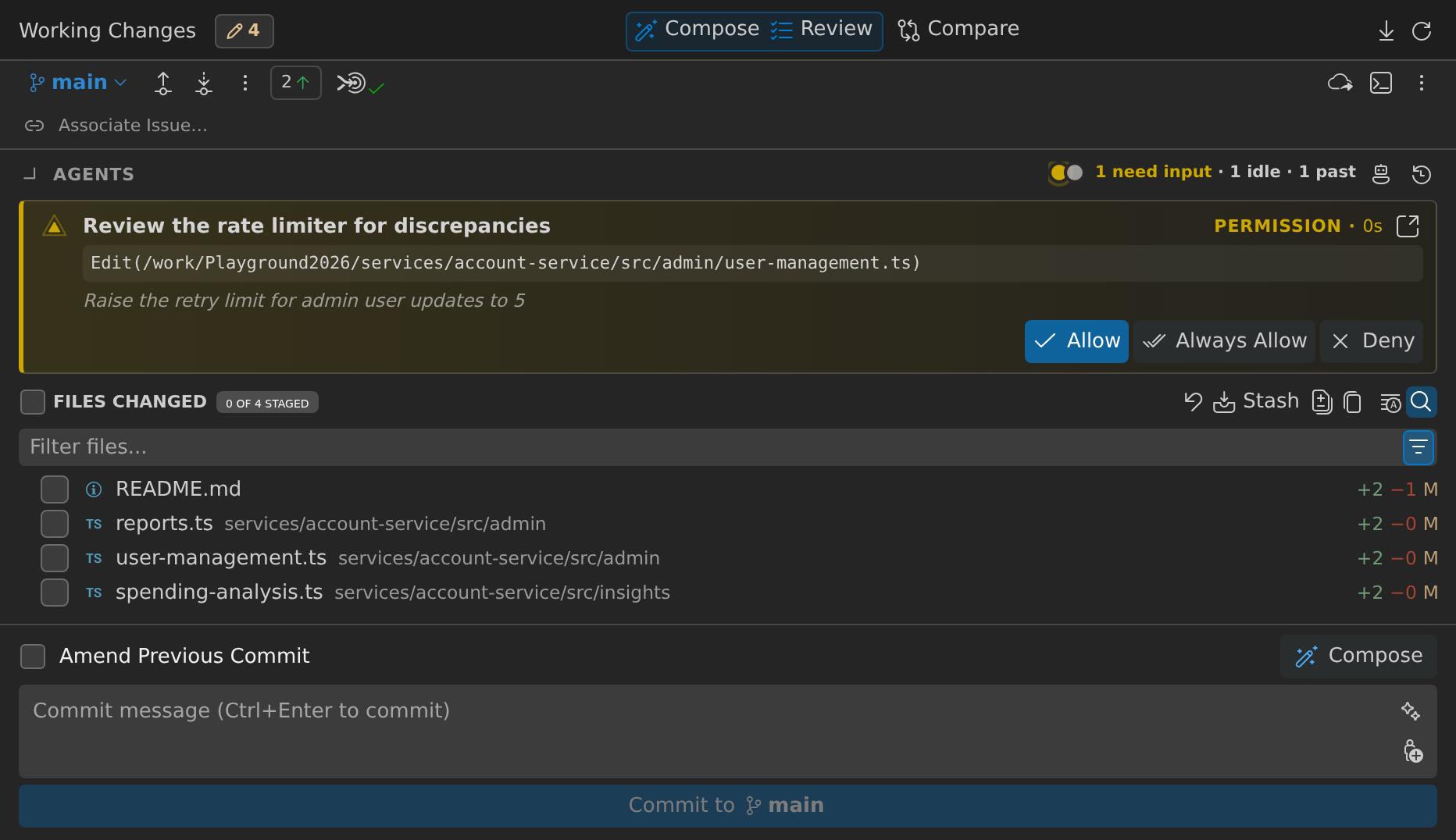
Instead of tracking agent work across separate terminal sessions, you can see where the work lives and when it needs you.
View an Agent Session’s Details
Select a session card in the Agents section of the Working Changes details panel to open that session’s details sheet. The sheet includes:
- The session’s status, such as how long it has been working, waiting for your input, or idle
- Pending requests you can answer in place with Allow, Always Allow, or Deny, or with Approve Plan or Reject Plan for a plan
- File Activity, which lists the files the agent read and edited
- The session’s Last prompt and First prompt
- Also worked in, which lists other worktrees the session worked in
Use the Previous Agent Session and Next Agent Session buttons to move between sessions without closing the sheet. A live session offers Open Session. An ended session offers Resume and, when the agent supports it, Archive.
Resume Past Sessions
When an agent session ends, GitLens lists it as Past. In the Agents section, past sessions appear after the live ones; select Show More to load older sessions. In the Agent Sessions sidebar panel, select Show Past Sessions to include them. Select Archive Session on a past session to remove it from these lists.
You can resume past sessions from Claude Code, Codex, OpenCode, and GitHub Copilot CLI. Each resume action names where the session opens:
- Resume in Terminal opens a new integrated terminal in the session’s folder and resumes the session there.
- Resume in Claude Code Extension opens the session in the Claude Code extension. This action appears only for Claude Code sessions, when the extension is installed and the session’s folder is open in your workspace.
If both destinations are available and you resume without choosing one, for example by pressing Enter in the Resume Agent Session list, GitLens asks where to resume and lets you pin your choice. The pinned choice is stored in the gitlens.agents.resumeTarget setting:
- Not set (default): Ask each time, with an option to remember the choice.
terminal: Always resume in a new integrated terminal.extension: Resume in the agent’s VS Code extension when it can open the session, otherwise in a terminal.
3. Understand Changes Across Worktrees
Worktrees let developers and agents work on multiple branches from the same repository without constantly switching branches or stashing changes.
GitLens brings work in progress across those worktrees into the Commit Graph, giving you visibility into parallel development from one place.
Use Multi-WIP to see working changes across multiple worktrees, understand which branches have active work, and move between parallel streams without losing sight of the bigger picture.
Scope the Graph to a Worktree
Scope the Commit Graph to another worktree to act in that worktree without switching windows. While the graph is scoped, it treats that worktree as the one you have open: you see its branch and its working changes, and anything you commit, push, or pull from the graph happens in that worktree. To scope the graph, do one of the following:
- In the Worktrees panel of the Commit Graph sidebar, select Scope to Worktree on the worktree’s row. Hold Alt (⌥ on macOS) while selecting it to use Focus on Branch instead.
- Right-click the worktree’s Working Changes row, or its row in the Worktrees panel, and select Scope to Worktree.
- Double-click the worktree’s Working Changes row or its pill in the overview bar.
While the graph is scoped, the worktree’s row in the Worktrees panel shows Scoped, and the branch pill in the graph header is marked in yellow. To return to your active worktree, select Unscope Worktree in the graph header.
These settings control scoping and the overview bar:
gitlens.graph.scopeBehavior:scopeAndFocus(default) also focuses the worktree’s branch, narrowing the visible rows.scopeleaves every commit visible.gitlens.graph.doubleClickWorktreeAction:scope(default) scopes the graph when you double-click a worktree.focustoggles branch focus instead.gitlens.graph.overviewBar.visibility:dirtyWorktrees(default) shows the overview bar when another worktree has working changes or unpushed commits.worktreesshows it when the repository has more than one worktree,alwaysalways shows it, andneverhides it.
Run Tasks in a Worktree
Each Working Changes row has a Run Default Task button that runs a VS Code task in that row’s worktree. The first time you select it, choose the task to use as the default; after that, the button runs the default task directly. Hold Alt (⌥ on macOS) while selecting the button to choose a different task. While a task runs, the button’s tooltip reads Running: followed by the task name, and selecting the button shows the running task instead of starting another.
You can also right-click a worktree’s Working Changes row, or a worktree in the Worktrees view, and select Run Task on Worktree…. In the task list, select the checkmark next to a task to set or unset it as the default.
4. Review Work as It Happens
You don’t have to wait until parallel work becomes a pull request to understand what changed.
Open working changes from the Commit Graph and use AI-powered Review to analyze human or agent-generated work while it’s still in progress. Surface meaningful findings, investigate specific areas, ask follow-up questions, and send an entire review or individual finding back to your coding agent when another pass is needed.
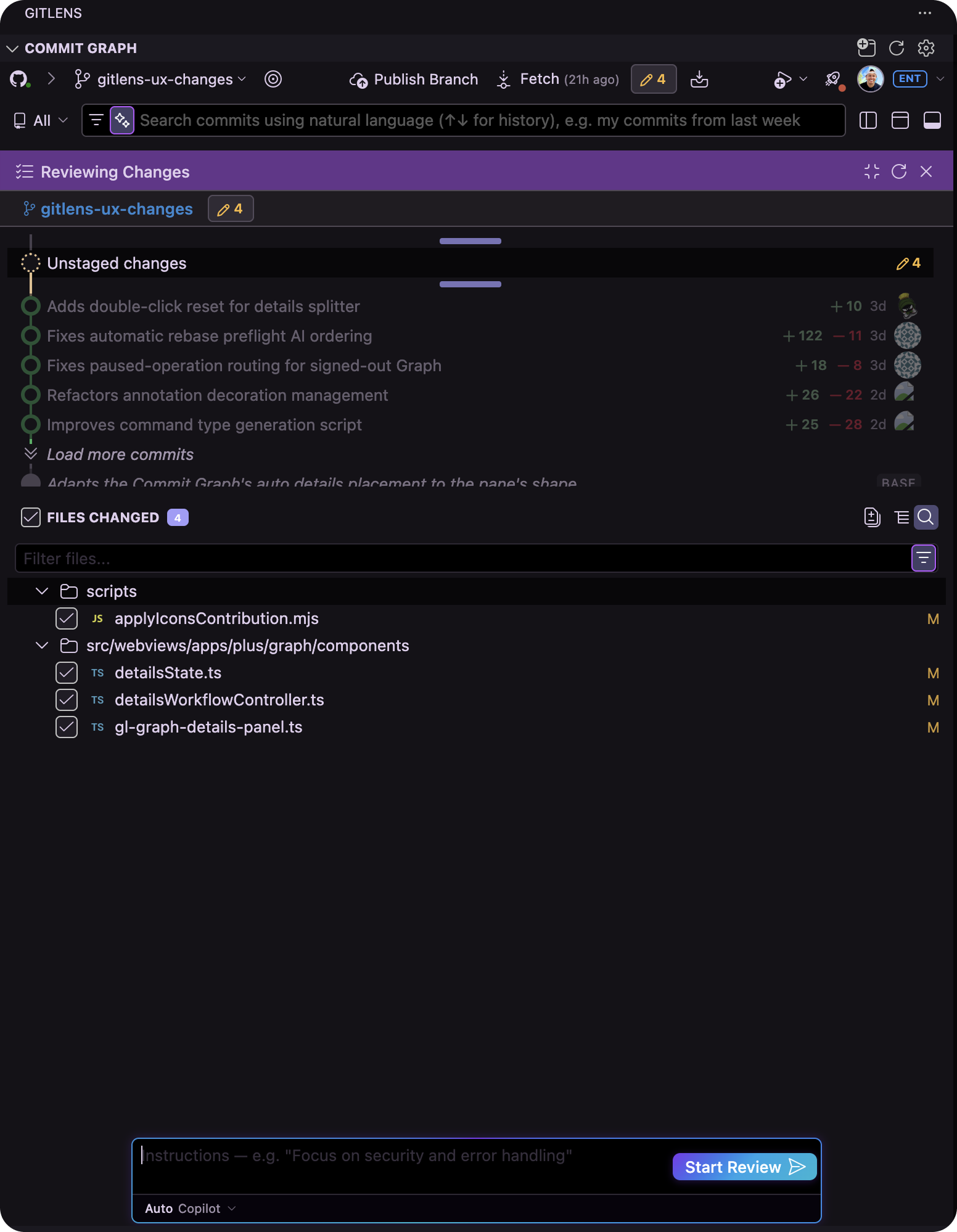
Reviewing work earlier helps keep changes understandable before multiple streams of development come back together.
5. Shape and Compare the Work
Once changes are ready, use Commit Composer to turn scattered work into clean, logical commits that are easier to understand and review.
Organize related changes, move work between commits, reorder and refine commits, and use AI assistance to help shape the resulting history.
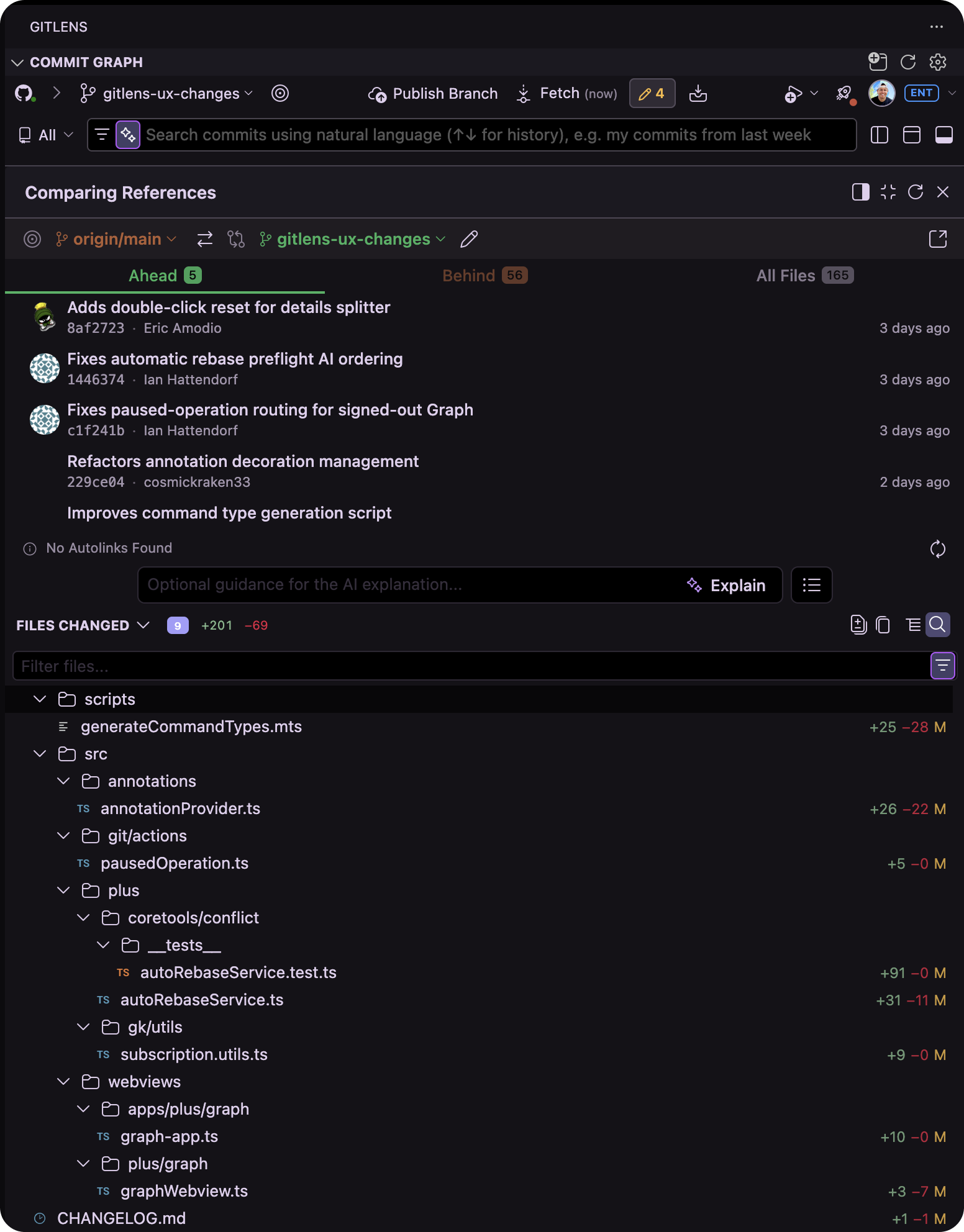
Then use Compare directly from the Commit Graph to compare commits, branches, revisions, and working changes so you can understand exactly what’s different before moving forward.
6. Prepare Parallel Work to Land
As parallel branches come back together, GitLens helps you handle the Git work required to prepare them for merge.
Use AI-powered Rebase to automate tedious rebasing while staying in control of the result. If overlapping work creates merge conflicts, AI-assisted conflict resolution helps you understand and resolve competing changes while keeping the surrounding repository context in view.
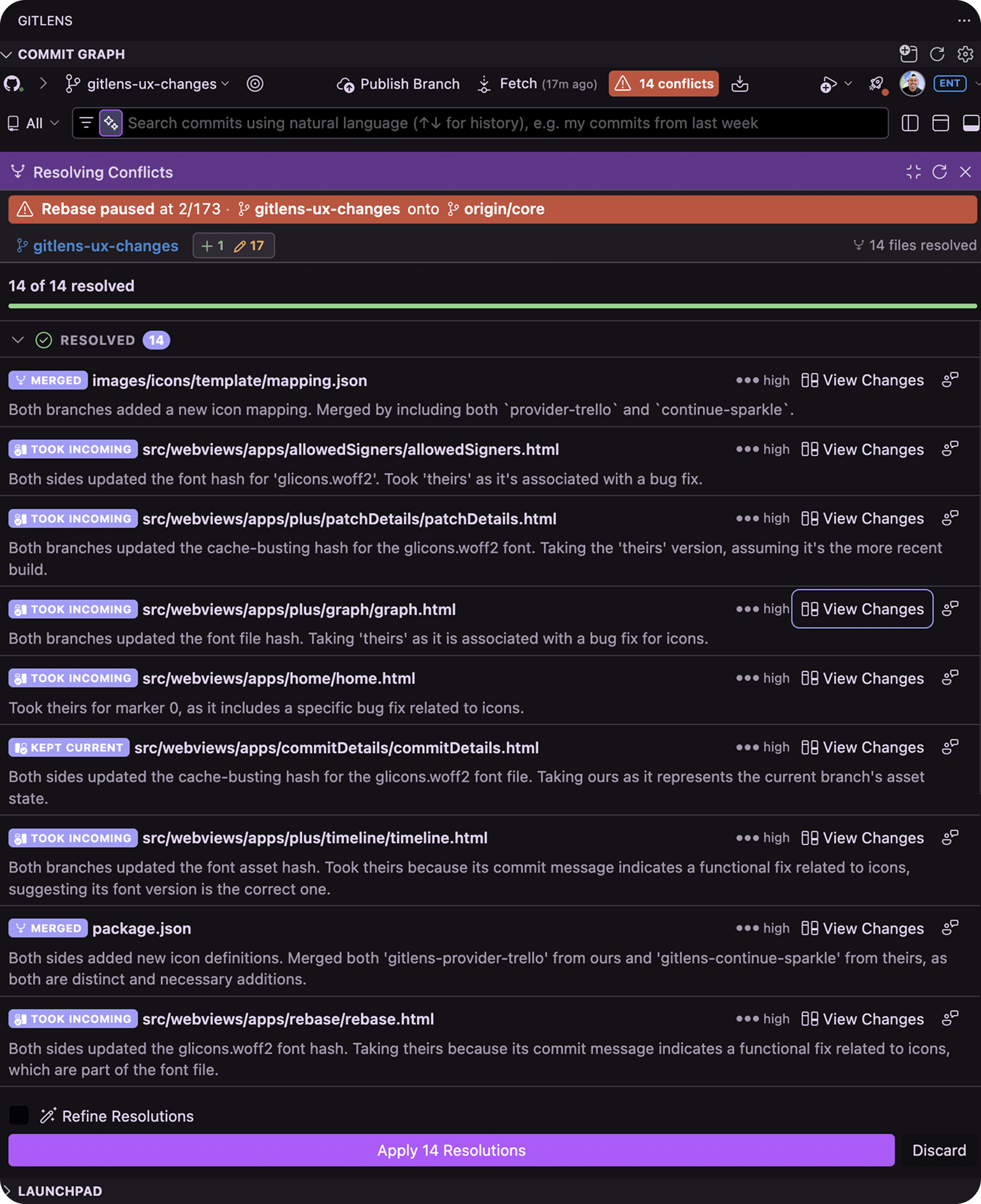
Instead of leaving your workflow to manually untangle the final steps, you can continue moving the work forward from the same workbench where you’ve been monitoring and reviewing it.
Keep Parallel Development Under Control
The Commit Graph gives you one place to follow parallel development from active work to merge readiness.
See every stream of work. Know what needs your attention. Review and shape the changes. Get parallel work ready to merge from one connected workbench.
