

Last updated: October 2026
An Action is a named prompt you fire at a task, issue, or pull request to start agent work.
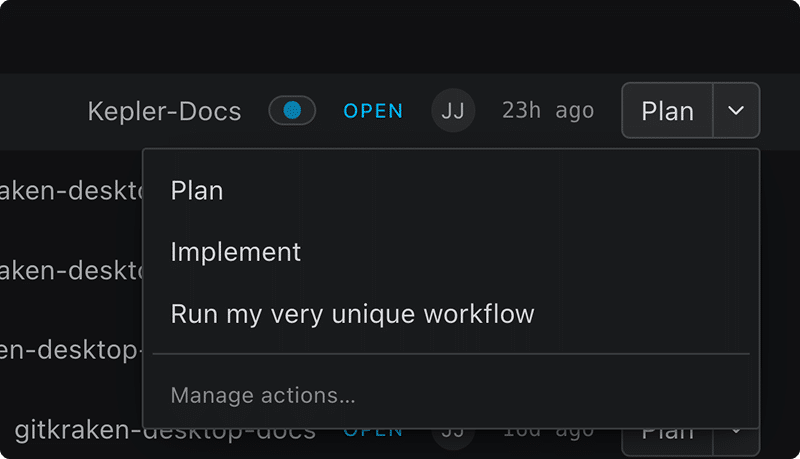
Every Action is yours to configure. You pick the wording, you pick the agent, and you pick which Action is the one-click default for each kind of work.
The four built-in Actions
Kepler ships with four Actions. Every one of them is editable.
| Action | What it asks the agent to do | Offered on |
|---|---|---|
| Plan | Research the code first, write out the proposed approach, change nothing, and wait for your confirmation | Tasks, Issues, Pull requests |
| Implement | Read enough surrounding code to be confident, then make the changes directly rather than describing them | Tasks, Issues, Pull requests |
| Review | Review the pull request if one is attached, otherwise the uncommitted work in the worktree | Tasks, Pull requests |
| Address Feedback | Triage the review comments, apply what’s worth applying, and push back on the rest instead of applying every suggestion blindly | Pull requests |
Kepler deliberately offers Review on plain tasks. Reviewing your own uncommitted work before you push is the obvious thing to want from a worktree. One flexible Review covers both cases, rather than splitting the list into “review a pull request” and “review my changes.”
Every Action declares what it can be aimed at, which is why Address Feedback never appears on a task with no pull request.
You can edit and reset built-in Actions, but you can’t delete them. What an Action applies to already controls where it shows up, so deleting one would be a weaker version of the same control.

Where the Action button appears
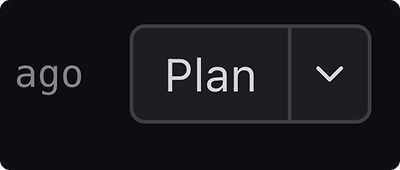
You fire Actions from a split button. The left half runs your preferred Action for that surface; the chevron opens the full list.
| Surface | Preferred Action comes from |
|---|---|
| A row in Todo (an issue or pull request) | the row’s own kind of item |
| The side panel, on the selected item | the selected item’s kind |
Firing an Action from a Todo row is also how an issue or pull request that isn’t tracked yet becomes a task in Kepler.
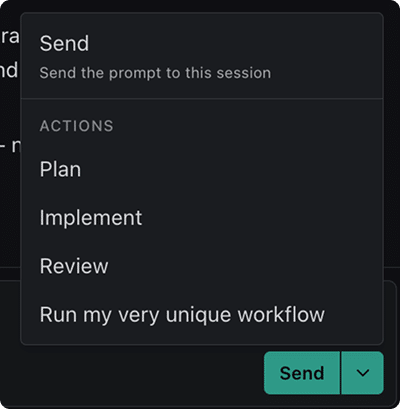
Inside a task, Actions live under the chevron on the composer’s send button rather than on a split button of their own: type a refinement, then pick the Action to fire it with. In a composer that starts something new, such as the Task Composer or a panel’s draft, picking an Action doesn’t fire it: it sets the main button to that Action, and shows the Action’s own agent in the agent pill if it names one, so you can check what will run before you press it. See Create a Task.
Task rows don’t carry an Action button. A task’s own operations live behind the ⋮ menu on the row instead.
A task row has no Resume button. Clicking the row selects it and shows its sessions, the way to look at running work without sending anything. Firing an Action on live work takes you to the session that Action landed in instead.
Firing an Action
An Action fires immediately unless Kepler is unclear on where to run the action.
The left half: one click
The left half of the button runs your preferred Action straight away, in the current session if one exists. It only stops to ask when the task has two or more worktrees.
The number of issues or pull requests attached to the task doesn’t change what the Action does. An Action’s prompt is its own content, word for word, and every attached item ships to the agent as shared context. All of it is the work. If you want the agent to look at one thing first, say so in the prompt box or in the chat; that’s one sentence, and it’s better in your own words.
The chevron: the deliberate path
Picking an Action from the chevron list always goes on to ask where to run it, whenever there is anything at all to choose, including new-session-vs-current on a task with a single worktree, which the left half answers silently.
At the bottom of the list, Manage Actions… opens Settings → Actions.
From the keyboard, the two halves are separate Tab stops, the Action first. Down Arrow or Alt+Down on the Action opens the list too, and closing the list puts focus back on the Action. Every split button in Kepler (Send, Open in, Run) works the same way.
Choosing where it runs
The Run in view asks two independent questions, and both have small answers.
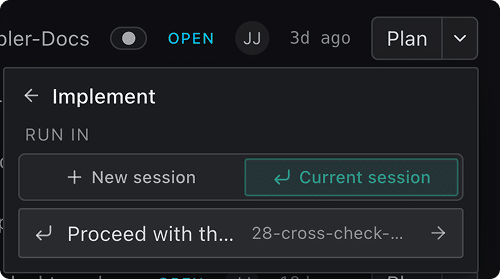
New session, or a current one? A two-way toggle between New session and Current session. Current session lists every reusable session with its worktree, so clicking a row queues the Action into that exact session.
Which worktree? In New session, the rows are All N worktrees, A new worktree, and then one row per branch. In Current session, individual sessions replace branches that already have sessions.
Clicking any row runs the Action immediately, with no separate confirm step.
Two things worth knowing:
- A worktree with no session open still runs under Current session. It starts one there, so all worktrees always means all of them.
- Kepler navigates to the first destination you picked, not to whichever session happened to start first.
Worktree choices are resolved against worktrees that actually exist on disk, so a task that still names a worktree you’ve since removed won’t silently run somewhere else.
A task with no worktree runs the Action in a folder attached to it, or else in the task’s own folder. With neither, Kepler says This task has no folder or worktree to start a session in.
Firing into a running session
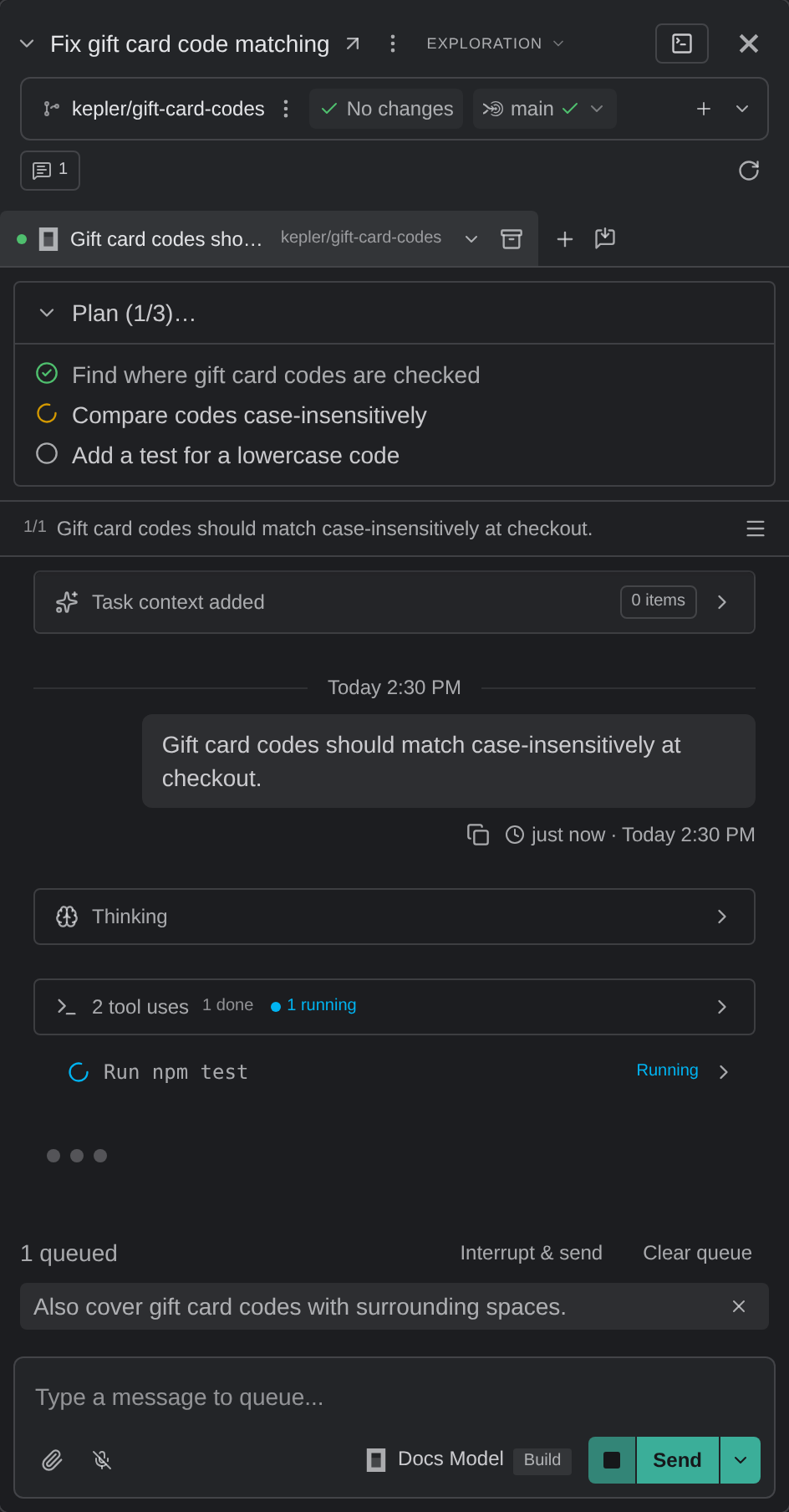
Firing into a live session queues the prompt behind whatever the agent is currently doing. Nothing is dropped and nothing is cancelled, and Kepler takes you to the session the prompt went into.
Set your preferred Actions
To set your preferred Actions, open Settings → Actions → Preferred Actions.
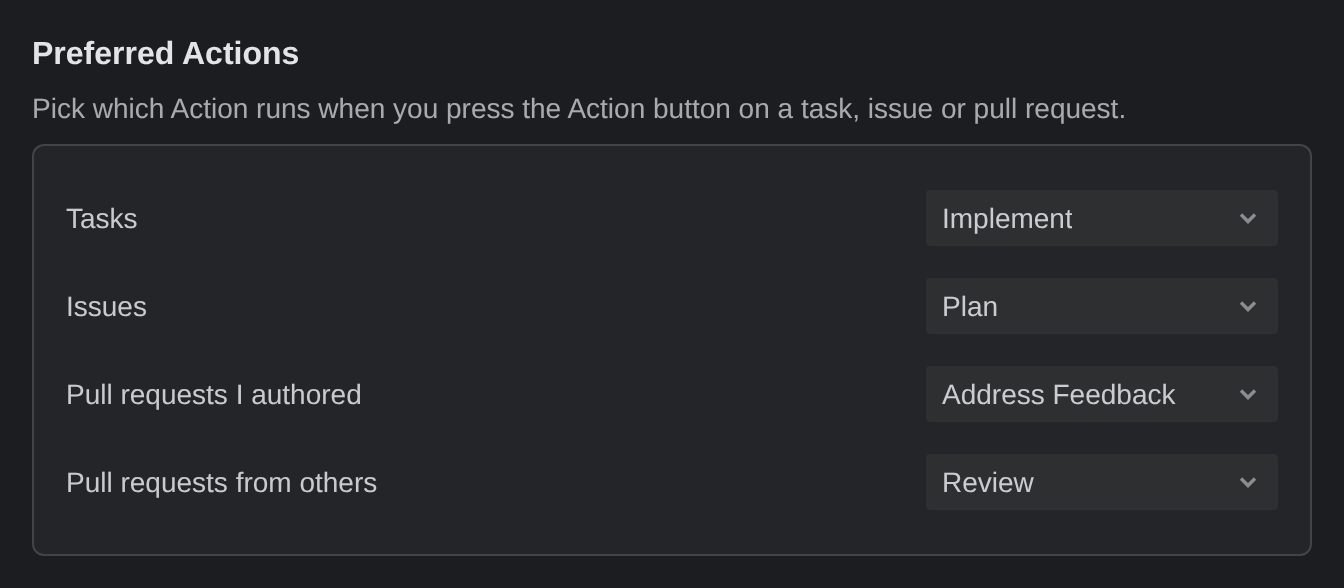
Each row sets the Action that the left half of the button runs for that kind of item.
| Setting | Default |
|---|---|
| Tasks | Implement |
| Issues | Plan |
| Pull requests I authored | Address Feedback |
| Pull requests from others | Review |
Pull requests split by who wrote them, not by what you want to do with them. Kepler works out review-vs-address-feedback from authorship, so the settings name the kind of pull request rather than the intent. When you want the other one, it’s one click away in the chevron.
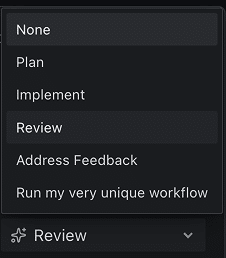
Any slot can be set to None. This simplifies the action button to only display the chevron icon.

Edit an Action
To edit an Action, go to Settings → Actions and click the Action’s row under All Actions. The editor opens as its own page.
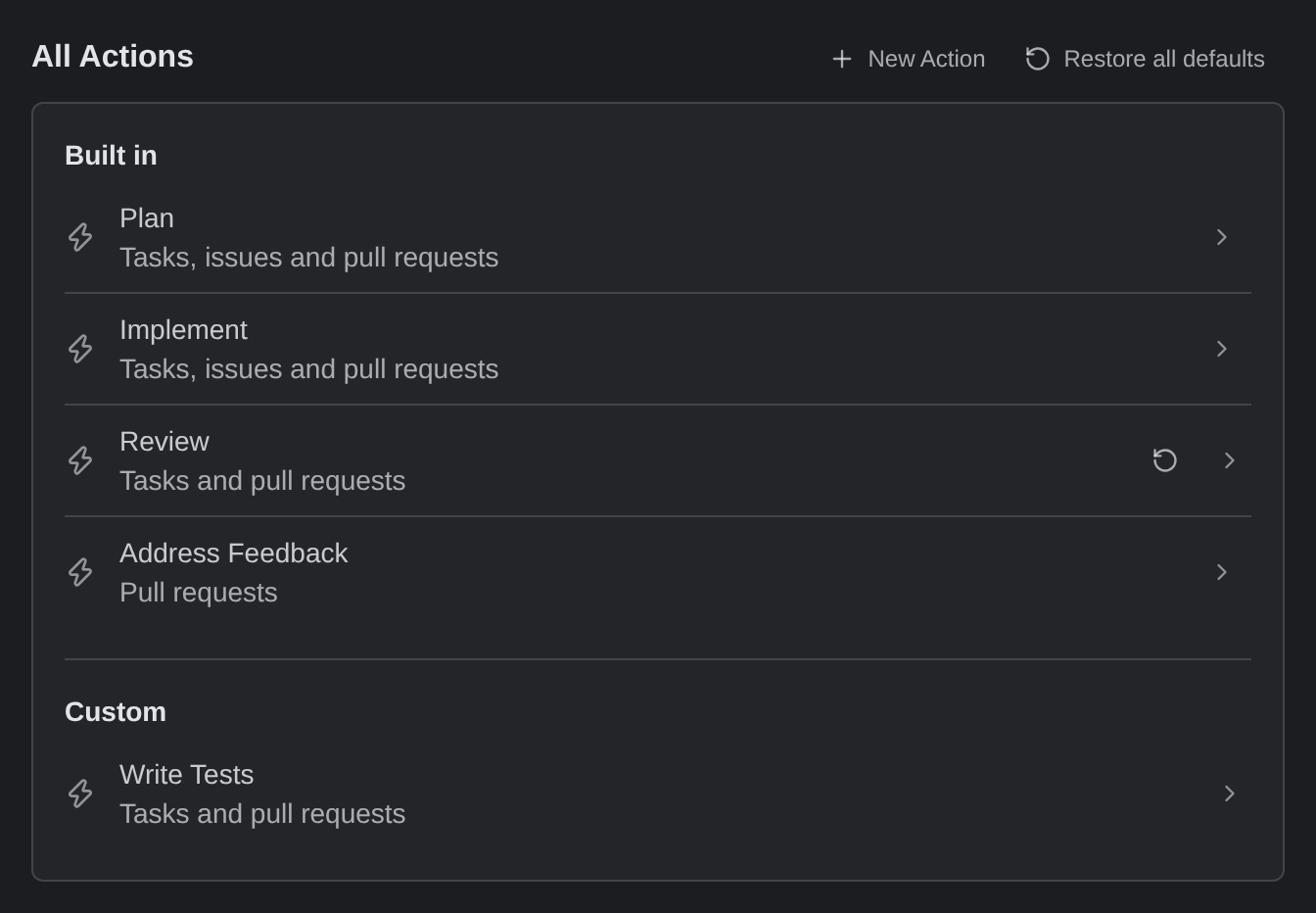
Once you have a custom Action, the list splits into Built in and Custom. Until then, it shows the built-in Actions without labels.
The editor has these fields:
| Field | What it does |
|---|---|
| Title | The name shown on the button and in the chevron list. Required: Title can’t be empty. |
| Prompt | Sent to the agent word for word. It Can be, or start with, one of your skills: type / (or $ for Codex) to pick one. Required: Prompt can’t be empty. |
| Applies to | Tasks, Issues, Pull requests: controls where the Action is offered. Pick at least one |
| Agent | Which agent runs it. See below |
Create your own
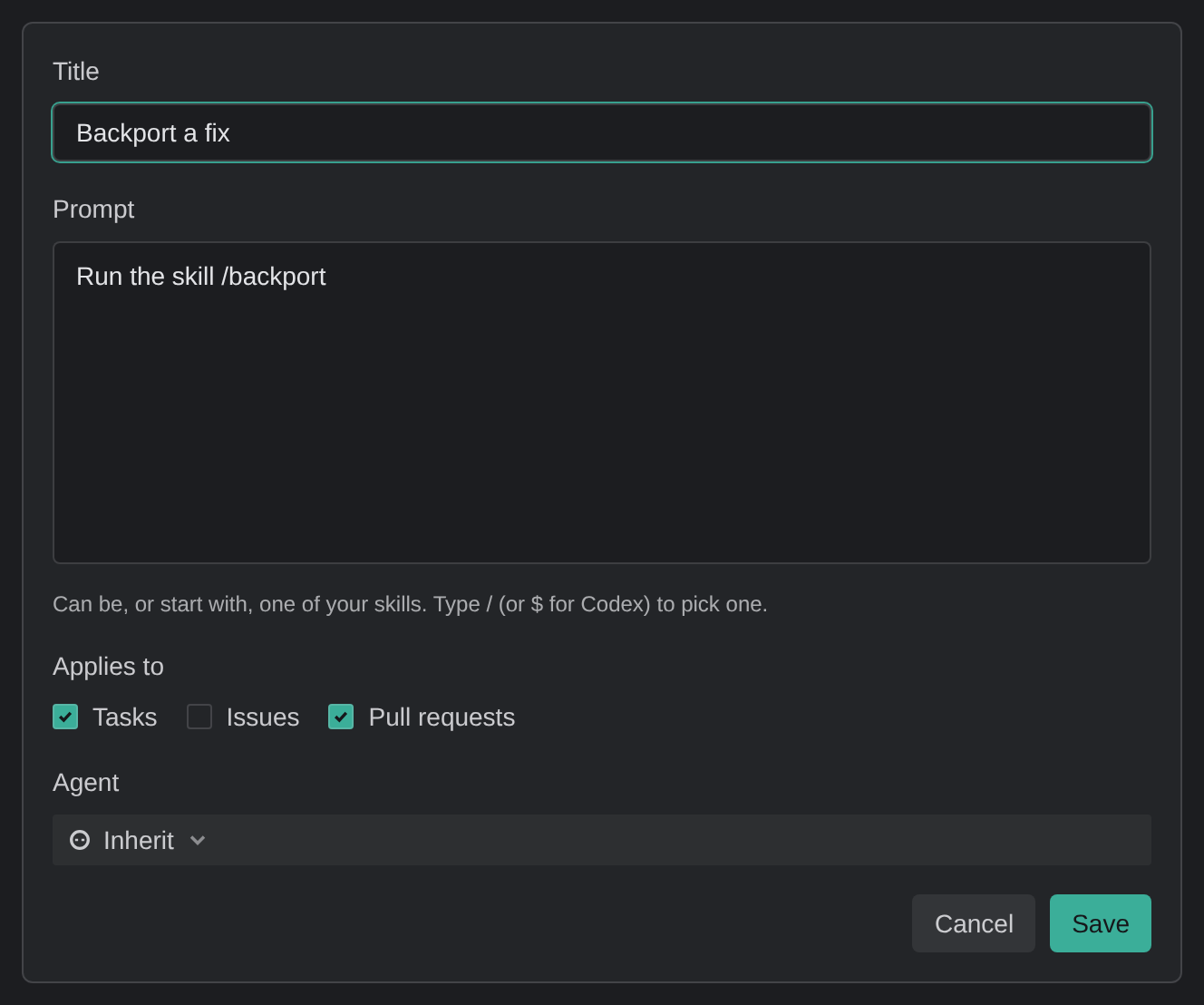
To create an Action, click New Action in Settings → Actions.
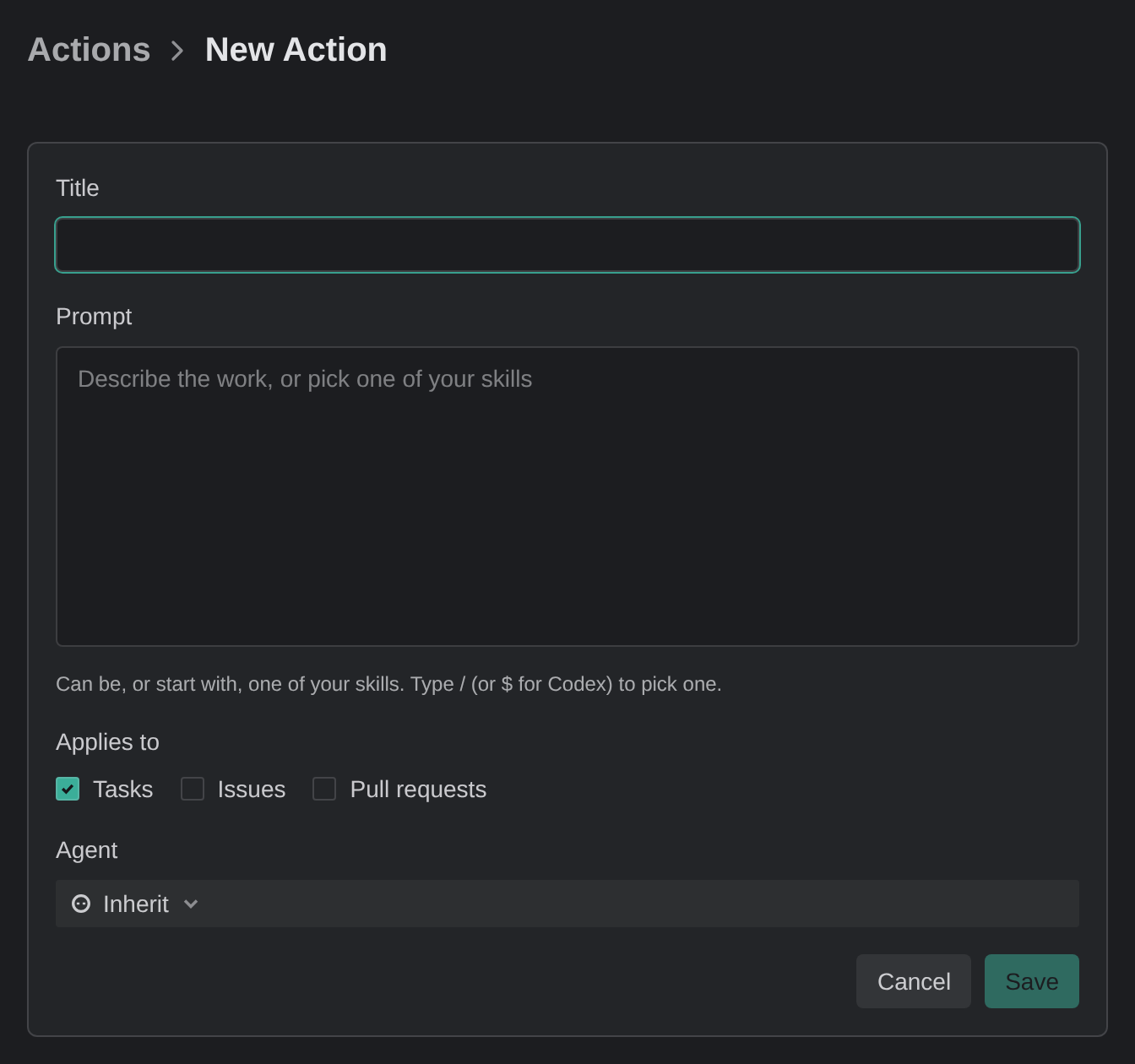
Custom Actions work exactly like the built-in ones, and they’re the point of the feature: if you’d do something more than once (backport a fix, write the migration, audit a dependency bump), it should be a button rather than a prompt you retype.
Restore defaults
To undo your edits to one Action, click Restore default on its row. The row shows Restore default only after you edit the Action. To undo your edits to every Action at once, click Restore all defaults in the All Actions section header.
Kepler stores only what you changed, not a copy of the whole Action. This creates the following considerations when restoring defaults:
- An Action you’ve never edited picks up improved wording in a future Kepler release.
- Restore default works by forgetting your edit. Editing an Action back to its original wording has the same effect.
Deleting a custom Action that a preferred-Action slot points to is the same as setting it to None. You will see rows with only the chevron, instead of the preferred-Action + the chevron. Revisit the Actions setting to set a new preference.
Setting an Action’s agent
By default an Action runs on your default agent, configured in Settings → Tasks → New tasks → Default agent. The Agent field in the Action editor reads Inherit until you name one.

Naming an agent is an all-or-nothing override: it pins the provider, account, model, mode, and options together, rather than changing one of them and inheriting the rest. This is what makes per-Action cost tuning work: a cheap, fast model for triage and review, a heavier one for implementation.
Three rules govern which agent actually runs:
- A model belongs to its provider, so a pinned model never runs on a different agent.
- If an Action names an agent you don’t have installed, the override falls back whole to your default agent.
- An agent you pick explicitly at the point of firing beats an Action’s override.
