

Last updated: October 2026
Opening a Task gives you its own screen, the task page, with everything attached to it on the left and the sessions, working copies, files, and details you’re looking at on the right.
Get here by double-clicking a row in the Kepler interface, or by clicking Open task page in the side panel. For what a Task is and what can be attached to one, see Tasks and Resources.
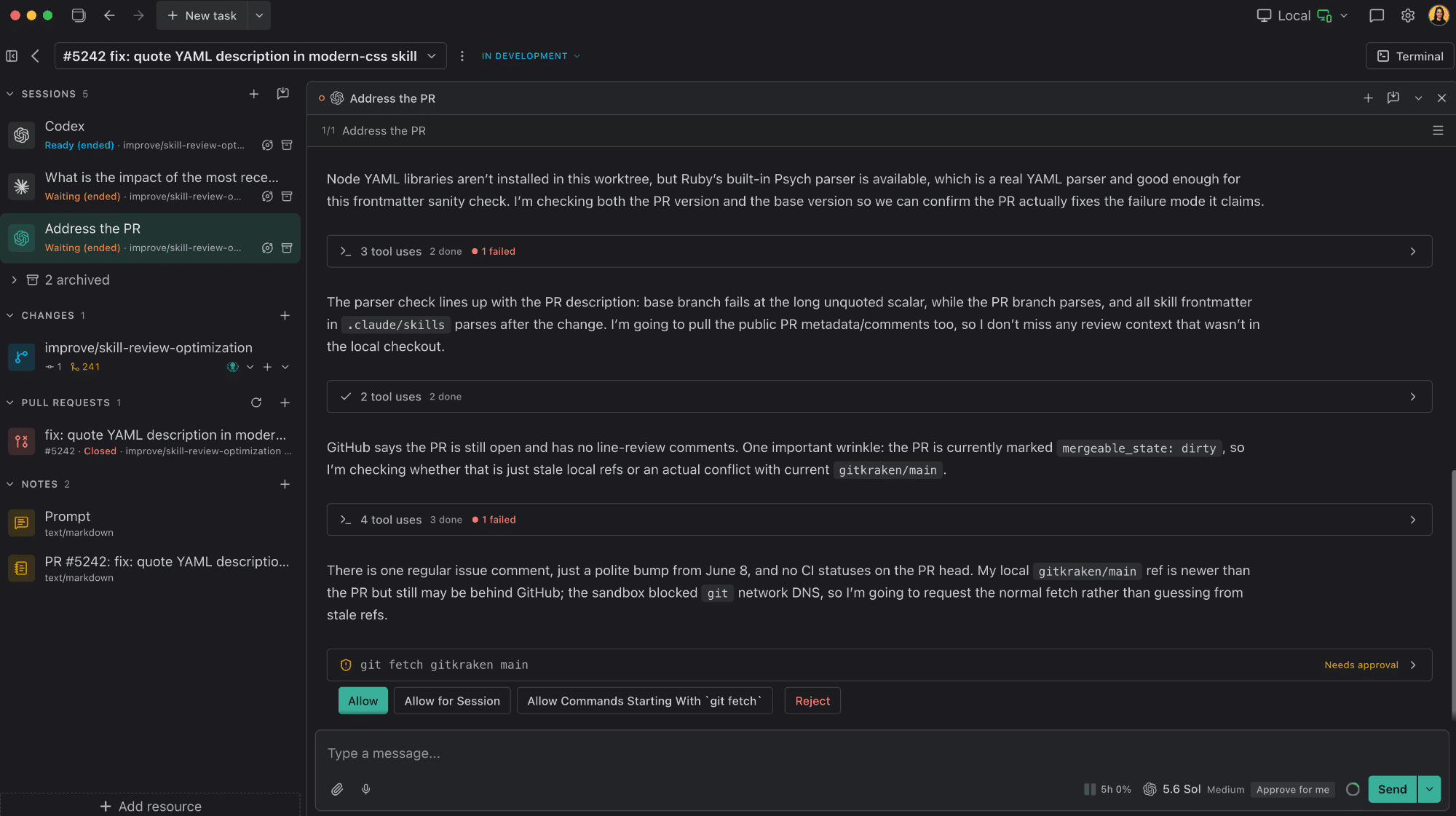
The header

From left to right, the header carries:
- Show/Hide context panel, which puts the rail away and brings it back. See The rail.
- Back to dashboard, a back chevron, returns you to the list exactly as you left it: same segment, grouping, filters, and selection.
- The task switcher, the Task’s name as a chip, jumps to another Task without going back first. It searches as you type, and each row carries the same session status dots a row does. Right-click the name for the same task actions the ⋮ menu holds.
- ⋮ Task actions. See below.
- The Progress control, showing where the work stands: Exploration, In Development, In Review, On hold, or Done. Click it to set the stage yourself or hand it back to Automatic. An archived Task reads Archived here instead. See Arranging your work.
- Terminal, at the right edge, which shows and hides the terminal drawer and counts the terminals running in it.
When a Task looks finished, a Ready to archive? prompt joins the header with Archive beside it, until you archive the Task or dismiss it.
⋮ Task actions holds the Task’s Progress submenu (with Reopen leading on a finished Task), Mark as unread, Rename task, Copy task prompt, Add resource…, Shut down all agents while any are running, then Archive task and Delete task. On an already-archived Task, Restore task replaces Archive task.
Rename task, or F2 anywhere on the page outside a text field, turns the name into an editable field in place. The field carries Auto-name (Suggest a name from the task’s prompt and resources), which fills the field with a suggestion for you to accept or edit. It never renames on its own: Enter or the check mark saves, Escape or the × cancels.

The rail
The left rail lists everything attached to the Task, grouped by kind:
Sessions · Changes · Terminals · Folders · Files · Pull requests · Issues · Links · Notes
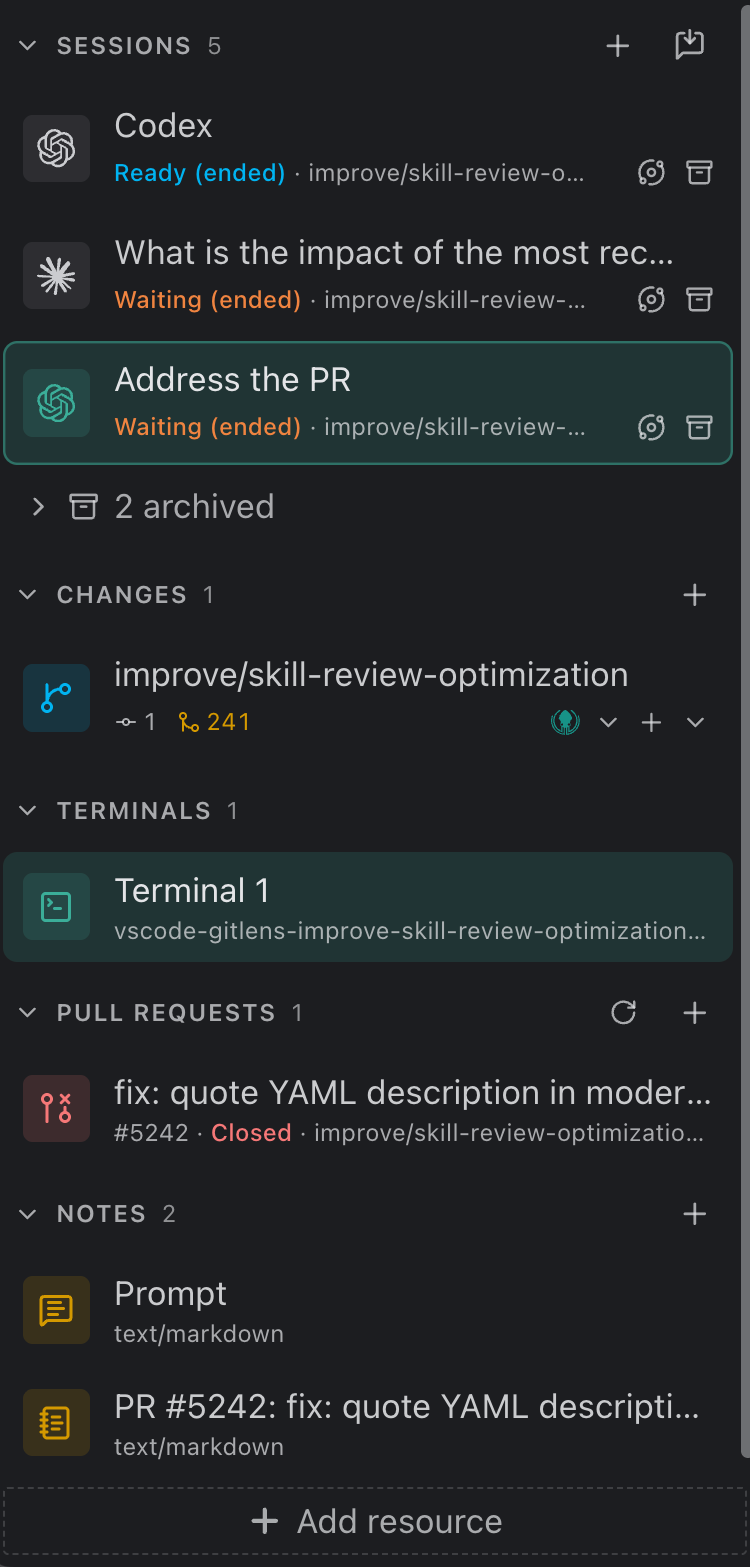
The worktree group is called Changes. Its rows carry each checkout’s real state and open its diff review, so the header names what you go there for rather than the git object behind it.
Sessions always stays, even on a Task that has none, so you always have a way to start the first one. Every other group appears only once it has something in it.
The Task’s prompt is a row of its own. It leads the Notes group as Prompt, with its own icon. Open it to read or edit what the Task was started with; editing it changes the Task’s prompt everywhere it shows. It can’t be deleted.
Files holds both files linked from disk and copies uploaded to the Task. An uploaded copy reads Task folder under its name where a linked file shows its path.
The rail can be put away. Hide context panel collapses it and hands the width to the content area; Show context panel brings it back. While it’s hidden the control carries the task’s own session status, so a session that needs you is still visible from a collapsed rail. Drag its edge to resize it.
- Add resource sits at the bottom of the rail and opens the Add resources dialog.
- The + on a group header adds straight into that group: Add issues, Add notes, and so on. On Changes it reads Add worktree, because that’s what actually lands there. On Sessions the + is New session instead, which opens a draft session. See Starting a session.
- A session you haven’t started yet shows as a Draft row in Sessions. Right-click it for Discard draft.
- Every session that isn’t live (archived ones, and ones that ended) collects under a {count} archived fold beneath the live ones. It starts collapsed. Clicking an archived session brings it back and opens it in one gesture; Restore in its menu does the same.
What a row shows
Both of a row’s lines truncate at rail width. Every row has a hover tip carrying its full name, plus the facts the row’s lines had no room for:
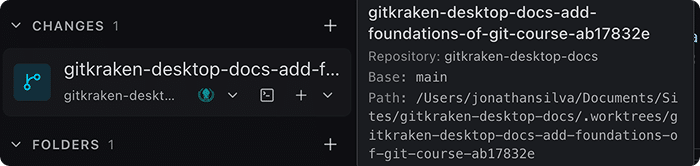
-
Path
-
Repository
-
Base
-
Agent
-
Account
-
Status
-
Flags such as Repository’s main worktree or Gone from disk
-
A Changes row’s subtitle is a run of glyph-and-number chips reading the checkout’s real state: uncommitted files, commits on the branch, behind and ahead of the upstream, behind the merge target, with conflicts and an unpublished branch drawn as glyphs alone. A checkout with nothing to report reads Up to date; one that has been deleted says so. Its tooltip is a two-column table of the same facts (the branch, the repository, the path, the working tree, the commits, the upstream and the merge target), with the numbers aligned so they never wrap.
-
A session row leads with its state, and names which Account it runs under once a harness has more than one configured: the provider logo plus an ordinal, on the row, its tab, and its collapsed strip alike.
The end of the subtitle line carries the row’s controls, always visible rather than revealed on hover:
| Row | Controls |
|---|---|
| Folder | Open in… |
| Worktree (on disk) | Open in… and the run-a-command control. The shell button stays out: the row’s menu and Cmd/Ctrl+J both offer it, and the line has no room for a third control |
| Session | Show or hide the Agent Graph for that session alone, and Archive |
The run-a-command control shows the newest command running in that worktree, with Stop, and falls back to your default command once nothing is running.
Every rail row draws a selected fill when it’s the one on screen, and the column you last pressed, focused, or opened from the rail carries an inset ring. The wide layout never moves focus on its own, so something has to say where it is.
The row menu
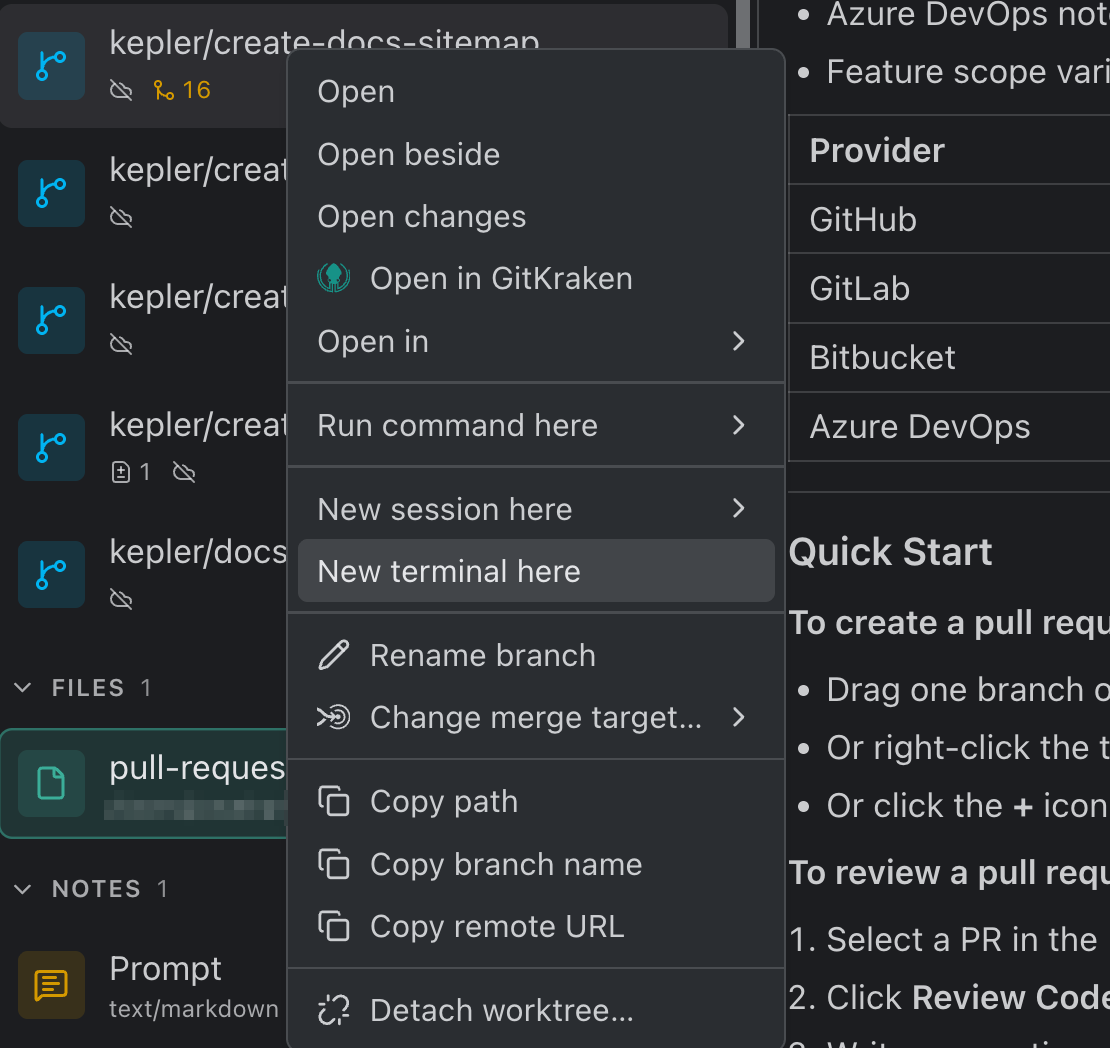
Right-click any row. Every row opens with Open, followed by Open to the side with tabs off or Open beside with tabs on (see Columns or tabs), when there’s somewhere for it to go. A worktree row adds Open changes.
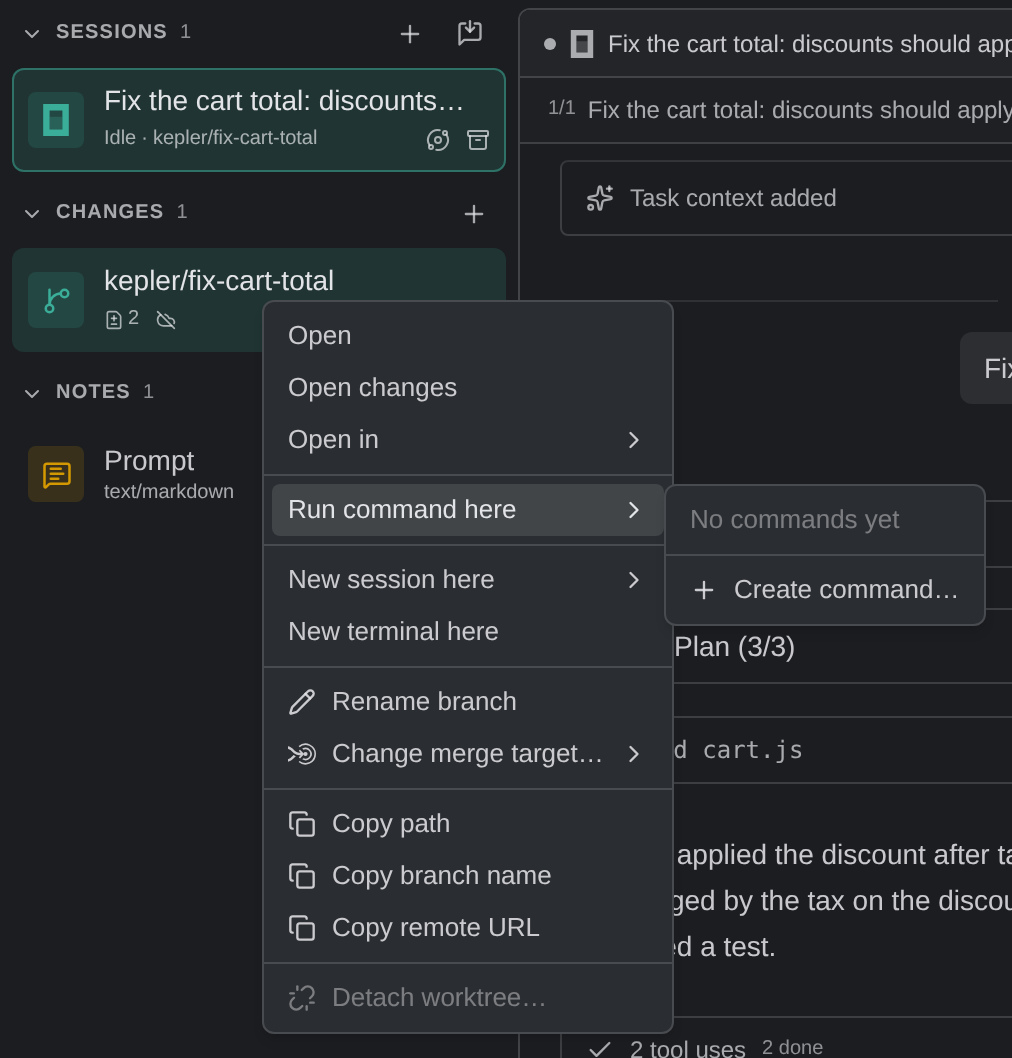
| On | Also holds |
|---|---|
| A worktree that’s on disk | New session here, New terminal here, Run command here, Rename branch, Change merge target…, your default editor, Open in, Copy path, Copy branch name, Copy remote URL |
| A folder | New session here, New terminal here, your default editor, Open in, Copy path |
| A file | Open in default app, Show in Finder (macOS), Show in Explorer (Windows) or Show in file manager (Linux), Save as…, Copy path |
| A session | Rename session, New session from this one, Open source session on a session started from another, Copy session reference, Restart agent, Shut down agent, Show Agent Graph, and Use another copy… when Kepler has more than one saved copy of the conversation |
| A session started outside Kepler | Open preview, Continue in this task, Create task, Copy session ID, Copy working directory path, and a way to reveal the working directory in your file manager |
| A pull request or issue | Open in browser, Copy link, Copy title, Copy number, and Copy branch name on a pull request |
Run command here, and the Run a command control on the row and the worktree’s own strip, lists the repository’s commands (configured on the repository’s own page in Settings → Repositories) and runs the one you pick in that worktree, revealing its terminal in the drawer without taking your focus. Each command row leads with its state: a play glyph, a spinner while it warms up, or Stop while it runs, and picking a running command stops it rather than starting a second copy. A repository with none reads No commands yet, and the menu ends with Create command… so you can add one from where you noticed you wanted it, plus Manage commands…, which deep-links to that repository’s own settings.
Open in works the same way, with your default editor hoisted above the list rather than buried in it. On a worktree the list ends with Open on {provider}, which opens the branch on its git host, or the repository’s home page when the branch has no upstream.
Picking an editor or a command doesn’t make it your default. Each row carries its own set/unset toggle at its trailing edge, reachable from the keyboard, so choosing something once and pinning it are two separate decisions.
Rename branch opens a dialog with the branch’s own name field and Also rename remote branch, which renames the branch on its remote too rather than just locally. Change merge target… opens a picker of remote branches; see Review Changes.
Rename session names a Chat session yourself; automatic titling never overwrites a name you chose.
Use another copy… opens a dialog listing each saved copy of the conversation, when it was updated and how many messages it holds, with In use on the current one. Pick the one to continue when you resume. See Agent Sessions.
Option/Alt-click a resource row to open it in your browser instead of in Kepler.
The last entry is how the row leaves the Task, and it differs by kind: Detach worktree…, Detach folder…, Detach file… and the like for something that stays on disk or at its provider, Delete file…, Delete note… or Delete link… for something Kepler holds itself, Archive session for a session, Close terminal for a terminal. Detach worktree… and Detach folder… are locked, with the reason in their tooltip, while a session of this Task still runs there.
Columns or tabs
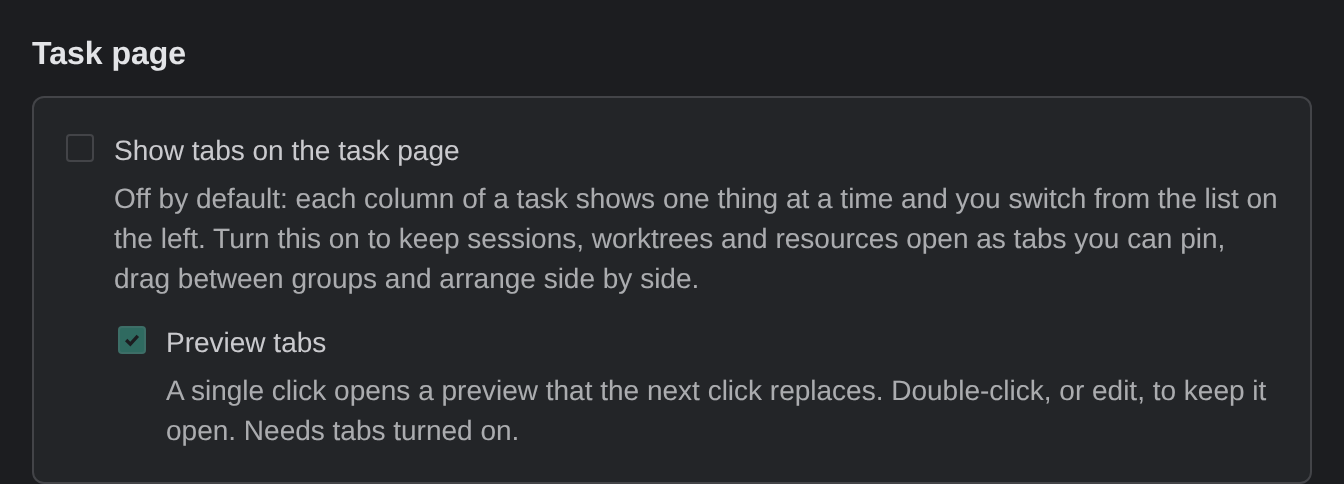
The content area takes one of two shapes, set by Show tabs on the task page in Settings → Tasks → Task page:
| Setting | What the content area does |
|---|---|
| Off (the default) | Fixed columns, one per kind of thing, each showing one thing at a time |
| On | Free-form tabs you can pin, drag between groups, and arrange side by side |
Either way, terminals live in the drawer beneath the content area, never in a column or a tab, so opening a shell never evicts the changes or the conversation you were reading. And either way, closing something is a view change: it detaches nothing, and it doesn’t stop a session. The rail still has it all.
The columns
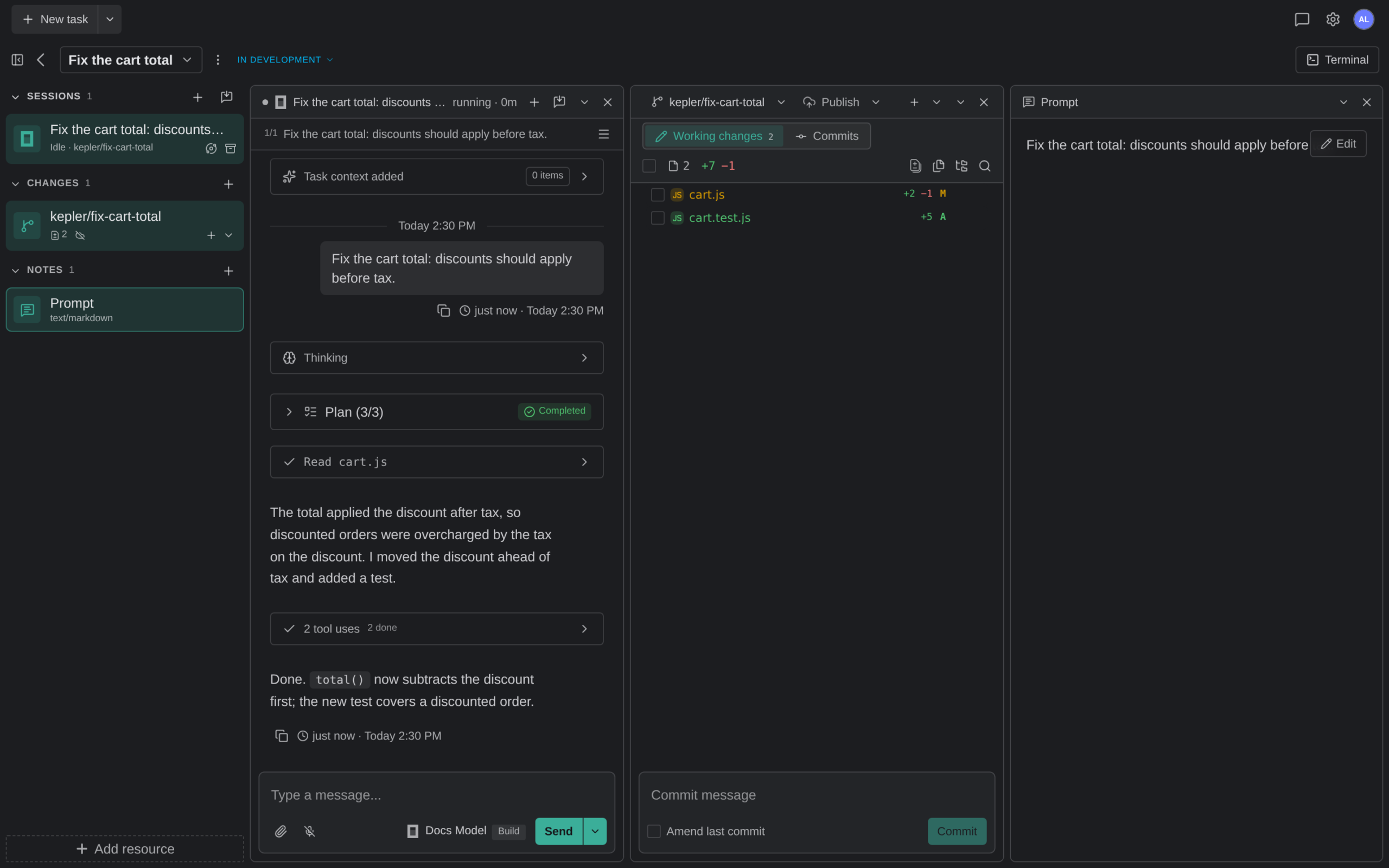
With tabs off, the content area is fixed slots, not free-form panes. A rail row’s kind decides which slot it opens into, so a session never lands next to a note and you never have to remember where you put something.
| Column | What opens here |
|---|---|
| Sessions | Agent conversations, whether they run in Chat or in a terminal, and draft sessions you haven’t started yet |
| Changes | A worktree: a strip of verbs over its changed files. See Review Changes |
| Resources | Folders, files, pull requests, issues, links, notes |
Every boundary is a draggable sash, and the size you drag it to persists. The three content columns share whatever the rail leaves: equally until you drag one, and in the ratio you set from then on. Kepler keeps the ratios as proportions, not pixels, so they survive a window resize and a column opening or closing.
A rail row is a toggle. Click it to open it in its slot; click the row that’s already on screen to put it away again. A slot with nothing open renders no column at all, and the others take its space.
The page opens on a conversation and on the checkout that conversation is working in, inferred from the session or terminal it auto-opened, so Changes isn’t an empty column you have to go fill on every visit.
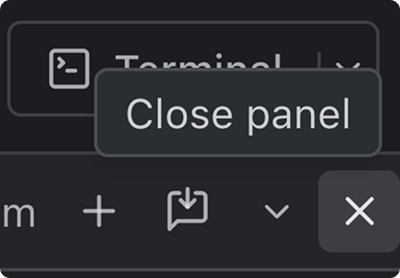
Close a column with the X on its strip, labeled Close panel.
Split a column to see two things of the same kind. Cmd-click a rail row (Ctrl-click on Windows and Linux), or pick Open to the side in its menu, and it opens beside what that column already shows. A plain click while a column is split replaces only the focused pane and leaves the others alone.
Shift-click opens a range. This is how you watch several agents at once: shift-click from your last plain click through another session and the whole run opens side by side in the Sessions column, so you can read them in parallel and answer whichever needs you. The anchor is your last plain click and a shift-click doesn’t move it, the way it works in Finder or VS Code. With no prior click in that group, the range starts from the row already on screen.
A session’s control on its strip is named for what it does: Archive session on one of Kepler’s own sessions stops the agent, saves the conversation, and files it under the rail’s archived fold. An external session or a preview gets Close tab, which only hides it.
Tabs and groups
With tabs on, anything you open from the rail (sessions, worktrees, files, and every other resource) becomes a tab, and tabs live in groups you arrange freely, the way editor tabs work in VS Code.
- Drag a tab to reorder it, onto another group to move it there, or to a group’s edge to split off a new group there. Drag the sash between groups to resize them.
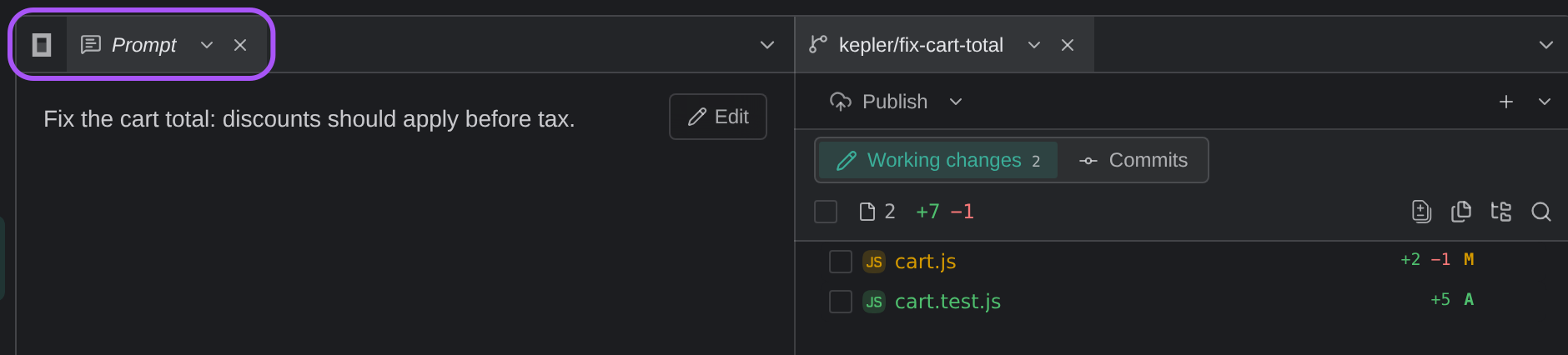
- A single click opens a preview. A resource opened with one click shows in an italic preview tab that the next single click replaces, so browsing the rail doesn’t pile up tabs. Double-click a row, or start editing in the tab, to keep it open. A session always opens as a tab you keep. Turn Preview tabs off in Settings → Tasks → Task page to have every click keep its tab.
- Cmd-click a rail row (Ctrl-click on Windows and Linux), or pick Open beside in its menu, to open it in a new group beside the one you’re reading.
- Shift-click opens a range of rows, each as its own tab.
- Clicking the row of something already open just brings its tab forward. Close a tab from the tab itself.
A tab’s Tab actions chevron and its right-click menu hold everything the thing’s rail row offers, plus Rename on a file or folder tab. They lead with the tab’s own verbs: Keep open on a preview, Pin tab or Unpin tab, Close tab, Close others, Close to the right, Close all, and Close group when there’s more than one group. A pinned tab shrinks to its icon at the front of its group and has no close control; unpin it to close it.
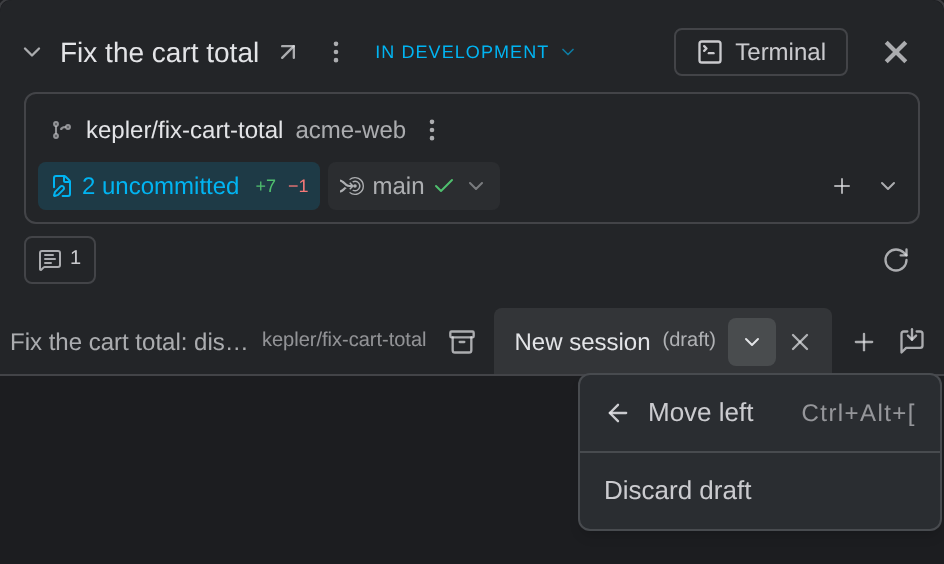
A draft session’s tab reads (draft) after its name. With tabs off, right-click a draft tab for Discard draft, plus Move left and Move right where the tab can move. With tabs on, its menu holds the tab’s own verbs instead: Keep open while it’s a preview, Pin tab or Unpin tab, and Close tab, which is a draft’s only close. Closing a draft that has text in it asks Discard new session? first, because Your draft prompt and attachments will be removed.
A session tab swaps its close control for the session’s status dot while the session has something unread or needs you, so a group’s tabs say which conversation wants attention.
Closing a tab with its × (Close tab), a middle-click, or Cmd/Ctrl+W only hides it. A session keeps running and stays on the rail; to archive one, use Archive on its rail row. Cmd/Ctrl+Shift+T reopens the last tab you closed.
When every tab is closed, the content area offers New session and the external-session importer, so a Task with nothing open is never a dead end. With tabs on, those two controls also sit in the header, beside Terminal.
Keyboard
| Keys | What they do |
|---|---|
| Ctrl+Tab / Ctrl+Shift+Tab | Switch between the Task’s sessions, most recently used first |
| F6 / Shift+F6 | Move focus to the next or previous region of the page |
| Cmd/Ctrl+1, 2, 3 | Focus the Sessions, Changes, or Resources column (tabs off) |
| Cmd/Ctrl+Shift+[ and Cmd/Ctrl+Shift+] | Previous and next tab. Also Ctrl+PageUp and Ctrl+PageDown on Windows and Linux |
| Alt+1 to Alt+9 | Jump to a tab in the focused group (tabs on) |
| Cmd/Ctrl+Alt+[ and Cmd/Ctrl+Alt+] | Move the focused tab left or right. Also Ctrl+Shift+PageUp and Ctrl+Shift+PageDown on Windows and Linux |
| Cmd/Ctrl+W | Close the focused tab |
| Cmd/Ctrl+Shift+T | Reopen the last closed tab (tabs on) |
| Cmd/Ctrl+T | New session, which opens a draft tab |
| Cmd/Ctrl+J | Show or hide the terminal drawer |
| Cmd/Ctrl+Shift+J | Maximize the terminal drawer, opening it first if it’s hidden |
| Cmd/Ctrl+O / Cmd/Ctrl+P | Open File… / Go to File…. See Opening a file |
| F2 | Rename the Task |
With tabs off, the column strips’ Tab actions menus also hold Move left and Move right.
Starting a session
New session opens a draft session in its own tab, marked (draft). The draft holds the prompt composer, so you choose where the agent works and how it runs before anything starts. To open a draft, click the + on the rail’s Sessions group, or press Cmd/Ctrl+T.
To start a session from a draft, follow these steps:
- Click + on Sessions, or press Cmd/Ctrl+T. A draft tab opens, and a Draft row joins the rail.
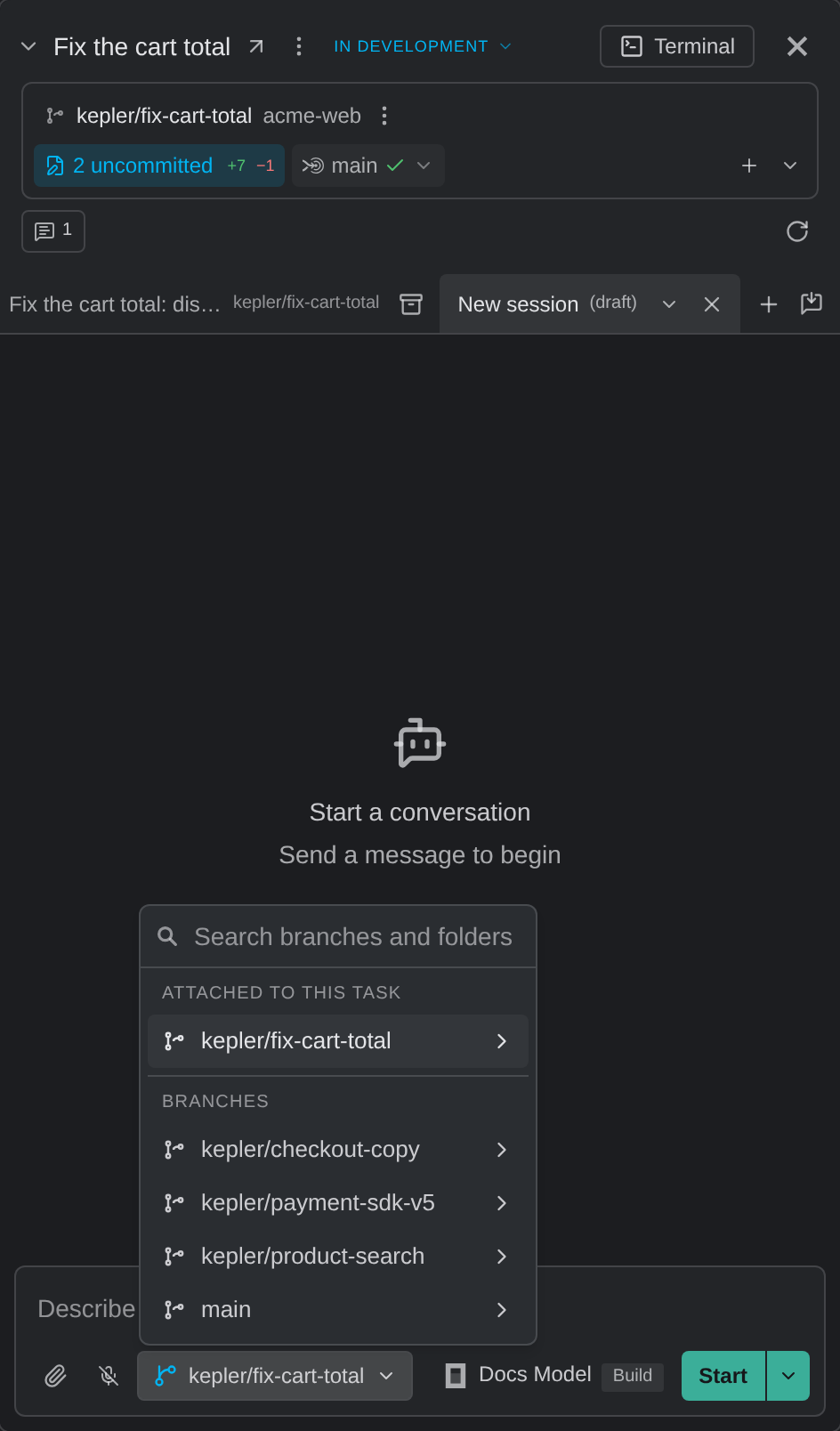
- Choose where the agent works from the target chip at the bottom of the composer. The chip names the current folder, worktree or branch.
- Open Agent settings to choose the Agent and how to Start in, along with the agent’s own options, such as Permission mode.
- Type your prompt.
- Press Start.
The target chip’s menu has a Search branches and folders field and the following groups:
| Group | What it lists |
|---|---|
| Attached to this task | The Task’s folders and worktrees, led by All worktrees and folders. That row runs the session in the task folder with access to every worktree and folder. On a Task with nothing attached yet, it reads Task folder |
| Branches | Other branches in the Task’s repositories |
Point at a branch row for Use this branch, or for New branch from this, which cuts a new branch from it. The chip then reads new branch from {base}, and you can type a branch name or let Kepler name it for you.
If a worktree is gone from disk, Kepler asks Recreate the worktree and start the session? before the session starts.
Task context is a checkbox in Agent settings. It’s on by default and Gives the agent the task’s saved prompt and notes. Updates are included in subsequent messages. Turn it off for a session that forms its own view instead.
If no agents are connected, Agent settings reads No agents available, and its menu offers Connect an AI agent: an Install row per agent, See all {count} agents in Settings, and Check again for one you installed yourself. See Agent Integrations. An agent that’s signed out reads Sign in to {agent} to start a session. When an agent doesn’t share its options, the menu says You can still start a session. It uses {agent}’s own model and mode.
Start a session in a specific checkout without a draft. Right-click a worktree or folder row and point at New session here. The submenu lists your agents. Each agent row starts that agent in its default mode, and the trailing button starts the other mode: Start in Terminal, or Start in Chat on an agent that defaults to Terminal. An agent that offers only one mode shows no second button. See Agent Sessions.
When a session can’t start. If the agent fails after launch, the task page shows {agent} couldn’t start with the agent’s message. Press Retry to launch it again, or Open agent settings to fix the problem. Dismiss hides the notice in that window.
Start from an existing session. New session from this one, on a session’s row or tab menu, picks an agent and starts a session in the same working directory that can read the source conversation. New session from here, on a message in a conversation, does the same but cuts the source off at that message. The new session shows a Continues from divider naming its source; Open source session in its menu takes you back.
To fire a preconfigured prompt instead of typing one, open the chevron beside the session composer’s Send button and pick an Action. Anything you typed rides along as a refinement. See Actions.
Opening a file
Any file can open on the task page, whether or not it’s attached to the Task. It opens as a tab with tabs on, or in the Resources column with tabs off, in Kepler’s file viewer.
| How to open one | What you get |
|---|---|
| File › Open File… (Cmd/Ctrl+O) | A file picker for the machine the window is connected to |
| File › Go to File… (Cmd/Ctrl+P) | Finds a file by name across This task or All tasks, opens a full path you type, and lists Recent files before you type anything |
| A file row in the rail’s Files group | That file |
| A file path an agent writes in the conversation | The file, at the line the agent named. Cmd-click (Ctrl-click on Windows and Linux) opens it in your default editor instead |
| A file path in a terminal | The file, at its line. See the terminal drawer |
A path that’s already one of the Task’s files opens that file’s own tab rather than a second copy, however the path was spelled. A file that isn’t attached yet offers Add to task, which attaches it and turns the tab into its resource tab in place.
What the viewer shows
- Code and text, highlighted, scrolled to and marking the line you opened it at. Wrap lines toggles soft wrapping.
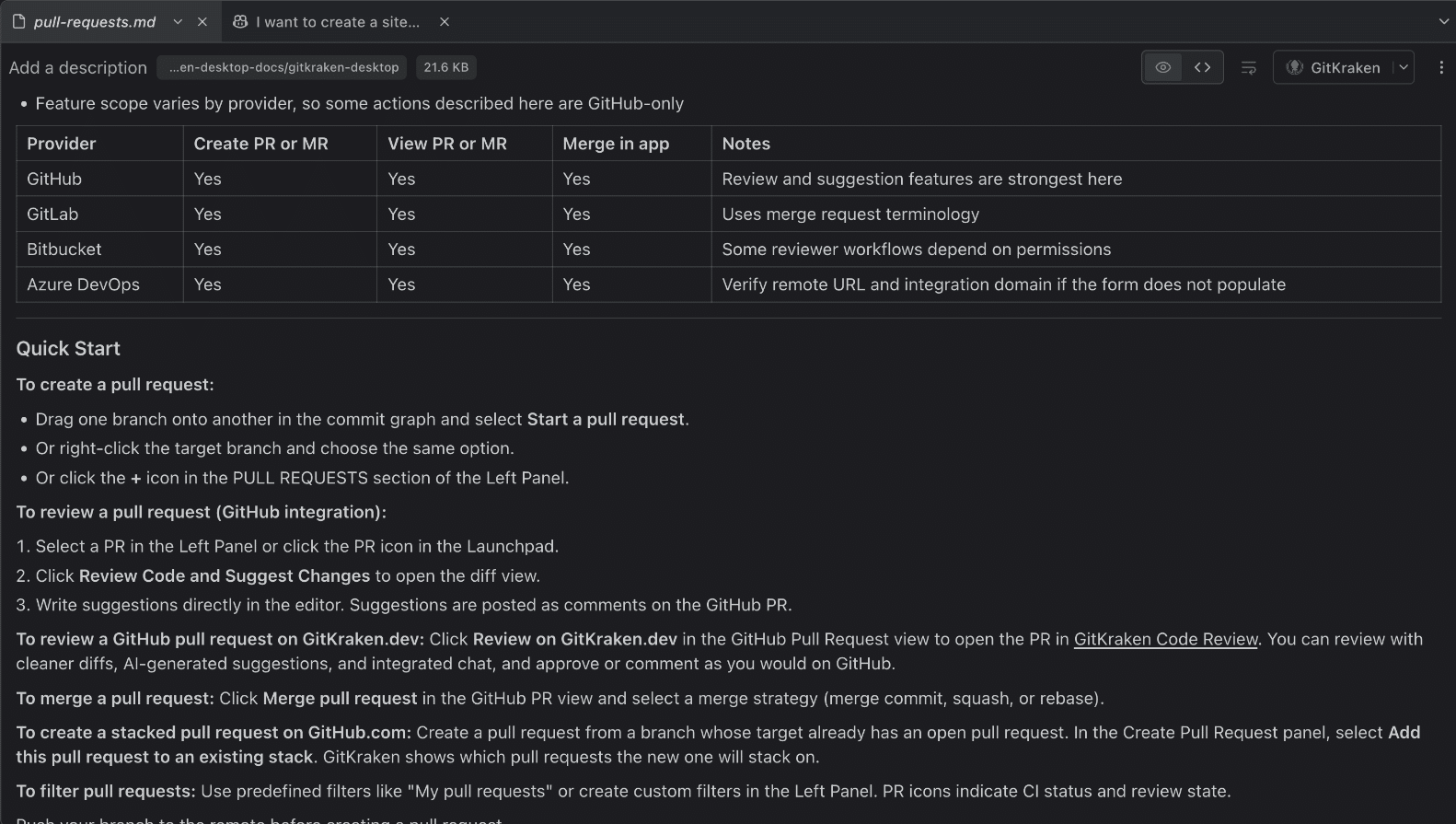
- Markdown, rendered, with a Preview / Source toggle.
- Images and SVG, fitted to the pane, with Fit and 100%.
- Anything else gets a No preview for this file card with the ways out the window allows: Open in default app, Show in Finder (macOS), Show in Explorer (Windows) or Show in file manager (Linux), and Copy path.
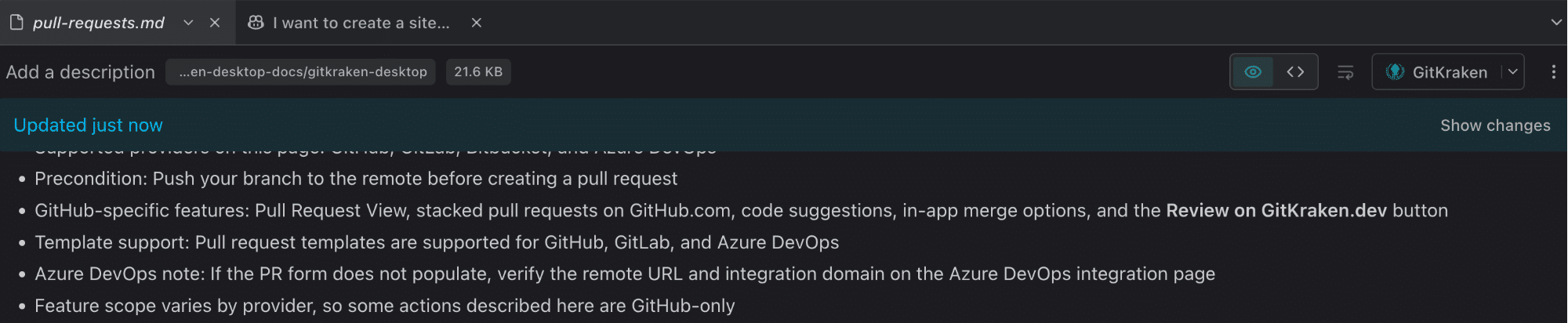
An open file follows the disk. When it changes, the viewer updates in place without moving you, and says Updated just now, or Updated just now by the session that changed it when Kepler saw the edit. Show changes shows what changed since the file was first shown; Back to file returns. A deleted file keeps showing the last version Kepler read, and says so.
A very large file shows its start first, labeled Showing the first {shown} of {total}, with Load the rest.
The terminal drawer
Terminals live in a drawer beneath the content area, spanning all of it, sized by a sash of its own. The Terminal control at the right edge of the header shows and hides it, and counts what’s running.
| How to open one | What you get |
|---|---|
| Cmd/Ctrl+J, or the header’s Terminal | Shows and hides the drawer |
| New terminal here, on a worktree or folder row | A shell in that checkout |
| Run command here, on a worktree row | The command you pick, running in that checkout, revealed without taking your focus |
| The strip’s + | A shell. With several checkouts it becomes New terminal in…, listing them by branch |
Every terminal also has a row in the rail’s Terminals group. Clicking it brings the drawer up on that terminal; clicking the row already showing puts the drawer away.
Maximize terminal pane, or Cmd/Ctrl+Shift+J, takes the whole height; Restore terminal pane brings it back.
When a terminal reconnects
A terminal reattaches to its running shell rather than starting a new one:
- While it loads it reads Loading terminal…, and Reconnecting to the terminal… while the connection comes back. If it can’t, Couldn’t restore this terminal says The terminal is still running. Retry to load its output again., with Retry.
- One view types at a time. A terminal another view is driving, in another window or on a Remote Access device, reads Another view is controlling this terminal. Take control lets you type here and sizes the terminal to this view.
- A terminal printing faster than the connection can show reads Showing the latest output: This terminal is printing faster than this connection can show, so older lines are skipped.
- Input Kepler can’t confirm is never resent. See Agent Sessions.
Reading a tab
Each tab carries one glyph that says both what the tab is and how it ended, so a clean finish and a crash don’t look alike:
| Kind | What it is |
|---|---|
| Shell | A plain terminal you opened |
| Agent | A session running an agent in Terminal mode. See Agent Sessions |
| Command run | One of the repository’s commands |
A shell tab also shows what its program reports, when the program reports a status: Working, Needs you, Done or Failed. Hover the tab to see the state, the app that reported it, its message and progress, and the terminal it came from. An agent tab keeps its own glyph, because its session owns its status.
When a shell’s program needs you or finishes, Kepler sends a notification that names the terminal and its Task, such as Approve it in {terminal} or Finished in {terminal}. Kepler stays quiet while that terminal is on screen in the focused window. These notifications follow the same notification settings as agent sessions, in Settings → Notifications.
A finished command run shows a result bar rather than leaving you to read the scrollback: Exited with code {code}, Exited by signal {signal}, or Stopped, with Run again and Close beside it. A still-running one offers Stop.
File paths are links
File paths printed in a terminal are links, including relative paths, paths with a line suffix such as src/app.ts:42, and paths wrapped across lines. Cmd-click one (Ctrl-click on Windows and Linux) to open the file on the task page at its line; the hover hint says Click to preview.
Right-click a path for more: Open file, your default editor (opening at the line), Open in for the rest of your editors, Open in default app, Save as…, and Copy path.
Closing a busy terminal
Closing a terminal with something running in it confirms first, naming the job you actually launched:
Close terminal? Stops {command}, which is still running in this terminal.
Close terminal goes ahead. A terminal already closing offers only Force close.
Shell tabs survive a Kepler update and come back after a restart. A plain Quit ends them, the way quitting any terminal app does. Quitting Kepler counts busy terminals alongside busy sessions and asks before it takes them down.
What each resource pane shows
| Resource | Details |
|---|---|
| Worktree, on disk | A strip of verbs (the branch, the sync control, Open in, Run a command) over its changed files, which lead into the Changes overlay. With tabs off, the branch pill’s menu offers Detach worktree… and Delete worktree… (never on the repository’s main worktree). See Review Changes |
| Worktree, missing | A metadata card instead: Current branch, Base branch, and the Recorded path, flagged not on disk or gone when it’s been removed outside Kepler. A worktree that has gone stays bound to the Task, and Kepler offers to recreate it rather than quietly dropping it |
| Folder | Path, plus an editable name and description |
| File | The file itself, in the file viewer, with its description, where it came from, and its size on the viewer’s toolbar. Rename is in File actions. An uploaded copy says it’s a copy in the task folder |
| Pull request / Issue | Author, assignee, status, the item’s description and its labels. You can select and copy the description text. When Kepler can’t read a description, the pane shows Full description lives in the provider — open the link above to view it. instead |
| Link | Last synced time, or not synced |
| Note | The note itself. To edit it, press Edit. Double-clicking selects a word. The Prompt note edits the Task’s prompt |
