Last updated: March 2026
Use this page to stage, unstage, discard, and ignore files in GitKraken Desktop from the Commit Panel and diff view. It covers full-file staging, line-level staging, discard actions, and the difference between ignoring a file and ignoring it while also removing it from Git tracking.
Requirements and limits
- Workflow scope: Working directory and staged file management from the Commit Panel and diff view
- Starting point: Select the
//WIPnode to work with current uncommitted changes - Line-level actions: Stage, unstage, and discard support is available from the diff view for selected lines or hunks
- Ignore behavior: GitKraken Desktop writes ignore rules to the root-level
.gitignore - Ignore limitation: Nested
.gitignorefiles are not parsed by GitKraken Desktop - Tracked-file behavior: Ignore and Stop Tracking removes the file from the Git index in addition to adding the ignore rule
| Action | Scope | Where to do it | Notes |
|---|---|---|---|
| Stage file | Whole file | Commit Panel | Moves the file into Staged Files |
| Unstage file | Whole file | Commit Panel | Returns the file to the working directory |
| Stage selected lines | Partial file | Diff view | Supports line or hunk-level staging |
| Discard changes | Whole file or selected hunk | Commit Panel or diff view | Permanently removes uncommitted changes |
| Ignore | File, extension, or directory | Context menu on unstaged files | Writes to the root-level .gitignore |
| Ignore and Stop Tracking | Already tracked file | Context menu on tracked files | Adds ignore rule and removes the file from the Git index |
Quick Start
To stage files:
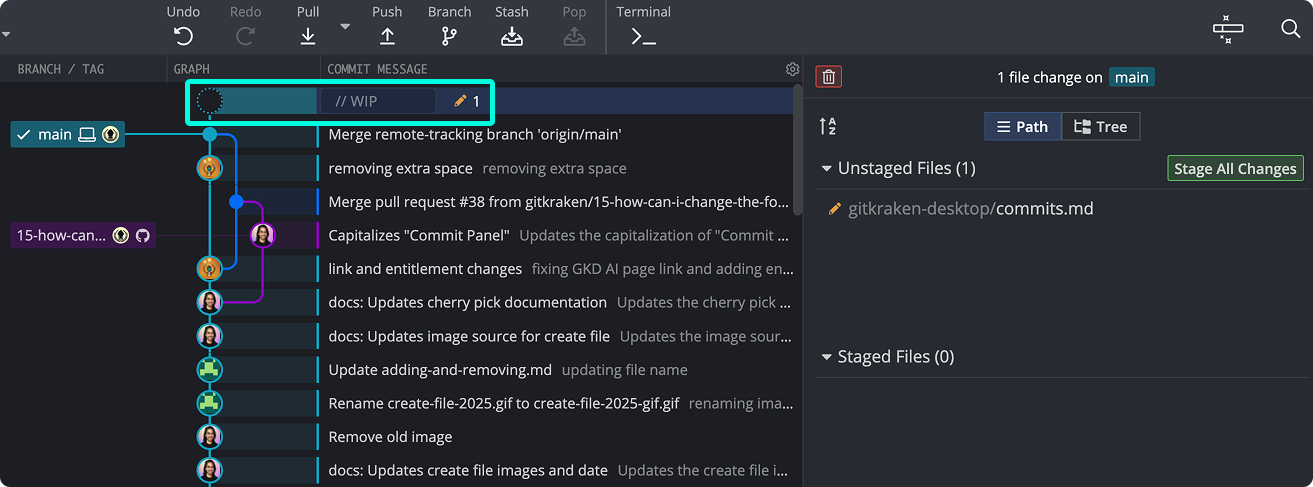
- Select the //WIP node in the Commit Graph to open the Commit Panel.
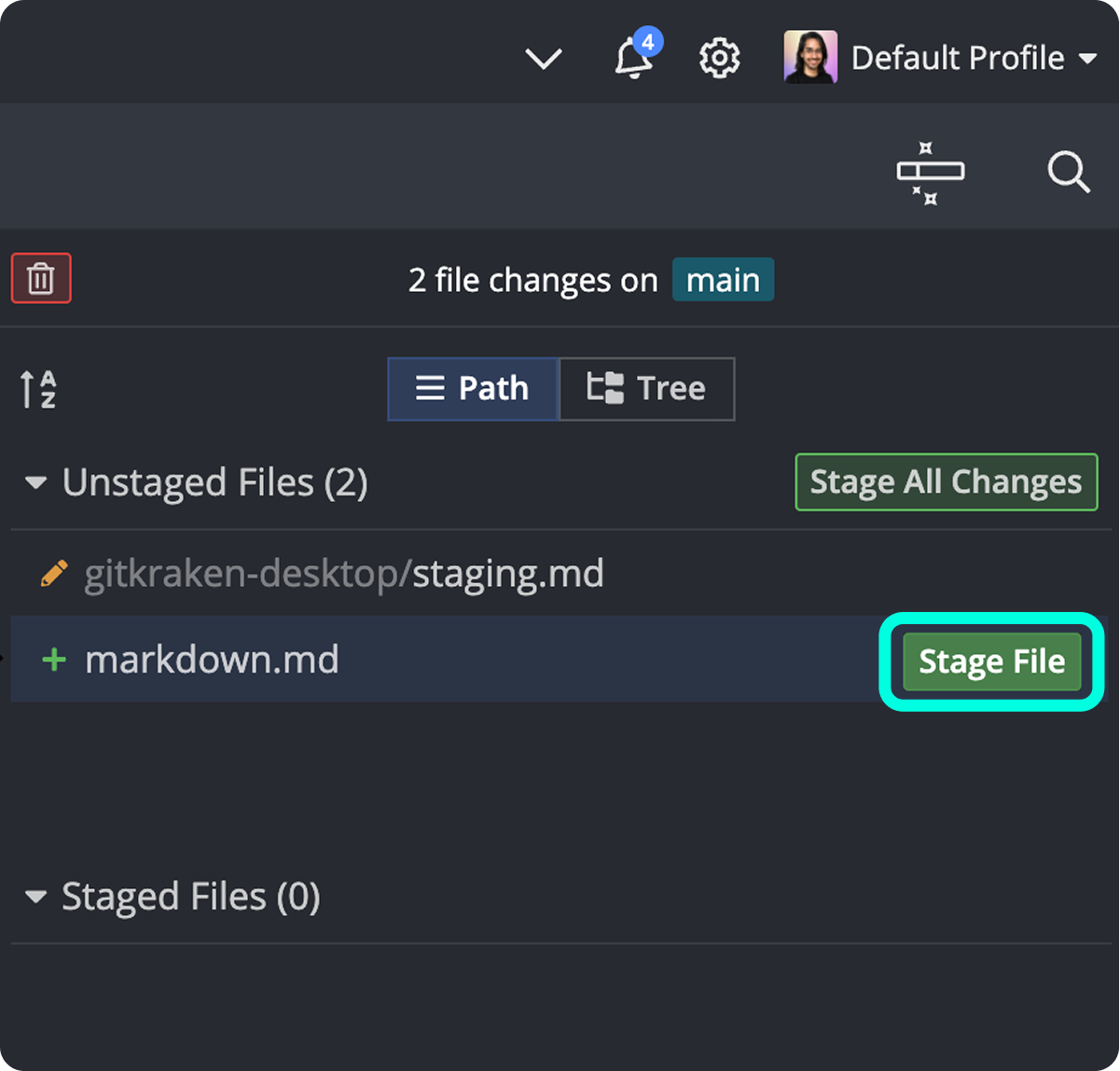
- Hover over a file and click Stage File, or click Stage all changes to stage everything at once.
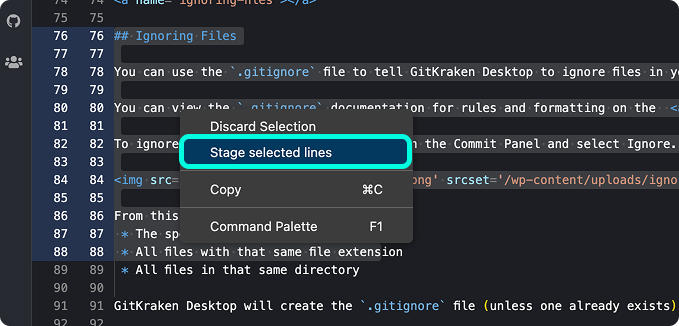
- To stage specific lines, click a file to open its diff, highlight the lines, right-click, and select Stage selected lines.
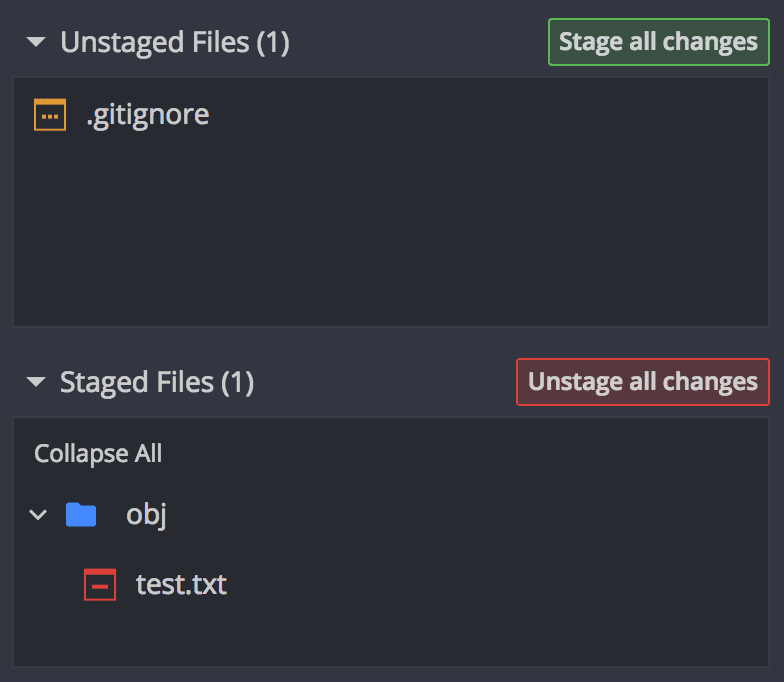
To unstage files: Select a file under Staged Files and click Unstage File. Use Unstage all changes to move all staged files back to the working directory.
To discard changes: Select the //WIP node and click the trash icon to discard all changes or selected files. Right-click a file to discard individual hunks from the diff view.
To ignore a file: Right-click any unstaged file and select Ignore. Choose to ignore by file name, extension, or directory. GitKraken Desktop adds the rule to the root-level .gitignore. For already-tracked files, select Ignore and Stop Tracking to also remove the file from the Git index.
How to stage files and changes
Staging prepares your file changes for commit. To begin:
- Select the //WIP node in the Commit Graph to open the Commit Panel.
- Hover over a file and click to stage it.
You can also:
- Click to stage all at once
- Click a file to view its diff and selectively stage lines:
- Highlight lines
- Right-click and select Stage selected lines
Tip: Use keyboard shortcuts to speed up staging actions.
How to unstage files or lines
To unstage a file:
- Select the file under the Staged Files section
- Click

To unstage lines or hunks, click a file to view its diff and right-click the content to unstage.

To unstage all:
- Click
How to discard changes
To discard changes across your working directory:
- Select the //WIP node
- Click the trash icon to discard all or selected files
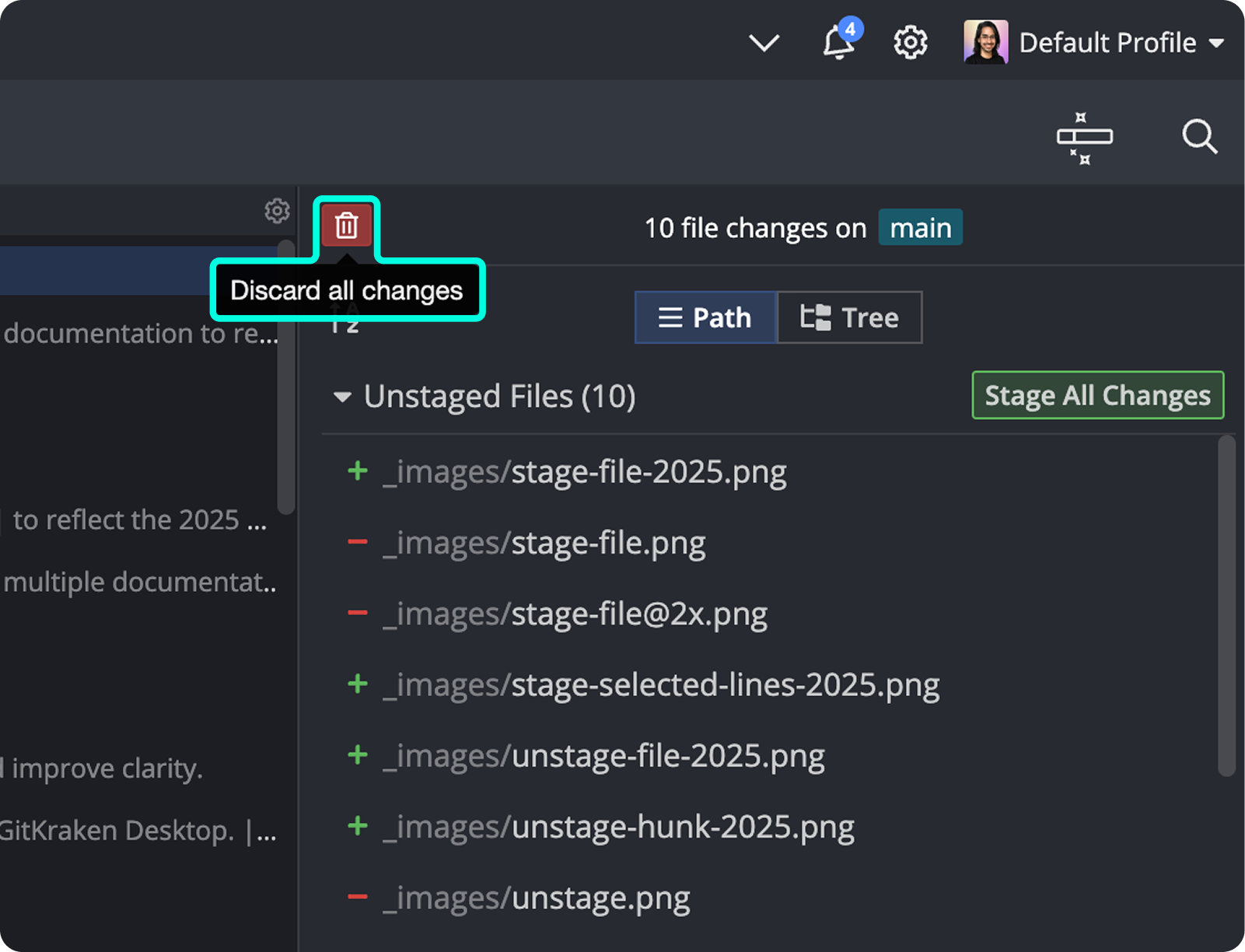
You can also:
- Multi-select files and right-click to Discard selected
- Discard lines/hunks from the file diff
- Right-click within the staging panel and choose Discard Changes

How to ignore files
To prevent Git from tracking certain files, add them to a .gitignore file.
Right-click a file and select Ignore:
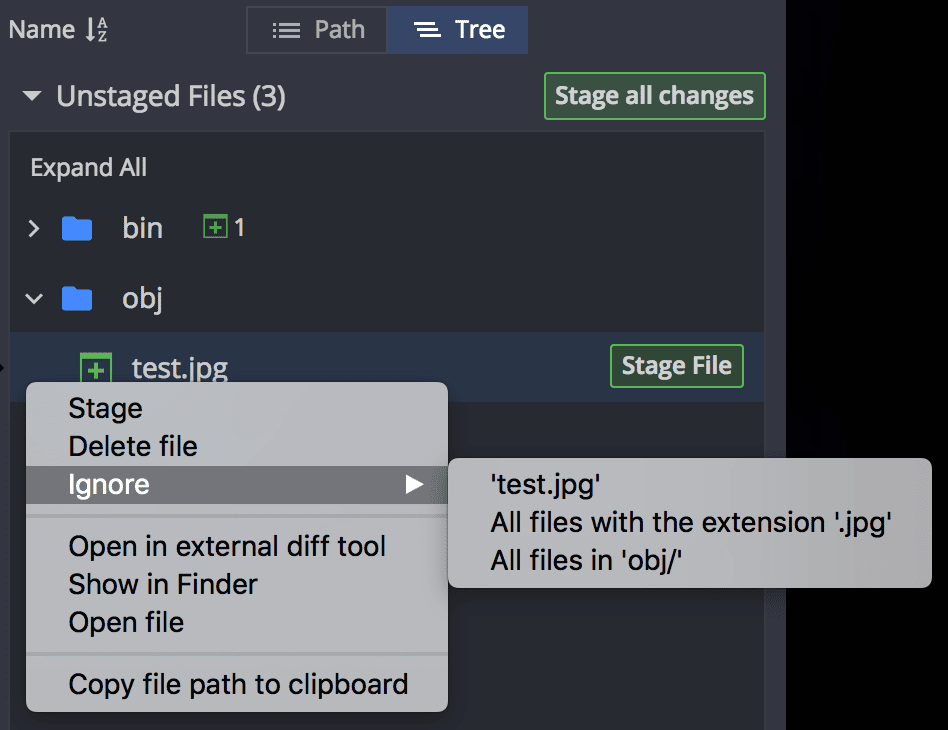
You can choose to:
- Ignore the selected file only
- Ignore all files with that extension
- Ignore all files in the directory
GitKraken Desktop will add the rule to a .gitignore file at the root of your repo. Nested .gitignore files are not parsed.
Note: GitKraken Desktop only uses the root-level .gitignore file.
How to ignore previously tracked files
If a file is already tracked, you’ll see two options:

Selecting Ignore will add the corresponding entry to the .gitignore file, but Git will continue tracking the file.
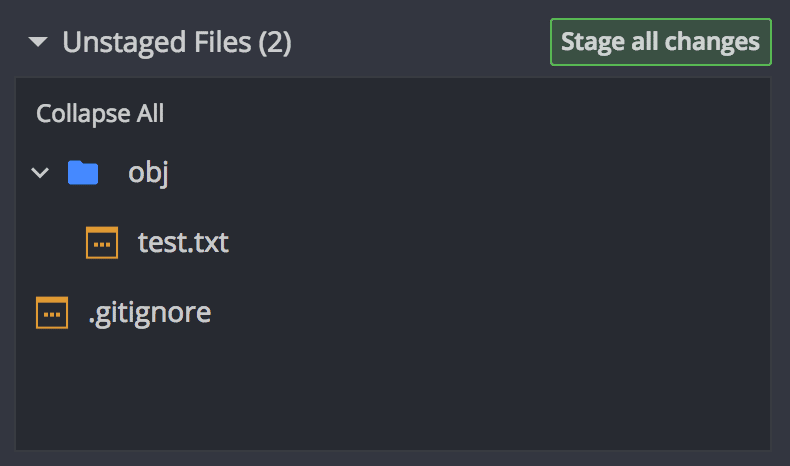
Selecting Ignore and Stop Tracking will add the entry and remove the file from the Git index, so Git stops tracking it.