

Last updated: November 2026
Use this page to connect GitKraken Desktop to Bitbucket.org for repository discovery, SSH setup, clone and remote workflows, and pull request activity.
Requirements and limits
- Integration covered here: Bitbucket.org
- Authentication: Browser-based Bitbucket connection through your GitKraken account (sign in to GitKraken Desktop first)
- Account limit: 1 Bitbucket account per profile; multiple accounts require multiple profiles and a GitKraken Pro subscription
- SSH behavior: GitKraken Desktop uses the key in Preferences > SSH unless you configure a Bitbucket-specific key or use your system SSH Agent
- Reviewers: You see pull request reviewers only if you have Project Admin permissions on the repository
| Workflow | Supported | Notes |
|---|---|---|
| Connect Bitbucket account | Yes | Browser-based connection through your GitKraken account |
| Clone and browse repositories | Yes | Uses the integrated repository list |
| SSH key generation and upload | Yes | Uses GitKraken SSH settings unless overridden |
| Create and view pull requests | Yes | Supported directly in GitKraken Desktop |
| Add reviewers to pull requests | Partial | Reviewer visibility depends on Project Admin permissions |
| Multiple Bitbucket accounts | Yes | Requires separate profiles and a Pro subscription |
Quick Start
- Go to Preferences > Integrations in GitKraken Desktop.
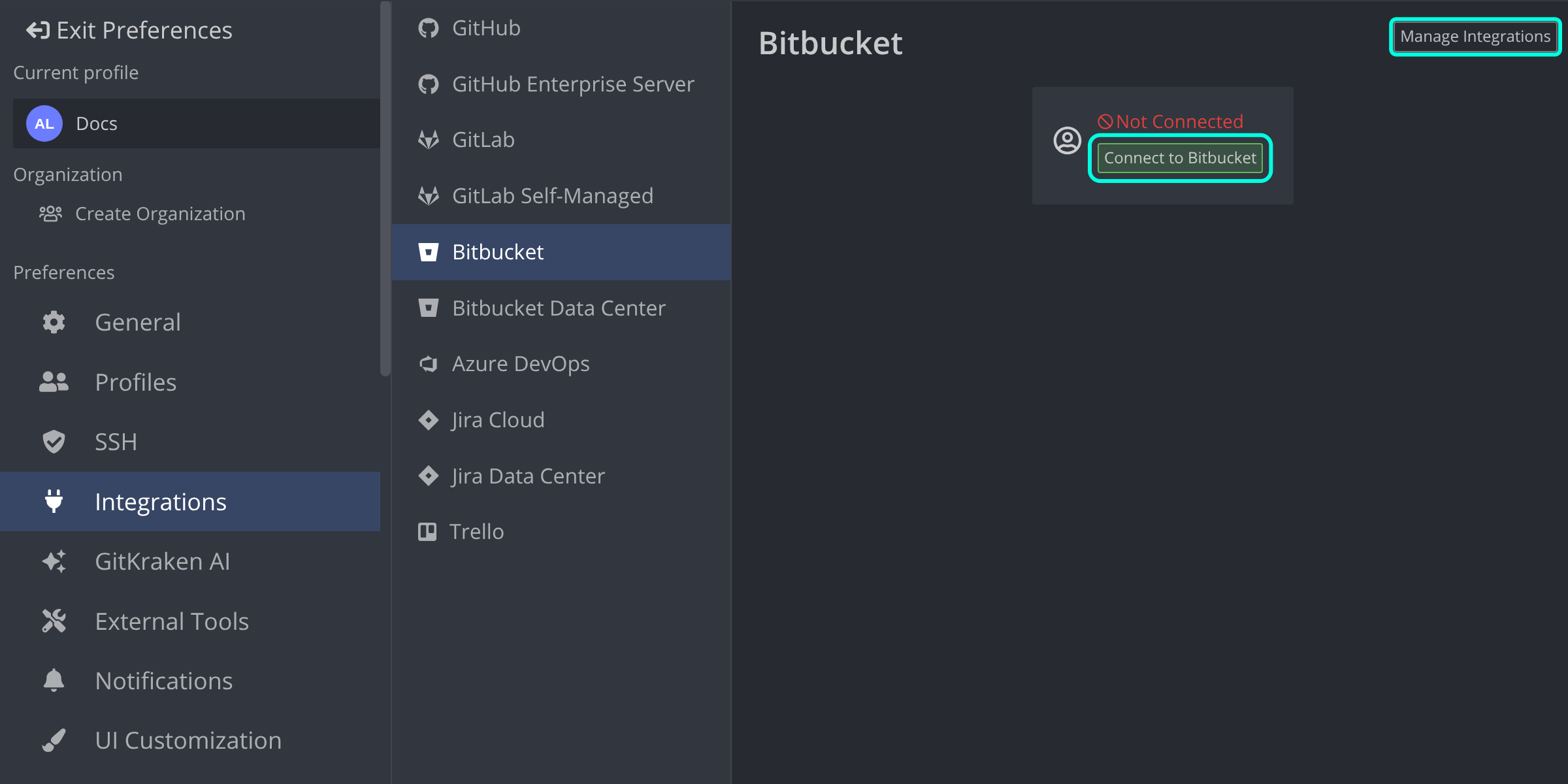
- Select Bitbucket and click Connect to Bitbucket. If you are signed out of your GitKraken account, sign in first.
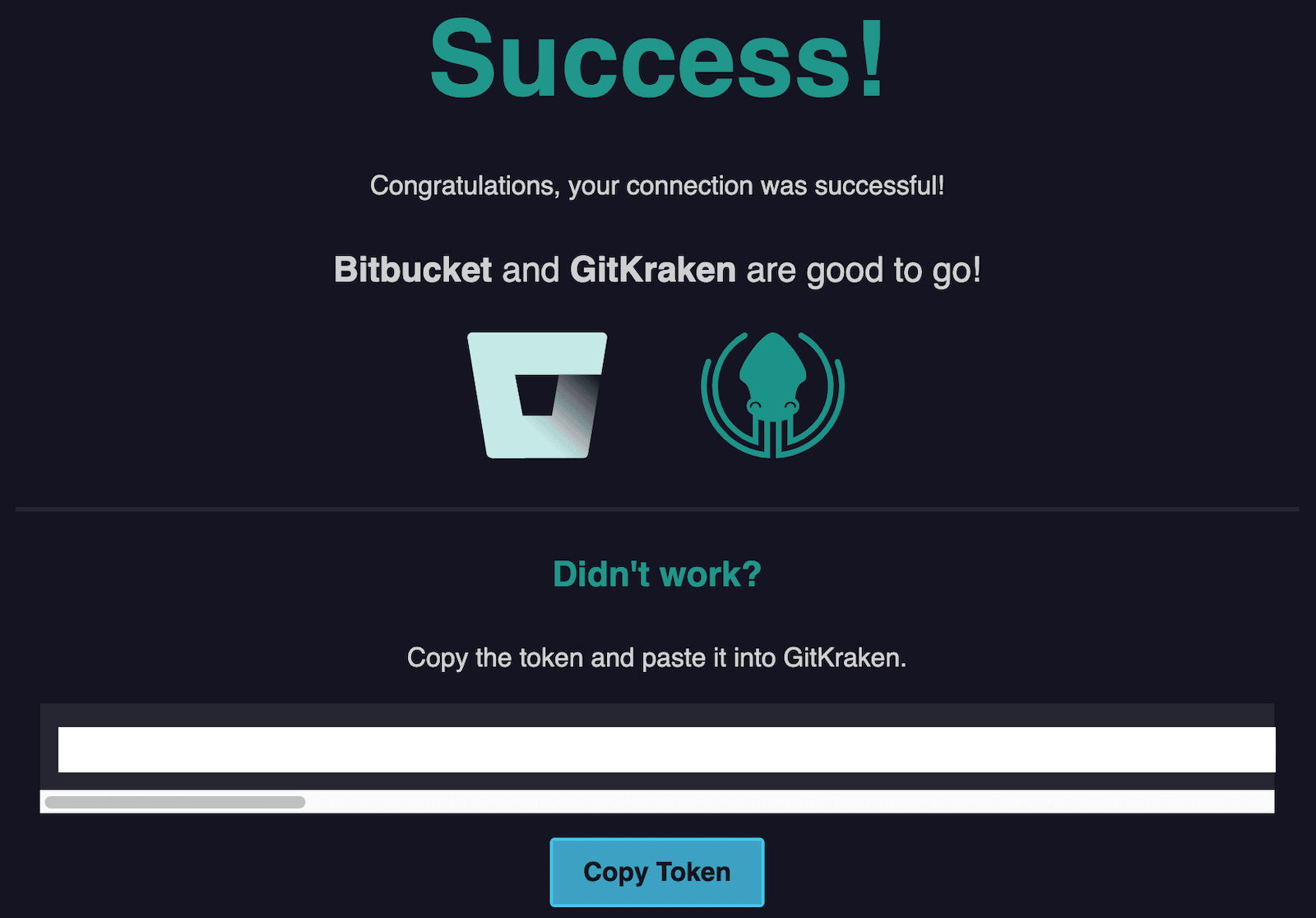
- Finish connecting in your browser at gitkraken.dev. If asked, log in to Bitbucket.
To configure SSH access after connecting:
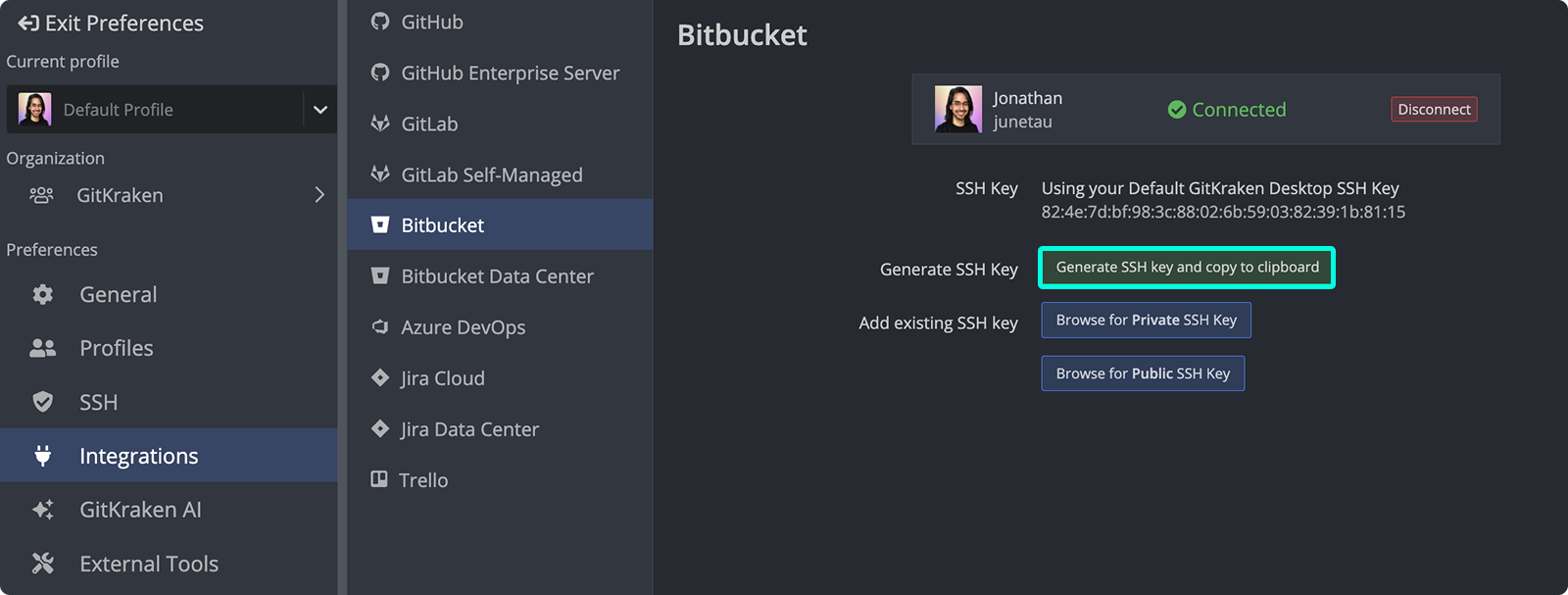
- In Preferences > Integrations, click Generate SSH key and copy to clipboard.
- Paste the key into your Bitbucket account SSH settings.
After you connect, GitKraken Desktop shows your Bitbucket repositories when you clone, lists forks when you add remotes, and lets you create and view pull requests. To manage more than 1 Bitbucket account, use multiple profiles with a GitKraken Pro plan.
What the Bitbucket integration lets you do
- Create new repositories on your Bitbucket account with .gitignore and license templates.
- Generate and copy an SSH key pair for Bitbucket.
- Save authentication in reusable profiles.
- Clone from a personalized Bitbucket repository list.
- Add and manage remotes from Bitbucket.
- Create and view pull requests in GitKraken Desktop.
How to connect Bitbucket
Before you start: sign in to your GitKraken account. Bitbucket connects through your GitKraken account, so you can also use the connection on your other computers and profiles. See How integrations connect through your GitKraken account.
To authenticate with Bitbucket:
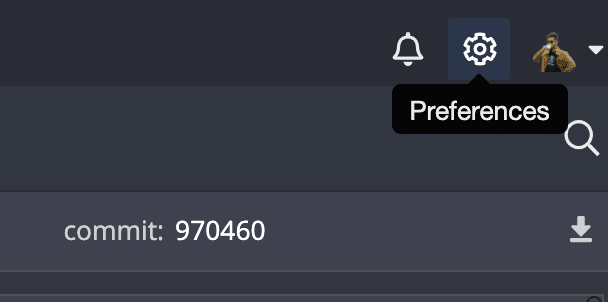
- Go to Preferences > Integrations in the upper-right corner.
- Select Bitbucket and click .
- Your default browser opens gitkraken.dev. Log in to Bitbucket if asked, then follow the prompts to return to GitKraken Desktop. The Bitbucket card then reads Connected to your Bitbucket integration.
How to generate SSH keys for Bitbucket
Note: GitKraken Desktop uses your SSH key from Preferences > SSH unless you configure a Bitbucket-specific key or enable your system SSH Agent.
After you connect Bitbucket:
- Go to Preferences > Integrations.
- Click .
- Paste the key into your Bitbucket account settings.
How to move SSH remotes to ssh.bitbucket.org
On November 12, 2026, Bitbucket Cloud stops accepting SSH connections to bitbucket.org. SSH remotes must use ssh.bitbucket.org instead. GitKraken Desktop recognizes remotes on ssh.bitbucket.org as Bitbucket remotes, so they use your Bitbucket integration’s SSH key.
From November 12, 2026, when a fetch, pull, or push fails on an SSH remote that still uses bitbucket.org, GitKraken Desktop shows a Bitbucket SSH host has changed notification. To move the remote:
- Click Update remote in the notification. If remotes failed in more than 1 repository, the button reads Update remotes.
- GitKraken Desktop changes the remote’s SSH URLs to
ssh.bitbucket.organd shows Remote updated.
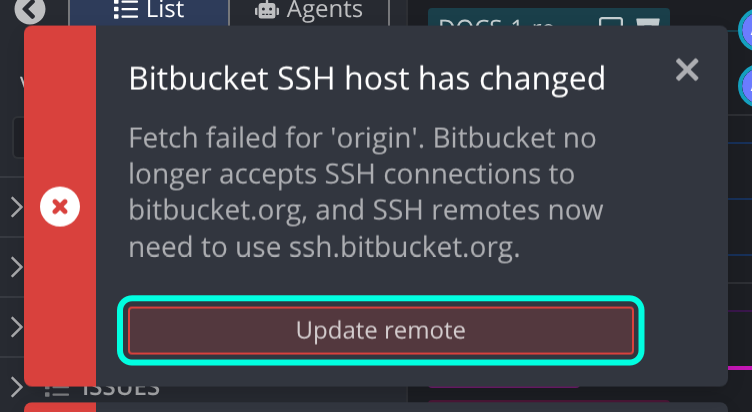
- If a clone from
bitbucket.orgfails, the notification has no button. Clone again with thessh.bitbucket.orgURL. - If a
url.*.insteadOforurl.*.pushInsteadOfrule in your Git config points tobitbucket.org, the notification asks you to change that rule tossh.bitbucket.orginstead.
What Bitbucket OAuth enables in GitKraken Desktop
Use the Bitbucket integration when: you want repository discovery, remotes, and pull request workflows tied to Bitbucket.org inside GitKraken Desktop. For self-hosted Bitbucket: see Bitbucket Data Center.
With Bitbucket connected, GitKraken Desktop shows:
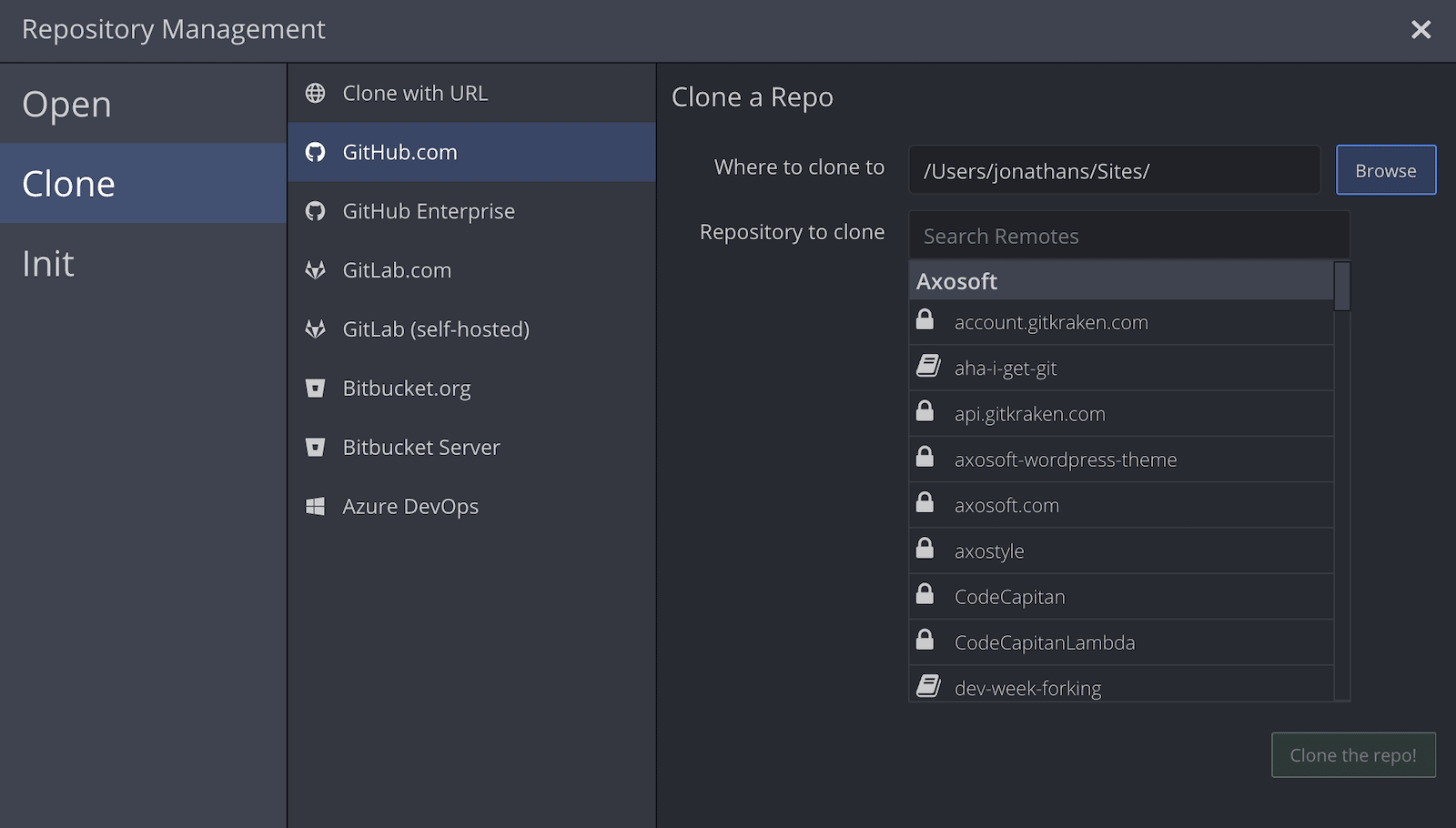
- A searchable list of Bitbucket repositories when cloning:
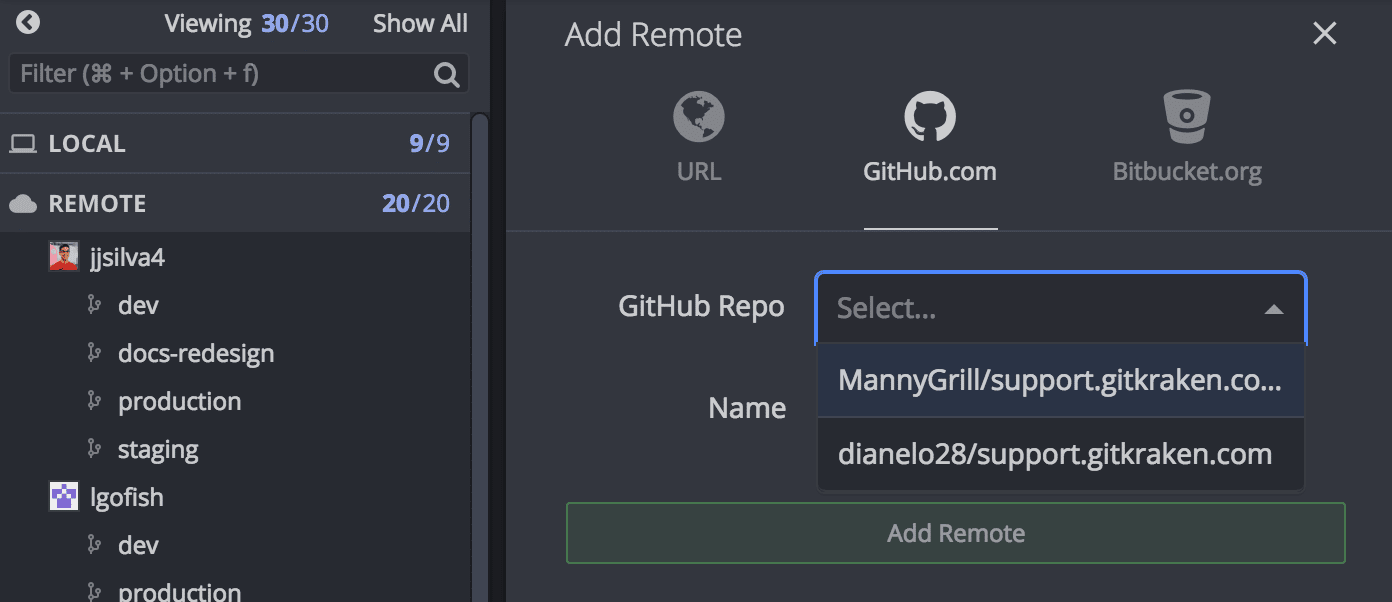
- A list of forks when adding remotes:
You can still enter repository URLs manually.
How to connect multiple Bitbucket accounts
GitKraken Desktop supports 1 Bitbucket account per profile. With GitKraken Pro, use multiple profiles to manage several Bitbucket identities.
Use multiple profiles when: you need separate Bitbucket identities or workspaces in the same GitKraken Desktop install. Do not use multiple profiles when: one Bitbucket account already covers the repositories you work with.
How Bitbucket pull request reviewers work
Bitbucket supports pull request reviewers. If you have Project Admin permissions on the repository, GitKraken Desktop shows reviewer details.
