
Last updated: September 2026
Features marked with PRO require a trial or paid plan for use on privately hosted repositories.
Features marked with PREVIEW require a GitKraken Account, with access based on your plan level (Community, Pro, etc).
Revision Navigation
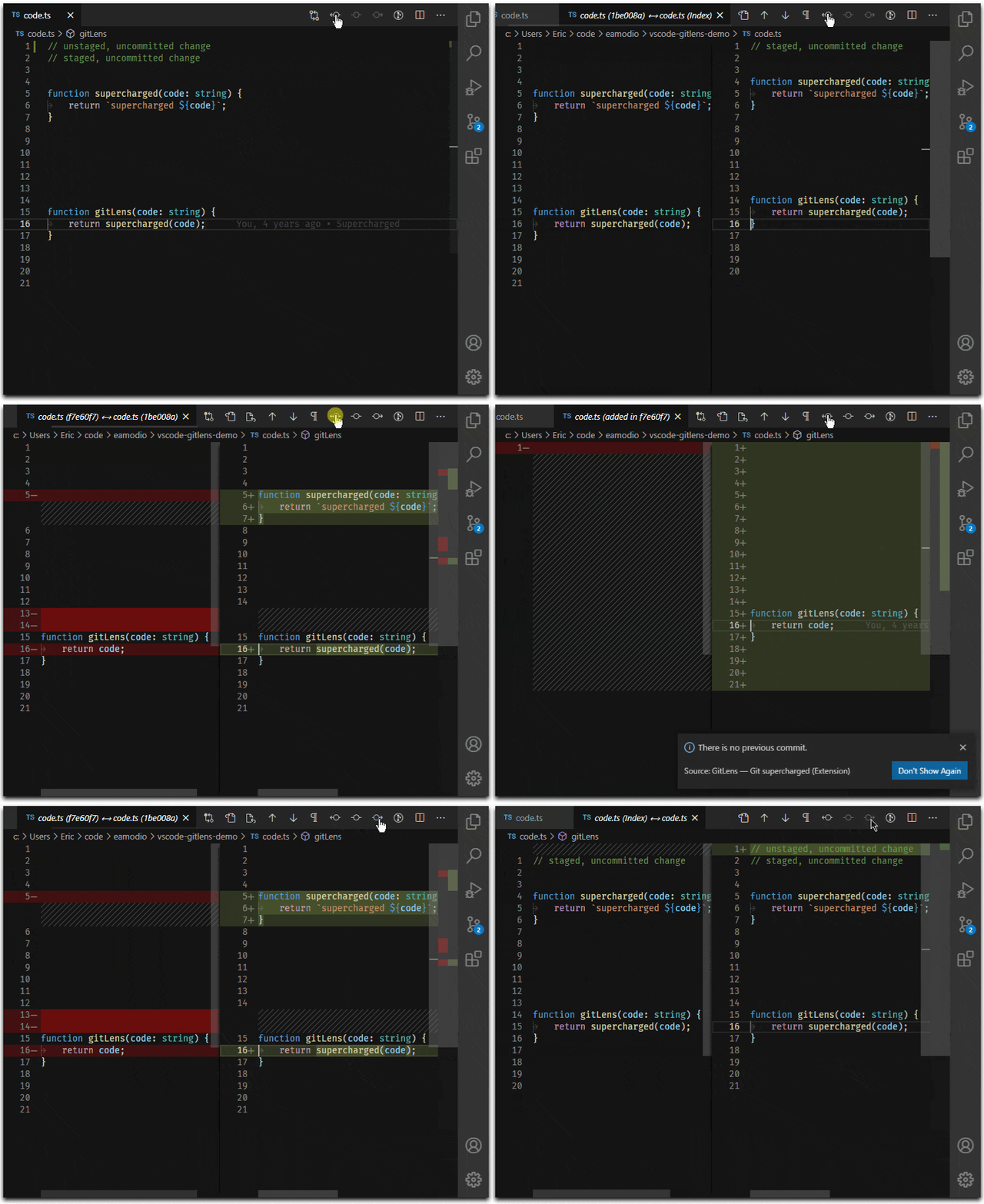
Revision Navigation allows you to quickly compare different versions of a file or specific lines.
Available commands:
-
Open Changes with Previous Revision (
gitlens.diffWithPrevious)
Compare the current file or revision with the previous commit. -
Open Changes with Next Revision (
gitlens.diffWithNext)
Compare the current file or revision with the next commit. -
Open Line Changes with Previous Revision (
gitlens.diffLineWithPrevious)
View how a specific line changed compared to the previous commit. -
Open Changes with Working File (
gitlens.diffWithWorking)
Compare the committed version of the file with your working directory. -
Open Line Changes with Working File (
gitlens.diffLineWithWorking)
See the difference between the last committed line and its current version. -
Open Changes with Branch or Tag… (
gitlens.diffWithRevisionFrom)
Compare the file against another revision from a selected reference. -
Open Changes with Revision… (
gitlens.diffWithRevision)
Compare the current file with any revision of the same file.
Current Line Blame

Current Line Blame adds a subtle, customizable, and themable annotation at the end of the active line.
By default, the annotation displays:
- The author of the most recent commit
- The commit date
- The commit message
You can control visibility with the command:
- Toggle Line Blame Annotations (
gitlens.toggleLineBlame)
Git CodeLens
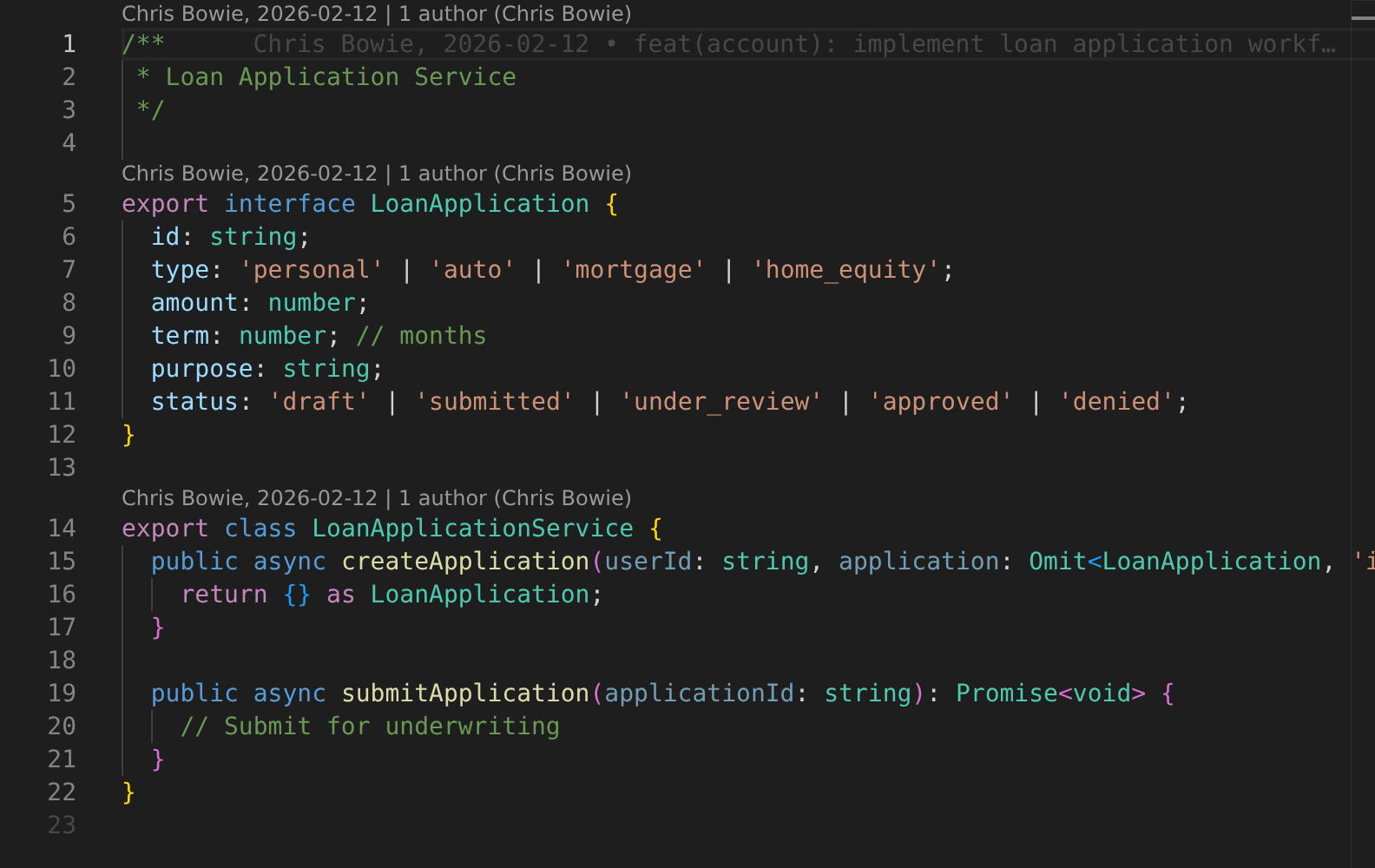
Git CodeLens displays inline Git insights at the top of each file and above code blocks (enabled by default, and customizable).
CodeLens Types
-
Recent Change
Shows the author and date of the most recent commit for the file or block.- Click to open a quick pick menu with commit details and actions (e.g., compare, explore history).
-
Authors
Displays the number of contributors and the most prominent author.- Click to toggle Git blame annotations across the file.
- Automatically hides if there’s only one author (to reduce visual noise).
CodeLens Behavior
Click behavior for each CodeLens is fully customizable. You can choose from:
- Toggle file blame annotations
- Compare the current commit to the previous one
- Show file or commit detail menus
- View commit history for the file or branch
Related Command
- Toggle Git CodeLens (
gitlens.toggleCodeLens)
Shortcut:Shift+Alt+B
Status Bar Blame

The Status Bar Blame displays Git blame details for the current line directly in the VS Code status bar. This feature is enabled by default and fully customizable.
Default Behavior
- Displays the author and date of the last commit affecting the current line.
- Clicking the status bar opens a quick pick menu with commit actions (compare, explore history, etc.).
Customizable Click Behavior
You can configure what happens when the status bar item is clicked:
- Toggle file blame annotations
- Toggle Git CodeLens on and off
- Compare the line’s commit to the previous one
- Compare the line’s commit to the working tree
- Show a quick pick menu with:
- Commit details and actions (default)
- File-level commit details
- Commit history of the current file
- Commit history of the current branch
Hovers
GitLens provides rich, customizable hover annotations to surface Git information directly in your editor. These hovers are enabled by default and support both blame and diff insights.
Current Line Hovers
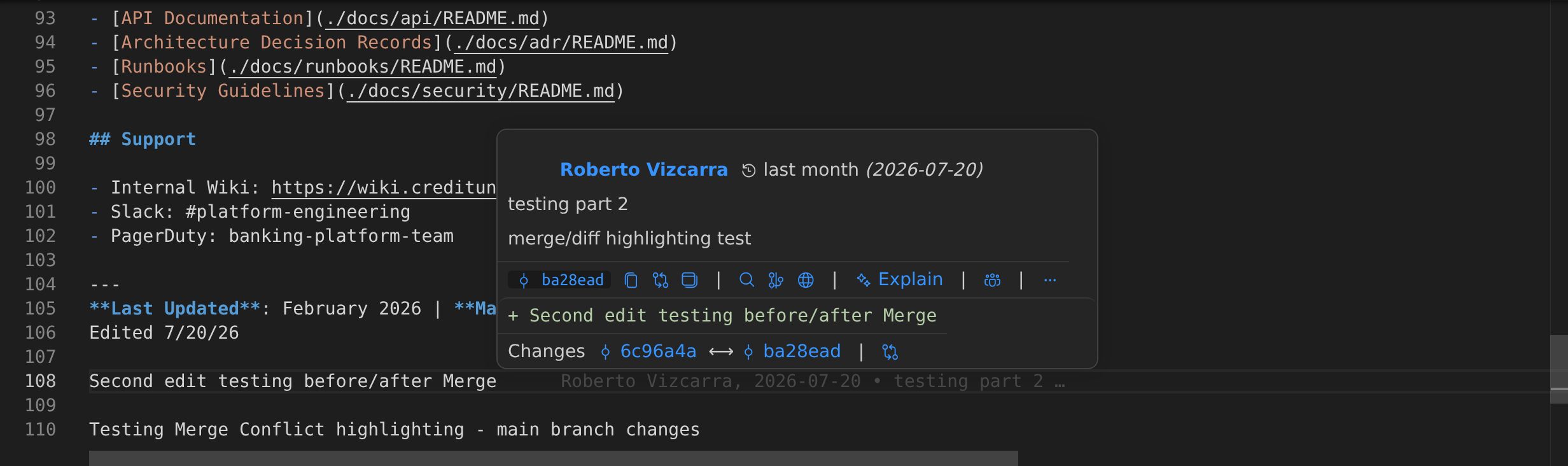
Details Hover
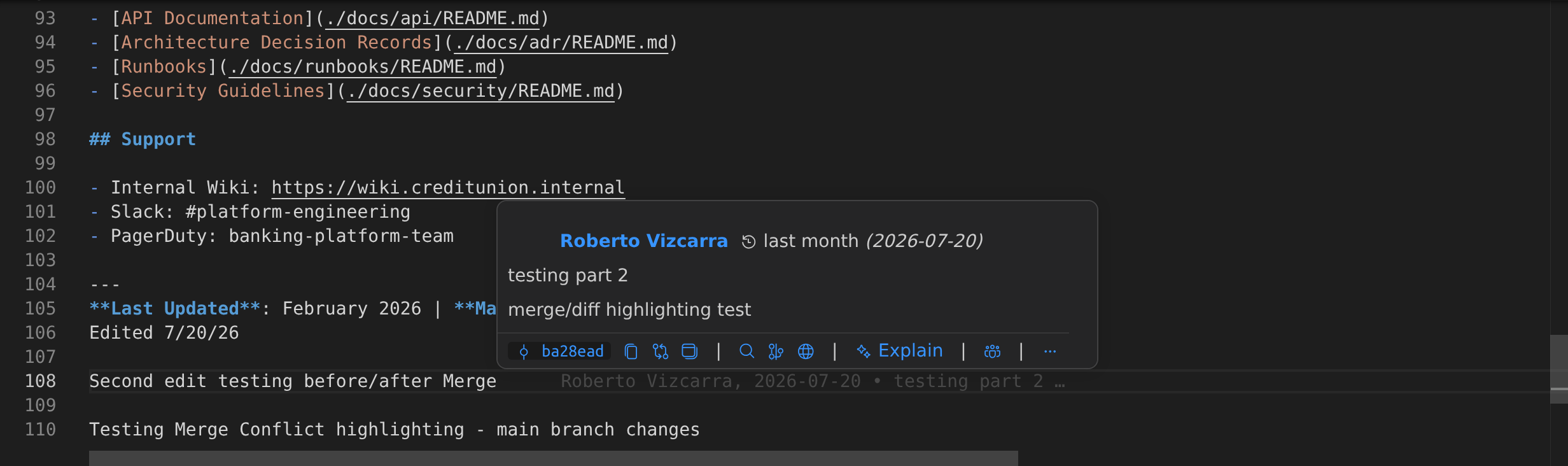
Displays detailed commit information for the current line.
Features:
- Automatic issue linking for Bitbucket, Gerrit, Gitea, GitHub, GitLab, and Azure DevOps.
- Quick-action bar with commands:
Open Changes, Blame Previous Revision, Open on Remote, Invite to Live Share, Show More Actions. - Click the commit SHA to trigger the Show Commit command.
Changes (Diff) Hover
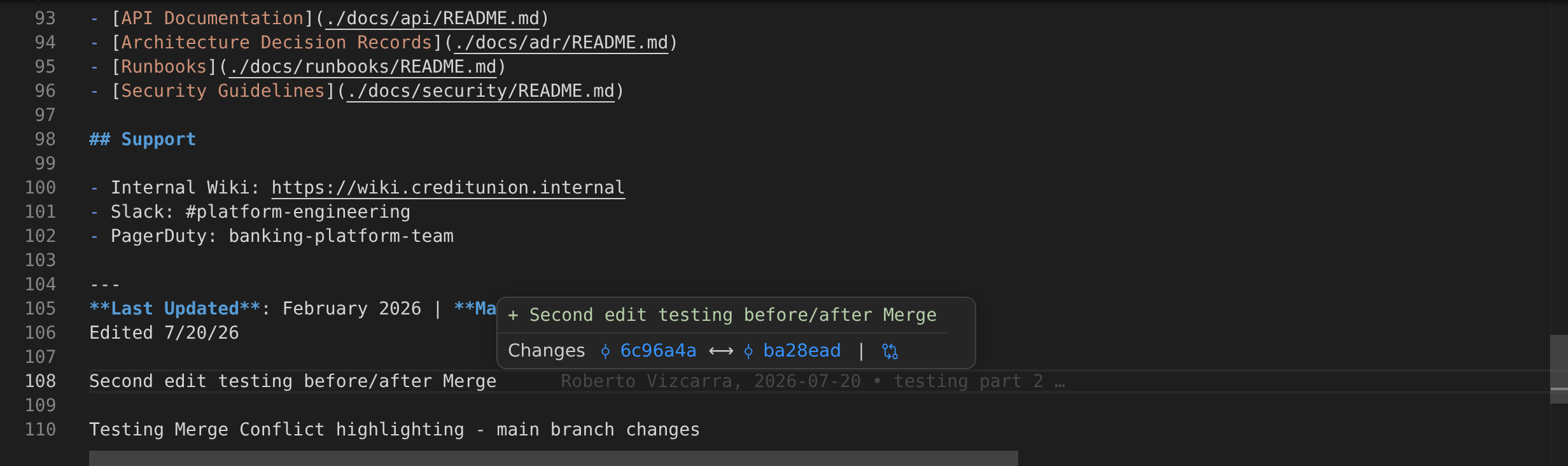
Displays the previous version of the current line.
- Click Changes to run the Open Changes command.
- Click commit SHAs to open Show Commit views.
Annotation Hovers
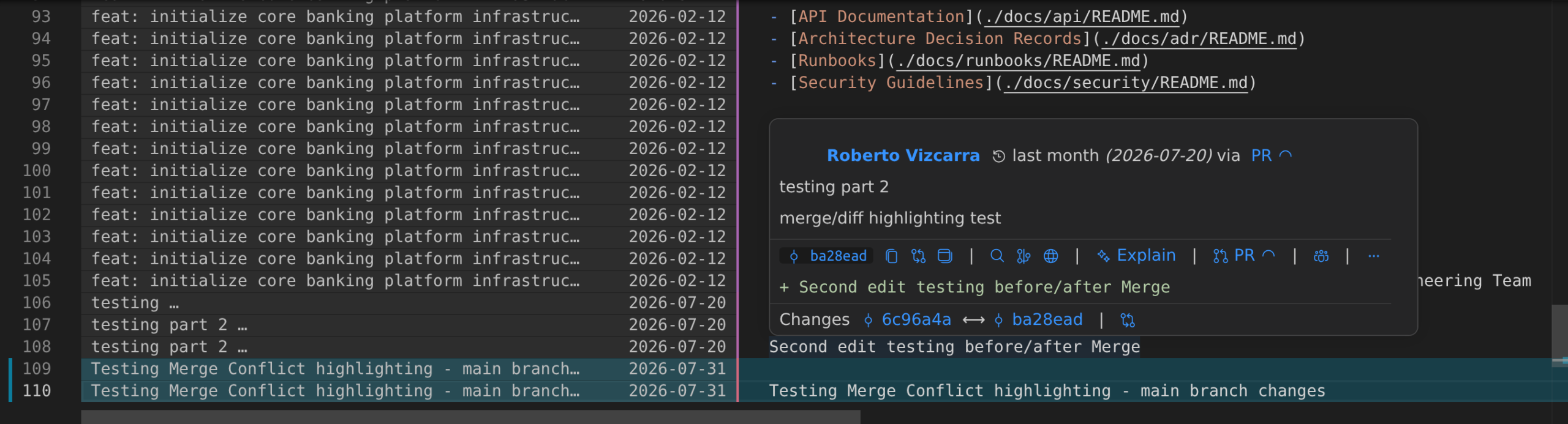
Accessible when blame annotations are active, these hovers provide the same detail and diff options.
Details Hover
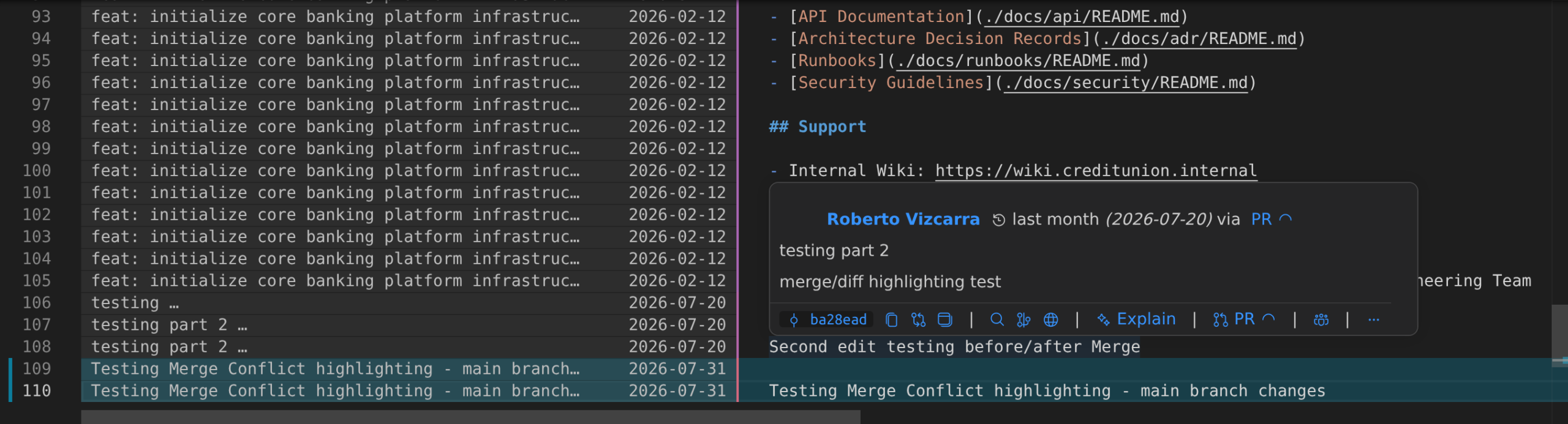
Shows rich commit details per line with:
- Automatic issue linking
- Quick-action command bar
- Clickable commit SHA to open commit details
Changes (Diff) Hover
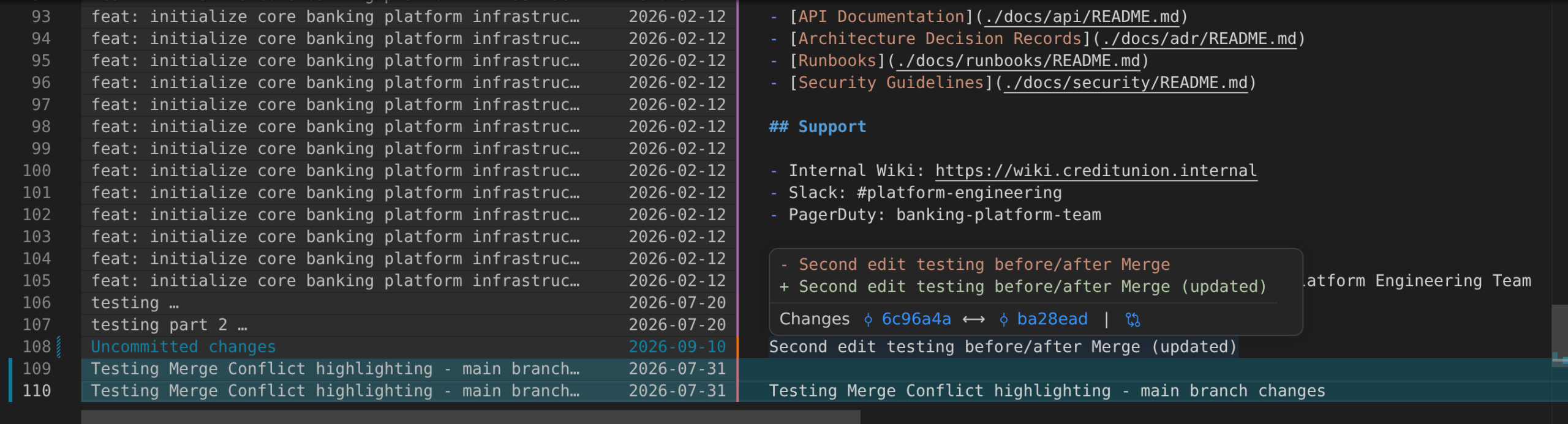
Reveals the previous version of each annotated line.
- Click Changes to run Open Changes.
- Click SHAs to open the Show Commit view.
File Blame
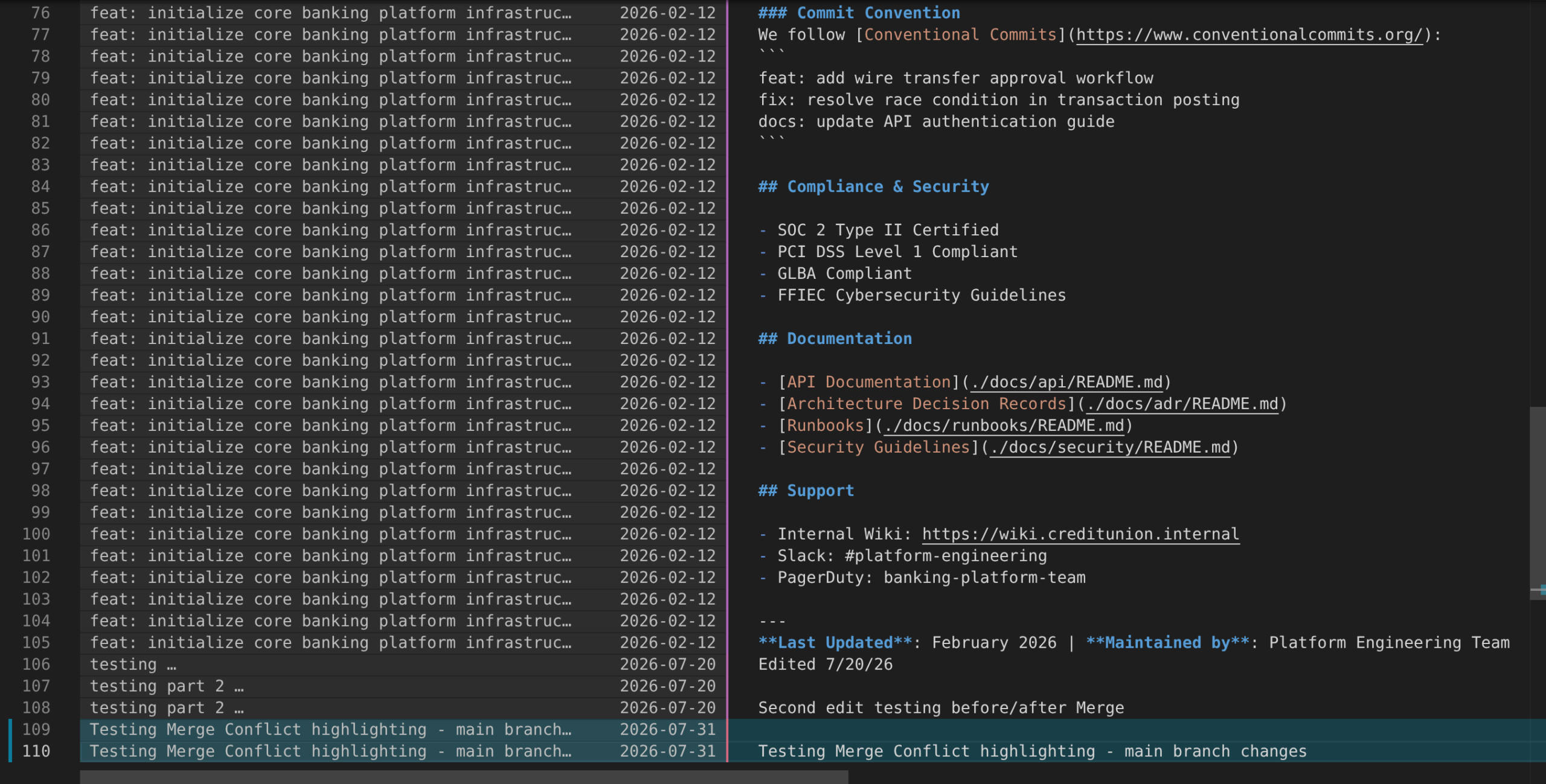
File Blame adds customizable, themable inline annotations that show the commit and author responsible for each line in a file.
Features
- Displays commit message and commit date per line (enabled by default).
- Adds a heatmap (age) indicator along the right edge to show how recently each line was changed.
(See File Heatmap for more info.) -
Easily toggle annotations with:
- Command:
gitlens.toggleFileBlame - Shortcut: Alt+B
- Dismiss: Escape
- Command:
File Changes
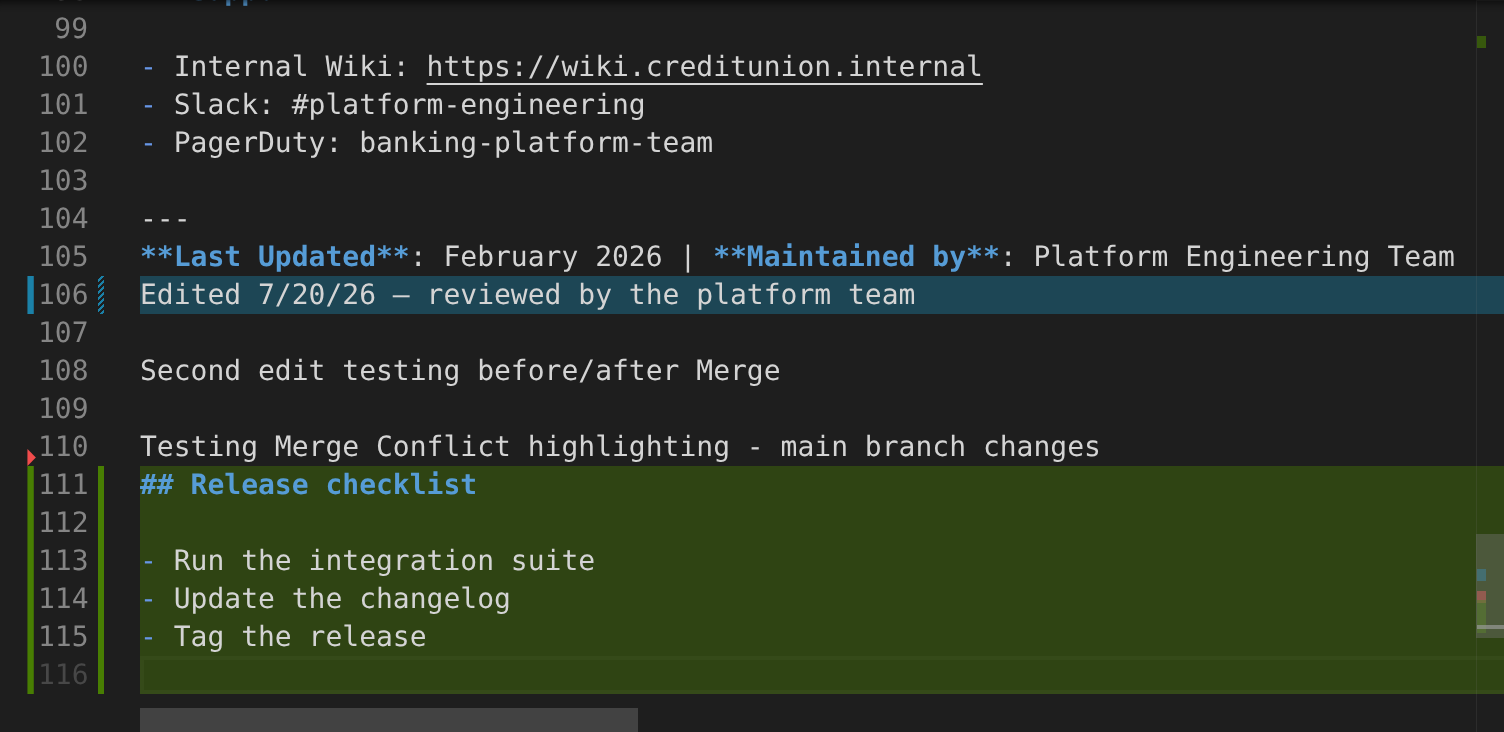
The File Changes annotation highlights lines that have been changed either locally (unpublished) or by the most recent commit.
This feature is customizable and themable, and is designed for quick visual inspection of file updates.
Features
- Highlights local changes and recent commit modifications.
- Toggle with the command:
gitlens.toggleFileChanges - Press Escape to disable the annotations
File Heatmap
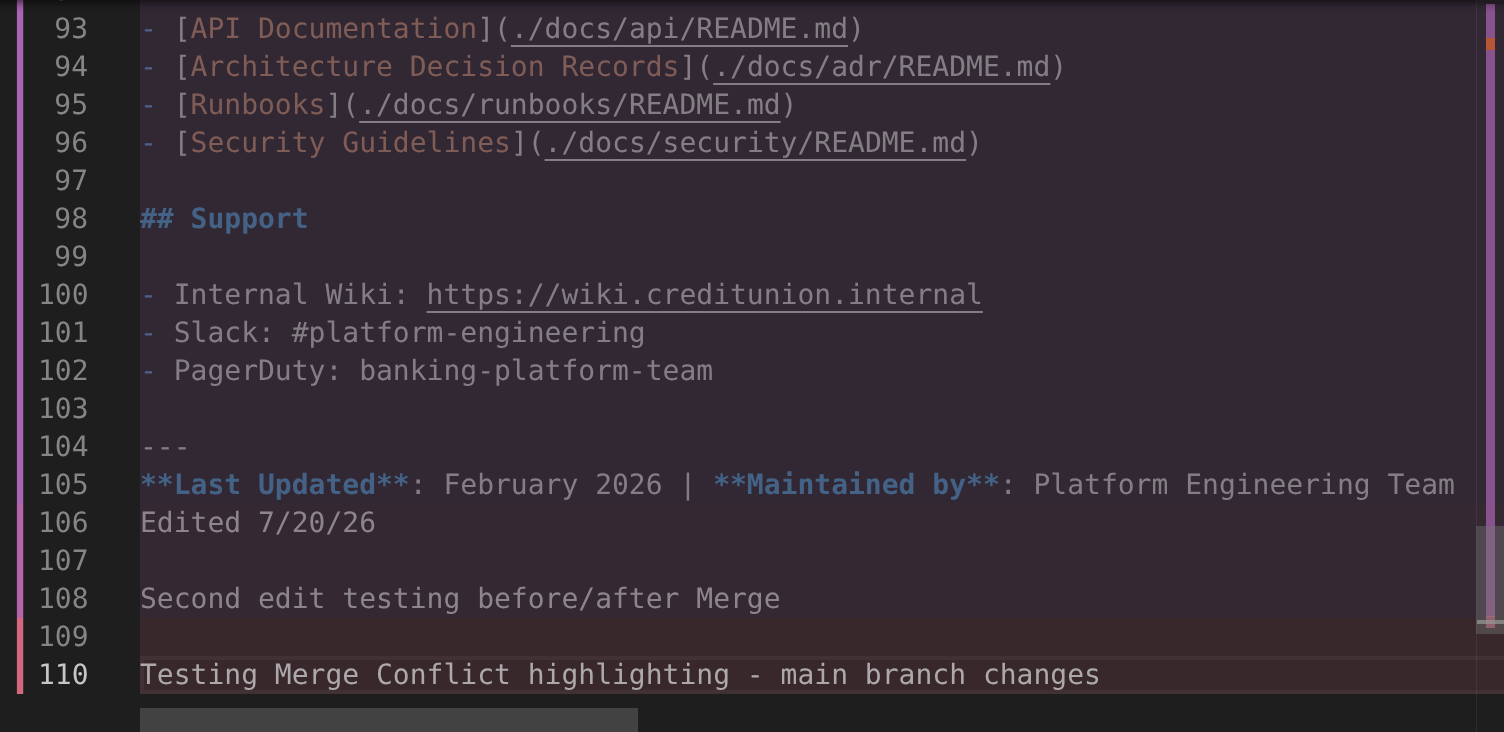
The File Heatmap adds a color-coded bar to the edge of your file, helping you quickly spot older versus more recent changes.
Features
- Heatmap colors are customizable and reflect line age:
- Hot (bright) for recent changes
- Cold (dim) for older changes
(Lines default to “cold” after 90 days.)
- Brightness adjusts dynamically based on the median age of all changes in the file.
- Toggle with the command:
gitlens.toggleFileHeatmap - Press Escape to hide the heatmap annotations
Code Suggest PREVIEW
GitKraken Code Suggest simplifies code review by enabling you to propose edits across an entire project—not just the lines changed—in GitLens, GitKraken Desktop, or gitkraken.dev.
When a pull request is open, you can make suggestions that collaborators can review and apply directly to the PR.
Note: Code Suggest is currently supported only for repositories hosted on github.com.
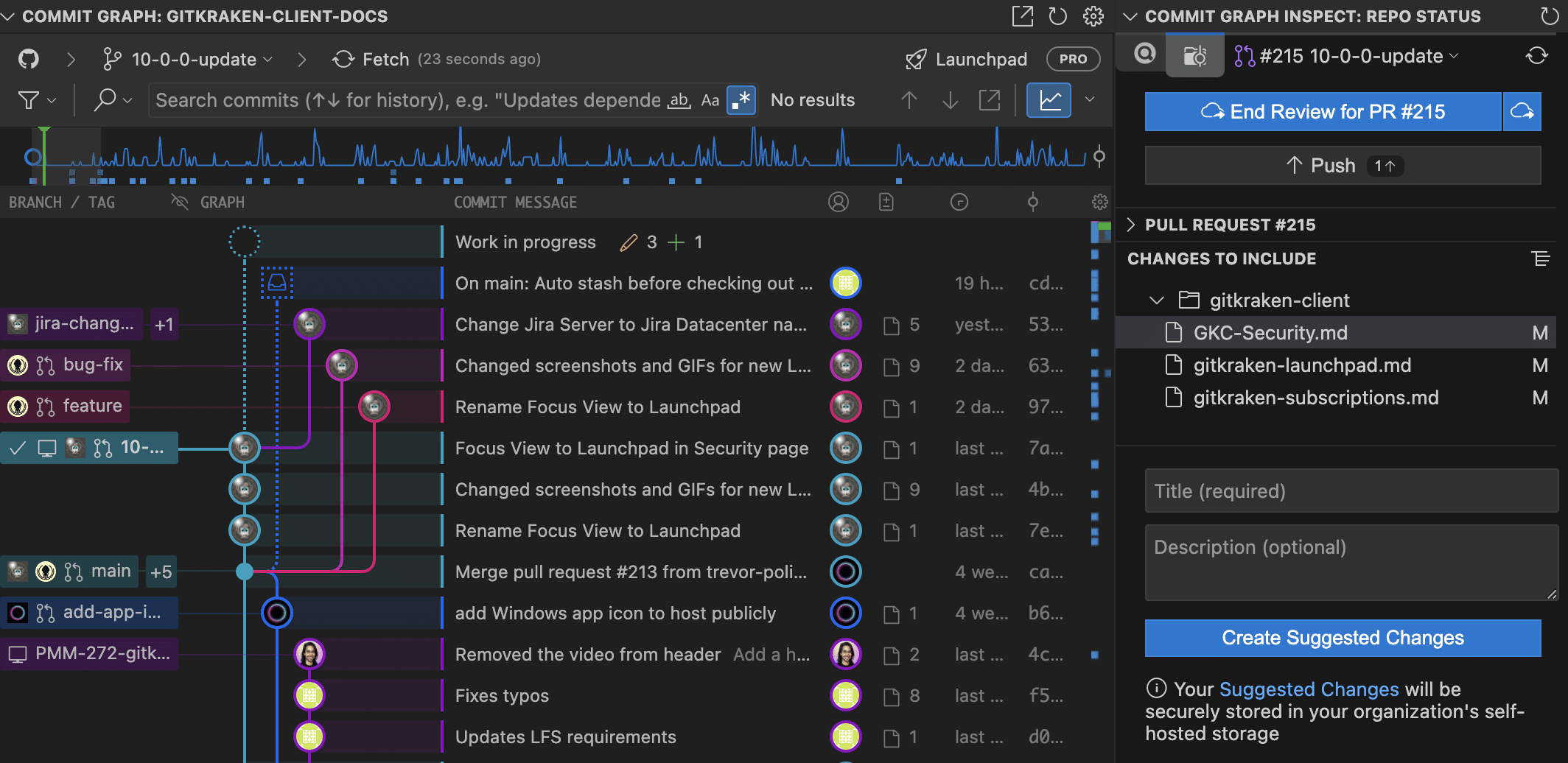
How to Create a Code Suggestion
- Open the GitLens Inspect Overview for the repository.
- Check out a branch that has an open pull request.
- Click Start Review for PR #PR.
- Modify and save any files to include in the suggestion.
- When ready, select Suggest Changes for PR, add a title, and click Create Code Suggestion.
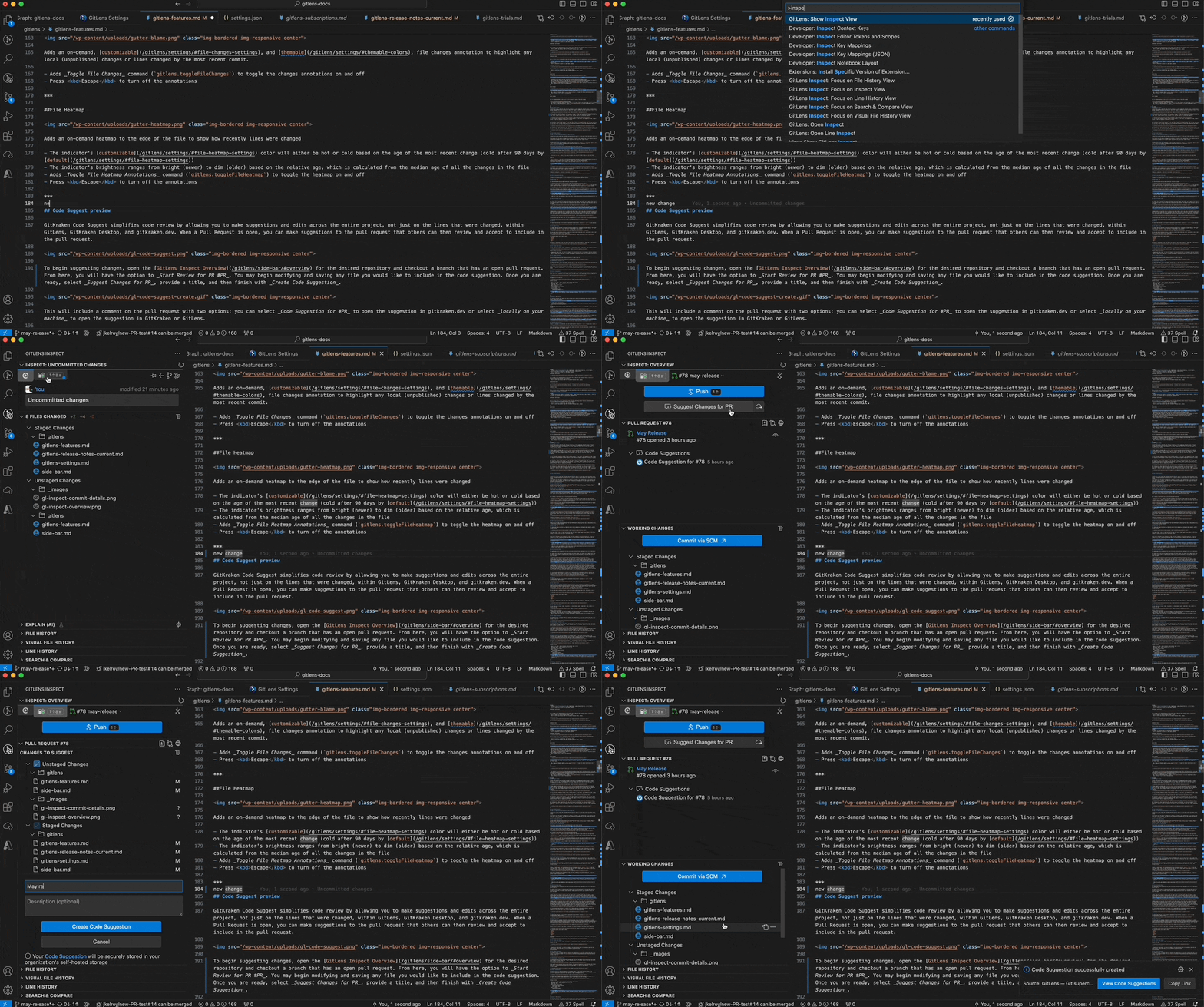
Once submitted, the pull request will receive a comment with two options:
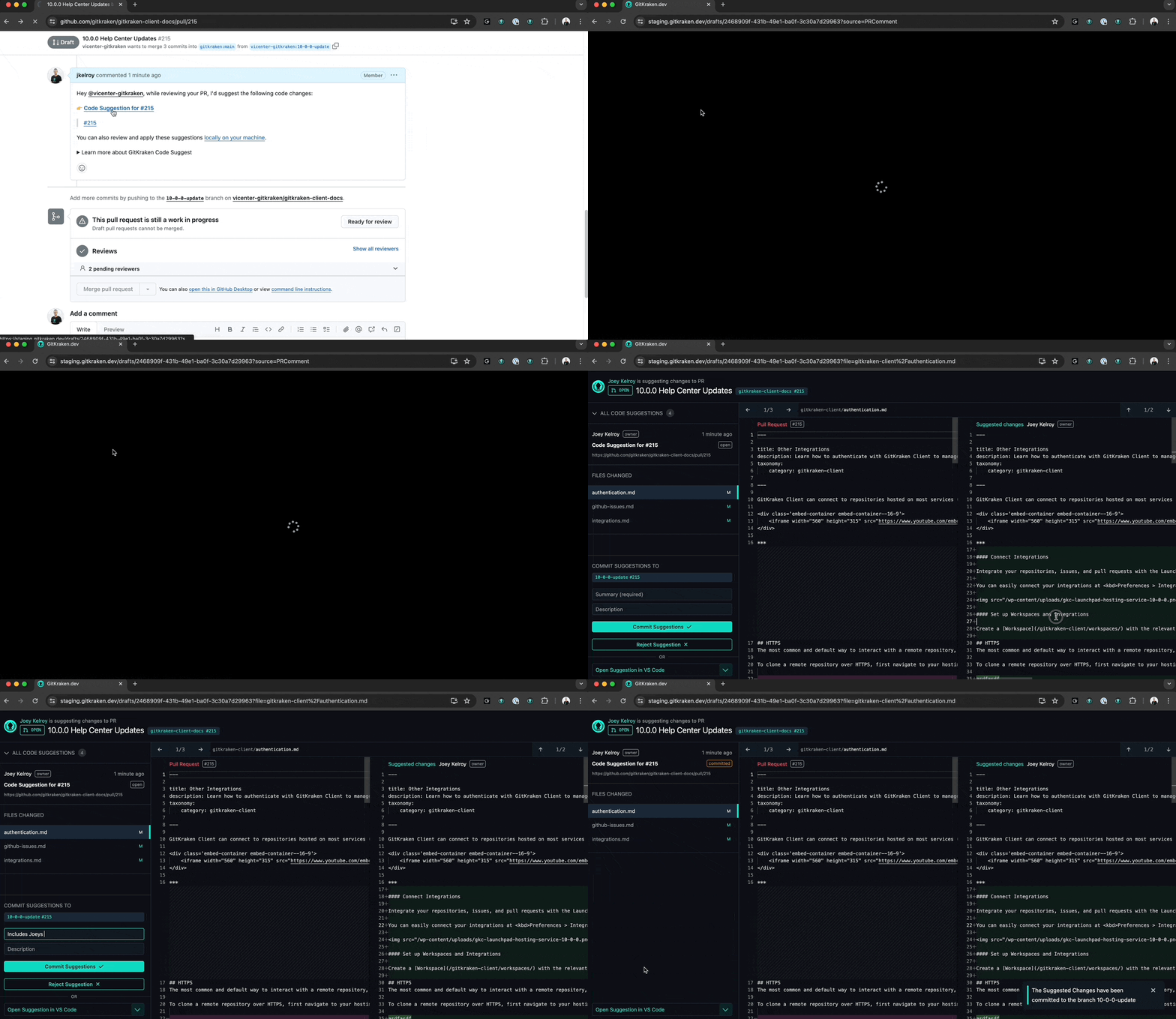
- Code Suggestion for #PR — opens in gitkraken.dev
- Locally on your machine — opens in GitLens or GitKraken Desktop
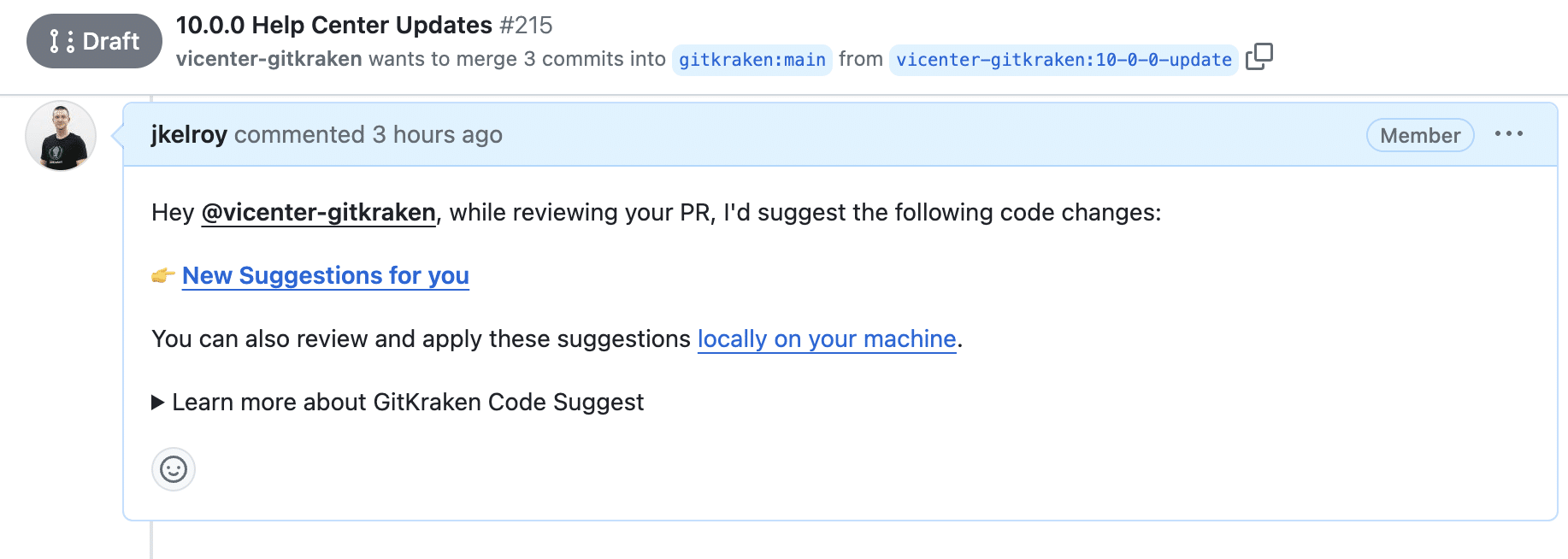
Accepting a Suggestion Locally
- Open the suggestion in GitLens or GitKraken Desktop.
- Review each modified file.
- Select Apply to apply the patch to your current branch.
Or use the dropdown to Apply to a Branch.
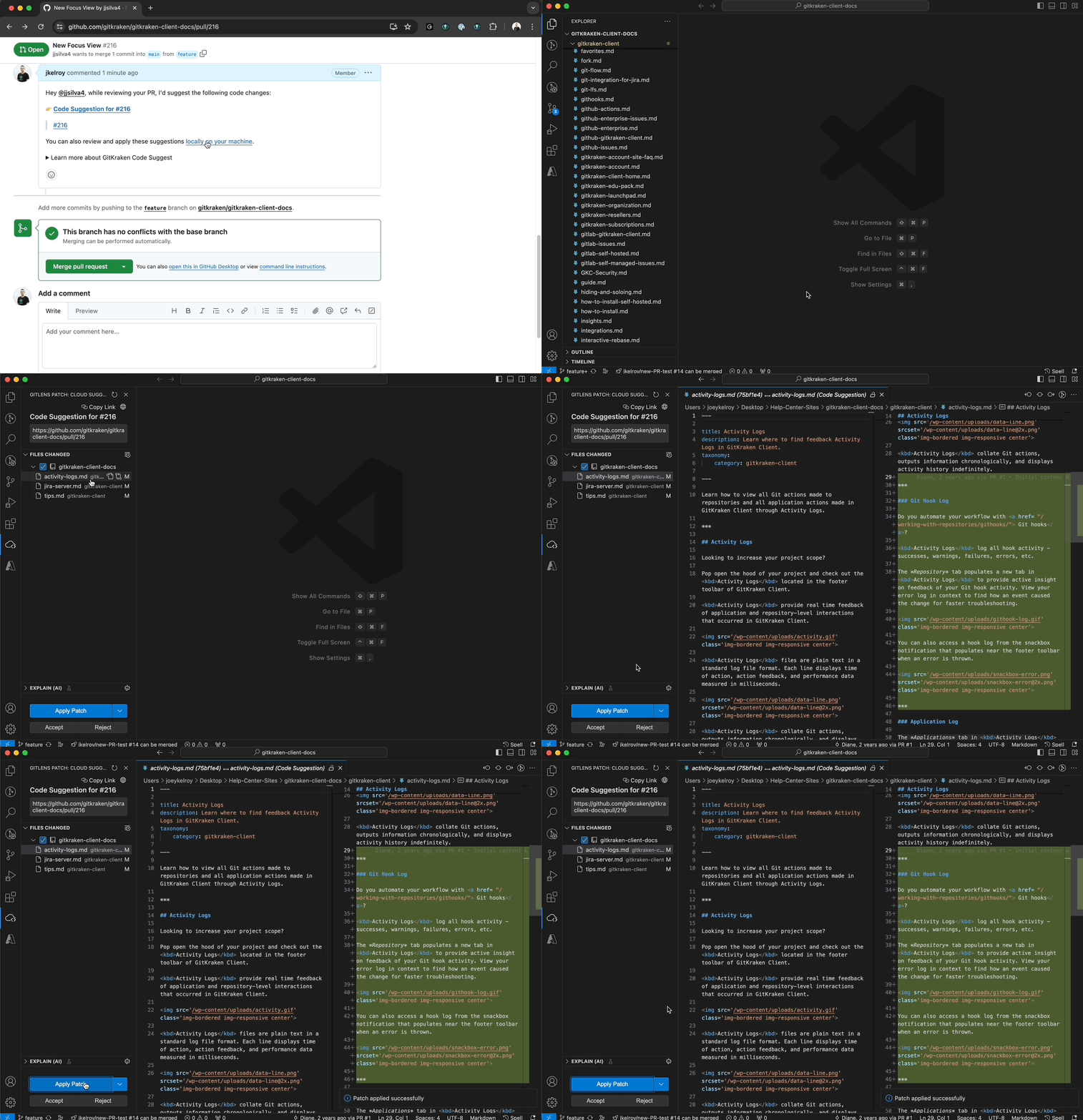
Accepting a Suggestion on gitkraken.dev
- Select Code Suggestion for #PR in the PR comment.
- Review the changes on gitkraken.dev.
- Click Commit Suggestions to commit the patch directly to the PR’s branch.
Cloud Patches PREVIEW
What Are Cloud Patches and Why Use Them?
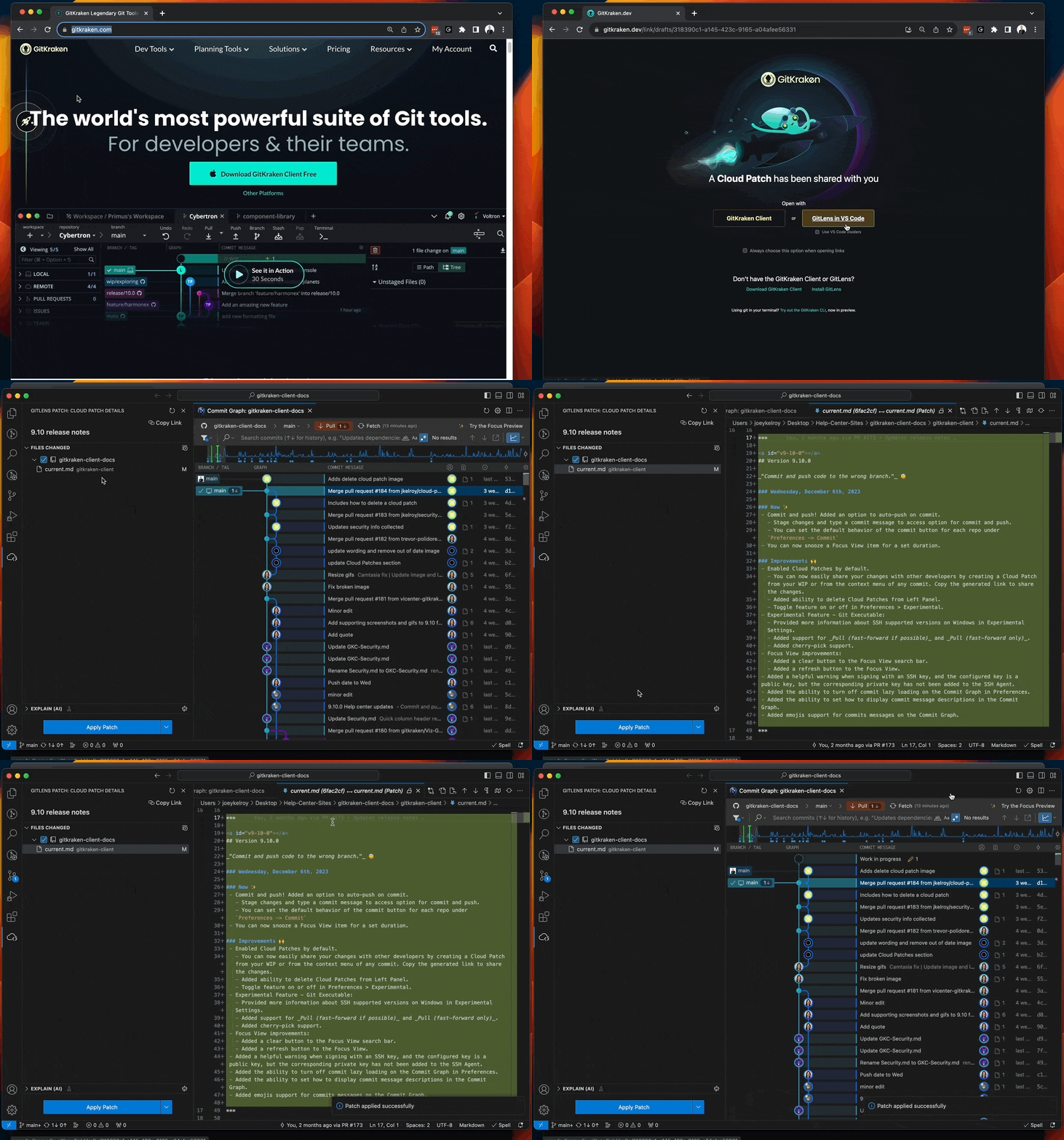
Cloud Patches are Git patches that GitKraken securely stores for easy sharing across GitLens, GitKraken Desktop, and the GitKraken CLI. The patch is uploaded directly from your machine into secure cloud storage.
This feature enables early collaboration—before a pull request is created—by letting you share in-progress work with your team. It helps streamline feedback cycles and reduce delays in PR reviews.
How to Set Up Cloud Patches
Cloud Patches are enabled by default, but you can manage this per client.
-
Open the Command Palette:
Ctrl/Command+Shift+P→ Preferences: Open User Settings (JSON) -
Add the following line to your settings:
“gitlens.cloudPatches.enabled”: true
To disable Cloud Patches, change the value to false.
How to Work with Cloud Patches
Cloud Patches are accessible from the Cloud Patches view in the GitLens sidebar.
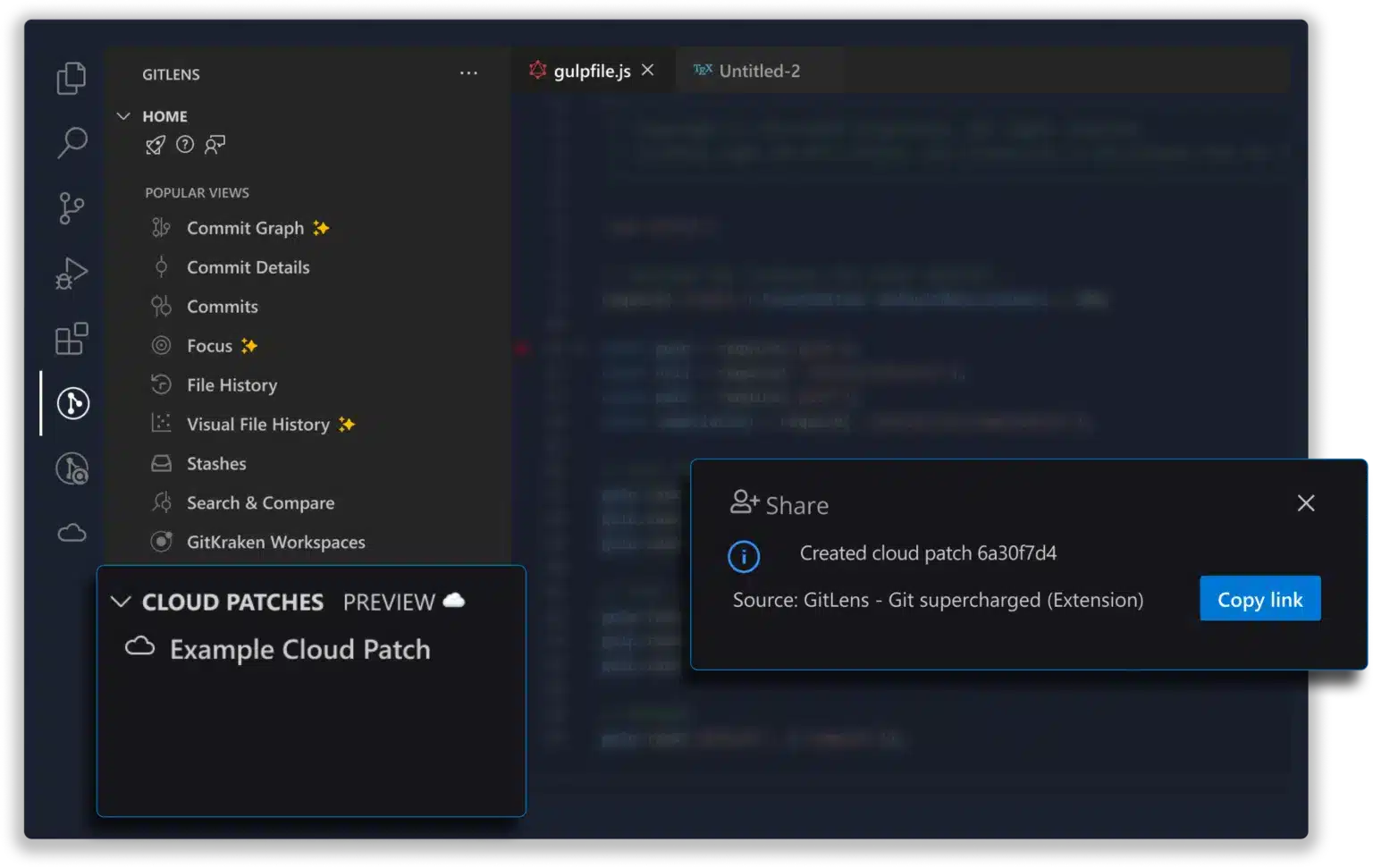
You can create a Cloud Patch from:
- Working Changes
- Commits
- Stashes
- Comparisons
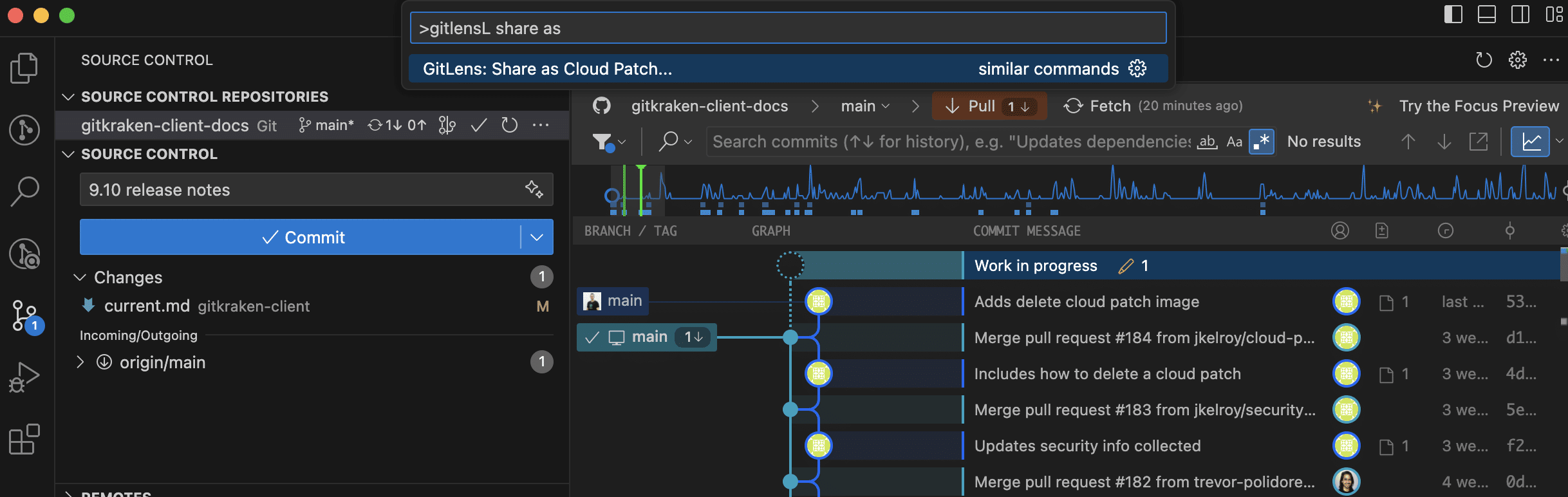
To create one, use Share as Cloud Patch from the command palette or the Share submenu in applicable GitLens views.
Sharing Options
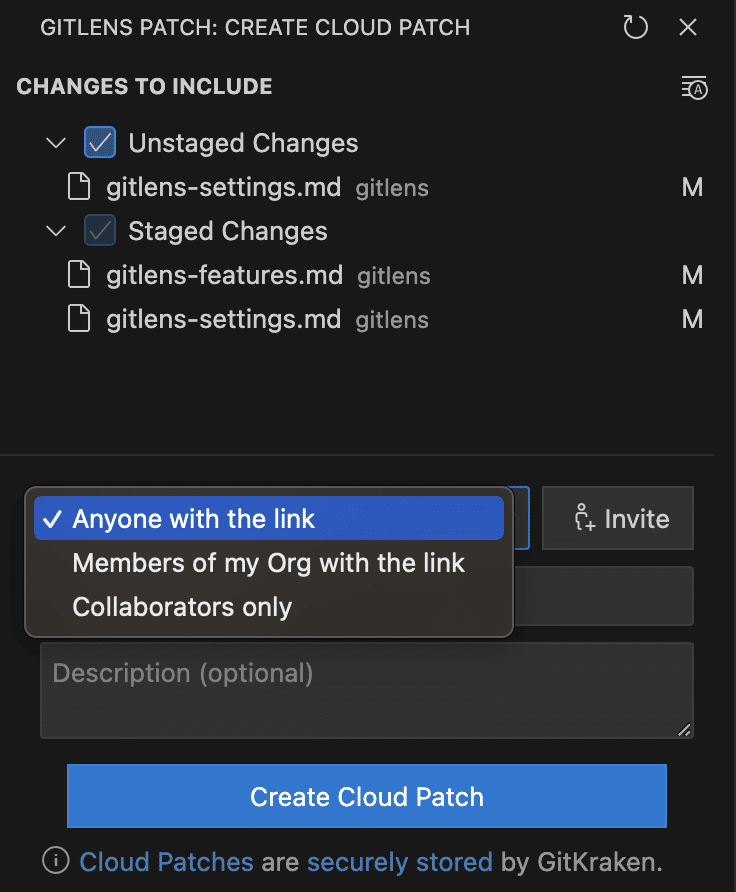
Choose how your patch can be accessed:
- Anyone with the link – Public access without login.
- Anyone in my org – Restricted to users in your GitKraken organization (GitKraken login required).
- Only collaborators – Restricted to selected organization members. Use Invite to choose recipients.
Cloud Patches shared with you appear under the Shared with Me section.
Note: If you’re a member of multiple organizations, you can switch organizations from the GitKraken Account view.
You can also apply Cloud Patches directly from a shared URL. Simply click or paste the link, then follow GitLens prompts to apply it to your working directory or to a new/existing branch.
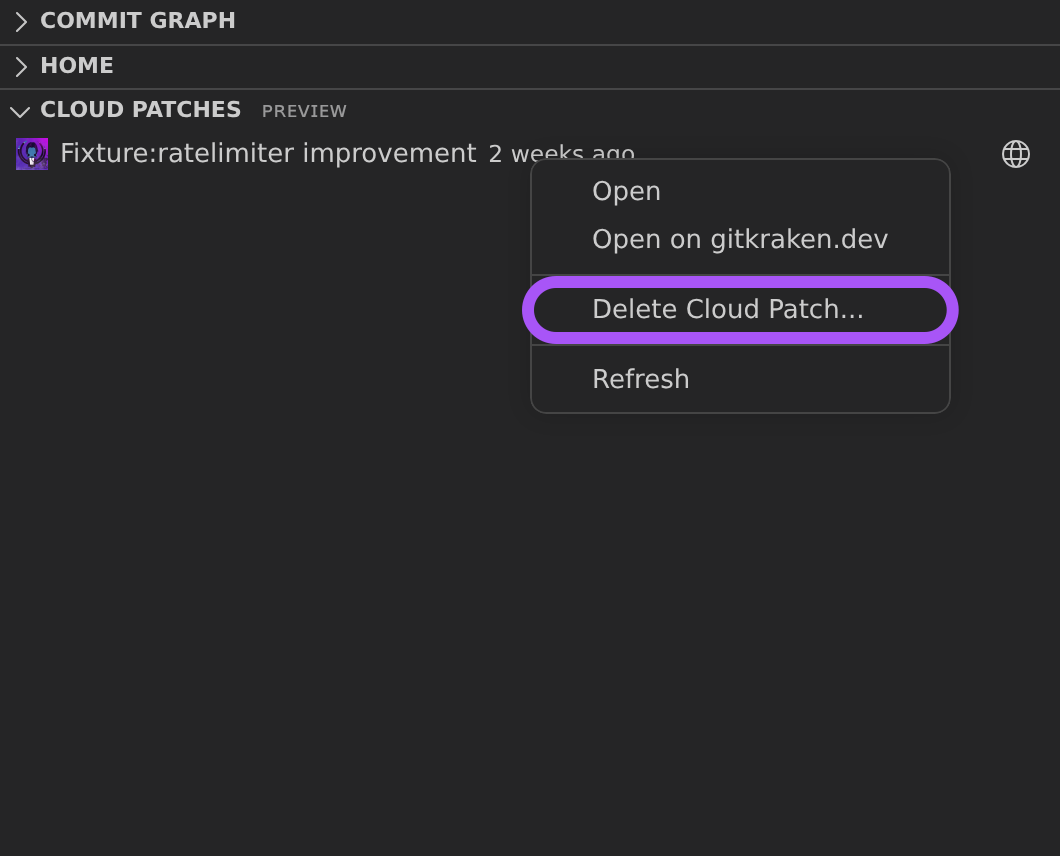
To delete a Cloud Patch, right-click it and choose Delete Cloud Patch….
Self-Hosting Cloud Patch Data
If you prefer not to store Cloud Patch data on GitKraken servers, you can configure GitLens to use your own AWS S3 storage.
Learn how to configure this in our Self-Hosting Guide.
Commit Graph
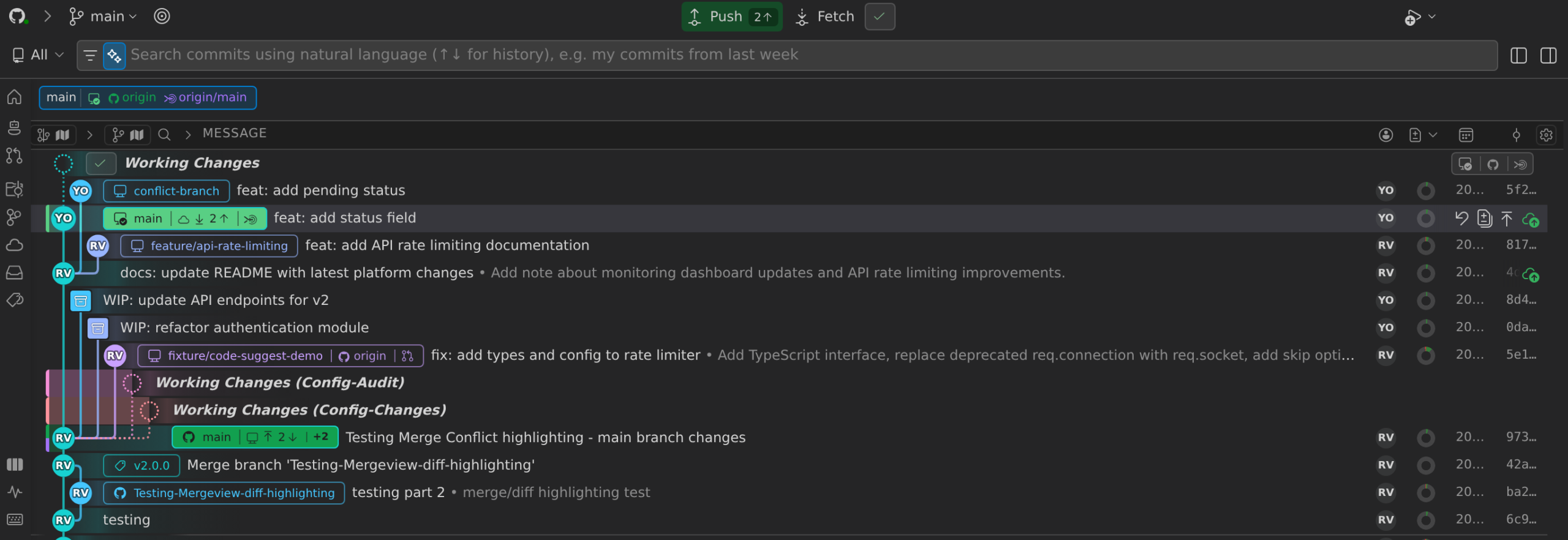
The Commit Graph is the starting point for working in GitLens. It brings repository history, branches, worktrees, Working Changes, pull requests, and supported agent activity into one connected workbench, so you can understand what’s happening and move changes toward merge without rebuilding context across tools.
Built on a high-performance rendering engine, the graph stays responsive on large repositories, showing commits, branches, and contributors in one place.
The Commit Graph is included in GitLens Community and available to everyone on public and local repositories — no account required. A GitLens Pro subscription or trial is required only for private repositories.
If you aren’t signed in, opening the Commit Graph on a privately hosted repository for the first time starts a 3-day preview. A banner above the graph shows how much of the preview is left, with a Sign In link. When the 3 days are up, the graph shows Commit Graph Preview Ended for privately hosted repositories until you sign in or start a free Pro trial. The preview is only for signed-out use; a signed-in account without a Pro trial or paid plan sees the upgrade prompt on private repositories.
How to Open the Commit Graph
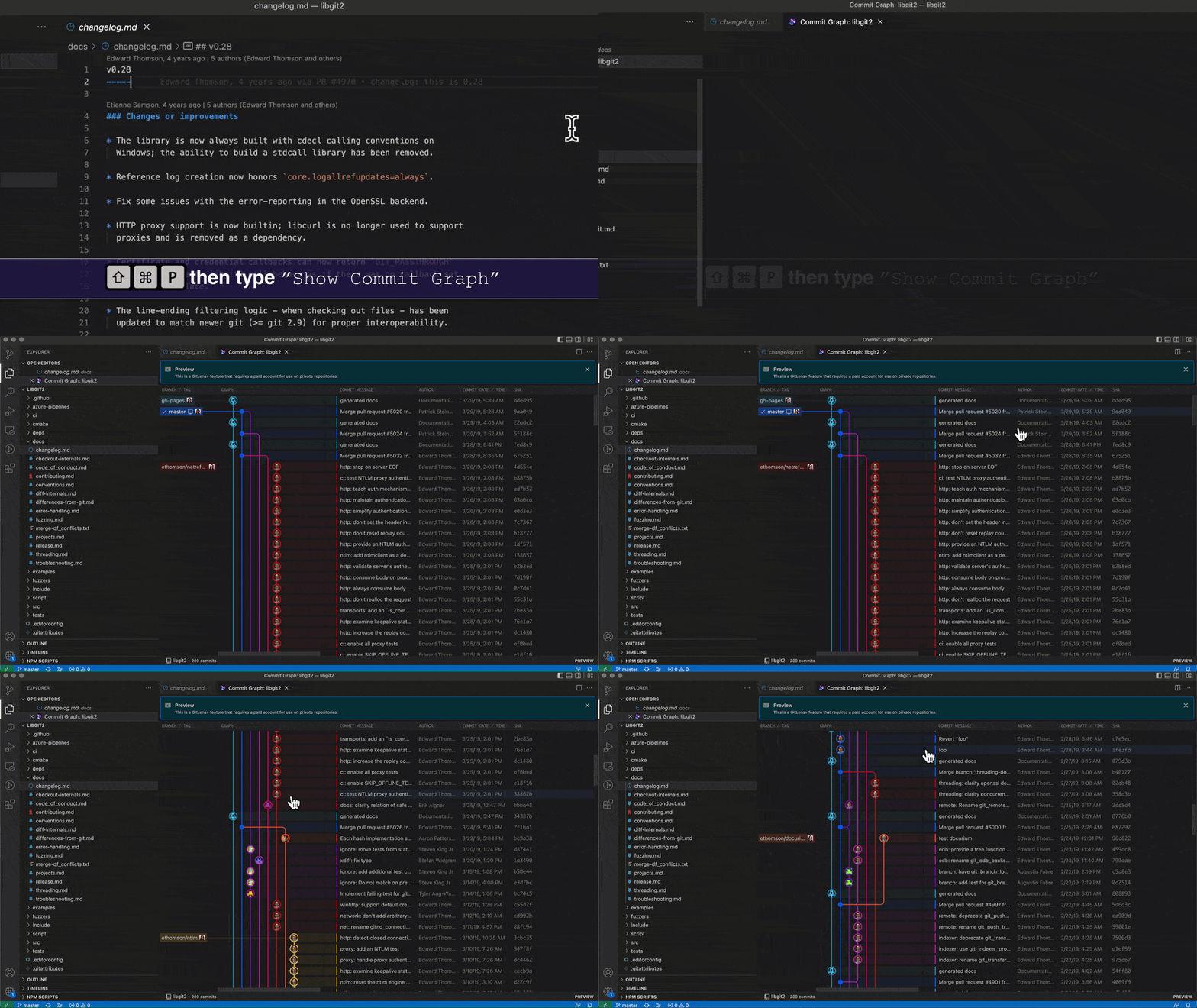
The Commit Graph opens automatically when you click the GitLens icon in the Activity Bar. You can also open it from the Command Palette:
-
Open the Command Palette:
Cmd/Ctrl + Shift + P -
Type:
GitLens: Show Commit Graph
Commit Graph Header
At the top of the graph, you’ll see:
- Repository — the hosting provider’s icon (hover it for the repository name; the editor tab is titled Commit Graph: <repository>)
- Checked-out branch
- Last fetched time — beside Fetch and in its hover
- Account button — your avatar and plan, last in the header
From here, you can:
- Click the branch name to switch branches
- Click Fetch to update commit data
- Click Publish Repository to create a repository on a hosting provider and publish the current branch to it. It appears in place of Publish Branch when the repository has no remotes, and Fetch is hidden then
- Click the account button to open its popover. The popover holds your account actions (Synchronize Status, Manage Account, Send Feedback, and Sign Out), the AI model you use and your GitKraken AI usage, your agents, and your connected integrations. Sections that aren’t set up yet offer Set up AI, Set up agents, or Set up integrations, which open GitLens Settings.
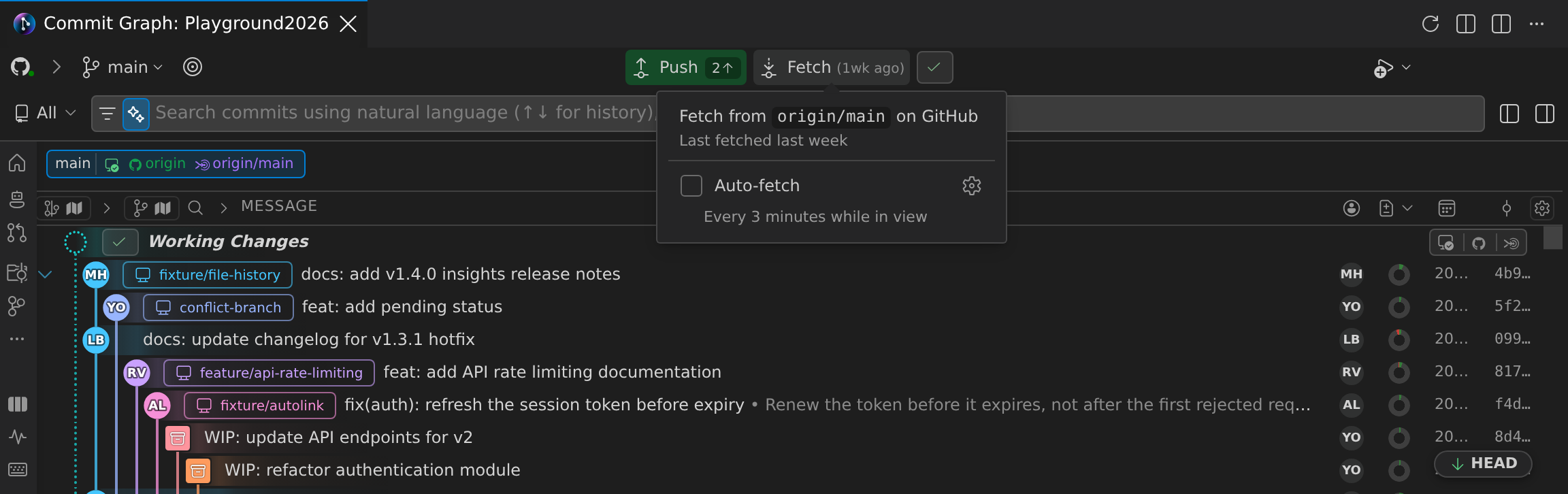
Note: The Commit Graph is included in GitLens Community and available to all users on public or local repositories, without needing an account.
Only private repository access requires a GitLens Pro subscription or trial. Signed out, you get a 3-day preview of the Commit Graph on privately hosted repositories first.
We welcome your input—join the discussion on GitHub.
Scope the Graph to a Worktree
Scoping re-centers the Commit Graph on another worktree of the same repository, so that worktree’s HEAD and Working Changes are treated as the current ones. To scope the graph, do any of the following:
- Select Scope to Worktree on a worktree row in the side bar’s Worktrees panel. Alt-click the same button to use Focus on Branch instead.
- Right-click a worktree row, or the Working Changes row of another worktree, and select Scope to Worktree or Focus on Branch.
- Double-click the Working Changes row of another worktree, or its pill in the overview bar above the graph.
While the graph is scoped, the header is tinted and the branch button’s hover shows Scoped to Worktree with the worktree’s name. Select Unscope Worktree beside the branch button to return to your active worktree.
Two settings control scoping, and the gear in the Graph Options popover (Worktree Scope Settings…) opens both:
gitlens.graph.scopeBehavior—scopeAndFocus(default) also focuses the worktree’s branch, narrowing the visible rows.scopechanges only the perspective and leaves every commit visible.gitlens.graph.doubleClickWorktreeAction—scope(default) scopes the graph when you double-click.focustoggles branch focus instead.
The overview bar shows a pill for each worktree. The gitlens.graph.overviewBar.visibility setting controls when the bar appears: dirtyWorktrees (default) includes other worktrees only when they have working changes or unpushed commits, worktrees shows the bar when the repository has more than one worktree, always always shows it, and never hides it.
Follow the Active Terminal
When the Commit Graph is already visible, it follows the terminal you’re working in. Switching to a terminal, or to a Claude Code conversation tab, selects the Working Changes row of the repository or worktree that terminal is in. If an agent session is running in the terminal, the graph follows the agent’s worktree. The graph never opens on its own, and the first time it follows a terminal, a tip explains the behavior and offers Turn Off.
- To stop following, select Stop Following Active Terminal in the Commit Graph’s More Actions (⋯) menu, or set
gitlens.graph.followTerminal.enabledtofalse. Select Follow Active Terminal to turn it back on. - By default, terminals in other repositories are ignored. To let the graph switch repositories, set
gitlens.graph.followTerminal.allowRepositorySwitchingtotrue.
Configuration and Layout
The Commit Graph offers extensive layout and configuration options so you can tailor the view to fit your workflow.
Column Customization
All columns in the Commit Graph are fully customizable:
- Drag and drop column headers to rearrange the layout.
- Right-click a column header to toggle columns on or off.
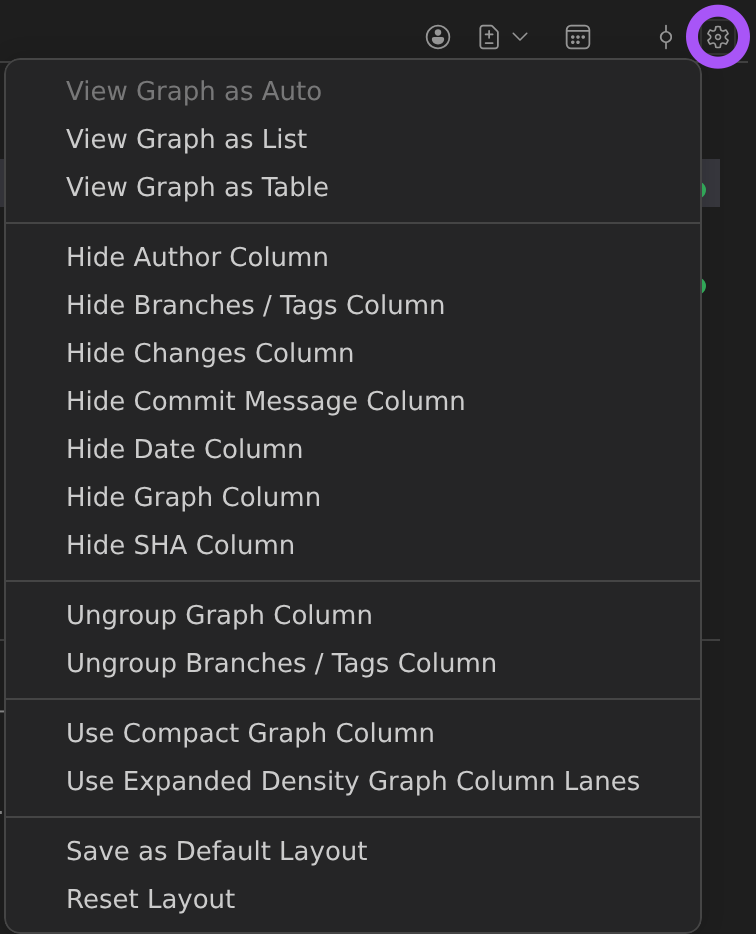
- Right-click a column header and select Group Graph Column or Group Branches / Tags Column to show that content inside the adjacent column. Select Ungroup Graph Column or Ungroup Branches / Tags Column to give it its own column again.
- Right-click a column header, or use the gear in the Graph column header, to manage the layout of columns and panels (minimap, side bar, and details panel):
- Save as Default Layout — Saves the current layout as your default. New workspaces open with it.
- Apply Saved Layout — Applies your saved default layout to the current workspace. This item appears only after you save a default.
- Reset Layout — Restores the original columns and panels.
- The Changes column visualizes added and deleted lines per commit. The
gitlens.graph.changesColumn.modesetting controls the display style:numbers(numeric counts),squares(colored blocks),bar(horizontal bar), orbipolar(split additions/deletions bar).
Panel vs. Editor Layout
You can choose where the Commit Graph appears:
- Panel Layout — displays the graph in the bottom panel (next to Terminal) with the embedded details panel.
- Editor Area Layout — shows the graph in a standard VS Code editor tab.
To switch layouts:
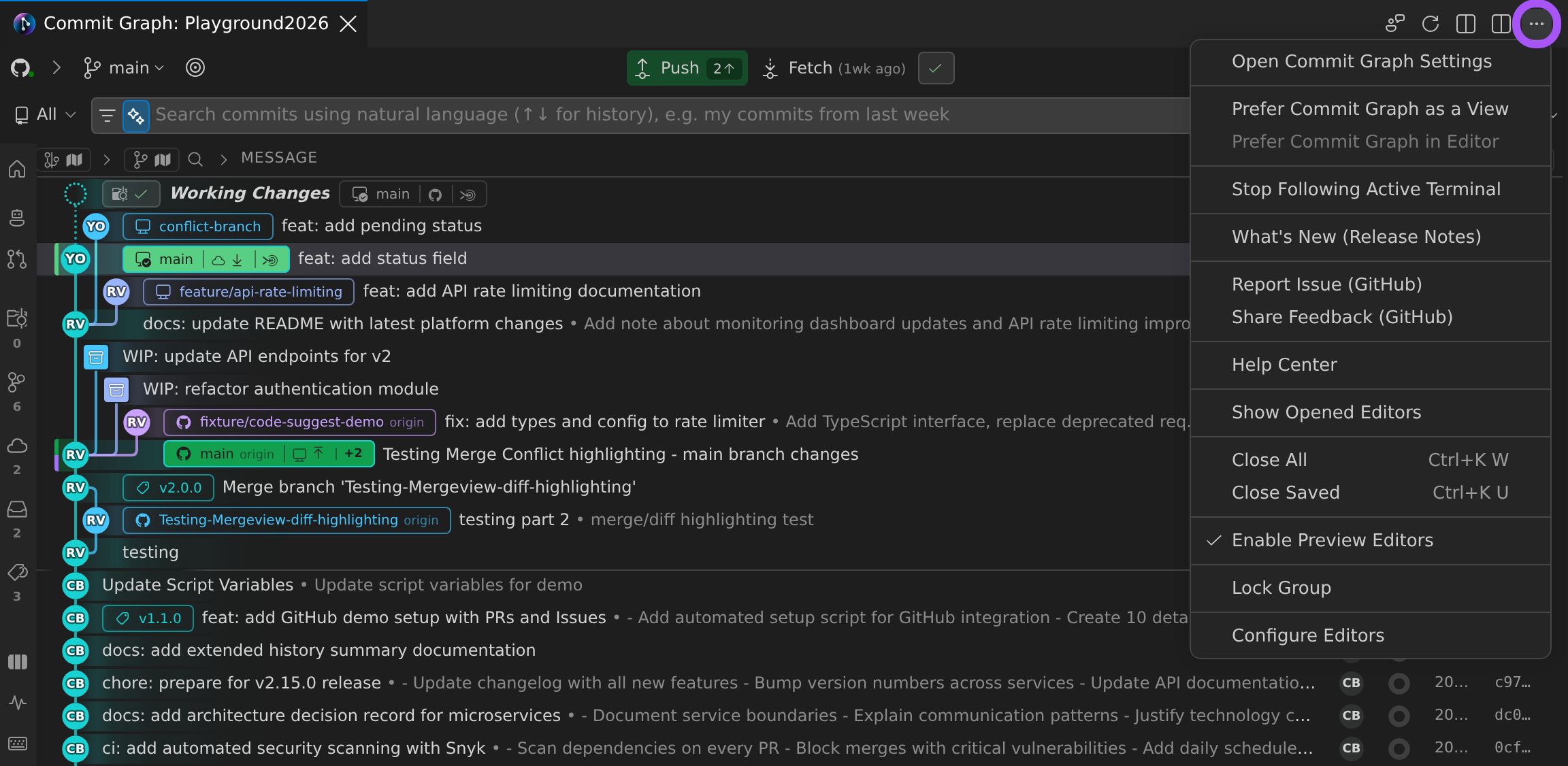
- Open the More Actions… (⋯) menu in the top-right of the Commit Graph editor tab (or of the Commit Graph view in the side bar).
- Select Prefer Commit Graph in Editor or Prefer Commit Graph as a View.
You can even open both layouts simultaneously.
Compact Layout
For smaller screens or simplified views:
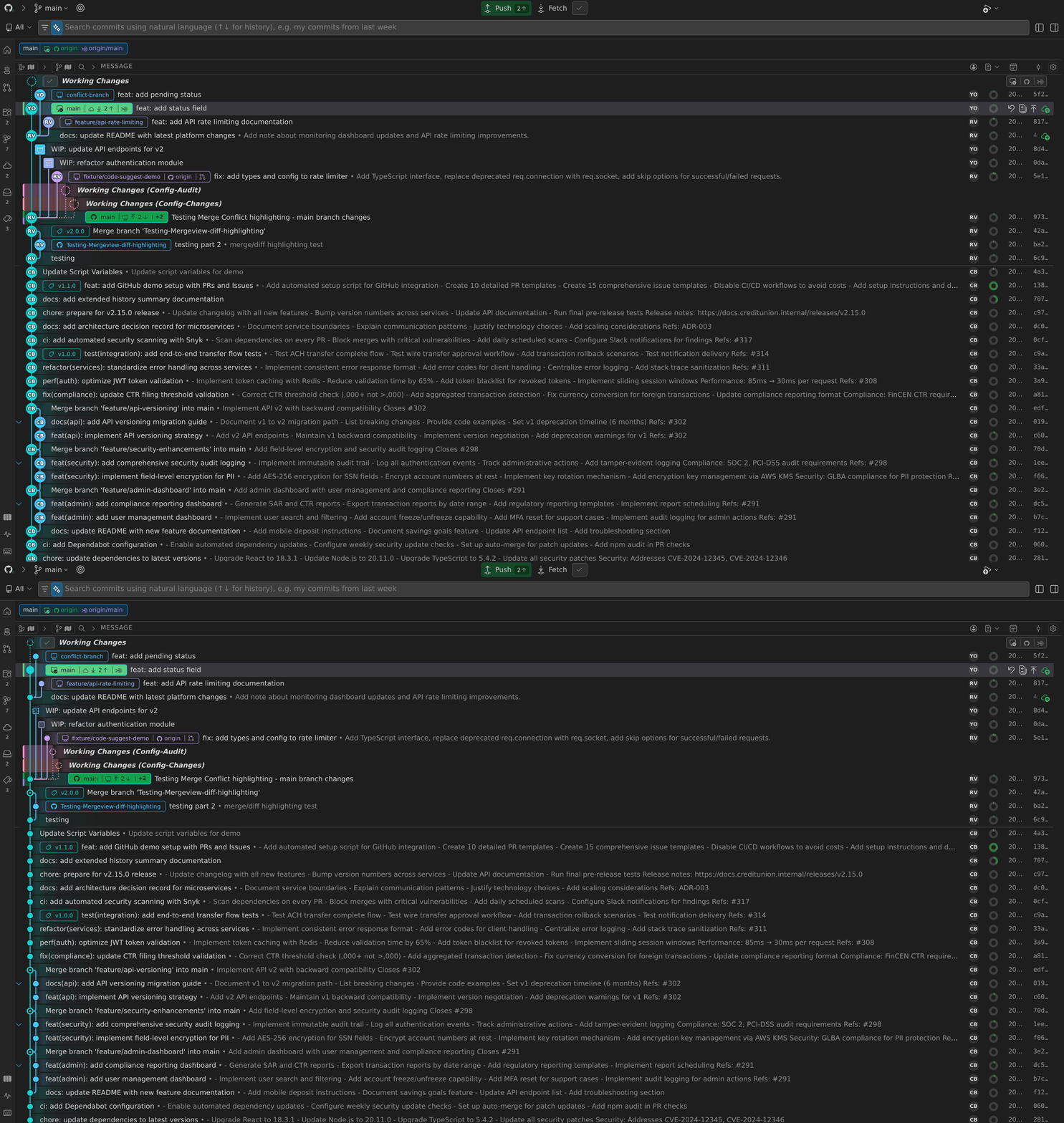
- Use Compact Graph Column reduces the visual size of the graph.
- The Author column shows avatars when minimized.
- Columns display icons instead of truncated text when resized to narrow widths.
To enable the compact graph layout, select the gear in the Graph column header and choose Use Compact Graph Column.
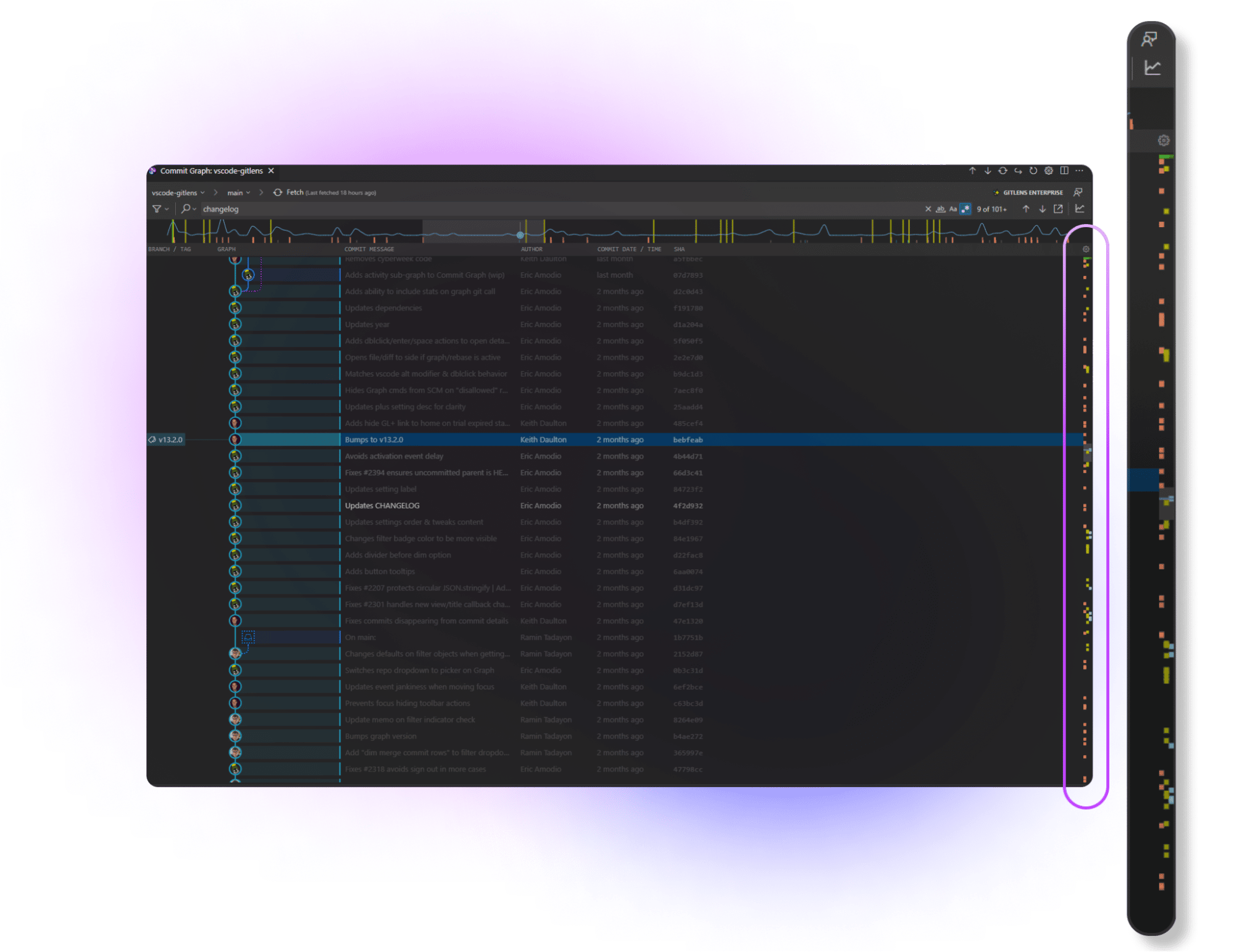
Scroll Markers
Scroll markers appear alongside the Commit Graph scrollbar to highlight:
- Checked-out branches
- Selected rows
- Search matches
They provide quick navigation to key locations like HEAD or specific refs.
You can toggle scroll markers in Commit Graph settings.
Settings
You can adjust Commit Graph preferences through the GitLens Settings panel.
-
Open the Command Palette:
Cmd/Ctrl + Shift + P -
Search for:
GitLens: Open Settings

Repository Health
GitLens keeps Git fast in your repositories. While VS Code is open, it runs safe, repository-local Git maintenance in the background at most once a day: it packs loose objects, repacks incrementally, and writes the commit-graph cache. This is the same routine work that git gc and git maintenance do, and it doesn’t change your history. To turn it off, set gitlens.gitOptimizations.enabled to false, which also turns off Repository Health.
The Repository Health visualization in the Commit Graph shows the state of each optimization and suggests the ones that would help your repository. To open it, run GitLens: Show Repository Health from the Command Palette, or select Show Visualizations & Health in the Commit Graph side bar and choose Repository Health.
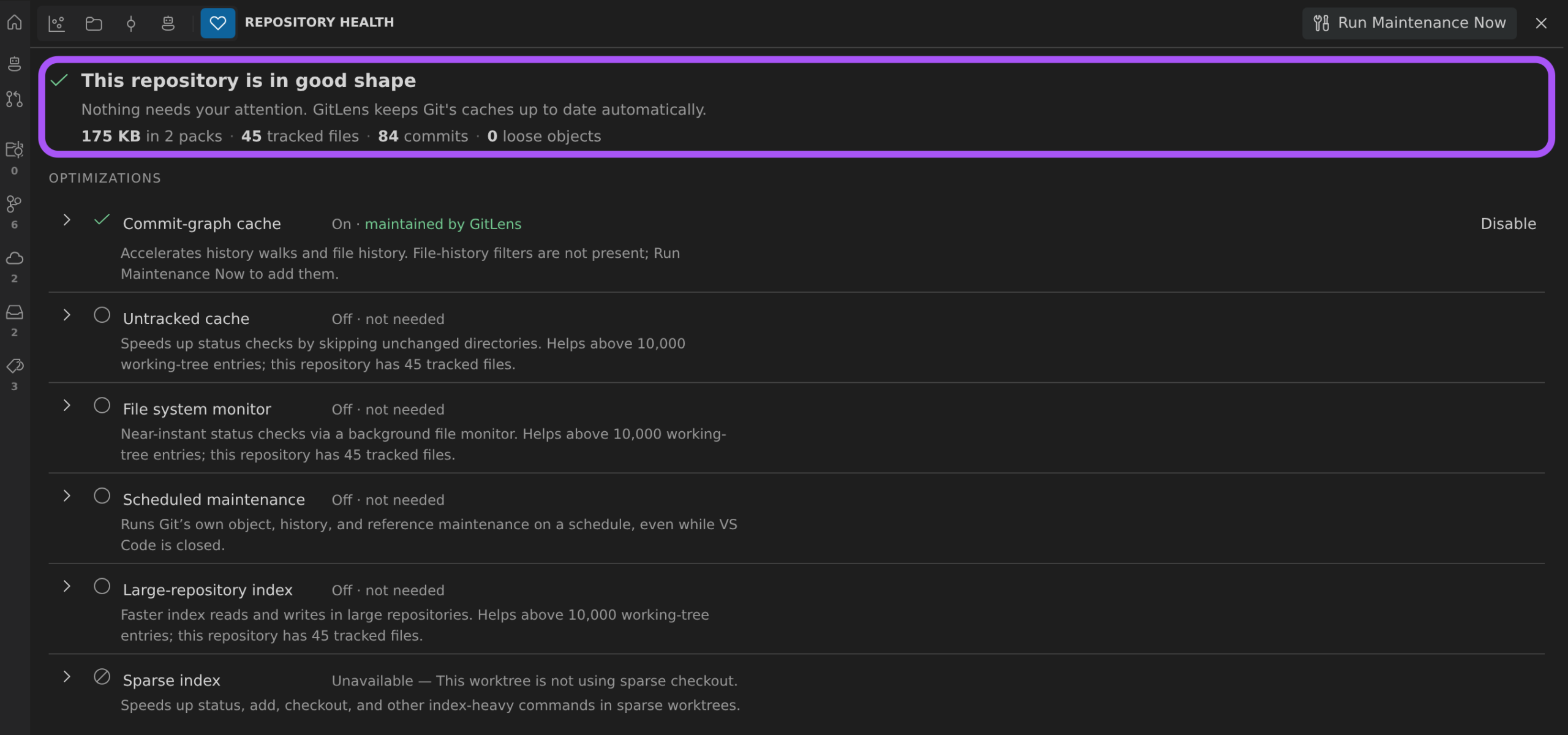
The view shows a verdict for the repository and an Optimizations list:
- Commit-graph cache — Accelerates history walks and file history. GitLens maintains it automatically.
- Untracked cache, File system monitor, Large-repository index, Sparse index, and Scheduled maintenance — Optional optimizations that change your repository’s Git config or register it with your operating system’s scheduler. GitLens never applies them automatically. Select Enable to apply one, and Undo to restore the previous value.
Select Run Maintenance Now to run the maintenance tasks immediately. When GitLens notices that Git operations have been slow, or that the repository is very large, a banner above the graph offers Show Repository Health. Dismissing the banner hides it for that repository.
Rich Commit Search
The Commit Graph includes a powerful search bar to locate commits by message, author, file, or even specific code changes.
Natural Language Search PRO
You can type plain-language queries (e.g., “changes to the login page last week”) and GitKraken AI converts them into structured Git search operators automatically. Natural language search works in the Commit Graph search bar, the Search & Compare view, and the Search Commits command.
In the Commit Graph, hover the query to see how GitKraken AI interpreted your request. Phrasing such as “only my commits” turns on filtering for that search, and “take me to…” jumps to the first match. If a natural language search finds nothing, the search box suggests ways to widen it, such as dropping the date filter or searching across all branches, each with its result count. If AI isn’t available, select Search as text instead to run your words as a plain message search.
If a pattern with Regular expression turned on isn’t valid regex, the Commit Graph matches it literally and dims the regex toggle. When that search finds nothing, you can choose Match literally, or Fix with AI to have GitKraken AI repair the pattern. A results bar under the graph shows how many matches are loaded (for example, “Showing 25 of 60 results”), with Load More Results… to load the rest.
Search Prefixes
Use the following search prefixes:
commit:message:-message:(excludes commits whose message contains the term; can’t be combined withmessage:in the same query)author:committer:(also accepts@me)file:change:type:mergeoris:merge(shows only merge commits)@me(to filter commits made by your user)- Time-based operators such as
after:andbefore:to scope results by date
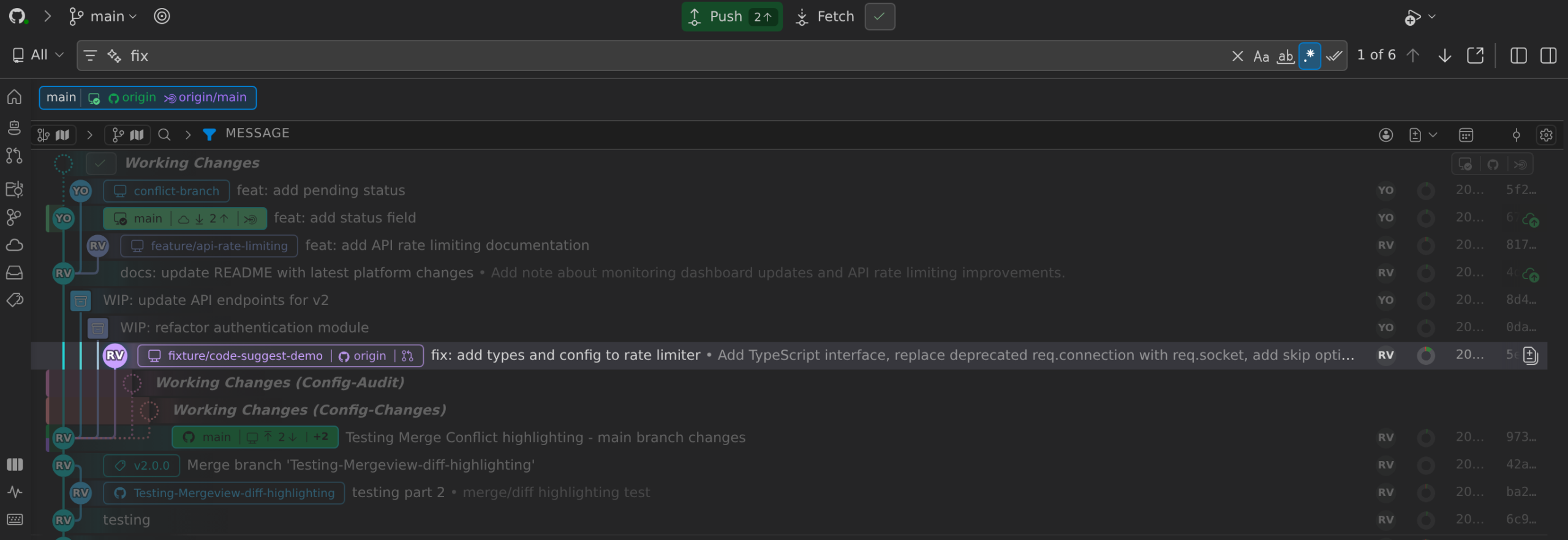
Use keyboard shortcuts to navigate results:
- F3 / Cmd+G — next result
- Shift+F3 / Shift+Cmd+G — previous result
- Hold Shift and click arrows to jump to first or last match
The Commit Graph has more keyboard shortcuts. Press ? in the graph to open the keyboard shortcuts reference, which includes the following:
- / — find a branch, tag, or worktree
- Ctrl/Cmd+F — search commits
- 1 through 9, and 0 — jump to a recent worktree
- Alt+1 through Alt+8 — toggle a side bar panel
- Alt+M, Alt+S, and Alt+D — toggle the minimap, side bar, and details panel
To change or turn off a shortcut, hover it in the reference to see its shortcut id, then set that id in gitlens.graph.shortcuts.overrides to a new key combination or to false. The reference’s Customize… link opens these settings. To turn off all customizable shortcuts, set gitlens.graph.shortcuts.enabled to false; navigation keys such as the arrows, Enter, and Esc always work.
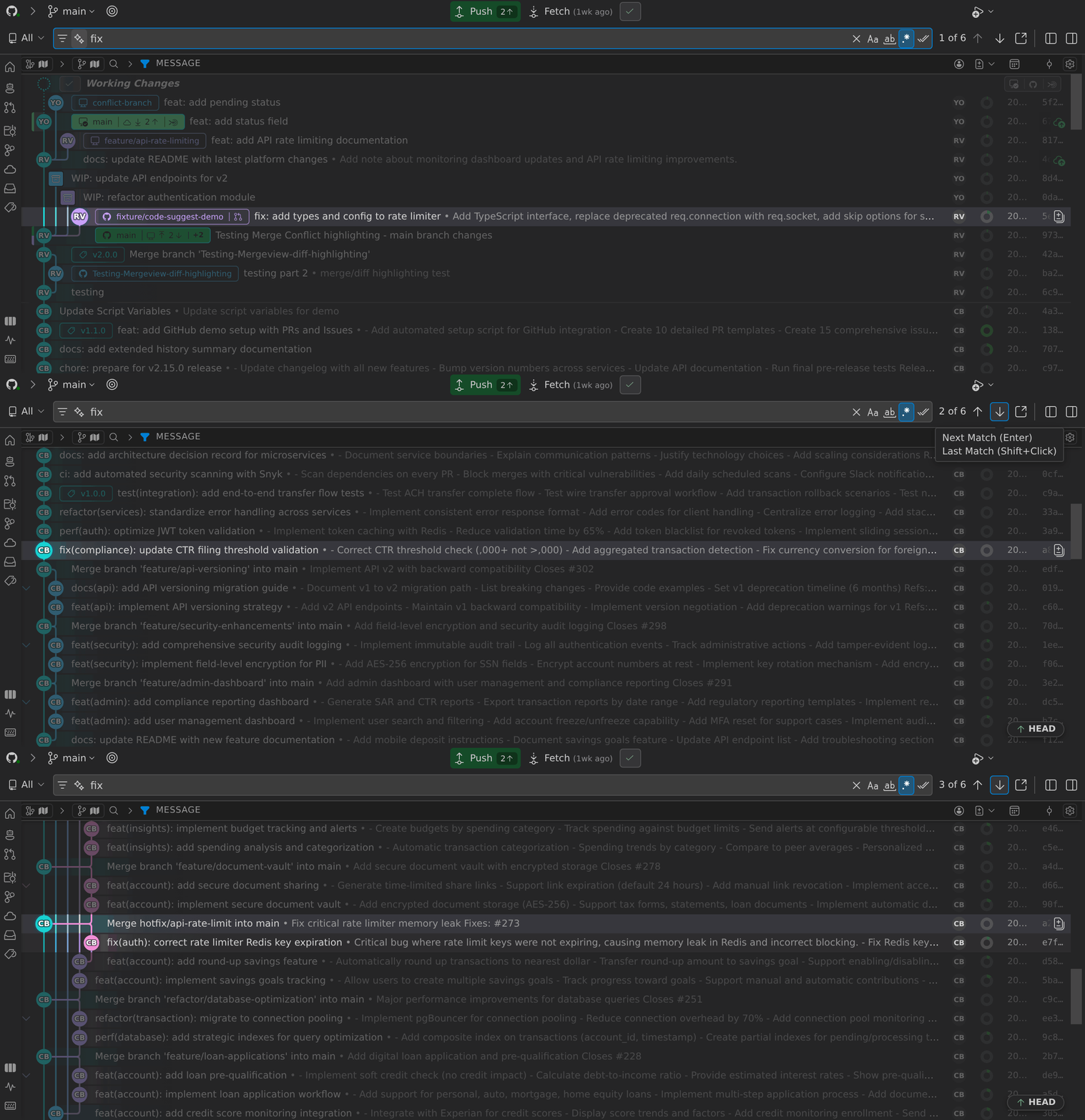
You can also refine results with:
- Match all
- Match case
- Regular expression

Full Context Menu Support
The Commit Graph supports right-click actions on branches, commits, tags, authors, and column headers.
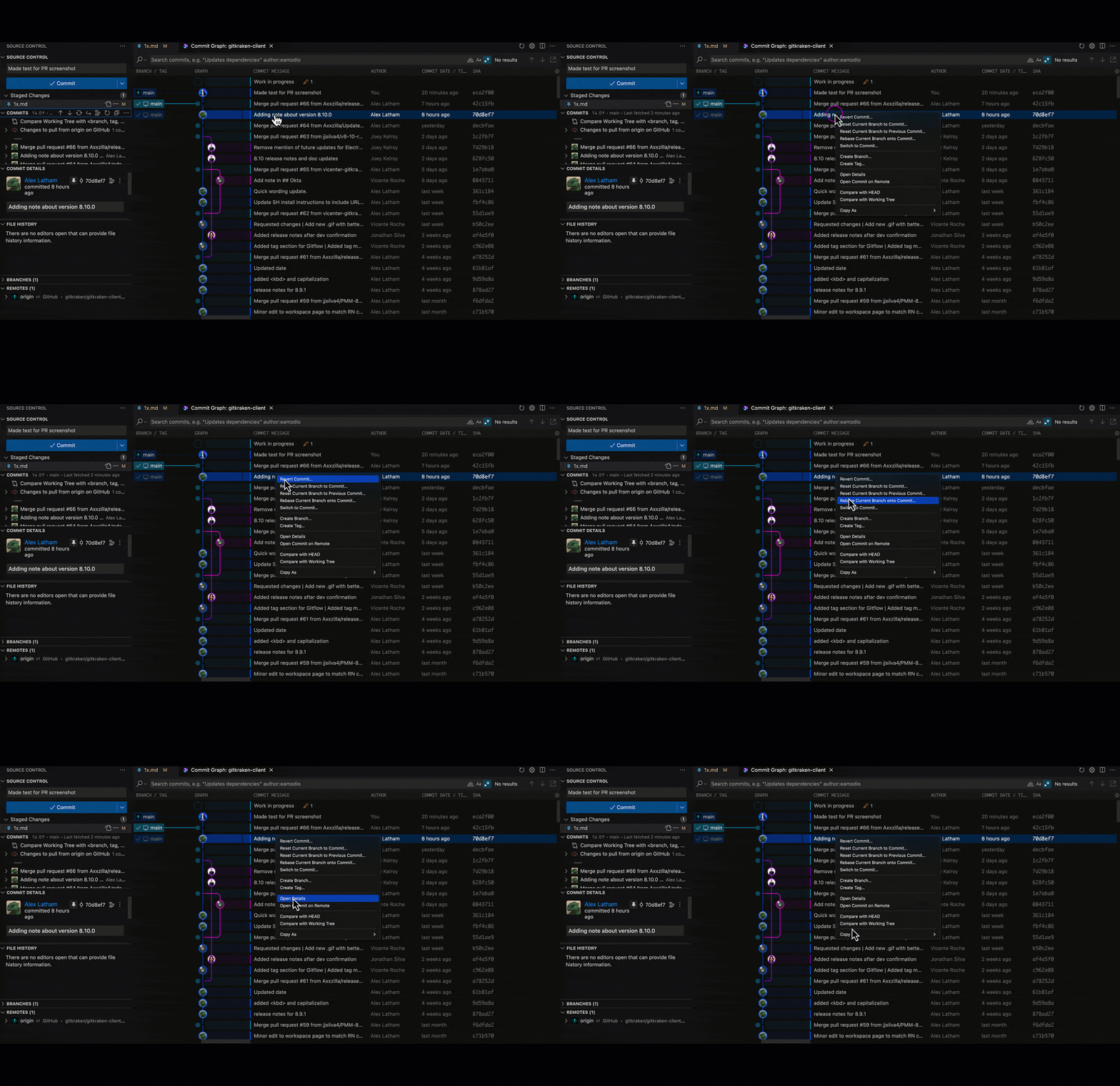
Popular options include:
- Compare with Common Base — View changes between the current and selected branches based on their shared ancestor.
- Open All Changes with Common Base — Launch a multi-diff view showing all changes that would be merged.
- Squash, Drop, Reword, and Modify Commits — Run interactive rebase operations directly from the graph without opening the Rebase Editor. Select one or more commits, right-click, and choose the desired operation.
- Fixup Commit… — Right-click a commit to select the Working Changes row and pre-fill the commit message with
fixup! <subject>of that commit. The commit button becomes Commit Fixup, and its menu adds Commit Fixup & Squash. - Squash Fixups… — Right-click the current branch to fold its
fixup!commits into the commits they target, after a confirmation. - Undo Commit — Appears as an inline action on the HEAD commit row to soft-reset the latest commit.
- Push to Commit — Appears as an inline action on unpushed commit rows to push up to that specific commit.
Compare Mode PRO
Compare mode lets you view comparisons directly inside the Commit Graph rather than switching to the Search & Compare view. Select two references to see Ahead, Behind, and All views inline within the graph details panel.
Compose Mode PRO
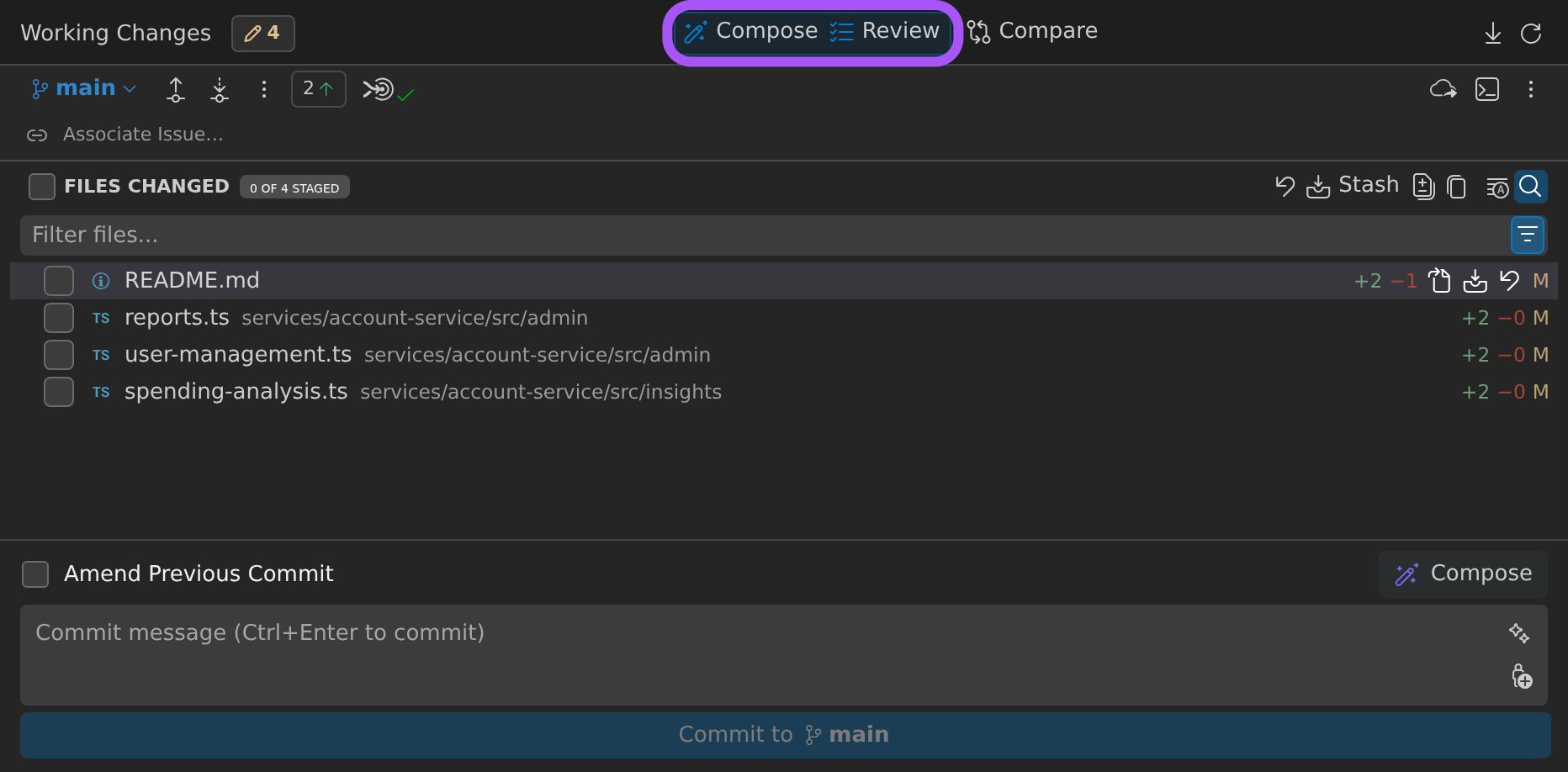
Compose mode integrates commit composition directly within the Commit Graph. Select the Working Changes row to see your uncommitted work, then switch to Compose mode in the details panel to create commits from those changes or to reorganize branch history. GitKraken AI can propose the commits and messages for you to review and refine before applying them.
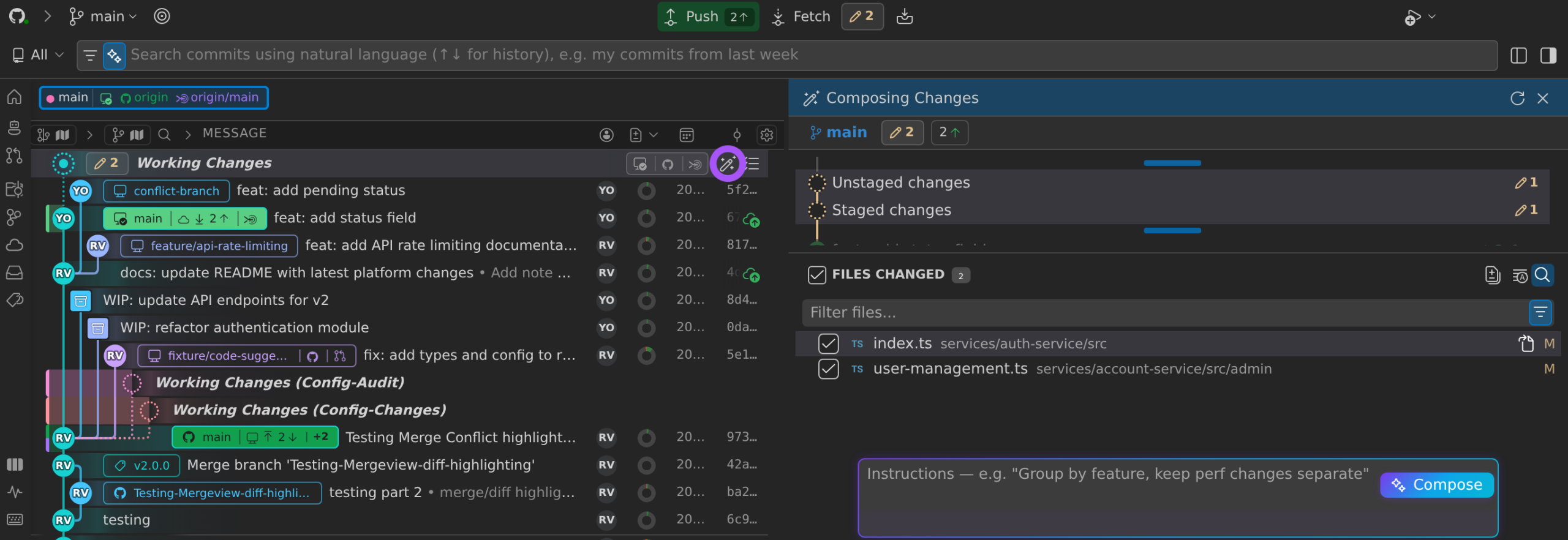
Click the Compose button to generate an AI-assisted commit message based on your staged changes, or write your own message manually.
Multi-File Selection
The Commit Graph and Inspect panels support multi-file selection using Shift-click and Ctrl/Cmd-click in Working Changes, commit details, compare, compose, and review file lists. Selected files can be batch-operated on with stage, unstage, discard, and stash actions. Inline per-file action buttons are also available for individual operations.
To ignore untracked files, right-click one or more of them in Working Changes and select Add to .gitignore. GitLens appends an entry for each file to the .gitignore at the repository root, creates that file if it doesn’t exist, and opens it so you can review the change.
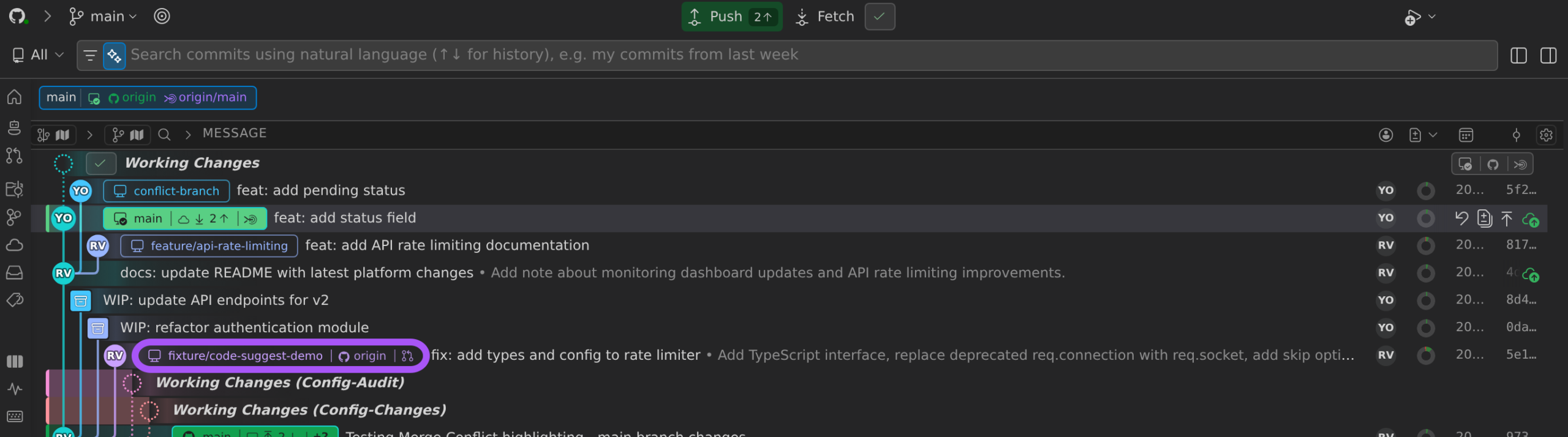
Pull Request Indicators
For GitHub and GitLab, GitLens displays a Pull Request icon on branches with active pull requests. To enable this:
- Connect your account using rich integration settings.
- The icon will appear next to branches in the graph once linked.
Hiding Remotes, Branches, or Tags
You can hide individual remotes, branches, or tags from the Commit Graph to reduce clutter and focus your view.
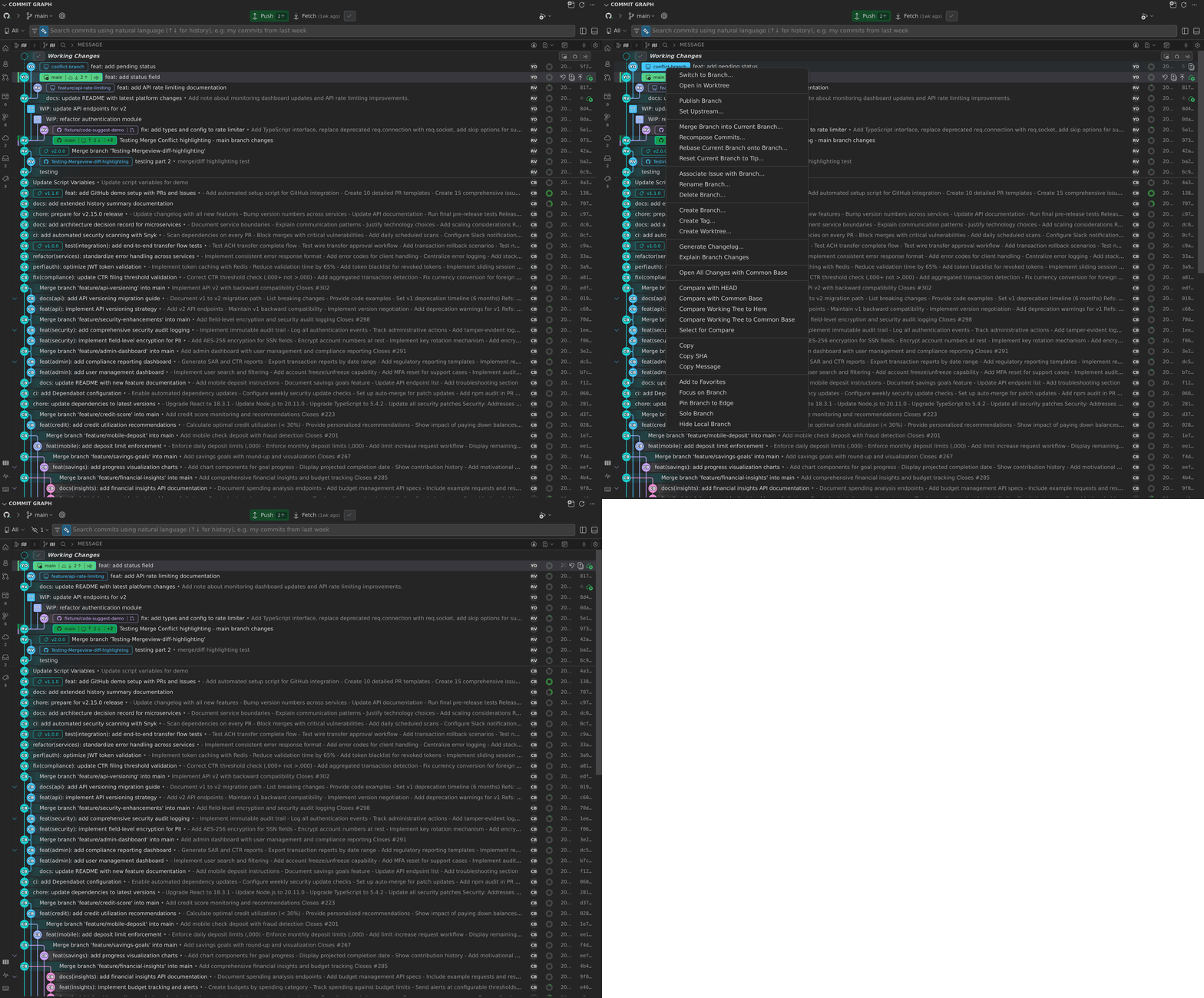
- To hide: Right-click a branch or tag pill and select Hide Local Branch, Hide Remote Branch, or Hide Tag. To hide every branch of a remote, including branches added later, right-click a remote branch pill or a remote in the side bar’s Remotes panel and select Hide Remote. To hide whole classes of refs, use the scope/filter popover next to the search box.
- To show again: Use the Hide panel at the top of the graph and reselect the ref. Hidden refs also stay listed, dimmed, in the side bar’s Branches, Remotes, and Tags panels; right-click one and select Show Local Branch, Show Remote Branch, Show Tag, or Show Remote. Showing one branch of a hidden remote keeps the rest of that remote hidden.
Filtering Options
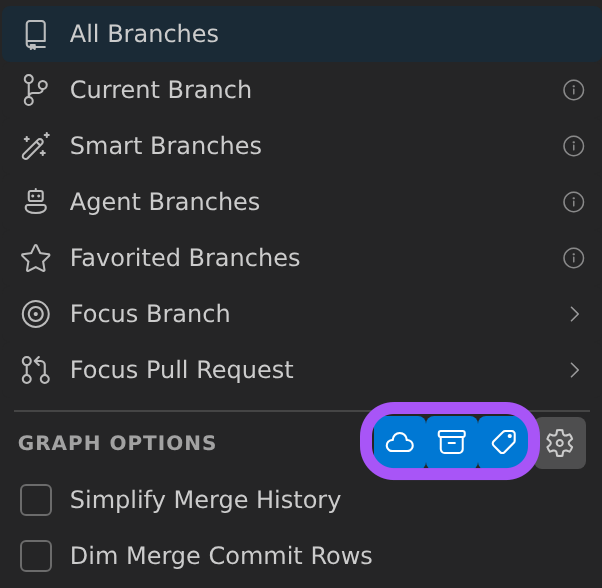
You can further control what is shown using the filter dropdown:
- All Branches — Display all branches
- Current Branch — Display the current branch and its upstream (minimal view)
- Smart Branches — Display only the relevant branches: the current branch, its upstream, and its base or target branch
- Agent Branches — Display only branches with currently running agents or agents idle for less than 24 hours
-
Favorited Branches — Display only the branches you starred as favorites
The Agent Branches and Favorited Branches modes don’t add the current branch automatically. When a mode narrows the graph, a bar under the graph shows how many of the matching branches are loaded (for example, “Showing 3 of 8 branches”), with Load More… to load the rest.
- Toggle visibility of:
- Remote-only branches
- Tags
- Stashes
- Option to dim merge commits
Minimap (Experimental)
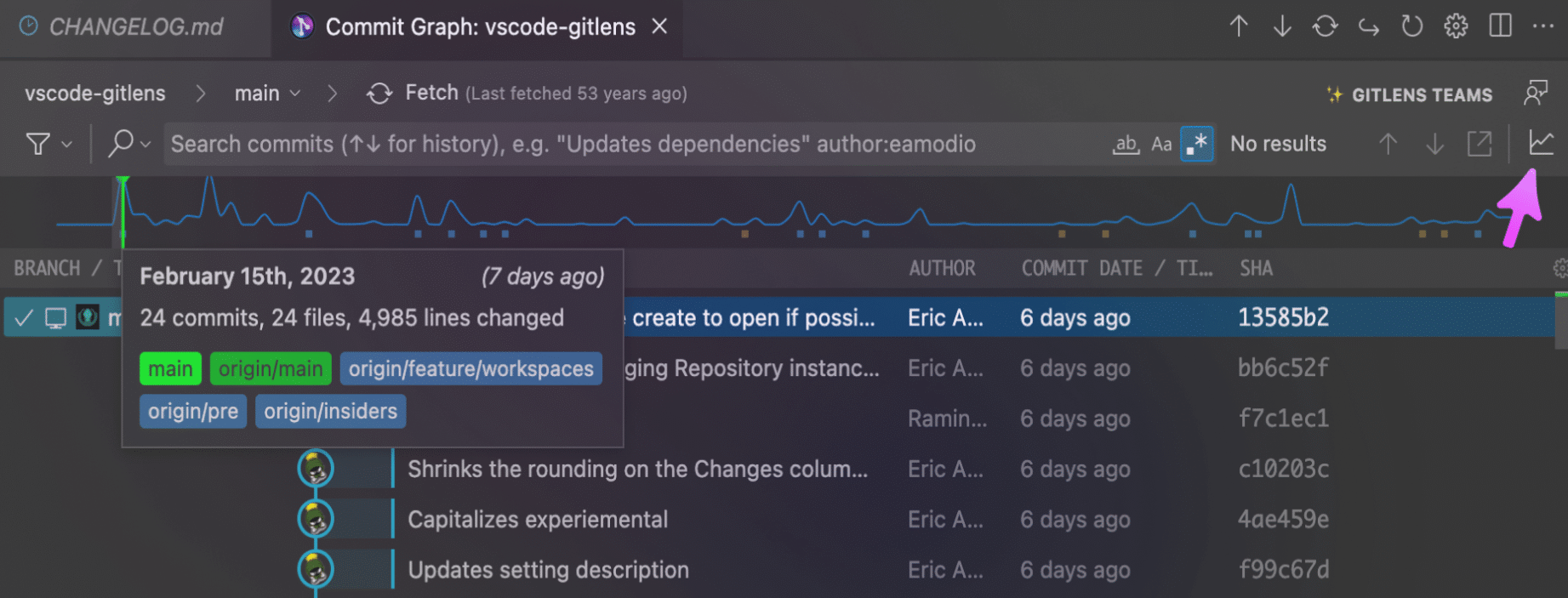
The Minimap gives you a visual summary of repository activity at a glance:
- Quickly locate
HEAD, remotes, tags, and stashes - Jump to any region in the graph using visual cues
- Toggle it via the Minimap icon in the top right
Minimap Settings
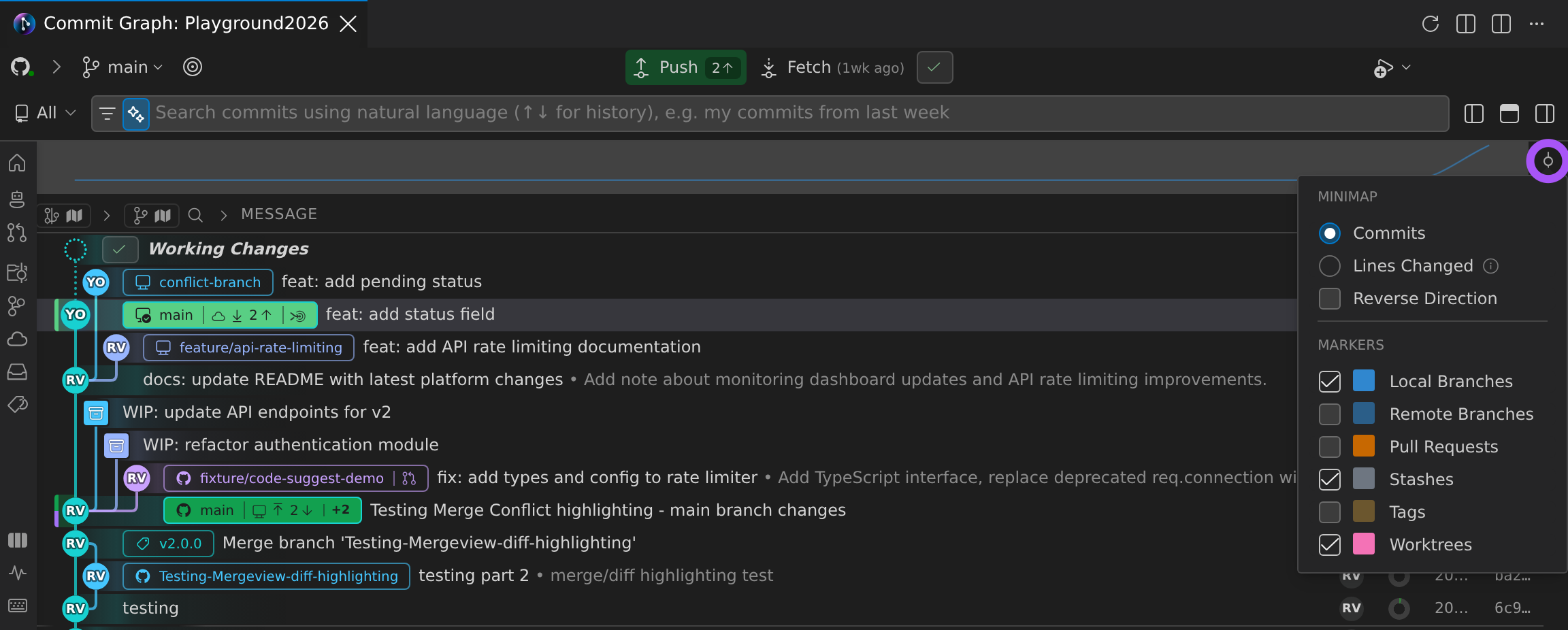
Customize the Minimap via the gear at the right end of the minimap:
- Toggle between:
- Commits view
- Lines changed view
- Show or hide:
- Markers for branches, tags, stashes, search results
Minimap Legend
| Element | Description |
|---|---|
| Green lines | HEAD |
| Yellow lines | Search results |
| Blue blocks (top) | Remote branches |
| Brown blocks (top) | Tags |
| Pink blocks (bottom) | Stashes |
| Blue blocks (bottom) | Local branches |
| Highlighted area | Current view region |
Note: We welcome your feedback on the Minimap. Share your thoughts on the GitLens GitHub Discussions.
To send feedback from inside VS Code, select Send Feedback… (the feedback icon) in the Commit Graph toolbar, or Send Feedback in the header’s account popover. In the dialog, choose General, Bug, or Feature, write your message, and select Send Feedback. You don’t need to be signed in. When you send a bug report, GitLens also opens a GitHub issue prefilled with your message so you can add details.
Launchpad PRO
Launchpad organizes pull requests (PRs) by status to help you identify bottlenecks and take prioritized actions. This streamlined view allows you to manage PRs quickly, directly within VS Code.
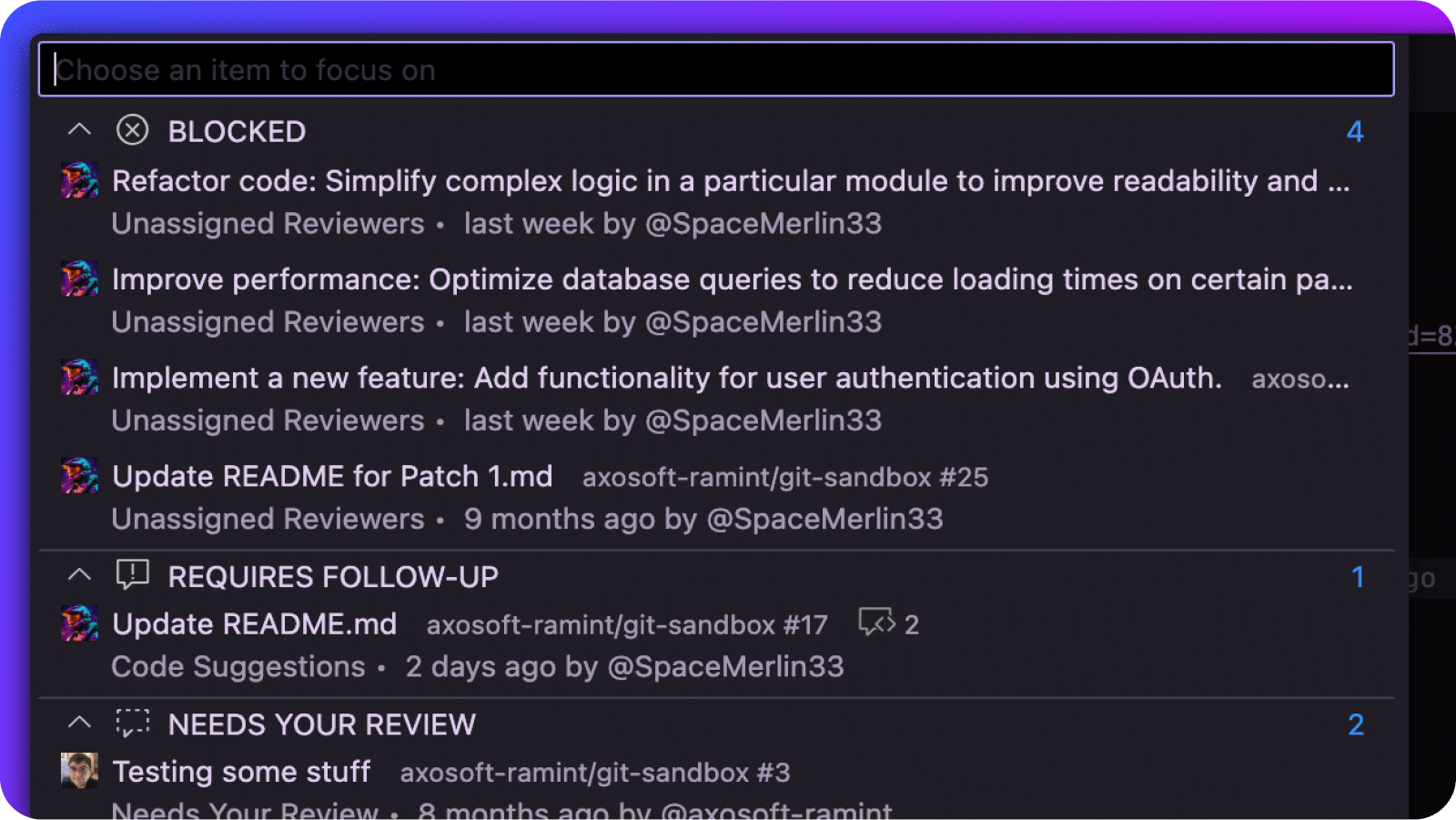
Launchpad supports GitHub, GitHub Enterprise, GitLab, GitLab Self-Managed, Azure DevOps, Azure DevOps Server, Bitbucket, and Bitbucket Data Center repositories. To use it, connect your Git provider, for example with the GitHub or GitLab Integration.
Accessing Launchpad
- From the Command Palette:
Command/Ctrl + Shift + P→GitLens: Open Launchpad - Or select the Pull Request status bar item in VS Code
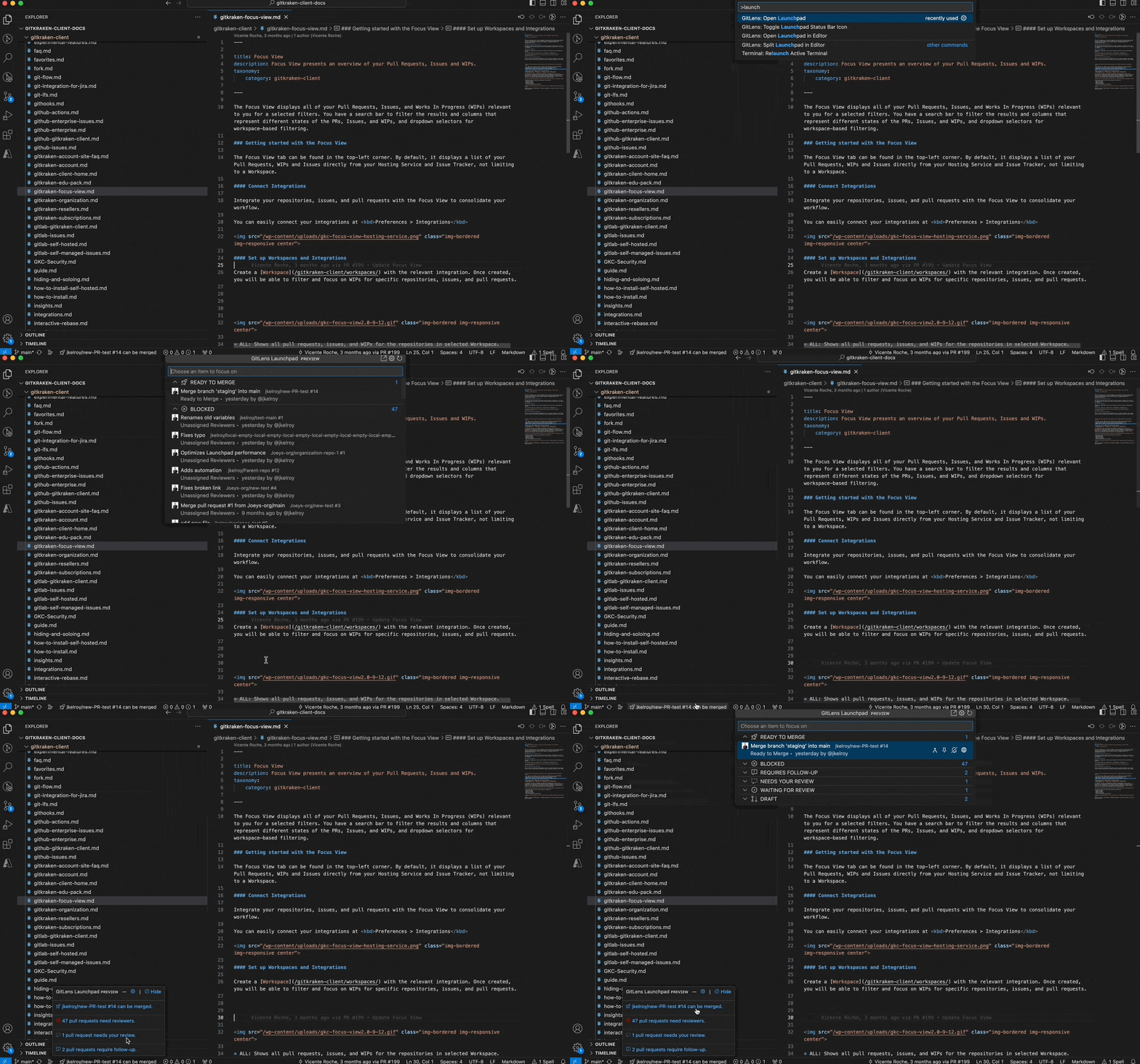
Using Launchpad
View PRs by grouped statuses:
- Ready to merge
- Blocked
- Requires follow-up
- Needs your review
- Waiting for review
- Draft
- Snoozed
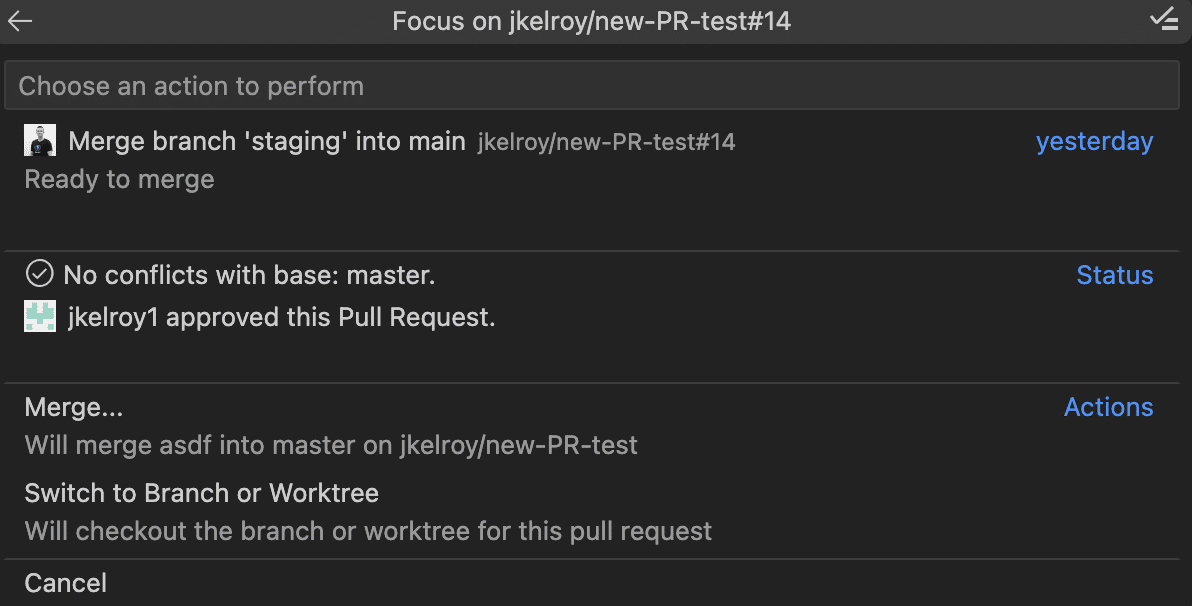
Click a PR to:
- View full details
- Open in your browser
- Merge (if eligible)
- Rebase the stack (for a GitHub stacked pull request)
- Switch to the branch or open in a worktree
To find a pull request that isn’t in your groups, select Search for Pull Request… and enter a term. Launchpad searches the pull requests of all your connected providers, including Azure DevOps and Bitbucket Data Center, for that term. You can also paste a pull request’s URL to open that pull request; this works for every connected provider, including Azure DevOps, Azure DevOps Server, Bitbucket, and Bitbucket Data Center.
You can also start or review Code Suggestions directly from the PR action menu.
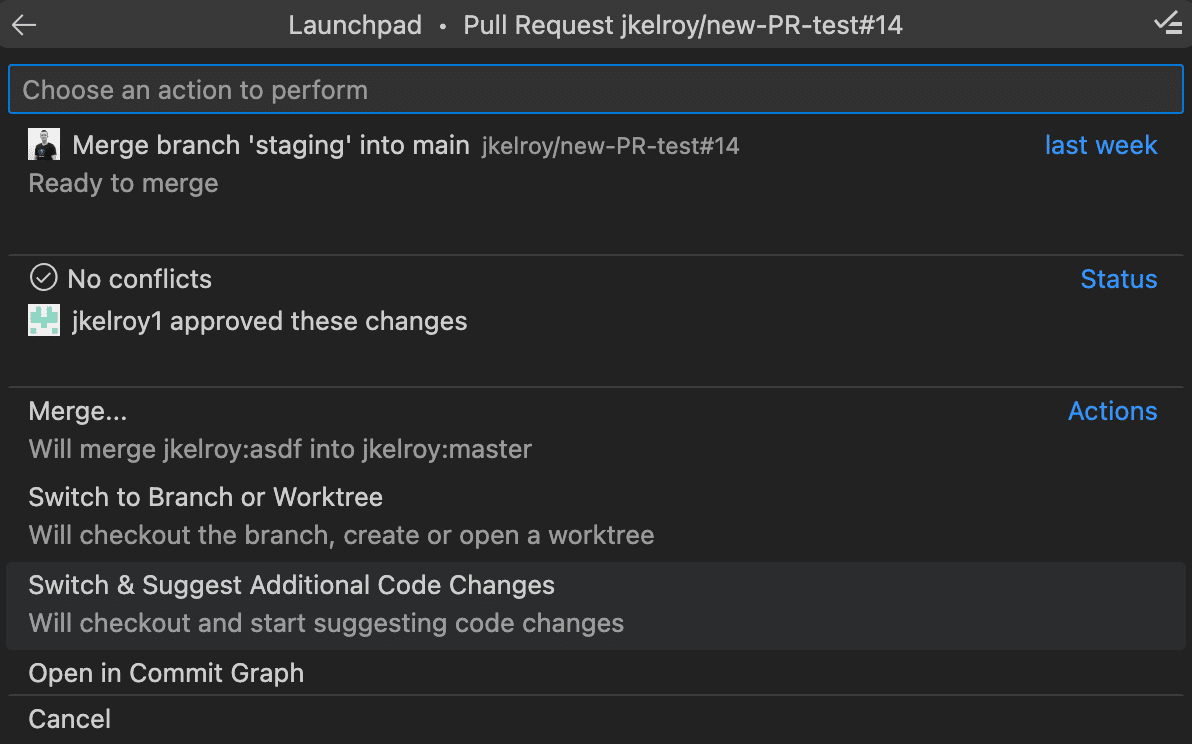
This feature is available through the Gitkraken MCP
Start Review PRO
The Start Review command (gitlens.startReview) provides a guided wizard for beginning a pull request review. It walks you through selecting a PR from your connected integration, choosing whether to check out the branch or create a worktree, and optionally launching an AI chat pre-filled with a review prompt.
Access it from the Command Palette: GitLens: Start Review
When AI features are enabled, Start Review asks whether to open the review in an agent, continue manually, or, when Kepler supports the pull request’s provider, open it in Kepler. Select Always use this choice to skip that step next time; the gitlens.ai.openInAgent setting stores your choice. If no local clone of the pull request’s repository is found, Start Review offers Clone Repository… and Choose a Local Folder… instead of stopping.
Start Work PRO
The Start Work command (gitlens.startWork) starts work on an issue from your connected integrations: pick the issue, and GitLens creates a branch for it. If you aren’t signed in, Start Work first asks you to sign in or start a Pro trial before it offers to connect an integration.
Access it from the Command Palette: GitLens: Start Work
GitLens suggests a branch name built from the issue, which you can edit before the branch is created. By default the name is the issue ID followed by its title, such as ABC-123-update-login-flow. To change the pattern, set Branch name format in the Start Work category of GitLens Settings (gitlens.startWork.branchNameFormat), using ${id} for the issue ID and ${title} for the title, for example feature/${id}/${title}.
Pin or Snooze PRs
Use the pin icon to keep important PRs in the Pinned group.
Use the snooze icon to move less urgent PRs into the Snoozed group.
Click the icon again to unpin or unsnooze as needed.
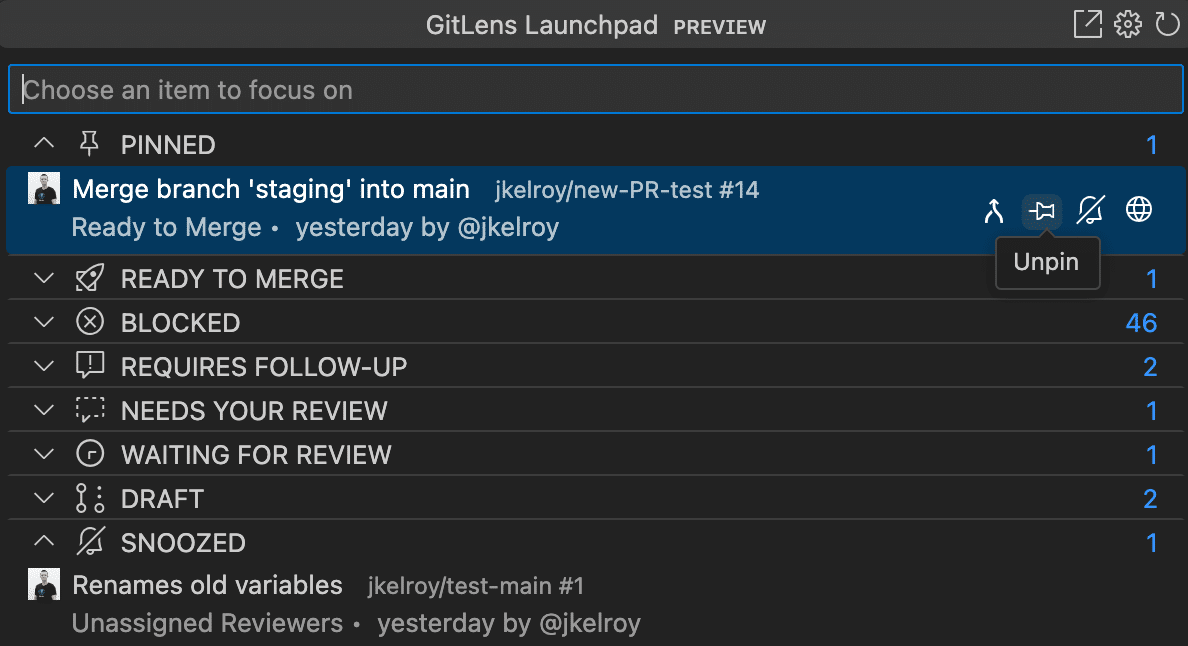
Note: Launchpad prioritizes items requiring action by elevating them to the top of the list. This behavior may change in future updates.
This feature is only available on GitLens Pro subscription tiers or higher.
Visual History
Visual History (formerly Visual File History) provides a clear timeline of changes—showing when, what, and who modified your code—helping you quickly understand how a file, folder, repository, or branch evolved.
Visual History supports multiple scopes:
- File — View the history of a single file
- Folder — View the history of a directory
- Repository — View the history of the entire repository
- Branch — Slice the history by branch to focus on specific lines of work
To open Visual History:
- Use the GitLens Inspect Sidebar, or
- From the Command Palette:
Cmd/Ctrl + Shift + P→GitLens: Show Visual History View
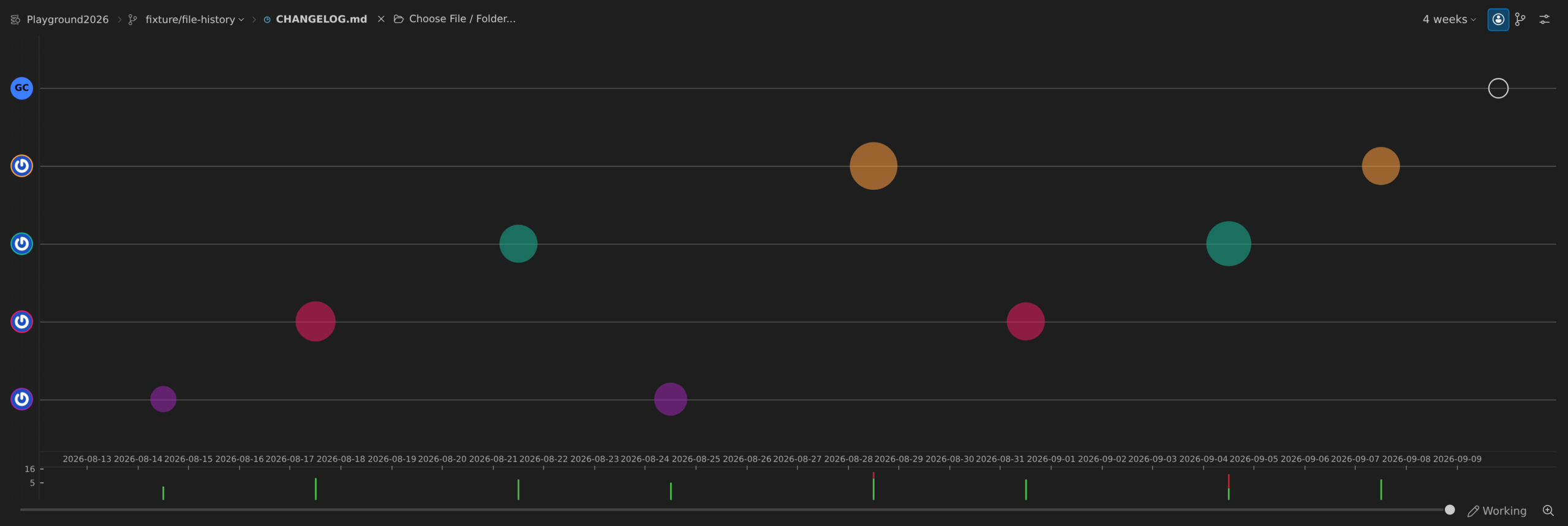
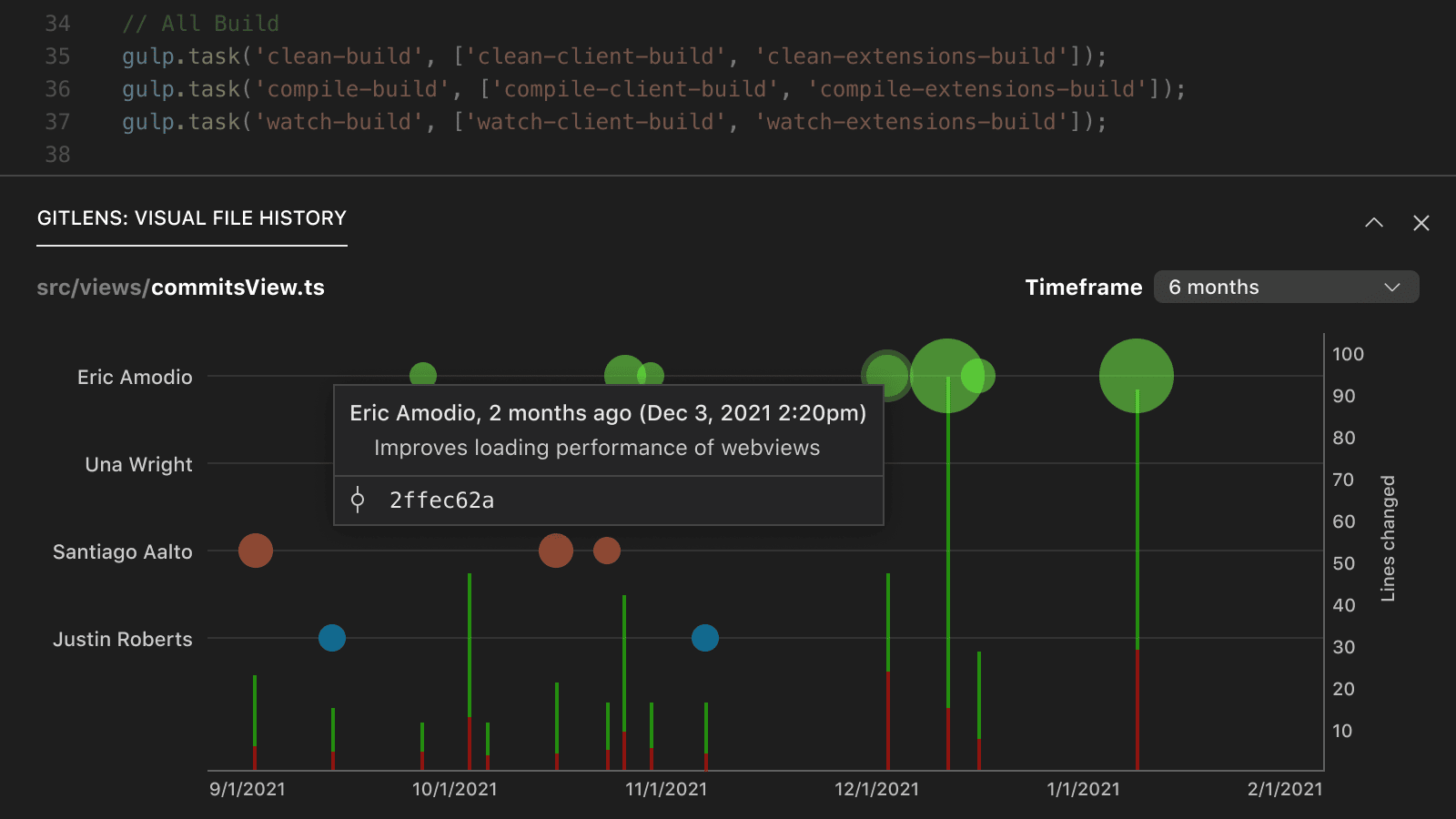
How to Read the Graph
- Y-axis (left): Contributors, shown in individual swim lanes
- X-axis: Timeline of commits
- Bubbles: Color-coded per author; bubble size reflects the magnitude of changes
- Bars (right y-axis): Line additions (green) and deletions (red)
Hover over a bubble or bar for detailed insights.
The Community plan supports Visual History only on public and local repositories.
GitKraken AI
GitKraken AI enhances your development workflow with automated commit messages, intelligent stash descriptions, and code change explanations.
AI-Generated Commit Messages
Automatically generate descriptive commit messages based on staged changes.
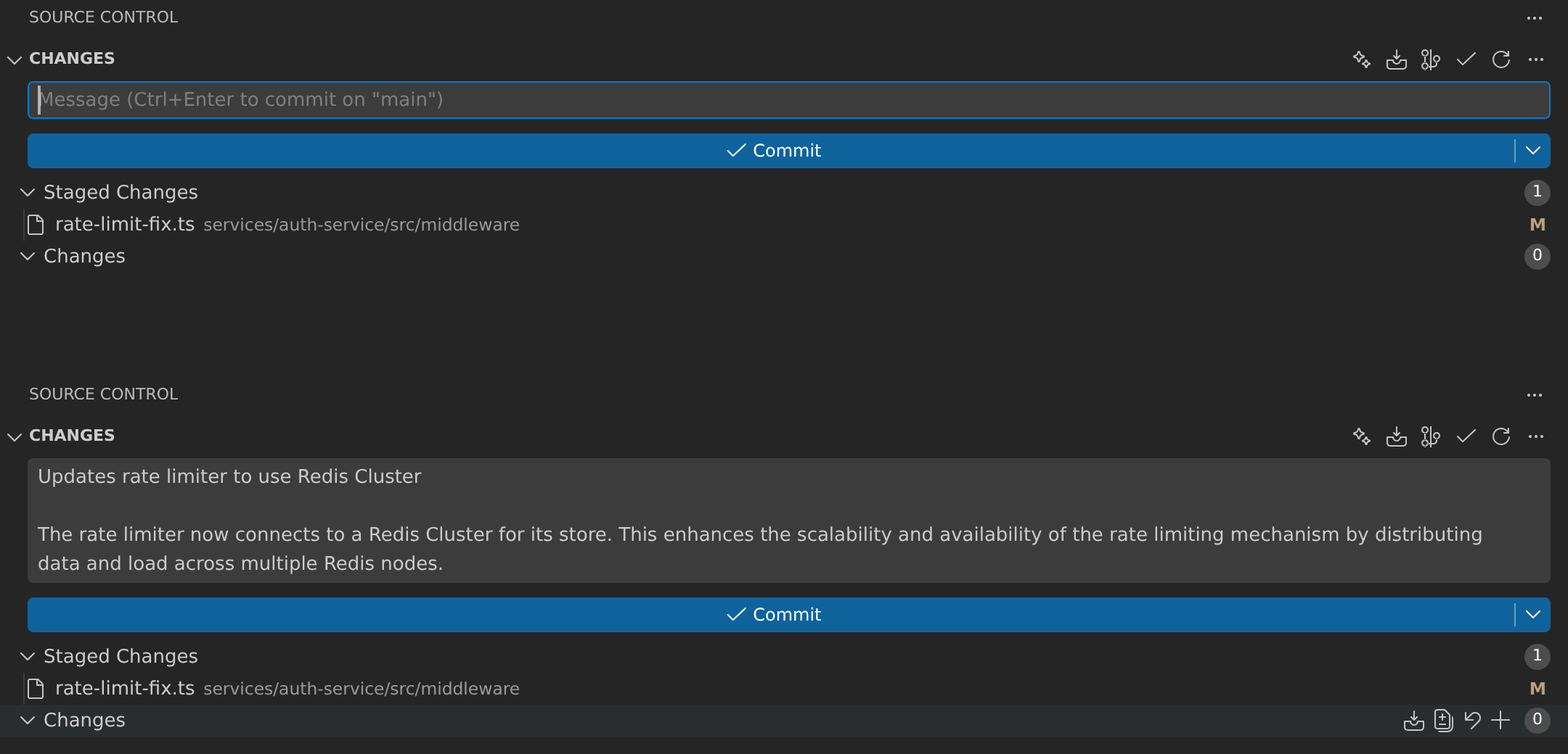
To use:
- Stage your changes.
- In the Source Control view, open the GitLens sparkle menu in the Changes header and choose Generate Commit Message, or
- Use the Command Palette:
GitLens: Generate Commit Message
GitKraken AI will analyze the diff of staged changes to generate a message. You may provide additional context in the commit box to improve results.
You can customize behavior using gitlens.ai settings for provider, model, and prompt preferences.
Pro users and above can optionally use a custom API key to connect to a different AI provider. GitKraken AI currently uses the Google Gemini model.
AI Stash Messages PRO
Available in Pro, Advanced, and Business plans.
Automatically generate meaningful stash descriptions to make your stashes easier to identify later.
How to access:
- From the Command Palette:
GitLens: Generate Stash Message with AI - During stash creation: Use the AI option in the stash interface
- In the Stash view: Generate AI-powered descriptions for existing stashes
AI Explanations PREVIEW
Let GitKraken AI help explain complex changes across your repo with natural language summaries.
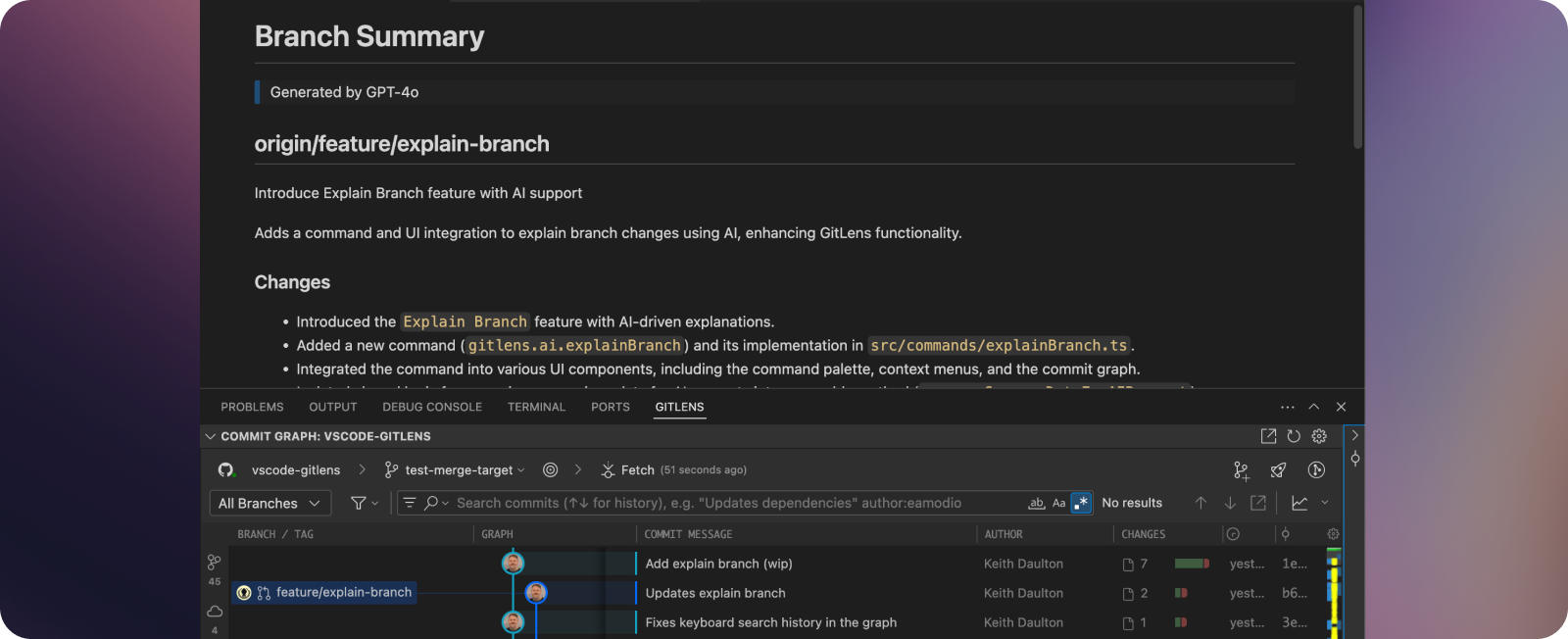
Standalone Explain commands provide markdown summaries for:
- Commits — Explain Commit
- Branches — Explain Branch
- Working changes — Explain Working Changes
- Stashes — Explain Stash
Where to find it:
- Commit Graph
- Command Palette
- GitLens views: Commits, Branches, Stashes, Search & Compare
- Editor blame hovers (sparkle Explain button)
With GitKraken AI explanations, you can quickly understand:
- The purpose and impact of individual commits
- What changed across all commits in a branch
- What you’ve modified in your working directory
- What your previous stashes contain
AI Commit Explanations
PRO
Available in: Pro, Advanced, and Business plans
Understand the purpose and context of commits with AI-generated summaries. These explanations help you grasp the intent behind complex commits without manually reviewing all changes.
How to access:
- Commit Details view: See the AI explanation panel
- Cloud Patch Details view: View AI insights alongside commit data
- Commit Review: Generate explanations for any selected commit
AI Changelog Creation ADVANCED
Available in: Advanced and Business plans only
Automatically generate detailed and structured changelogs from a set of selected commits—ideal for maintaining release documentation.
How to access:
- Search/Compare view: Click the inline button on the commits line
- Commit Graph: Select multiple commits, right-click, then choose Generate Changelog
- Command Palette:
GitLens: Generate Changelog from Commits
More questions about GitKraken AI? See the GitKraken AI FAQ for additional details.
AI Generate Commits PRO
Generate well-structured commits from your working tree changes using AI analysis. The Generate Commits command analyzes your staged and unstaged changes, groups them logically, and creates commits with descriptive messages. A first-time confirmation dialog explains what the command will do, and an Undo button is available after generation to revert if needed.
AI Rebase PRO
The AI Rebase command restructures commits on an existing branch onto a target commit using AI-generated commit grouping and messages. Like Generate Commits, it includes an undo button and a first-time confirmation dialog. Both commands produce markdown explanation documents summarizing the changes made.
Auto-Rebase PRO
Auto-Rebase (gitlens.ai.autoRebase) carries a rebase forward through the conflicts GitKraken AI can resolve confidently, and hands the rest back to you. When a rebase encounters a conflict, AI analyzes it and resolves it only when its confidence meets the threshold you set; anything below that threshold pauses the rebase so you can resolve the conflict yourself and continue. Every run is reviewable and reversible.
Key capabilities:
- Confidence threshold — Configure
gitlens.ai.autoRebase.confidenceThreshold(0 to 1) to control how confident the AI must be before resolving a conflict on its own. Raise it to keep more decisions in your hands. - Stops rather than guesses — Conflicts that fall below the threshold are left for you to resolve manually, with the rebase paused at that point.
- Custom instructions — Use
gitlens.ai.resolveConflicts.customInstructionsto provide project-specific guidance for conflict resolution - Rebase summary sheet — After the rebase completes, a summary sheet shows what was resolved and how, so you can review each decision
- Full undo support — Undo the entire Auto-Rebase with Undo Auto-Rebase (
gitlens.ai.autoRebase.undo) to return to the pre-rebase state if the results are not what you wanted - Your messages and edit stops — When a
rewordorsquashstep needs a new commit message, Auto-Rebase opens the message in VS Code for you to edit. At a commit you markededit, it resolves and stages any conflicts, then pauses so you can make your changes before you continue.
To start Auto-Rebase, run GitLens: Auto-Rebase... from the Command Palette, choose the Auto-Rebase option in the Git Command Palette’s rebase confirmation, or select Start Auto-Rebase in the Interactive Rebase Editor. If a rebase is already paused, run GitLens: Continue with Auto-Rebase.
For a GitHub stacked pull request, Auto-Rebase Stack rebases every branch in the stack from the bottom up, each onto the one below it, and resolves conflicts with AI along the way. Rebase Stack does the same but stops at each conflict for you to resolve. Start either one from the Commit Graph pull request sheet, from Launchpad, from the Git Command Palette’s rebase confirmation when the current branch belongs to a stack, or with GitLens: Git Rebase Stacked Pull Requests... or GitLens: Auto-Rebase Stacked Pull Requests.... When the rebase finishes, GitLens offers Force Push Stack so you can publish the rebased branches.
When Auto-Rebase pauses, its notification offers Review & Resolve and Abort Rebase, plus Resume with AI when AI features are allowed.
Commit Composer View Pro
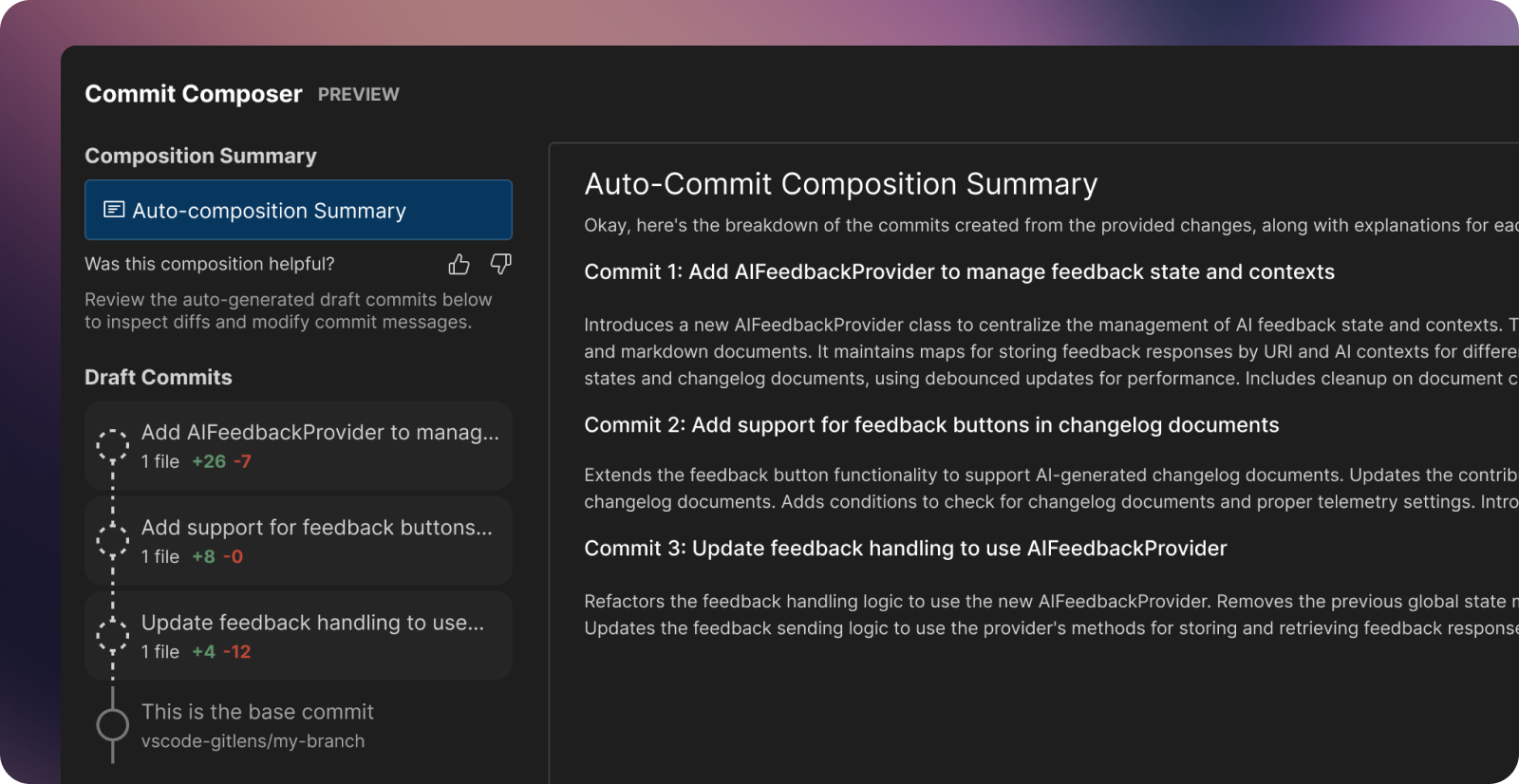
The Commit Composer has evolved from a simple one-step process into a comprehensive drafting and review experience. Previously, AI would analyze your changes and immediately create commits. Now, the Commit Composer gives you complete control over the composition process, with options to auto-compose with AI or compose manually. It is integrated directly into the Commit Graph details panel as Compose mode, and is also available as a standalone view.
Join the Commit Composer discussion and provide feedback.
Interactive Draft Commits
When composing commits, GitLens now creates “draft” commits that you can review, modify, and refine before applying them to your repository. This new workflow lets you:
- Preview before committing: See exactly what will be committed before it touches your repository
- Switch Models: Try composition with different AI models
- Guide the AI: Provide custom instructions to match your team’s conventions and preferences
- Iterate and refine: Regenerate individual messages or entire commit compositions
- Review and edit: Manually tweak any commit message or approach
You can launch the new Commit Composer view from several places in GitLens:
- GitLens commit details view
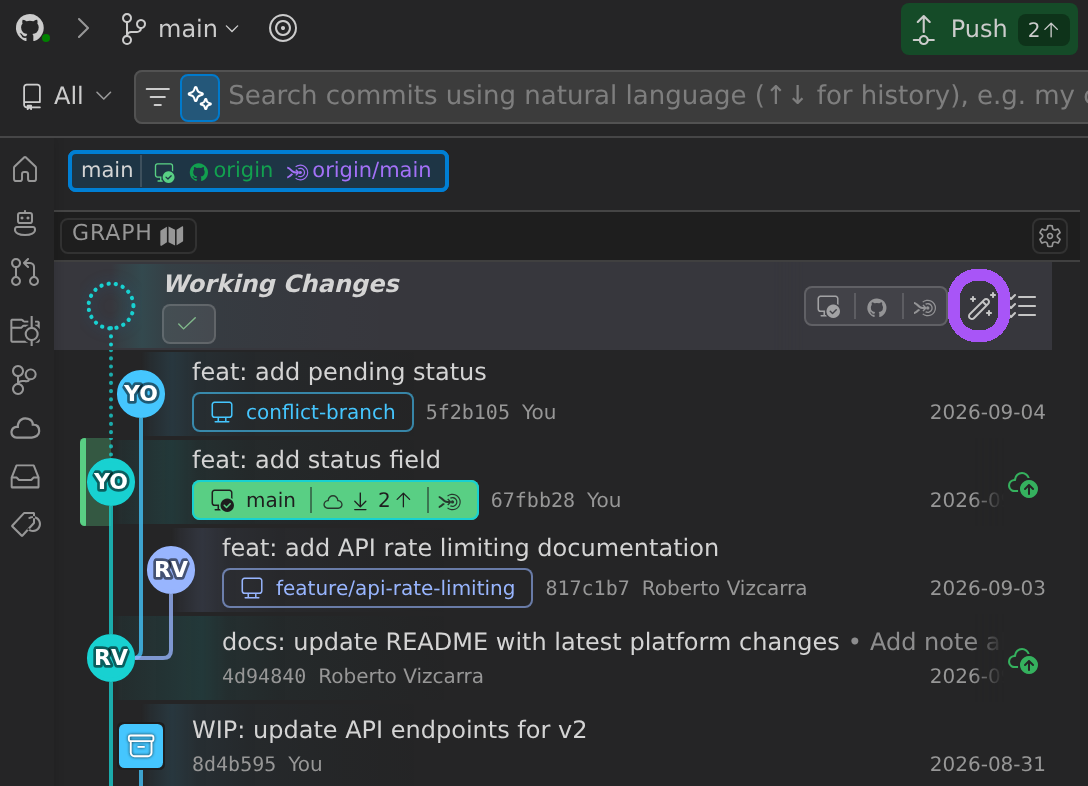
- Context menu on the Working Changes row in the GitLens Commit Graph
- Commit Graph details panel: Switch to Compose mode
- ✨ icon in the SCM view header
- Command palette: Search for “Compose Commits”
The foundation is now in place for even more powerful composition features in future releases, including intuitive drag-and-drop functionality for moving lines and hunks between commits, creating new draft commits on the fly, and reordering commit sequences.
Whether you prefer to let AI handle the heavy lifting or want granular control over every detail, Commit Composer provides the flexibility to create well-structured commit histories that make code reviews more effective and repository history easier to understand.
Commit Composer: Branch Recomposition
Commit Composer now lets you clean up and reorganize commits on existing branches, making it perfect for preparing pull requests or refining your commit history before pushing.
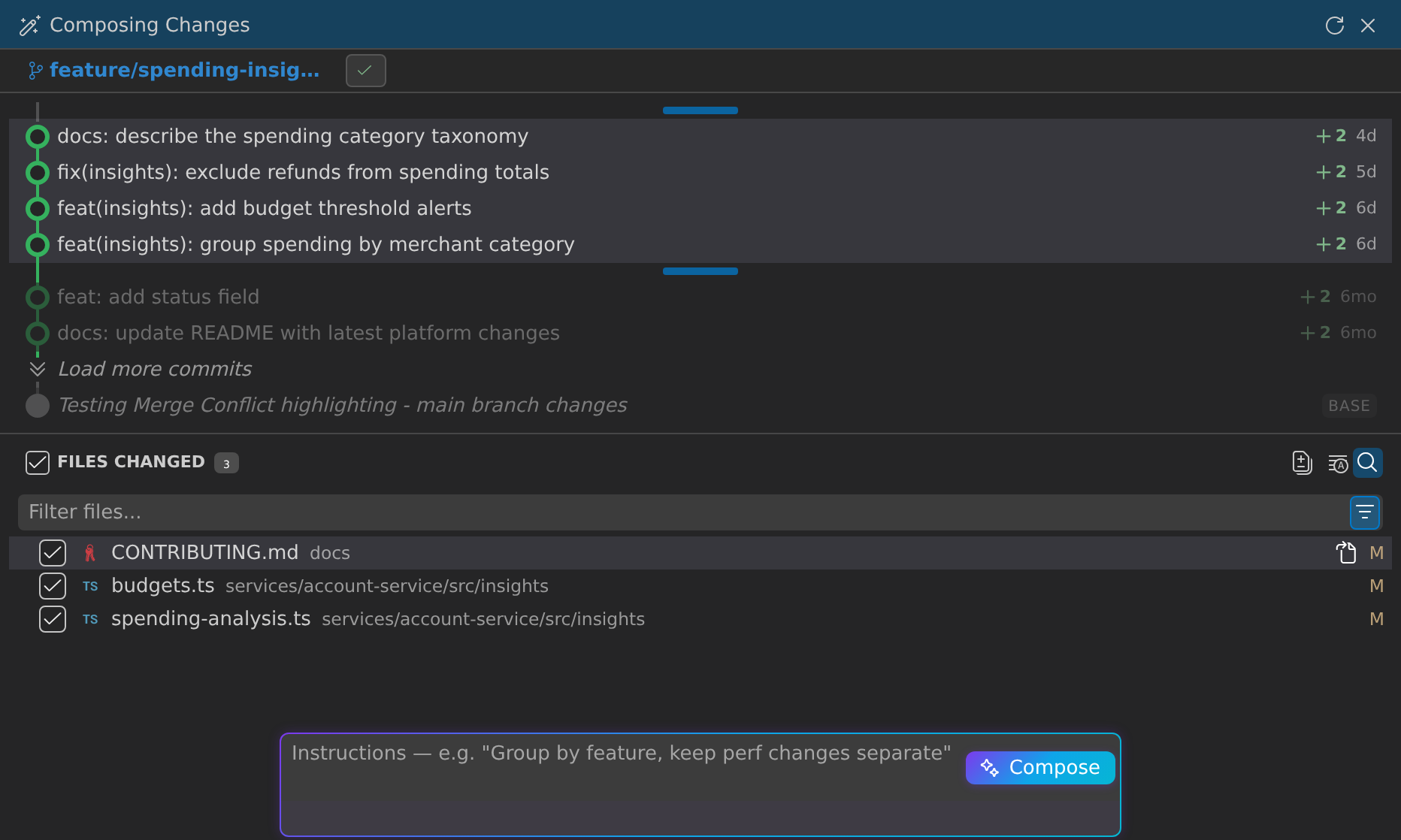
Recompose Entire Branches
Open Commit Composer from any branch in the Commit Graph (or anywhere branches appear in GitLens) to inspect and reorganize its commits. The composer creates draft commits you can review before applying changes to your repository.
Auto-Recompose with AI: Let AI analyze your branch and restructure commits into logical, well-documented units. Choose your preferred model and provide custom instructions to match your team’s conventions. (Pro tip: Set default instructions in the “Generate Commits: Custom Instructions” setting to save time.)
Manual Control: Review AI suggestions, regenerate specific commit messages, or manually edit messages and change organization. The composer gives you complete flexibility to craft the commit story that works best.
Enhanced Composer Capabilities
Commit Composer now handles edge cases that previously blocked composition:
- Untracked files: Working changes now include untracked files, so all modifications can be composed together
- New repositories: Compose your initial commits even before a base commit exists
- Performance boost: Significantly faster rendering when working with changes across many files
Commit Composer: Selective Recomposition
Commit Composer now lets you recompose specific commits within a branch, giving you precise control over cleaning up your commit history.
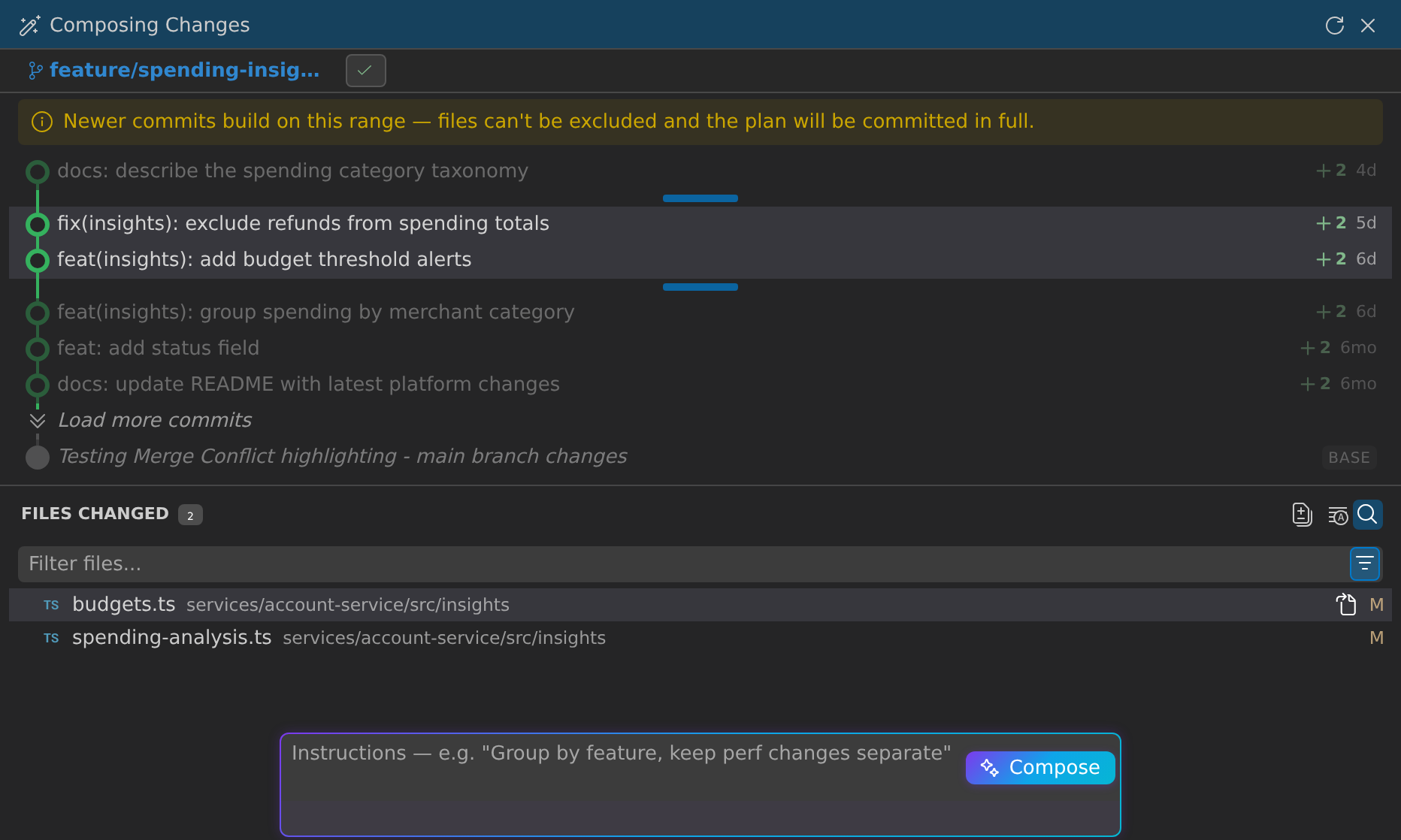
Previously, you could only recompose all working changes or an entire branch. Now you can select specific commits that need refinement—like those quick “wip” or “fix” commits made during rapid iteration—and let AI restructure just those changes with better messages.
Select multiple contiguous commits on the same branch using Shift or Cmd click, then right-click and choose “Recompose Selected Commits.” Commit Composer opens with only your selected commits as drafts, ready for AI-powered or manual refinement.
Commit Composer is also more discoverable, with a new wand button on the Working Changes row in the Commit Graph that opens the composer for all working directory changes. Additionally, when rebasing, you can now switch directly into Commit Composer from the Rebase Editor, canceling your rebase to let AI handle the composition instead.
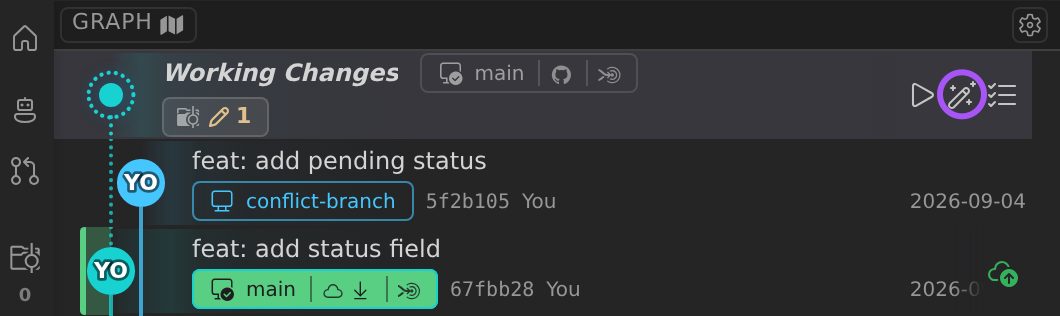
The Working Changes row also has a Run Default Task (play) button that runs a VS Code task in that row’s worktree. The first time you select it, GitLens asks you to choose the default task, then runs that task on later clicks. Alt-click the button to choose a different task. While the task runs, the button reads Running: and the task name, and clicking it shows the running task instead of starting another. To pick a task from a list, right-click a Working Changes row in the Commit Graph, or a worktree in the side bar views, and select Run Task on Worktree…. In that list, select a task’s checkmark button (Set as Default Task) to make it the default.
Compose and Recompose Commands
Commit Composer can also be launched via dedicated commands:
- Compose Commits (
gitlens.compose) — Opens the Commit Composer for working changes in the current repository, or from a Compose mode entry in the Commit Graph details panel. - Recompose Branch (
gitlens.recomposeBranch) — Opens the Commit Composer scoped to an entire branch. GitKraken AI can propose a clearer, more intentional sequence of commits and messages for you to review and refine before applying the result. - Recompose from Commit (
gitlens.recomposeFromCommit) — Scopes the same workflow to a specific commit onward. - Recompose Selected Commits (
gitlens.recomposeSelectedCommits) — Scopes the same workflow to only the selected commits on a branch.
These commands are available from the Commit Graph context menu, branch context menus throughout GitLens, and the Command Palette. Coach marks guide first-time users through the workflow.
Git Command Palette
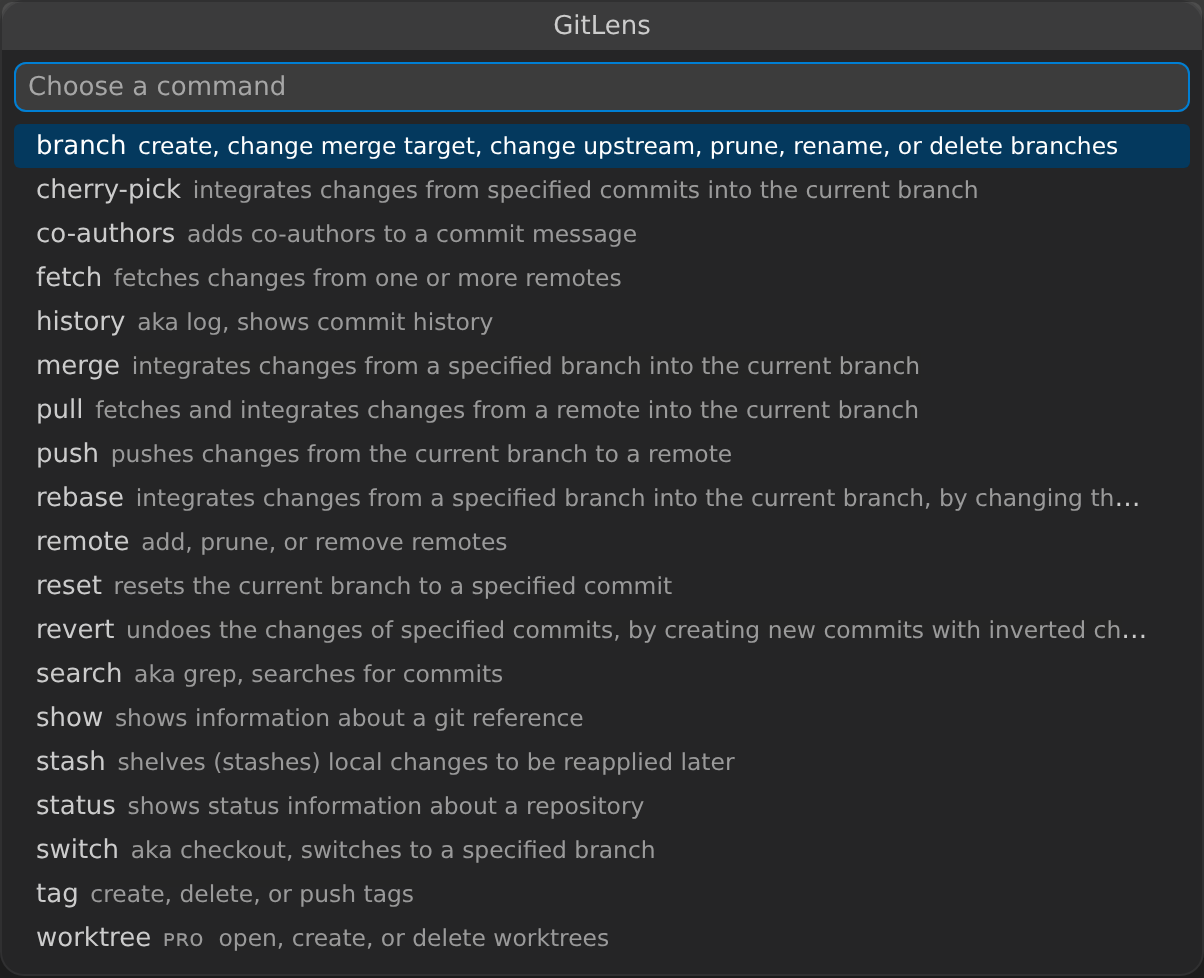
Adds a customizable Git Command Palette (gitlens.gitCommands) for guided, step-by-step access to many common Git commands. Quickly navigate Git actions, explore commit history, manage stashes, and more—all through intuitive, confirmable menus.
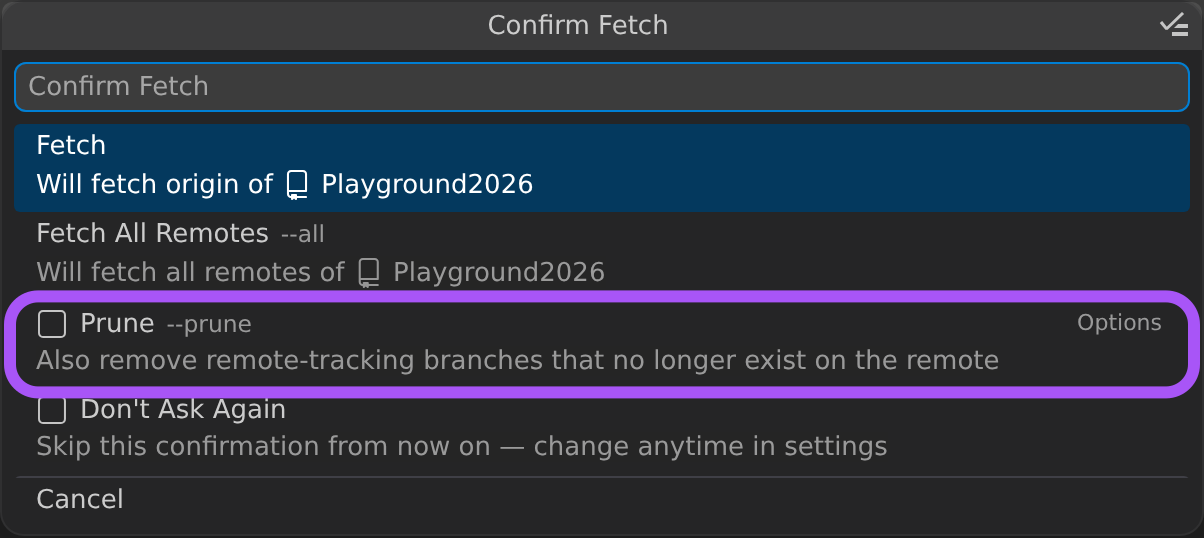
On a command’s confirmation step, choose the action row, then turn options on or off with the checkbox toggles under the Options separator. Examples include Prune for Fetch, Force for Push Tags and branch deletion, Keep Staged for stashes, Fast-forward and Don’t Commit for Merge, Update Branches and Autosquash for Rebase, and In a New Worktree for Switch. Where a matching Git config value exists, such as fetch.prune, merge.ff, rebase.updateRefs, or rebase.autosquash, the toggle starts from that value. Some commands also offer a Don’t Ask Again toggle, which adds the command to gitlens.gitCommands.skipConfirmations so the confirmation is skipped from then on.
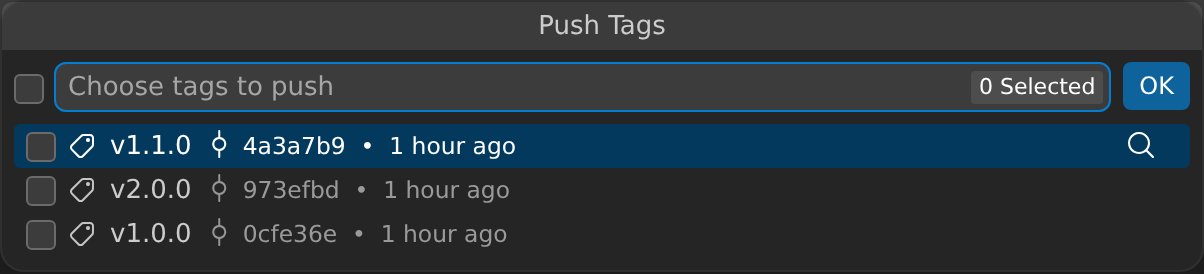
To push tags to a remote, run the Tag command and choose Push Tags. Pick one or more tags, choose a remote (skipped when the repository has only one), and confirm; turn on Force to overwrite a tag that already exists on the remote. You can also push tags from the side bar views (Push Tag… or Push Tags… on tag nodes) and from the Commit Graph (Push Tag… on a tag’s context menu).
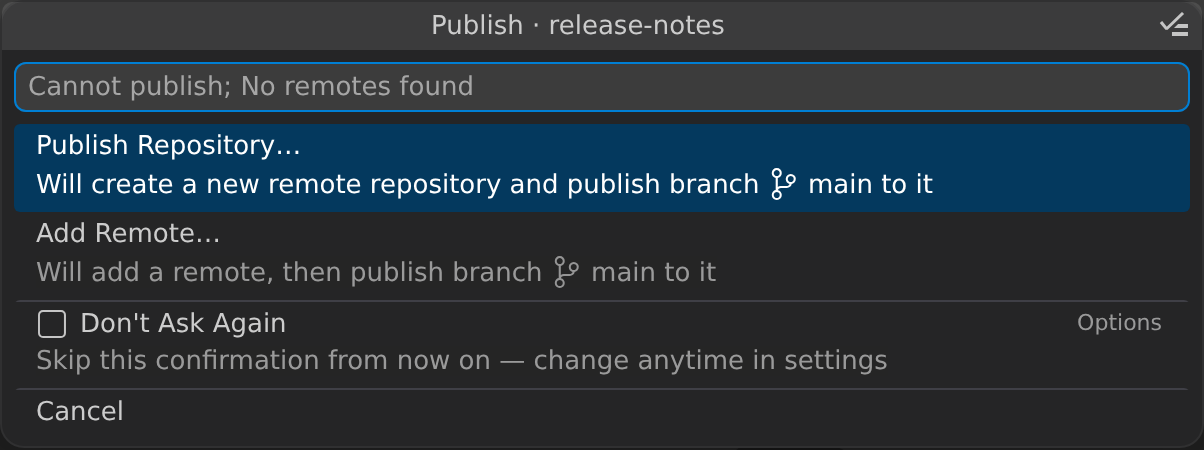
When you run Push on a branch that hasn’t been published yet, the command shows a publish step (Confirm Publish) so you can choose the remote to publish the branch to. If the repository has no remotes, the Publish step reads Cannot publish; No remotes found and offers two ways forward:
- Publish Repository… (selected by default) creates a new remote repository and publishes the branch to it.
- Add Remote… walks you through adding a remote, then returns to the publish step so you can publish the branch to it.
Quick Commit Access
-
Show Branch History (
gitlens.showQuickBranchHistory): Explore the commit history of any selected branch.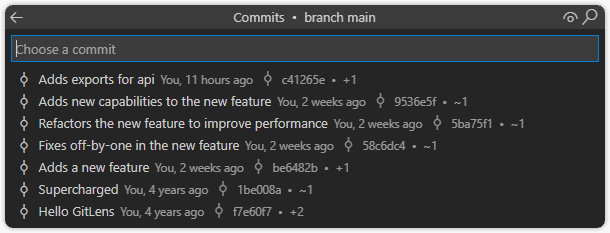
-
Show Current Branch History (
gitlens.showQuickRepoHistory): View the commit history of your current branch. -
Show File History (
gitlens.showQuickFileHistory): Access the full commit history of the current file. The File History view supports a contributors mode (gitlens.views.fileHistory.mode) that shows all contributors to the file instead of the commit list.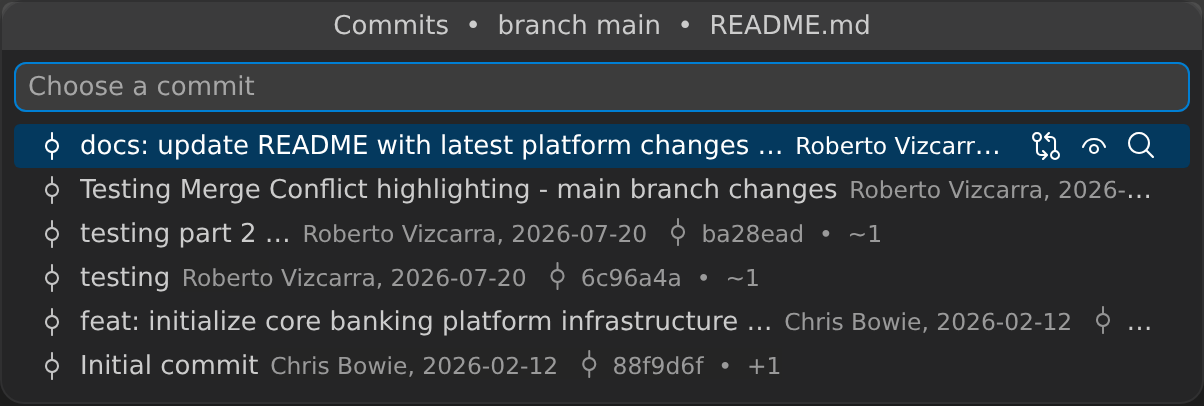
-
Search Commits (
gitlens.showCommitSearch): Use a quick pick menu to search by:- Message:
<message> - Excluded message:
-message:<message>(removes commits whose message contains the term) - Author:
author:<author>or@:<author> - Committer:
committer:<committer> - Commit SHA:
commit:<sha>or#:<sha> - File path or glob:
file:<glob>or?:<glob> - Patch changes:
change:<pattern>or~:<pattern> - Merge commits only:
type:mergeoris:merge
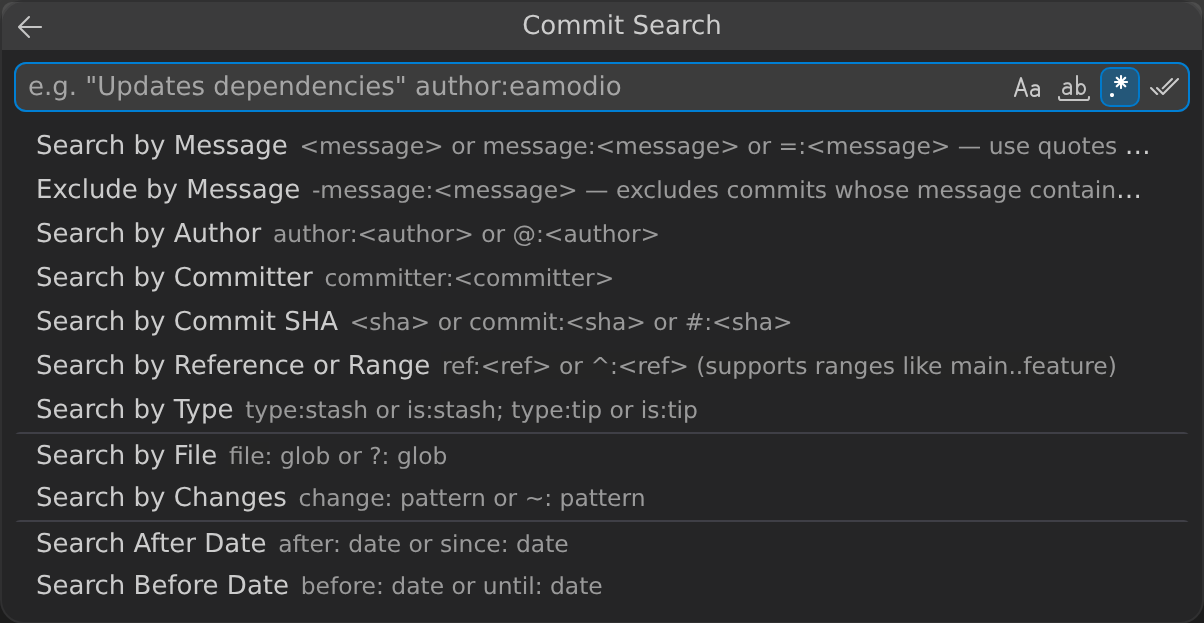
Refer to the Git log documentation for advanced usage.
- Message:
-
Show Commit Details (
gitlens.showQuickCommitDetails): Review commit information and actions.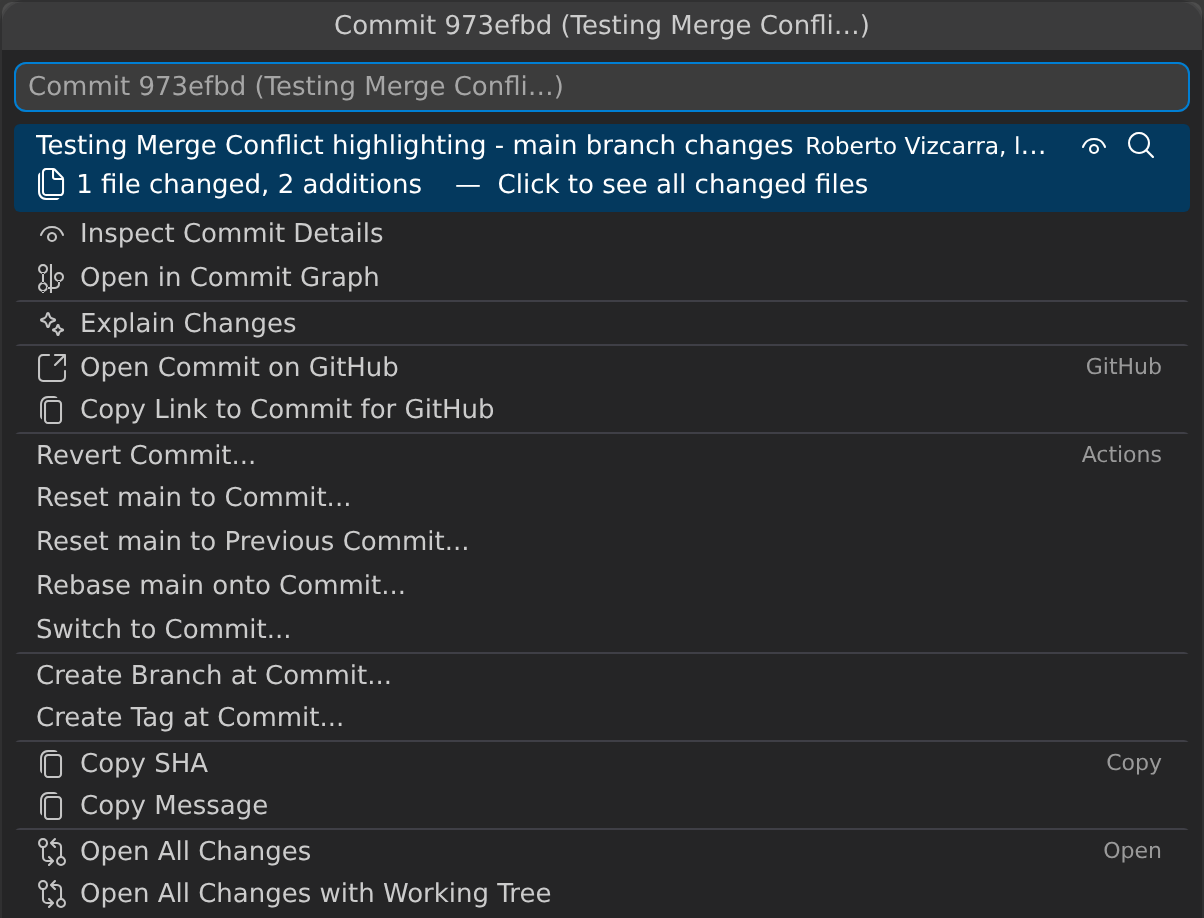
-
Show Line Commit Details (
gitlens.showQuickCommitFileDetails): Explore the file’s commit and take action on it.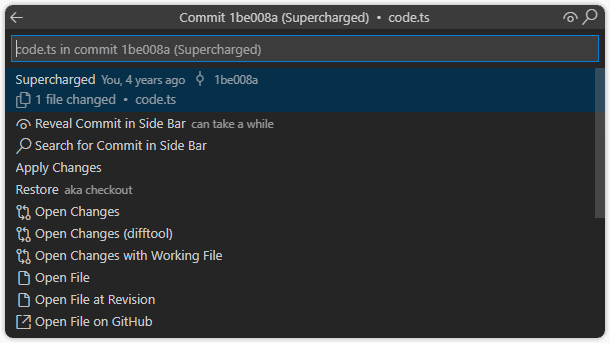
Quick Stash Access

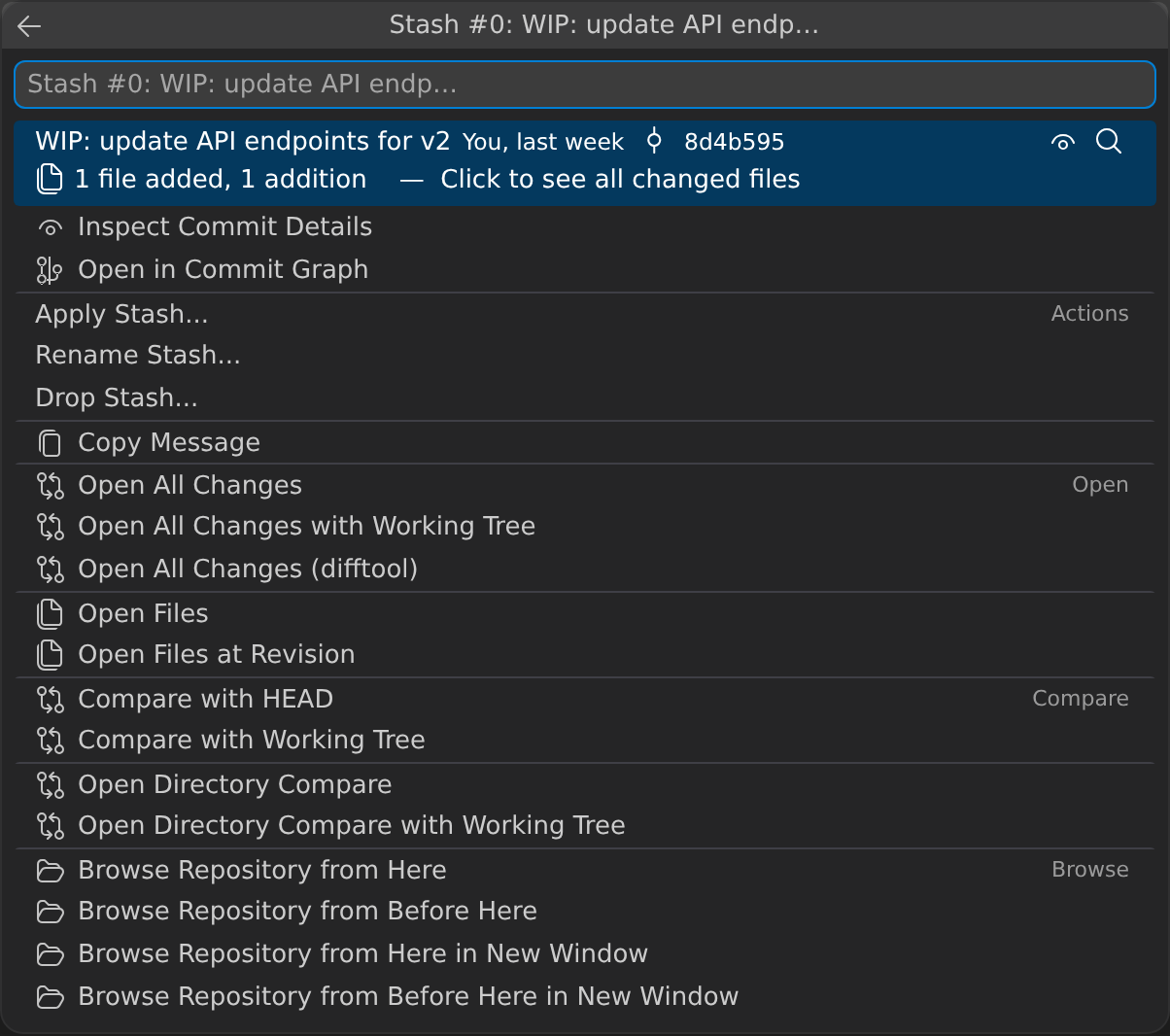
- Adds a Show Stashes command (
gitlens.showQuickStashList) to show a quick pick menu to explore your stashes.
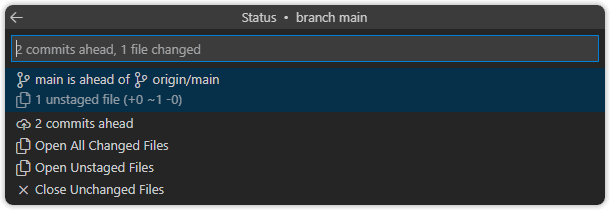
Quick Status Access
- Adds a Show Repository Status command (
gitlens.showQuickRepoStatus) to show a quick pick menu for visualizing the current repository status.
Interactive Rebase Editor

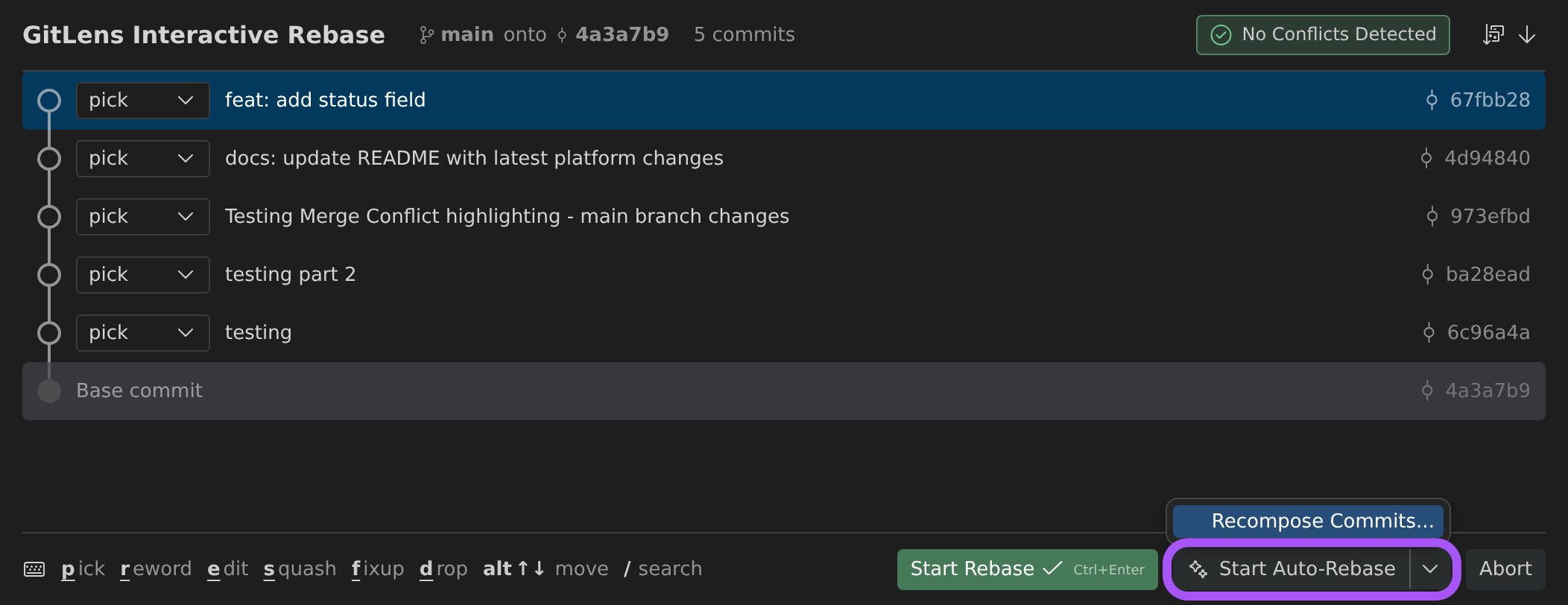
Adds a user-friendly interactive rebase editor to easily configure an interactive rebase session:
- Quickly re-order, edit, squash, and drop commits.
- Includes drag & drop support.
- Toolbar commands for Abort, Continue, Reopen as Interactive Editor, and Reopen as Text Editor.
Start or Continue with Auto-Rebase PRO
When AI features are allowed, the editor footer shows a Start Auto-Rebase split button next to Start Rebase. Start Auto-Rebase runs the rebase with Auto-Rebase, which resolves conflicts it’s confident about and pauses at commits you marked edit or when its confidence is low. After a rebase has started, the footer shows Continue with Auto-Rebase beside Continue and Skip. The chevron menu of each split button holds Recompose Commits…, which aborts the rebase and opens the Commit Composer.
Conflict Detection
The rebase editor includes a conflict files panel that displays files with potential conflicts along with per-file conflict counts and status indicators. Predictive conflict detection warns about upcoming conflicts against the current base before you start the rebase, helping you prepare for issues in advance.
Rebase Editor Settings
The rebase editor offers several configuration options:
gitlens.rebaseEditor.openOnPausedRebase— Automatically open the rebase editor when a rebase is paused (e.g., due to conflicts).gitlens.rebaseEditor.openBehavior— Controls how the rebase editor opens:auto(default) orbeside(opens alongside the current editor).gitlens.rebaseEditor.revealLocation— Where to reveal commit details:graphorinspect.gitlens.rebaseEditor.revealBehavior— When to reveal details:never,onOpen, oronSelection.gitlens.rebaseEditor.density— Controls row padding in the editor:compact(default) orcomfortablefor more spacing.
Conflict Resolution Actions
When a rebase is paused due to conflicts, the rebase editor provides inline actions to stage current changes or stage incoming changes directly, streamlining the conflict resolution workflow.
To use this directly from your terminal (e.g., when running git rebase -i):
-
Set VS Code as your default Git editor:
git config --global core.editor "code --wait" -
Or, to only affect rebase sessions:
git config --global sequence.editor "code --wait"
To use the Insiders edition of VS Code, replace
codewithcode-insidersin the commands above.
Commit Signature Verification PRO
GitLens verifies commit signatures using GPG, SSH, and X.509 certificates, displaying verification badges directly in the Commit Details view, Graph Details panel, and inline blame hovers.
Verification Badges
Each signed commit shows a badge indicating its verification status:
- Verified — The signature is valid and the signer is trusted
- Unverified — The signature could not be verified (missing key, untrusted signer, etc.)
- Unsigned — The commit has no signature
The ${signature} token is available in commit tooltip format strings to display signature status in custom tooltip layouts.
Allowed Signers Management
The Allowed Signers webview (gitlens.allowedSigners) provides a dedicated panel for managing SSH trusted signers. It scans recent commits for SSH signatures, discovers candidate signers with their avatars, and lets you select which keys to trust. Trusted entries are saved to your SSH allowed_signers file.
Access it from the Command Palette: GitLens: Manage Allowed Signers
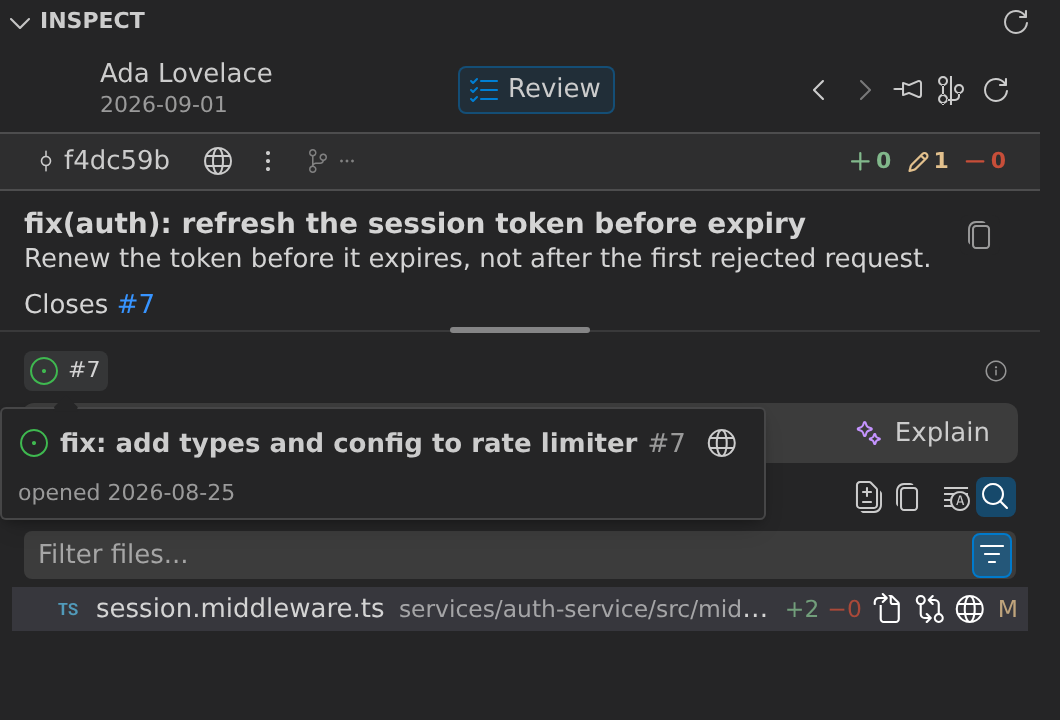
Autolinks
Use autolinks to convert external references—such as Jira issues or Zendesk tickets—into clickable links directly from commit messages.
Terminal Links
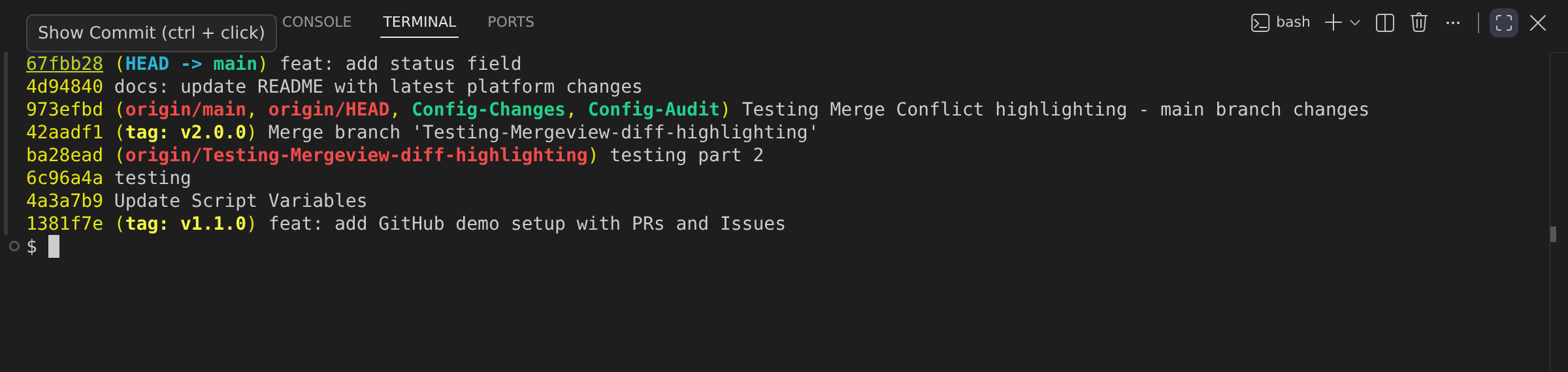
Terminal links optionally provide clickable references in the integrated terminal:
- Branches, tags, and commit ranges: Quickly explore their commit history.
- Individual commits: Review commit details and take further action.
Remote Provider Integrations
GitLens provides rich integrations with many remote providers, including GitHub, GitHub Enterprise, GitLab, Gitea, Gerrit, Bitbucket, Bitbucket Server, and Azure DevOps. You can also define custom remote providers or remote providers with custom domains.
Basic integrations offer issue and pull request autolinking. Richer integrations, like GitHub or GitLab, include:
- Launchpad support
- Rich hover information for autolinks
- Pull request association with branches and commits
- Avatars for authors and commenters
These integrations also support various commands to open or copy URLs for files, commits, branches, and repositories:
- Open File from Remote (
gitlens.openFileFromRemote) — Open a local file from a URL on a remote provider - Open Revision from Remote (
gitlens.openRevisionFromRemote) — Open the specific file revision referenced by a remote URL, rather than the working copy - Open File on Remote (
gitlens.openFileOnRemote) — Open a file or revision on the remote provider - Copy Remote File URL (
gitlens.copyRemoteFileUrlToClipboard) — Copy the URL of a file or revision - Open File on Remote From… (
gitlens.openFileOnRemoteFrom) — Open a file or revision from a specific branch or tag - Copy Remote File URL From… (
gitlens.copyRemoteFileUrlFrom) — Copy the URL from a specific branch or tag - Open Commit on Remote (
gitlens.openCommitOnRemote) — Open a commit - Copy Remote Commit URL (
gitlens.copyRemoteCommitUrl) — Copy the commit URL - Open Branch on Remote (
gitlens.openBranchOnRemote) — Open a branch - Copy Remote Branch URL (
gitlens.copyRemoteBranchUrl) — Copy the branch URL - Open Branches on Remote (
gitlens.openBranchesOnRemote) — Open the branches view - Copy Remote Branches URL (
gitlens.copyRemoteBranchesUrl) — Copy the branches view URL - Open Comparison on Remote (
gitlens.openComparisonOnRemote) — Open a comparison view - Copy Remote Comparison URL (
gitlens.copyRemoteComparisonUrl) — Copy the comparison view URL - Open Pull Request on Remote (
gitlens.openPullRequestOnRemote) — Open a pull request - Copy Pull Request URL (
gitlens.copyRemotePullRequestUrl) — Copy the pull request URL - Open Repository on Remote (
gitlens.openRepoOnRemote) — Open the repository - Copy Remote Repository URL (
gitlens.copyRemoteRepositoryUrl) — Copy the repository URL
Connecting the GitHub and GitLab Integration
The GitHub and GitLab integrations connect through your GitKraken account at gitkraken.dev.
To connect an integration:
- Open the Command Palette (
Cmd/Ctrl+Shift+P). - Run
GitLens: Manage Integrations. - Alternatively, select the account button (your avatar and plan) in the Commit Graph header, then select the Integrations row (or Set up integrations if none are connected) to open the integrations settings in GitLens Settings.
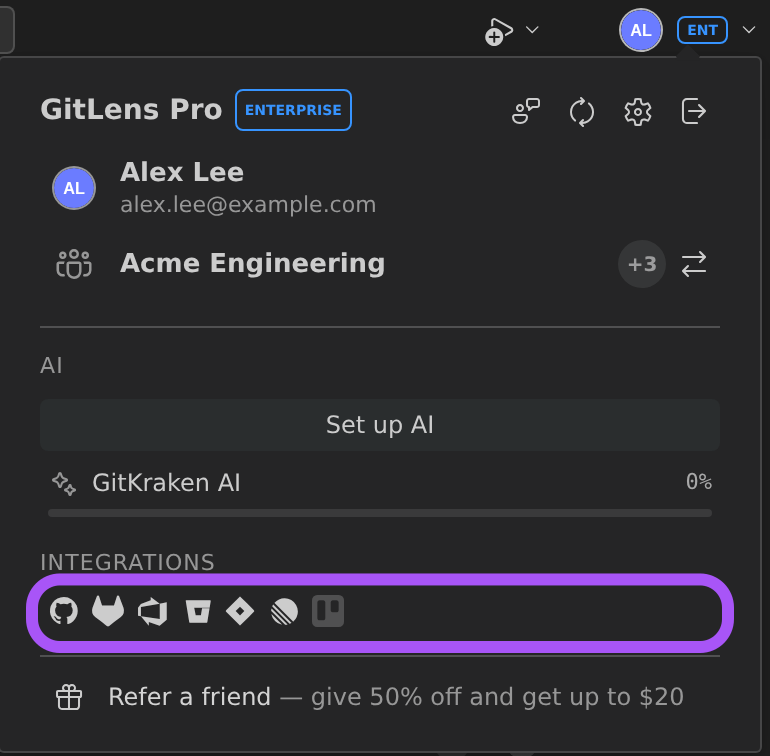
If you’re not already signed in, you’ll be prompted to log in to your GitKraken account. Then, select Connect with GitHub or Connect with GitLab, and follow the sign-in steps. You can connect multiple integrations if needed.
Finish the process by selecting Complete Setup to return to VS Code and begin using the integrations.
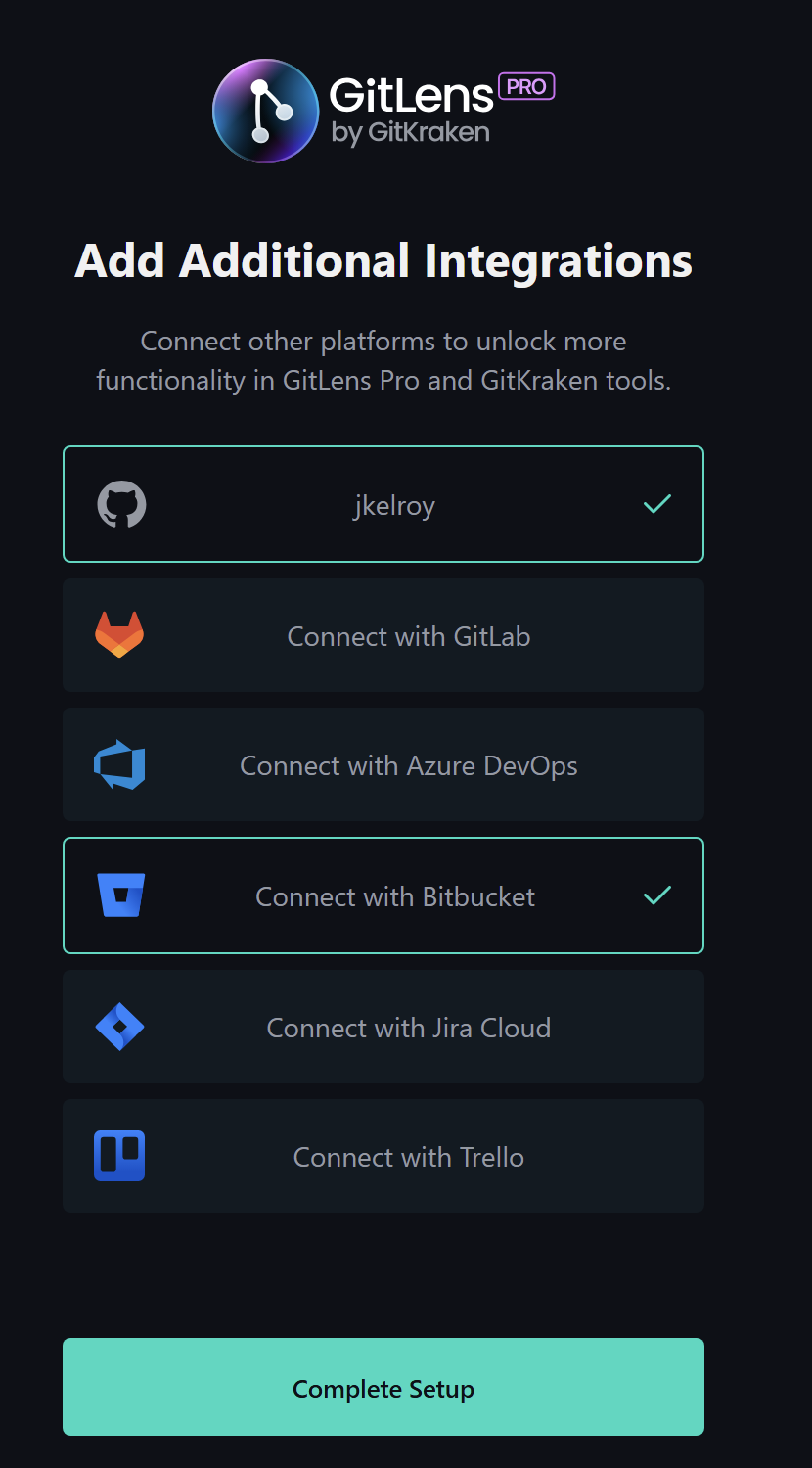
Community users are limited to basic functionality only.
GitHub Enterprise Server and GitLab Self-Managed Integration PRO
GitLens Pro offers a richer integration with GitHub Enterprise Server and GitLab Self-Managed.
Once authenticated, GitLens enhances autolinks in hovers with additional context. You’ll see your GitHub Enterprise Server or GitLab Self-Managed avatar, links to related pull requests, and a summary of pull request or issue details. Sidebar views for commits or branches also show this contextual information.
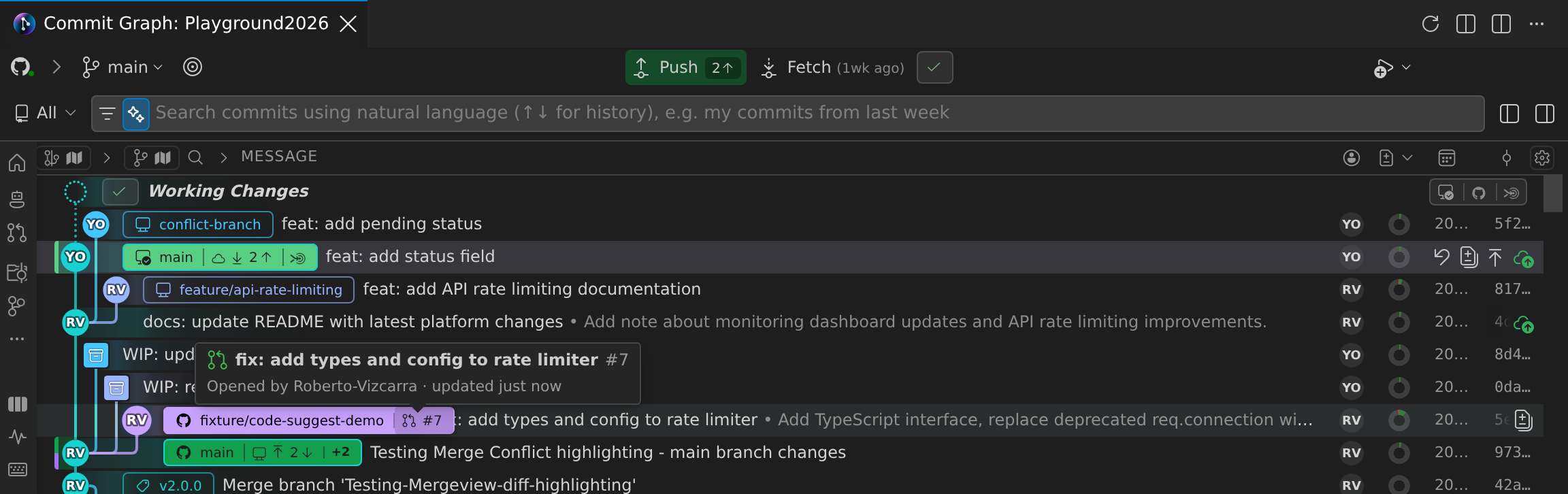
Connecting GitHub Enterprise Server or GitLab Self-Managed
To connect either integration:
-
Open
settings.json:- Use the Command Palette (
Cmd/Ctrl+Shift+P) > Preferences: Open User Settings (JSON)
- Use the Command Palette (
-
Add a
gitlens.remotesentry specifying the domain and type:
"gitlens.remotes": [{ "domain": "git.corporate-url.com", "type": "GitHub" }]Or
"gitlens.remotes": [{ "domain": "git.corporate-url.com", "type": "GitLab" }]- Open a repository from GitHub Enterprise Server or GitLab Self-Managed in VS Code.
- Go to the Remotes View.
- Select Connect to Remote.
- If this option is missing, verify the format in your
settings.jsonmatches the example above.
- If this option is missing, verify the format in your
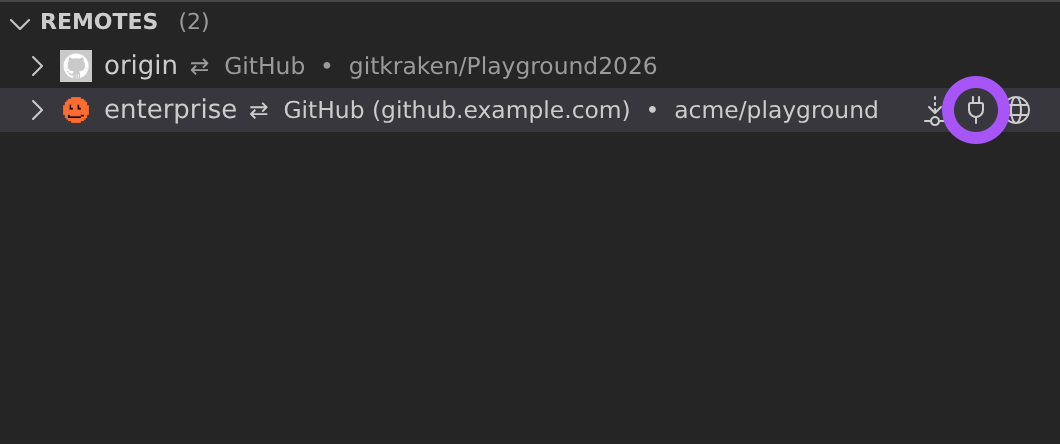
- Provide a Personal Access Token (PAT) with the required scopes when prompted, and press Enter to complete the connection.
Jira Integration PRO
The Jira Integration, connected through your GitKraken Account, enables Jira Autolinks wherever autolinks are supported in GitLens. Once connected, GitLens automatically converts Jira issue keys (e.g., ABC-123) in commit messages into clickable links.
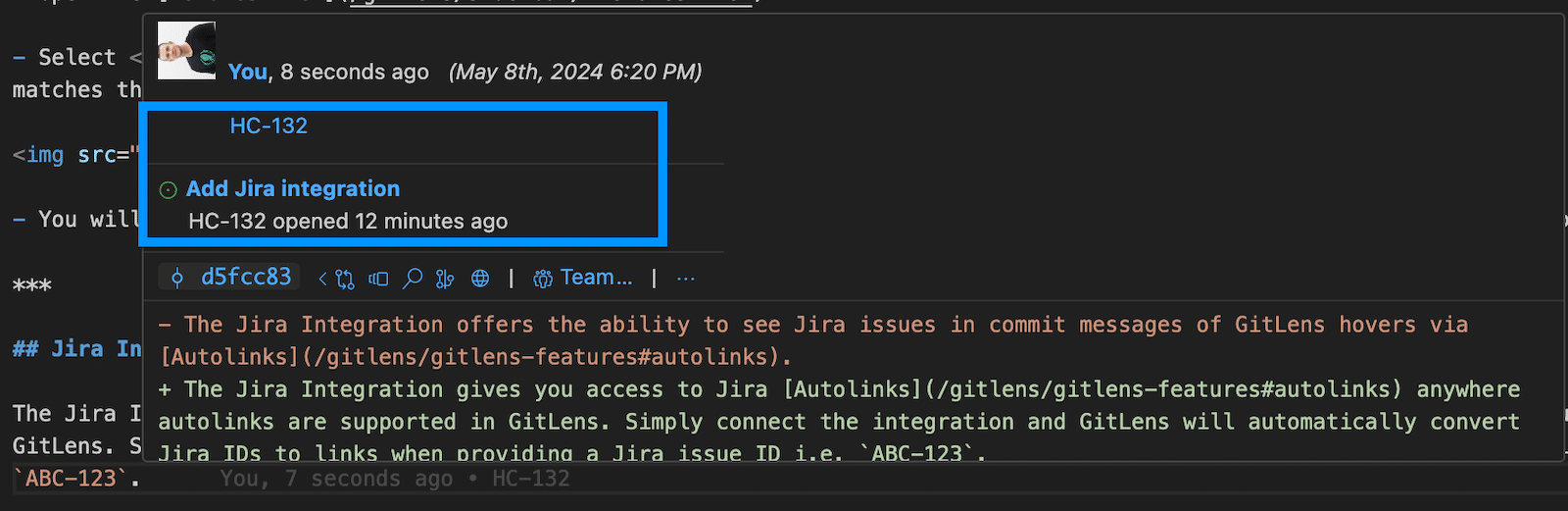
This feature is only available for Pro subscription tiers or higher.
To connect the integration:
- Open the GitLens Settings editor (run GitLens: Open Settings from the Command Palette).
- Select Cloud Integrations under Integrations in the navigation rail. Each provider has a card: a provider you have not connected shows Connect, and a connected one shows Connected and Manage.
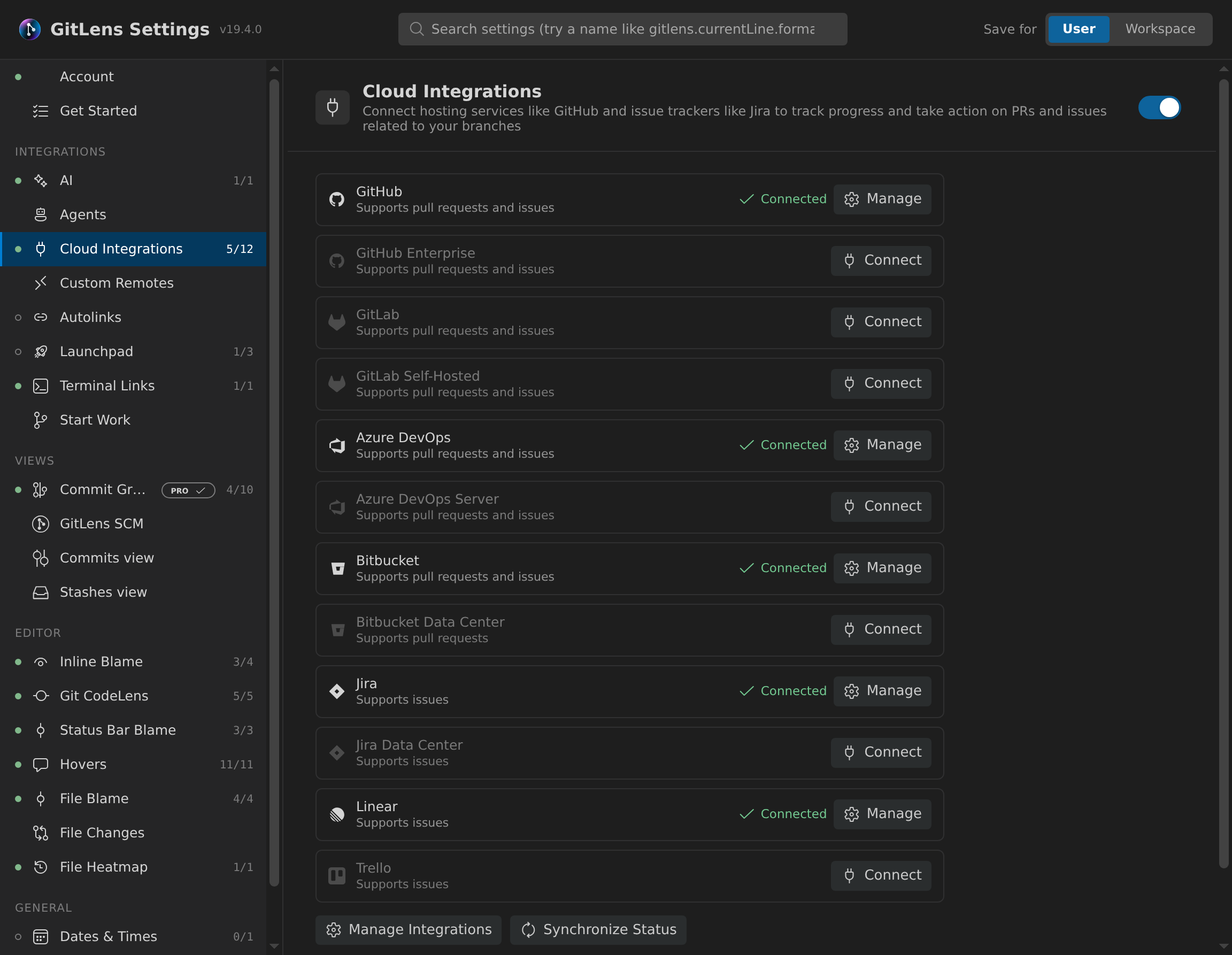
- Select Connect on the Jira card, and authorize access to your Atlassian Account.
- Alternatively, visit your Integration Settings in a browser.
You can also connect Trello (a Pro integration) from the same Cloud Integrations list. Once Trello is connected, branches associated with Trello cards show a Trello badge on their Commit Graph pills. GitLens doesn’t create autolinks for Trello cards.
To connect a self-hosted Jira (Jira Data Center or Jira Server), select Connect on the Jira Data Center card in the same list. Like the other self-hosted integrations, it is a Pro integration connected through your GitKraken Account, and each Jira host is its own connection; instances served under a context path, such as https://jira.example.com/jira, are supported. For now, a connected Jira Data Center instance is used only to show the issues associated with a branch: it doesn’t create autolinks, and Start Work and the Commit Graph’s issue tracker picker don’t list it yet.
Powerful Commands
GitLens provides powerful commands to improve your workflow:
- Add Co-authors (
gitlens.addAuthors) — Add a co-author to the commit message input box. - Copy SHA (
gitlens.copyShaToClipboard) — Copy the commit SHA of the current line or the latest commit. - Copy Message (
gitlens.copyMessageToClipboard) — Copy the commit message from the current line or latest commit. - Copy Current Branch (
gitlens.copyCurrentBranch) — Copy the current branch name to the clipboard. - Switch to Another Branch (
gitlens.views.switchToAnotherBranch) — Quickly switch branches. - Compare References… (
gitlens.compareWith) — Compare two references. - Compare HEAD with… (
gitlens.compareHeadWith) — Compare HEAD with a selected reference. - Compare Working Tree with… (
gitlens.compareWorkingWith) — Compare the working tree with a selected reference. - Open Changes (difftool) (
gitlens.externalDiff) — Open file changes with the configured Git difftool. - Open All Changes (difftool) (
gitlens.externalDiffAll) — Open all working changes with the configured difftool. - Open Directory Compare (difftool) (
gitlens.diffDirectoryWithHead) — Compare working tree with HEAD using a difftool. - Open Directory Compare (difftool) with… (
gitlens.diffDirectory) — Compare with a selected reference. - Open File (
gitlens.openWorkingFile) — Open the working version of the current file. - Open Revision… (
gitlens.openFileRevision) — Open a selected file revision. - Open Revision from… (
gitlens.openFileRevisionFrom) — Open a revision from a specific reference. - Open Blame Prior to Change (
gitlens.openBlamePriorToChange) — Show blame for the prior revision of a line. - Open Changed Files (
gitlens.openChangedFiles) — Open all changed files in the working tree. - Close Unchanged Files (
gitlens.closeUnchangedFiles) — Close all files without changes. - Enable Debug Logging (
gitlens.enableDebugLogging) — Enable debug logging in the GitLens output. - Disable Debug Logging (
gitlens.disableDebugLogging) — Disable debug logging. - Copy as Patch (
gitlens.copyPatchToClipboard) — Copy patch data from views, changes, or stashes. - Apply Copied Patch (
gitlens.applyPatchFromClipboard) — Apply a patch from clipboard contents. - Change Branch Merge Target (
gitlens.changeBranchMergeTarget) — A multi-step wizard to set or reset a branch’s merge target. Pick a local branch, then select a remote branch as its merge target, or reset an existing target. - Copy Changes to Worktree (
gitlens.worktree.copyChanges) — Copy working changes from one worktree to another. - Unlock Worktree (
gitlens.worktree.unlock) — Unlock a locked worktree from the tree view context menu.
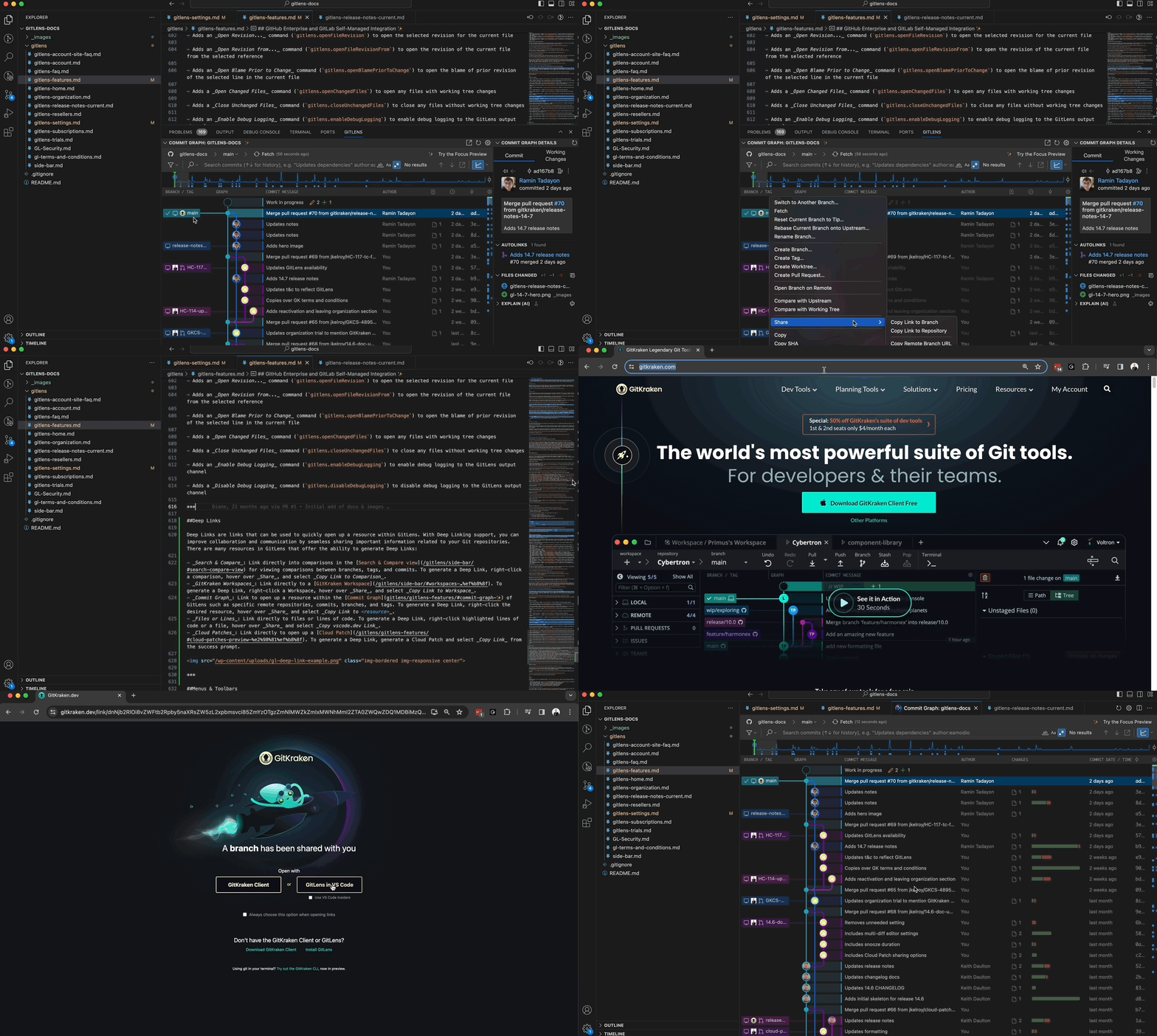
Deep Links
Deep Links are URLs that open specific GitLens resources, improving collaboration by sharing direct links to repositories, files, comparisons, and more. Resources that support Deep Linking include:
- Search & Compare — Link to comparisons in the Search & Compare view. Right-click a comparison, hover over Share, and select Copy Link to Comparison.
- GitKraken Workspaces — Link to a GitKraken Workspace. Right-click a Workspace, hover over Share, and select Copy Link to Workspace.
- Commit Graph — Link to remote repositories, commits, branches, and tags in the Commit Graph. Right-click the resource, hover over Share, and select Copy Link to .
- Files or Lines — Link to specific files or lines of code. Right-click highlighted lines or a file, hover over Share, and select Copy vscode.dev Link.
- Cloud Patches — Link to a Cloud Patch. After generating a Cloud Patch, click Copy Link from the success prompt.
Git Submodule Support
GitLens provides basic support for Git submodules. Submodule repositories are automatically discovered and tracked when you open a project that contains them. In the sidebar views, submodule repositories are distinguished with dedicated icons and tooltips. Submodule changes are handled in diffs so you can see when a submodule reference has been updated.
Commit File Details in Large Histories
In repositories where loading commit file details has been slow, the Commits view and other history views load a commit’s or stash’s file details only when they’re shown. This makes large histories open faster, at the cost of one extra Git call each time you view a commit’s files. GitLens applies this automatically only in repositories where it has recorded slow file-detail loading, and only while gitlens.gitOptimizations.enabled is on.
To choose the behavior yourself, set gitlens.advanced.commits.delayLoadingFileDetails: true always delays loading file details, false never delays, and null (the default) lets GitLens decide per repository.
Display Language
GitLens follows the VS Code display language. Experimental Spanish, Simplified Chinese, and Traditional Chinese translations are available, and any text that isn’t translated yet appears in English. GitLens has no separate language setting.
To switch languages, install Microsoft’s language pack for that language, run Configure Display Language from the Command Palette, choose the language, and restart VS Code. The gitlens.defaultDateLocale setting still controls only how dates are formatted.
Welcome View
The Welcome sidebar view is the place to get started with GitLens. Its guided walkthrough covers getting started with GitLens, the Commit Graph, AI features, Git Blame, Launchpad and worktrees, Kepler for agent workflows, and the GitKraken MCP server. The getting-started content adapts based on your subscription level. Select Get Started with the Commit Graph → for a second walkthrough of the graph’s agent monitoring, parallel work, Review, Compose, and Compare features.
Open it from the GitLens sidebar. VS Code’s Get Started walkthrough for GitLens and the Launchpad’s learn-more links also open the Welcome view.
AI Agent Integration PRO
GitLens integrates with AI coding agents to monitor their activity and coordinate their work alongside your own development workflow.
Supported Agents
GitLens tracks sessions of the following agents through GitKraken Hooks:
- Claude Code
- Codex
- GitHub Copilot CLI
- OpenCode
What GitLens can do differs by agent. For Claude Code, GitLens can answer permission requests and read session transcripts. For Codex, GitHub Copilot CLI, and OpenCode, you answer permission requests in the agent itself. You can resume past sessions of every supported agent.
Agent Hooks
GitLens installs GitKraken Hooks for your AI agents so their activity is tracked within your repository. Use the following commands:
- Install GitKraken Hooks for All AI Agents (
gitlens.agents.installHooks) — Install hooks for all detected agents - Install GitKraken Hooks for Agent (
gitlens.agents.installHooksForAgent) — Install hooks for a specific agent - Uninstall GitKraken Hooks for All AI Agents (
gitlens.agents.uninstallHooks) — Remove hooks for all agents - Uninstall GitKraken Hooks for Agent (
gitlens.agents.uninstallHooksForAgent) — Remove hooks for a specific agent
Codex doesn’t run newly installed hooks until you trust them. After you install hooks for Codex, run /hooks in Codex to trust them, and trust them again whenever the hooks are reinstalled. GitLens shows this reminder in the install notification, with a Start Codex Session button, and in the Agents table of GitLens Settings.
Agent Sessions
When hooks are active, GitLens tracks agent sessions and displays status indicators:
- Agent session cards appear on the branch cards in the Commit Graph side bar, in the Agents section of the Working Changes details panel, and in the Agent Kanban
- Status pills on branches in the Commit Graph indicate which branches have active agent sessions
- Past sessions are sessions that have ended. Select Show Past Sessions in the side bar’s Agent Sessions panel to list them. The Working Changes details panel lists a worktree’s past sessions with Show More to page through them. Select Archive Session to remove a past session from the lists.
To pick up a past session where it left off, select Resume in Terminal, which opens an integrated terminal in the session’s folder and runs the agent’s resume command. For a Claude Code session in one of your workspace folders, with the Claude Code extension installed, you can also select Resume in Claude Code Extension. The gitlens.agents.resumeTarget setting controls where a plain Resume opens when both are possible:
null(default) — Ask the first time, with an option to remember your choiceterminal— Always resume in a new integrated terminalextension— Resume in the agent’s VS Code extension when it can open the session, otherwise in a terminal
MCP Server Management
GitLens manages the GitKraken MCP server installation on a per-agent basis. The Connect Agents flow walks you through installing the CLI, registering MCP for your current IDE, and connecting additional agents.
- Connect Agents (
gitlens.mcp.connectAgents) — Interactive flow to install and configure MCP for your agents - Install MCP for All Agents (
gitlens.mcp.installForAllAgents) — Install the GitKraken MCP server for all detected agents - Install MCP for Agent (
gitlens.mcp.installForAgent) — Install for a specific agent - Uninstall MCP for Agent (
gitlens.mcp.uninstallForAgent) — Remove MCP from a specific agent
In VS Code 1.101 and later, GitLens also installs and enables the GitKraken MCP server for VS Code automatically. To turn this off, disable the gitlens.gitkraken.mcp.autoEnabled setting. Turning it off, or turning off GitLens AI features (gitlens.ai.enabled), removes the GitKraken MCP server from VS Code’s Configure Tools list right away, without reloading the window; turning it back on adds the server again.
The agent settings panel provides a centralized view for managing agent configurations.
Menus & Toolbars
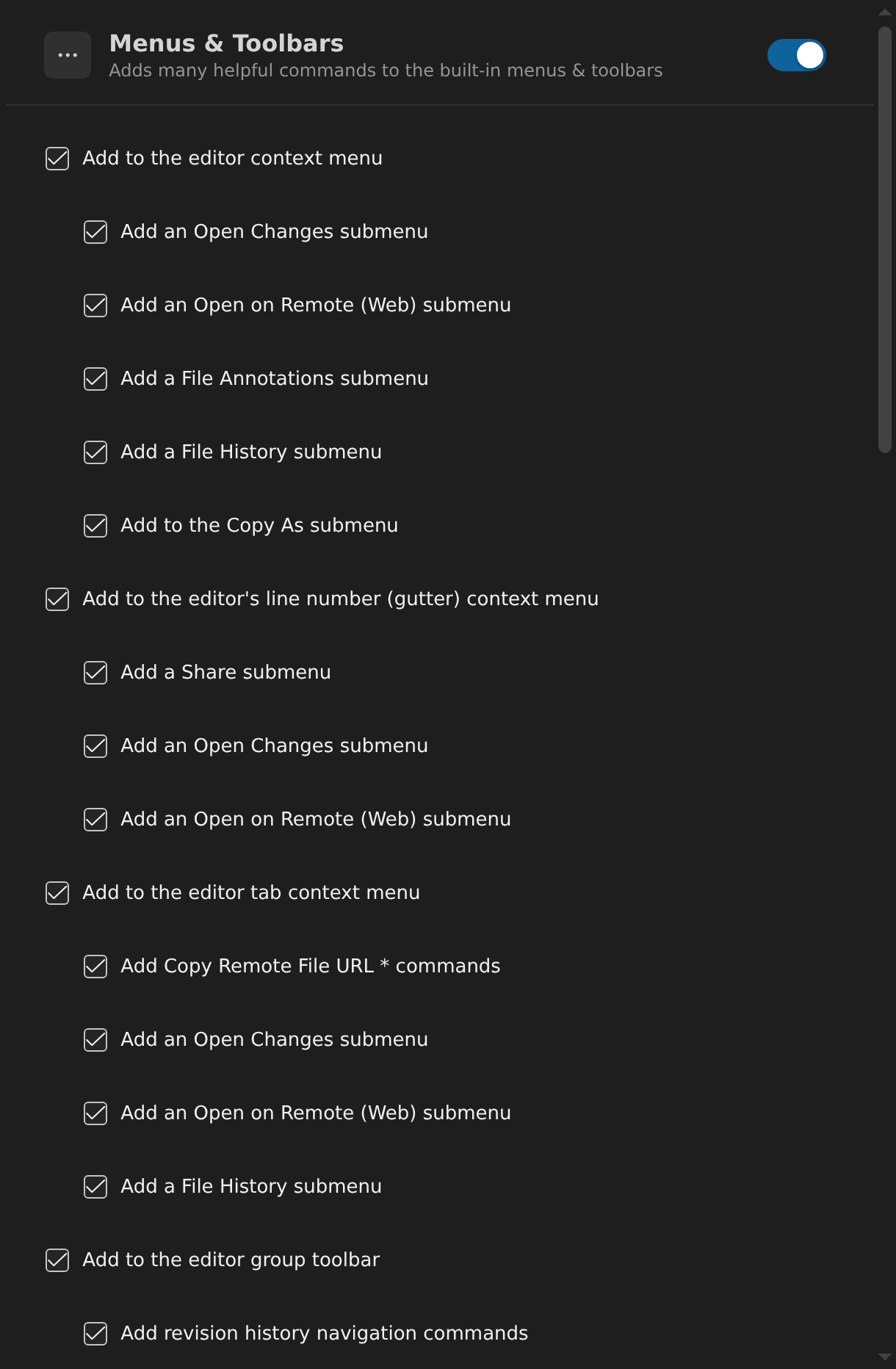
GitLens provides customizable menu and toolbar contributions to let you control where GitLens commands appear. You can easily manage these settings via the interactive settings editor.
For example, disabling Add to the editor group toolbar removes those items from the toolbar:

You can also expand each section to customize visibility and placement more granularly.
Modes
GitLens supports user-defined modes for quickly toggling between sets of settings.
- Shows the active mode in the status bar (optional, enabled by default)
- Toggle Review Mode (
gitlens.toggleReviewMode) — Quickly toggle Review mode.
- Toggle Review Mode (
- Switch Mode (
gitlens.switchMode) — Quickly switch between modes. - Zen Mode — Disables many visual elements for a focused experience.
- Toggle Zen Mode (
gitlens.toggleZenMode) — Toggle Zen mode.
- Toggle Zen Mode (
- Review Mode — Enables visual elements for code review.
Experimental Multi-diff Editor
VS Code 1.86 or later is required for these capabilities.
Commands using Multi-diff
- Open Folder Changes with Revision… and Open Folder Changes with Branch or Tag… via Command Palette, Explorer, and Source Control views.
- Inline Open All Changes in commits, stashes, and comparison views.
- Open All Changes and Open All Changes with Working Tree — Use the new multi-diff editor.
- Open All Changes, Individually and Open All Changes with Working Tree, Individually — Provide legacy behavior.
