
Last updated: November 2026
Start your work in GitLens from the Commit Graph. Besides your repository history, the Commit Graph shows your repository state, working changes, branches, worktrees, and supported coding agent activity together. From the Commit Graph, you can:
- See what is happening across your repository
- Coordinate parallel work
- Review and shape changes
- Move work toward merge
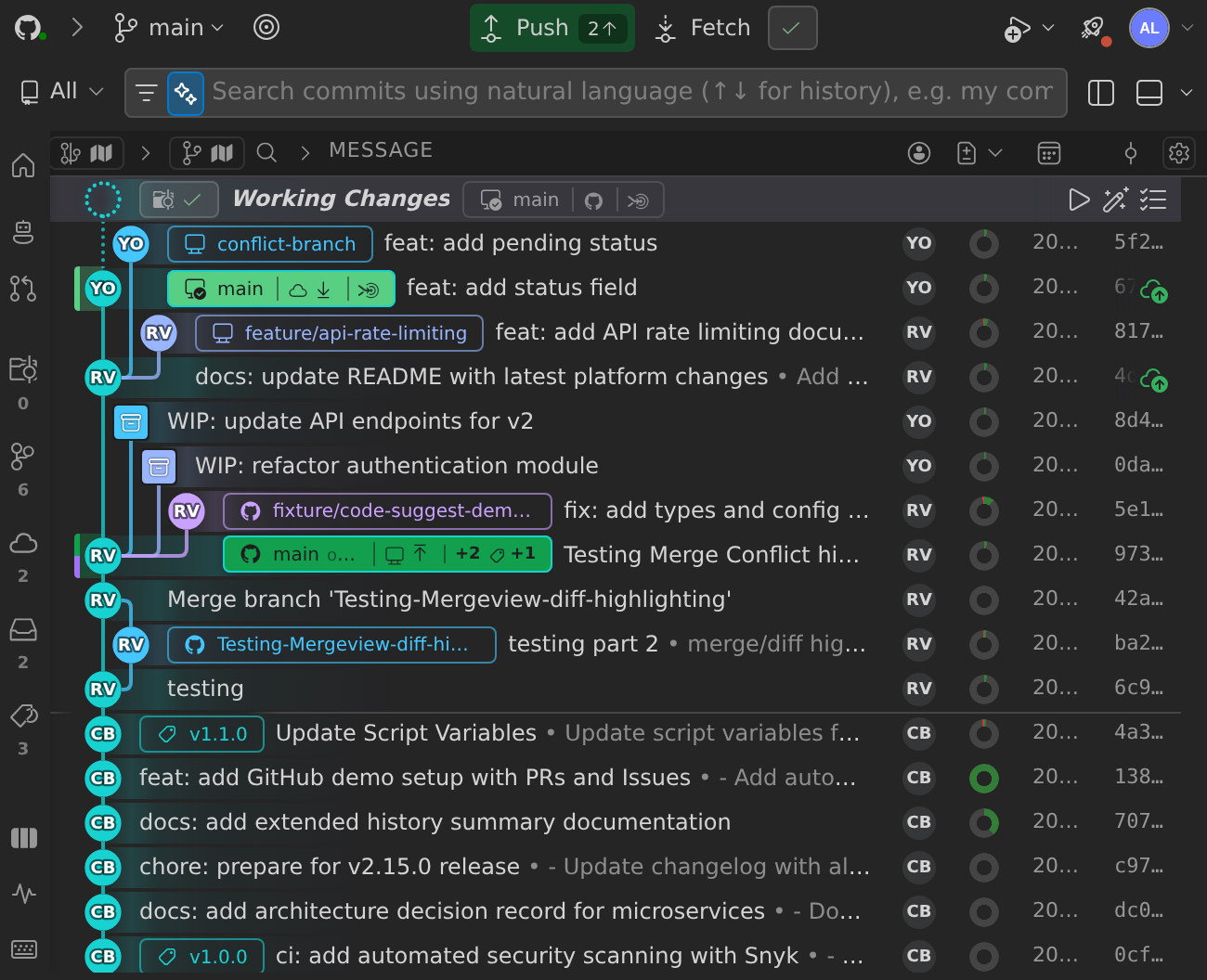
The Commit Graph replaces the former Home view and covers its workflows. Links that used to open the Home view now open the Commit Graph. Your GitKraken account and the setup status of AI, agents, and integrations appear in the account menu in the Commit Graph header. Agent sessions appear on the branch cards in the Graph sidebar, in the details panel for working changes, and on the Agent Kanban.
Welcome View
The Welcome view in the GitLens sidebar is the GitLens onboarding guide. To open it, run GitLens: Get Started, or select Start the GitLens Welcome Guide in the GitLens walkthrough on the VS Code Get Started page.
The Welcome view walks you through these steps:
- Getting started: Content that adapts to your subscription level, so you discover the features available on your plan.
- Commit Graph: Work with worktrees, agents, and your Git workflow from the Commit Graph.
- AI features: Compose commits, explain commits and branches, and create pull request titles and descriptions.
- Git Blame: Learn who changed a line, when, and why.
- Launchpad and Worktrees: Manage your pull requests, branches, and parallel work in one place.
- Kepler: Learn about Kepler, GitKraken’s agentic development environment (ADE). Select Install Kepler to install it from GitLens, or Learn More to read about it in your browser. Once Kepler is installed, or where GitLens is unable to install it, such as in a remote window, the step offers only Learn More.
- GitKraken MCP: Install GitKraken MCP or connect it to more agents.
Select Get Started with the Commit Graph to open a second walkthrough about the Commit Graph. It covers monitoring agent sessions, parallel work, reviewing changes, composing commits, and comparing refs.
Start in the Commit Graph
When you open GitLens, the Commit Graph shows your repository and the work happening across it, including:
- Your current branch, HEAD, upstream, and merge target
- Working changes across multiple worktrees
- Incoming and outgoing work
- Branches and commits across your repository
- Supported coding agent sessions and their status
- Work that may need review or attention
Use what the Commit Graph shows to decide what to do next. To narrow your focus, focus the Commit Graph on a single branch while the rest of the repository stays available.
Manage Parallel Human and Agent Work
When work spreads across multiple branches, worktrees, and coding agents, the Commit Graph keeps each line of work visible and connected to its Git context.
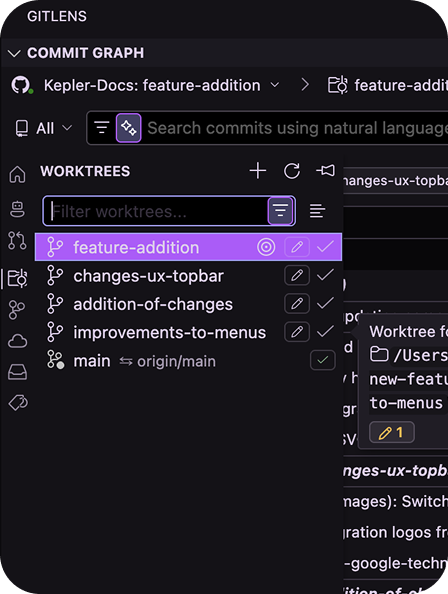
Multi-worktree Working Changes shows uncommitted work across your worktrees, not just the one you currently have open. Agent Sessions connects supported coding agent activity to the branches and worktrees where that work is happening.
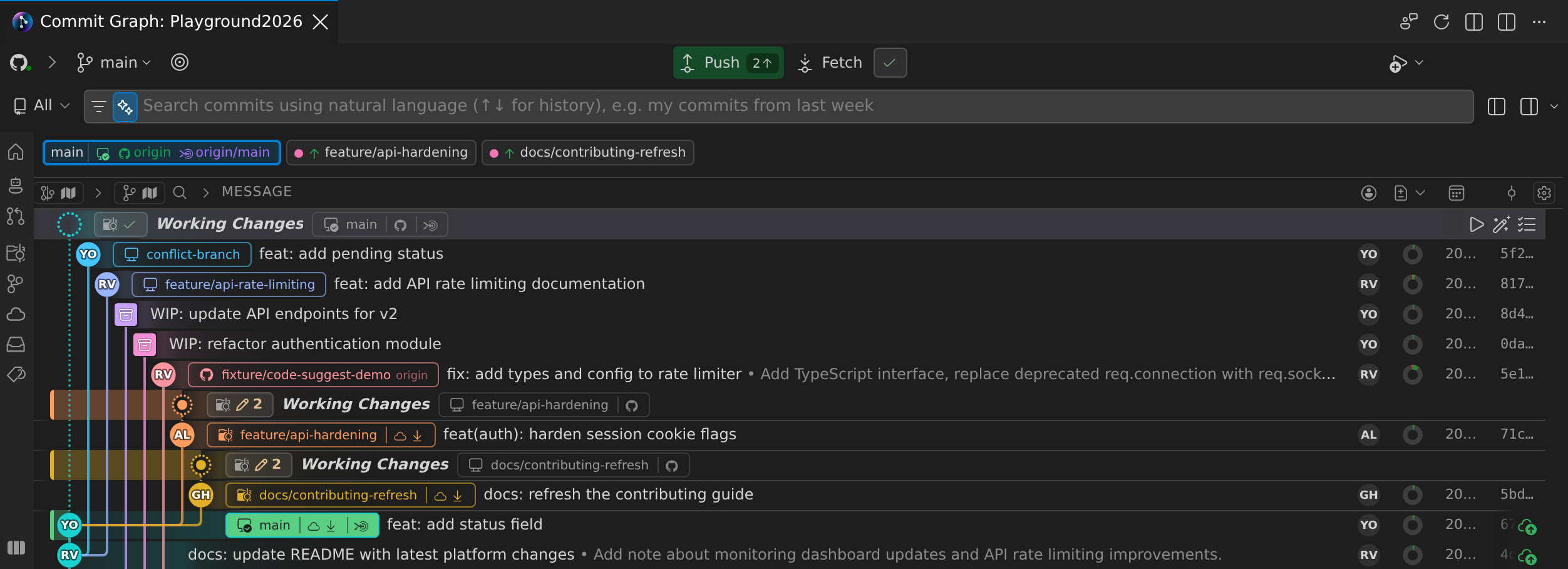
From the Commit Graph, you can:
- See work in progress across multiple worktrees
- Monitor supported coding agent sessions
- Identify sessions that need your attention
- Understand where agent work is happening
- Jump directly into working changes
- Resume work with the surrounding repository context intact
Agent Kanban
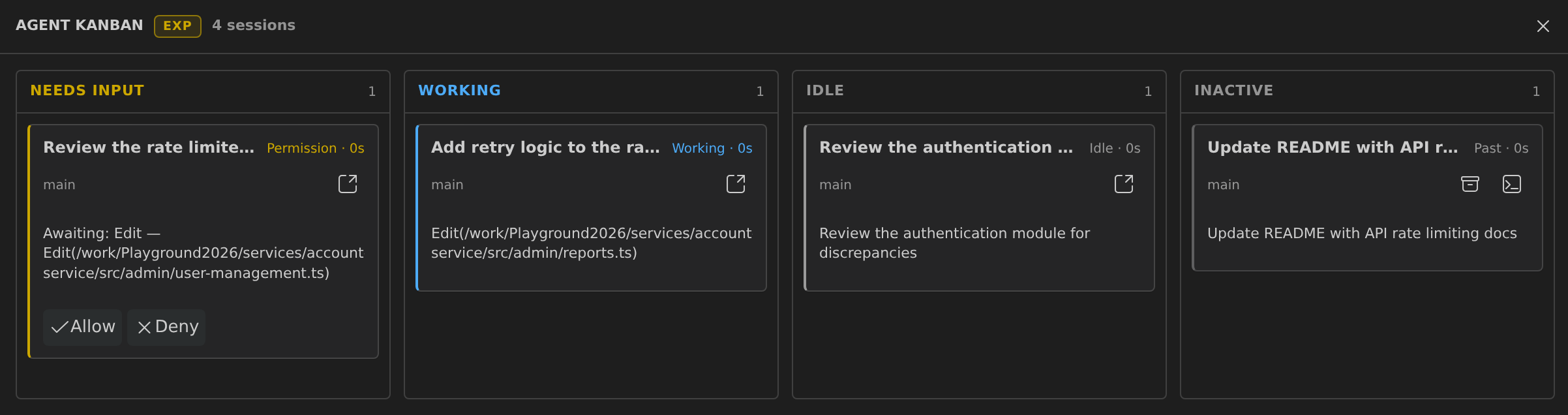
Agent Kanban shows your parallel agent work as a board. The board sorts agent sessions into columns by status, including Needs Input, Working, Idle, and Inactive, so you can see what is progressing and where your attention is needed.
From the board, you can inspect agent work and jump into the associated session and working changes.
Resume Past Sessions
The Inactive column collects sessions that have been idle for more than an hour and past sessions, which are sessions that have ended. You can resume past sessions for Claude Code, Codex, GitHub Copilot CLI, and OpenCode. A past session’s card offers one resume action for each place the session can open:
- Resume in Terminal: Opens a new integrated terminal in the session’s folder and resumes the session there.
- Resume in Claude Code Extension: Opens the session in the Claude Code extension. This action appears for Claude Code sessions when the extension is installed and the session’s folder is open in your workspace.
To remove a past session from the board, select Archive Session on its card. When a session can open in both places, the gitlens.agents.resumeTarget setting controls where resuming opens it. By default, GitLens asks the first time and lets you remember your choice.
Run Your Development Workflow from the Commit Graph
The Commit Graph also has the tools to move your work forward, from monitoring it to resolving its conflicts.
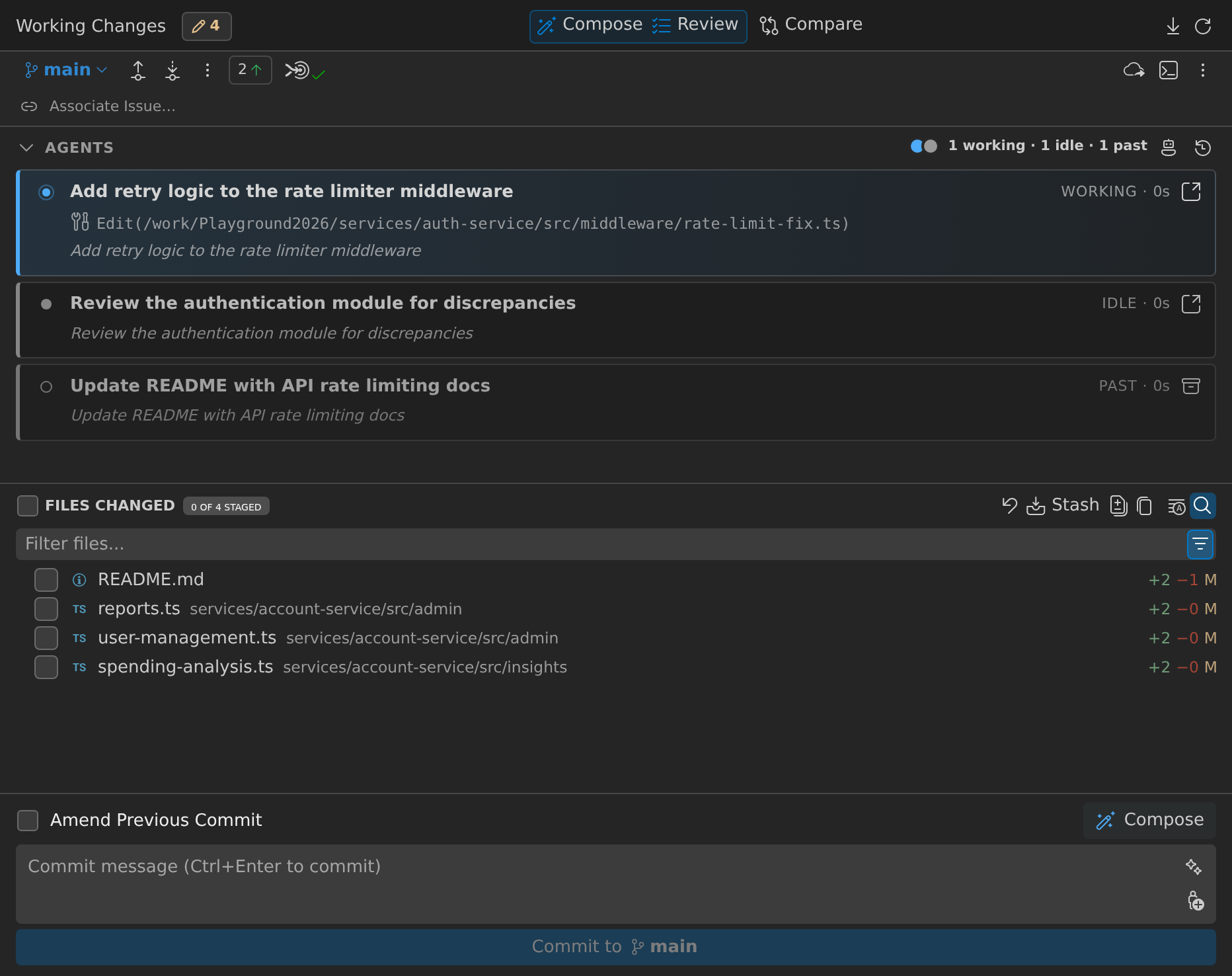
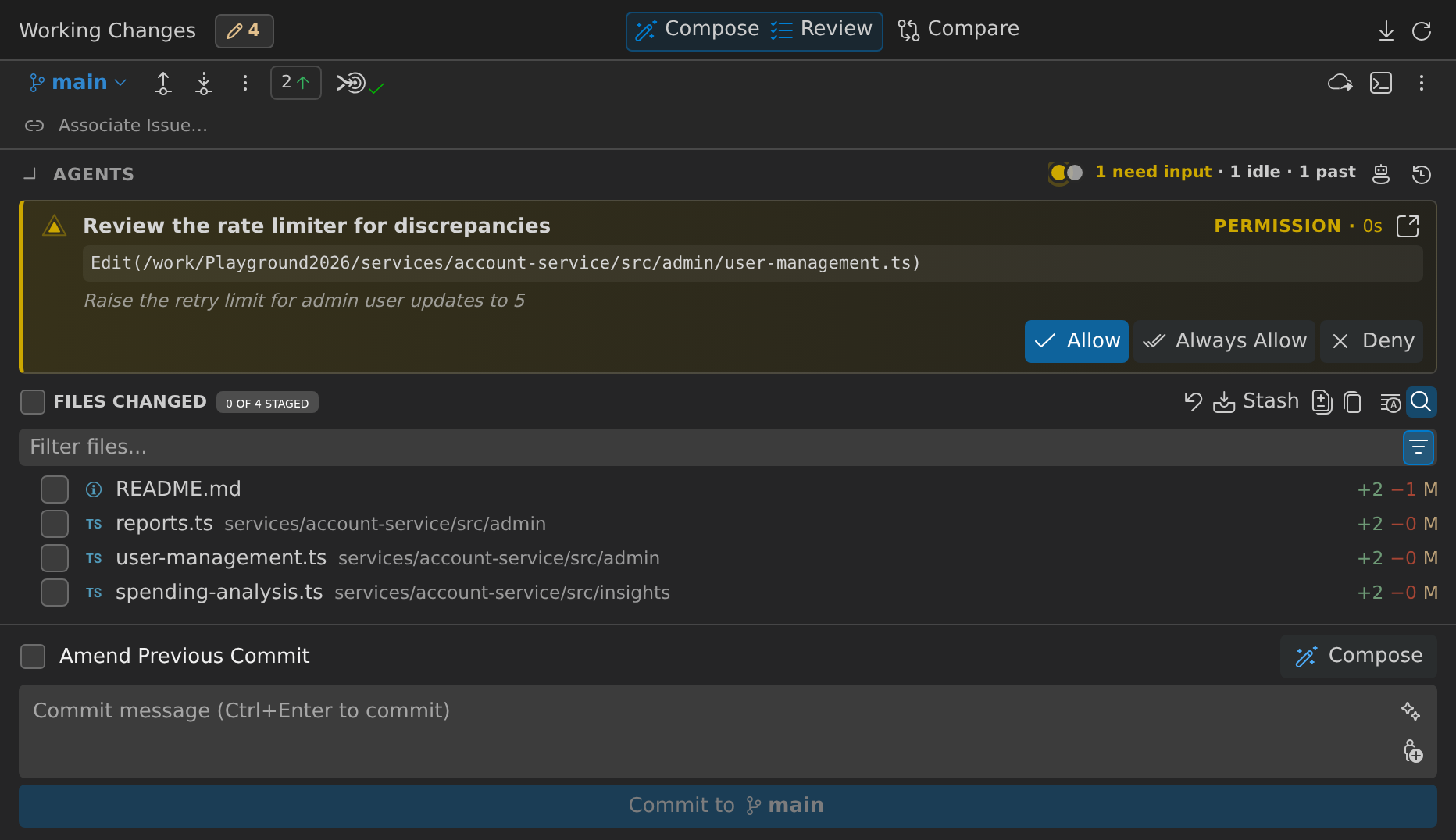
1. Monitor
See human and agent work happening across branches, worktrees, and sessions, and find what needs your attention.
2. Review
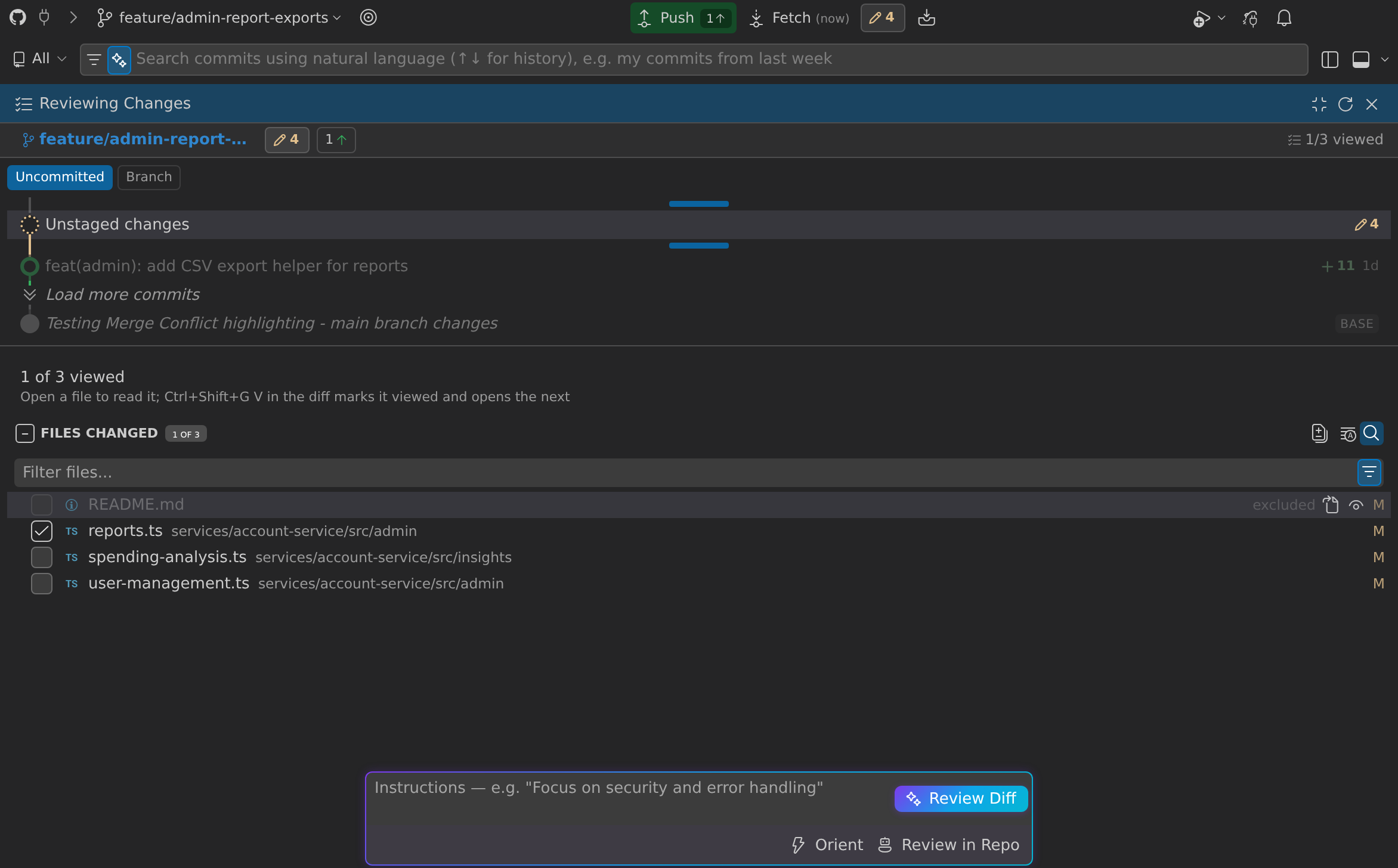
Review human or agent-generated changes file by file, checking off each one as you read. With GitKraken AI, select Review Diff to surface findings tagged by severity, comment on them, and send them back to your coding agent with Address Findings with Agent when another pass is needed. See Review Changes in the Commit Graph.
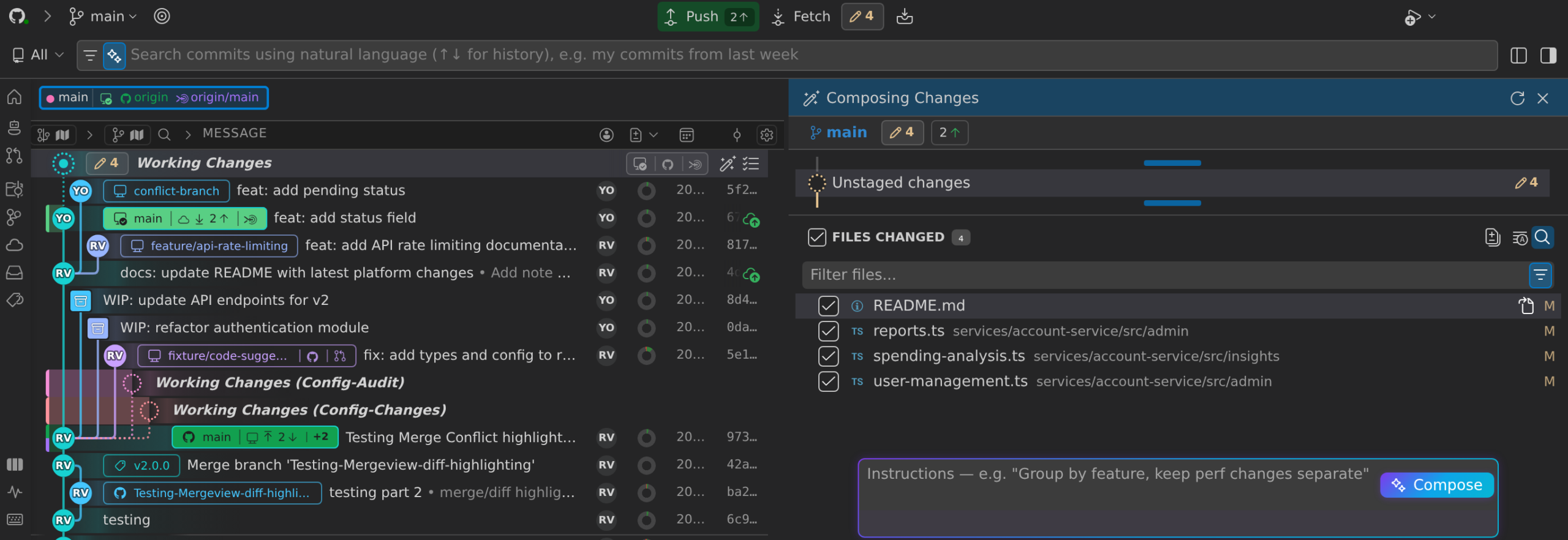
3. Compose
Turn working changes into clean, logical commits with Commit Composer. Organize related changes, refine commits with AI assistance, and preview the result before writing it to your history.
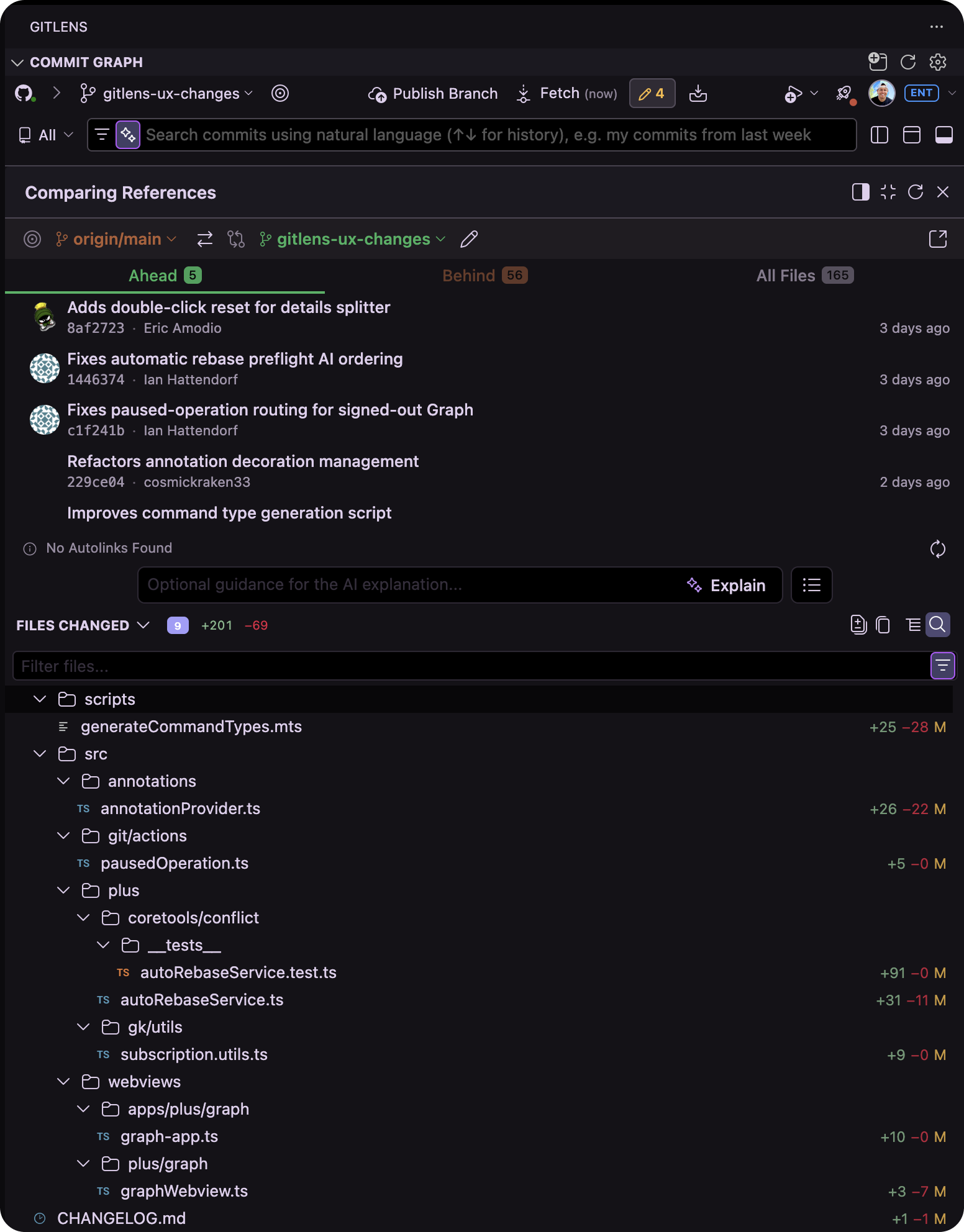
4. Compare
Compare branches, commits, revisions, and working changes to understand exactly what changed before you move work forward.
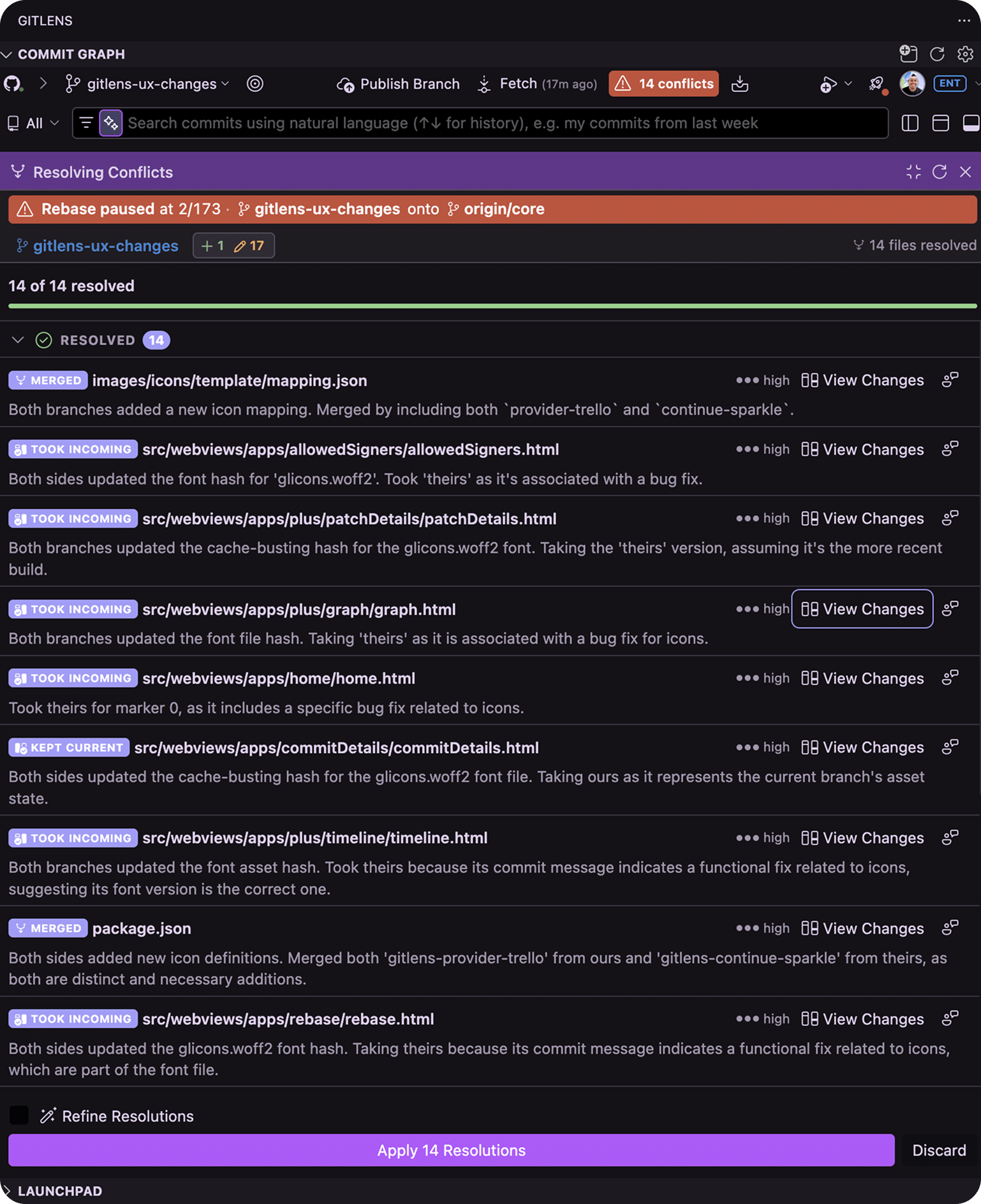
5. Rebase
Use Auto-Rebase to automate tedious rebasing while you stay in control of how your commit history is prepared.
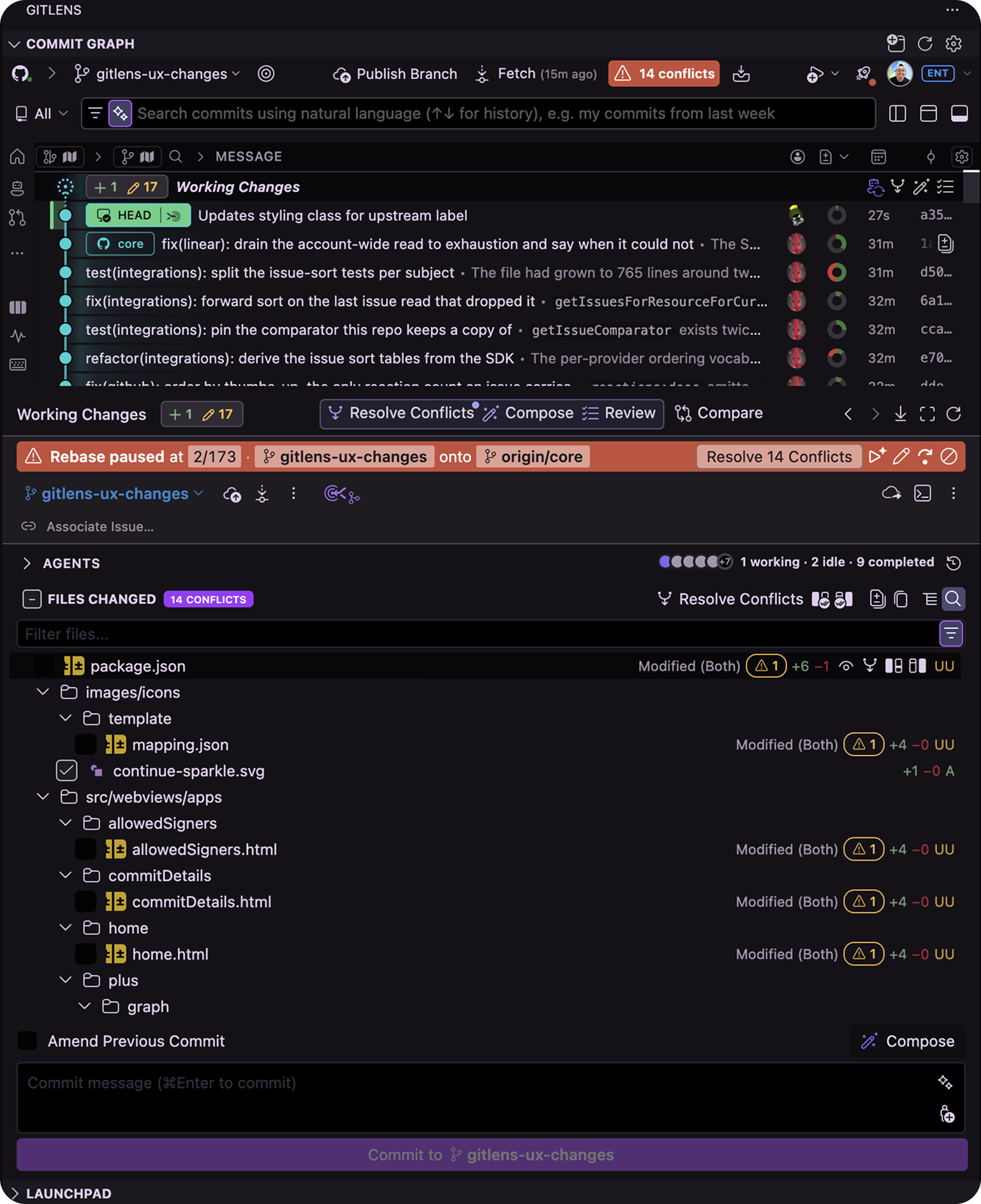
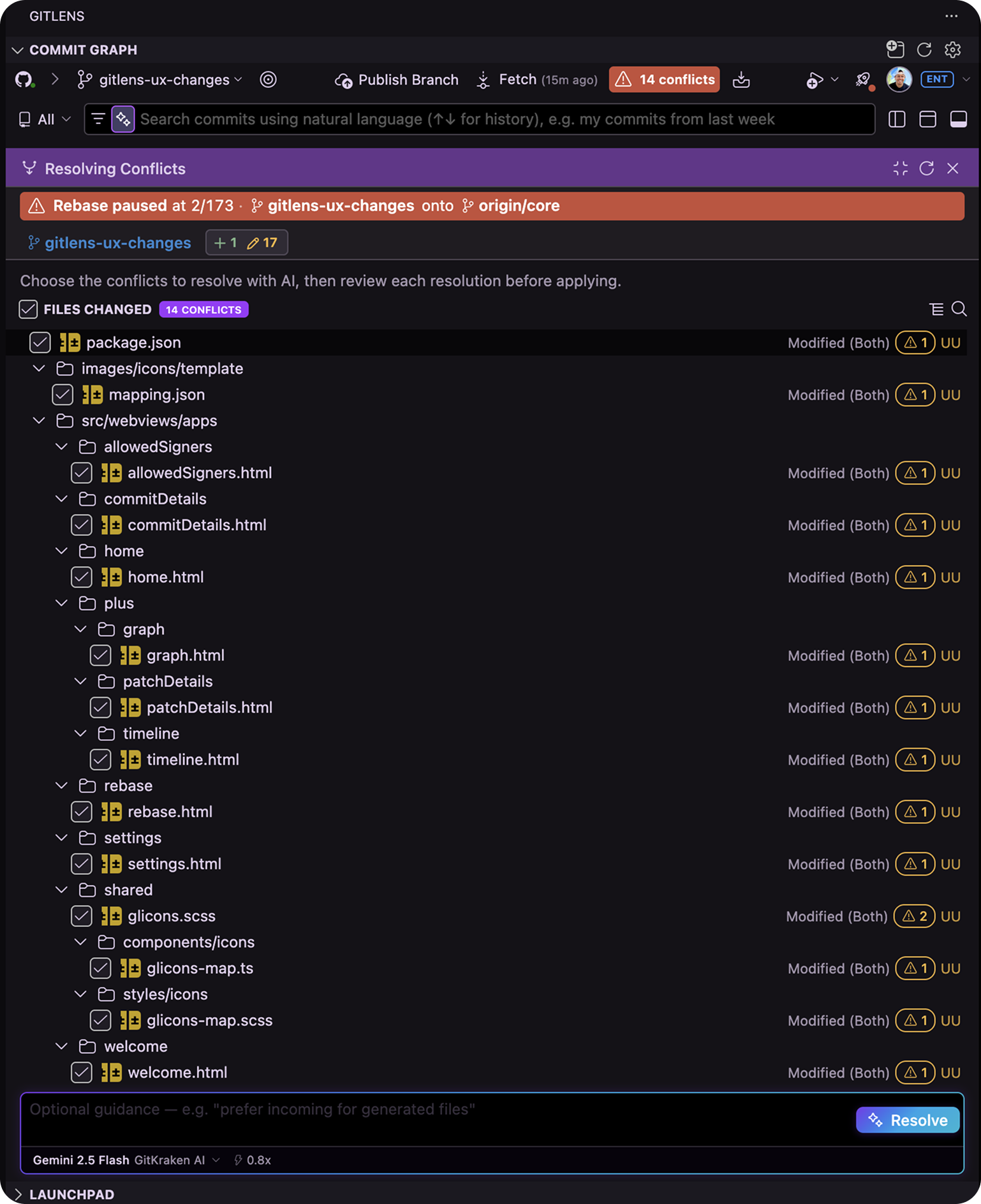
6. Resolve
When parallel work collides, use AI conflict resolution to understand and resolve conflicts with the surrounding repository context still in view.
Change Branch Merge Target
Use the Change Branch Merge Target command to set the merge target for any branch, or to reset a merge target you set before. The command walks you through picking a repository, selecting a local branch, and choosing a remote branch as its merge target.
To open the command, use either:
- From the Commit Graph: Use the merge target indicator in the branch header
- From the Command Palette: Run
GitLens: Change Branch Merge Target
When No Merge Target Is Set
If you have not set a merge target, GitLens chooses one for the branch:
- A merge target GitLens detected for the branch, or the base of the branch’s pull request
- Otherwise, for a branch created from another branch, that branch, until the branch is merged
- Otherwise, the default branch. The default branch itself is measured against its own upstream
GitLens skips any merge target, including one you set, that names a branch that no longer exists locally, such as a stacked pull request’s base after it merged and was deleted. It uses the next target available instead.
When the target is a local branch that is behind its remote, commits already on the remote are not counted against your branch.
Stay Oriented as Work Moves
The Commit Graph keeps important reference points visible as your repository changes. HEAD, the upstream, the merge target, the ahead and behind status, and incoming work indicators show where you are, what has changed remotely, and where your work is headed.
In larger or more active repositories, you can:
- Focus the Commit Graph on a single branch
- Pin important branches
- Search for commits, authors, files, messages, and specific code changes
Explore More GitLens Workflows
Continue exploring the workflows available from the Commit Graph:
- Agent Sessions to monitor supported coding agent activity
- Worktrees to manage parallel development
- Review to understand and validate changes
- Commit Composer to shape changes into logical commits
- Compare to understand differences across your work
- Auto-Rebase to automate and clean up rebases
- AI conflict resolution to resolve overlapping work
- Visual History to visualize how files, branches, or your entire repository evolved over time
- Launchpad to prioritize pull requests and move work toward merge
Or follow a complete workflow from start to finish:
