

Last updated: November 2026
Review Changes in the Commit Graph
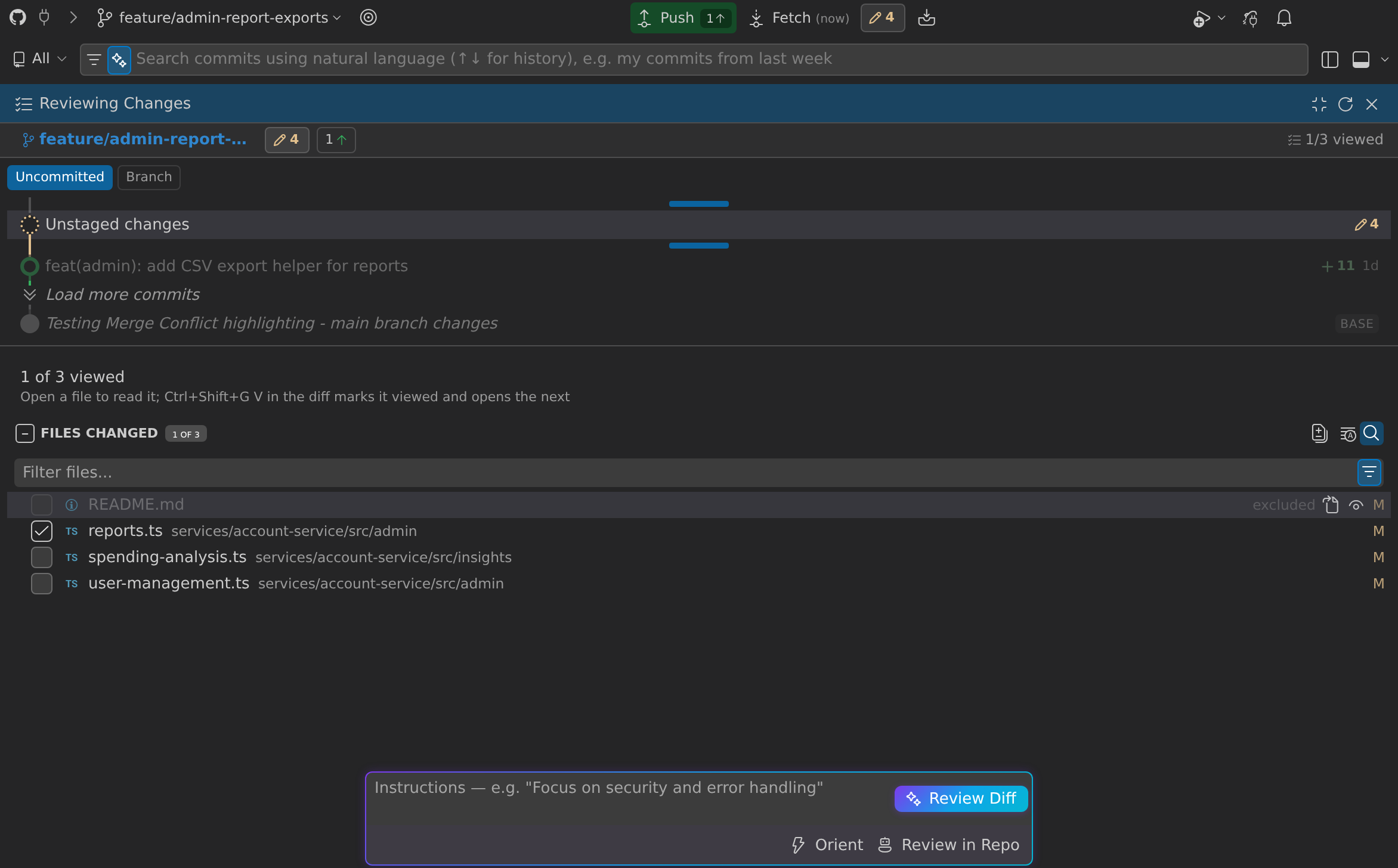
Review Changes turns a set of changes into a checklist you work through in the Commit Graph. You pick what to review, read each file’s diff, and mark it viewed. When you want a second reader, GitKraken AI can review the diff or plan a reading order, and your coding agent can review the changes in the repository.
Who can use what:
- Review Changes (the checklist, reading controls and comments) is part of the Commit Graph. It works without AI and is free on public and local repositories; private repositories need GitLens Pro. See Commit Graph availability.
- Review Diff and Orient are GitKraken AI features and need GitLens Pro (Pro, Advanced, or Business plans).
- Review in Repo and the Address … with Agent actions hand the work to your own coding agent rather than a GitKraken AI model.
- The instructions box with Review Diff, Orient, and Review in Repo shows only when GitLens AI features are on (
gitlens.ai.enabled).
To start a review:
- Open the Commit Graph.
- Start the review from what you want to review:
- Working changes: select Review Changes… (checklist icon) on a Working Changes row, or right-click the row and select Review Changes….
- A commit or a comparison: select it, then select Review in the details panel header.
- An open pull request: select Review Changes on the pull request sheet.
The details panel switches to Reviewing Changes and lists the changed files.
Choose what to review
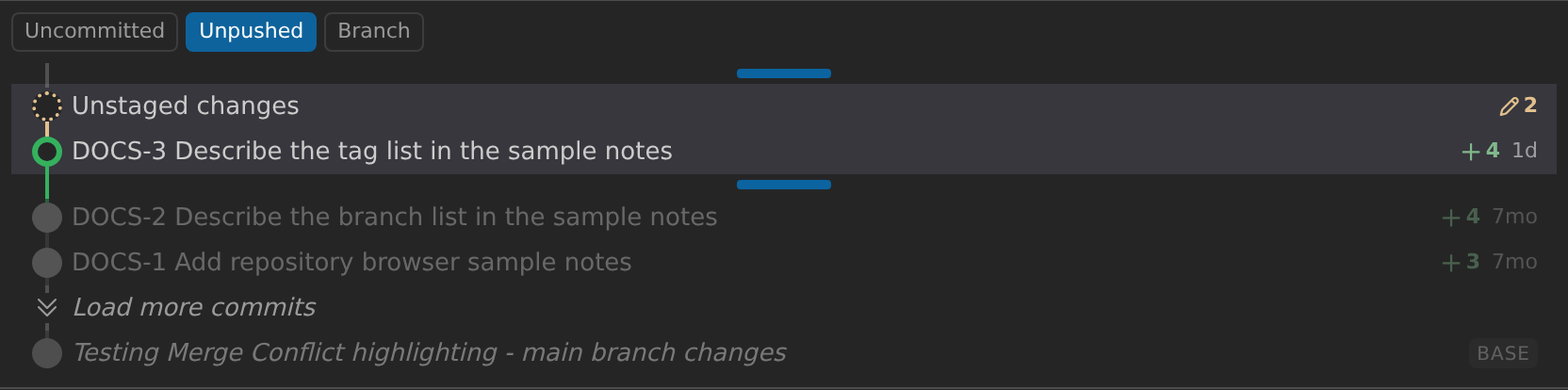
When you review a Working Changes row, the top of the panel shows the uncommitted changes and your branch’s commits. The highlighted range is what you review. Drag the handles above and below the range to change it, or select a preset:
- Uncommitted: only the uncommitted changes.
- Unpushed: the uncommitted changes and the commits you have not pushed yet.
- Branch: every commit since the branch split off from its merge target, plus the uncommitted changes.
The selected preset is the current scope. GitLens hides a preset that would select the same changes as another one. For example, on a branch with no upstream, Unpushed would match Branch, so only Branch shows.
Check off files as you read
The file checklist is your progress through the review:
- Select a file to open its diff.
- Select a file’s checkbox to mark it Viewed. The checkbox in the list header marks every file at once (Mark All as Viewed).
- To leave a file out, hover over it and select Exclude from Review. The file stays in the list with an excluded tag. Select Include in Review to bring it back.
The checklist header counts your progress, for example 1 of 3 viewed. Two tags tell you when a file you already viewed needs another look:
- changed since viewed: the file changed after you marked it viewed.
- new findings since viewed: a new AI or agent finding landed on the file.
When every included file is viewed, the header reads Review complete, with a count of files viewed and, after an AI review, the open and dismissed findings. Select Copy Summary to copy the summary. If findings are still open, select Address Remaining with Agent to send them to your coding agent.
The Checklist and, after an AI review, Findings panes fold to their headers. Select a pane’s header to fold or unfold it.
Step through the files from the diff
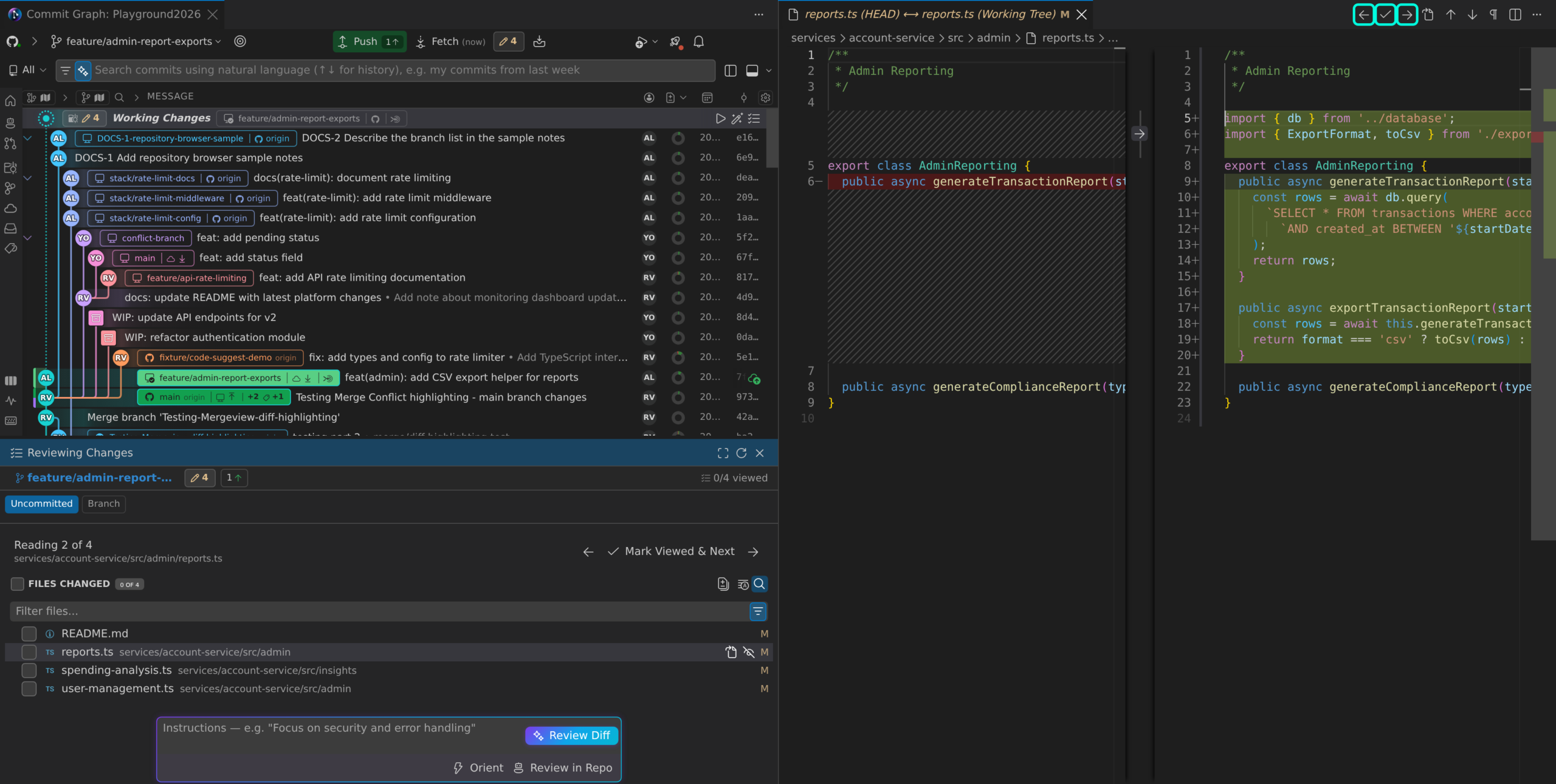
When you open a file from the review, its diff editor shows three buttons first in the editor’s title bar actions:
- Previous File in Review
- Mark File as Viewed and Go to Next
- Next File in Review
Next and Previous go to the nearest file you have not viewed yet. Once every other file is viewed, they step through the list in order. Hold Alt while you select an arrow to go in list order instead.
While a review diff is open, the checklist header in the Commit Graph follows it. It reads Reading 2 of 4 with the file’s path, and offers the same three steps, with Mark Viewed & Next between the arrows.
The keyboard shortcuts work when the diff of a file in the review has focus. Which set you get depends on the gitlens.keymap setting (default: chorded):
| Action | chorded (Windows and Linux) |
chorded (macOS) |
alternate |
|---|---|---|---|
| Mark File as Viewed and Go to Next | Ctrl+Shift+G V | ⌘⌥G V | Alt+V |
| Next File in Review | Ctrl+Shift+G ] | ⌘⌥G ] | Alt+] |
| Previous File in Review | Ctrl+Shift+G [ | ⌘⌥G [ | Alt+[ |
The same commands, plus Next File in List Order and Previous File in List Order, are in the Command Palette while you read a review. See Keyboard Shortcut Settings for gitlens.keymap.
Review the diff with AI
Review Diff asks GitKraken AI to review the files in your checklist. Excluded files are left out.
- (Optional) Type instructions in the instructions box, for example Focus on security and error handling.
- Select Review Diff.
The results open in the Findings pane under the checklist: an overview, then focus areas that group findings tagged Critical, Warning, or Suggestion. Files with findings show a comment count in the checklist. Select the count to open the diff at the first open finding. For a large change, some focus areas show Review Files instead of findings. Select it to review that area’s files.
The model chip in the instructions box shows the model Review Diff and Orient use. Select it to choose a different model for reviews; the Commit Composer and other AI features keep their own model. To give every review the same instructions, set gitlens.ai.reviewChanges.customInstructions.
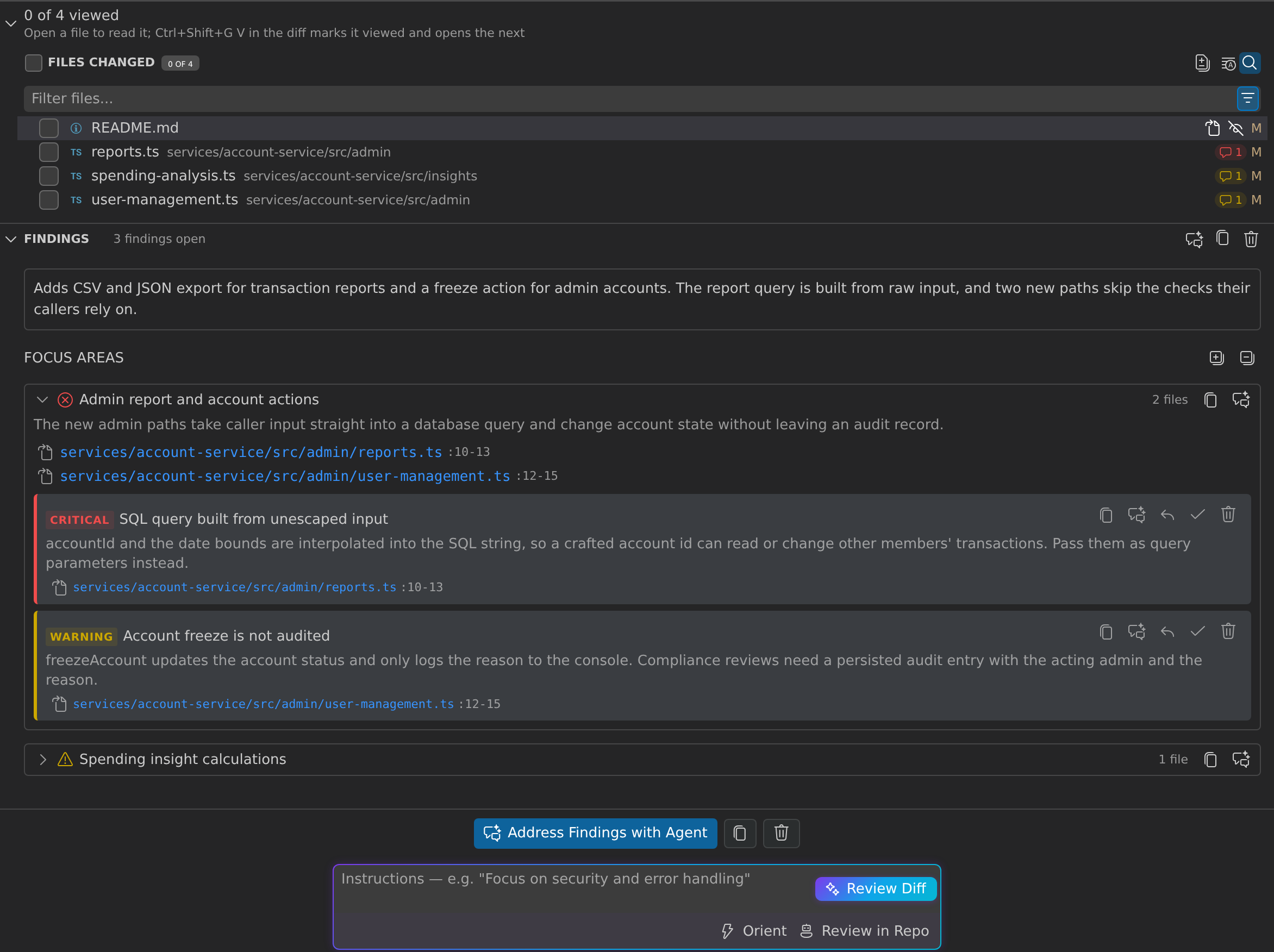
Each finding card has these actions:
- Copy Finding
- Address with Agent: send the finding to your coding agent to fix.
- Leave a Comment: add a note for the fix or a later review, such as why you closed the finding.
- Dismiss Finding: close the finding. Dismissed findings collapse into a dismissed findings count; select Reopen to bring one back.
- Delete Finding
A finding tagged changed since review points at a file that changed after the review ran, so it may no longer apply.
To act on everything at once, use the buttons above the instructions box or in the Findings header: Address Findings with Agent, Copy Review Findings, and Delete Findings. Each focus area has Copy Focus Area Findings and Address Focus Area with Agent. Delete Findings removes the AI and agent findings, along with any replies you left on them. Your viewed marks, excluded files, and your own comments stay.
Work with findings in the diff
When you open the diff of a file with findings, each finding appears as a comment thread on the lines it is about. The thread is labeled with the finding’s severity and signed GitLens AI Review, or Agent for findings from Review in Repo.
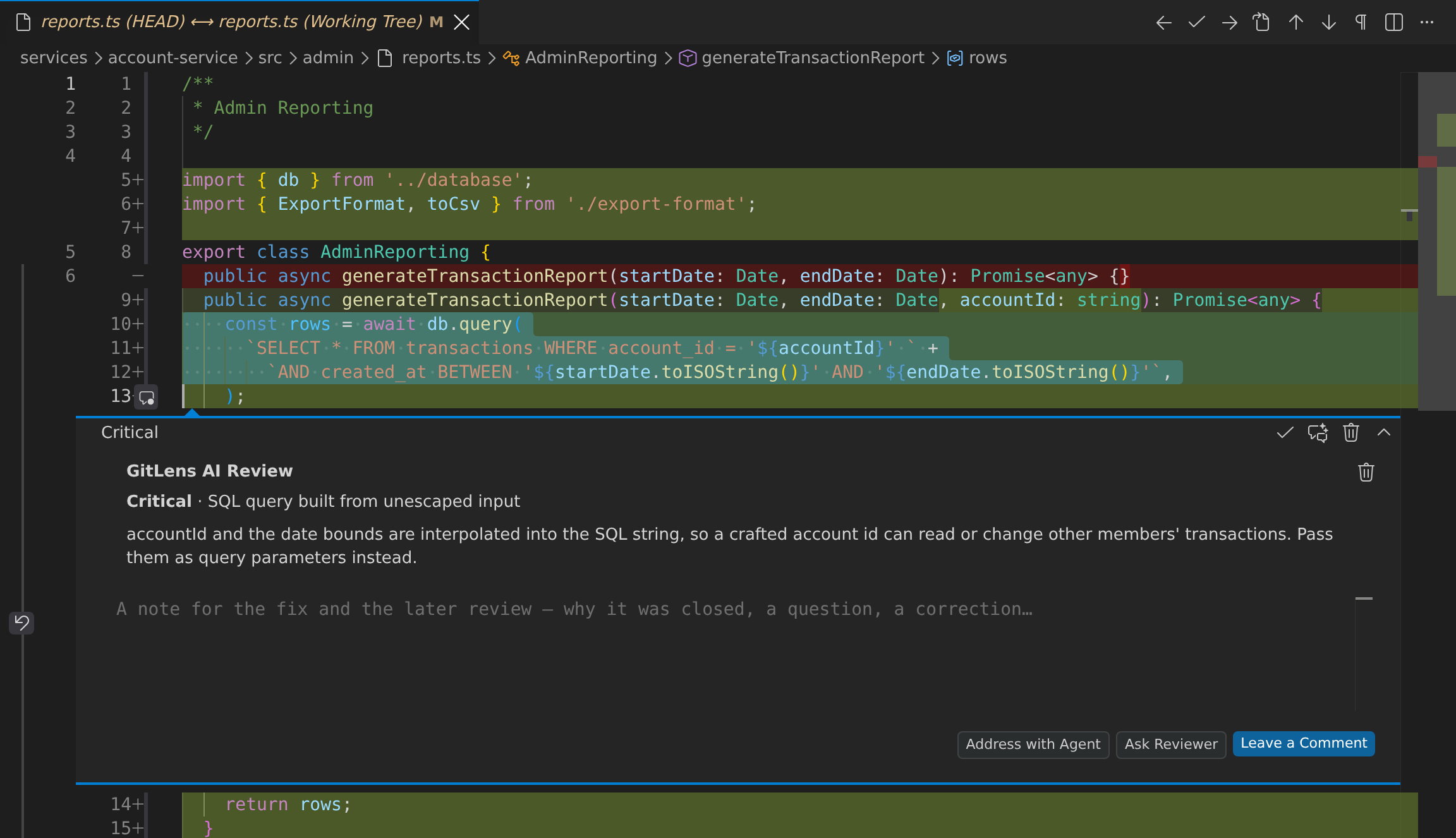
From the thread you can:
- Select Dismiss Finding, Reopen Finding, Address Finding with Agent, or Delete Thread in the thread’s title bar.
- Type in the reply box, then select Leave a Comment, Address with Agent (send the finding with your reply to your agent), or Ask Reviewer. Ask Reviewer sends your question to the coding agent that reviews with Review in Repo. The thread reads Waiting for the reviewer… until the agent answers on the finding.
- Select Edit Comment or Delete Comment on your own comments.
The panel and the threads stay in step: dismiss a finding in one and it is dismissed in the other.
You can also comment on lines yourself. In the right side of a review file’s diff, select the + in the gutter next to a line. Your comments and your replies collect under Your comments at the top of the Findings pane, and go with the findings when you copy them or send them to your agent. Your own comments stay after Delete Findings and a new review. A reply belongs to the finding it answers, so Delete Findings removes your replies on AI and agent findings along with those findings.
Plan a reading order with Orient
Orient asks GitKraken AI for a reading plan instead of findings. Select Orient in the instructions box.
The checklist becomes a Reading plan: an overview, then groups of files in the order to read them. Each group has a short summary and each file a one-line note. Files the plan did not place are listed under Not in the plan.
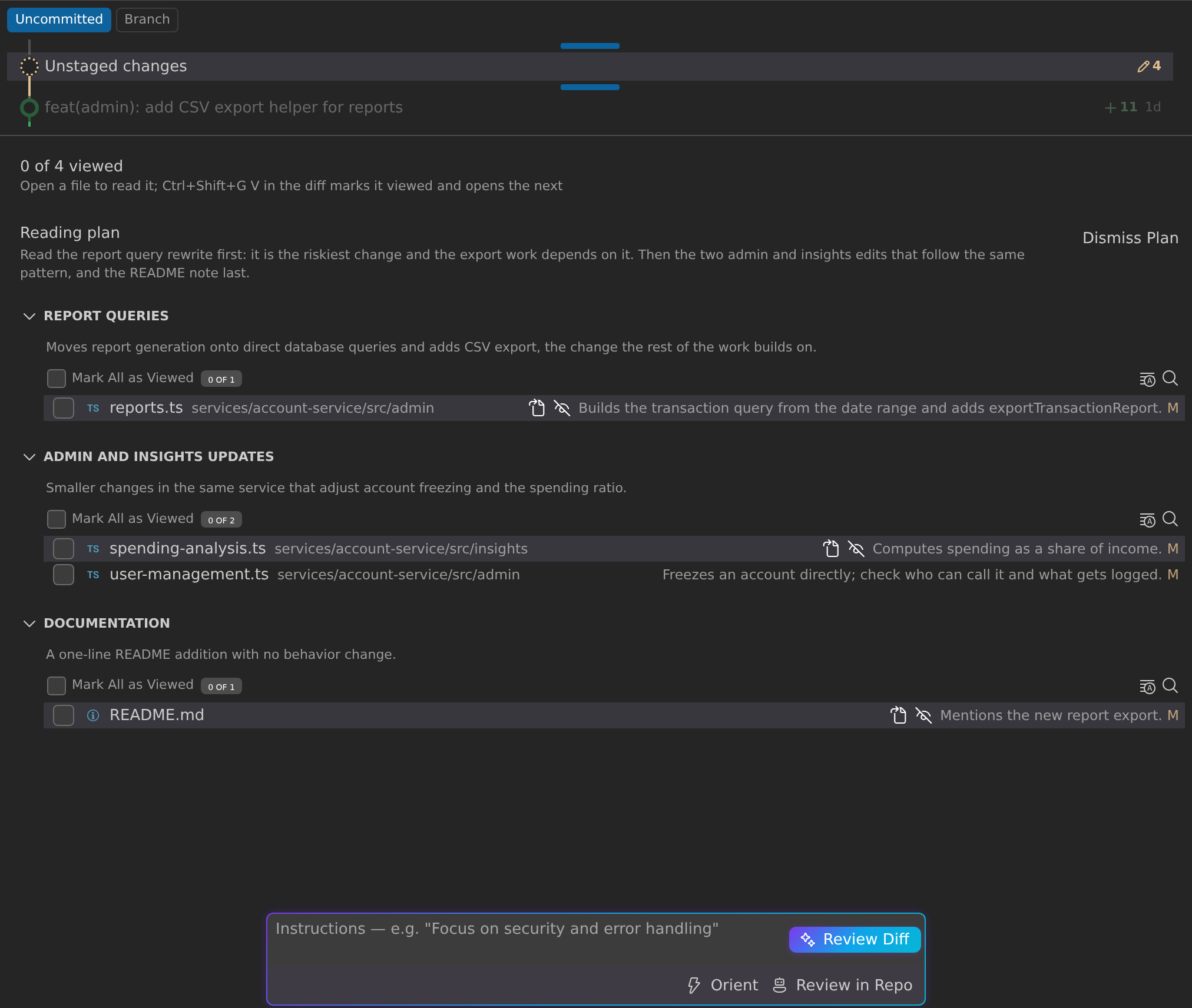
The plan’s order becomes the order the reading controls follow. Checkboxes, Exclude from Review, and finding counts work in the plan as they do in the checklist. Select Dismiss Plan to go back to the file list.
If the changes are too large for the selected model and a coding agent is available, GitLens asks your agent to build the plan.
Hand the review to your agent with Review in Repo
Review in Repo hands the changes to your coding agent. The agent can build, test, and trace the code in your repository, and its findings stream back into the review.
- (Optional) Type instructions in the instructions box.
- Select Review in Repo.
GitLens starts your default agent (gitlens.ai.defaultAgent) or asks you to pick one. The agent also gets the findings you already have, with your dismissals and comments, so it can check them rather than repeat them. A status line above the instructions box shows Review in Repo running with a count of findings so far, then Review in Repo finished.
The agent’s findings appear in a Deep review focus area, each tagged Agent, and as threads signed Agent in the diff. With a CLI agent, running Review in Repo again in the same repository continues the same agent session. To ask the agent about one finding, use Ask Reviewer in the finding’s thread.
When Review in Repo is unavailable, its tooltip says why: no supported AI agent is available in your editor, or the GitLens local channel is unavailable, as in VS Code for the Web.
Keep a review across amend and rebase
Your review stays with your changes when you amend or rebase. The review moves to the rewritten commits with its viewed marks, findings, dismissed findings, and comments. Files the rewrite left unchanged stay viewed. A review diff open in the editor reopens on the new changes.
