

Last updated: October 2026
Kepler runs the coding agent you already have. You sign in with your own agent account, and Kepler adds no markup on the agents you bring.
Kepler ships support for nine agents, and you can point it at any other agent that speaks the Agent Client Protocol (ACP), or whose command-line interface you want to run inside a task.
All of it lives in Settings → Agents.
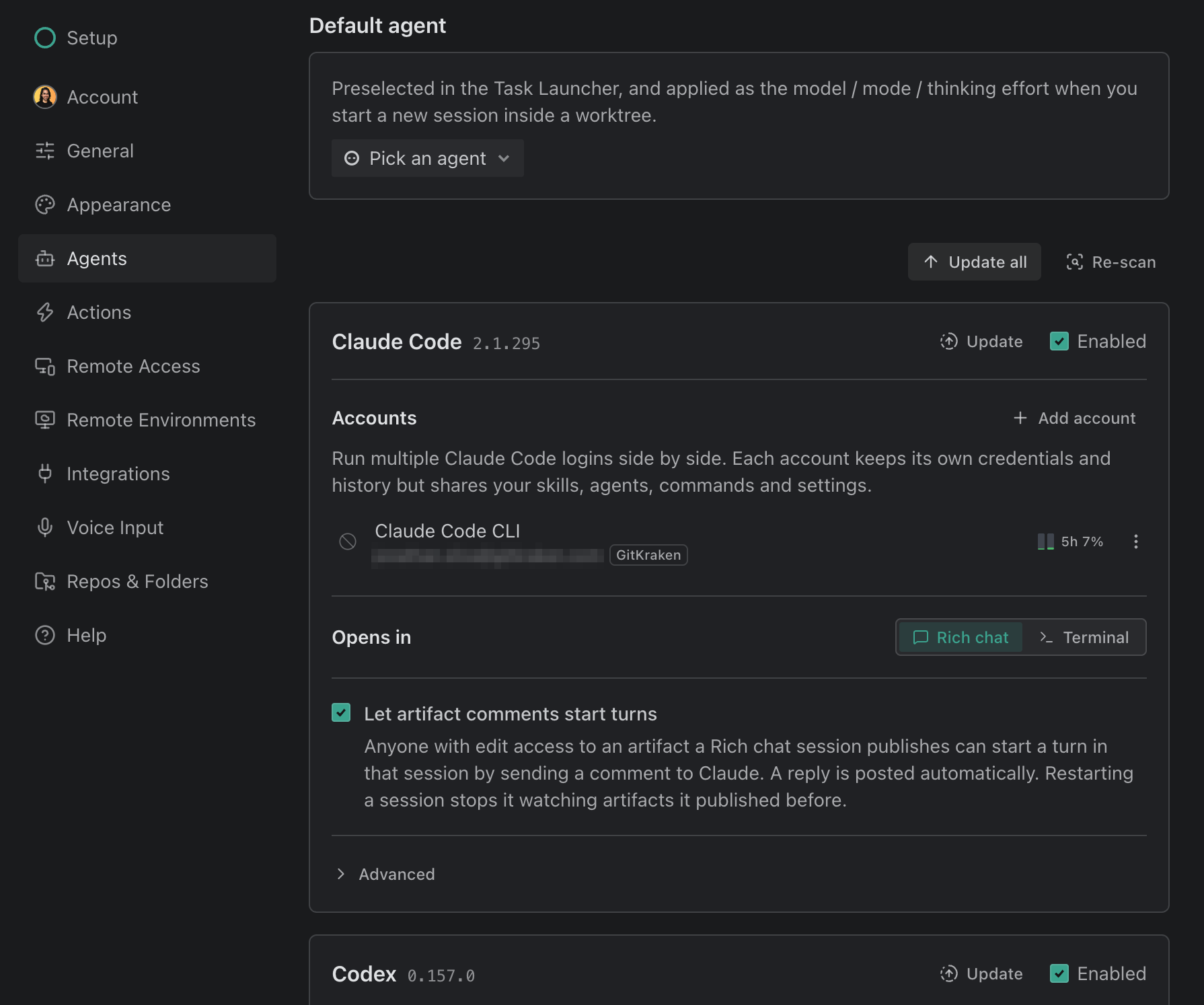
The nine supported agents
Each agent gets its own section in Settings → Agents, in this order:
| Agent | Name in Settings | How Kepler runs it | Run modes | Multiple accounts |
|---|---|---|---|---|
| Claude Code | Claude Code | Your installed claude CLI |
Rich chat or Terminal | Yes |
| Codex | Codex | Your installed codex CLI |
Rich chat or Terminal | Yes |
| GitHub Copilot | GitHub Copilot | Your installed copilot CLI in ACP mode (--acp) |
Rich chat or Terminal | Yes |
| Cursor | Cursor | Your installed cursor-agent CLI in ACP mode (acp) |
Rich chat or Terminal | No |
| OpenCode | OpenCode | Your installed opencode CLI, v1 or v2, in ACP mode (acp) |
Rich chat or Terminal | No |
| Auggie | Auggie | Your installed auggie CLI in ACP mode (--acp) |
Rich chat or Terminal | Yes |
| Grok Build | Grok Build | Your installed grok CLI in ACP mode (agent stdio) |
Rich chat or Terminal | Yes |
| Pi | Pi | Your installed pi CLI, in its own terminal interface |
Terminal only | No |
| Google Antigravity | Antigravity | Your installed agy CLI in a terminal, or Google’s separate Antigravity ACP server (agy_acp_server) for Rich chat |
Terminal (default) or Rich chat | No |
Auggie is Augment’s coding agent. It runs over the same ACP path as the rest, and its model and mode pickers work like any other agent’s. It is also one of the three agents that report plan usage back to Kepler, alongside Claude Code and Codex. Auggie reports a billing cycle and a credit balance rather than rolling windows. See Agent Sessions for the plan usage meter and the Show token usage opt-in it needs.
Grok Build is xAI’s coding agent. It signs in through your browser, or you can supply an xAI API key. Its data lives under ~/.grok, which is what lets Kepler keep several accounts apart.
Google Antigravity runs two separate binaries. Terminal mode runs the agy CLI; Rich chat runs Google’s Antigravity ACP server, which is a separate download with its own version. The agent’s section in Settings → Agents lists both under Components: Antigravity CLI (Needed for Terminal mode.) and ACP server (Rich-text (ACP) mode. Installed separately from the Antigravity CLI.). Each has its own Install or Update to {version}. Either one alone is enough to use the agent in that mode. Sessions stay in Terminal until you pick Rich chat for Antigravity, because the ACP server signs in separately from the CLI. Google publishes no ACP server for Intel Macs, so there it reads Not available for this platform.
Pi is terminal-only. Its CLI has no ACP mode, so Kepler runs its own interface in a terminal inside the task instead of leaving it out. Kepler does no auth probing for Pi: it uses its own sign-in (/login, or the provider API-key environment variables it reads directly).
OpenCode v1 and v2 both work, side by side. A conversation resumes with the version it was started on, and Kepler refuses to resume it on the other rather than guess.
Claude Code folder trust is read where the CLI records your answer, so a worktree inherits the trust you already gave its repository and a session doesn’t stall on the trust prompt.
Codex now runs your own CLI. Earlier builds shipped a bundled codex-acp engine; Kepler resolves and spawns the codex you have installed, like every other agent, so its section reads Installed and it has a binary picker.
Every agent that offers both modes is configured the same way. Settings → Agents → your agent → Opens in picks between Rich chat and Terminal, per agent, and the New session menu can start one session the other way. See Agent Sessions.
Two agents need a recent enough build to be driven over ACP:
| Agent | Minimum |
|---|---|
| GitHub Copilot | CLI v1.0 or newer. Older builds reject --acp |
| Cursor CLI | A build that exposes the acp command, added in early 2026 |
Kepler checks both before it starts a session and tells you to update rather than failing with a protocol error.
Install an agent
When an agent is not installed, its section reads Not installed and offers Install. Kepler runs the install command on your behalf and streams the output, so you can read a failure rather than guess at one.
Kepler declares install methods per operating system, so the list you see depends on the machine you’re on:
| Agent | macOS | Linux | Windows |
|---|---|---|---|
| Claude Code | Native installer, Homebrew, npm (global) | Native installer, npm (global) | Native installer, winget, npm (global) |
| Codex | Standalone installer, Homebrew, npm (global) | Standalone installer, npm (global) | npm (global) |
| GitHub Copilot | Native installer, Homebrew, npm (global) | Native installer, Homebrew, npm (global) | winget, npm (global) |
| Cursor CLI | Native installer, Homebrew | Native installer | Native installer |
| Auggie | npm (global) | npm (global) | npm (global) |
| OpenCode | Native installer, Homebrew, and npm, each for v1 or v2 | Native installer, Homebrew, and npm, each for v1 or v2; pacman | scoop, Chocolatey, npm (global), npm (v2) |
| Grok Build | Native installer | Native installer | Native installer |
| Pi | npm (global) | npm (global) | npm (global) |
| Google Antigravity | Native installer, plus the ACP server component (Apple Silicon only) | Native installer, plus the ACP server component | Native installer, plus the ACP server component |
If an agent offers no install method for your OS, Kepler says so and points you at the custom binary path instead.
Kepler doesn’t close the install output pane automatically when the install finishes. Mid-run errors (a permissions failure, a partial install, a post-install warning) surface only in that pane, so read them before you dismiss it.
Binary detection
Kepler resolves each agent’s binary the way your shell does: the first match on your PATH, so it agrees with which. Beyond PATH, it also sweeps your login shell’s environment and well-known install directories. That’s how Kepler finds an agent installed by nvm or Homebrew, even when you didn’t launch Kepler from a terminal.
Each agent’s card in Settings → Agents shows what Kepler resolved. The version and Install sit in the card’s title line; Binary and Data directory sit under Advanced:
| Control | What it does |
|---|---|
| Version | The installed version, or Not installed |
| Install | Runs one of the install methods above. Shown when the agent is not installed |
| Binary | The resolved absolute path, or Not found, with where it came from (PATH, Shell, or Common) and its version |
| Re-scan | Re-detects this agent’s binary. Use it after installing or removing one outside Kepler |
| Custom path… | Pins an absolute path of your own. Kepler validates it and refuses a directory or a path that is not a file |
| Clear custom | Drops the pinned path and goes back to automatic resolution. Shown only while a custom path is set |
| Installed versions | A picker listing every install Kepler found, with an Auto row. Appears only when Kepler finds more than one |
| Data directory | Overrides the agent’s own data and config directory. Leave it empty for the agent default |
| Enabled | Whether Kepler offers this agent when you start a session |
If Kepler can’t read an installed agent’s version, its section shows a Version unknown badge rather than plain Installed: Kepler couldn’t read {name}’s version. Features that depend on the version stay off, such as sending a new session’s first message automatically. Reinstalling or updating {name} usually fixes this.
If a pinned path later disappears (for example, when an auto-updater cleans up an old version), Kepler falls back to automatic resolution instead of reporting the agent as missing.
Two buttons sit above the agent cards in Settings → Agents: Re-scan re-detects every agent at once, and Update all runs each installed agent’s own updater.

Sign in to an agent
An installed agent shows Sign in until it has a credential, and Sign out once it does. Sign in opens a modal listing the methods that agent supports on this machine, plus any methods Kepler owns itself:
| Agent | How you sign in |
|---|---|
| Claude Code | Browser sign-in. Kepler runs the sign-in for you and your browser opens; you paste a code back only if the browser callback cannot reach Kepler |
| Codex | Sign in with a ChatGPT account through your browser, or enter an API key. On a remote, ChatGPT (device code) |
| GitHub Copilot | Sign in with GitHub: Kepler’s own device flow. Open github.com/login/device and enter the one-time code |
| Cursor CLI | Cursor’s own browser sign-in, driven from the modal. You can instead set CURSOR_API_KEY |
| Auggie | Sign in with browser, or Paste session token |
| OpenCode | Nothing to do in Kepler. OpenCode resolves providers from its own config file and provider environment variables |
| Grok Build | Browser sign-in, or Paste an API key for a deployment with no local browser |
| Google Antigravity | Google OAuth, Google Cloud project, or Google Cloud project (SSO), driven from the modal. The ACP server used for Rich chat keeps its own sign-in, so Kepler checks whichever one the mode you picked uses |
| Pi | Nothing to do in Kepler. Sign in inside the CLI itself, or set the provider environment variables it reads |
Browser sign-in, including on a remote
Claude Code and Codex both sign in through your browser, and neither drops you into a terminal to do it.
That holds on a remote environment too:
- Claude Code on a remote offers Sign in with browser, which opens the sign-in page in your local browser and takes the code you paste back. The credential lands on the remote machine.
- Codex on a remote offers ChatGPT (device code): Sign in with a one-time code in your browser. Works on any remote. Kepler shows the sign-in link and a One-time code; the remote CLI waits for you to finish and writes the token there. Some ChatGPT workspaces turn device sign-in off, and Kepler then points you at the alternatives.
Import local Codex login is the other remote route, in the desktop app: it copies this machine’s ~/.codex/auth.json to the remote target, and asks you to confirm on this machine before it reads the file. Treat this import as handing over a credential: anyone with access to that remote machine can send Codex requests on your account until you sign out.
A Codex API key works locally and on a remote: Kepler collects the key in the modal and hands it to Codex for that account. Sign out on Codex signs the CLI itself out, and Kepler follows a sign-in you do in the Codex CLI outside Kepler.
Auggie’s two methods
Auggie supports two sign-in methods:
| Method | What it does | Where it works |
|---|---|---|
| Sign in with browser | Runs Auggie’s sign-in and finishes it in your browser. Auggie stores the credential under ~/.augment |
Local, and over SSH: the remote variant opens the page in your local browser and takes a pasted JSON response |
| Paste session token | You paste the JSON from auggie token print into Kepler. Kepler stores it and supplies it on every session |
Anywhere, including CI-style setups with no browser |
If you run Auggie’s browser sign-in on this machine yourself, Kepler detects it and you can skip the token paste.
Multiple accounts of one agent
Claude Code, Codex, GitHub Copilot, Auggie, and Grok Build support more than one signed-in account. Settings → Agents → your agent → Accounts → Add account adds one; each account keeps its own credentials and history.
Give each added account its own colour from the swatch at the left of its row: Rose, Amber, Lime, Cyan, Blue, or Violet. The agent icon is tinted with it on session tabs, the task rail, and the terminal status bar, so sessions on different accounts are easy to tell apart. The default account stays uncolored. Accounts also appear on the agent’s card in Settings.
For Auggie, you can only add a second account with Paste session token. Its browser sign-in writes to one fixed file, so it would sign the second account into the first account’s identity.
Run modes
Most agents run two ways, and each agent keeps its own default. Settings → Agents → your agent → Opens in picks which:
| Mode | What you get |
|---|---|
| Rich chat | Kepler drives the agent over ACP and renders the conversation: plans, model, and effort controls, richer input. This is the default |
| Terminal | The agent’s own command-line interface, in an embedded terminal inside the task |
The New session menu starts one session in whichever mode is not the default, without changing the setting. An agent that offers only one mode shows no switch at all. See Agent Sessions.
Detecting sessions started outside Kepler
Settings → Agents → Agent options → Detect sessions started outside Kepler is a separate, cross-agent setting, on out of the box. It installs GitKraken hooks so sessions you start in your own terminal show up in Kepler, and it covers every agent Kepler can track that way: Claude Code, Codex, Cursor, GitHub Copilot, and OpenCode. See Agent Sessions.
Kepler also follows its own Claude Code Terminal sessions through those hooks. If a live Claude terminal session keeps reporting status but its hook events stop arriving, Kepler warns Claude sessions aren’t reporting to Kepler and offers Repair to reconnect Claude to Kepler. Until then, status and notifications may be out of date. Restart any Claude session that still isn’t responding afterwards.
Your default agent
Settings → Agents → Default agent sets which agent is preselected when you start work, and supplies the model, mode, and thinking effort a new session starts with.
Kepler saves agent options per account. Picking a different account of the same agent brings up that account’s own saved model and options, so a heavier model on your work account doesn’t follow you onto your personal one.
Only agents that are installed and Enabled appear in the picker. If your saved default is no longer installed, Kepler says so and asks you to pick another.
An Action can override all of this. See Actions for how an Action pins a provider, account, model, mode, and options together, and which choice wins when they disagree.
Custom ACP servers
If your agent speaks ACP, Kepler can run it without any Kepler-side change. Open Settings → Agents → Custom agent servers → Add and fill in these fields:
| Field | What it holds |
|---|---|
| Name | What the agent is called in Kepler’s pickers |
| Command | The binary to run: an absolute path, or a name Kepler resolves on your PATH |
| Args (one per line) | Arguments that put your agent into ACP mode, for example --acp |
| Environment variables (KEY=value, one per line) | Variables merged into the agent’s environment on every session |
Kepler treats environment values as secrets: it encrypts them at rest, hides them after you save, and never sends them to any client. When you edit a server, leaving a value empty (KEY=) keeps the stored secret, and typing a new value replaces it.
Custom servers appear alongside the built-in agents everywhere you can choose an agent. A custom server can run as a terminal session too: Kepler works out what terminal mode can offer from the command’s own flags rather than from a list of agent names, so your own agent degrades exactly the way a built-in one does.
MCP servers
Kepler lists the MCP servers each agent loads, and lets you add, remove, sign in to, and turn off servers or single tools, per repository from the composer’s Agent settings pill or as defaults in Settings → Agents → MCP servers. See MCP Servers.
What Kepler tells the agent about itself
Agent CLIs report Kepler as the client name, so your sessions show up as Kepler in places like your Anthropic dashboard rather than as an unlabelled non-interactive run.
This labeling applies to the sessions Kepler drives over ACP. Terminal mode deliberately leaves the label alone, because overriding it there would break key handling in the embedded terminal.
Sessions
Connecting an agent is the setup; running one is a session inside a task. Agent Sessions covers sessions: starting, resuming, queuing prompts, and reviewing what the agent produced.
A task holds resources and does not require a worktree, or even a repository. See Tasks and Resources.
Not every conversation starts in Kepler, either. See Agent Sessions.
