

Last updated: November 2026
Use GitKraken AI in GitLens to write commit and stash messages, explain changes, generate changelogs and pull requests, review changes, and resolve conflicts during a rebase. You can also choose your AI provider, track your AI credits, and control which files GitKraken AI sees.
Available AI Features
Each AI feature is available on the plans listed under its name.
AI Generate Commit Pro
Available in: Pro, Advanced, and Business plans
GitKraken AI writes a commit message that describes your staged changes.
In addition to single commit messages, the Commit Composer can create multiple logical commits from your working tree changes. To have AI resolve conflicts while you rebase a branch, use Auto-Rebase instead.
How to access:
- From the Command Palette:
GitLens: Generate Commit Message - From the Command Palette:
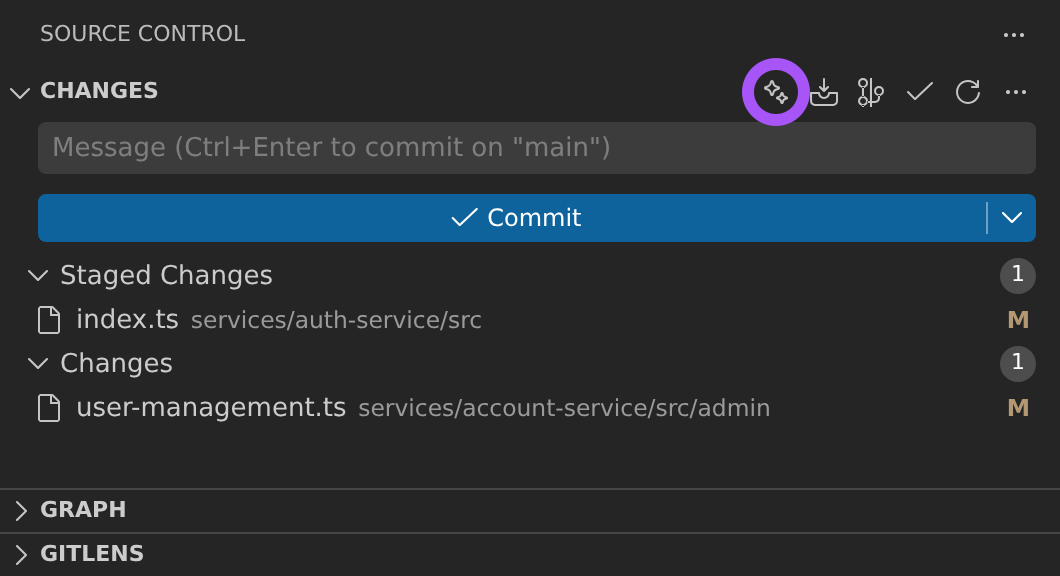
GitLens: Compose Commits...(the Commit Composer creates multiple logical commits from your working changes) - From the SCM panel: Open the GitLens sparkle menu in the Changes header and choose Generate Commit Message
- During the commit process: Look for the AI option in the commit interface
AI Stash Messages Pro
Available in: Pro, Advanced, and Business plans
GitKraken AI writes a stash message that describes your stashed changes, so you can find a stash and see its purpose later.
How to access:
- When creating a stash: Select Generate Stash Message (sparkle button) in the stash message input

AI Commit Explain Pro
Available in: Pro, Advanced, and Business plans
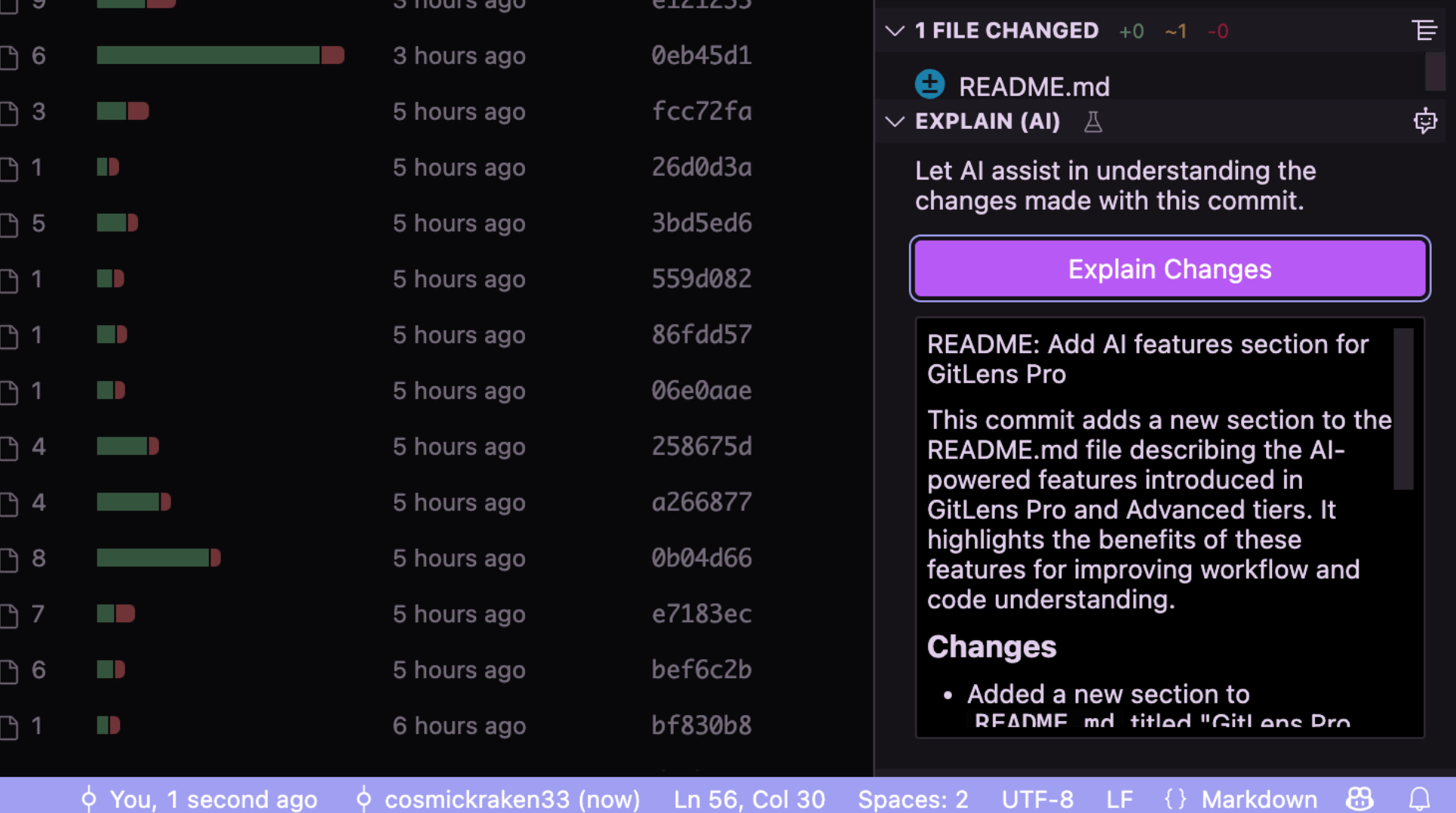
GitKraken AI explains what a commit changes and why. Use it to understand the intent and impact of a complex commit without reading every changed file.
How to access:
- In the “Commit Details” view: Find the AI explanation panel
- In the “Cloud Patch Details” view: Look for explanations alongside commit information
- When reviewing commits: Generate an explanation for any selected commit
AI Changes Explain Preview
GitKraken AI can also summarize commits, branches, working changes, and stashes:
- ✨Explain Commit: what a specific commit introduced.
- ✨Explain Branch: what changed across all commits in a branch.
- ✨Explain Working Changes: what you have modified in your working directory.
- ✨Explain Stash: what you stashed earlier.
The ✨Explain options are in these places:
- In the Commit Graph
- Available as commands in the command palette
- In many GitLens views: Commits, Branches, Stashes, Search & Compare, etc.
- In editor blame hovers via the ✨Explain button
AI Changelog Creation Pro
Available in: Pro, Advanced, and Business plans
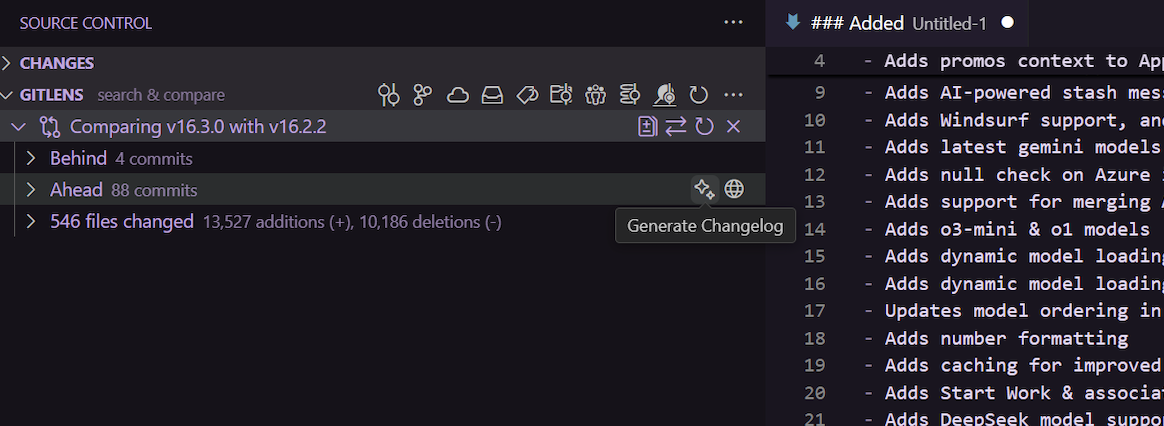
GitKraken AI writes a changelog from the commits you select, for example for release notes.
How to access:
- In the Search & Compare view: Select the inline Generate Changelog button on the commits line
- When selecting multiple commits in the Commit Graph: Right-click and select Generate Changelog
- From the Command Palette:
GitLens: Generate Changelog...
AI Open Pull Request Pro
Available in: Pro, Advanced, and Business plans
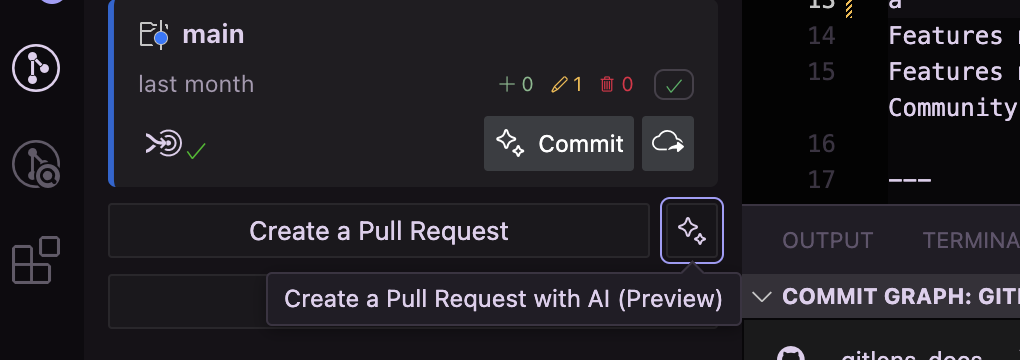
GitKraken AI writes the title and description of a pull request from your branch’s changes.
How to access:
- From the GitLens Commit Graph: Select the sparkle (✨) button next to Create a Pull Request
AI Review Pro
Available in: Pro, Advanced, and Business plans
Add GitKraken AI to a review in the Commit Graph. Review Diff returns findings tagged Critical, Warning, or Suggestion, grouped into focus areas, which you can dismiss, comment on, or send to your coding agent with Address with Agent. Orient returns a reading plan that groups and orders the files with a one-line note for each. Reading and checking off files in a review works without AI.
How to access:
- In the Commit Graph: Select Review Changes… on a Working Changes row, or select a commit and choose Review in the details panel, then select Review Diff or Orient in the instructions box
- Choose the model for reviews from the model chip in the instructions box; reviews keep their own model, separate from other AI features
- Customize review behavior with the
gitlens.ai.reviewChanges.customInstructionssetting
See Review Changes in the Commit Graph for the full review workflow.
Auto-Rebase Pro
Available in: Pro, Advanced, and Business plans
Move a rebase forward with AI-assisted conflict resolution. Auto-Rebase resolves a conflict only when its confidence meets the threshold you configure; anything below that threshold pauses the rebase so you can resolve it yourself. A rebase summary sheet shows what was resolved and how, and full undo support returns you to the pre-rebase state if the result is not what you wanted.
Auto-Rebase respects the steps you plan in the Interactive Rebase Editor. When a reword or squash step needs a new commit message, Auto-Rebase opens the message in VS Code and waits until you finish editing it. At a commit you marked edit, it resolves and stages any conflicts, then pauses so you can make your changes before you continue the rebase.
When Auto-Rebase pauses, its notification offers Review & Resolve and Abort Rebase, plus Resume with AI when AI features are allowed. Review & Resolve opens the Commit Graph’s resolve panel. Once every conflict there has a resolution, select Apply & Resume with AI to apply the resolutions and let Auto-Rebase finish the rebase.
How to access:
- From the Command Palette:
GitLens: Auto-Rebase... - From the Commit Graph: Right-click a branch, select Rebase Current Branch onto Branch…, and choose Auto-Rebase in the rebase confirmation step
- From the Interactive Rebase Editor: Select Start Auto-Rebase next to Start Rebase, or Continue with Auto-Rebase once the rebase has started
- For a rebase that is already paused: Run
GitLens: Continue with Auto-Rebasefrom the Command Palette
Key settings:
gitlens.ai.autoRebase.confidenceThreshold— Set the minimum confidence level (0-1) for automatic conflict resolutiongitlens.ai.resolveConflicts.customInstructions— Provide custom instructions for how conflicts should be resolved
Compose and Recompose Pro
Available in: Pro, Advanced, and Business plans
Shape your commit history with AI-assisted commit crafting and branch restructuring.
- Compose: Craft clean, logical commits from your Working Changes using the Commit Composer in the Commit Graph
- Recompose: Clean up existing branch history by reorganizing selected commits into a clearer, more intentional sequence. GitKraken AI can propose the new structure and commit messages for you to review and refine before applying the result
How to access:
- From the Commit Graph: Enter Compose mode to create commits from working changes
- From the Commit Graph context menu: Right-click commits and select Recompose Commits…, Recompose Commits from Here…, or Recompose Selected Commits…
- From the Command Palette:
GitLens: Recompose Commits...
AI Credit Allocation by Plan
GitKraken AI features use credits, and each plan includes a different number of them. Credits refresh weekly and are shared across all AI features. Complex operations such as changelog generation can use more credits than simple ones such as commit messages. For each plan’s allocation, see the GitKraken AI FAQ.
Check Your AI Credit Usage
GitLens shows your GitKraken AI usage in two places:
- GitLens Settings: Run
GitLens: Open Settingsfrom the Command Palette and select Account under Setup. The GitKraken AI Usage card shows how many of your weekly credits you have used and when your weekly allowance resets. If your organization has a shared credit pool, a Weekly Shared Organization Pool row splits it into your usage, the rest of the organization’s usage, and what remains. - Commit Graph header: Select the Account button (your avatar and plan badge) in the Commit Graph header. The GitKraken AI row in the popover shows your usage as a percentage; select it to open the Account settings.
Both places show Nearly out when you have used more than 90% of your credits, and Allowance used in red once you have used all of them. On paid plans, the GitKraken AI Usage card includes a Get more AI credits button if you have no active organization or you are an owner, admin, or billing contact of your active organization. Other organization members see a note to contact their organization admin or owner for more credits.
Configuring Your AI Provider
GitLens uses GitKraken AI by default. You can switch to GitHub Copilot or to your own AI provider.
Provider Options
Choose one of these AI providers:
- GitKraken AI (default): Set up and ready to use with your plan’s credits
- GitHub Copilot: Available as your AI provider when Copilot is installed
- Custom provider: Bring your own key (BYOK) from a supported AI service, such as:
- OpenAI and Google models
- Mistral
- Self-hosted Azure AI models
- OpenAI-compatible API providers
- Local Ollama models
- OpenRouter
Setup Instructions
To configure your AI provider:
- Run
GitLens: Open Settingsfrom the Command Palette and select AI. - Next to Default AI Provider & Model, select Switch.
- Select your provider and model.
- For a custom provider, enter your API key when GitLens asks for it.
Advanced AI Settings
Customize how GitKraken AI works for you, control which files it sees, and, on the Business plan, set rules for your organization.
User-Level Customization
- Customize AI prompts: Add custom instructions to the prompts of AI features to match your team’s style, for example with
gitlens.ai.generateCommitMessage.customInstructions - Credit usage monitoring: Track your credit use on the GitKraken AI Usage card in the Account category of GitLens Settings (see Check Your AI Credit Usage)
AI File Exclusions
Control which files are included in AI context to protect sensitive data:
- Ignore files: GitLens respects
.aiignore,.cursorignore, and.aiexcludefiles in your repository to exclude matching paths from AI prompts - Exclude setting: Use the
gitlens.ai.exclude.filessetting to define additional file patterns to exclude - Common files like lock files, minified assets, and build output directories are excluded by default
Organization-Level Controls Business
- Enforceable AI rules: Set organization-wide policies for AI usage
- Private AI model providers: Connect to your organization’s approved AI services
- Credit allocation management: Distribute credits across teams and projects
More questions about GitKraken AI? See the GitKraken AI FAQ. For additional questions or support regarding GitKraken AI features, please contact our support team or visit the GitKraken Community forum.
