

Last updated: October 2026
A remote environment runs your agents, worktrees, and terminals on another machine: a dev server, a cloud VM, or a WSL (Windows Subsystem for Linux) instance on Windows, while you work from this window. Kepler installs itself on the host over SSH (Secure Shell), so you do not need to pre-install anything there.
Two remote features
Kepler has 2 remote features, and they work in opposite directions:
| Feature | Direction | Where it lives |
|---|---|---|
| Remote environments | Kepler on your desktop reaches out to another machine, and your work runs there | The title-bar chip, and Settings → Remote environments |
| Remote Access | Another device reaches in to this Kepler, and your work stays here | The Remote Access button in the title bar, and Settings → Remote Access |
You open both from the right end of the title bar: first the environment chip, then the Remote Access button, which shows a monitor-and-phone icon.

To let another device reach this Kepler, rather than connecting to another machine, see Remote Access.
Remote environments need a paid plan. Every paid plan except Student includes them, with no limit on how many environments you can add. On other plans, a banner offers a free trial when one is available. If another organization you belong to includes remote environments, the banner names that organization and offers Switch to organization. If you have just upgraded, click Check again under Already upgraded? to reload your plan. If nothing has changed, Kepler briefly shows Still on {plan}.
Switching environments from the title bar
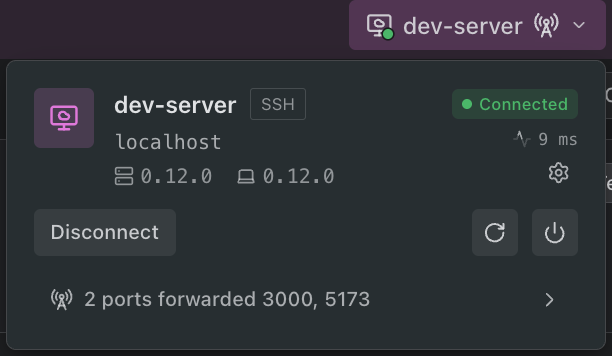
Kepler binds each window to one environment at a time, and the title-bar chip shows which one. The chip leads with the environment’s type icon, and a green dot on that icon means connected.

| Chip | What it means |
|---|---|
| Local | This window works on this machine |
| Connecting to machine…, or the current stage | A connect this window started, or a restart or update of its own server, is in flight |
| Reconnecting… | The connection degraded and Kepler is rebuilding it |
| Host name | Connected. The chip takes the host’s color when you have set one |
| Brand fill with an up-arrow | Connected, and a newer server build is ready for the host |
| Warning triangle | The app and the server disagree on version. The popover says which side to update |
| Radio-tower glyph | This window is forwarding ports from the host |
| An error headline | The last attempt failed. The chip and the popover clear it after a few seconds unless the popover is open, and the host’s Settings page keeps the full error |
Remote Access has its own button beside the chip, so the chip shows only this window’s environment. See Remote Access.
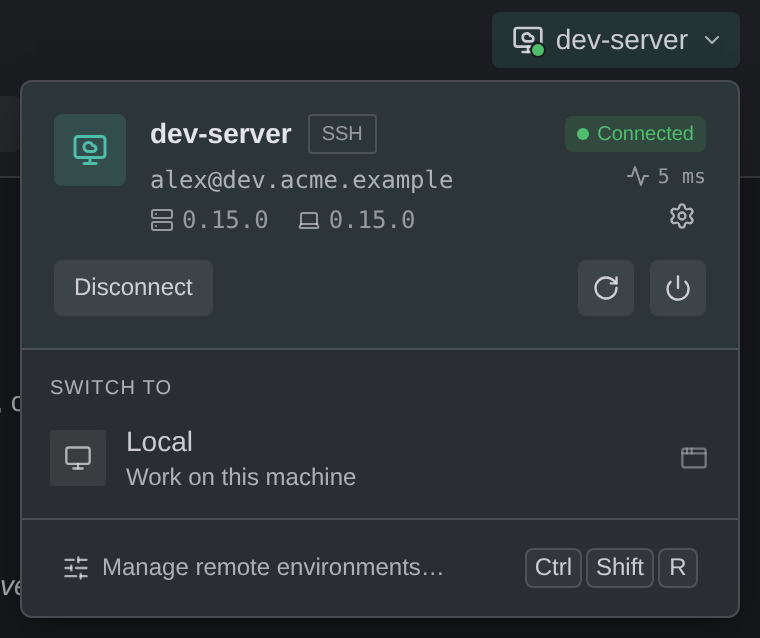
Hover over the chip to preview the popover. After a short pause, the popover’s header appears, and its buttons work. Move the pointer into the header to show the rest of the popover. To open the whole popover and keep it open, click the chip, or focus it and press Enter or Down Arrow.
In a browser client, Kepler hides the chip, because a browser client cannot manage connections.
The popover
Use the popover to see which machine this window is on, switch to another machine, and open Settings to manage your machines.
| Part | What it does |
|---|---|
| Header | The current machine, with its address, latency, and the server and app versions, or Working locally when the window is local. It also shows this window’s own connection progress or failure |
| Gear (Machine settings) | Opens the machine’s Settings page |
| Restart server to update | Appears when a newer server build is ready. See Server controls |
| Disconnect | Disconnects this window only. The server keeps its sessions running |
| Restart server (circular arrow) | Restarts a connected server when no update is pending. See Server controls |
| Stop server | Stops the server on the machine until you start it again. Every other window connected to it moves to the recovery screen (When you stop a server) |
| Forwarded ports | Port 3000 forwarded, or a count followed by the ports, such as 2 ports forwarded 3000, 5173. Opens the host’s Ports list |
| Switch to | Every other saved host, plus Local (Work on this machine) when this window is on a remote |
| Found on this machine | WSL distributions found on this PC, offered for one-click connect while you have no saved hosts |
| Manage remote environments… | Opens Settings → Remote environments. ⌘ ⇧ R on macOS, Ctrl + Shift + R elsewhere |
The line under Restart server to update says what the update will stop, for example Updating restarts the server and stops 2 running agents. Agent sessions can be resumed afterward. When you click the button, Kepler first asks the server what an update would stop. If nothing would stop, the update starts at once. Otherwise, the Update server? confirmation names up to 5 agents and terminals, and adds and N more for the rest. If the server cannot answer, the confirmation says so.
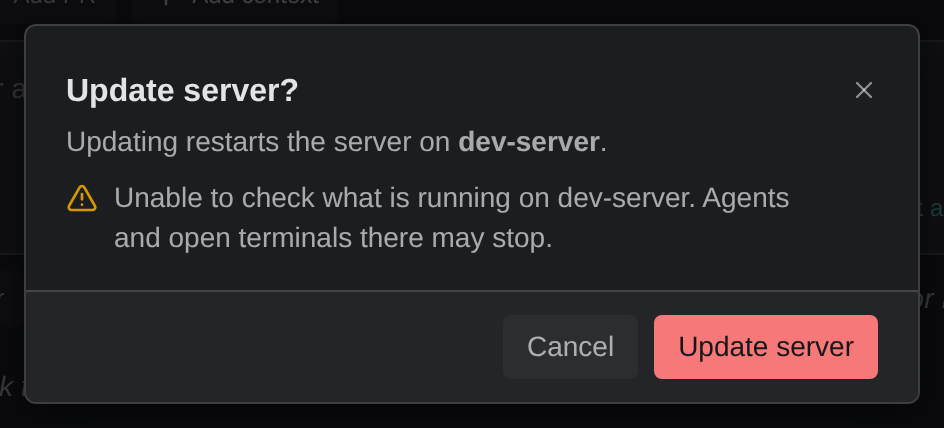
If this app is older than the server, the header offers an update for this app instead, and says that sessions on the host keep running.
To move this window to another host, click the host’s row under Switch to. To open the host in a new window and leave this window where it is, hold Cmd (macOS) or Ctrl while you click, or click the window icon at the end of the row. A host already open in another window is marked Connected. Clicking its row brings that window to the front instead of opening a second connection.
If a different window starts a connection, this window’s chip does not change.
Windows on a remote host
- New Window opens on the same host. File → New Window (⌘ ⇧ N on macOS, Ctrl + Shift + N elsewhere) from a remote window opens a second window on that host. A remote window also offers File → New Local Window when you want a local one. If the new window cannot reach the host, it opens on the recovery screen with the reason. A new window you open from the popover or the connection picker does the same when it fails to connect.
- Windows on one SSH host share a connection. They use one SSH connection and one tunnel, so a second window opens without a new handshake. Every window on a host shares the same storage.
- A host open in another window is reached through that window. The popover and Settings show it as connected, offer Show window, and read its latency, versions, and sessions through that window’s connection.
- The last closed remote window reopens on its host. With no window open, the dock, the tray, or launching Kepler again reconnects to the host the last window was on. If you close a window that was still waiting on an unreachable host, the next window opens locally. If Restore windows on launch is off, Kepler launches locally.
- A
kepler://link opens on the machine it names. A link that carrieshost=with a saved machine opens in a window on that machine:- If no window is open on that machine, Kepler opens one and shows Connecting to machine to open a link.
- A link that names no machine opens in the window you used last.
- If a link cannot open on the machine it names, it opens on this computer instead, with the notice Unable to open on machine, and does not start anything by itself.
- If the item is not found on that machine, the notice reads Not found on machine and offers Open on this computer.
Managing machines in Settings
Use Settings → Remote environments to add, connect, edit, and remove machines. In a local window, Your machines lists your saved machines. Each row shows the host’s type, Connected or Not connected, and Open in N windows when other windows already use it. From a row, you can do the following:
- To connect this window, click Connect.
- To connect in a new window, click the window icon.
- To bring forward a host that is open in another window, click Show window, which replaces Connect for that host.
- To open the host’s page, click the row.
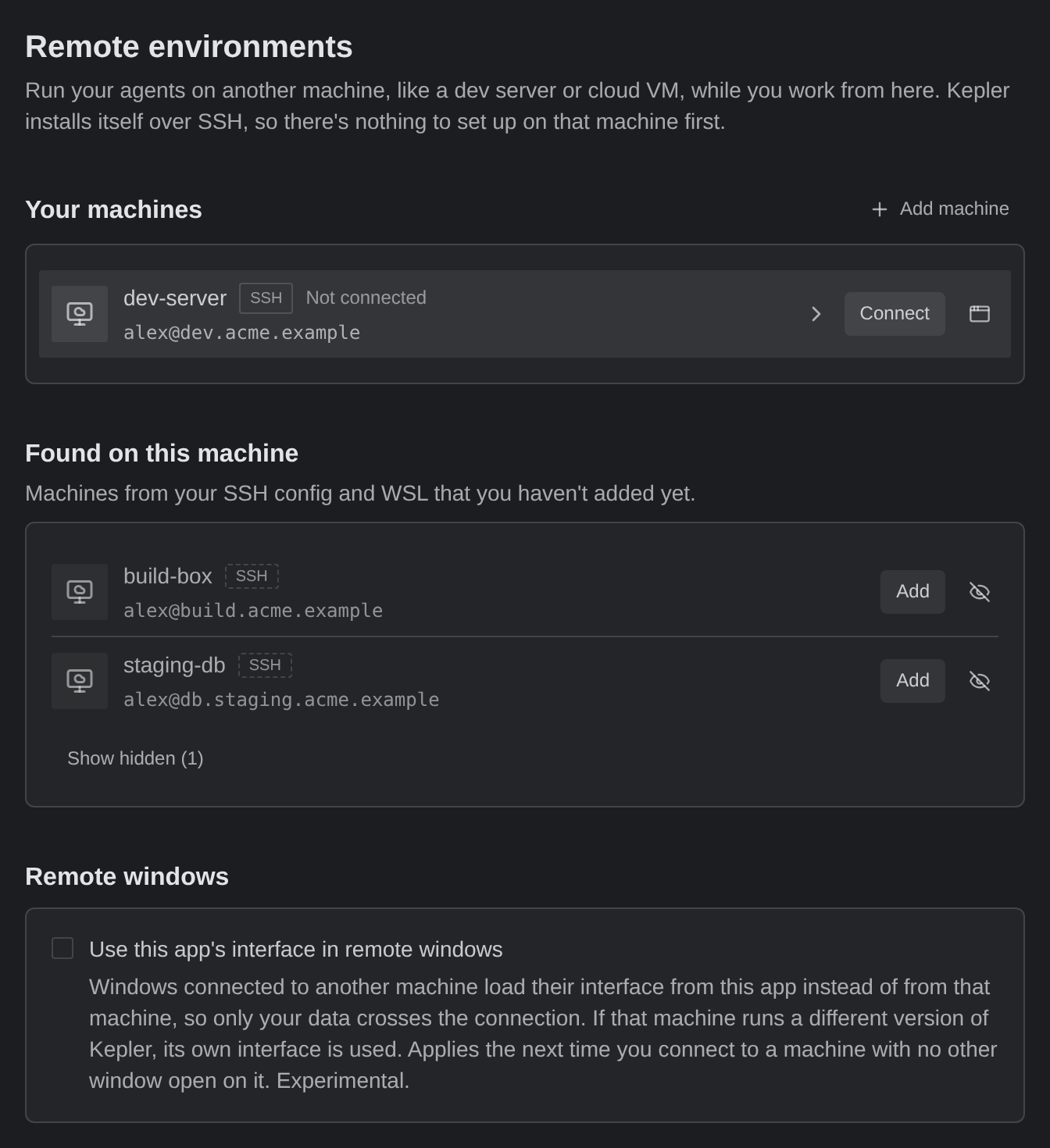
Found on this machine lists machines from your ~/.ssh/config and WSL distributions you have not saved yet. To save one, click Add. If your plan does not include remote environments, Add reads Try free and add when a trial is available. Otherwise it reads Upgrade to add, which opens the plan page and saves nothing. Kepler shows 3 machines at first, with Show N more for the rest. To stop Kepler from offering a machine, click its eye icon to hide it. To bring hidden machines back, click Show hidden (N).
Host details
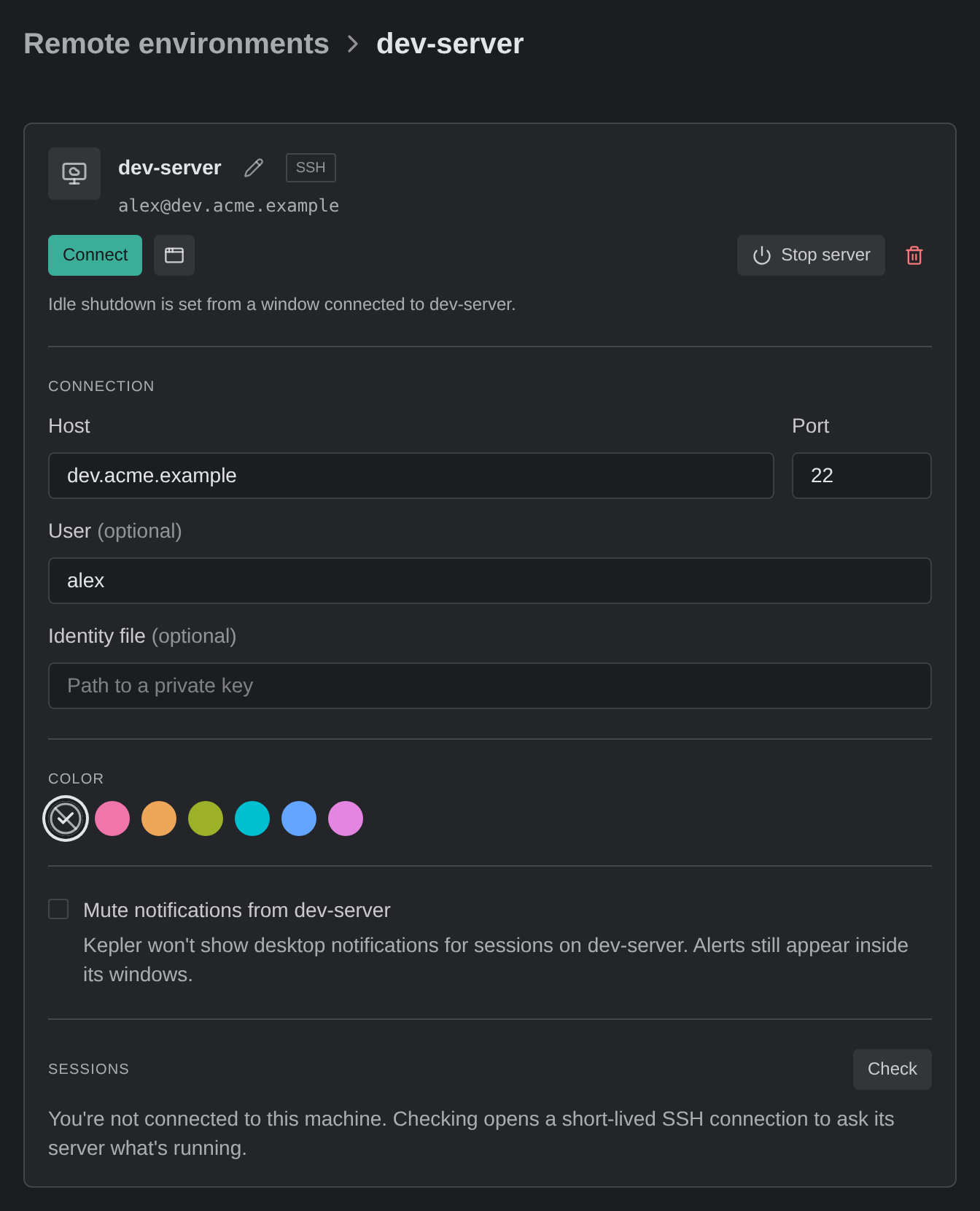
A host’s page has a card of actions at the top:
- Connect. To connect in a new window, Cmd/Ctrl-click it. While a connection is in progress, the same button cancels it.
- Show window and Connect to machine in a new window, in place of Connect, when another window already has the host open.
- Stop server.
- Remove machine…, the red trash icon.
To rename the saved connection, click the pencil beside the name. Renaming changes nothing on the host.
| Group | What it does |
|---|---|
| Connection | Edit the address in place: Host, Port, User, and Identity file for SSH, or Distro for WSL. Save keeps the same saved host, and the fields are locked while the host is connected, so disconnect first |
| Color | None, Rose, Amber, Lime, Cyan, Blue, or Violet. Tints the host’s chip, its rows, and the top bar of its windows |
| Mute notifications from machine | Kepler won’t show desktop notifications for sessions on machine. Alerts still appear inside its windows. |
| Sessions | Lists each live agent session on that host, labeled survive disconnect, resumable anywhere while the machine is connected, and opens one when you click it. For a host nobody is connected to, Check opens a short-lived connection to ask its server what is running |
When you change the address of a host that the SSH wizard created, Kepler first fetches the new address’s host key and shows it under New host key. Trust and save pins that key and saves the host in one step. Each new host or port gets its own scan. When you change any address, Kepler notes that an install at the old address stays there.
Kepler reads your own ~/.ssh/config before it offers to write to it. Kepler uses a host you have already configured exactly as you configured it, including its user, port, identity file, jump host, and any other settings. Kepler offers to edit the file only when it has nothing there to reuse. Open in → VS Code on an SSH environment opens through that same host alias, so VS Code’s own Remote-SSH resolves it exactly the way your terminal does.
Server controls
The restart and update controls act on the server a window is connected to, so they appear in the popover and in a remote window’s Settings. Stop server is also on every host’s page in a local window.
| Control | What it does |
|---|---|
| Restart server to update | Installs the newer server build and reconnects. When something would stop, the Update server? confirmation lists it first |
| Restart server | Offered when no update is pending, for a stuck server. It always asks first |
| Stop server | Stops the Kepler server on the host. The confirmation names how many agent sessions it terminates; Every connected client loses the server, not just this window. |
| Auto-shutdown when idle | Stops the server after N minutes with no window connected and nothing running. Off by default. The timeout defaults to 30 minutes |
| Stop anyway after | Stops the server after N hours with no window connected, even if agents or terminal commands are running. Defaults to 12 hours |
Auto-shutdown when idle counts an agent that is working, or a terminal that is running a command, as something running. A shell that waits at its prompt does not count. Stop anyway after limits how long running work can keep the server up, so a dev server you forgot about does not keep it running indefinitely. The hours count from when the last window disconnects, and start over when a window connects.
Kepler stores both settings on the machine, not locally, so they apply to every client of that server. You set them from a window connected to the machine. A local window shows Idle shutdown is set from a window connected to machine.
Both confirmations ask the server what a restart would stop:
- Update server? lists the agents and terminals by name: This stops when the server restarts:, then each Agent or Terminal. If agents are among them, it adds Agent sessions can be resumed afterward.
- Restart server? first shows Checking what is running on the server…, and keeps Restart server unavailable until the server answers. It then says Running agents and terminals keep going., lists what stops, or warns Running agents and open terminals may stop. It ends with This window reconnects. Other windows on this server disconnect.
While an update or restart runs on a server, whichever window started it, the other server controls wait and say why, for example Another window is updating this server. Wait for it to finish.
Keep agents and terminals running across restarts and updates, in Settings → General → Keep agents running, is on by default. The setting is still experimental. In a build that cannot keep agents running, the setting is off and unavailable. While the setting is on, running agents keep going through a restart or update, and the confirmation says so. Stop server ends them either way.
When you stop a server
A server that you stop on purpose stays stopped. This applies whether you stop it from this window, another window, Settings, or another device. Kepler does not start it again on its own, even when an automatic reconnect, a launch, or reopening the last window would otherwise connect to it. Those windows open on the recovery screen with The server on machine was stopped. Reconnect to start it again.
The server starts again only when you choose one of these actions:
- Reconnect, Connect, or Try again
- File → New Window on that machine
- Restart server to update
If a window stops its own server or disconnects, the window switches to local without showing the recovery screen.
From a remote window
In a window that is on a remote, Settings shows only that host:
- Its connected card with the server controls
- Auto-shutdown when idle
- Color and mute
- Its Ports (SSH)
- Your other saved hosts to switch to
A remote window never shows the other hosts’ addresses. To rename a host, edit a connection, or add or remove a host, click Open in a local window. You also need a local window to switch to a host that needs a password: its row reads Connect to machine from a local window, with Open in a local window.
Connection failures
A failed connection shows an Unable to connect to machine alert with the raw SSH diagnostic as selectable text and a Copy error button, so you can paste the diagnostic into a bug report unedited. When the failure is on a machine other than the one this window is connected to, Kepler adds You’re still connected to machine; this didn’t drop it.
Common SSH failures get a plain-language headline and a hint. Kepler recognizes:
- Authentication rejected (publickey)
- Connection refused
- Machine unreachable
- Unable to resolve hostname
- Connection timed out
- Host key verification failed
- Update remote Kepler server, when the host’s server is too old to take your GitKraken sign-in. Update the Kepler install on the host and try again
A WSL distro that no longer exists reads The {distro} distro wasn’t found on this machine. Any other failure on a WSL machine reads Connection failed, because SSH’s headlines do not apply to WSL. In both cases, the unedited diagnostic appears underneath.
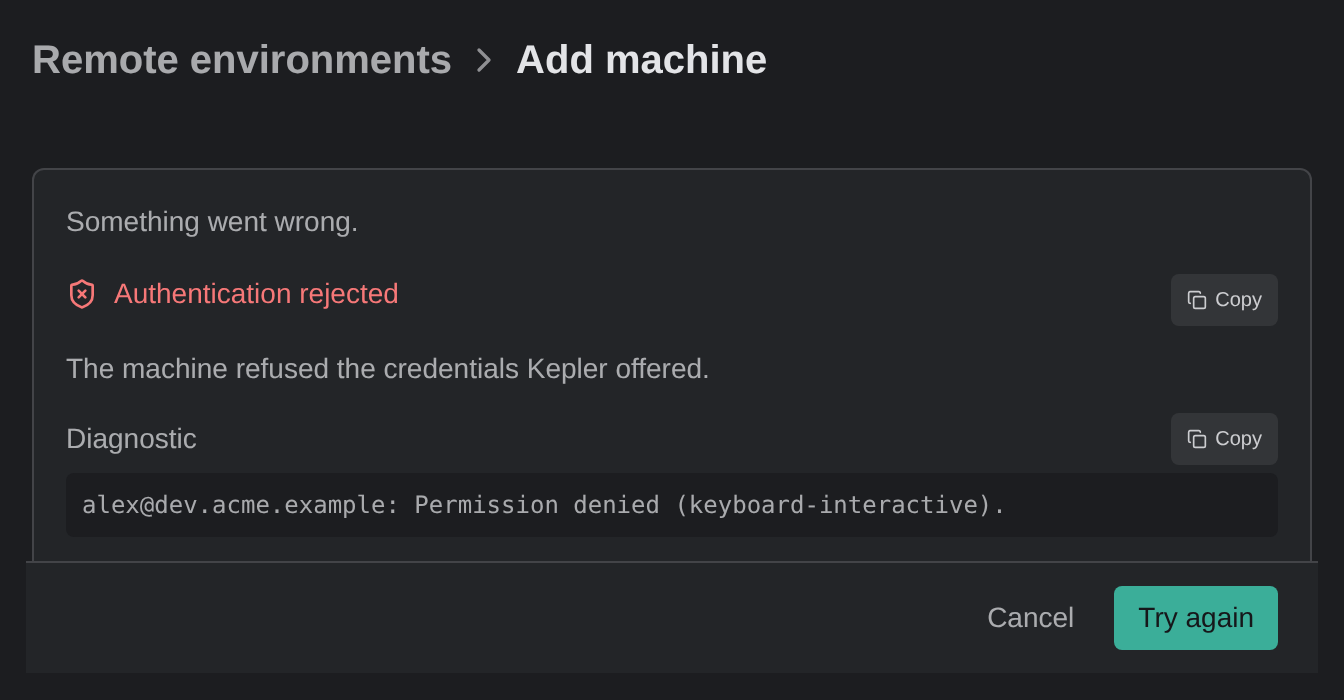
If the failure happens while you are adding a host, the wizard shows it in place: Something went wrong., the headline and hint, the Diagnostic, a Copy button for each, and Try again.
For Kepler’s own log file, use Settings → Help → Logs.
Removing a connection
Remove machine… deletes the saved entry on this desktop. If the SSH wizard created the entry, Kepler also offers to remove what the wizard set up:
| Cleanup option | What it does | Default |
|---|---|---|
| Remove scoped known_hosts file | Deletes the host-key trust file Kepler created for this connection | On |
| Remove generated local SSH key | Deletes the key the wizard generated, and its .pub sibling |
On when such a key exists |
| Uninstall Kepler server on the machine | Stops the server and removes its install folder on the machine | On, unless the server is in use |
| Remove deployed key from remote authorized_keys | Removes the key the wizard installed on the host | Off |
Removing a WSL host offers Uninstall Kepler server on the machine for the distro. For a distro that no longer exists, Kepler shows nothing to uninstall.
If the server reports live sessions or connected clients, Kepler disables the uninstall until you select Uninstall anyway, I understand sessions on this machine may be lost. If the host is unreachable, or needs a password Kepler does not have, Kepler hides the host-side options, and the dialog states which of the two reasons applies.
Add an SSH host
To add an SSH host, click Add machine in Settings → Remote environments. On Windows, choose SSH or WSL under Machine type first. To save a host already in your ~/.ssh/config, use Add under Found on this machine instead.
A host taken from ~/.ssh/config inherits your system SSH configuration, including its host-key trust. A host built in the wizard gets its own trust file, pinned at the fingerprint you accepted.
The wizard
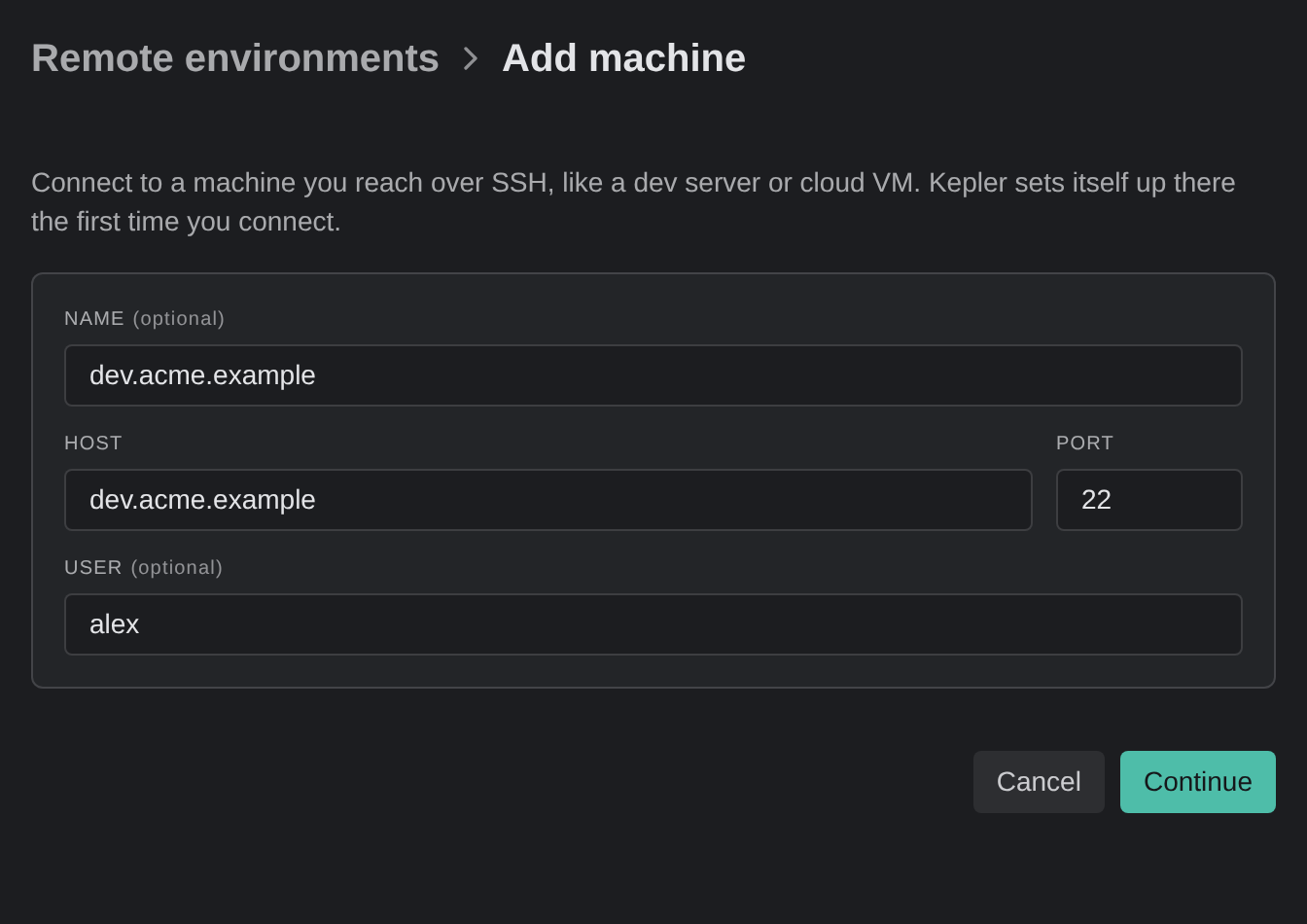
The SSH wizard has 5 steps:
| Step | What you do |
|---|---|
| Connect to a machine you reach over SSH… | Name (optional, defaults to its address), Host, User (optional, defaults to the machine’s $USER), Port |
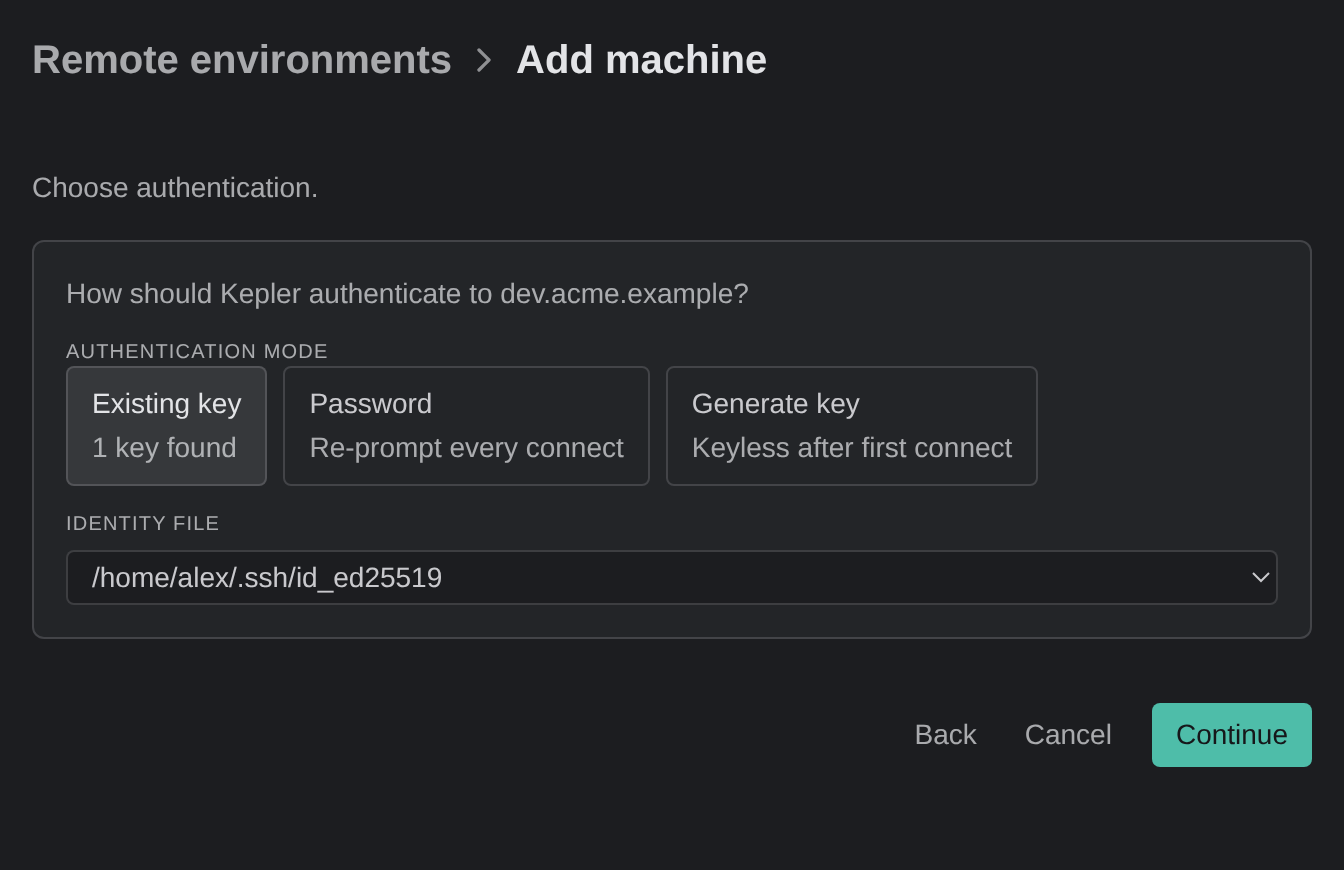
| Choose authentication. | Pick a mode (see below) |
| Verify the machine’s fingerprint. | Kepler fetches the host key and shows its algorithm and fingerprint. Trust and continue pins it |
| Verifying the connection. | Kepler makes a real connection before anything is saved |
| Ready to save. | Add saves the host and opens its page. Nothing connects until you press Connect; a password the wizard verified is reused for that first connect |
| Authentication mode | What it means |
|---|---|
| Existing key | Use one of the keys already in ~/.ssh. Kepler counts the keys it finds and preselects the key when it finds exactly 1, and if it finds none, the mode reads No keys found in ~/.ssh and you cannot pick it |
| Password | Re-prompt every connect. The password is never stored |
| Generate key | Keyless after first connect. Kepler uses the password once to install a fresh ed25519 key at ~/.ssh/id_ed25519_kepler_<hash>. Your existing keys are never overwritten |
Generate key needs ssh-keygen on your machine; the chip reads ssh-keygen missing when ssh-keygen is absent.
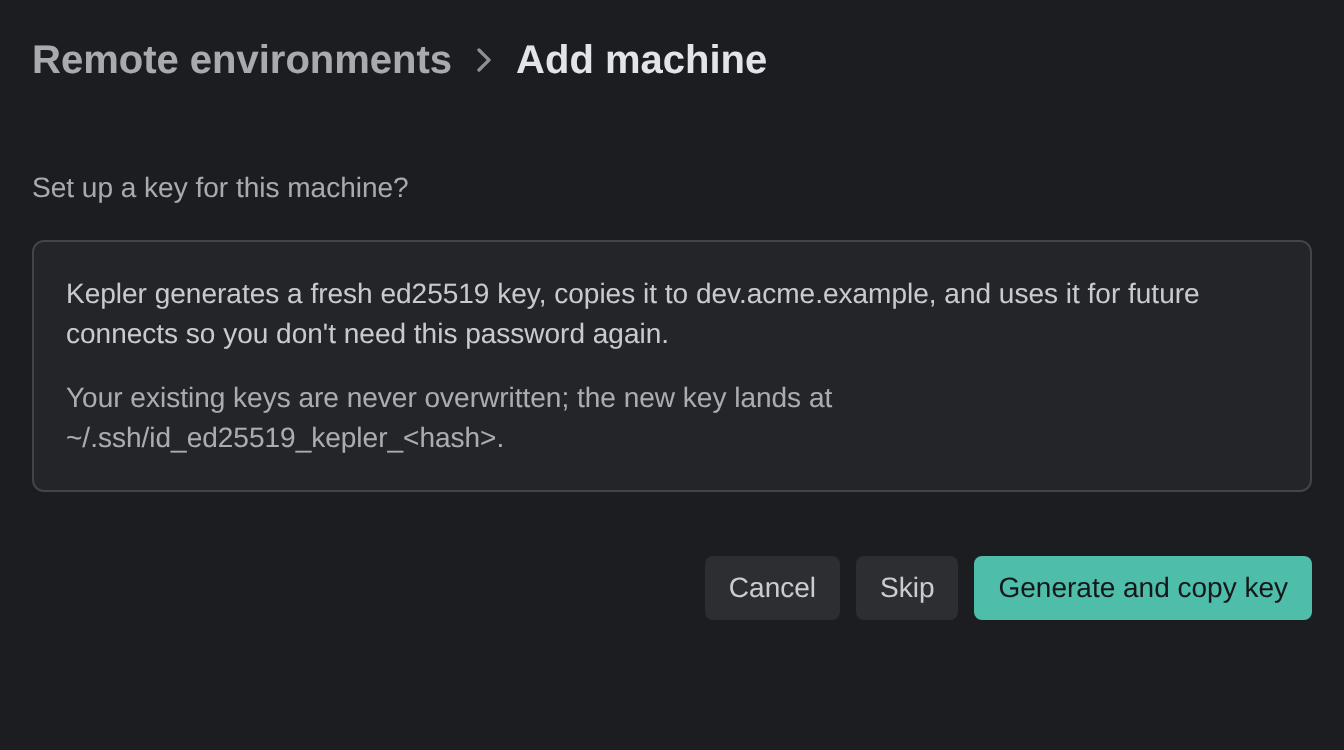
If you pick Password, the wizard then offers Set up a key for this machine? Generate and copy key generates a fresh ed25519 key, copies it to the host, and uses it for future connections, so you do not need the password again. Skip keeps the host on password sign-in.
If the host rejects a key-based connection, the host’s page shows a password row so you can retry with a password. If no key is saved for that host yet, the page also offers to install one at the same time. If a connection from the popover needs a password, Kepler opens a password dialog instead.
SSH to a Windows machine
Kepler connects to Windows hosts over SSH as well as POSIX (Portable Operating System Interface) ones. It detects the target’s operating system (OS) during the probe and switches to a PowerShell install path instead of the POSIX one, mapping the architecture to win32-x64 or win32-arm64.
Nothing changes in the wizard. If the host authenticates but its shell rejects Kepler’s commands, the diagnostic reads Remote shell was unable to run the command, and the hint points at the OpenSSH default shell. Windows 10 and 11 ship PowerShell, so a changed default shell is the usual cause.
The host-side cleanup offered by Remove machine… does not run on a Windows host. See Known limitations.
WSL environments
On Windows, a WSL 2 distro is a remote environment like any other, and the simplest one to set up: it needs no credentials and no fingerprint check.
- Kepler detects WSL by asking
wsl.exefor its status, then lists your version 2 distros. Kepler does not offer WSL 1 distros, or Docker Desktop’s owndocker-desktopanddocker-desktop-datadistros. - Detected distros appear under Found on this machine in Settings, and in the popover while you have no saved hosts, where one click connects to it. Picking one in the popover saves the distro as a host and connects to it, so the connection survives a disconnect.
- To add one by hand, choose Add machine, then WSL under Machine type, and enter its Distro (and an optional Name). A WSL host is edited, checked, and removed exactly like an SSH one.
- WSL needs no tunnel. Kepler reaches the server inside the distro through Windows’ localhost passthrough, and waits for the passthrough to be ready before the window loads.
Port forwarding
When an agent or a terminal starts a dev server on an SSH host, its http://localhost:3000 link points at the host, not at this computer. Kepler forwards that port over your SSH connection so the link opens here.
- Click the link. In an SSH window, Cmd/Ctrl-click a
localhost,127.0.0.1, or0.0.0.0link in a terminal, or click one in the agent transcript. Kepler forwards the port to the host’slocalhost, then opens the local URL. If that port is already taken on this computer, Kepler picks a free one. - Open it from the task. A
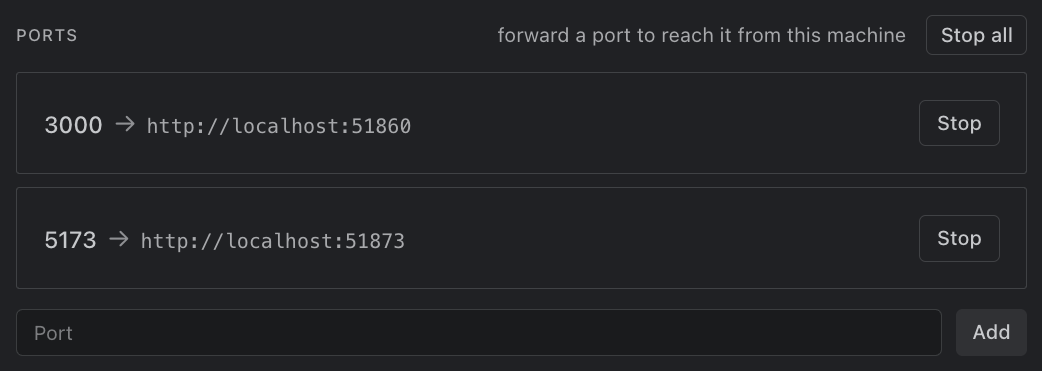
localhostlink attached to a task opens through forwarding too, from the task’s context panel, the link’s detail, or the Dashboard’s resources list. Agents attach the URL of a dev server they start for you to open. - Add one by hand. Settings → Remote environments → Ports, in the SSH window, lists this window’s forwards as remote port → local URL. To add a forward, enter a Port and click Add. Stop ends one forward, and Stop all appears when more than one is forwarded.
While anything is forwarded, the chip shows a radio-tower glyph and the popover adds a summary row that opens the Ports list.
Forwards belong to the window that made them. Disconnecting, closing, reconnecting, or switching hosts ends them, and Kepler does not restore them. A forward that fails opens nothing rather than reaching a service on this computer. Local and WSL windows open localhost links unchanged, since WSL already passes localhost through.
What runs where
| Piece | Runs on |
|---|---|
| Kepler’s window and its native capabilities | Your local machine |
| Git operations, worktrees, and repositories | The host |
| Agent and terminal sessions | The host |
| Provider and issue-tracker data | The host |
| The interface itself | Served by this computer by default, or by the host’s Kepler server when you turn that off (below) |
| Themes, and your choice of theme | Your local machine |
Agent sessions belong to the server, not to your window. If you close the window, lose the network, or put the laptop to sleep, the sessions keep running. When you reconnect, from this machine or a different one, the sessions are listed and you can resume them. If the server itself goes away, Kepler re-spawns the agent and re-attaches to the same conversation from the session Kepler saved.
Kepler runs agent sign-in on the host. Claude Code, Codex, and Auggie all sign in to a remote target: Kepler starts the flow on the host, the sign-in page opens in your local browser, and Kepler saves the credential on the host. For Claude Code and Auggie, you paste back a code or a JSON blob. Codex signs in with ChatGPT (device code), which works on any machine, with an API key, or with Import local Codex login. See Agent Integrations.
Experimental: serve the interface from this computer. Settings → Remote environments → Remote windows → Use this app’s interface in remote windows loads remote windows’ interface from this app instead of from the host, so only your data crosses the connection. If the host runs a different version, its own interface is used. It is on by default. A change takes effect the next time you connect to a host with no other window open on it.
Themes belong to this computer. Every window, including one on a remote machine, lists and installs themes from this computer’s themes folder and gallery. Every window opens in the theme you chose.
In a remote window, the theme picker adds an On machine group for themes the host has and this computer does not:
- To copy a theme to this computer, click Install on this computer. For a theme you copied from that host before, the button reads Update the copy on this computer.
- When this computer has its own copy of the same theme, the host’s copy says how it compares: Update to {version}, Older than yours, or Differs from yours. Installing it asks first (Update {name} to {version}? or Replace {name} on this computer?). Your copy then moves to the Trash (the Recycle Bin on Windows).
- A copy you installed from the picker stays as it is until you update it yourself. Kepler’s background sync does not overwrite it.
Kepler refuses a host theme that conflicts with a built-in theme or with another theme on this computer. It also refuses an install when the themes folder is full or after too many installs in a minute. See Themes in a remote window.
What you see while connecting
The first connection to a host where Kepler is not installed uploads the server bundle, so it takes minutes rather than seconds. The chip, the popover, and the host’s Settings page all name the current stage, with a progress bar whenever the total is known.
| Stage | What it means |
|---|---|
| Checking the machine | Working out the host’s OS and architecture |
| Authenticating | Negotiating SSH auth |
| Checking the remote install | Looking for an existing install and a live server |
| Downloading remote server | Fetching the matching server bundle to your machine |
| Uploading remote server | Sending it to the host |
| Finishing the install on the machine | Unpacking finished; the host is completing the install |
| Starting the remote server | Launching the server |
| Updating the remote server | Replacing an out-of-date server with the build this Kepler needs |
| Waiting for another install to finish | Another window or machine is installing or updating the same server. This is usually the fast path |
| Opening the tunnel | Forwarding a local port to the host |
Cancel stops the attempt, from the popover or from the host’s own Connect button.
Reconnecting to a host whose server is already installed and running skips most of these stages: Kepler reads the server’s details and opens a tunnel.
If Kepler launches directly into a remote window, that window opens in place. If connecting takes more than a moment, the window shows a Connecting… screen with the live stage and Cancel. When Kepler restores several windows on the same machine, it connects once: the first window connects, and the others wait on their Connecting… screens and follow it. Cancel on one of those screens stops the restore for that machine only.
A window that Kepler opens to show a kepler:// link names the reason while it connects: Connecting to machine to open a link. See Windows on a remote host.
Recovery after restart or sleep
When a connection breaks, Kepler rebuilds it.
| Event | What Kepler does |
|---|---|
| The connection degrades | Health checks run every 10 seconds. After 3 failures in a row, the chip changes to Reconnecting… and Kepler starts a rebuild: up to 5 attempts, with backoff from 1 second up to 30 seconds |
| Several windows share the connection | Kepler rebuilds the connection once for all of them. Every window shows the progress, and the others follow the first one back |
| The machine wakes from sleep | Rather than waiting for health checks to accumulate, Kepler probes each connection at once and rebuilds only the ones that are unreachable |
| The connection is rebuilt to the same server | The page stays as it was, with your drafts, scroll position, and terminal scrollback. Kepler reloads it only if the server itself changed |
| The server restarts or updates | The window reloads onto the view it was on, not a bare Dashboard. When another window updates or restarts the server, this window waits through the restart and reconnects as soon as the server is back. If the update fails, the window keeps its saved server, so it reopens on that machine after Kepler restarts |
| Kepler restarts | Kepler restores every window (geometry, route, and connection) so a remote window comes back on its remote |
| A reconnect cannot finish | Usually a host that needs interactive auth. The window shows the full-screen recovery screen, and keeps its saved machine until it reconnects or you switch to local |
When Kepler rebuilds a connection, it closes the dead tunnel, opens a new one, and passes your GitKraken sign-in to the host again, so the window comes back signed in rather than at a sign-in screen. SSH connections keep a stable local port per host, so a reconnect returns to the same origin and your interface preferences, drafts, and notification permission survive it.
The recovery screen
When a window cannot reconnect to its machine, it shows a full-screen recovery screen. The screen names what happened, shows the reason it failed, and offers one action to reconnect, plus Switch to local. The window keeps its saved machine until it reconnects or you choose Switch to local.
If a rebuild gives up, or you cancel it from any of its windows, every window on that machine moves to the recovery screen. When any window reconnects to the machine, the windows waiting on the recovery screen reconnect too. If a later automatic connection attempt fails, the screen updates its reason.
The screen’s title and action depend on what happened. In each title, machine is the name of the saved machine:
| What happened | Title | Action |
|---|---|---|
| An automatic reconnect gave up | Disconnected from machine | Reconnect |
| The server was stopped from another window or device | Disconnected from machine, with The server on machine was stopped. Reconnect to start it again. | Reconnect |
| A server update failed | Unable to finish updating machine | Try again |
| A server restart failed | Unable to restart machine | Try again |
| A new window could not connect | Unable to open machine in this window | Try again |
| Kepler launched into a remote window that could not connect | Unable to connect to machine, or Not connected to machine | Connect |
| The saved machine was removed, or was never saved | machine is no longer saved, or machine isn’t saved | Open Remote environments |
A failed update or restart leaves the server stopped. Try again installs the update and starts the server. If the machine needs a password, the screen asks for it.
If your plan does not include remote environments, the screen has a different title, whatever brought the window there: Your plan doesn’t include remote environments. The body names the machine and what you can do, for example To connect to machine, upgrade to plan, or switch to local to keep working on this machine., where plan is the plan that includes remote environments. Its main button reads Upgrade to plan when Kepler knows that plan, or offers a free trial when one is available.
An account card shows who is signed in and the organization in use. You can switch to another organization marked Includes remote environments, or sign out. Check again re-reads your plan. Once your plan allows it, the window connects by itself, and after a trial starts, the connecting screen says that your trial has started.
Local conveniences that still work
Some things have to happen on the machine in front of you. Kepler runs those through the desktop app rather than on the host.
| Feature | Behavior over a remote connection |
|---|---|
| Open in… and Show in Finder (Show in Explorer on Windows, Show in file manager on Linux) | Run on your desktop machine, not on the host. Kepler reports which of them can reach the current binding and hides the rest, so no buttons fail |
| Desktop notifications | Shown by your local desktop when an agent finishes, needs you, or errors. Kepler decides per machine: while you are in any window on that machine, the alert shows inside Kepler instead. Windows on one machine alert once, and a muted host shows none. Clicking one shows its task or session in the window already showing it, or else in the window on that machine you used last |
| Voice input | Captured by the local app. See Voice Input |
| Copying from Codex | A copy Codex makes in a remote window goes to your local clipboard, not the host’s |
| Folder pickers | Browse the host’s filesystem, since that is where the work lives |
These 7 editors open a remote folder through their own remote extension, which is the only way a locally installed editor can reach an SSH host’s worktree:
| Editor | Authority Kepler passes |
|---|---|
| VS Code | --remote wsl+<distro> or --remote ssh-remote+[user@]host[:port] |
| VS Code Insiders | Same |
| Cursor | Same |
| Devin (formerly Windsurf) | Same |
| Antigravity IDE | Same |
| Trae | Same |
| Kiro | --remote ssh-remote+[user@]host[:port] only. Kiro does not open WSL folders this way |
The editor resolves the host and authenticates by itself. For SSH, the editor uses your own SSH configuration, so a host Kepler reaches with a custom identity file may still prompt in the editor.
Other editors, and the file manager, need a path that Windows can reach. WSL provides one, \wsl$, but an SSH host does not. When no such path exists, Kepler does not show the option.
Remote server components
The desktop installer does not carry a server bundle for every architecture. Kepler fetches what it needs when you connect, and caches it per user.
Kepler splits the payload into 4 layers, each a separate archive with its own cache key:
| Layer | What it holds |
|---|---|
node |
The vendored Node runtime |
codex |
The bundled Codex engine. Optional: a build without it ships 3 layers |
deps |
The server’s dependencies |
app |
The server and the interface |
| Piece | Location |
|---|---|
| Published manifest and layers | <channel>/<version>/remote-servers/<arch>/ |
| Per-user cache | <userData>/remote-server-cache/<channel>/<version>/<arch>/ |
| On the host | ~/.kepler-server |
The architecture token is one of linux-x64, linux-arm64, darwin-x64, darwin-arm64, win32-x64, win32-arm64.
A connection downloads only the layers the host is missing. Kepler reads the small manifest first (no payload bytes) and compares each layer’s key against what the host has already installed. A version bump that changes only the app leaves your Node and Codex layers alone on both sides, so an upgrade pulls a fraction of what a first connect pulls. This holds on every transport: SSH to a POSIX host, SSH to a Windows host, and WSL.
Two cases still fetch everything. A host with no layer stamps at all (a first connect) has nothing to diff against. And when the missing layers come to 75% or more of the payload, Kepler downloads the whole payload rather than assembling a subset that saves little.
Kepler downloads each layer cache-first, retries with backoff, and writes it atomically, so an interrupted download is never mistaken for a cached layer. When a layer cannot be fetched at all, the connect fails with Unable to download the remote-server version for arch. Check your internet connection.
The payload carries its own Node runtime, so the host needs nothing pre-installed beyond an SSH or WSL transport. Kepler couples desktop and server versions: your Kepler always knows which server build it needs. Kepler never installs over a running server. On connect, it replaces an out-of-date server on its own only when nobody would lose anything: no running agents, open terminals, or other connected windows. Otherwise the server keeps running and the chip offers Restart server to update. Only one client replaces a server at a time; the rest wait.
When the server and the window disagree
A window whose page comes from a server on a different build shows a full-screen message instead of the app: This remote server is out of date, or This remote server is newer than this window, with Server {server}, this window {app}. An out-of-date server offers Update server, and retrying does not help until the server is updated. Otherwise, Try again loads the matching version. If the message keeps coming back, restart the server. Switch to local moves the window back to this computer.
Remote access: reach Kepler from another device
Remote Access is the other direction. It opens this Kepler window from another device, such as a second computer or a phone, over a secure tunnel relayed through your GitKraken account. Your work still runs here; the other device only sees the interface.
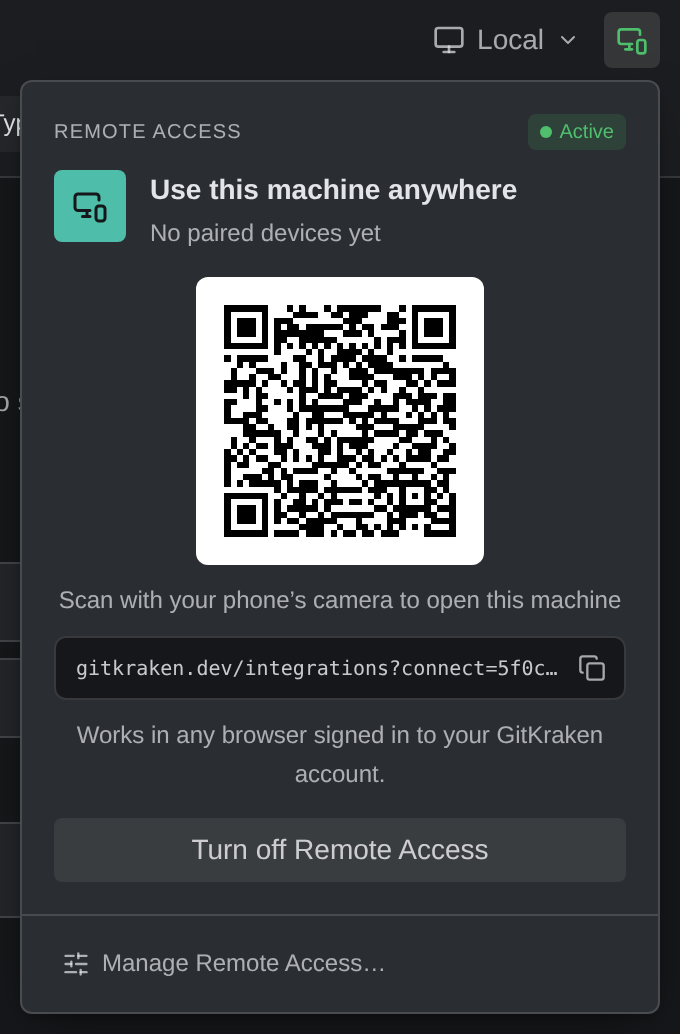
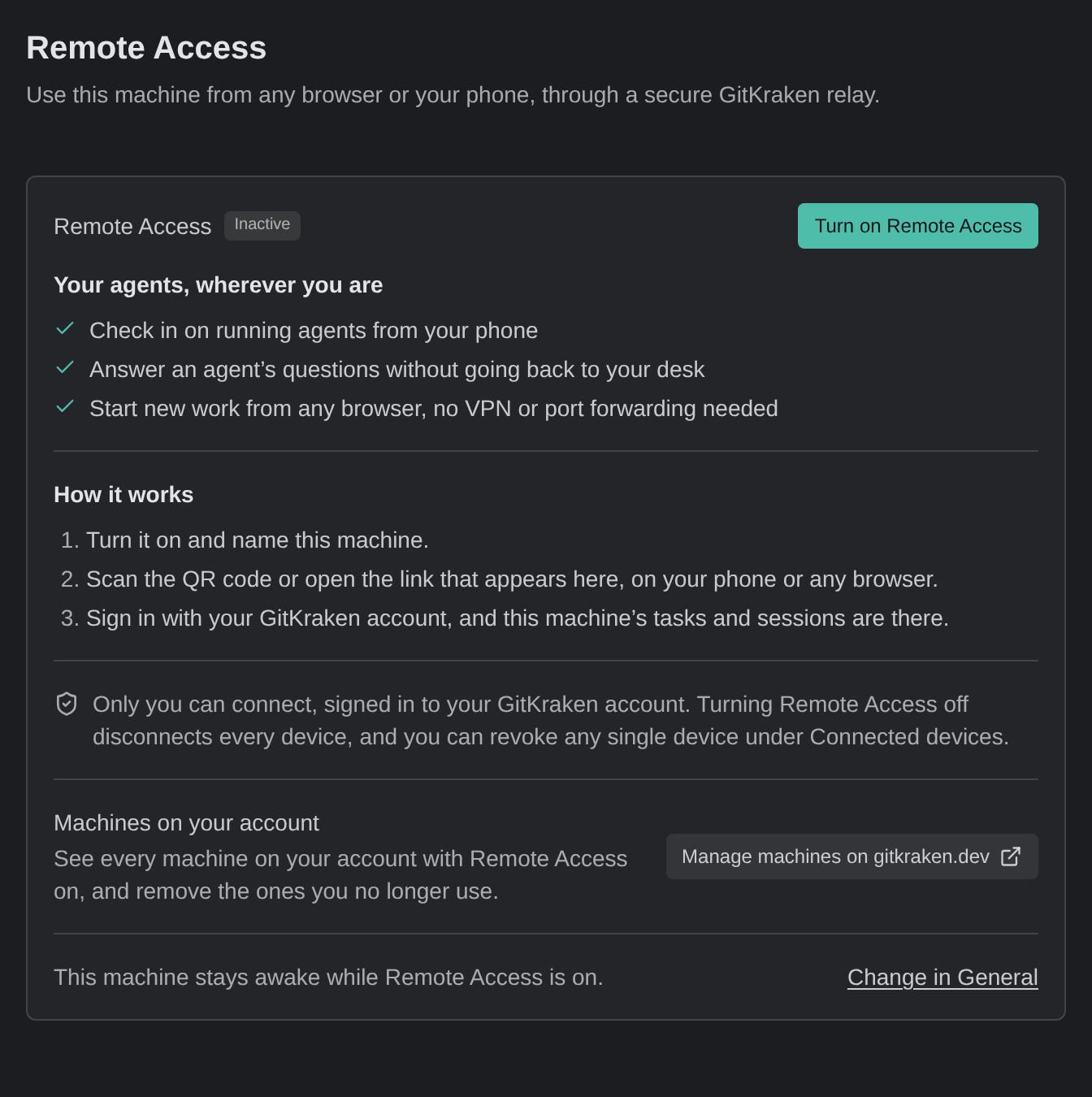
Configure it in Settings → Remote Access, or from the Remote Access button in the title bar. The button’s monitor-and-phone icon shows the status: green while active, amber while connecting, reconnecting, or waiting to reconnect, red on an error, and plain while off. Hover over it to open its popover, which works on the machine the window is on:
- Use this machine anywhere, or Use machine anywhere in a remote window, with how many devices are paired and online, or No paired devices yet.
- While active, a QR code captioned Scan with your phone’s camera to open this machine, the link with Copy link, and Works in any browser signed in to your GitKraken account.
- Turn on Remote Access or Turn off Remote Access.
- Manage Remote Access…, which opens Settings → Remote Access.
Before you start
You need a GitKraken account signed in to Kepler, on a paid GitKraken plan. Remote Access is not available on the free Community plan.
When you sign out of Kepler, each remote machine your windows are connected to learns that you signed out, and turns its Remote Access off. A sign-in that expires on its own does not turn Remote Access off.
Turning on Remote Access
- Open Settings → Remote Access.
- Click Turn on Remote Access.
- In Name this machine, keep the name Kepler fills in, or enter a name you recognize. gitkraken.dev shows this name in your list of machines.
Kepler generates a private key for this machine the first time you enable Remote Access. The key never leaves the machine; Kepler uses it to prove the machine’s identity to GitKraken each time it reconnects.
Remote Access stays on until you turn it off. Only you, a deliberate sign-out, or a different account signing in turns it off. When Kepler restarts, it turns Remote Access back on only for the account that turned it on. When the connection fails, Kepler retries quickly a few times. After that, the status reads Waiting to reconnect, with Unable to connect and the reason. Kepler retries every 5 minutes., and Retry now tries at once. Paired devices stay paired through the wait. Remote Access also waits in these 2 cases:
- With no GitKraken sign-in, the status reads Waiting for a GitKraken sign-in. Remote Access connects as soon as one is available.
- When your account already has its limit of machines with Remote Access on, the status reads Your account has reached its limit of machines with Remote Access on. Remove one you no longer use, then retry., with Manage machines on gitkraken.dev.
This machine stays awake while Remote Access is on, except while it waits to reconnect.
To turn it off, click Turn off Remote Access in Settings or in the popover. Kepler asks Turn off Remote Access?, because Every paired device is disconnected.
Pairing another device
When Remote Access is active, a QR code and a link appear in Settings and in the popover.
- To pair a phone, scan the QR code (Scan with your phone camera to open). Otherwise, copy the link.
- The link opens gitkraken.dev/integrations, where you approve the connection with your GitKraken account.
A pairing link works once and expires after 5 minutes. A used or expired link shows This pairing link no longer works. To pair, open a new link from the computer running Kepler.
Using Kepler on a phone
When you open Kepler in a phone’s browser, it uses a phone layout: one bar at the top of each screen in place of the desktop top bar and headers. The phone layout applies to any browser window as narrow as a phone; the desktop app never uses it. On a touch screen, Kepler also keeps the phone awake while you watch an agent that is working without needing you, or a terminal that is printing output, because a phone that locks drops the connection. When the on-screen keyboard is open, Kepler fits the screen above it.
The menu
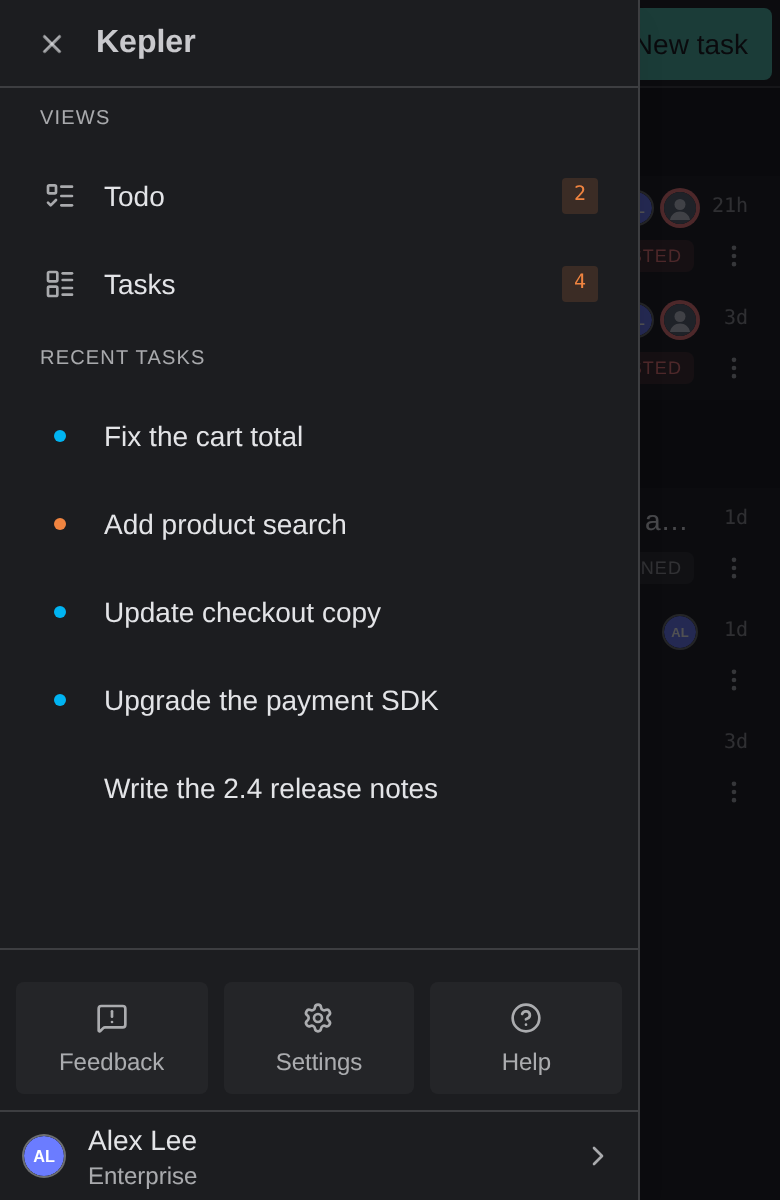
Menu, the first button in the bar, opens the Kepler drawer:
- Views: Todo and Tasks, each with an orange count of what needs you
- Saved views, when you have any
- Recent tasks: the 5 most recently active tasks, each with a dot when it is waiting on you
- Feedback, Settings, and Help
- Your account row, with your plan or the days left in a trial
The Dashboard
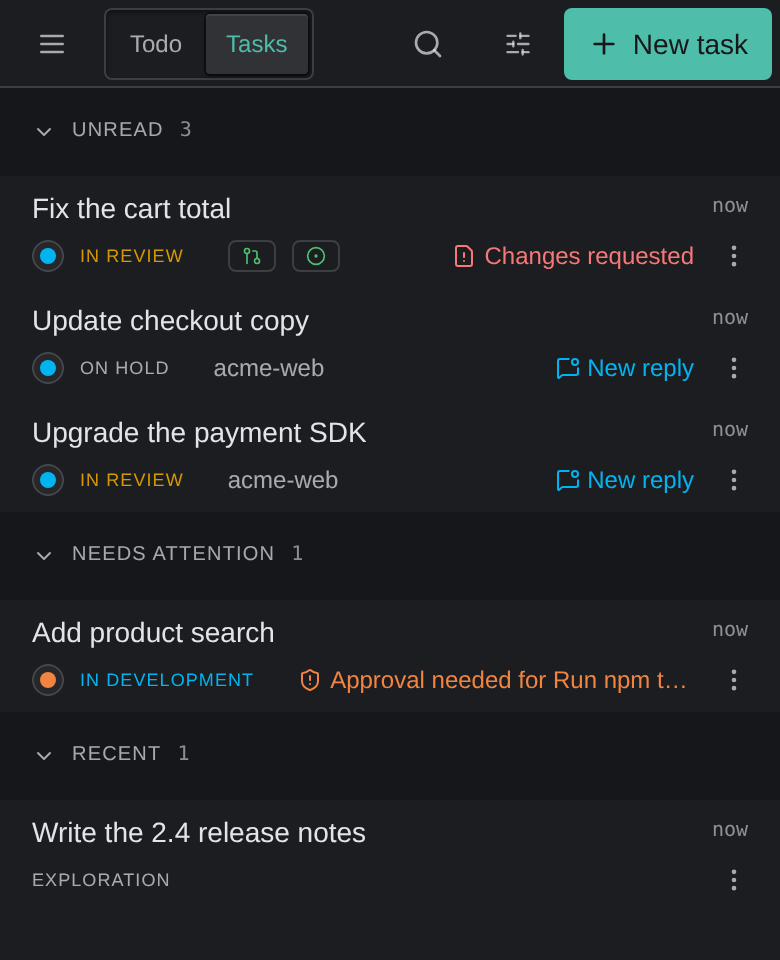
The Dashboard’s bar holds Menu, a Todo and Tasks toggle, Search, Options, and New task. The Agent Graph has no tab on a phone. Search expands in the bar. Options shows how many filters are active, and opens a sheet with Refresh, the group, sort, filter, and saved-view choices, and, on Todo, Related to me. Right after a refresh, the Refresh row says Refreshed recently. Try again in N s.
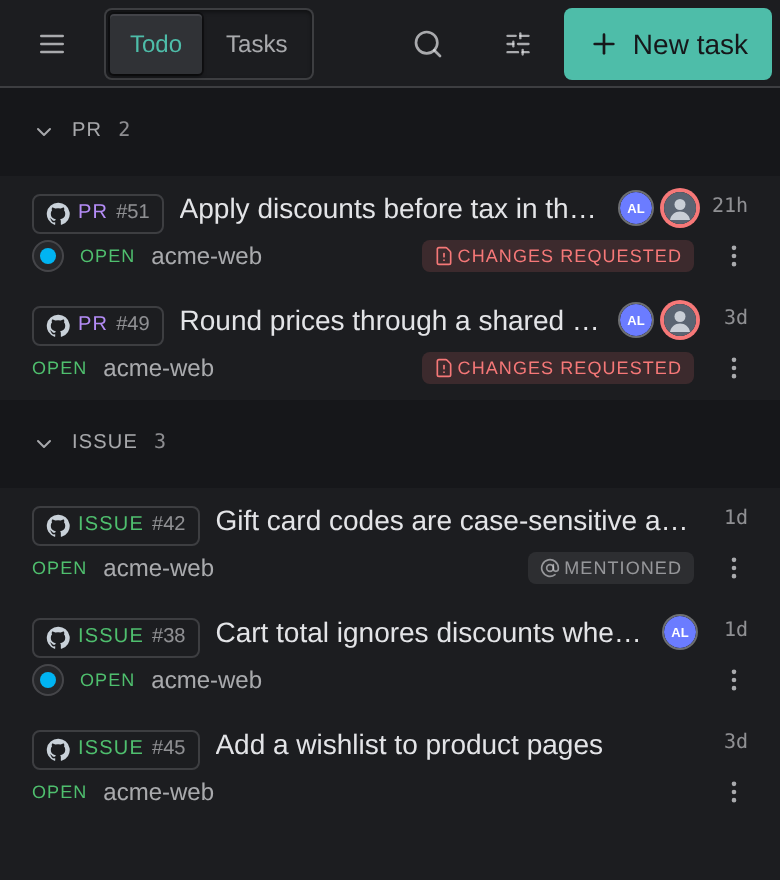
Tapping an item opens it full screen, with a Back to list arrow at the left of the bar. A pull request or issue shows its title as a chip in the bar, with its own actions beside it. Tap the title to open Switch item, a sheet that lists every pull request and issue in your Todo list, in the same groups and order, with the current one checked. Tap another to open it in place.

A task
A task’s bar has Back, the task’s name, and one icon each for Sessions, Changes, Terminal, and Resources. A dot on Back means another task needs you.
- Tap an icon to go to what is waiting there first, or else the last thing you had open. Its list offers each row, an action to add one (New session, New terminal, or Add resource), and Show everything in this task.
- Tap the task’s name to open Switch task, a sheet of every task in the Dashboard’s order. Swipe sideways on the name to go back to the previous task.
- Pull down on the bar for a sheet of everything in the task: sessions, checkouts, terminals, and resources, with each row’s actions.
Under the bar, a details row shows the task’s stage and a summary. Expand it to see the checkout and the task’s pull request and issue. The row collapses while a terminal or the changes fill the screen.
Add resource opens as a sheet that lists the kinds of resource, and steps into one at a time, with Back to resource types to step out. Filters, branch choice, and cloning each open as a further step, and a single Add button adds what you picked.
Changes opens with one bar: Close, the file’s name, and Previous and Next. Tap the name for the list of changed files. Everything else, from which changes to show to saving an edit, is in the bar’s overflow menu.
Terminals
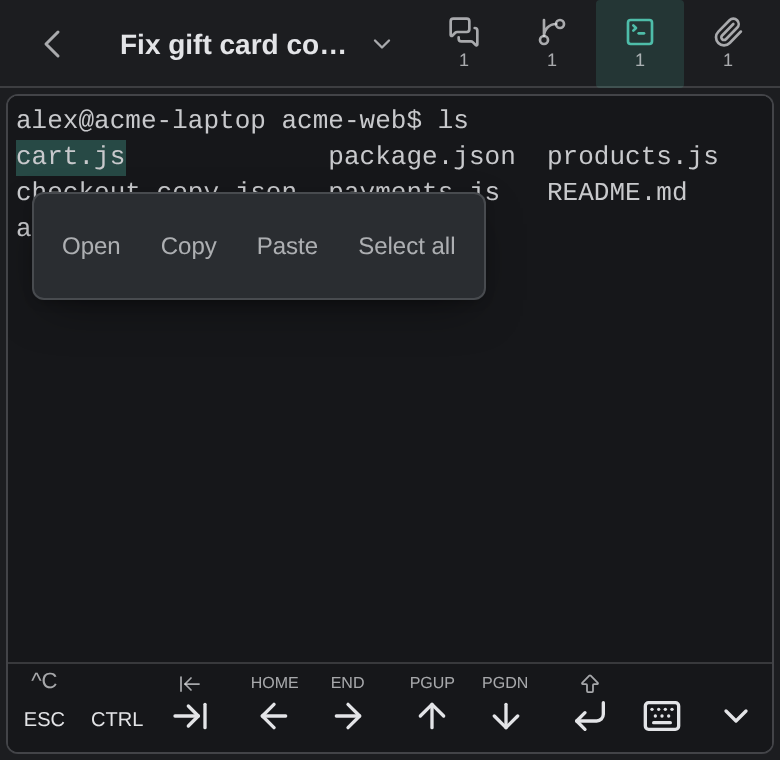
On a touch phone, every live terminal has a key row under it with the keys a phone keyboard lacks: Esc, Ctrl, Tab, the arrows, Enter, Keyboard, which shows or hides the phone keyboard, and Hide keys. Swipe up on a key, or hold Esc, Tab, or Enter, for the second action printed above it:
| Key | Second action |
|---|---|
| Esc | Ctrl+C |
| Tab | Shift+Tab |
| Enter | New line |
| Left and Right arrows | Home and End |
| Up and Down arrows | Page up and Page down |
Tap Ctrl once to hold it for the next key only, or double-tap it to lock it until you tap it again. Holding an arrow repeats it. Hide keys replaces the row with a Show keys button, and this device remembers the choice. The phone keyboard opens only when you tap the terminal or Keyboard, not on every scroll.
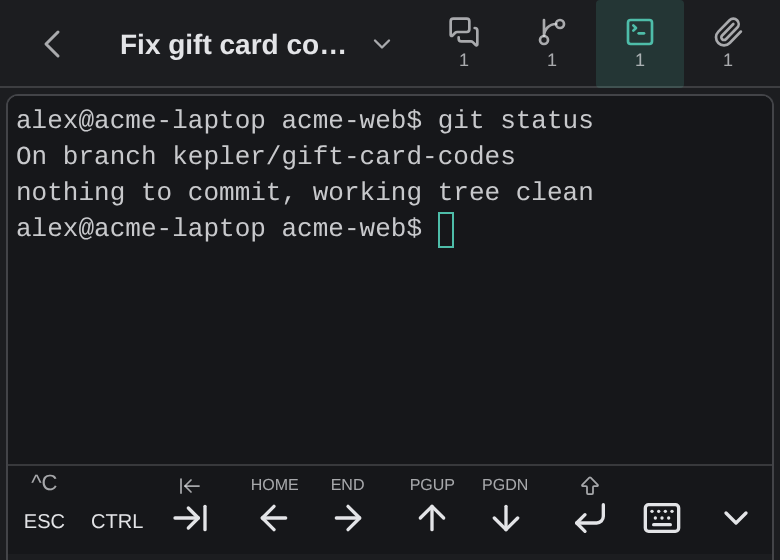
To select text, long-press a word, and drag before you lift to extend the selection. A pill offers Open when you pressed a link or a file path, plus Copy, Paste, and Select all. A long press on blank space offers Paste and Select all. In a program that tracks the mouse, such as a menu in an agent’s terminal app, a tap clicks.
Managing sessions from gitkraken.dev
Go to gitkraken.dev → Integrations → Remote Access to manage every machine with Remote Access turned on, across all your devices.
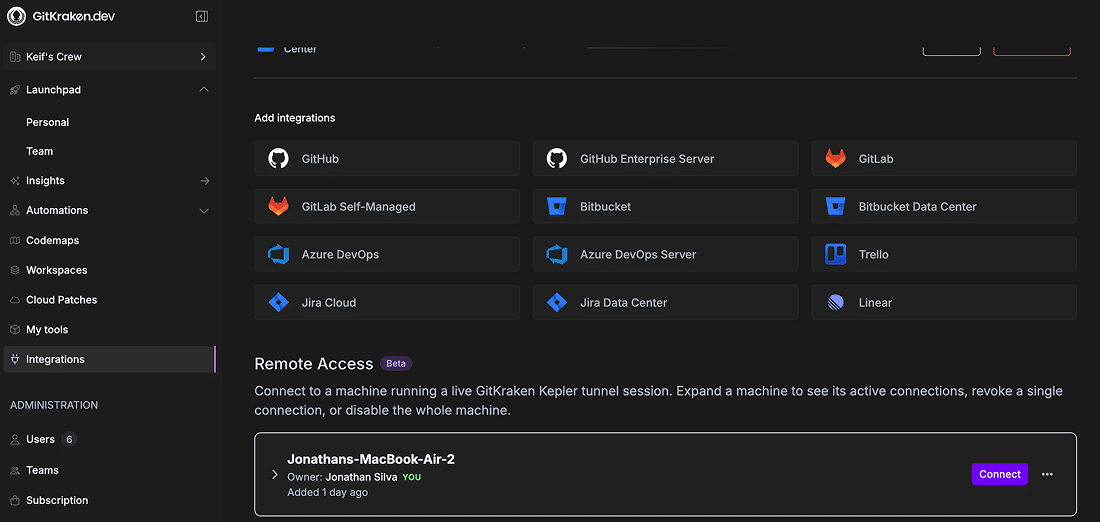
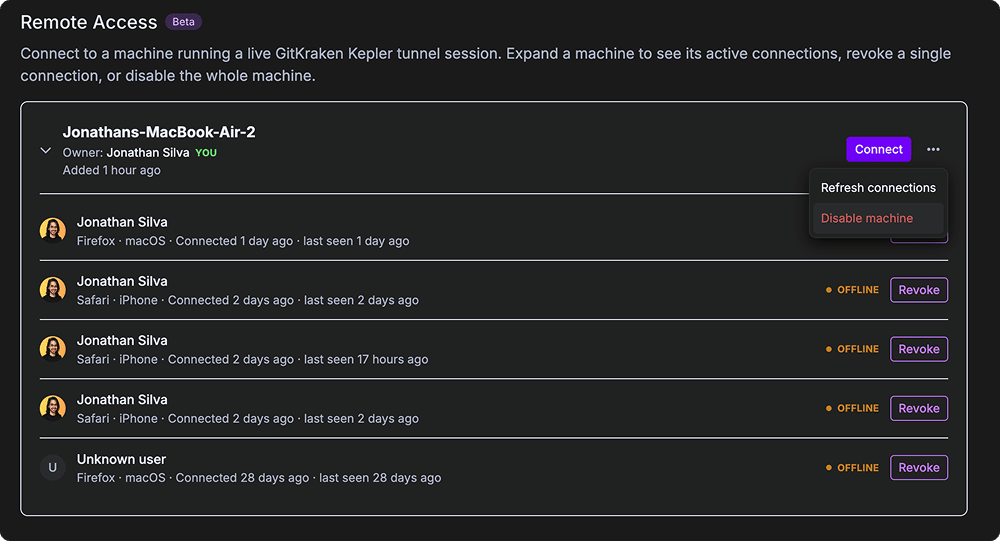
- Expand a machine to see its active connections.
- Revoke a single connection to sign out one paired device without affecting the others.
- Disable a machine to turn off its tunnel entirely, from anywhere.
You can also manage the current machine’s connections locally, in Settings → Remote Access → Connected devices. Machines on your account, on the same page even while Remote Access is off, opens the machine list on gitkraken.dev with Manage machines on gitkraken.dev, so you can remove machines you no longer use.
Known limitations
| Limitation | Detail |
|---|---|
| Commit and tag signing | Signing does not work over a remote connection. Kepler says so rather than failing quietly: Commit signing isn’t available over a remote connection yet. Disable commit.gpgsign for this repo on the remote, or run the commit from a terminal there. |
| Remote-connection management in a browser client | Desktop app only. A browser client shows Remote environments need the desktop app and hides the title-bar chip, because adding hosts, connecting, and stopping servers all run through the desktop app |
| Auto-update in a browser client | Does nothing, because a browser cannot update itself. Update the desktop app, or update the host’s server from a desktop window |
| Port forwarding from a Windows client | Each forward opens its own SSH connection, so a password host asks for the password again per forward. Only localhost, 127.0.0.1, and 0.0.0.0 links forward |
| Host-side cleanup on a Windows host | Of the 4 options Remove machine… offers, 2 act on the host (Uninstall Kepler server on the machine and Remove deployed key from remote authorized_keys) and both run through a POSIX shell, so neither works on a Windows host. The 2 local options are unaffected. Delete ~/.kepler-server and the authorized_keys entry on the host yourself |
Related
- Settings: the Remote environments and Remote Access pages, and the shortcut list
- Agent Integrations: signing agents in, including on a remote target
- Review Changes: reviewing and shipping the work a remote agent produced
