

Last updated: October 2026
Use Setup to get back to Kepler’s first-run checklist. Use Account to see who you are signed in as, which organization you are acting as, what your plan includes, and how you are using your GitKraken AI credits.
Setup
To reopen the first-run checklist, click Setup at the top of the Settings sidebar, under Search settings. Its progress ring shows how much of the checklist is done. For what the checklist asks you to do, and how to hide it from the toolbar, see Getting Started → Finish the setup checklist.
Account
The Account page has these controls:
| Control | What it does |
|---|---|
| Account | Who you are signed in as, with your name and email |
| Organization | Your active organization and its plan. If your GitKraken account belongs to more than 1 organization, this line is a switcher |
| Refresh account status | Reads your plan again. Kepler also picks up a purchase or plan change you make outside the app by itself, without a restart |
| Manage account / Manage subscription | Opens your GitKraken account or subscription on gitkraken.dev |
| Unlock more with Kepler | What this plan includes and what it does not. Shown only while something is left to unlock |
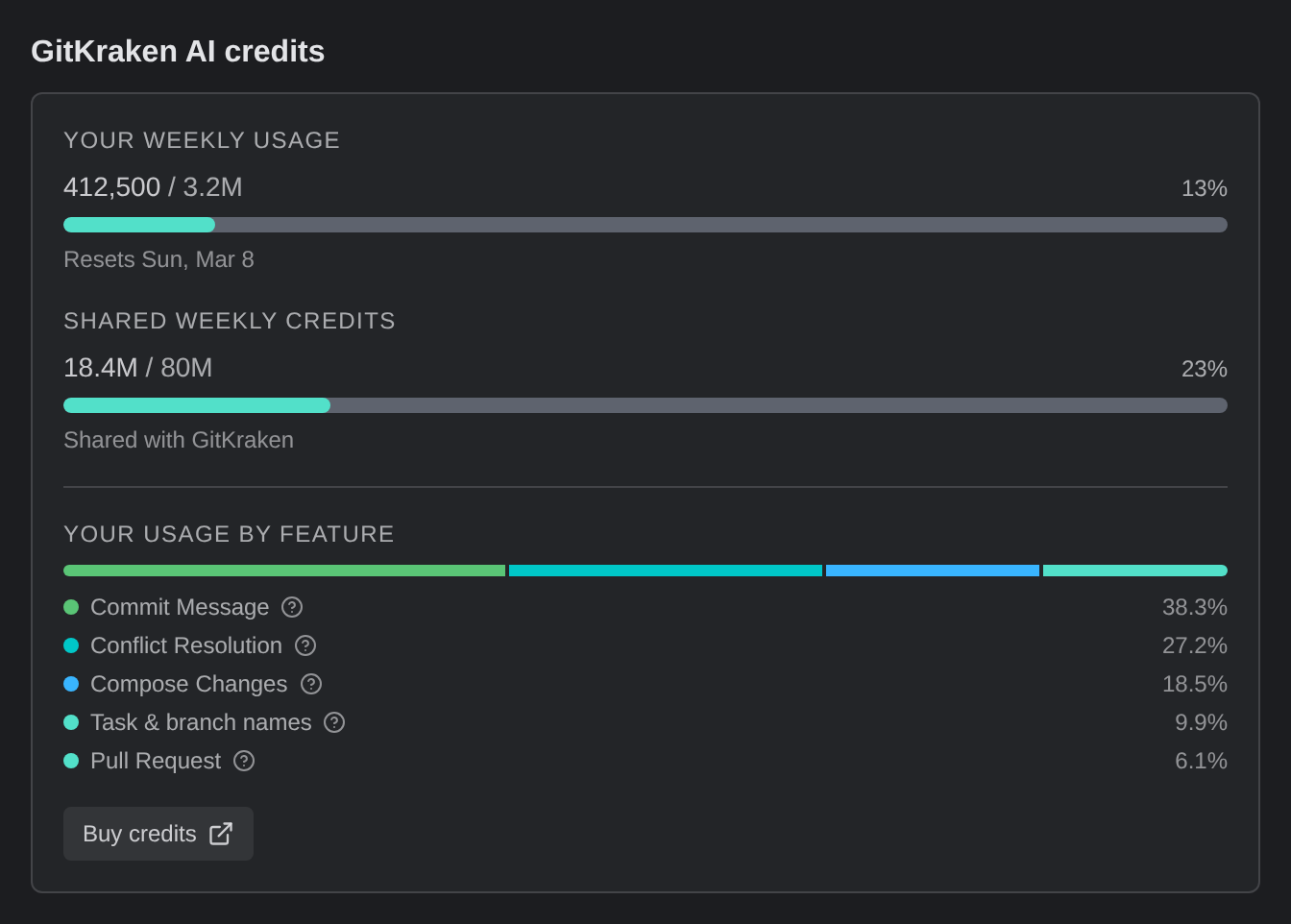
| GitKraken AI credits | Your credit balance, with Buy credits, and Your usage by feature. Shown only when there is a balance to show |
The organization you are acting as decides what a feature costs and whether it is unlocked at all.
Your usage by feature shows where your AI credits went. It appears once you have used an AI feature. A stacked bar splits your use between your 3 most-used AI features and everything else, shown as Other. Below the bar, each feature has a row with its share of your use as a percentage, such as Commit Message, Conflict Resolution, Compose Changes, or Task & branch names. To see what a feature does, hover its help icon.
When a feature is locked
If a feature is locked on the organization you are acting as but included on another organization you belong to, Kepler offers to switch instead of showing a paywall: {organization} ({plan}) already includes this., with Switch to organization.
If you just changed your plan, use Check again under Already upgraded? on the paywall. If nothing has changed, the paywall reads Still on {plan}. A paywall that covers the whole window also shows an account card with Signed in as, your Current organization, and a Switch button for each other organization whose plan includes the feature.
Trials
When a trial starts, a dialog reads You just opened up all of Kepler, with a pill that shows how many days are free ({count} days free). It lists what the trial unlocks: Every feature below is yours until {date}.
When the trial ends, a dialog reads Your trial has ended and lists What your trial included. It offers an upgrade or, if your account can start the trial again, a way to continue where you stopped.
