

Last updated: October 2026
Use Settings → Tasks to choose how new tasks start and how a task’s page looks. A task is one piece of work: its prompt, the agent sessions working on it, and the worktree or folder they work in.
New tasks
New tasks sets what Kepler preselects for every new task: the agent, where the task makes changes, how branches and folders are named, and whether Kepler names the task for you. These values belong to the environment you are working on, so in a remote window they are the remote machine’s.
Default agent
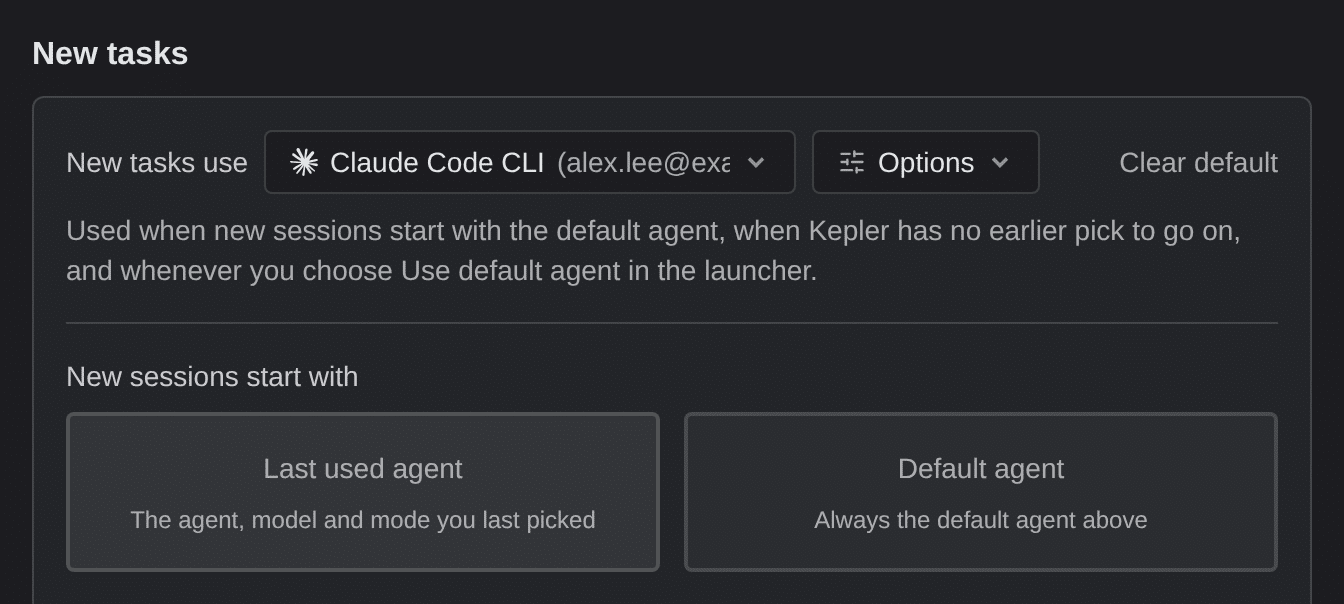
Default agent picks the agent, account, model, mode, and thinking effort that Kepler preselects for a new task. Its description reads Used when new sessions start with the default agent, when Kepler has no earlier pick to go on, and whenever you choose Use default agent in the launcher. The following table lists its controls:
| Control | What it does |
|---|---|
| New tasks use | Chooses the agent, and the account when that agent supports more than one |
| Options | Model, mode, and the agent’s own configuration options. Available once an agent is picked |
| Clear default | Removes the saved default. Appears only once one is set |
No default agent is set out of the box. If no agent is installed, Kepler hides the control. If you later uninstall the agent you saved, the row warns you: Your default agent, {name}, is no longer installed. Pick another.
An Action inherits this configuration unless it names an agent of its own.
New sessions start with
Under Default agent, the following setting decides which agent the New task composer, the Dashboard’s composer, and a new draft session preselect:
| Option | What it does |
|---|---|
| Last used agent | The agent, model and mode you last picked. The default |
| Default agent | Always the default agent above. |
With Last used agent, a task that an agent created and that has no session yet starts with the agent that created it. Kepler does not remember an Action’s own agent as your last pick. If you choose Default agent with no default set, Kepler points you to the Default agent picker. Neither setting applies to Ask Kepler, which keeps its own last pick and its own default in Settings → Agents.
Where new tasks make changes
The following setting chooses what a repository starts on when you attach it to a new task:
| Setting | What it controls | Default |
|---|---|---|
| Where new tasks make changes | What a newly attached repository starts on, in the New task composer | Isolated worktree |
The setting has these options:
| Option | What it does |
|---|---|
| Isolated worktree | Own folder, agents run side by side. Forks a new branch into its own worktree |
| New branch | Switches your repo to a new branch. Forks a new branch directly in the repository’s own checkout, with no worktree |
| Current branch | Works on whatever is checked out. Runs on the repository’s own checkout, on whichever branch it currently has, with no new branch created |
This setting is only the default. For a single task, the repository chip’s own Base branch and Isolated worktree controls override it. See Create a task.
Commits made on the current branch land on whichever branch is checked out at the time. This applies to both New branch and Current branch, because both run in the repository’s own checkout instead of an isolated one. If another task is already working in that checkout, Kepler says so and offers to switch that repository to an isolated worktree instead.
Branch prefix and Worktrees folder appear under Where new tasks make changes, because they apply only when Kepler creates a branch or a worktree.
Branch prefix
The following setting starts the name of every branch Kepler creates:
| Setting | What it controls | Default |
|---|---|---|
| Branch prefix | Starts the name of every branch Kepler creates. A repo can set its own in its settings. | kepler/ |
The prefix applies to automatic names only. Kepler uses a branch name you type exactly as you typed it, so a repository with an enforced feat/ or fix/ push rule still works. If you type a prefix without a trailing separator, Kepler adds a /, so typing team stores team/. A prefix that already ends in a separator, such as ea-, stays exactly as you typed it. The prefix saves when you press Enter or Escape, or leave the field, and the field shows its save status.
To override the prefix for one repository, use its Edit repo page under Settings → Repositories. If a repository already has a branch named exactly like the prefix, Kepler names the branch and points you to that page: Can’t be used in {repo}: it has a branch named {branch}. Set a different prefix for that repository under Repositories.
Folder locations
Kepler uses 3 folder settings to decide where to put things. The first 2 are under Tasks → New tasks, and the third is on the Repositories page:
| Setting | Where it is | What it controls | Default |
|---|---|---|---|
| Worktrees folder | Tasks → New tasks | Where Kepler creates the worktree for each new task. | ~/kepler/worktrees |
| Tasks folder | Tasks → New tasks | Each task gets a folder here for its attachments and files. | ~/kepler/tasks |
| Repositories folder | Repositories | Where Kepler clones repositories, and where it looks for repositories to add | ~/kepler/repositories |
All 3 are unset out of the box. Until you set one, Kepler uses the default under your home folder without saving it, so the setting stays unset.
Type a path directly, or click Choose a folder beside the field to browse. An edit saves when you leave the field, so there is no Save button. The field shows its save status.
The fields also warn you about paths that do not work the way you might expect:
- If a Worktrees folder has text before
<REPOSITORY_PATH>, Kepler adds each repository’s full path after that text. The field tells you so, Each repo’s full path is added after this folder., and shows where an example repository would go. It also suggests 2 templates: one for worktrees next to each repository, and one for a subfolder per repository. On Windows, such a path is invalid, so Kepler does not save it: Not saved: adding each repo’s full path after this folder creates an invalid path. - If the Repositories folder does not exist yet, the field reads This folder doesn’t exist yet. Kepler creates it when you clone.
The Variables menu
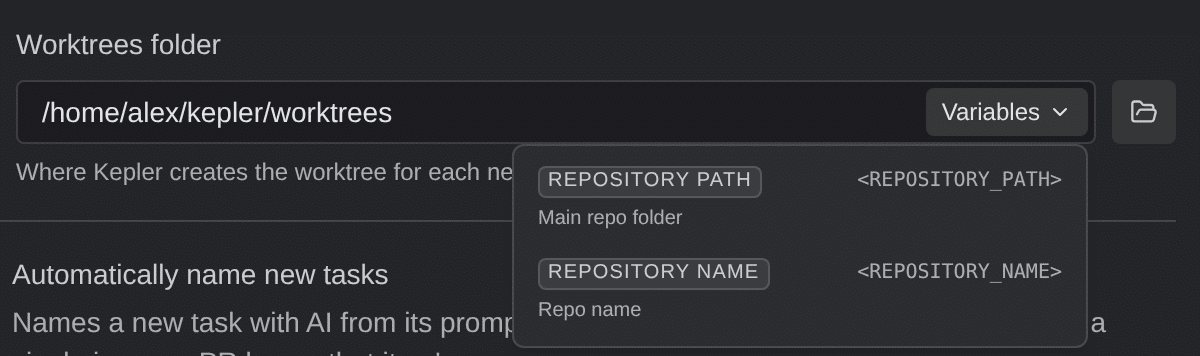
A folder field that can contain a dynamic variable has a Variables menu beside it. The menu shows each variable as a named tag, such as REPOSITORY PATH, beside its raw token. When you pick a variable, Kepler inserts it at the cursor. Kepler fills in the variable when it creates the folder, so one pattern works for every repository. Each field offers only the variables it can fill in:
| Field | Variables offered |
|---|---|
| Worktrees folder | <REPOSITORY_PATH> (Main repo folder), <REPOSITORY_NAME> (Repo name) |
| Repositories folder | <REPOSITORY_NAME> |
| Tasks folder | None |
For example, <REPOSITORY_PATH>/.worktrees/<REPOSITORY_NAME> nests each worktree inside the repository it belongs to. Kepler collapses any .. segments you write.
Tasks folder takes no variables. A task folder has no repository behind it, so nothing would ever fill one in. Kepler does not save such a value: Dynamic variables cannot be used here. A task folder has no repository behind it, so nothing would ever fill one in. This value was not saved.
Per-repository commands have a Variables menu of their own, with 2 more variables. See Per-repository commands.
Automatically name new tasks
The following setting names new tasks for you:
| Setting | What it controls | Default |
|---|---|---|
| Automatically name new tasks | Names a new task with AI from its prompt and attached resources. A task created from a single issue or PR keeps that item’s name. | On |
You need a paid GitKraken subscription to turn this setting on. On the Community plan, when you are signed out, or with no organization, a lock replaces the checkbox only while the setting is off. Because the setting starts on, you see a ticked checkbox, and you can always turn it off. A change takes effect on the next task you create.
Task page
Task page sets how a task’s page looks in this window. Kepler saves these settings on this machine:
| Setting | What it controls | Default |
|---|---|---|
| Show tabs on the task page | Keeps sessions, worktrees, and resources open as tabs you can pin, drag between groups, and arrange side by side. With it off, each column of a task shows one thing at a time, and you switch between them from the list on the left | Off |
| Preview tabs | A single click opens a preview that the next click replaces. Double-click, or edit, to keep it open. | On |
Preview tabs works only with Show tabs on the task page turned on. Sessions always open as permanent tabs. See The task view.
