

Last updated: October 2026
Use Settings → Repositories to choose where Kepler clones repositories, add and edit the repositories and folders Kepler tracks, update and clean up worktrees and branches, and group repositories into projects.
Repositories folder
The following setting tells Kepler where to clone repositories:
| Setting | What it controls | Default |
|---|---|---|
| Repositories folder | Kepler adds the repos it finds in this folder. It only looks when you change the folder or scan, so a repo you remove won’t come back. | ~/kepler/repositories |
To add every repository already in that folder, click Scan for repositories beside the field. A notification reports Added {count} repositories. or No new repositories found. Kepler scans only when you change the setting or click the button, never on startup, so a repository you removed stays removed.
After a scan that added repositories, Undo removes them again. Undo keeps any repository you have started using or changed since the scan, and names it: Kept {names}. You’ve used or changed them since the scan. If nothing before a variable in the setting is a full folder path, the scan has nowhere to look and says so: There is no folder to scan: nothing before the dynamic variable in this setting is a full folder path. Point it at one first.
If the folder does not exist yet, the field says that Kepler creates it when you clone. The field takes the <REPOSITORY_NAME> variable. See The Variables menu.
Your repos and folders
Your repos and folders lists every repository Kepler tracks and every folder you have attached to a task. Each row shows its name, its path on disk, and how many commands it has: No commands, 1 command, or a count. The section has these controls:
| Control | What it does |
|---|---|
| Filter repos and folders | Narrows the list by name |
| A row | Click it to open the repository’s Edit repo page, or the folder’s page |
| Add repo | Opens the Add repo page. See below |
| Add folder… | Adds a plain folder |
| Trash icon | Stops tracking the repository or folder. Kepler leaves the folder on disk as it is |
With nothing tracked, the section reads Add a repository or folder to manage it here.
Removing a repository deletes its sessions, terminals, and configured commands, and ends any live agent and terminal sessions tied to it. Kepler asks you to confirm first.
Add a repository
To add a repository, click Add repo. On the sub-page that opens, give a source. Kepler inspects it and shows what it found as a card you can edit before you add it:
| Field | What it takes |
|---|---|
| Folder or URL | Paste a URL to clone it, or pick a folder that already holds a repo. You can also drop a folder onto the page, or Create a new repo instead |
| The card | The resolved repository ({name} on {provider}, its path, its branch count), plus the name, description, and branch prefix you can edit |
Before you add it, Kepler tells you what the source is. For example, it reads A new folder named {name} will be created here., This folder already holds a clone of that repo. It will be added as is., or This repo is already in Kepler. A path that is not a Git repository reads That folder isn’t a Git repo.
While a clone runs, the page reads Cloning {name} into {folder} and You can leave this page. Kepler tells you when the clone finishes. Leaving does not stop the clone. If it fails later, a notification names the repository: Unable to clone {name}: {reason}.
Edit a repository
Click a repository’s row to open its Edit repo page. The page shows the repository’s path, its remote, and its branches, and has these parts:
| Part | What it holds |
|---|---|
| Name | The name Kepler shows wherever it names this repository. Leave it empty to use the folder name, which is the field’s placeholder |
| Aliases | Short names for this repo when talking to agents, separated by commas. An agent can use an alias wherever Kepler’s workspace tools take a repository, and finds the repository by alias when it lists your repositories |
| Description | Free text. Its placeholder reads What this repo is for. Agents working in it read this. |
| Branch prefix | Overrides the prefix from Settings → Tasks for this repository only. See below |
| Commands | Shell commands for this repository. See Per-repository commands |
| MCP servers | Extra tools your agents get in this repo, on top of their own lists. Changes here apply right away. See MCP Servers |
Name, Aliases, and Description are optional, and Kepler stores text that is only spaces as empty. The page has no Save button: each field saves on its own and shows its save status. Some fields have more rules:
- A repository you name keeps that name exactly, and Kepler no longer adds a suffix to tell it apart from folders with the same name.
- An alias cannot contain a colon, or repeat another repository’s alias or name.
- Kepler adds the description to the repository’s line in the resource list it gives a session, so a full sentence helps more than a single label.
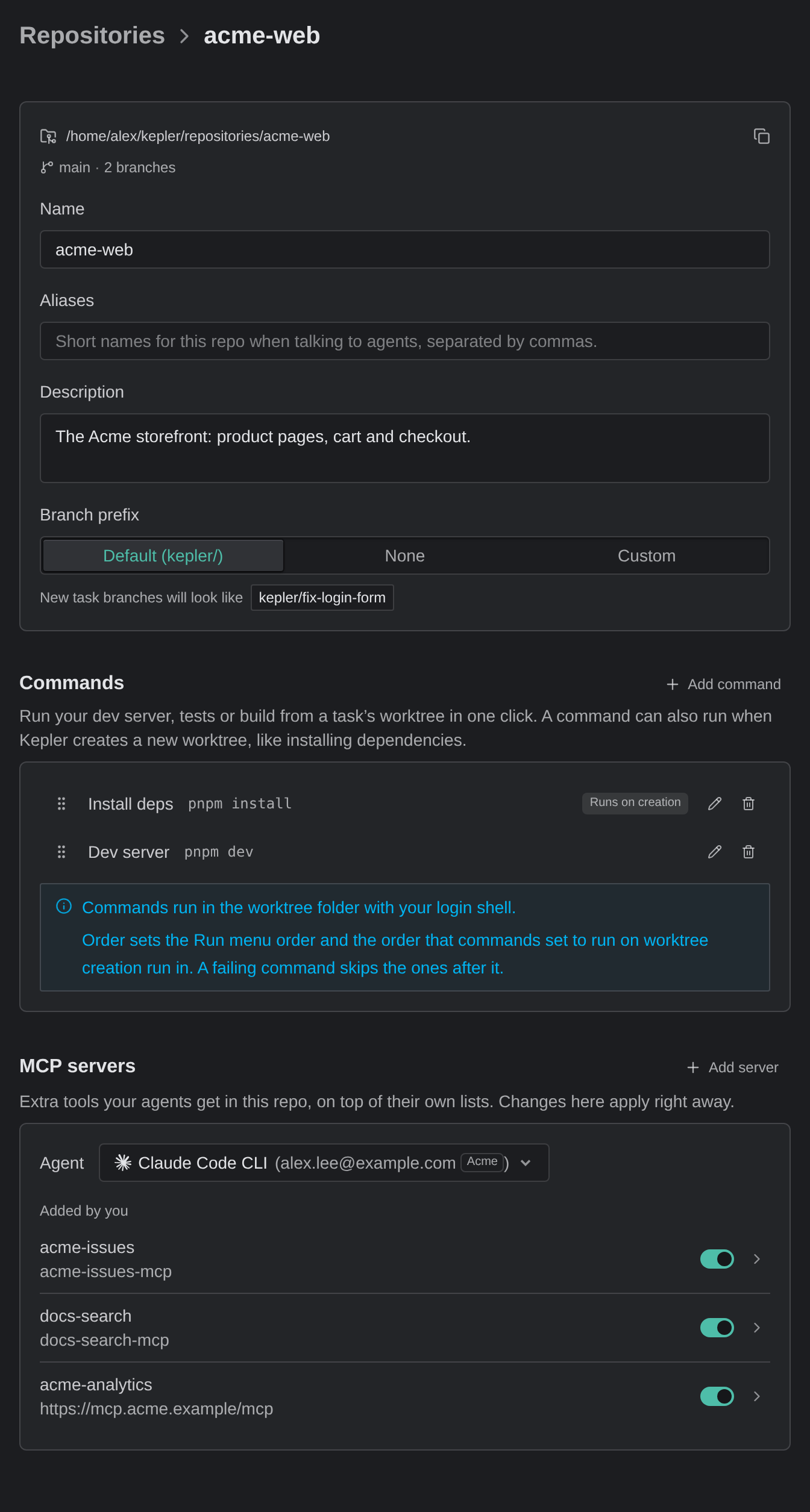
Branch prefix, per repository
The Branch prefix control has 3 options:
| Option | What it does |
|---|---|
| Default ({value}) | Uses the prefix from Settings → Tasks |
| None | Creates task branches with no prefix |
| Custom | A prefix for this repository only |
New task branches will look like shows an example, so you can see what you are choosing before a branch exists.
Default and None save as soon as you pick them. Custom saves its text when you press Enter or Escape, or leave the field. If the repository already has a local branch named like the prefix, Kepler does not save the prefix: Can’t create {prefix} branches here: this repo already has a branch named {branch}. Rename that branch or choose another prefix.
Per-repository commands
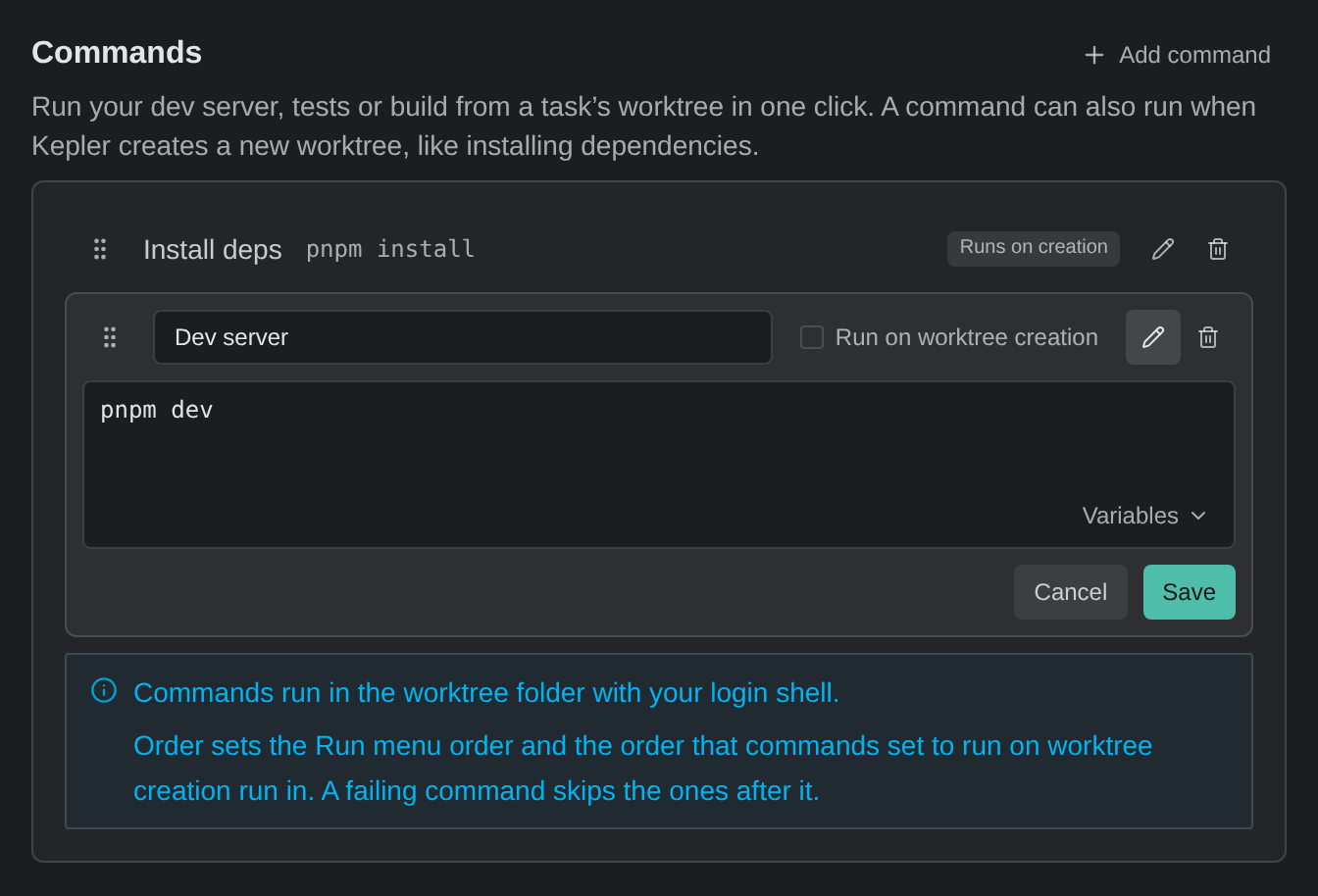
Use commands to run your dev server, tests, or build from a task’s worktree in one click. A command can also run when Kepler creates a new worktree, for example to install dependencies. Commands are shell commands for one repository.
To add a command, click Add command in the Commands section of the Edit repo page. With no commands, the section reads No commands yet. and suggests examples. Each command row has 3 fields:
| Field | What it does |
|---|---|
| Name | A label, for example Install deps. You pick the command by this name from the Run menu |
| Command | The shell command, for example pnpm install. Its Variables menu inserts any of the variables below |
| Run on worktree creation | Runs the command automatically when Kepler creates a worktree for this repository, and shows a Runs on creation chip on the row. Off by default, so the command runs only when you start it |
Each command saves on its own. An open row has Cancel and a primary button: Add command for a new row, or Save for a stored one. To save the row from the keyboard, press Enter in the name field, or ⌘ Enter (Ctrl + Enter on Windows and Linux).
Commands accept 4 variables, which Kepler fills in when the command runs:
| Variable | Resolves to |
|---|---|
<REPOSITORY_PATH> |
Main repo folder |
<REPOSITORY_NAME> |
Repo name |
<SOURCE_PATH> |
Where files come from (the main repo, or the source worktree when forking) |
<WORKTREE_PATH> |
The new worktree folder |
To reorder commands, drag a row by its handle, or move it from the keyboard with Alt + ↑ and Alt + ↓. A new order saves at once. The order sets the order of the Run menu, and the order in which commands set to run on worktree creation run.
You cannot save a row that is missing its name or its command. Kepler opens the row on the missing field, with Add a name to show in the Run menu. or Add the command to run. Cancel discards a row you opened by accident. A closed row that is not saved yet shows a Not saved chip. Remove command deletes a saved command at once, and a Deleted command {name} notification offers Undo.
Commands set to run on worktree creation run one at a time, in list order. If one fails, Kepler skips the rest and reports them as skipped. Each command runs in the new worktree’s folder through your login shell, so you do not need to cd into it, and tools set up in your shell profile, such as nvm, are available. Each command has a 10-minute timeout.
A failed command does not undo the worktree. The worktree exists but may not be usable. To fix it:
- Read the command output in the task.
- Correct the command here.
- Run it again from the Run menu.
To run a command from the task view, right-click a worktree row in the task’s context panel and use Run command here. It lists that repository’s commands and runs the one you pick in that worktree, with its terminal opening in place. For a repository with no commands yet, the menu reads No commands yet and offers Create command…. That item opens the Edit repo page, and returns you to the task when you leave the page. A running command shows on the run button and its menus, where you can stop it.
Worktrees and branches
To update, clean up, or delete worktrees and local branches across your repositories, click Manage worktrees and branches on the Repositories page. The Worktrees and branches sub-page opens.
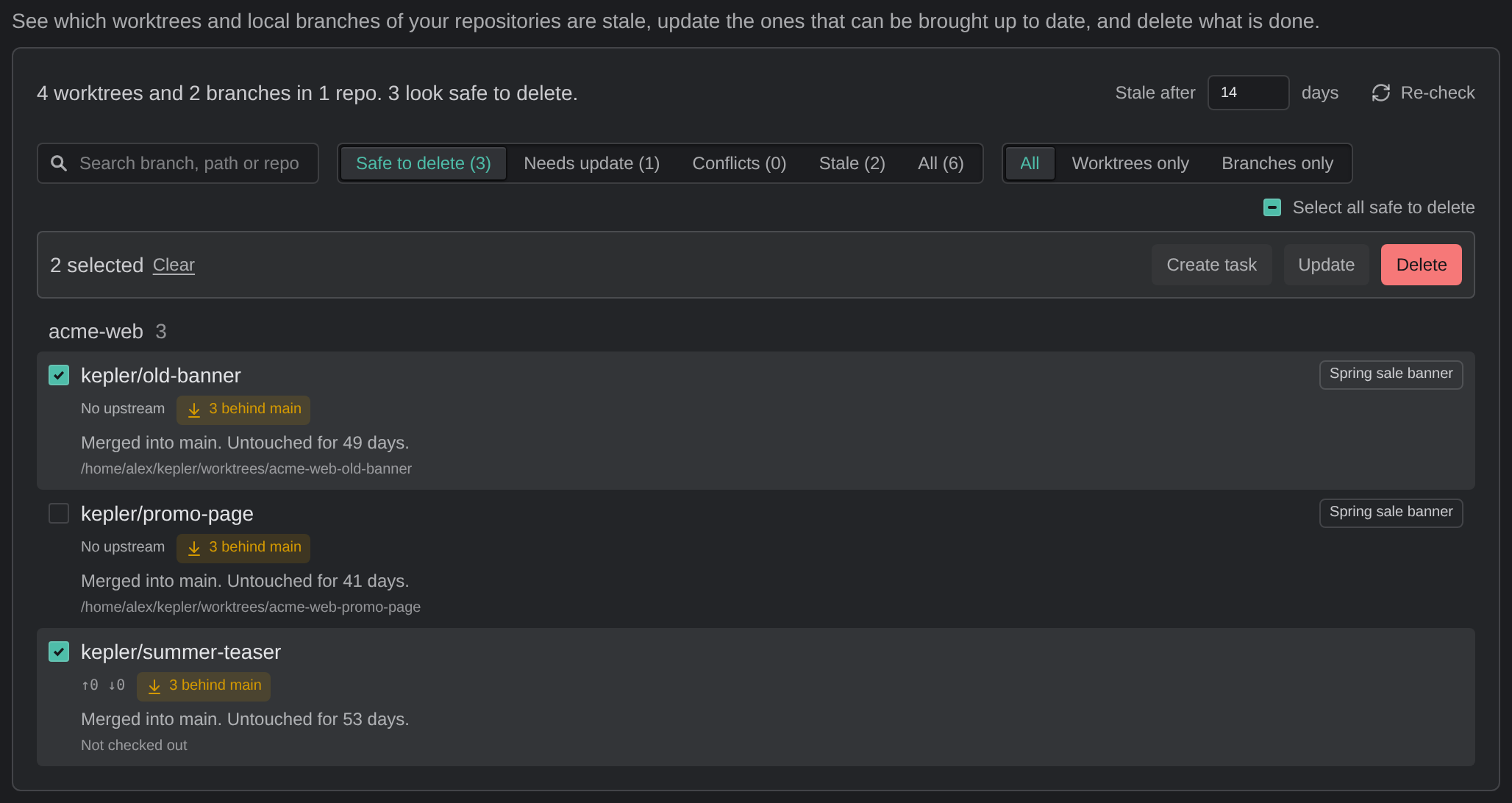
On the sub-page, you can see which worktrees and local branches are stale, update the ones that can be brought up to date, and delete what is done. The sub-page checks your repositories as soon as it opens, and deletes nothing until you ask. It lists every worktree, and every local branch that no worktree holds, grouped by repository. A summary such as {worktrees} and {branches} in {repos}. says how many look safe to delete. A branch with no worktree reads Not checked out where a worktree shows its path. The base branch has a Base badge, and Kepler never deletes it.
The sub-page has these controls:
| Control | What it does |
|---|---|
| Search branch, path or repo | Narrows the list. Every word you type must match the branch, the path, or the repository name |
| Show worktrees and branches | Filters by status: Safe to delete ({count}), Needs update ({count}), Conflicts ({count}), Stale ({count}), or All ({count}). A count reads checking… until Kepler has compared each branch with its base |
| Show worktrees, branches or both | All, Worktrees only, or Branches only |
| Stale after n days | How many days without activity before a worktree or branch counts as stale. Defaults to 14 |
| Re-check | Fetches every repository’s remotes, then inspects the list again. A repository whose fetch failed says so beside its name: Unable to fetch: {reason}; numbers may be stale |
| Select all safe to delete / Select all that need an update / Select all with conflicts / Select all stale / Select all | Selects the rows in the current view |
| Selection bar | Reads {count} selected, or {count} selected · {hidden} hidden by filters, with Clear, Create task, Update, and Delete. Update and Delete act only on the selected rows you can see |
Create task opens the New task composer with the selected worktrees and branches already added: each worktree as it is, and each branch without a worktree as a branch to work on. Kepler creates nothing until you start or prepare the task. See Create a task.
Each row shows the following:
- Where it stands with its upstream: commits to push (↑) and pull (↓), No upstream, or Upstream gone.
- How it compares with its base, as a badge: {count} behind {base}, Conflicts with {base}, or Up to date with {base}, plus how many files are uncommitted.
- How long since it was last touched, and why it may be finished, such as being merged into its base.
- The tasks using it, an External count for sessions started outside Kepler, and its pull request. A branch row shows the tasks, sessions, and pull requests tied to that branch.
With a Jira or Jira Server account connected, a row whose branch name references a Jira issue shows a chip for that issue under the branch name. To open the issue in your browser, click the chip. Its tooltip shows the issue’s URL. When Kepler cannot match every reference, the row reads Issue reference matching limit reached. See Issue Tracker Integrations.
A row counts as one or more of the following:
- Safe to delete: Its work has landed: merged into the base or its pull request merged (a branch whose upstream is gone and whose pull request was closed counts too), and nothing is uncommitted, unpushed or in use.
- Needs update: behind the base branch with no known conflict, so an update can bring it up to date.
- Conflicts: behind the base branch, and merging the base in would conflict, so you have to update it by hand.
- Stale: no activity for longer than the stale threshold, but nothing proves the work landed. It may still hold uncommitted or unpushed work, so deleting it can lose something.
Needs update and Conflicts leave out rows that are safe to delete. Activity includes what Kepler recorded on the branch, not only changes in the worktree.
Delete worktrees and branches
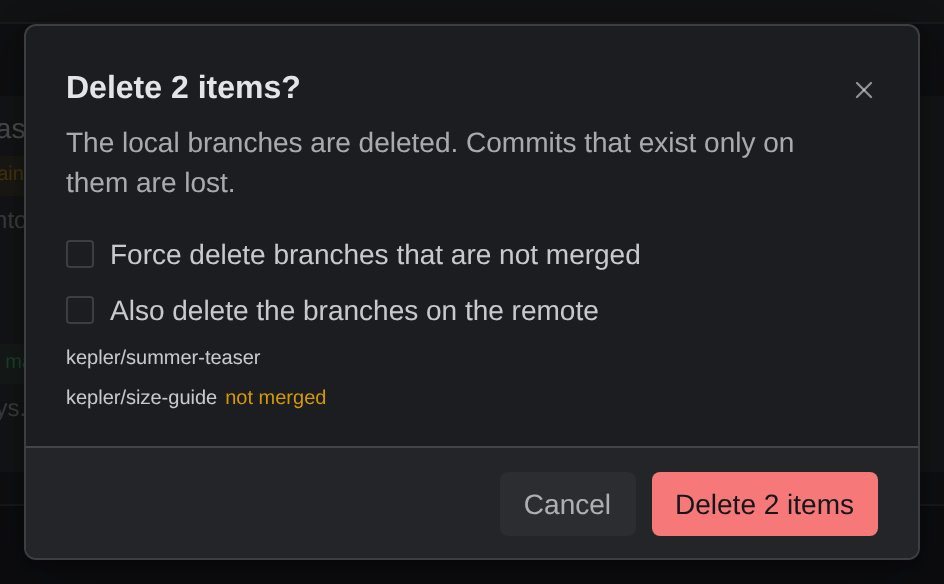
Select rows, then click Delete. The confirmation, Delete {count} items?, says what is lost:
- For worktrees: The directories are removed from disk. Anything listed below is lost with them. Also delete the branches deletes each worktree’s branch too.
- For local branches: The local branches are deleted. Commits that exist only on them are lost. When every branch’s work has landed, it reads Their work is already in the base branch, so nothing is lost. instead. The dialog marks each branch that is not merged as not merged. Force delete branches that are not merged deletes those too, and Also delete the branches on the remote deletes the remote branches.
Kepler keeps any branch it cannot delete safely and says why, for example Checked out in {path}. Remove that worktree first. or Its work is not in the base branch, so it was kept.
Kepler never deletes a repository’s main checkout. It keeps any worktree that still has uncommitted or unpushed work, other tasks, running agent sessions, or a lock from another tool, and says why for each one. If Kepler itself locked a worktree, for a task this install knows or a task since deleted, Kepler clears the lock and deletes the worktree. Where forcing can help, the result offers Force delete, which discards the listed work and ends the agent sessions running there.
Update worktrees
To bring several worktrees and local branches up to date with their base branch at once:
- On the Worktrees and branches sub-page, select the worktrees and branches.
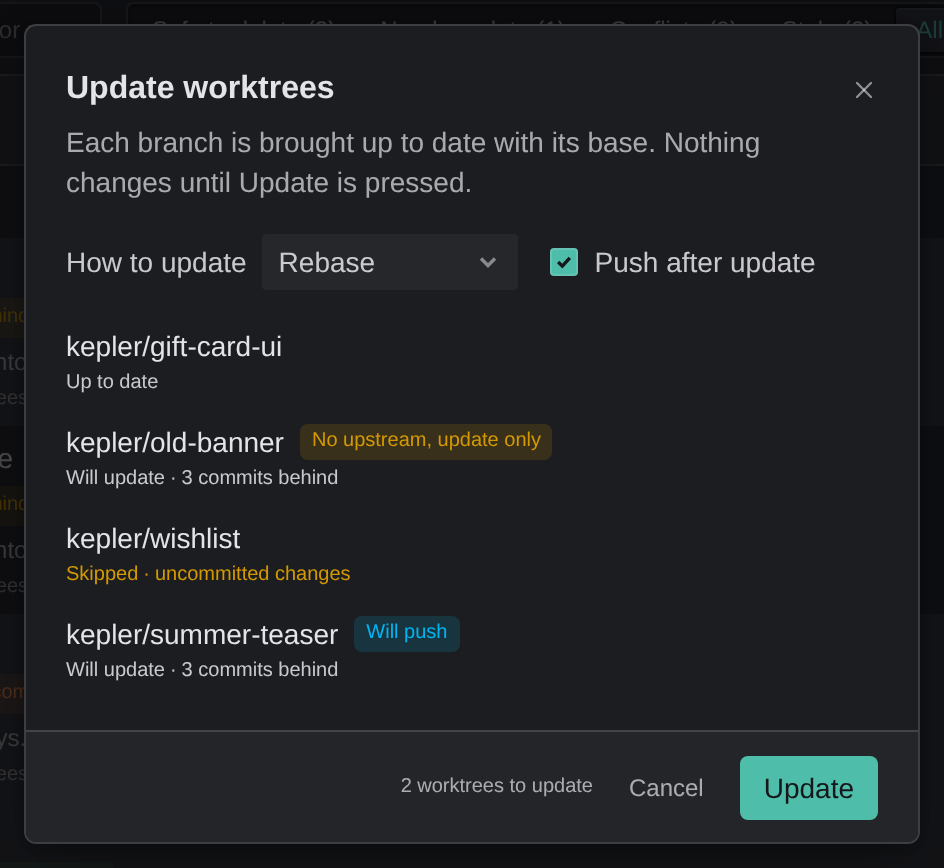
- Click Update. The Update worktrees dialog opens: Each branch is brought up to date with its base. Nothing changes until Update is pressed.
- Review the plan. Each row reads Will update with how many commits it’s behind, Up to date, or Skipped with the reason, such as an agent is working in it, uncommitted changes, checked out in a worktree, would conflict, or a sync result is waiting for review.
- Under How to update, choose Rebase or Merge.
- To push each updated branch too, tick Push after update. Each row that will update then reads Will push, or No upstream, update only for a branch with no upstream.
- Click Update.
Kepler updates a local branch that has no worktree in place, from the repository’s main checkout, without checking it out. It skips such a branch when a worktree holds it, or when the main checkout has uncommitted changes. If Kepler prepared an update but could not apply it automatically, Kepler keeps it for you to review instead of discarding it.
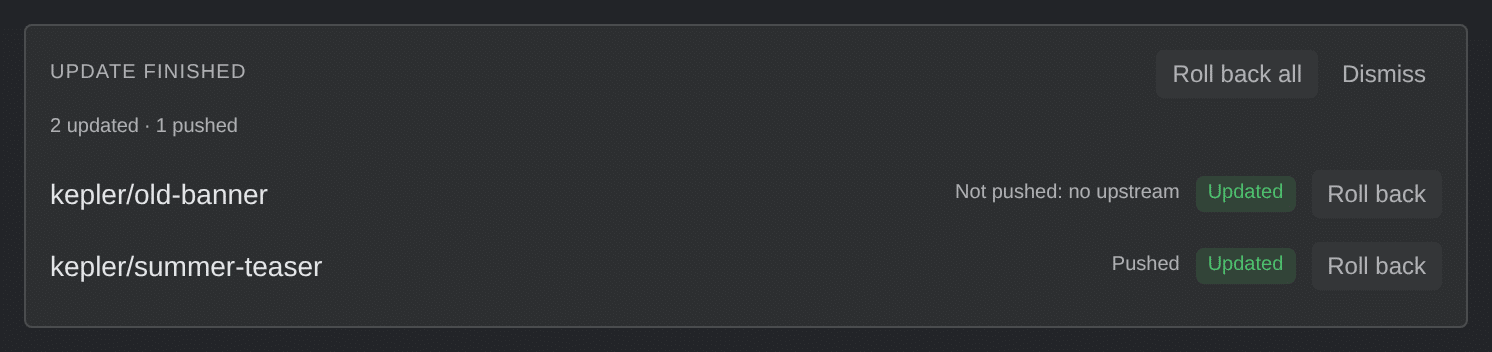
While the update runs, each row shows its status: Waiting, Updating…, Updated, Up to date, Skipped, Conflict, or Failed. When it finishes, you can undo one row with Roll back, or every row with Roll back all. If you did not push during the update, Push and Push all push the updated branches that have an upstream. Kepler does not push a branch that moved since the update. The finished report stays in every window until you click Dismiss.
Projects
Use Projects to group repositories that belong together under one name, such as a frontend and a backend you change together. A Project‘s repositories act as a unit. The section has these controls:
| Control | What it does |
|---|---|
| A row | Shows the project’s name and its repository count. Click it to open the project’s page |
| New project | Opens a page where you name a project and pick its repositories. Add from folder adds a repository without leaving the page |
With no projects, the section reads No projects yet.
A new project shows Create and Cancel. Create does not accept a blank name: Give the project a name. Once the project exists, its page has no Save button. Its name saves as you edit it, and each repository you tick or untick saves at once. A folder’s page saves its name and description the same way.
To delete a project, click Delete project on its page. Its repositories stay in your repository list.
