

Last updated: October 2026
Use Settings → Agents to install and update the coding agents that work on your tasks, sign in to them, choose how each one starts, and give them more tools.
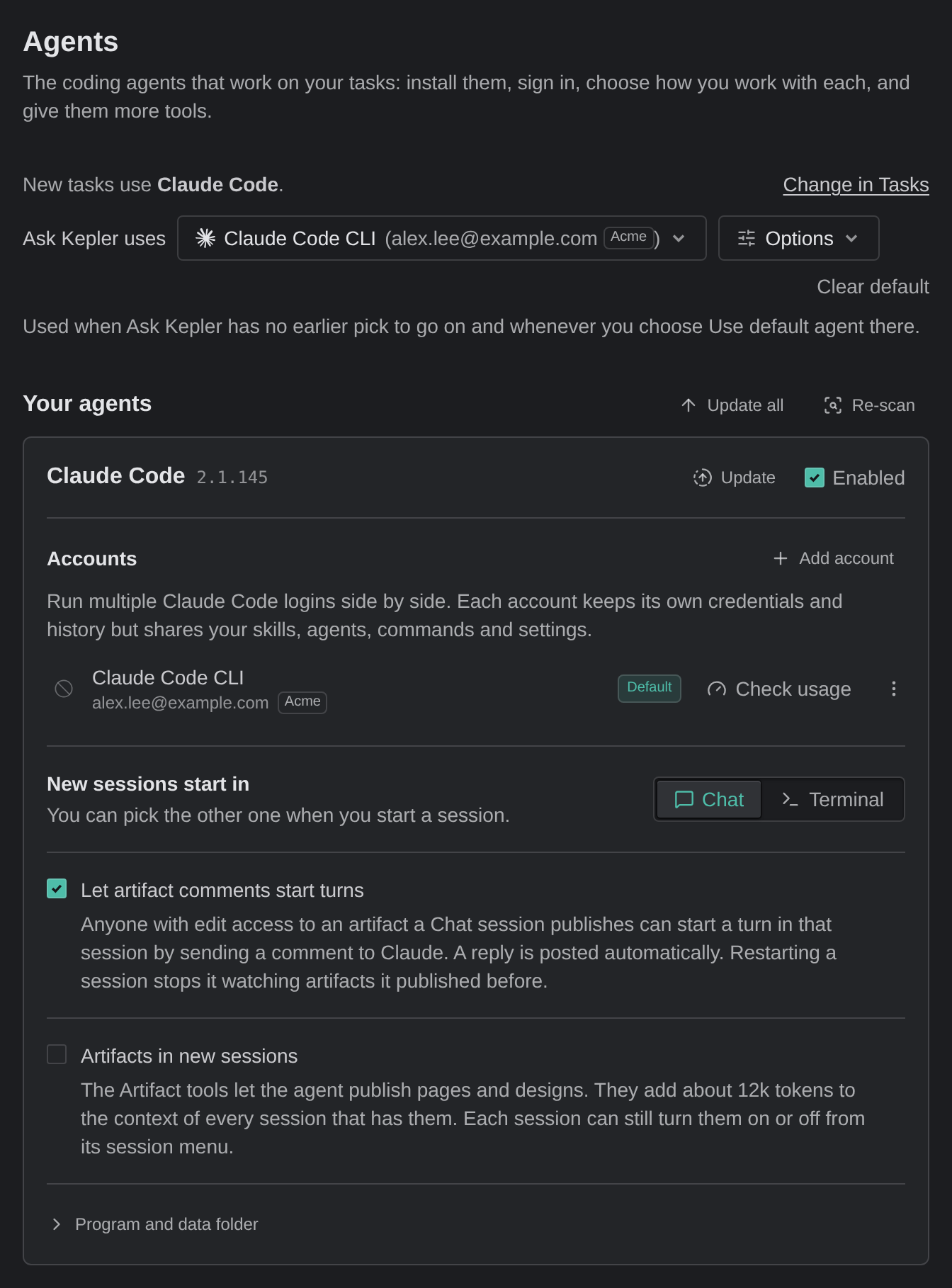
At the top of the page, a line names the agent new tasks use: New tasks use {agent}. or No default agent for new tasks. To change it, click Change in Tasks, which opens Default agent.
To choose the agent Ask Kepler uses, set the Ask Kepler uses row. This Ask Kepler default agent is separate from the default for tasks. Its help text reads Used when Ask Kepler has no earlier pick to go on and whenever you choose Use default agent there. The row lists only the agents that can answer in the Ask Kepler panel, which are the agents that run in Chat. If the agent you picked stops being available, the row reads Pick another agent for Ask Kepler: {name} is not available. See Ask Kepler.
Your agents
Kepler supports Claude Code, Codex, GitHub Copilot, OpenCode, Pi, Auggie, Antigravity, Cursor, and Grok Build. Settings lists the agents installed on this machine first, then the rest, each group in that order.
In the section header, Update all runs each installed agent’s own updater, and Re-scan looks again for the agent CLIs installed on this machine. If you install or remove an agent outside Kepler, click Re-scan.
Each agent has a card. The card’s title line shows the agent’s name and these controls:
| Control | What it does |
|---|---|
| Version | The installed version, or Not installed when Kepler cannot find the CLI. Version unknown, in a warning tone, means Kepler could not read the version |
| Update | Runs the agent’s updater and streams its output. Shown when Kepler has an updater for that agent |
| Install | Runs an installer for you and streams the output. Shown on an agent that is not installed and has an installer for your OS. Cancel stops an install in progress: Install cancelled: {name} |
| Enabled | Off keeps it installed but hidden when you start work. |
When the version is unknown, Kepler turns off features that depend on the version, such as sending a new session’s first message automatically. Reinstalling or updating the agent usually fixes this.
If the installed version of an agent, or of one of its components, has a known problem, a warning note appears on the card under the title line. The note names the version and says what to do. Kepler can show these notes:
| Note | What it means |
|---|---|
| OpenCode {version} is not supported | Sessions with this version do not start. Install OpenCode 2, or choose an OpenCode 2 binary under Program and data folder |
| Auggie {version} may not load your MCP servers in chat | Kepler’s fix for how Auggie loads MCP servers covers only the Auggie versions it was built for |
| ACP server {version} can fail to start on Linux | Antigravity’s Chat server can be killed at startup on some Linux systems. Reinstall it under Program and data folder |
| Codex {version} can show approval prompts that need no answer | Update Codex to 0.163.0 or newer |
The card body holds the rest:
| Control | What it does |
|---|---|
| Accounts | Runs more than 1 login for the agent side by side. Available for Claude Code, Codex, GitHub Copilot, Auggie, and Grok Build. See Use several accounts for one agent |
| Account | On an agent with a single login: who is signed in, with Sign in or Sign out. Signing out deletes the stored credentials |
| New sessions start in | The default mode for new sessions. See below |
| Artifacts in new sessions | Claude Code only. See below |
| Let artifact comments start turns | Claude Code only. See below |
| Program and data folder | A disclosure holding Binary, Components, and Data folder |
Under Program and data folder:
| Setting | What it controls | Default |
|---|---|---|
| Binary | The agent program Kepler runs. Auto finds it the way your shell does, as the first match on your PATH, so it matches which. To override it, pick a specific install or Custom path…, or click Re-scan to search again |
Auto |
| Components | Extra pieces an agent can need, such as its CLI for Terminal mode (Needed for Terminal mode.), each with Install or Update to {version} | None |
| Data folder | Overrides the agent’s default data and config folder. | Empty, meaning the agent’s own default |
Codex runs your own CLI. Like every other agent, Kepler finds and runs the codex you have installed. For usage figures, Kepler reads the OAuth token from ~/.codex/auth.json, or from CODEX_HOME/auth.json when you have set a custom data folder.
OpenCode needs version 2. Kepler reads and resumes only OpenCode 2’s sessions. A session does not start on an OpenCode 1 binary, and the card shows OpenCode {version} is not supported. If you have both versions installed, point Binary at OpenCode 2. A conversation you started under OpenCode 1 resumes from OpenCode 2’s copy of it.
Antigravity runs in Chat through its Agent Client Protocol (ACP) server. That server is a separate component from its agy terminal CLI. See Agent Integrations.
Use several accounts for one agent
With Accounts, you can run more than 1 login for an agent side by side. Each account has its own credentials and history, but shares your skills, agents, commands, and settings.
To add an account, click Add account, then choose whether its conversations Keep separate or Share with the CLI.
Each account row has the following controls:
- A color picker that tints the agent icon wherever that account runs. The default account stays uncolored, so its picker shows the ⊘ No color mark.
- Sign in.
- An account menu with Rename, Share history with the CLI, Sign in another way, Sign out, and Remove account. On a signed-in Claude Code account, the menu also has Switch account…, which signs that account in with a different Claude login. See Switch the account a Claude Code login uses.
Removing an account stops its running sessions and deletes the sessions stored only in that account. To keep those sessions, click Move to CLI account first. See Agent Sessions.
When an added account stops sharing your settings
An added account shares your own settings, instructions, skills, agents, commands, and other configuration by linking to your files. If the agent saves a change while signed in to that account, the agent can write its own copy in place of the link. The account then stops following your file. Kepler shows this under the account’s row: This account stopped sharing your {items}. Expand the message to see both paths, This account’s copy and Your {item}, and choose one of the following:
- Share your {item} again asks first, then links the account back to your file. Its own copy is saved as a backup next to it, so nothing is lost.
- Keep its own {item} keeps the account’s copy. The row’s menu then offers Share your {item} again if you change your mind.
Switch the account a Claude Code login uses
Switch account… opens Switch the account for {name}?, which names the login now signed in. If your browser is already signed in, choose a different account on the sign-in page. The dialog also warns you about the following:
- How many running sessions use the account, and when they pick up the new login: when they restart, or on their next request.
- On the default account, the one the CLI uses, the switch also changes the account the claude command uses in your own terminals.
Continue opens the usual sign-in. When the sign-in succeeds, Kepler confirms: {name} is now signed in as {login}.
Default mode for new sessions
Every agent that can run in both Chat and Terminal has this setting:
| Setting | What it controls | Default |
|---|---|---|
| New sessions start in | Chat: {agent} built into Kepler, with replies, diffs and plans you can read, review and search. Terminal: {agent}’s own command-line app, with its commands, shortcuts and settings, just as you use it today. | Chat. Google Antigravity starts on Terminal, because its Chat server signs in separately |
Kepler saves the choice per agent, so one agent can default to Terminal while another stays on Chat. The setting is only a default. As its help text says, You can pick the other one when you start a session. A terminal-only agent shows Terminal with no switch. See Agent Sessions.
Artifacts in new sessions
The following setting is on Claude Code’s card:
| Setting | What it controls | Default |
|---|---|---|
| Artifacts in new sessions | The Artifact tools let the agent publish pages and designs. They add about 12k tokens to the context of every session that has them. Each session can still turn them on or off from its session menu. | Off |
A running Chat session has its own Artifacts switch in its agent settings. When you turn it on, Kepler asks Turn on Artifacts?, then restarts the session and resumes the conversation. Once a conversation has artifacts on, they stay on for that conversation. See Agent Sessions.
Let artifact comments start turns
The following setting is on Claude Code’s card:
| Setting | What it controls | Default |
|---|---|---|
| Let artifact comments start turns | Anyone with edit access to an artifact a Chat session publishes can start a turn in that session by sending a comment to Claude. The session posts a reply automatically | On |
Running sessions keep the value they started with. When you change the setting, the card lists the sessions still on the previous value. It marks the sessions that Published an artifact, have a Turn in progress, or have Background work running. To apply the new value, click Restart all or Restart selected ({count}). A session that is mid-turn or has background work starts unticked.
Restarting keeps each conversation. It interrupts a turn in progress and stops background work, and a restarted session stops watching the artifacts it published before.
Custom agents
To run an agent that Kepler does not list, add it as a custom agent by giving Kepler its command. To add one, click New custom agent in the section header. To edit one, click its row. Either way, the agent opens as a sub-page with these fields:
| Field | What it takes |
|---|---|
| Name | The name Kepler shows for the agent |
| Command | The program to run, for example /usr/local/bin/my-agent or my-agent |
| Args (one per line) | Arguments passed to the command |
| Environment variables (KEY=value, one per line) | Environment for the command |
| Runs in | Chat: Kepler’s chat. Needs a program that speaks ACP (the Agent Client Protocol). Terminal: The command’s own app, in a terminal. |
Custom agents appear with the built-in agents wherever you pick an agent. With none added, the section reads No custom agents yet.
Kepler encrypts environment values at rest and hides existing values when you edit an agent. To keep a stored secret, leave its value empty (KEY=). To replace it, type a new value.
Save waits until Kepler has stored the agent. If the save fails, the form stays open with the reason: Unable to save {name}: {reason}. Delete asks first, with Delete custom agent?: Deletes {name} and the environment values stored with it. You cannot undo a delete.
MCP servers
Use MCP servers to give your agents extra tools, like a database, a browser, or your issue tracker. The servers here are each agent’s own defaults, and every repository inherits them.
To see the servers an agent loads, pick the agent with Agent. If that agent has more than 1 account, pick an account too. Kepler lists only the agents that expose their MCP servers to Kepler. In the list:
- Click a server to open its own page. There you can turn the server or a single tool off, sign in to a server that needs it, use Also add to… to copy the server to another agent, and Remove server.
- Click Add server in the section header to add one.
A server or tool you turn off here is off in every repository, unless a repository turns it back on for itself. A repository’s own MCP servers section is on its Edit repo page. See MCP Servers.
Below the list, one more setting applies across every agent:
| Setting | What it controls | Default |
|---|---|---|
| Keep the GitKraken MCP server installed in every agent | Gives every command-line agent Git tools and your issues and pull requests through GitKraken. Turn off to manage it yourself. | On |
This setting affects the MCP clients on your machine. Separately, Kepler attaches its own workspace MCP server to every session it starts. The workspace MCP server is always on and has no setting. Its tools are named for what they act on, such as task_get, session_start, or worktree_create. They let the agent:
- Read a task and its resources, find tasks, create a task, change its Progress stage, name, or hold, and archive it.
- Read, write, and delete the task’s notes.
- Attach and detach issue, pull request, and URL links, and attach or detach files.
- List the agents, repositories, and folders in your workspace. An agent can name a repository by one of its aliases.
- Create, attach, detach, update, or delete one of the task’s worktrees.
- List and read sessions, start a session with the agent it chooses, send follow-ups, rename or archive a session, and read the reports its own sessions send back.
- List pending approvals.
- Read and save themes. See Theme.
- Rebase, merge, and compose commits, when Agent tools turns them on.
Every workspace tool runs without the agent’s own permission prompt, in both Chat and Terminal. Instead, an action that needs your approval, such as deleting a worktree or changing another task, waits for you on an approval card. See Approvals, and Tasks and Resources for the full list of tools.
Agent tools
Use Agent tools to let your agents call Kepler’s own tools for rebasing, merging, and cleaning up commits:
| Setting | What it does | Default |
|---|---|---|
| AI Sync | Lets agents rebase or merge your branch and resolve conflicts for you. Every change can be undone. | Off |
| AI Compose | Lets agents turn messy changes into clean, focused commits. Every change can be undone. | Off |
AI Sync and AI Compose add their tools to the workspace MCP server. You need a paid GitKraken subscription to turn either one on. On the Community plan, when you are signed out, or with no organization, a setting that is off shows a lock in place of its checkbox: Not available on the Community plan. Upgrade to unlock. A setting that is already on keeps its checkbox, so you can still turn it off.
When you turn either setting on, Kepler confirms that New agent sessions will pick up this change. Sessions already running keep the tools they started with.
Approvals
Some actions your agents take wait for your approval. Use Approvals to manage the rules that approve those actions for you. An action that no rule covers still asks.
When an agent uses Kepler’s workspace tools to do something that needs your approval, Kepler pins an approval card above that session’s message box. Examples include deleting a worktree, sending a prompt to another session, or rewriting a branch. The card’s Approve menu offers Always approve for that kind of action. Kepler does not offer it for actions that can lose work, or for a setting change that Ask Kepler asks to make. See Agent Sessions.
Always approved lists each rule you create this way. A rule’s row says when and where you added it, Added {date} from {session} on {task}., and how often it has run, Used {count} times, last {when}. or Not used yet. Remove deletes the rule, so that kind of action asks again. With no rules, the section reads No rules yet. When an agent asks, choose Always approve on its request to stop being asked about actions like it.
Usage limits
These settings control how Kepler handles your agent plans’ usage limits:
| Setting | What it controls | Default |
|---|---|---|
| Check plan usage with each agent’s provider | Kepler asks each agent’s provider for your plan usage, per-model limits and extra usage, using the agent’s own sign-in. The sign-in goes nowhere else and is never changed. When off, Kepler shows only what agents report, and a message queued at a usage limit is sent automatically only if the agent says when the limit resets. | On |
| Resume after the usage limit resets | When your account usage limit cuts off a turn and nothing is queued, Kepler queues a “continue” message and sends it shortly after the limit resets | Off |
