

Last updated: October 2026
Ask Kepler is a panel with 2 sections: a Chat with an agent that can see what’s on your screen and check on your tasks and sessions, and a Terminal of quick shells that belong to no task. Use it for a question that does not need a task of its own, or to find out what needs you without leaving the page you’re on.
For the agent sessions that run inside a task, see Agent Sessions.
Open and close the panel
You can open Ask Kepler from anywhere in Kepler in one of these ways:
| How | Opens |
|---|---|
| The Ask Kepler button (Kep, the planet mascot, with the word Ask) in the top bar | The panel, on the section you used last |
| Cmd/Ctrl+L or Cmd/Ctrl+K (Toggle Ask Kepler chat) | The Chat section |
| Ctrl+` on every platform, macOS included (Toggle Ask Kepler terminal) | The Terminal section, starting a shell if none is open |
To close the panel, press the same shortcut again while focus is inside it. On Windows and Linux, a focused shell uses Ctrl+L to clear its screen, so press Ctrl+K to open or close the chat from inside a terminal.
The top bar button shows the state of your chats. While a panel chat you are not looking at is working, Kep’s eye changes to the working colour. When a chat needs something from you, the button becomes a pill that reads Needs you (a question or an approval is waiting), New reply, or Failed. Click the pill to open the panel on that chat. Hover the pill to see which chat it means, such as {title} needs you or New reply in {title}, or a count when several chats are in the same state. In a narrow window, the button hides the word Ask and shows Kep alone.
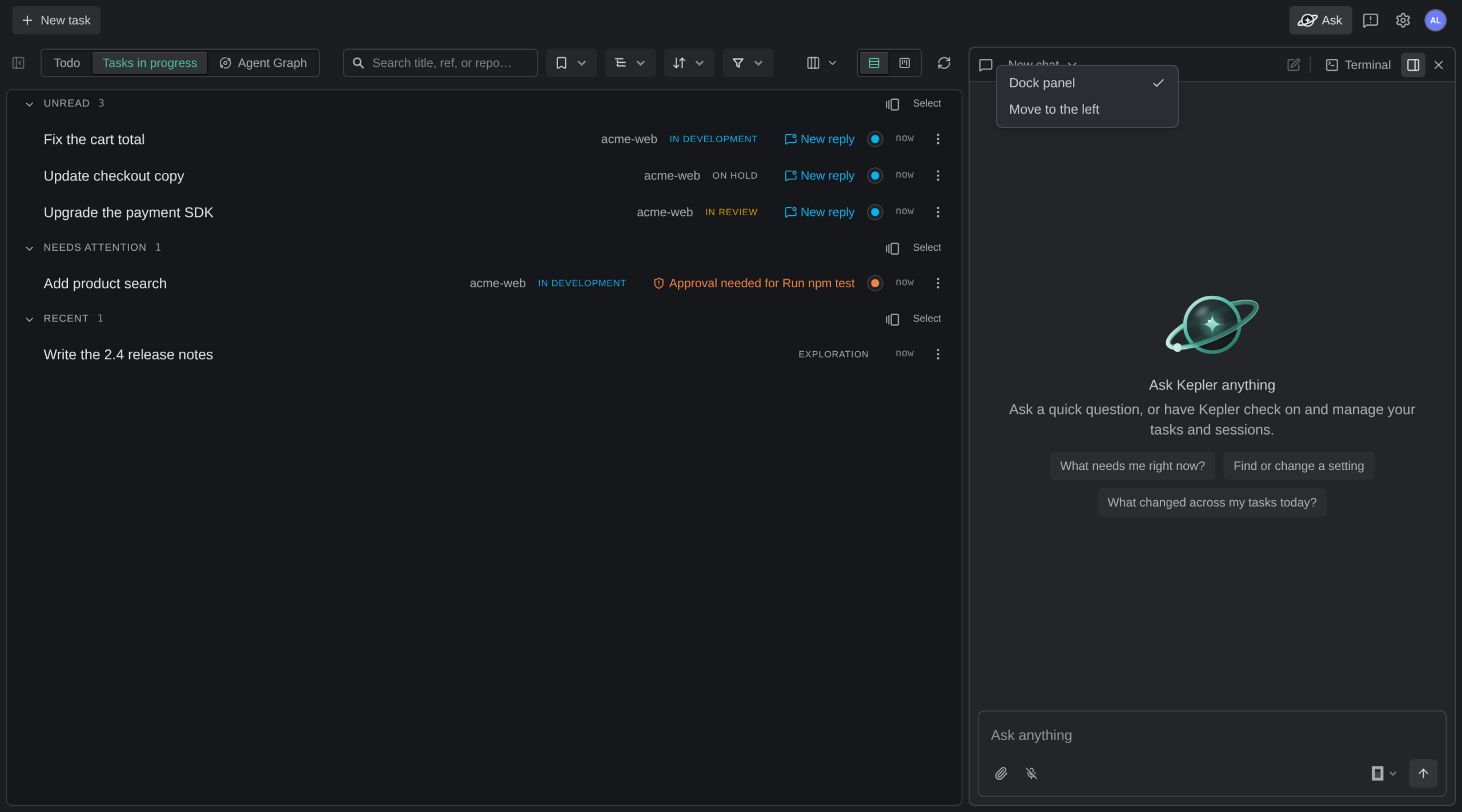
Floating or docked. By default, the panel floats as a card over the left or right edge of the page, under the top bar. The page behind it does not dim, so you can still use it. When you dock the panel, it becomes a column of the window, and the page narrows beside it instead of sitting under it. A docked panel opens and closes without sliding. The panel’s header holds the open section, a button for the other section, and the panel’s own controls:
- Dock panel switches between floating and docked. It shows as pressed while the panel is docked.
- Close Ask Kepler puts it away.
Right-click the panel’s header, or press the keyboard’s context-menu key on it, for the panel’s menu: Dock panel, checked while docked, and Move to the left or Move to the right, which moves the panel to the other edge of the window.
Resize. Drag the panel’s inner edge (Resize Ask Kepler) to change its width, or focus the edge and use the arrow keys. Double-click the edge to return to the default width. The panel is never narrower than 360 pixels or wider than 60% of the window. A docked panel also leaves the page at least 620 pixels. In a window too narrow for that, the panel floats until the window widens, then docks again at the width you set. Kepler remembers the width, the side, and whether the panel is docked on this computer, for every window.
Escape also closes the panel, except where the key does something else:
- In a text field that holds a draft
- In a find bar
- In a shell, where the program receives the key
- In a chat whose agent is still answering, where Escape stops the turn instead
Closing only hides the panel. A half-typed question, the open chat, and every shell’s scrollback are still there the next time you open it.
The chat
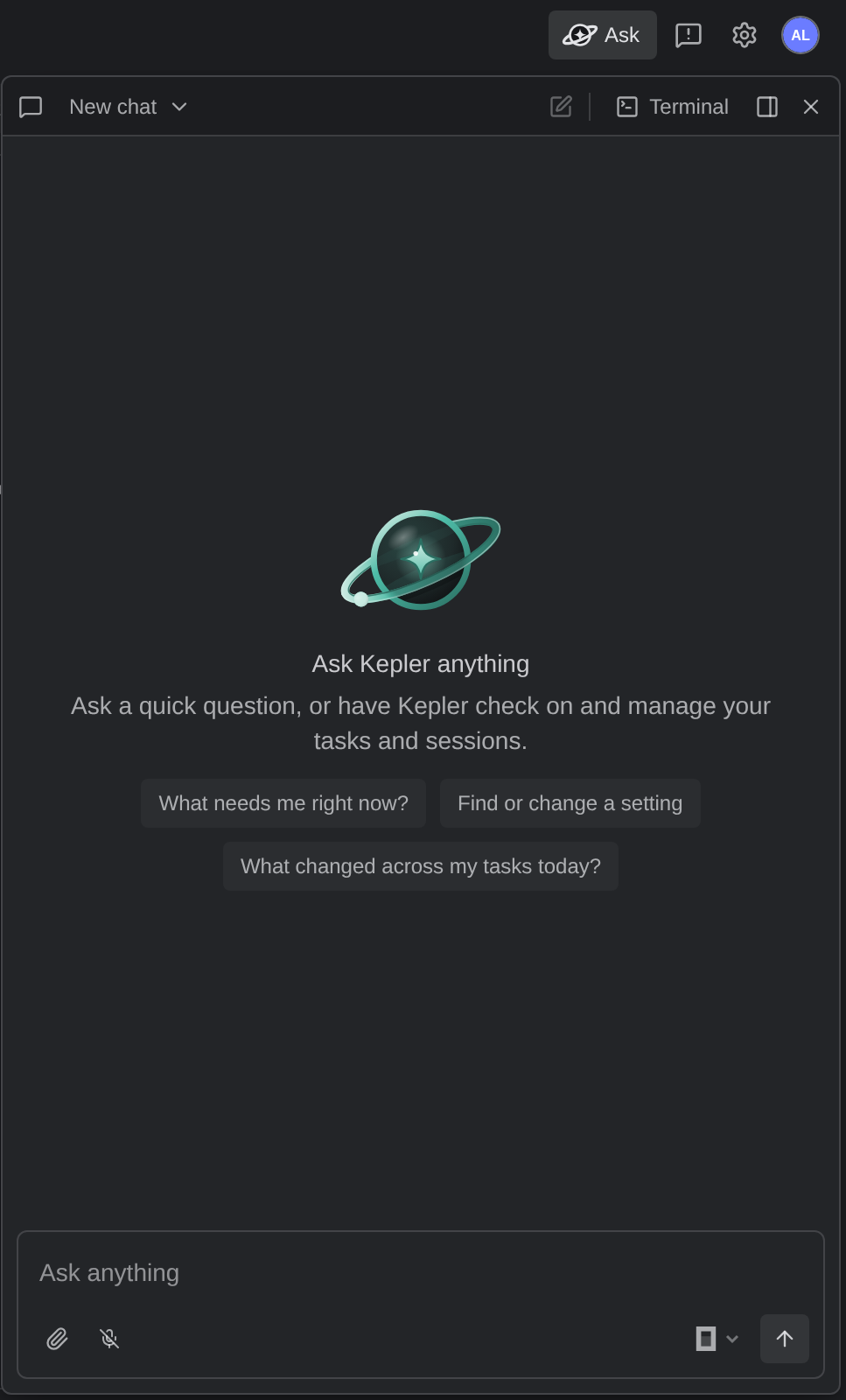
The Chat section is a conversation with an agent that works for you across Kepler rather than inside one task. A new chat opens on Ask Kepler anything, Ask a quick question, or have Kepler check on and manage your tasks and sessions., and a composer that reads Ask anything. Pick the agent from the pill in the composer, type your question, and send it.
You can attach files to a chat from its first message on: use Attach a file, drop files onto the composer, or paste them. Kepler keeps a chat’s attachments in the chat’s own folder and lets the agent read it. If a file you attached is gone by the time the chat starts, Kepler leaves it out and tells you which one.
Starter prompts
A new chat offers starting points you can send with one click:
- What needs me right now?
- Find or change a setting. See Finding and changing settings
- Summarize this task, only while you’re on a task’s page
- What changed across my tasks today?
A starter goes out on its own as the chat’s first message. It does not change anything you already typed or attached in the composer.
What the chat knows
The chat keeps up with what you have on screen. With each message, Kepler tells the agent where you are when that has changed since its last message:
- The page you’re on: the Dashboard, a task, Settings, or somewhere else
- The task you’re looking at, and its checkouts
- The sessions on screen
As a result, the agent answers a question such as what’s this one stuck on? about the task in front of you. Kepler also tells the agent which sessions are waiting on you, such as approvals, permission requests, questions, and failed or unread sessions, and asks it to mention these only when you ask. To get that list, ask What needs me right now?
The agent can read your tasks and sessions and act on them through Kepler’s own tools. Before the agent starts a session on a task that it did not create, Kepler asks you first. When it mentions a task, a session, or a setting, it names it as a link you can click; a setting link shows the setting’s name and opens it in Settings.
Finding and changing settings
The chat can look up Kepler’s settings for you. Ask where something is set, or what a setting is set to, and the agent finds the setting, tells you its current value and what it can be set to, and links to it. Only Ask Kepler has these settings tools. An agent working in a task never gets them.
The agent changes a setting only when you ask it to. It can find and link to some settings but not change them, such as secrets, actions, and settings that take a list. The agent cannot turn on a paid feature without a paid plan, and it tells you why when it refuses.
Some changes wait for your approval: a change to a setting that affects your accounts, your privacy, other tools, what runs, or where files go. The approval card reads Change the setting {setting} with From {from} to {to}. Kepler asks about each such change separately, and the card offers no way to approve more than that one change. See Approval requests.
Kepler keeps some settings, such as the theme, the language, or the terminal font, on your own computer. When you use Kepler in a browser or a remote window, the window you asked from applies such a change and shows Ask Kepler changed {label} from {from} to {to}. with Undo. See Settings.
Which agents can answer
A panel chat always runs over the Agent Client Protocol (ACP), so the agent pill lists only agents that Kepler can drive over ACP. An agent that runs only in a terminal, such as Pi, cannot answer in the panel. See Agent Integrations for which agents run in Chat.
Ask Kepler keeps its own agent, separate from tasks. A new chat opens on the agent you picked last in the panel. Picking an agent here never changes the agent a new task starts with, and picking an agent for a task never changes Ask Kepler’s agent. When you have not picked an agent in the panel yet, or when you choose Use default agent on the pill, it uses Ask Kepler’s default agent, set in Settings → Agents on the Ask Kepler uses row. See Settings: Agents.
Past chats and new chats
To switch chats, open the chat’s title in the panel header. It lists:
- New chat, which returns the section to a fresh chat
- Continue in a new task, for the chat that’s open
- Past chats, newest activity first, each with when it was last active. Click one to open it again, or use Archive {title} beside it to put it away. With none yet, the list reads No past chats yet.
The New chat button beside the title does the same as the picker’s first row.
Continue in a new task
When an answer turns out to be the start of real work, choose Continue in a new task, under the chat’s latest reply or in the past-chats picker. It opens the New task composer with the prompt Pick up where the chat left off., the chat attached as the session the task continues from, and the same agent, account, model, and mode the chat used. Edit anything you like before you start the task. See Create a task.
A panel chat belongs to no task, so when a task’s session links back to the chat it continued from, the chat opens in the panel. A notification from a panel chat also opens the panel on that chat.
Quick terminals
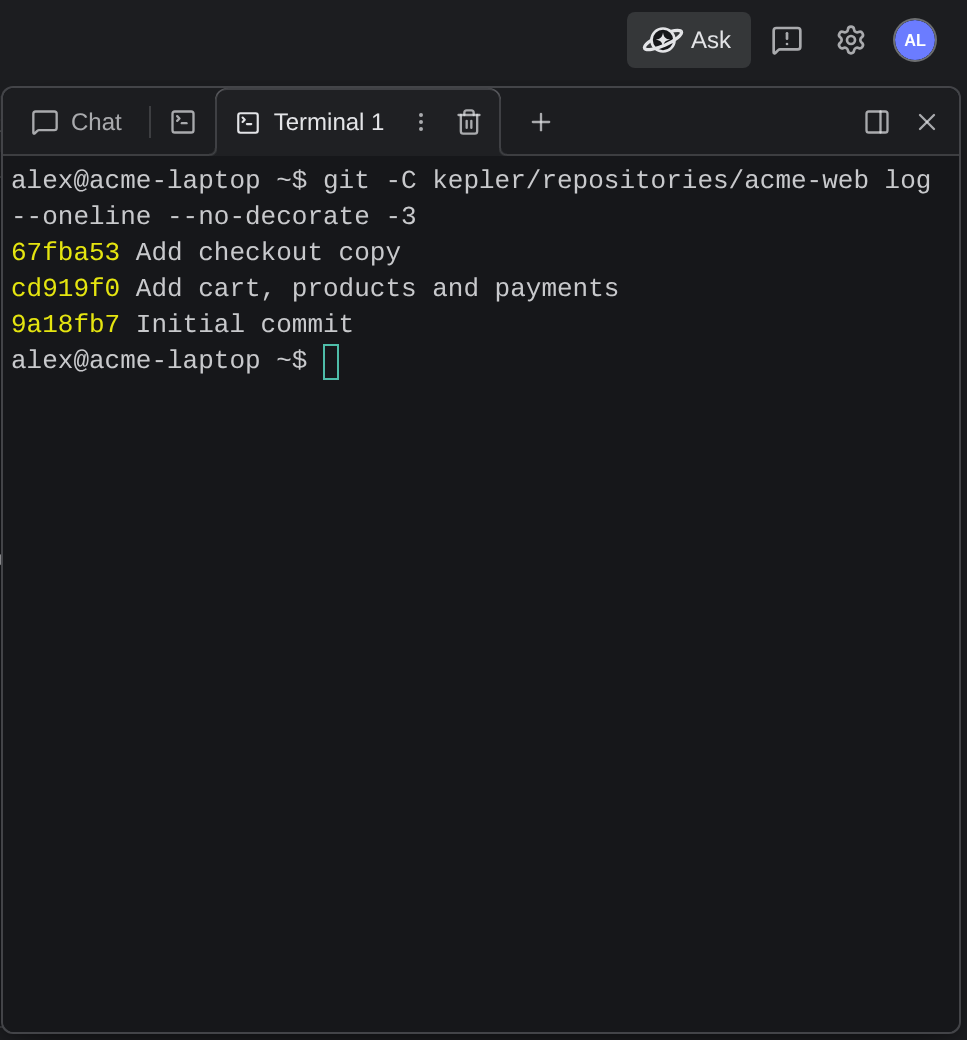
The Terminal section holds shells that belong to no task, in the same tab strip a task page’s terminal drawer uses. The first time you open the section, Kepler starts a shell so that the strip is not empty. If you press Ctrl+` with no shell open, Kepler starts one, as the same key does in VS Code. After you close the last shell, the strip stays empty until you ask for another.
Where a new shell opens depends on where you are:
- On a task’s page, a new shell opens in one of that task’s checkouts.
- Anywhere else, or on a task with no checkouts, it opens in your Home folder.
The panel’s shells belong to the panel. They never move to a task’s terminal drawer, and they keep running when you move between pages or close the panel. While the Terminal section is open, its tab strip is also the panel header, with Chat as a button at its leading edge.
