

Last updated: October 2026
Use these Settings pages to change how Kepler itself looks and behaves:
- General: language, windows, the default editor, and keeping agents running
- Notifications: which agent events notify you, on the desktop and in Kepler
- Appearance: light or dark appearance and themes, the chat, the terminal font, code font size, and diff layout
- Voice input: on-device speech-to-text, its transcription engine, and learned words
- Keyboard shortcuts: Kepler’s keyboard shortcuts
General
Use General to choose Kepler’s language, how its windows open, which editor opens your files, and whether agents keep running when your machine would sleep or Kepler restarts.
Language
Language has 1 setting:
| Setting | What it controls | Default | Options |
|---|---|---|---|
| Language | The display language for Kepler’s interface | English | English, Español |
The language also applies to native dialogs, not only to the in-app interface.
Windows
These settings set how windows work on this machine:
| Setting | What it controls | Default |
|---|---|---|
| Restore windows on launch | Reopens the windows you had open, with their size, page and connection. Turn off to start with one window. | On |
| Always use the custom folder picker | Local windows open your system’s folder dialog, and windows connected to another machine use Kepler’s own folder picker, which can browse that machine. Turn this on to use Kepler’s picker in every window | Off |
Kepler reads Restore windows on launch only when it starts, so a change takes effect the next time you start Kepler.
Default editor
Default editor has 1 setting:
| Setting | What it controls | Default |
|---|---|---|
| Open files and folders in | The app that Open in and ⌘ ⇧-click (Ctrl + Shift-click on Windows and Linux) on a file link use. The options are Last used app, each editor Kepler finds on this machine, and your system’s default app | Last used app |
With your system’s default app, files open without line numbers, folders open in Finder, Explorer, or your file manager, and programs open in your last used editor. If Kepler cannot open any editor from the window you are in, the setting reads No editors can be opened from this window.
Keep agents running
These settings keep agent work running when the machine would otherwise stop it. They apply to the machine the agents run on, so in a window connected to a remote machine, they apply to that machine:
| Setting | What it controls | Default |
|---|---|---|
| Keep this machine awake while agents work | Blocks sleep and standby while an agent session is starting, running, or waiting for your input. It also blocks sleep while Remote Access is on, because sleeping would drop the connection, but not while Remote Access is waiting to reconnect | On |
| Keep agents and terminals running across restarts and updates | Agent sessions and terminals stay alive while Kepler restarts or updates, and reconnect afterwards. Experimental. | On |
To keep the machine awake, Kepler uses the platform’s own method: caffeinate on macOS, an execution-state assertion on Windows, and systemd-inhibit on Linux. The screen can still turn off. If Kepler cannot keep the machine awake, the setting says so under the switch, for example Can’t stay awake: there is no sleep-blocking mechanism available on this platform. On Linux, the setting can say that the system’s polkit policy refuses the request, and give a rule an administrator can install.
The setting counts Claude Code sessions detected outside Kepler as well as Kepler’s own sessions. Kepler lets the machine sleep again as soon as the last of those sessions settles.
Keep agents and terminals running across restarts and updates applies from the next session you start. With it on, a ready update’s popover says Running agents and open terminals keep going through the restart. On a build that does not include the runtime this setting needs, the switch shows off, is disabled, and says so: This build can’t keep agents running across restarts.
Notifications
Use Notifications to choose which agent events Kepler tells you about, and where. Desktop notifications show while Kepler is in the background, and In Kepler alerts show while you are using it. Sessions started outside Kepler notify you only once they are on a task. Kepler saves these settings on this machine.
What to notify you about
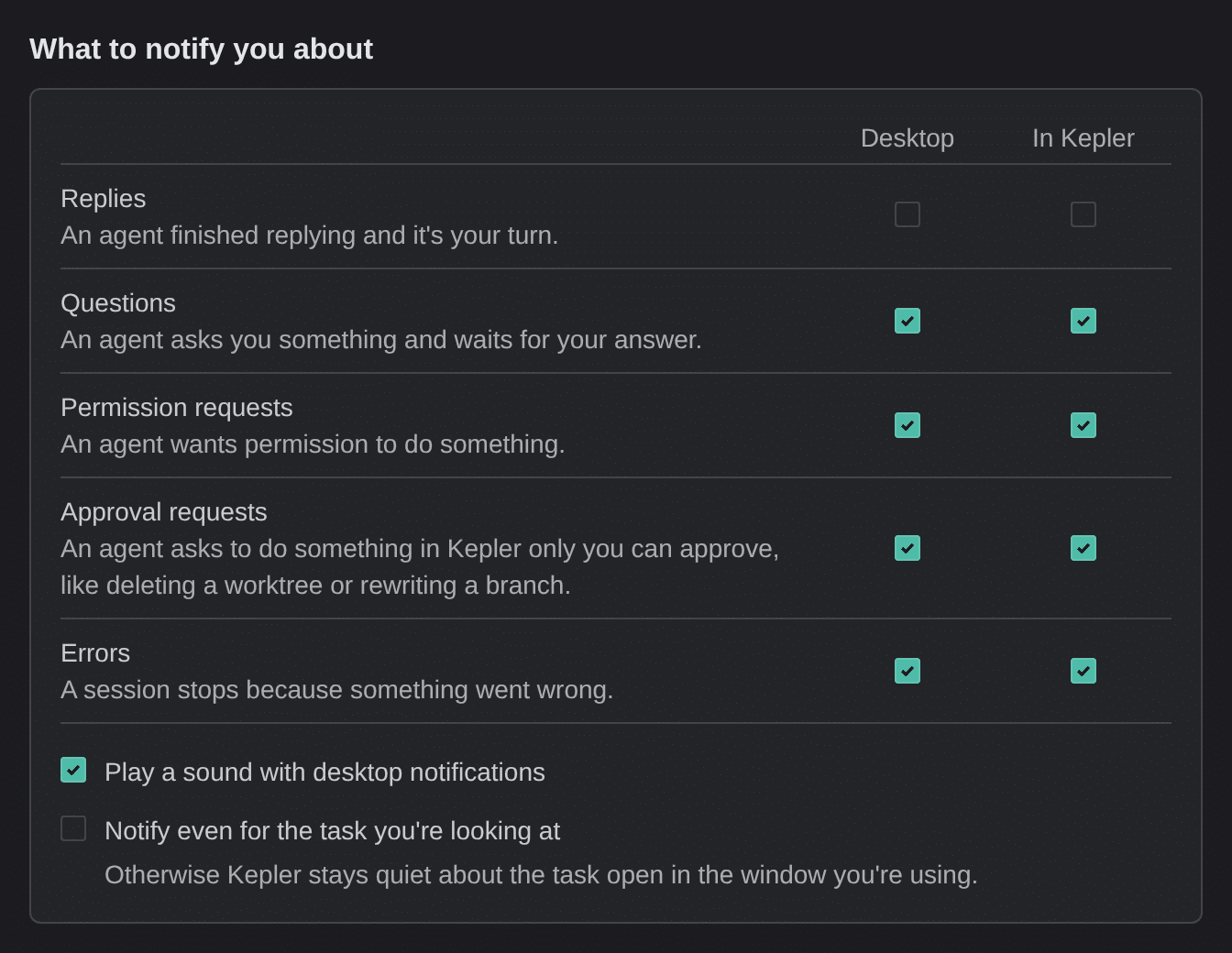
What to notify you about is a grid. Each row is an event, and each column is a place Kepler can notify you: Desktop or In Kepler. The following table lists the events and their defaults in the desktop app:
| Event | When it fires | Desktop | In Kepler |
|---|---|---|---|
| Replies | An agent finished replying and it’s your turn. | Off | Off |
| Questions | An agent asks you something and waits for your answer. | On | On |
| Permission requests | An agent wants permission to do something. | On | On |
| Approval requests | An agent asks to do something in Kepler only you can approve, like deleting a worktree or rewriting a branch. See Approvals | On | On |
| Errors | A session stops because something went wrong. | On | On |
In a browser connected to Kepler, every Desktop box starts off. Replies stays off on the desktop unless you turned on system notifications in an earlier version of Kepler. Until you set Approval requests yourself, it follows Permission requests. When you turn on the first Desktop box, Kepler sends a sample notification so your OS asks for permission.
After your first session starts, the desktop app sends 1 notification to say Notifications are on: Kepler will notify you here when an agent needs you. Change this in Settings › Notifications. Click the notification to open Settings → Notifications. If every Desktop box is off, Kepler skips this notification.
These settings appear under the grid:
| Setting | What it controls | Default |
|---|---|---|
| Play a sound with desktop notifications | Whether a desktop notification makes the OS notification sound | On |
| Notify even for the task you’re looking at | Otherwise Kepler stays quiet about the task open in the window you’re using. | Off |
To silence desktop notifications from one remote machine only, use Mute notifications from {host} on that machine in Remote environments.
Appearance
Use Appearance to choose light or dark and a theme, and to set up the chat, the terminal, code text, and diffs. Kepler saves these settings on this machine.
Theme
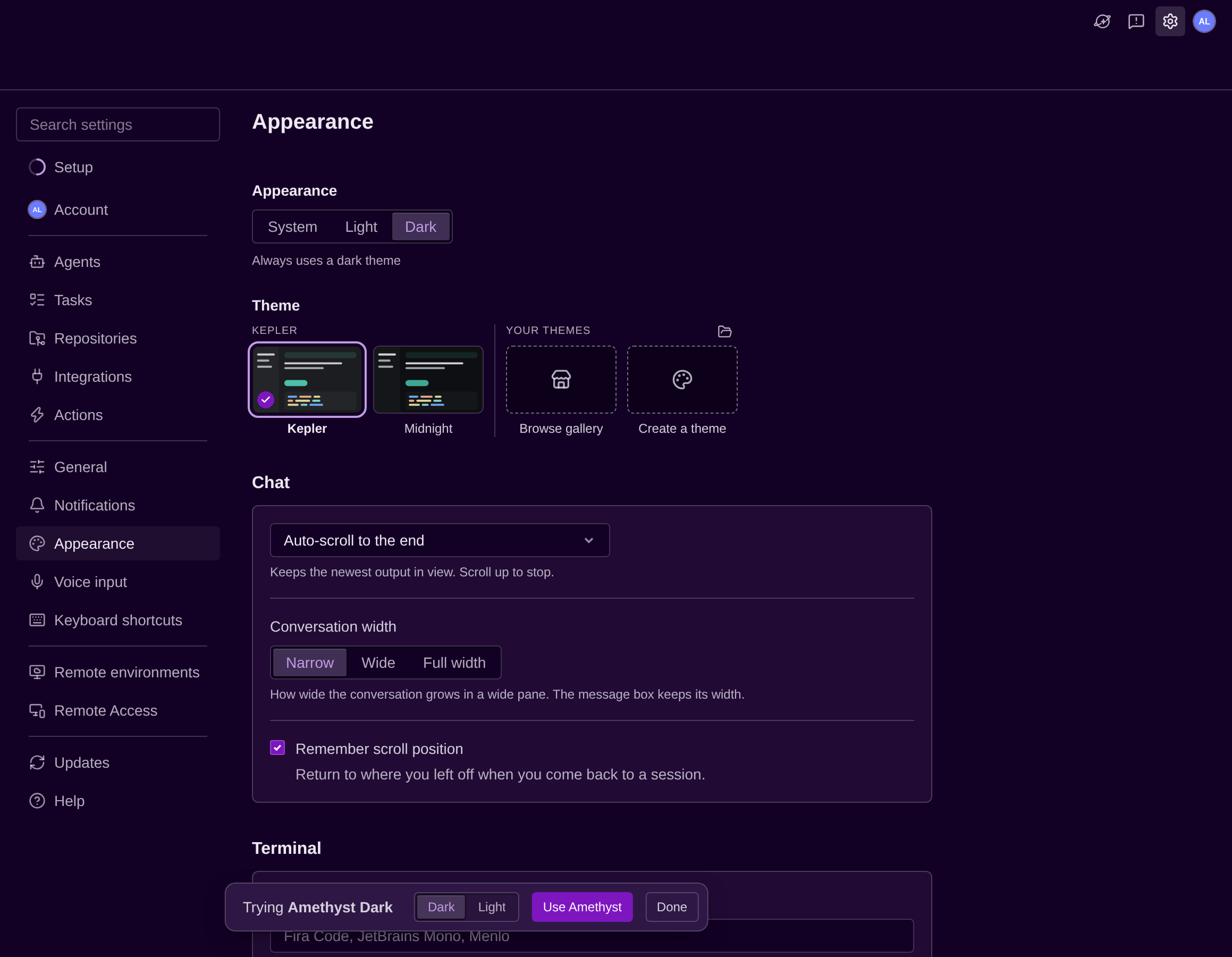
The Theme section has 2 parts: Appearance, which picks whether Kepler looks light or dark, and Theme, which picks the colors for each. Themes color the whole app, including code views, diffs, syntax, chat code blocks, and terminals.
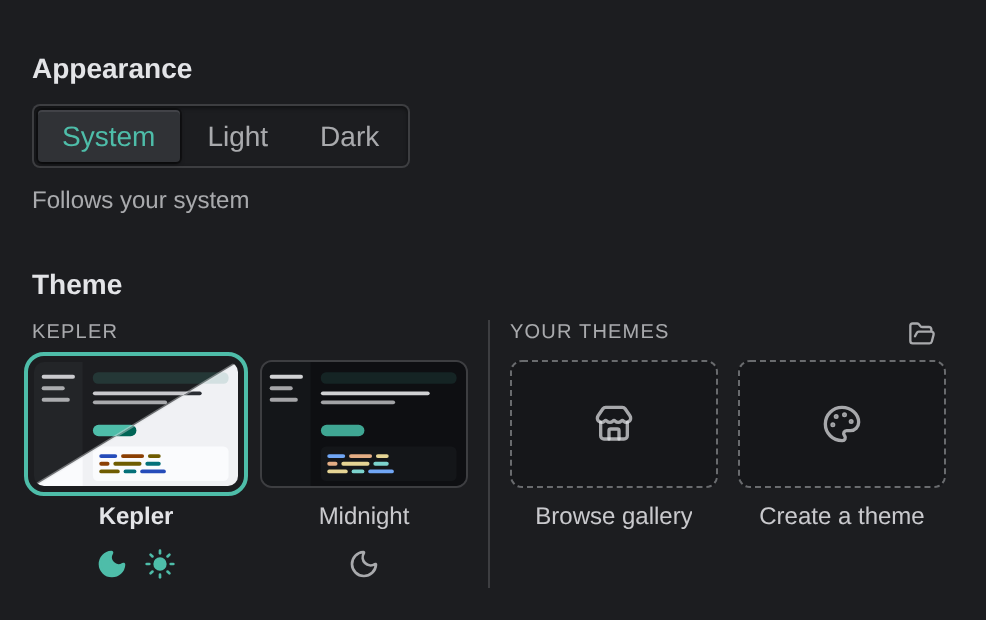
Appearance has 3 options:
| Option | What it does |
|---|---|
| System | Follows your system. Kepler uses your dark theme when your OS is dark and your light theme when it’s light, and switches when the OS does. The default |
| Light | Always uses a light theme |
| Dark | Always uses a dark theme |
Under Theme, each theme is a tile. The Kepler group holds the built-in themes:
- Kepler, which has a dark and a light version. It’s the theme a fresh install uses for both.
- Midnight, a near-black theme that has only a dark version.
How you pick a tile depends on Appearance:
- On System, each tile has a moon and a sun. Click the moon to Use {name} when your system is dark, or the sun to Use {name} when your system is light. Click the tile itself to Use {name} for both dark and light.
- On Light or Dark, click a tile to use it for that appearance.
The tile in use reads In use now. If you used Midnight in an earlier version of Kepler, Kepler switches Appearance to Dark and keeps Midnight as your dark theme.
Terminals follow the theme too. When a terminal program asks, such as an agent’s own command-line app, Kepler tells it the terminal’s background color as it starts, so the program can draw colors that suit your theme. If a running program asks to follow theme changes, Kepler redraws it when you switch themes.
Your themes
Your themes lists the themes you have added, with 2 more tiles, Browse gallery and Create a theme. Open themes folder, beside the heading, opens the folder that holds your themes, ~/.kepler/themes.
A theme file follows these rules:
- It is a
.jsonor.jsoncfile, so comments are allowed. - A single file can hold a family of up to 8 themes, such as a dark and a light version.
- Each theme has an id and a name, and
extendsone of Kepler’s base themes:midnight,dark, orlight. The theme then overrides that base’s colors, and can add code colors and aterminalblock. - The
terminalblock sets the terminal’s background, foreground, cursor, selection, and 16 ANSI colors.
Kepler reads up to 64 theme files, and reloads a file each time you save it.
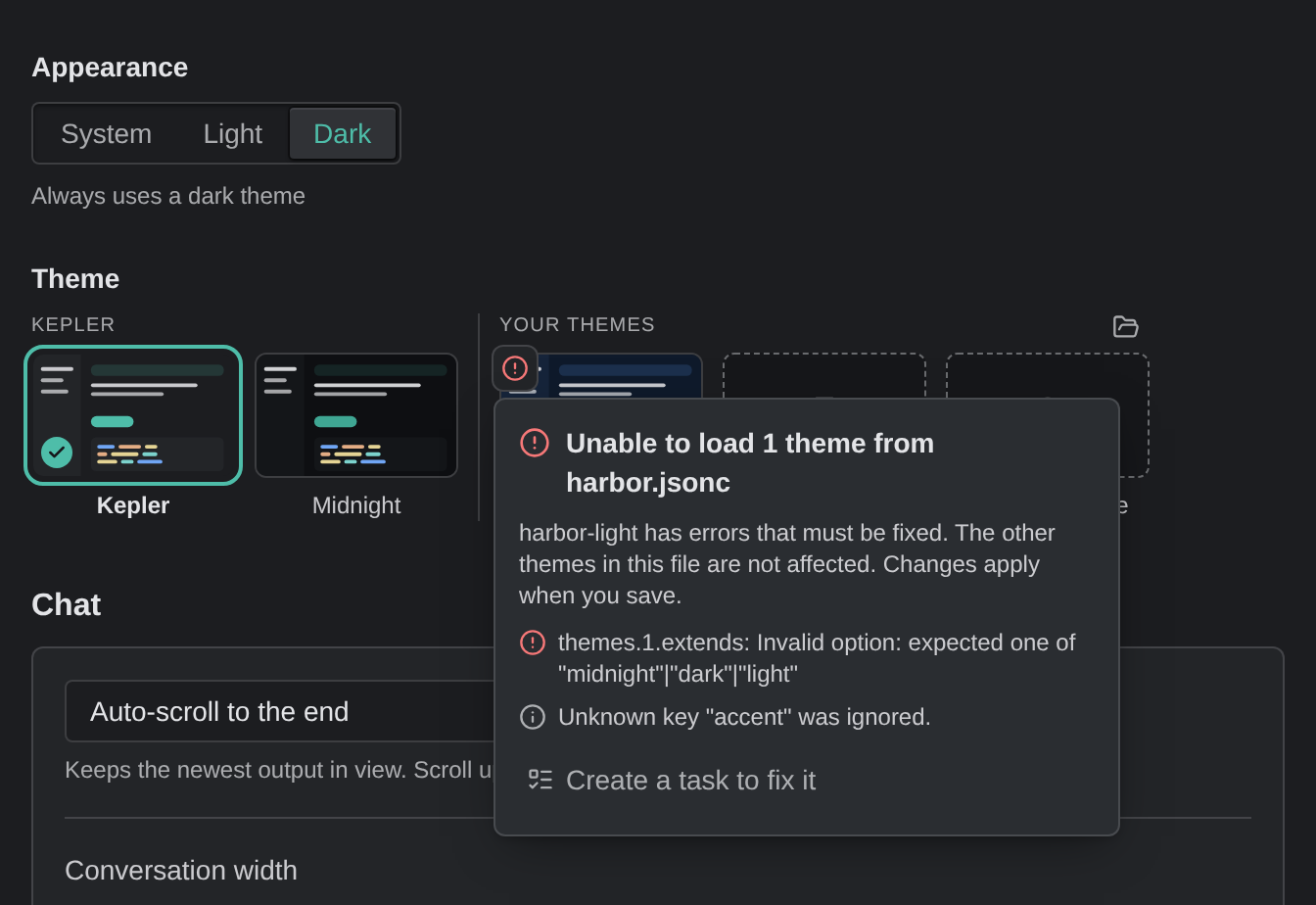
If Kepler cannot fully read a theme’s file, its tile shows Has problems or Has warnings. To see what is wrong, click the badge. A file that is not valid JSON shows Line {line}, column {column}: {message}. A problem with a theme’s values names the setting it is in, such as themes.1.extends.
A file with warnings still works. Kepler leaves out a theme that has errors, and still loads the other themes in its file. To fix a file, use one of these options below the list of problems:
- Create a task to fix it gives the file to an agent.
- In the desktop app, Open file opens the file in your editor, at the error’s line when there is one. Changes apply when you save.
A tile’s More actions for {name} menu has Show in folder and Move to Trash (Move to Recycle Bin on Windows).
Theme gallery
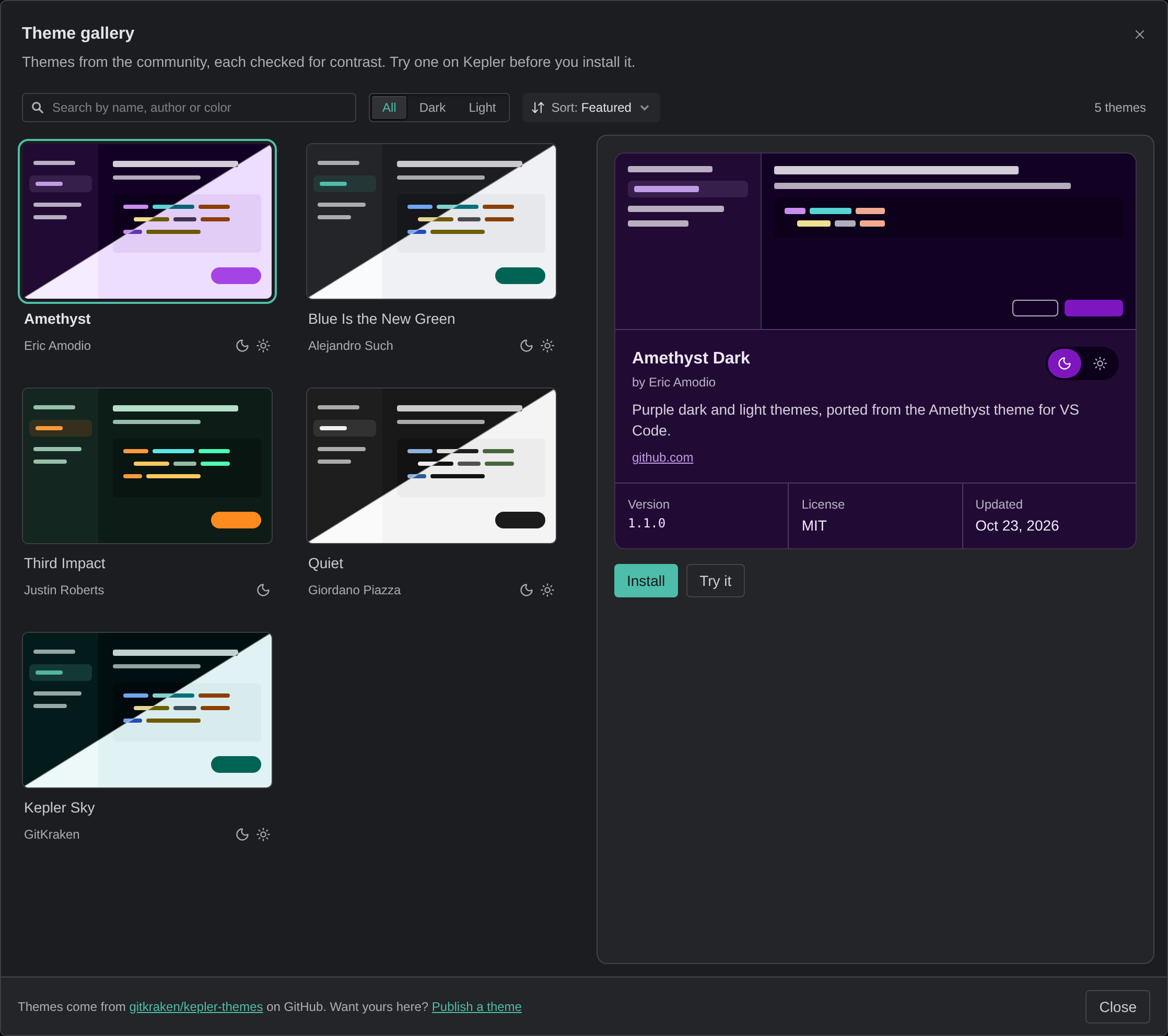
Browse gallery opens the Theme gallery: Themes from the community, each checked for contrast. Try one on Kepler before you install it. The gallery needs an internet connection. It has the following controls:
- Search themes, which matches a theme’s name, author, tags, or description.
- Show, which filters to All, Dark, or Light themes.
- Sort:, with Featured, Newest, or Name.
Click a theme to see its details card, drawn in the theme’s own colors. The card shows its author, its dark and light variants, Version, License, and Updated, and any contrast warnings in your version of Kepler. Then choose one of the following:
- Install adds the theme to Your themes without changing the theme on screen. The button then reads Use, or Use for dark and light for a theme with both.
- Try it closes the gallery and paints the whole window in the theme, so you can open a diff or a terminal to judge it. A bar at the bottom reads Trying {name}, with Use {name} and Done, which returns you to the gallery.
If a theme you already have uses the same id, Kepler asks before it replaces that file, and moves the old file to the Trash. A gallery theme you installed and have not edited offers Update to {version} on its tile when a newer version is published. The gallery’s themes come from gitkraken/kepler-themes on GitHub, where you can also publish your own.
Create a theme
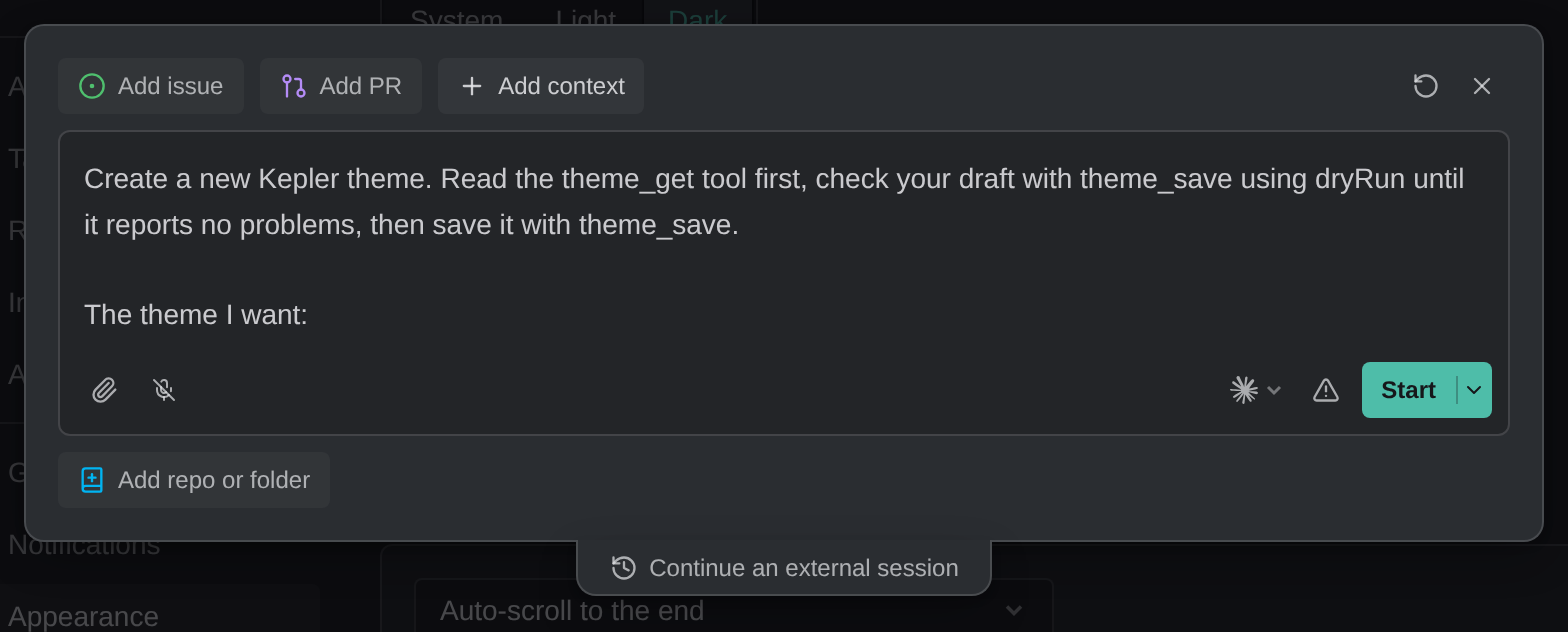
Create a theme opens the new task launcher with a prompt already written for an agent, ending in The theme I want: for you to describe it. The agent reads and saves themes through Kepler’s theme_get and theme_save tools, so it does not need the themes folder attached. Before theme_save saves a theme, it checks the file’s format and that its colors reach the minimum contrast Kepler requires, and reports any problem back to the agent. Create a task to fix it, on a broken theme file, starts the same kind of task with that file’s problems listed.
Themes in a remote window
Themes belong to this computer, as your choice of theme does. Every window, including one connected to a remote environment, lists and installs themes in this computer’s themes folder and gallery. In a window connected to another machine, the picker adds an On {host} group with that machine’s themes, compared with the copies on this computer:
| The theme on {host} | The picker offers |
|---|---|
| Not on this computer | Install {name} on this computer |
| A copy you installed from {host} earlier, changed since | Update {name} from {host}, which updates it at once |
| A later version of your own copy | Update {name} to {version} from {host}, marked Update to {version} |
| An earlier version of your own copy | Replace {name} on this computer with the copy on {host}, marked Older than yours |
| A copy that differs from yours in another way | Replace {name} on this computer with the copy on {host}, marked Differs from yours |
Updating or replacing your own copy asks first: Update {name} to {version}? or Replace {name} on this computer?. Your copy moves to the Trash (the Recycle Bin on Windows), and Kepler confirms Your previous copy is in the {bin}. Where Kepler cannot use a Trash, it does not replace your copy: To use this version, remove the copy on this computer first. A host update to your own copy also shows on its tile in Your themes.
Kepler’s background theme sync never overwrites a copy you installed from the picker. When the host’s copy changes, the picker offers the update instead, and it waits until you choose it.
Chat
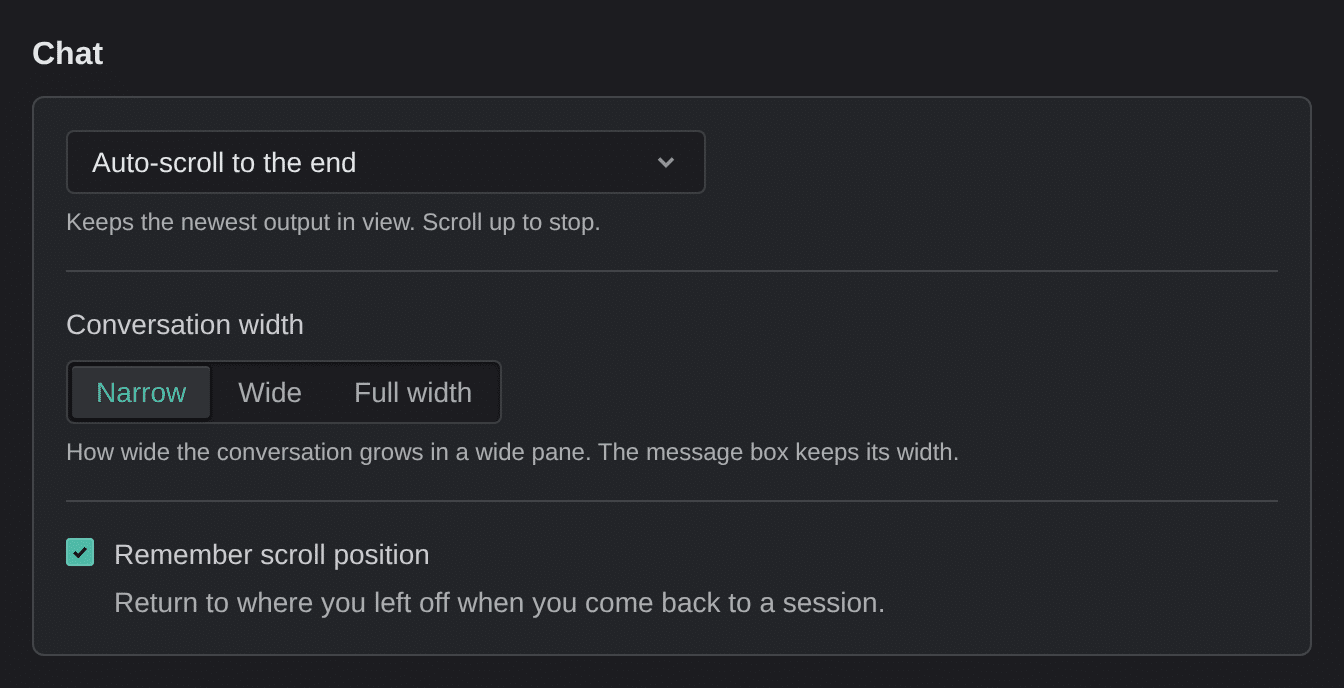
These settings set how a session’s conversation scrolls and how wide it grows:
| Setting | What it controls | Default |
|---|---|---|
| Chat auto-scroll | Auto-scroll to the end keeps the newest output in view. Scroll up to stop. Stay on my message keeps your message in view. The transcript doesn’t scroll on its own. | Auto-scroll to the end |
| Conversation width | How wide the conversation grows in a wide pane. The message box keeps its width. Narrow, Wide, or Full width | Narrow |
| Remember scroll position | Return to where you left off when you come back to a session. | On |
In either scrolling mode, once you scroll up, the transcript stays where you put it. The conversation stays centered at every width, and an agent’s answers span its full width.
Terminal
These settings control Kepler’s embedded terminals:
| Setting | What it controls | Default |
|---|---|---|
| Font family | Separate fonts with commas. The terminal uses the first one installed on this machine. | Empty, which uses your platform’s standard monospace fonts |
| Font size | Terminal font size in pixels, from 8 to 32. Kepler changes a smaller or larger value to the nearest limit | 13 |
| Line height | Vertical spacing between lines, to 1 decimal place, from 1 to 2. Kepler changes a smaller or larger value to the nearest limit | 1.2 |
| Show the message box under terminal sessions | Adds Kepler’s message box under an agent’s terminal, for attachments and voice. You can also switch it from the terminal’s status bar. | Off |
The grayed text in the Font family field (Fira Code, JetBrains Mono, Menlo) is an example of the format, not the value in effect. If you name a font Kepler cannot find on this machine, the field says so and keeps your text. The terminal uses the next name in your list instead. Font family and Font size save when you press Enter or Escape, or leave the field, and show their save status.
Embedded terminals
Each Kepler terminal belongs to a worktree. Opening a terminal starts a shell in that worktree’s folder, so you do not need to cd into it, and the shell loads your profile the same way an interactive login shell would. Use ⌘ J to show and hide the terminal panel, New terminal to open another terminal, and Close terminal to end one.
Use terminals for work next to an agent session: running tests while the agent writes code, checking Git state, or reproducing something the session did not show. A terminal starts in one worktree and stays there, so work that spans several repositories is usually easier in a standalone terminal.
Code
Code has 1 setting:
| Setting | What it controls | Default |
|---|---|---|
| Font size | Size of text in diffs and file views. From 10 to 24. Kepler changes a smaller or larger value to the nearest limit, and the field says the size can be 10 to 24 | 13 |
Diff view
Diff view has 1 setting:
| Setting | What it controls | Default | Options |
|---|---|---|---|
| Diff view | The layout diffs open in | Stacked | Stacked, Split |
This setting sets the layout a diff opens in. To switch a single diff without changing the default, use the Stacked / Split toggle on the Changes overlay’s viewer header. See Review changes.
Voice input
Use Voice input to talk to your agents instead of typing. Kepler transcribes your speech on this machine, and your speech never leaves it. Kepler saves these settings on this machine.
Voice input
Use voice input in the chat prompt shows the microphone in the chat prompt. Turn this off to pause voice input. The downloaded models stay on this computer. Installing a model turns this switch on.
Transcription engine
Choose the engine that turns your speech into text. Every engine runs on this computer, and nothing you say leaves it. Qwen3-ASR reads what you are writing, so it gets developer terms like Jira, rebase, or pull request right more often than Whisper. The section offers 3 engines:
| Engine | What it’s best at |
|---|---|
| Qwen3-ASR 1.7B | The most accurate, especially with developer terms and mixed languages. Needs a recent graphics card. |
| Qwen3-ASR 0.6B | Better than Whisper with technical terms, and lighter on memory. For graphics cards with less memory. |
| Whisper | Works on any machine, including without a compatible graphics card. Less accurate with technical terms. |
Both Qwen3-ASR engines need a graphics card with WebGPU. On a new device, Kepler selects the Qwen3-ASR size that suits its graphics card and marks it Recommended. Kepler selects Whisper instead when the machine has no WebGPU, or when a Whisper model is already installed.
Each engine’s card shows its approximate download size. To install a Qwen3-ASR model, click Download and set up ({size}). The card then reads Ready on this computer. Until the engine you selected finishes downloading, dictation keeps using an engine that is already installed. Remove Qwen3-ASR models deletes every downloaded Qwen3-ASR model, after you confirm. If you use Whisper, a card suggests Switch to Qwen3-ASR ({size}) once, with Not now.
When a newer version of an installed Qwen3-ASR model is released, the card says A newer version of this model is available. Dictation keeps using the installed one until you update., with Update ({size}). Kepler also tells you once, in a notification with Update.
With a Qwen3-ASR engine, Dictation language sets The language you speak. Auto-detect, the default, picks among your system’s preferred languages and the app language. If those name fewer than 2 languages, it picks among all languages. Over time, it favors the languages this device has dictated in successfully. To always dictate in one language, choose that language. Whisper ignores this setting.
Whisper
With Whisper selected, setup takes you through these steps, 1 at a time. Each step appears only when it can do something:
| Step | What it is |
|---|---|
| Set up voice input | Takes a minute: Kepler checks what this machine can run, then downloads a model. Get started begins setup |
| Hardware check | A one-time measurement of how fast this machine transcribes: Checking what this machine can run… It runs once. Later quality changes skip it |
| Choose transcription quality | Picks a model, with the check’s recommendation marked Suggested. Download and set up installs it |
| Ready | The installed model and its size on disk, with Change quality, Remove Whisper, and Technical details |
Whisper offers 4 quality levels:
| Option | What it’s best at |
|---|---|
| Fast | Short prompts in a quiet room, transcribed almost instantly on any machine. The best place to start |
| Balanced | Longer sentences and technical words, still quick on most machines |
| Accurate | Accents, names, and background noise. Expect a short pause after speaking on machines without a modern graphics card |
| Most accurate | The best quality available, including for languages other than English. Worth it on Apple Silicon or a recent graphics card, and slow on anything older |
Each option shows its approximate download size, calculated for the runtime your hardware check measured, so the size you see before installing is the size you download. A download continues if you leave the page, and Kepler notifies you when the model is ready.
Once you have installed a Whisper model, use these controls to manage it:
| Control | What it does |
|---|---|
| Change quality | Reopens the quality picker |
| Remove Whisper | Removes the Whisper model and frees its disk space. If Whisper is the engine that dictates, the chat microphone turns off |
| Technical details | Shows the model’s revision, and the backend and data type it runs on |
When you stop talking
Once you have installed a model, choose what happens when you stop recording:
| Option | What it does |
|---|---|
| Insert the text so you can edit it | Puts the transcript in the prompt for you to review. The default |
| Send the prompt | Sends the prompt automatically |
| Keep listening, transcribing each phrase as you pause | Keeps the microphone open and transcribes each phrase as you pause |
Learned words
Qwen3-ASR learns how to spell words that you fix in dictated text before you send it, 1 word at a time. When you fix the same word in 2 sends, Kepler suggests it, and dictation uses it once you approve it. Kepler stores only the words, on this device only, and keeps them after you sign out.
When a fix becomes a suggestion, a notification says A dictated word fix is ready to review, with Review, which opens Learned words. The section has 2 lists:
- Suggested words: Fixes you made in two sends. Dictation uses a word only after you approve it. Each word reads Heard as {heard}, with Approve and Dismiss. Kepler never suggests a dismissed fix again.
- Learned words: the words dictation uses, each marked In use or Added by you, with Remove {term}. While Qwen3-ASR dictates, you can add a word yourself with Add a word.
Forget learned words removes every word Qwen3-ASR learned or suggested, and every word you added, on this device, after you confirm.
Kepler downloads each model from the internet once. Transcription then runs entirely on your device, and your audio is never uploaded. See Voice Input.
Keyboard shortcuts
Use Keyboard shortcuts to look up Kepler’s shortcuts. The page lists them in 6 groups: General, Navigation, Dashboard, Task page, Chat, and Changes and code views. As the page says, These shortcuts can’t be changed yet. Kepler also shows each shortcut in the menu items and button tooltips it belongs to. For a few tab shortcuts that Settings does not list, such as reopening a closed tab and jumping to a tab by position, see Task View.
The tables show Mac symbols first. On Windows and Linux, ⌘ is Ctrl and ⌥ is Alt, and ⌃ is Ctrl on every platform.
General shortcuts
The General group holds app-wide shortcuts:
| Action | Mac | Windows / Linux |
|---|---|---|
| Open settings | ⌘ , | Ctrl + , |
| Toggle Ask Kepler chat | ⌘ L | Ctrl + L |
| Toggle Ask Kepler chat | ⌘ K | Ctrl + K |
| Toggle Ask Kepler terminal | ⌃ | Ctrl + |
|
| New task | ⌘ N | Ctrl + N |
| Open quick launcher (global) | ⇧ ⌥ N | Shift + Alt + N |
| New window | ⌘ ⇧ N | Ctrl + Shift + N |
| Quit | None | Ctrl + Q |
| Zoom in | ⌘ = | Ctrl + = |
| Zoom out | ⌘ – | Ctrl + – |
| Reset zoom | ⌘ 0 | Ctrl + 0 |
| Copy the selection or the focused item | ⌘ C | Ctrl + C |
| Close window | ⌘ ⇧ W | Ctrl + Shift + W |
| New session | ⌘ T | Ctrl + T |
| Rename task | F2 | F2 |
| Manage remote environments | ⌘ ⇧ R | Ctrl + Shift + R |
| Open file | ⌘ O | Ctrl + O |
| Go to file | ⌘ P | Ctrl + P |
| Dismiss / Cancel | Escape | Escape |
| Back | ⌘ [ | Alt + ← |
| Forward | ⌘ ] | Alt + → |
Navigation shortcuts
The Navigation group moves you between tabs and regions:
| Action | Mac | Windows / Linux |
|---|---|---|
| Previous tab | ⌘ ⇧ [ | Ctrl + Shift + [ or Ctrl + PageUp |
| Next tab | ⌘ ⇧ ] | Ctrl + Shift + ] or Ctrl + PageDown |
| Move tab left | ⌘ ⌥ [ | Ctrl + Alt + [ or Ctrl + Shift + PageUp |
| Move tab right | ⌘ ⌥ ] | Ctrl + Alt + ] or Ctrl + Shift + PageDown |
| Close tab or panel | ⌘ W | Ctrl + W or Ctrl + F4 |
| Toggle terminal | ⌘ J | Ctrl + J |
| Dock or hide the task list or context panel | ⌘ B | Ctrl + B |
| Next region | F6 | F6 |
| Previous region | ⇧ F6 | Shift + F6 |
Dashboard shortcuts
The Dashboard group works on the Dashboard’s tasks and detail panels:
| Action | Mac | Windows / Linux |
|---|---|---|
| Move panel left | ⌘ ⌥ ⇧ ← | Ctrl + Alt + Shift + ← |
| Move panel right | ⌘ ⌥ ⇧ → | Ctrl + Alt + Shift + → |
| Move panel up | ⌘ ⌥ ⇧ ↑ | Ctrl + Alt + Shift + ↑ |
| Move panel down | ⌘ ⌥ ⇧ ↓ | Ctrl + Alt + Shift + ↓ |
| Move task to the previous Progress stage | ⌘ ⇧ ← | Ctrl + Shift + ← |
| Move task to the next Progress stage | ⌘ ⇧ → | Ctrl + Shift + → |
| Focus detail panel 1–8 | ⌘ 1–8 | Ctrl + 1–8 |
| Focus last detail panel | ⌘ 9 | Ctrl + 9 |
| Switch detail panels | ⌃ Tab | Ctrl + Tab |
| Switch detail panels, oldest first | ⌃ ⇧ Tab | Ctrl + Shift + Tab |
| Maximize detail panel | ⌘ ⇧ M | Ctrl + Shift + M |
| Maximize panel terminals | ⌘ ⇧ J | Ctrl + Shift + J |
| Show or hide changes in detail panel | ⌘ ⇧ G | Ctrl + Shift + G |
| Switch detail panels between columns and grid | ⌘ ⇧ L | Ctrl + Shift + L |
| Show the task list floating over the panels, or hide it | ⌘ ⇧ B | Ctrl + Shift + B |
| Show or hide resources in detail panel | ⌘ ⇧ E | Ctrl + Shift + E |
| Find in dashboard | ⌘ F | Ctrl + F |
The earlier Move panel left and Move panel right keys, ⌘ ⌥ ← and ⌘ ⌥ →, still work, but the page does not list them.
Task page shortcuts
The Task page group works on a task’s page:
| Action | Mac | Windows / Linux |
|---|---|---|
| Focus chat | ⌘ 1 | Ctrl + 1 |
| Focus changes | ⌘ 2 | Ctrl + 2 |
| Focus resources | ⌘ 3 | Ctrl + 3 |
| Switch sessions | ⌃ Tab | Ctrl + Tab |
| Switch sessions, oldest first | ⌃ ⇧ Tab | Ctrl + Shift + Tab |
| Maximize terminal drawer | ⌘ ⇧ J | Ctrl + Shift + J |
Chat shortcuts
The Chat group works in a session’s conversation:
| Action | Mac | Windows / Linux |
|---|---|---|
| Find in conversation | ⌘ F | Ctrl + F |
| Previous message | ⌘ ⌥ ↑ | Ctrl + Alt + ↑ |
| Next message | ⌘ ⌥ ↓ | Ctrl + Alt + ↓ |
| Interrupt & send | ⌘ ⇧ ⏎ | Ctrl + Shift + ⏎ |
Changes and code view shortcuts
This group has 2 lists. The Changes list works in the Changes view:
| Action | Mac | Windows / Linux |
|---|---|---|
| Filter changed files | ⌘ P | Ctrl + P |
| Previous file | ⌥ ↑ | Alt + ↑ |
| Next file | ⌥ ↓ | Alt + ↓ |
| Next change | F7 | F7 |
| Previous change | ⇧ F7 | Shift + F7 |
| Show or hide changes panel | ⌘ B | Ctrl + B |
| Open all changes | ⌘ ⇧ A | Ctrl + Shift + A |
| Comment on selection | ⌘ ⇧ C | Ctrl + Shift + C |
The Code views list works in any code view, such as a diff or a file you have opened:
| Action | Mac | Windows / Linux |
|---|---|---|
| Find in file or diff | ⌘ F | Ctrl + F |
| Next match | F3 or ⌘ G | F3 |
| Previous match | ⇧ F3 or ⌘ ⇧ G | Shift + F3 |
| Match case | ⌘ ⌥ C | Alt + C |
| Match whole word | ⌘ ⌥ W | Alt + W |
| Use regular expression | ⌘ ⌥ R | Alt + R |
Shortcuts that depend on where you are
Some keys do different things depending on where you are:
- ⌘ 1, ⌘ 2, and ⌘ 3 focus a detail panel on the Dashboard but a column on the task page.
- ⌃ Tab switches detail panels on the Dashboard and sessions on the task page.
- ⌘ ⇧ J maximizes the panel’s terminals on the Dashboard and the terminal drawer on the task page.
- ⌘ B shows or hides the changes panel in the Changes view, docks or hides the task list on the Dashboard, and docks or hides the context panel on the task page.
- ⌘ P filters changed files in the Changes view and opens Go to file elsewhere.
- ⌘ F finds in the Dashboard from its list or header, finds in a file or diff in a code view, and finds in the conversation elsewhere.
- ⌘ ⇧ G shows or hides changes in a Dashboard detail panel, and, on macOS, moves to the previous match in a code view.
- ⌘ C copies what a focused row, chip, or link names, such as a task’s Kepler link, a pull request or issue link, a file path, or a commit hash, without opening a menu. In a text field, the message box, a terminal, or a text selection, it copies as usual.
Kepler registers Open quick launcher with the OS, so it works while Kepler is in the background. Its row has a Global badge. Quit, Ctrl + F4, and the PageUp / PageDown tab keys are Windows and Linux shortcuts only. Kepler hides those rows on macOS, where you quit with the native ⌘ Q menu item. Close tab or panel works only in the desktop app.
On Windows and Linux, a focused terminal passes Ctrl + W, Ctrl + L, and Ctrl + B to the shell. To toggle the Ask Kepler chat from a terminal, press Ctrl + K: the shell does not keep that key. Ctrl + ` always toggles the Ask Kepler terminal, even from a terminal.
Back and Forward use different keys on each platform on purpose. Alt + ← is the Windows and Linux convention but moves by word on macOS, and ⌘ [ is the macOS convention (Safari, Finder) but not the Windows one. Hold either key to keep moving through your history.
Send feedback, Show release notes, Show About, Check for updates, and Clean up worktrees have no default key, so the page does not list them. You can open the first 4 from the app menu.
