

Last updated: November 2026
An automation runs an Action or a prompt of your own without you starting it. It runs on a schedule, such as every weekday morning, or when new activity on a GitHub or Jira issue or pull request matches a query. Each run starts a task with its own worktree, so you review the agent’s work the way you review any task.
Automations are marked Experimental. To use them, you need to be signed in to your GitKraken account, and Kepler has to be open on one of your installs when a run is due.
Open Automations
To open your automations, click Automations at the right end of the Dashboard’s row of views. The button shows how many runs need you.

To go back, click Automations again, or the back arrow beside the page title.
Create an automation
Click New automation at the bottom of the Automations list. Before you have any automations, the page shows the templates straight away.
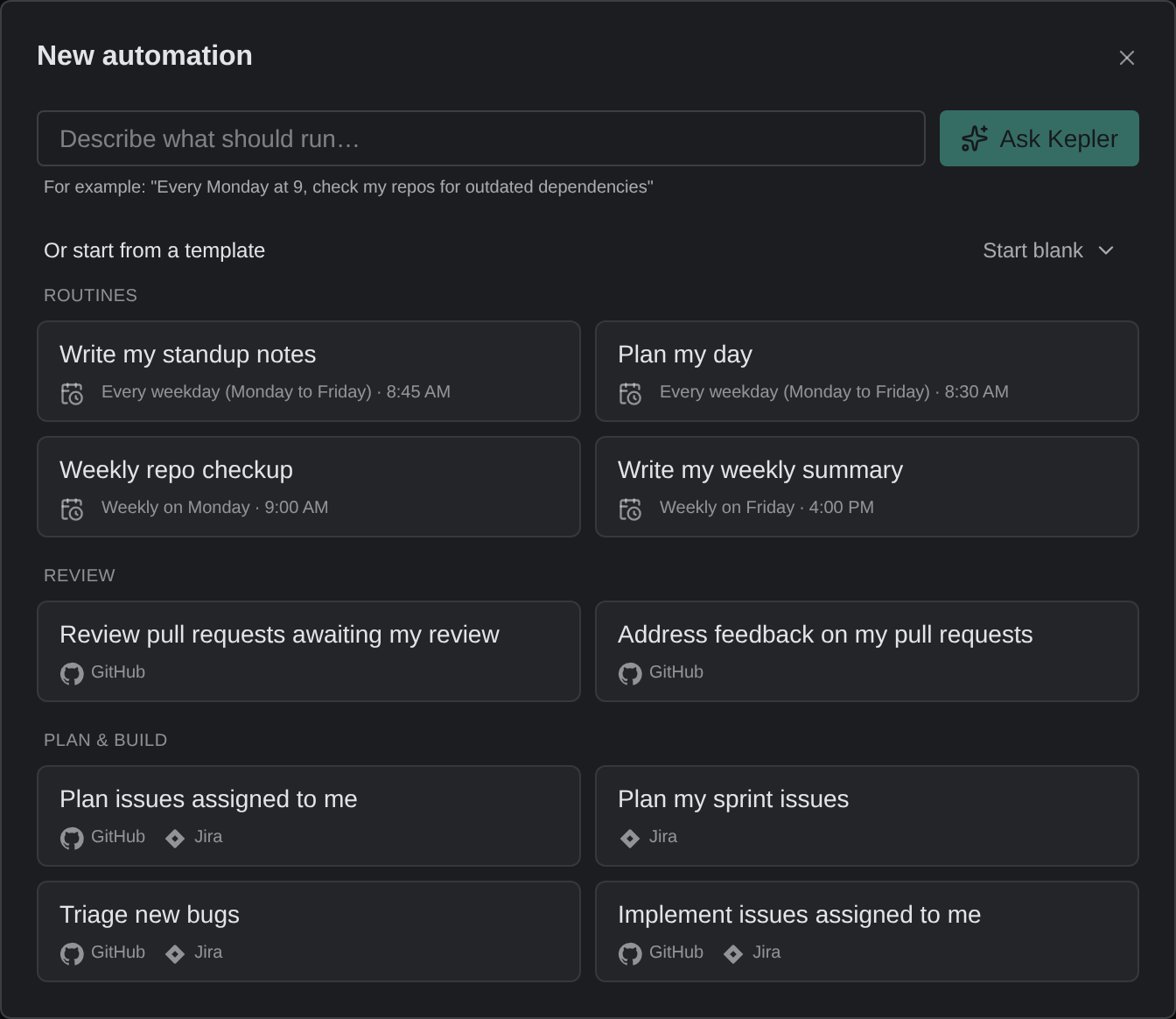
You can start an automation in 3 ways:
- Describe it. Type what should run, such as Every Monday at 9, check my repos for outdated dependencies, and click Ask Kepler. Ask Kepler sets the automation up in a new chat and creates it paused. To start it, click Turn on on the card the chat shows.
- Pick a template. Routines run on a schedule, such as Write my standup notes. Review and Plan & build watch your pull requests and issues, such as Review pull requests awaiting my review. The template fills in the form, and you adjust it before you save.
- Start blank. Choose GitHub, Jira or Schedule from the Start blank menu.
GitHub and Jira automations need that account connected. A source you have not connected is marked Not connected. See Integrations settings.
Set up an automation
The form asks what the automation watches, what it runs, and where it runs. Click Save when you are done.
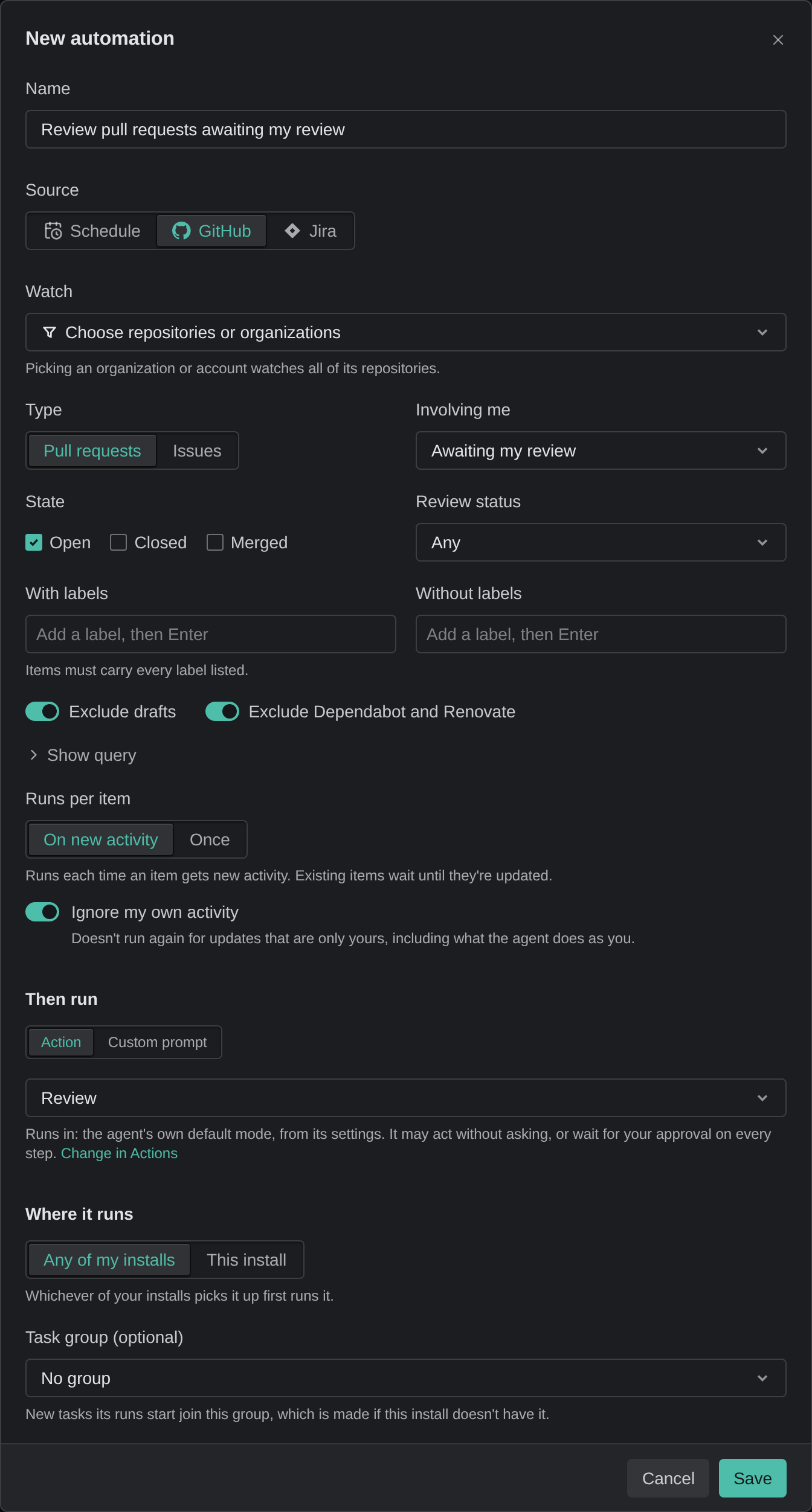
What it watches
- GitHub: under Watch, pick the repositories or organizations, then filter the pull requests or issues, for example to the ones Awaiting my review. To see the search the filters make, click Show query.
- Jira: pick the projects from one Jira site, your role, and the statuses.
- Schedule: pick how often it repeats and the time. The form lists the next runs.
An issue or pull request automation runs when an item gets new activity, not on items that match when you save it. Under Runs per item, On new activity runs each time an item changes, and Once runs only the first time.
For GitHub, Ignore my own activity is on by default, so updates that are only yours do not start the automation again. That includes what the agent does as you, such as pushing a commit or posting a review.
What it runs
Under Then run, pick an Action, or write a Custom prompt and pick the agent that runs it. The line under the Action says which mode its agent runs in; to change it, click Change in Actions.
Automations run unattended, on text other people write in issues and pull requests. Choose a mode that acts without asking only if you trust everyone who can open or comment on those items. See Setting an Action’s agent.
Where it runs
- Any of my installs lets whichever of your Kepler installs picks the run up first run it. This install runs it only on this one.
- For an issue or a schedule, set the Folder where the agent starts: one repository, or a folder of them it picks from. You can also set a Base branch. A pull request automation runs in the pull request’s own repository.
- To file the tasks its runs start in one of your groups, pick it under Task group, or choose New group.
The agent makes its changes in a worktree, never in your own checkout.
Follow the runs
The Automations page lists your automations, each with its runs. Needs you, at the top, holds the runs that failed, could not start, or are waiting on you. Use Unread to show only runs you have not looked at.
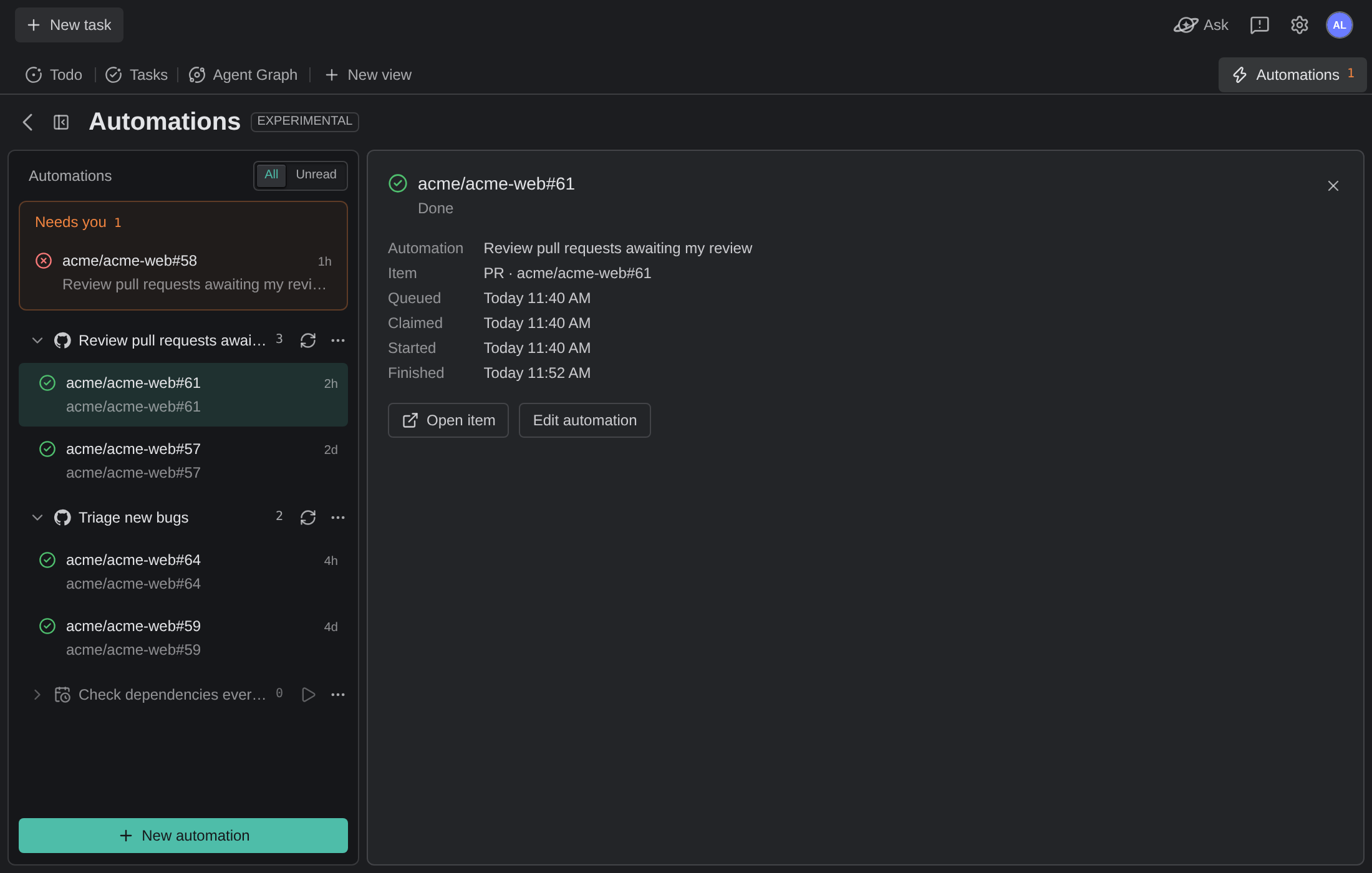
Click a run to open it beside the list. A run that started a task shows the agent’s session, where you answer its questions and approvals as you would in the task. Otherwise you see the run’s details, with Open item and Edit automation. With no run selected, the page shows a summary of today’s runs.
Each run’s task also appears in your task list, with an Automation badge on its row. Right-click a run to Pin it, Mark as unread, Open in Tasks, or Clear from Needs you.
A run that another of your installs picked up reads, for example, Done on another install. Its task and conversation are on that install.
Manage an automation
Each automation’s row has these controls:
- The refresh button (Check name now), for a GitHub or Jira automation, looks for new activity right away. On a schedule, the play button (Run name now) runs it right away.
- The More actions (…) menu holds Edit, Duplicate, Pause or Resume, and Delete.
Duplicate opens a copy in the form. If you save a copy that does exactly what the original does, Kepler asks you to confirm, since each run would then happen twice.
A paused automation is dimmed and marked Paused in the list, and starts no runs. To start it again, choose Resume from its More actions menu.
You cannot delete an Action while an automation runs it. Delete the automation first.
When a run does not start
Click the run to see why. The reasons you can fix:
| What the run says | What to do |
|---|---|
| Didn’t run: Kepler wasn’t open while it waited to run | Keep Kepler open on one of your installs when runs are due |
| The automation’s repositories folder does not exist here | Click Set repositories folder, or edit the automation |
| The automation’s Action was deleted | Edit the automation and pick another Action |
| Its agent isn’t signed in on this computer | Sign in to that agent. See Agent Integrations |
| Stopped to prevent a loop | The automation ran too many times on one item. Set Runs per item to Once |
A run skipped on this install can still run on another of your installs.
