

Last updated: March 2026
Use this page to connect GitKraken Desktop to GitHub for sign-in, repository access, SSH setup, pull request work, and account management. It covers GitHub.com workflows inside GitKraken Desktop, highlights plan-related limits such as multiple profiles and Community plan restrictions, and points to troubleshooting steps when authentication or repo discovery fails.
Requirements and limits
- Integration covered here: GitHub.com
- Community plan: Public repositories only
- Multiple GitHub accounts: Use separate profiles in GitKraken Desktop; Pro plan required
- SSH behavior: GitKraken uses the key set in Preferences > SSH unless a GitHub-specific key or local SSH Agent is configured
- Pull request review limit: GitKraken Desktop can view pull requests and suggest changes, but full in-app code review and commenting are not available
| Workflow | GitHub.com support | Community limits | Notes |
|---|---|---|---|
| Sign in and connect account | Yes | None | Browser-based GitHub connection |
| Clone and browse repositories | Yes | Public repositories only | Private repo access requires a paid plan |
| SSH key generation and upload | Yes | Public repositories only | Uses GitKraken SSH settings unless overridden |
| Create and view pull requests | Yes | Public repositories only | Supported directly in GitKraken Desktop |
| Review code and suggest changes | Partial | Public repositories only | Suggestions are supported, but full in-app review and commenting are not |
| Multiple GitHub accounts | Yes | Not included | Requires separate profiles and a Pro plan |
Quick Start
To sign in with GitHub:
- Open GitKraken Desktop and click Sign in with GitHub.
- Log in with your GitHub credentials in the browser. The connection completes automatically.
To connect manually or add SSH:
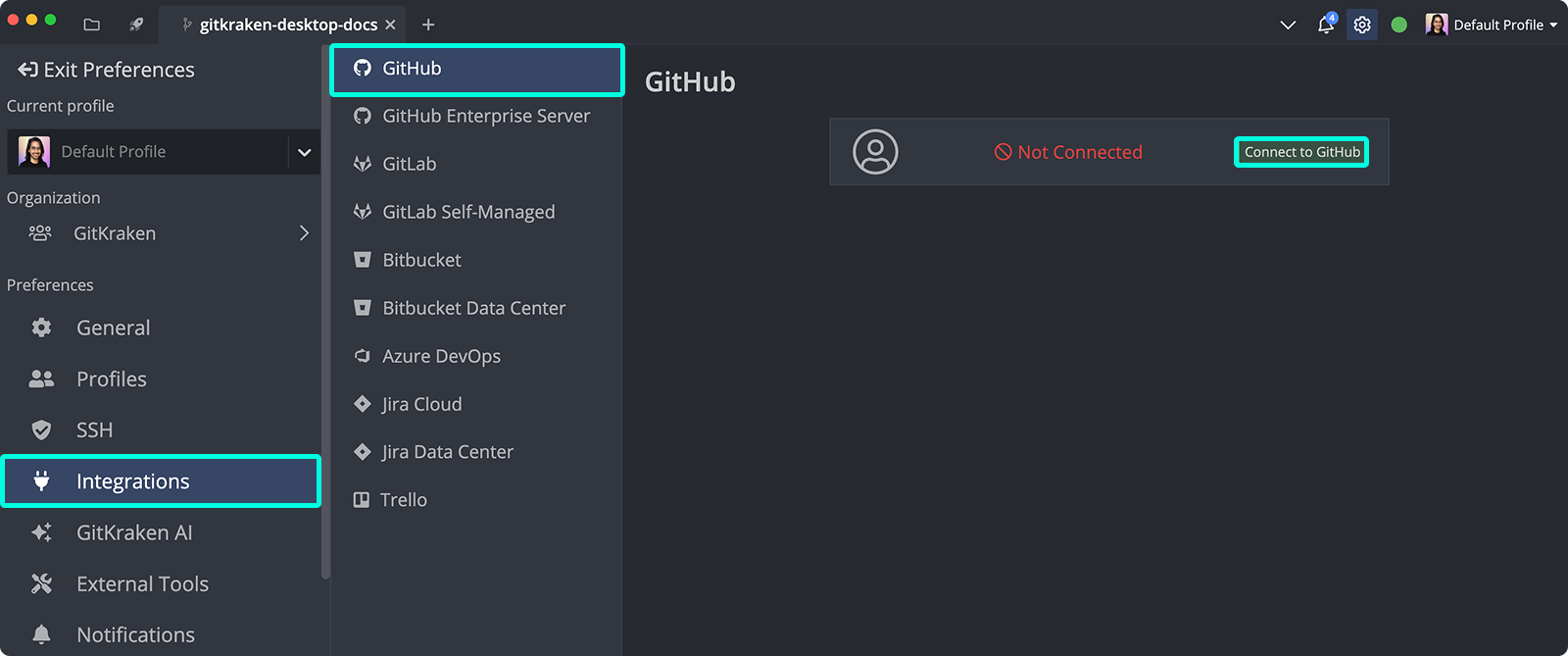
- Go to Preferences > Integrations and select GitHub.
- Click Connect to GitHub and log in in the browser.
- To add an SSH key, click Generate SSH key and add to GitHub in the same panel.
To create a pull request:
- Push your branch to GitHub.
- Select the branch in the Left Panel, then click Start a pull request or use the Command Palette.
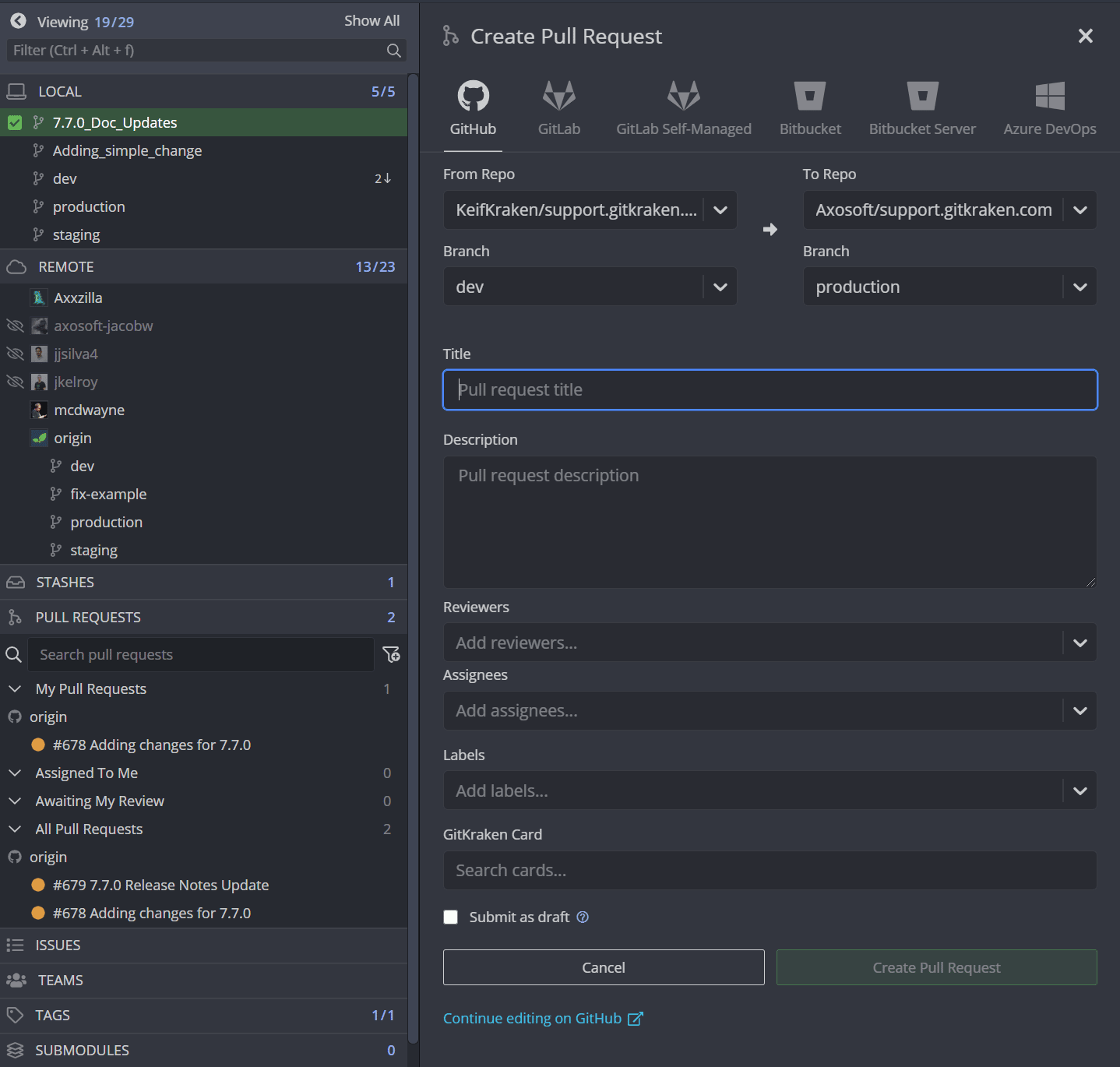
- Fill in the title, description, reviewers, and labels, then submit.
To review a pull request:
- Select a pull request from the Left Panel.
- Click Review Code and Suggest Changes to edit files and propose modifications.
- Click Suggest X file change to PR to submit your suggestions.
To use multiple GitHub accounts, create separate profiles in GitKraken Desktop (Pro plan required).
Benefits
- Login to GitKraken using your GitHub account
- Create repositories on GitHub with
.gitignoreand license options - Automatically generate an SSH key pair and add it to GitHub
- Fork repositories from GitKraken
- Save authentication into profiles
- Clone from GitHub repo list
- Add remotes for GitHub repos
- Create and work with Pull Requests
Note: The GitKraken Community plan only supports public repositories.
How to sign in with GitHub
To sign in to GitKraken using your GitHub account:
Use GitHub sign-in when: you want GitHub to be your primary GitKraken Desktop identity and login path. Don’t use sign-in as your only setup step when: you also need repository-level integration settings such as SSH key management or multiple profiles.
- Open GitKraken.
- Click Sign in with GitHub.
- Log in using your GitHub credentials.
This connects your GitHub account to GitKraken automatically.
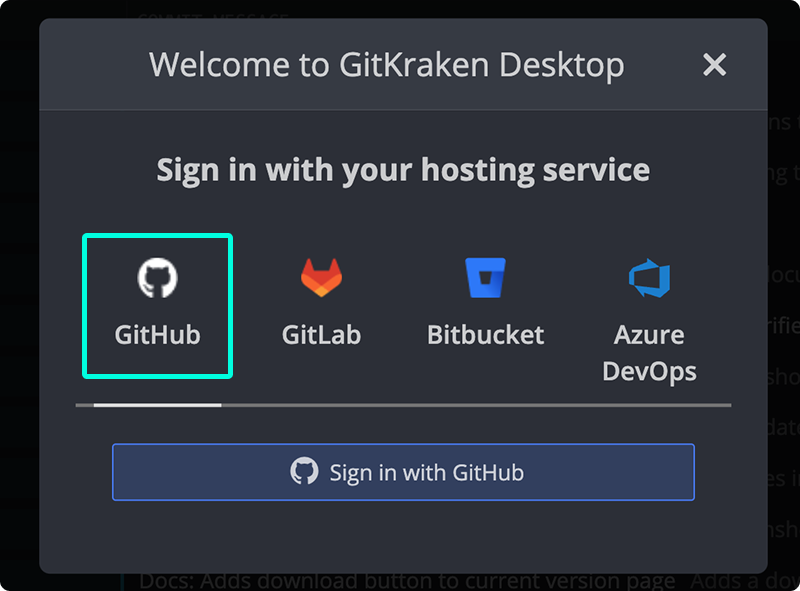
How to connect GitKraken Desktop to GitHub
To connect your GitHub account manually:
Use the browser-based GitHub connection when: standard OAuth access is available and you want the simplest setup. Use a manual token when: your environment requires token-based access or you need tighter control over the credentials you provide.
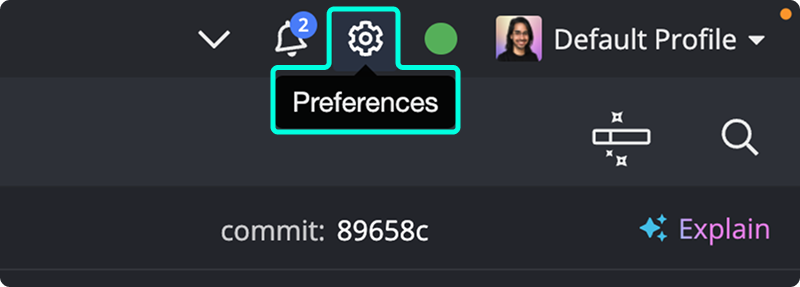
- Navigate to Preferences Integrations in the upper right corner.
- From the Integrations window, select GitHub.
- Click Connect to GitHub. GitKraken opens your browser to authenticate with GitHub.
- Log in with your GitHub credentials. When the confirmation message appears, select
Open GitKrakento finish.
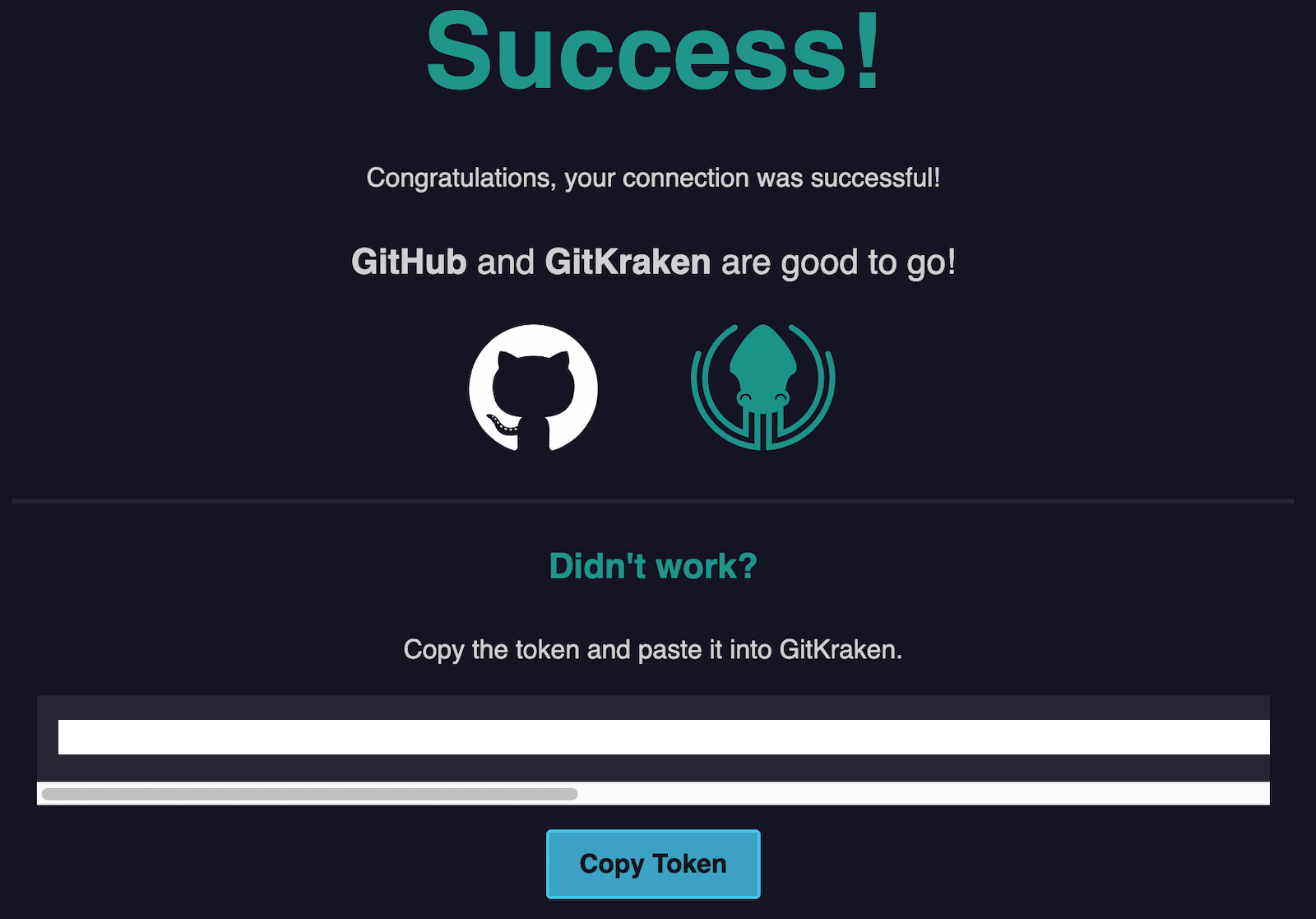
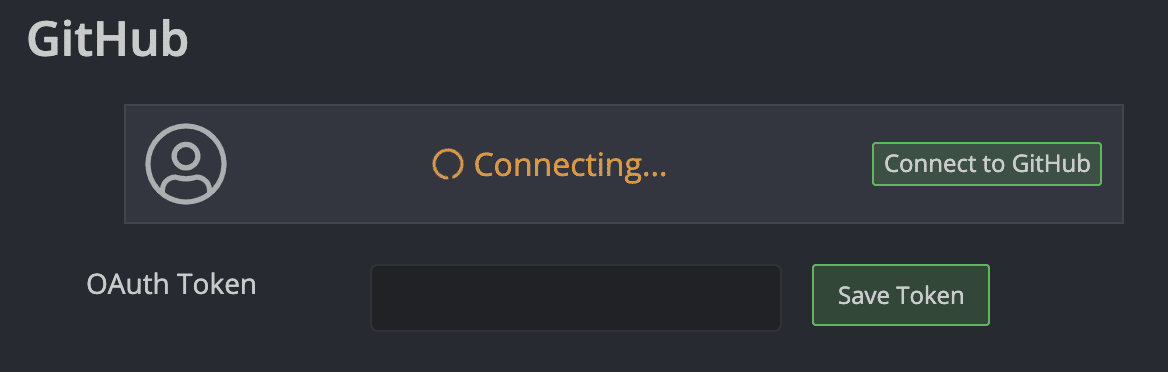
Alternatively, you can connect by manually pasting an OAuth token:
How to generate an SSH key for GitHub
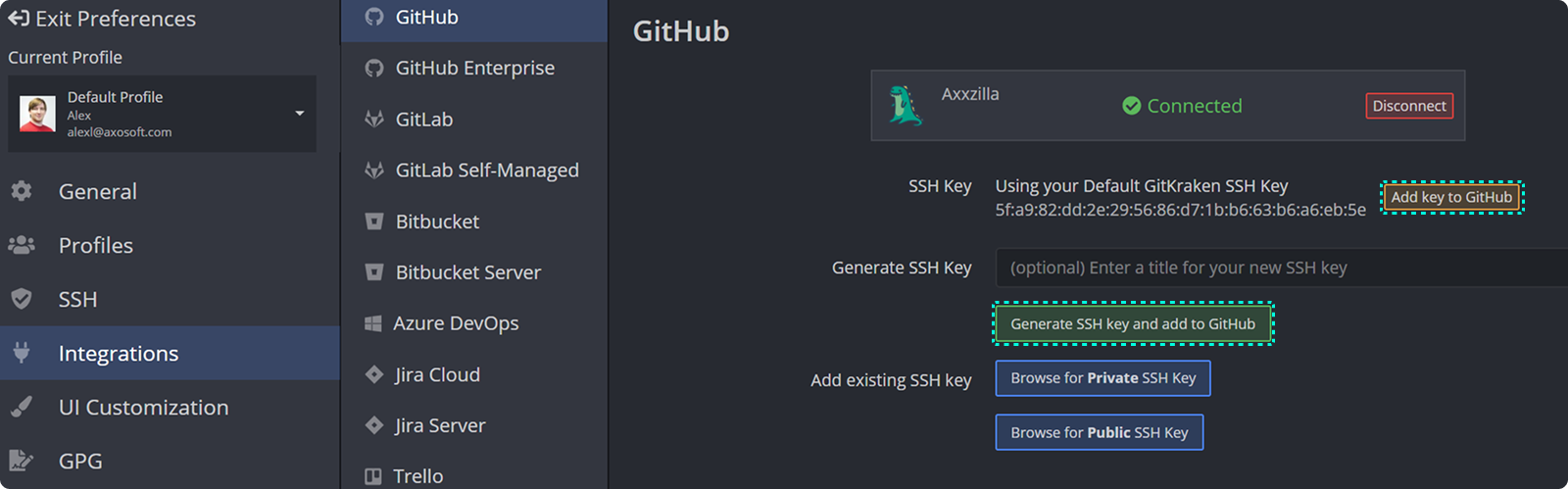
Note 📝 GitKraken uses your SSH key defined in Preferences SSH unless a GitHub-specific SSH key or your local SSH Agent is configured.
To generate and add an SSH key to your GitHub account:
- Go to Preferences Integrations.
- Click Generate SSH key and add to GitHub to complete the process automatically.
You may also:
- Use Add key to GitHub from SSH Defaults.
- Add an existing key via Add existing SSH key.
What GitHub OAuth enables in GitKraken Desktop
GitKraken’s OAuth integration enhances how you interact with your repositories:
Use the GitHub integration when: you want repository discovery, PR creation, and GitHub-aware workflows directly inside GitKraken Desktop. Don’t rely on it alone when: you need full GitHub code review and commenting capabilities that still require GitHub’s native review experience.
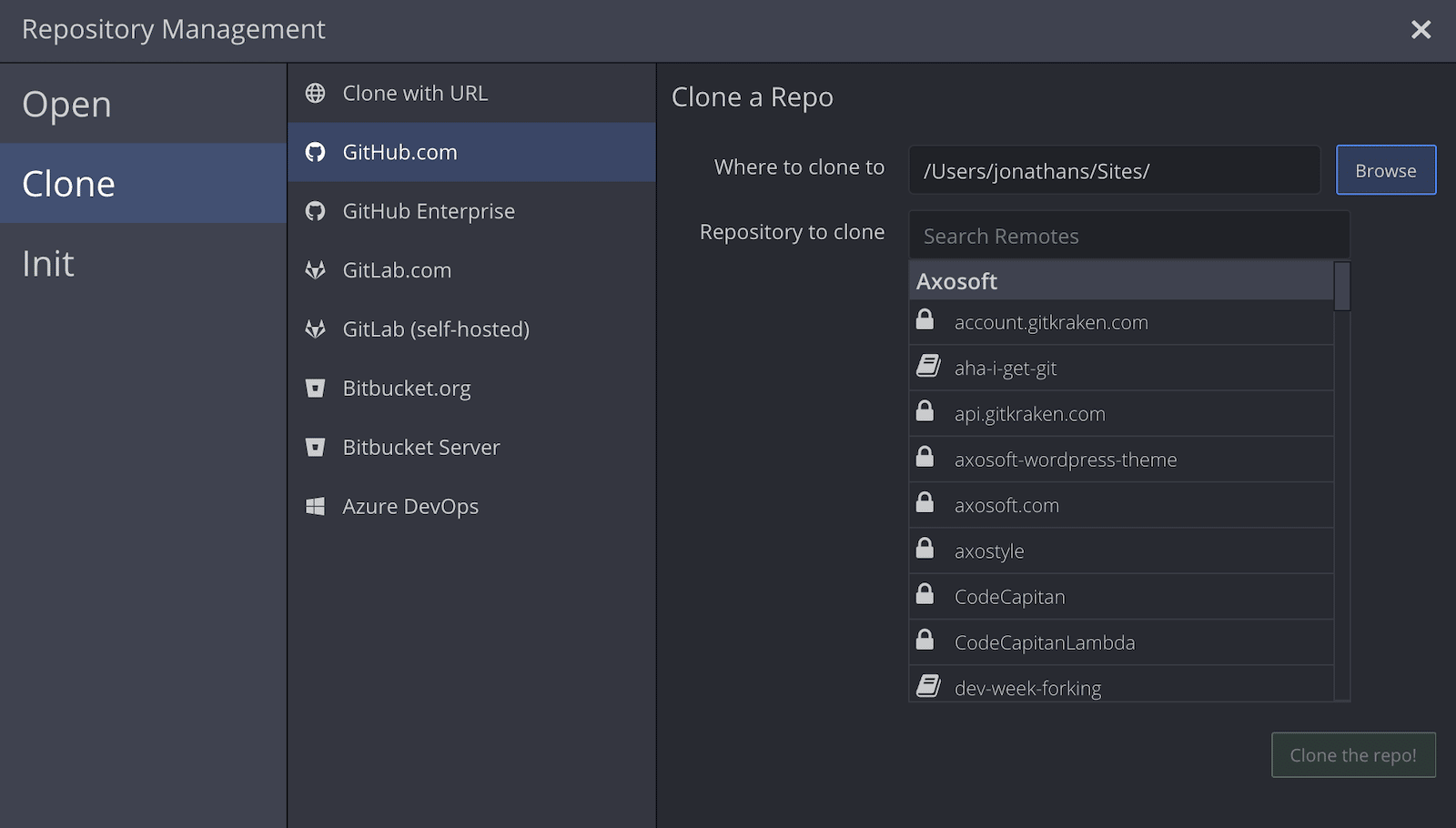
- View a list of your GitHub repositories to simplify cloning.
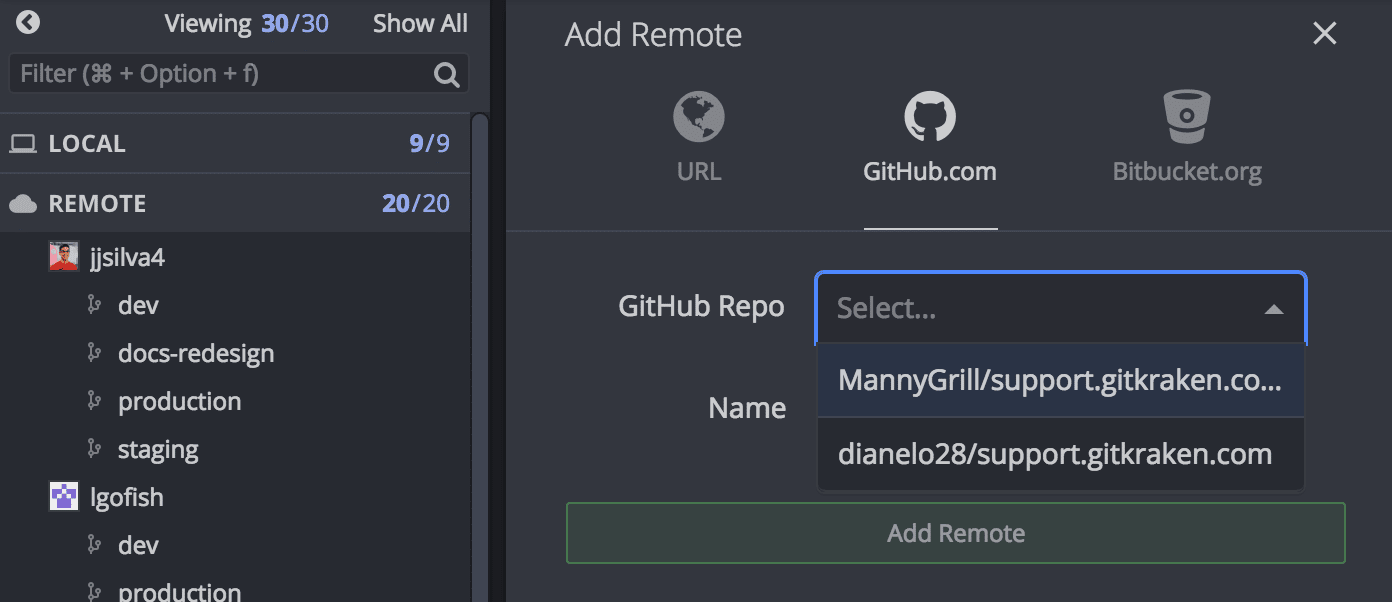
- View a list of repository forks when adding remotes.
How to create pull requests from GitKraken Desktop
Create and manage Pull Requests directly in GitKraken. You can:
- Add reviewers
- Assign teammates
- Apply labels
How to use GitHub Pull Request View
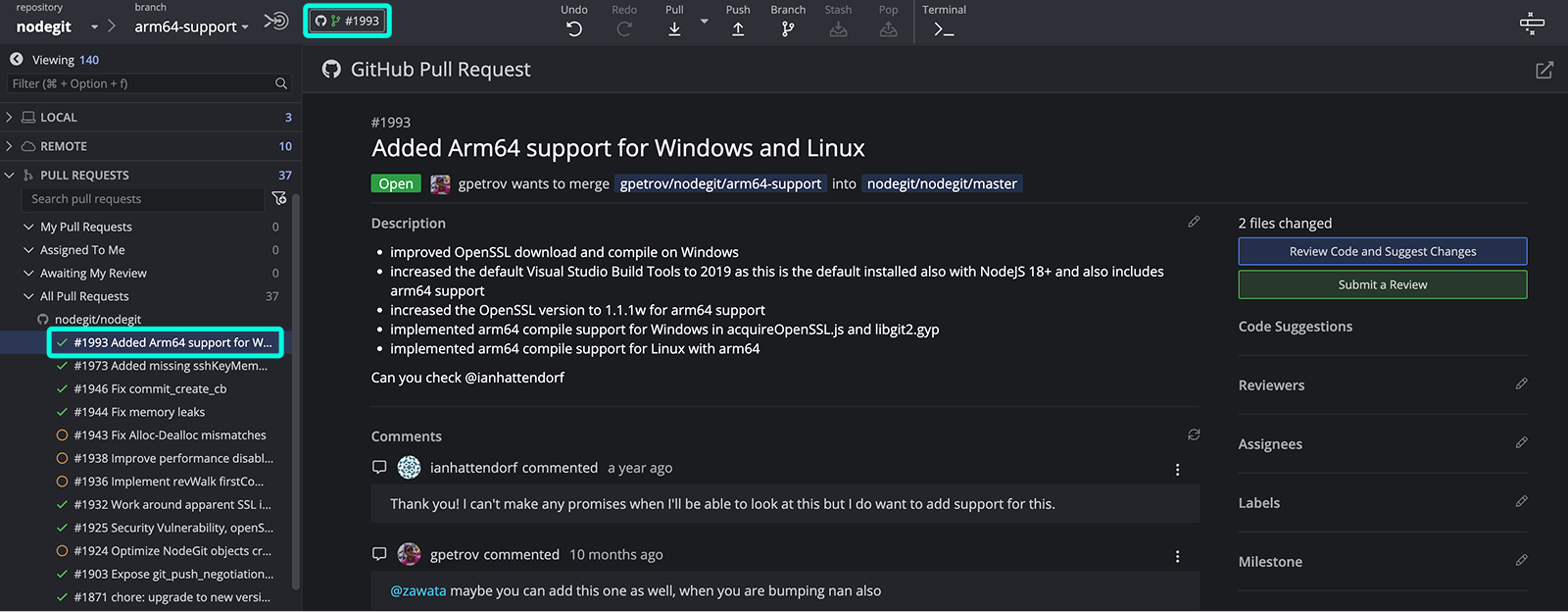
GitHub.com users can use the Pull Request View feature in GitKraken Desktop to review and edit pull requests.
Use Pull Request View when: you want to inspect files, edit PR metadata, and suggest changes without leaving GitKraken Desktop. Don’t use it as a full replacement for GitHub review when: you need the full in-browser code review and commenting feature set.
To access this view:
- Ensure the GitHub integration is connected.
- Open a GitHub repository in GitKraken Desktop.
- Select a pull request from the Left Panel, or check out the source branch to reveal a PR icon with the pull request number.
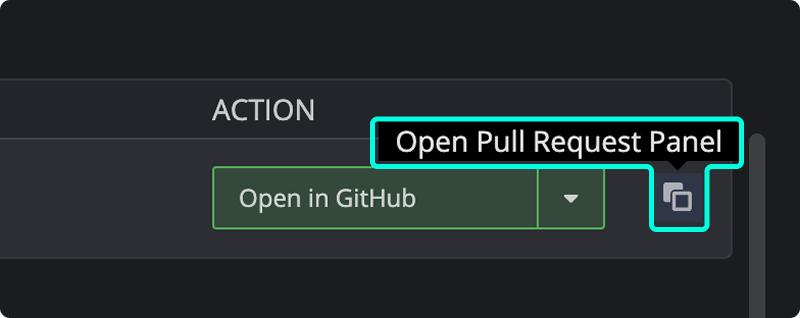
Alternatively, launch the view from the Launchpad by clicking the pull request icon on the right.
Within the Pull Request View, you can edit the following:
- Title
- Description
- Reviewers
- Assignees
- Milestones
- Labels
To review the files affected by a pull request, click the Review Code and Suggest Changes button in the top-right corner.
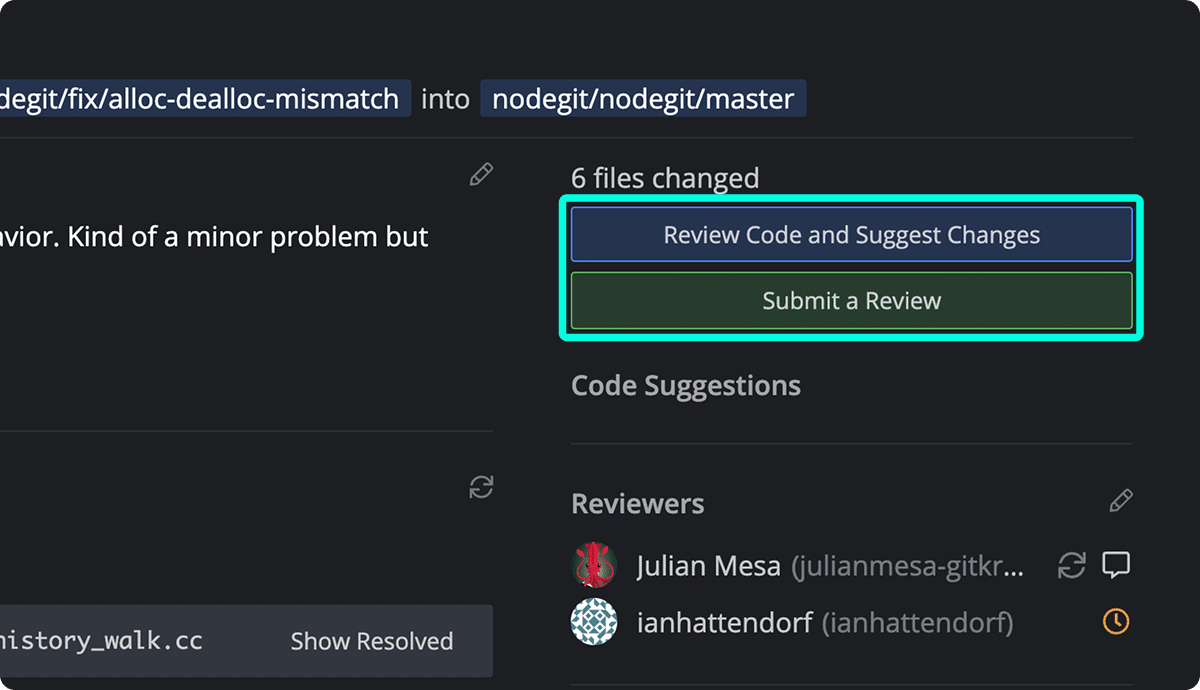
Note: While you can view and suggest changes, full code review and commenting features are not yet available within GitKraken Desktop.
How to review code and suggest changes
In GitKraken Desktop, the Review Code and Suggest Changes feature lets you propose modifications across the entire project—not just to lines that were changed. This is useful when reviewing a Pull Request:
- Open the Pull Request.
- Click Edit to Suggest Changes to PR #XX.
- Make your edits and save.
- Click Suggest X file change to PR #XX.
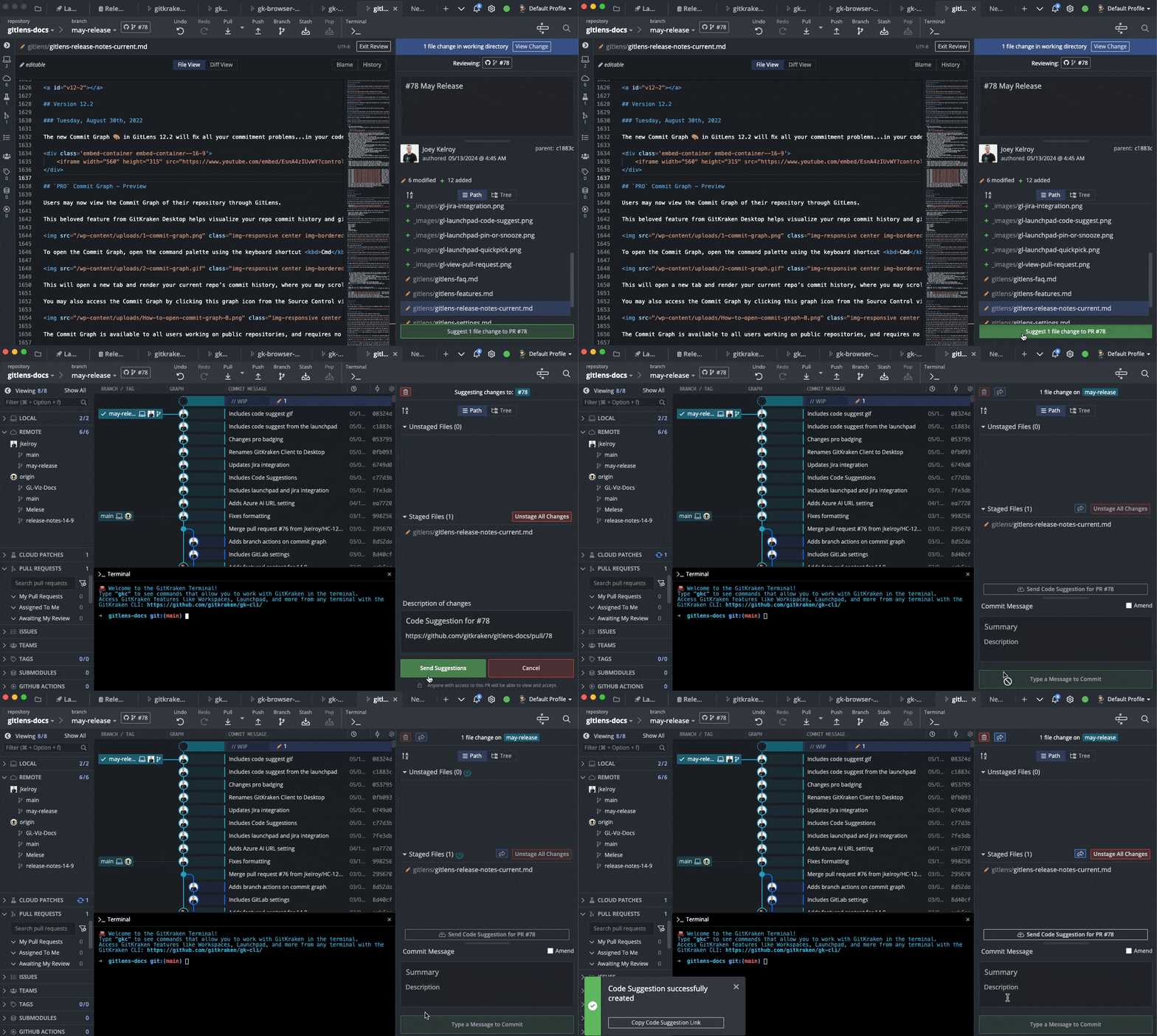
How to accept or reject code suggestions
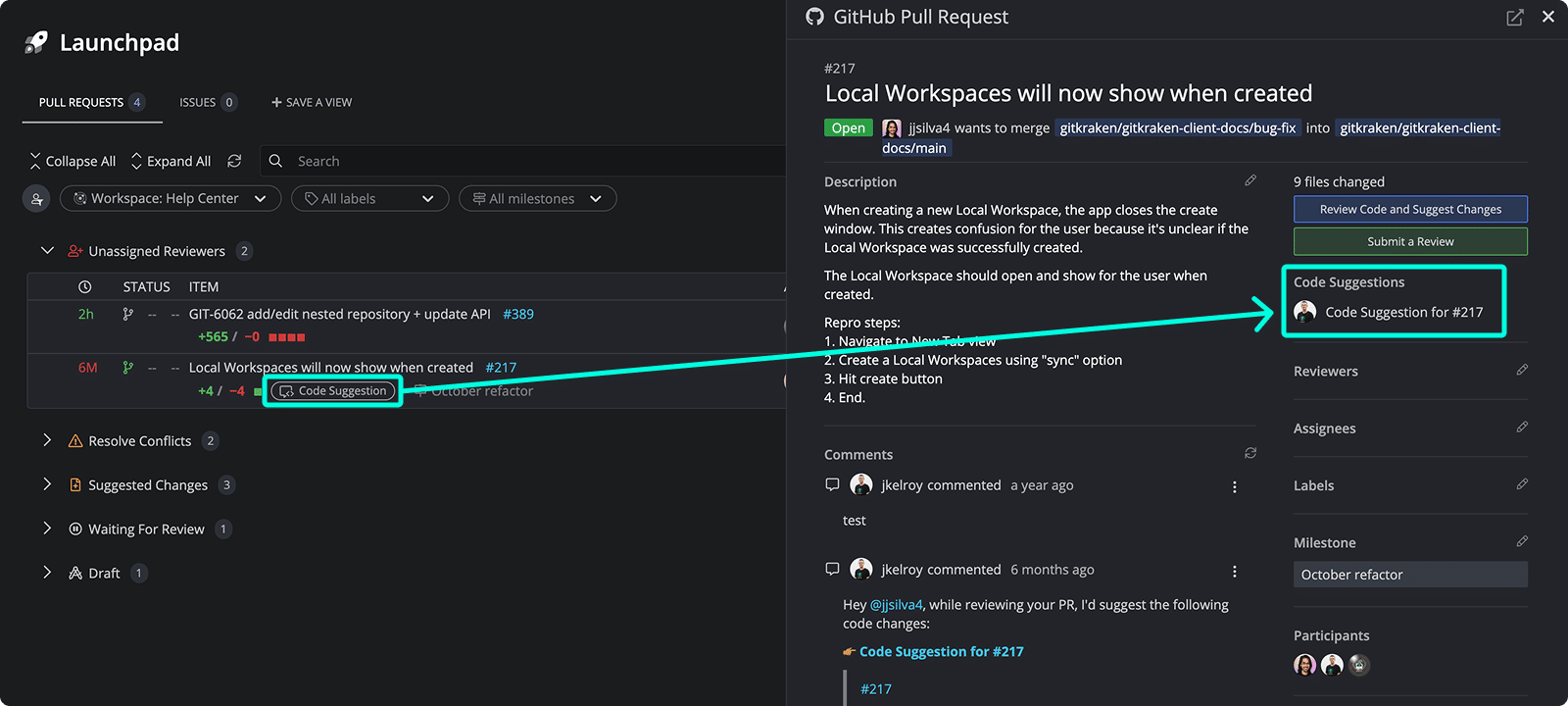
In the Pull Request panel, suggestions from teammates are labeled with Code Suggestions.
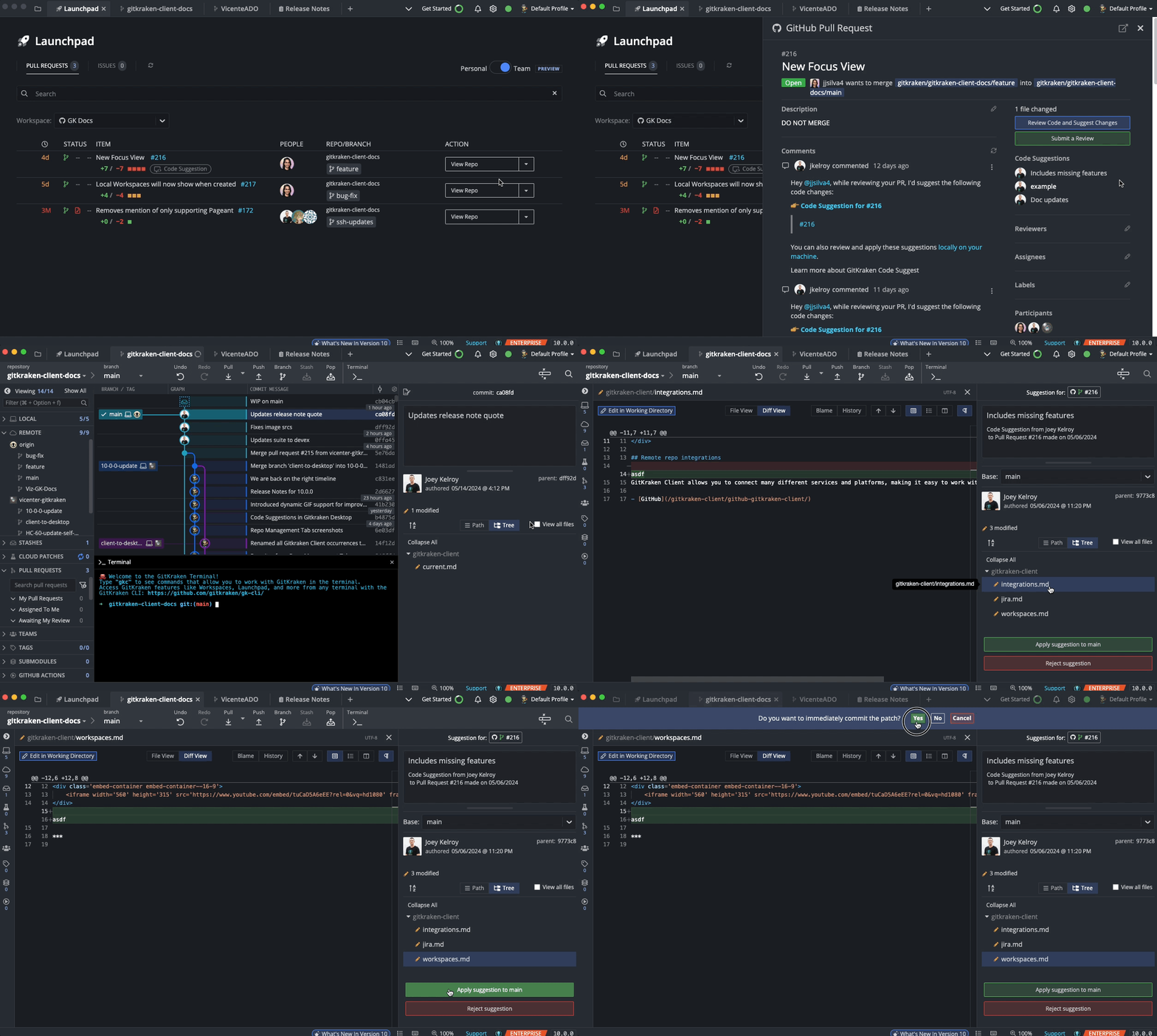
Clicking a suggestion opens the diff view, where you can choose to apply or reject the change.
How to check out branches, review build status, and add remotes
- Double-click a branch name in the PR view to check it out and view its graph.
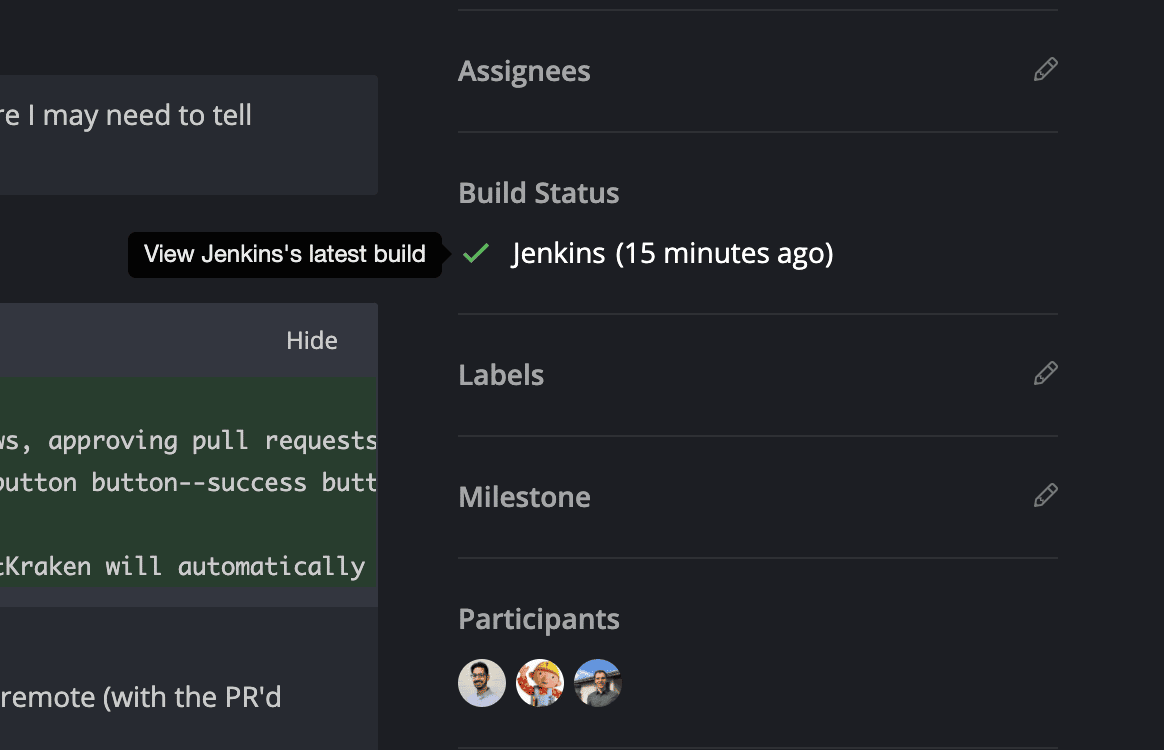
- Click the build status to open the related URL in your browser.
If the remote is not already added, GitKraken prompts you to add it for local review.
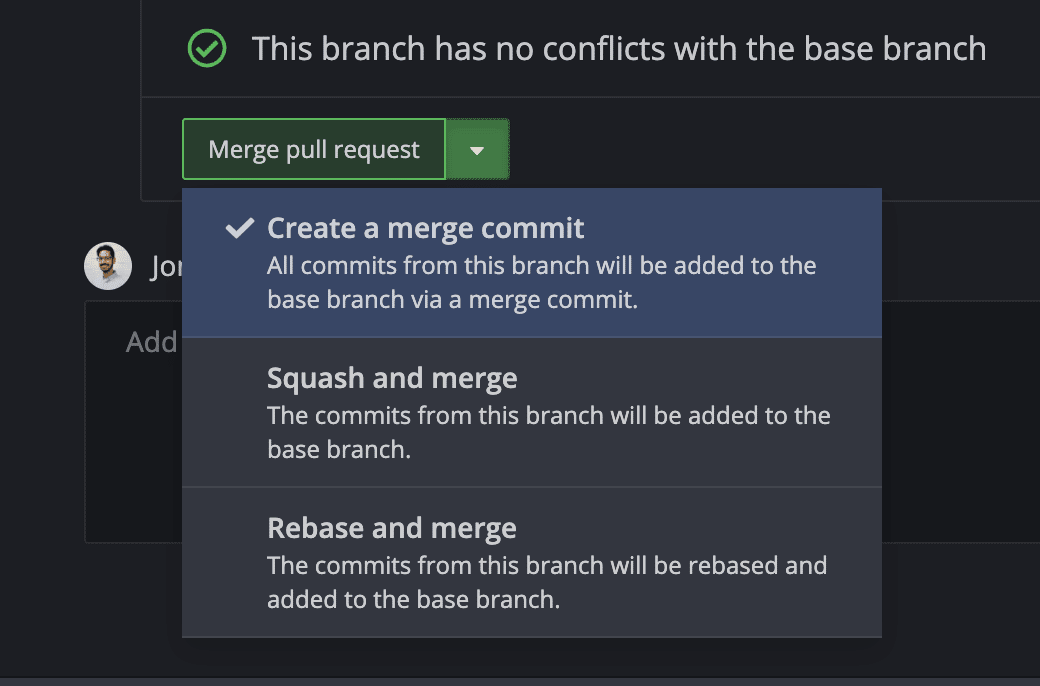
How to merge pull requests
To merge a pull request:
- Click Merge pull request.
- Choose a merge method:
- Create a merge commit (default)
- Squash and merge
- Rebase and merge
Not seeing updates in the pull request view? Try refreshing GitKraken Desktop.
How to fix missing repositories or remotes
If remotes or repositories are missing in the Add Remote or Clone menus:
- Check if GitKraken has access via your GitHub Applications.
- Ask your organization to allow Organization Approval.
- If the repo is owned by another individual, they must also install GitKraken and authorize it.
- Learn more in Third-party apps list.
How to connect multiple GitHub accounts
GitKraken connects to one GitHub account at a time. However, if you’re using the Pro version of GitKraken, you can take advantage of multiple profiles.
Each profile can be associated with a different GitHub account, allowing you to switch between accounts without needing to disconnect and reconnect each time.
